CSS Selector and XPath Tester with Live Preview
Test CSS selectors and XPath against a live document, inspect matches in DevTools, and debug locators before relying on them in automation.
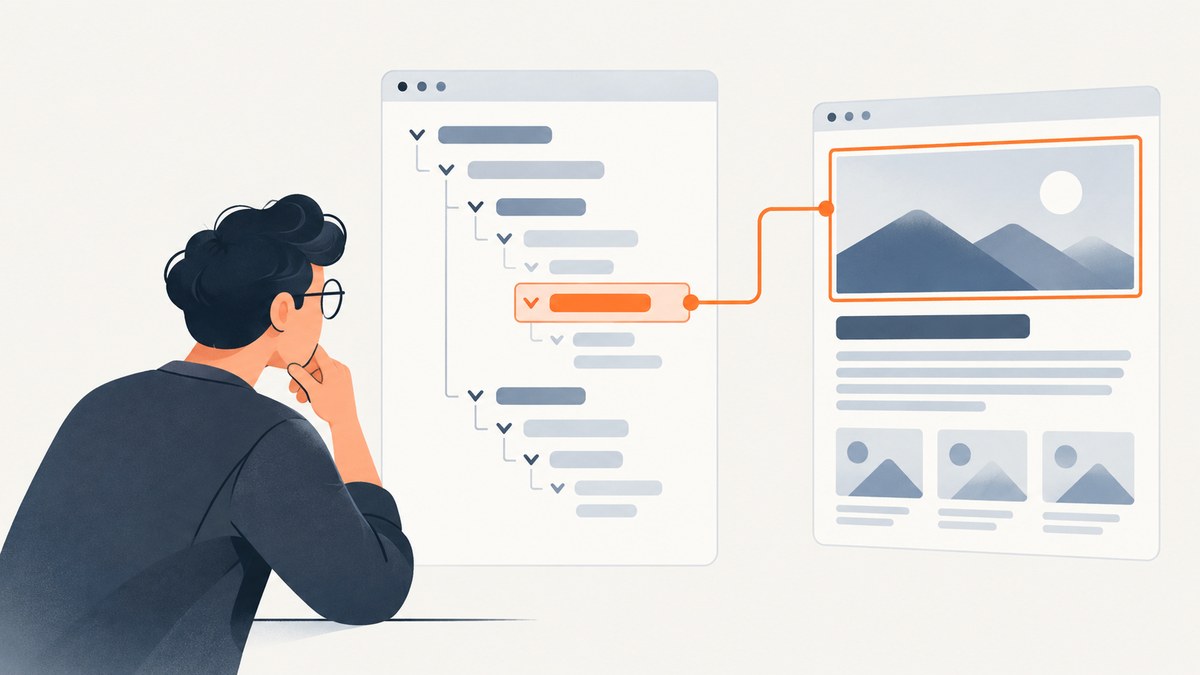
To test a CSS selector or XPath with a live preview, run it against the actual document you care about, inspect the elements it matches, then verify the locator in the browser or automation environment that will use it. A dedicated tester can make this feedback loop faster, but the title alone does not identify a specific product or establish its supported syntax, browser compatibility, privacy behavior, or handling of frames and shadow roots. Treat its preview as a useful check, not proof that a locator will work everywhere.
This guide shows the browser-native workflow in Chrome DevTools, runnable CSS and XPath examples, ways to choose and refine locators, and common failure cases. CSS selectors are patterns that match elements in a document tree; the W3C Selectors Level 4 document that describes them is a Working Draft dated 22 January 2026, not a final recommendation. XPath is a separate locator language, and tools may support different subsets of either syntax. W3C Selectors Level 4.
1. What a live selector preview tells you
A preview answers a narrow but valuable question: “What does this locator match in this document right now?” You can edit the selector, observe the resulting elements, and refine it without repeatedly searching the source by eye. That cuts down guesswork, but the result depends on the document and query engine used for the preview.
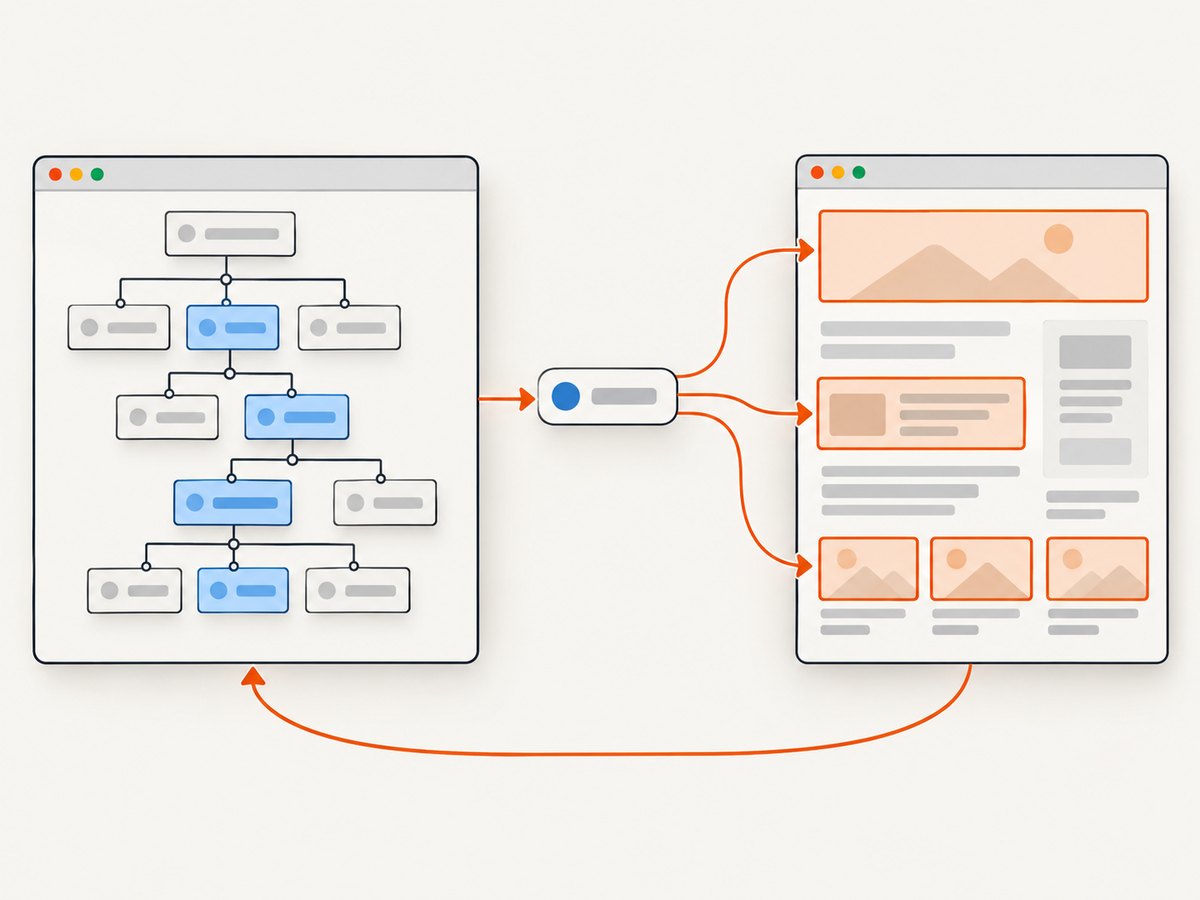
Check more than whether something is highlighted. Ask:
- Does it match the intended element or elements?
- Does it match too many elements, or none?
- Will the page structure or attributes remain stable when content changes?
- Does the browser or automation tool where the locator will run accept the syntax?
Do not assume CSS and XPath have identical capabilities, or that every tester supports every pseudo-class, XPath function, iframe, shadow DOM, or local file. Verify those capabilities in the specific tool’s documentation. No authoritative product documentation for a particular tool named “CSS Selector and XPath Tester with Live Preview” is established by the available sources.
2. Inspect a page and query selectors in Chrome DevTools
Step 1: Open the page in its real context
Navigate to the page in Chrome and reproduce the state where the locator needs to work. If an element appears only after a click, login, or data load, make that state visible first. DevTools queries the currently inspected document; a different URL, state, or frame can give a different result.
Step 2: Inspect the target element
Open DevTools, activate Inspect mode, then hover over or select the target on the page. Chrome’s Inspect mode shows element and style information and focuses the corresponding DOM node in the Elements panel. Use this to identify the tag, attributes, and surrounding structure before writing a locator. Chrome DevTools Inspect mode.
Step 3: Query a CSS selector from the Console
In the Console, use document.querySelectorAll() to see every match. This is a runnable example for a page with buttons carrying a data-action attribute:
document.querySelectorAll('button[data-action="save"]')To check the count directly:
document.querySelectorAll('button[data-action="save"]').lengthTo print matched nodes in a readable array:
Array.from(document.querySelectorAll('button[data-action="save"]'))Chrome documents CSS selector queries in the Console and lets you reveal a result in the Elements panel. Chrome DevTools CSS features reference.
Step 4: Query XPath from the Console
Use document.evaluate() to evaluate an XPath expression against the document. This example finds buttons whose visible text, after whitespace normalization, is “Save”:
const result = document.evaluate(
  "//button[normalize-space(.)='Save']",
  document,
  null,
  XPathResult.ORDERED_NODE_SNAPSHOT_TYPE,
  null
);

Array.from({ length: result.snapshotLength }, (_, i) => result.snapshotItem(i));
For a quick count, evaluate a count expression:
document.evaluate(
  "count(//button[normalize-space(.)='Save'])",
  document,
  null,
  XPathResult.NUMBER_TYPE,
  null
).numberValue
Chrome DevTools Recorder recognizes CSS and XPath selector types, along with ARIA, text, and Pierce selectors. That is a useful reminder to check which locator forms your workflow supports; it does not rank them or guarantee identical support in every automation system. Chrome DevTools Recorder reference.
3. Build a locator that survives page changes
Start from the element’s purpose, then use the smallest stable set of conditions that identifies it. The best locator is the one your team’s browser or automation tool accepts, matches the intended element(s), and remains readable to the next maintainer.
| Approach | Example | Good fit | Check |
|---|---|---|---|
| Stable attribute | button[data-testid="save"] |
An explicit test or action attribute exists | Confirm the attribute is unique where uniqueness matters |
| Semantic element and attribute | button[aria-label="Save changes"] |
The accessible label identifies the control | Confirm the label in the state being tested |
| Scoped CSS | form#profile button[type="submit"] |
A broader match needs a meaningful container | Avoid adding fragile ancestors without need |
| XPath by text | //button[normalize-space(.)='Save'] |
Text is the reliable identifier and XPath is supported | Text can change or be localized |
| Relative XPath | //label[.='Email']/following::input[1] |
The relationship to nearby content matters | Check that the relationship is unambiguous |
Prefer a simple locator over a long path that encodes incidental layout. A selector copied from a deeply nested DOM can stop matching after a harmless wrapper is added. Conversely, a short selector such as .button may match every button-like element. Preview the result count and inspect each match before settling on it.
Consider alternatives when available. ARIA or text locators may express the user-visible meaning more clearly than a structural path. Chrome Recorder recognizes ARIA and text alongside CSS and XPath, but the consuming tool determines which types it can use.
4. Test in the context where the locator will run
A preview is tied to a particular document, browser, and moment in page lifecycle. Before putting a selector into a test or scraper:
- Open the exact page or representative fixture and reproduce its relevant state.
- Run the locator and confirm the matched node, not just the count.
- Try a nearby state: empty results, logged-out view, validation message, or changed content as relevant.
- Run it in the target browser or automation framework. Syntax support and selector APIs vary.
- Recheck after significant markup changes; a previously correct preview can become stale.
For dynamic pages, evaluate after the element has appeared. A query made before rendering can correctly return no matches even if the element appears moments later. In automation, use that tool’s waiting mechanism rather than assuming an immediate lookup waits for the page.
Frames and shadow roots need special attention. A query on the top-level document does not automatically search another frame’s document or pierce every shadow boundary. Switch to the relevant frame or use the automation tool’s supported shadow DOM mechanism, then test there. A generic tester may handle these cases differently; check its documentation instead of assuming.
5. Troubleshooting common selector problems
| Symptom | Likely cause | Fix |
|---|---|---|
| CSS query throws a syntax error | Malformed selector, unmatched bracket or quote, or unsupported syntax | Check punctuation and quoting; reduce the selector to a simple tag or class, then add conditions incrementally. |
| XPath returns no nodes | Wrong document context, text mismatch, element not rendered yet, or expression typo | Inspect the node and exact text; verify the frame and page state; test a simpler path such as //button. |
| Too many matches | The selector names a common class or tag without enough context | Add a stable attribute or scope it to a meaningful container; inspect all matches to ensure the new condition is sound. |
| It matches in preview but fails in automation | The automation runs in another browser, frame, page state, or selector engine | Run the query in the same target context and use syntax supported by that framework. |
| It works until content changes | The locator depends on position, generated classes, or incidental nesting | Use stable attributes or semantic labels and test representative page states. |
| Visible element is not found | It may be inside an iframe or shadow root, or not yet loaded | Inspect the DOM boundary and lifecycle; query the correct document or use a supported shadow-aware locator. |
| Text XPath misses a button with an icon | The text node may differ from the visible label or include hidden text | Inspect the DOM text and accessible label; consider a stable attribute or ARIA locator. |
6. Performance, reliability, and privacy considerations
For ordinary interactive debugging, querying a document and reviewing its matches is usually a small operation compared with the work of loading a modern page; no benchmark is established here, so measure your own page if selector evaluation is on a hot path. Avoid repeatedly running broad queries over a very large or frequently changing document in production code. Scope the search when it improves clarity and reduces the nodes examined.
Reliability comes from context and revalidation: same URL, same state, same frame, same browser engine, and same selector semantics. Treat a live preview as a snapshot. If the DOM mutates, rerun the query. For automated tests, pair locators with the framework’s explicit wait and retry behavior, and keep assertions about uniqueness or visibility where those properties matter.
Privacy depends on the tool. The sources here do not establish whether a particular online tester sends markup or URLs to a server, stores queries, or runs locally. Avoid pasting authenticated or sensitive page content into an online service until its privacy documentation answers those questions. DevTools operates on the page open in your browser, which is a practical local workflow, but follow your organization’s data-handling rules.
7. Or skip the browser setup
If you need a screenshot of the page while debugging a locator, ScreenshotNeo is a website screenshot API and MCP server for developers. It can capture a URL as PNG, JPEG, WebP, or PDF. A screenshot is useful for checking visual state, while selector matching still needs to be tested against the DOM in the target browser or automation context.
One GET request captures a page. See the ScreenshotNeo API documentation for request options and setup.
curl -G "https://api.screenshotneo.com/v1/shot" \
  -d access_key=YOUR_API_KEY \
  --data-urlencode url=https://stripe.com \
  -o shot.webp
import requests
r = requests.get(
"https://api.screenshotneo.com/v1/shot",
params={"access_key": "YOUR_API_KEY", "url": "https://stripe.com"},
timeout=90,
)
open("shot.webp", "wb").write(r.content)const q = new URLSearchParams({
access_key: 'YOUR_API_KEY',
url: 'https://stripe.com'
});
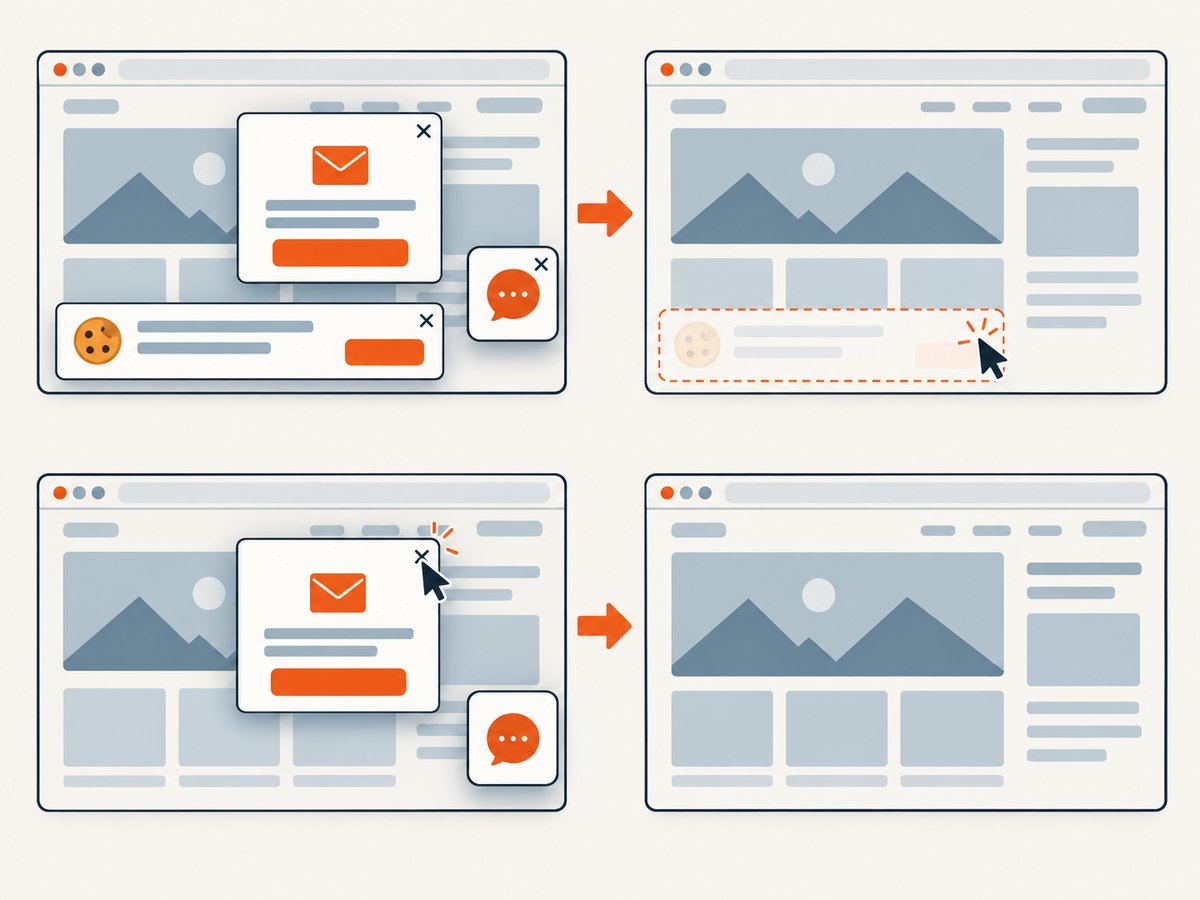
const res = await fetch(`https://api.screenshotneo.com/v1/shot?${q}`);ScreenshotNeo accepts cookie or consent banners like a visitor and removes more than 60 known consent platforms, newsletter popups, and chat widgets before capture; each step can be turned off. Bot checks, blank pages, failed loads, timeouts, and cache hits cost nothing, and response headers report the page verdict and billing status. Its MCP server provides take_screenshot, get_page_info, and capture_pdf for Claude, Cursor, and other MCP clients. The free plan includes 1,000 screenshots a month without a card; paid plans start at $5 for 3,000. Every feature is on every plan. Sign up for 1,000 free screenshots a month, with no card required.
8. Frequently asked questions
Is a selector tester a replacement for browser DevTools?
No. A tester can provide a convenient preview, while DevTools lets you inspect the live page and query the actual document in context. Verify the locator in the environment that will consume it.
Should I use XPath or CSS?
Choose based on what your browser or automation tool accepts, what identifies the intended element reliably, and what your team can maintain. Neither is universally best for every page.
Can I trust a zero-match result?
It means no match was found in the queried document at that moment. Check page state, timing, frame, and syntax before concluding the element does not exist.
Are the newest CSS selector features available everywhere?
Do not infer support from a standards draft or a tester preview. The W3C Selectors Level 5 document is a First Public Working Draft dated 17 February 2026; check actual support in your target environment. W3C Selectors Level 5.