How to Automate Website Screenshots with an API
Automate website screenshots with Playwright or a hosted API. Learn how to capture the right page state, handle dynamic content, save images, and debug failures.
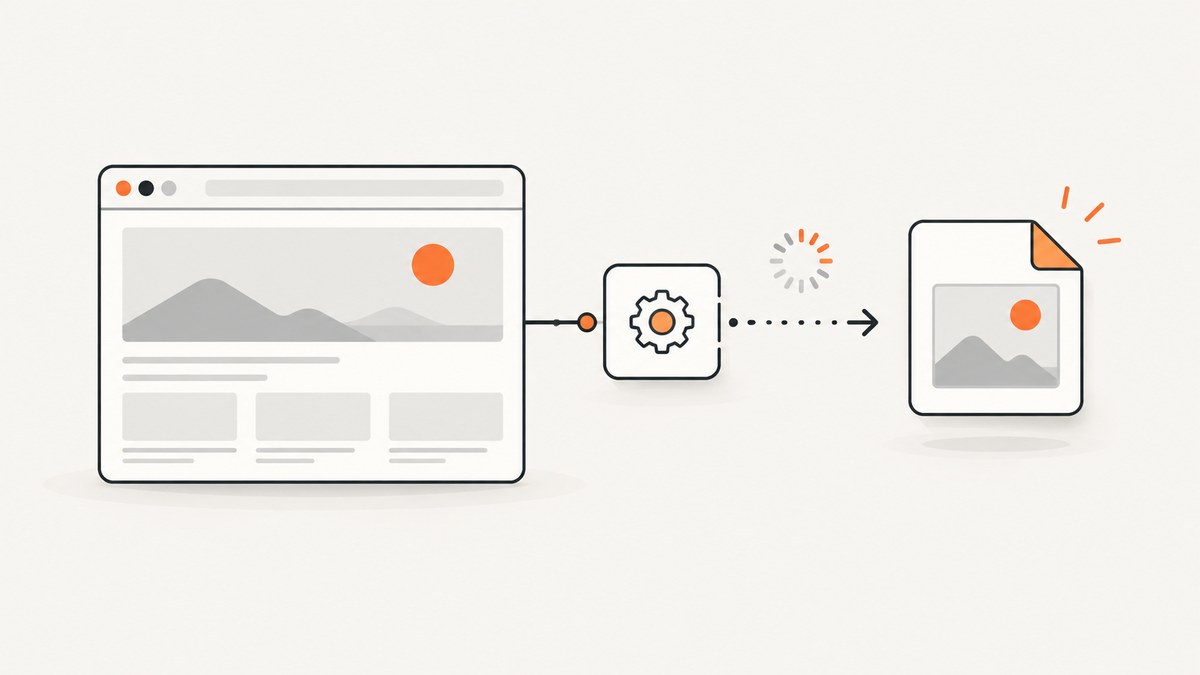
To automate website screenshots with an API, either run a browser yourself with Playwright or send a URL and capture options to a hosted screenshot API. Playwright gives you direct control over navigation, interactions, and output; a hosted API handles browser operation for you. In either case, reliable results depend on choosing the right capture area and waiting for the page state you actually need.
This guide builds a runnable Playwright flow, explains viewport, full-page, and element captures, and covers dynamic pages, failure handling, visual comparisons, and operational tradeoffs. If you would rather avoid browser setup, ScreenshotNeo accepts a URL in one request and returns an image or PDF.
1. Choose the capture approach
Start with the page and workflow you need to capture. The simple case is a public URL that renders without interaction. More involved cases may need a login, a click, a specific element, or an application-specific readiness check.
| Need | Practical fit | What you own |
|---|---|---|
| Control over browser and page steps | Playwright in your environment | Browser installation, job execution, concurrency, retries, and image storage |
| Simple URL-to-image workflow | Hosted screenshot API | Provider selection, API credentials, request handling, and checking provider limits and data practices |
| Repeatable visual regression checks | Playwright screenshot assertions in Playwright Test | Stable test data, environment, viewport, and comparison baselines |
The available documentation does not support a neutral cost or reliability comparison between self-hosted browsers and screenshot API providers. Evaluate actual pricing, limits, service guarantees, and data handling for the service you consider. For authenticated or sensitive pages, review how credentials and captured content are handled before sending them to a hosted service.
2. Capture a page with Playwright in Node.js
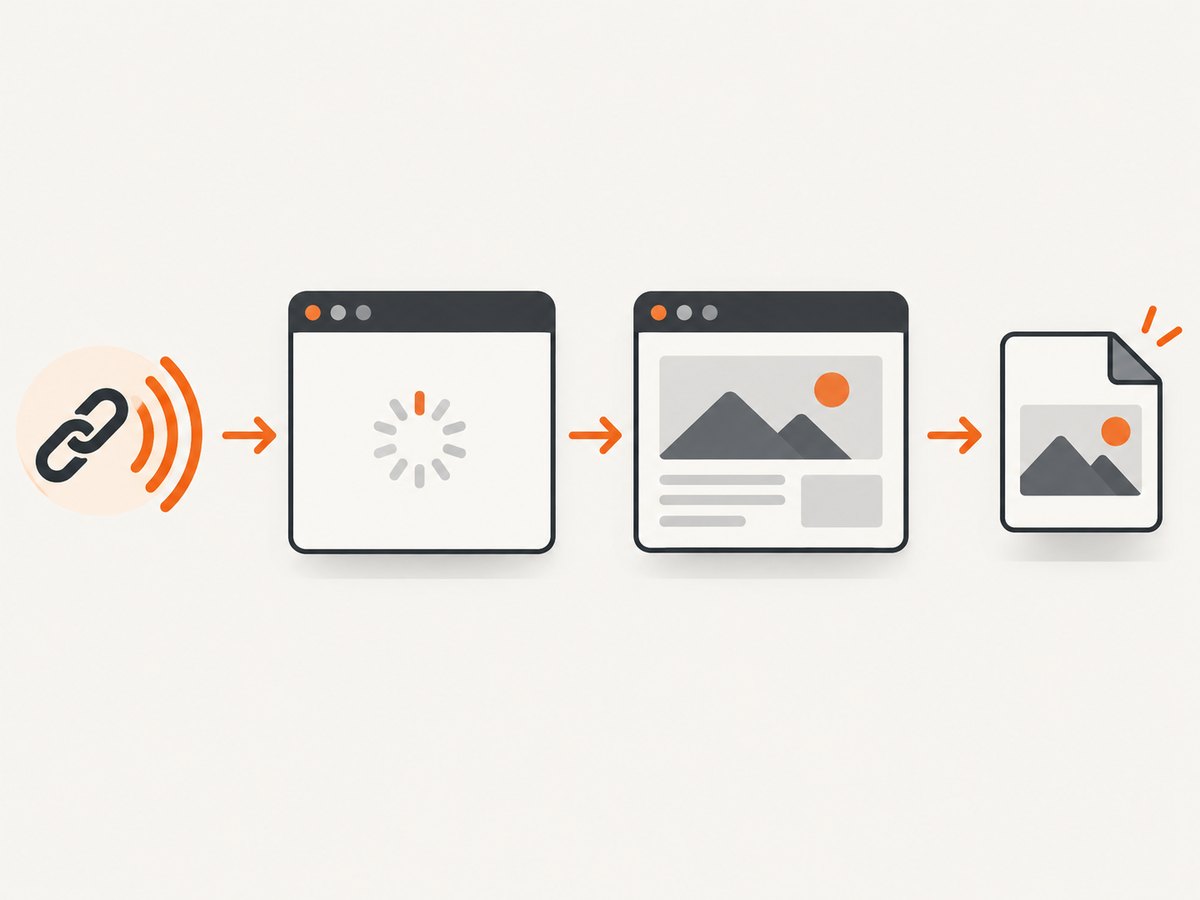
Playwright’s basic flow is browser launch, page creation, navigation, screenshot, and browser close. Its documentation uses WebKit in the example and also supports Chromium and Firefox. Install the package and a browser, then save this as capture.js.
npm install playwright
npx playwright install chromium
const { chromium } = require('playwright');
(async () => {
const browser = await chromium.launch();
try {
const page = await browser.newPage({
viewport: { width: 1440, height: 900 },
deviceScaleFactor: 1
});
await page.goto('https://example.com', {
waitUntil: 'domcontentloaded',
timeout: 30000
});
await page.screenshot({ path: 'screenshot.png' });
} finally {
await browser.close();
}
})();Run it with node capture.js. The example captures the current viewport after the initial HTML has been parsed. Choose a readiness condition appropriate to the target: a page can still be fetching data, rendering charts, or loading images after that point. For an application-specific page, wait for a meaningful selector or state before taking the screenshot.
Use try/finally so the browser closes even when navigation or capture fails. In a long-running worker, consider reusing a browser process while creating a separate context per job; contexts help isolate cookies and page state. Bound concurrency to the CPU and memory available to the worker.
3. Select what to capture
Playwright supports a viewport screenshot, a full-page screenshot, an element screenshot, and screenshot bytes returned as a buffer. These choices affect image dimensions and how your job stores or processes the result.
Viewport
The default screenshot is the visible viewport. Set viewport on the page or context to make dimensions repeatable. Set deviceScaleFactor to control pixel density; a higher value creates more pixels and larger files, which can help inspect detail but increases storage and transfer size.
Full page
Use fullPage: true to capture the full scrollable page. Long pages can produce very tall images, so prefer a viewport capture when you only need the initial screen, or an element capture when the target is a chart, card, or report.
await page.screenshot({ path: 'full-page.png', fullPage: true });Pages that lazy-load content as they approach the viewport may not have loaded every image at the moment of capture. If completeness matters, scroll through the page or otherwise trigger the page’s loading behavior, then wait for the required content before capturing.
One element
Capture a locator when the page itself is only a container for the evidence you need. A locator screenshot crops to the element and waits for it to be actionable and visible according to Playwright’s locator behavior.
await page.locator('[data-testid="revenue-chart"]')
  .screenshot({ path: 'chart.png' });
Prefer a stable selector such as a test ID. A selector that changes with CSS refactors or generated class names can fail even when the page still works. If the element is below the fold, Playwright can scroll it into view to capture it.
Return bytes instead of writing a file
Without a path, screenshot returns a buffer. This is useful when uploading directly to object storage, passing bytes to an image processor, or comparing images without a temporary file.
const imageBytes = await page.screenshot({ type: 'jpeg', quality: 85 });
// Send imageBytes to your storage or processing layer.
PNG is the lossless default. JPEG quality is configurable for smaller photographic captures; WebP is also supported by the screenshot API. Keep the format consistent if you compare images, since lossy encoding can introduce pixel differences.
4. Wait for the right page state
A screenshot is only useful if the page is in the intended state. A fixed delay can be a pragmatic fallback, but it is not a guarantee: slow pages may need longer, while fast pages waste time waiting.
await page.goto('https://example.com/dashboard', {
  waitUntil: 'domcontentloaded',
  timeout: 30000
});
await page.locator('[data-testid="dashboard-ready"]').waitFor({
  state: 'visible',
  timeout: 15000
});
await page.screenshot({ path: 'dashboard.png', fullPage: true });
When no reliable selector exists, choose a page-level condition based on what the application does. Examples include waiting for a heading, a known result row, or a chart container. Network idleness may help on pages that become quiet after loading, but analytics polling or long-lived requests can prevent it from occurring. Avoid treating one readiness strategy as universal.
Handle dialogs and overlays deliberately
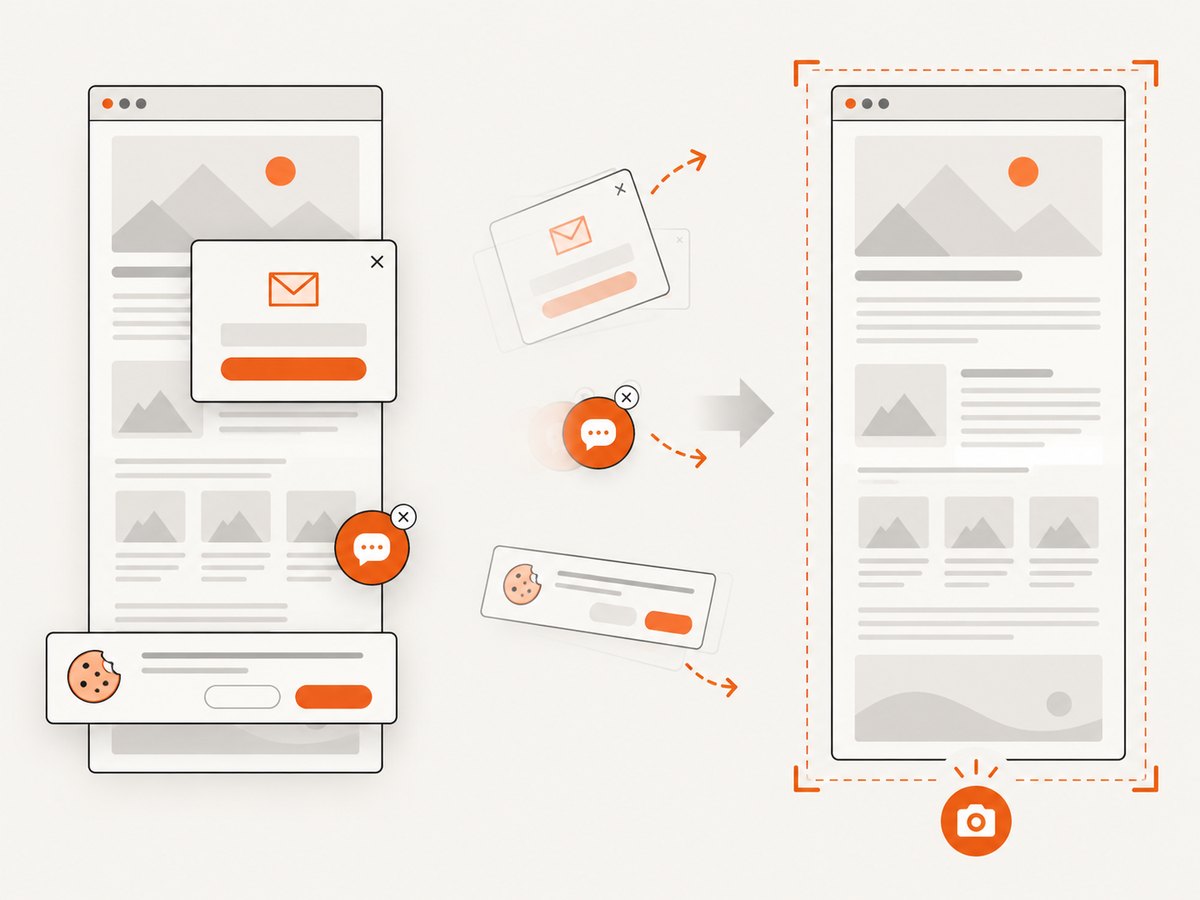
Cookie notices, signup dialogs, and modal overlays can obscure content. If an overlay is predictable, locate and dismiss it explicitly, or capture the underlying element if appropriate. Playwright documents dialog handling and locator handlers for overlays; handlers can change focus or mouse state. If your next step depends on a particular pointer or focused field, restore that state after a handler runs.
5. Automate screenshots for visual regression
For UI checks, use Playwright Test’s screenshot assertions rather than taking two arbitrary screenshots and comparing them immediately. The assertion waits for two consecutive screenshots to match before comparing against the expected result. This behavior belongs to Playwright’s test runner.
import { test, expect } from '@playwright/test';

test('dashboard matches its screenshot', async ({ page }) => {
  await page.goto('https://example.com/dashboard');
  await page.getByTestId('dashboard-ready').waitFor();
  await expect(page).toHaveScreenshot('dashboard.png', {
    fullPage: true
  });
});
Run comparisons with repeatable inputs: use stable test data, the same browser engine, viewport, device scale, fonts, and page state. Dynamic timestamps, rotating banners, animations, and personalized content can produce noise. Disable or control those behaviors in the test environment where possible. Review changed baselines intentionally rather than automatically accepting every difference.
6. Use a hosted screenshot API
A hosted API can remove the need to install and operate browsers. A typical synchronous flow sends a URL and capture settings, then saves the returned image bytes. Request formats and options differ by provider: do not assume one provider supports another’s parameters or interaction features. Check its documentation for authentication, output formats, timeouts, quotas, and handling of private page content.
cURL
Use the endpoint and parameter names documented by your chosen provider. This ScreenshotNeo request saves the returned WebP image:
curl -G "https://api.screenshotneo.com/v1/shot" \
  -d access_key=YOUR_API_KEY \
  --data-urlencode url=https://stripe.com \
  -o shot.webp
Python
This example checks the HTTP response before saving the bytes. Keep the API key out of source control; load it from an environment variable in production.
import os
import requests

response = requests.get(
    "https://api.screenshotneo.com/v1/shot",
    params={
        "access_key": os.environ["SCREENSHOTNEO_API_KEY"],
        "url": "https://stripe.com",
    },
    timeout=90,
)
response.raise_for_status()
with open("shot.webp", "wb") as image_file:
    image_file.write(response.content)
Node.js
Node.js 18 and later include fetch. Check the response status before treating its body as an image.
const q = new URLSearchParams({
  access_key: process.env.SCREENSHOTNEO_API_KEY,
  url: 'https://stripe.com'
});
const res = await fetch(`https://api.screenshotneo.com/v1/shot?${q}`);
if (!res.ok) throw new Error(`Screenshot request failed: ${res.status}`);
const image = Buffer.from(await res.arrayBuffer());
await import('node:fs/promises').then(fs => fs.writeFile('shot.webp', image));
See the ScreenshotNeo API documentation for available request options. ScreenshotNeo accepts one URL per GET request and can return PNG, JPEG, WebP, or PDF. Its 63 options include full-page and element captures, device presets, viewport sizing, retina scale, wait conditions, custom CSS and JavaScript, clicks, hidden selectors, headers and cookies, caching, and more. The API also supports bulk capture of up to 100 URLs per call and asynchronous jobs with signed webhooks.
Or skip the browser setup
ScreenshotNeo’s API returns an image or PDF from one URL request, and its parameter names are compatible with those used by other screenshot APIs to make switching straightforward.
curl -G "https://api.screenshotneo.com/v1/shot" \
  -d access_key=YOUR_API_KEY \
  --data-urlencode url=https://stripe.com \
  -o shot.webp
Cookie banners, popups, and chat widgets are removed before the shot. Bot checks, blank pages, and failed loads are never billed; response headers report the page verdict and billing status, and cache hits cost nothing. An MCP server lets AI agents use take_screenshot, get_page_info, and capture_pdf. The free plan includes 1,000 screenshots a month with no card; paid plans start at $5 for 3,000. Every feature is available on every plan. Learn about ScreenshotNeo, then sign up for 1,000 free screenshots a month with no card.
7. Options to set before you scale
Whether you operate Playwright or use an API, write down the capture contract for each job. That keeps changes in page behavior from silently changing your output.
- Target and scope: URL, viewport or full page, and selector if capturing an element.
- Readiness: selector, application state, or delay; record the timeout and failure behavior.
- Rendering: browser, viewport dimensions, device scale, color scheme, timezone, and locale when relevant.
- Output: image format and quality, file or buffer handling, naming, and storage destination.
- Access: authentication method, secret storage, and whether the page contains private data.
- Repeatability: handling for animations, overlays, lazy-loaded content, and changing data.
Hosted APIs may expose additional controls such as cookies, custom headers, geolocation, resource blocking, PDF settings, cache TTL, signed links, or webhooks. Availability and names vary, so consult the specific API’s docs rather than assuming an option exists.
8. Reliability, performance, and cost
Self-hosting gives control but makes your service responsible for browser binaries, memory, CPU, worker restarts, concurrency limits, and storing output. Browser processes consume more resources than ordinary HTTP requests. Start with bounded parallel work and measure queue time, navigation time, capture time, and output size under your own pages. Close pages and contexts after each job, and close browsers during worker shutdown.
Hosted APIs shift browser operation to a provider, but add a network request and provider-specific limits and terms. Compare the full workflow cost, including your own compute and storage for self-hosting, or request charges, retries, and output transfer for a hosted service. The research available here does not establish cross-provider prices, speed, uptime, or retention guarantees. ScreenshotNeo bills only clean shots; bot checks or CAPTCHAs, blank pages, timeouts, failed loads, and cache hits cost nothing, and responses include X-Page-Verdict and X-Billed headers.
For reliability, distinguish a capture failure from a valid screenshot of an error page. Log the target host, chosen readiness condition, elapsed time, status or page verdict, and retry count. Retry transient navigation or network failures with a small bounded backoff; do not endlessly retry deterministic failures such as an invalid URL or a selector that no longer exists. Make output writes atomic where possible so downstream jobs never consume partial files.
9. Troubleshooting common problems
| Symptom | Likely cause | Fix |
|---|---|---|
| Screenshot shows a spinner or skeleton | Capture ran before app data rendered | Wait for a page-specific ready selector or result state; use a delay only when there is no better signal. |
| Navigation times out | Slow site, blocked request, or waiting condition that never occurs | Check the URL and network access, choose a suitable navigation milestone, and set a realistic timeout. Avoid waiting for network idle on pages with persistent requests. |
| Element selector times out | Selector is wrong, content is conditional, or the element never became visible | Inspect the page state, prefer stable test IDs, and wait for the actual element state you require. |
| Full-page image omits images lower down | Lazy loading has not been triggered | Scroll through the document or trigger the site’s lazy-loading behavior, then wait for images before capturing. |
| Screenshot is covered by a dialog | Overlay was not handled before capture | Dismiss a known dialog or target the desired element. If using a generic overlay handler, account for focus and pointer changes. |
| Visual comparison changes every run | Dynamic data, animation, fonts, viewport, or browser differs | Stabilize test data and rendering inputs, wait for matching captures, and keep browser and viewport consistent. |
| Hosted call returns an error instead of an image | Authentication, malformed URL, provider limit, or page failure | Check HTTP status and provider error body or response headers; validate the API key and URL and consult provider-specific limits. |
| Output file is tiny or invalid | Error response was saved as if it were an image | Check status and content type before saving; retain error details for diagnosis. |
10. Frequently asked questions
Can I automate screenshots of a site after logging in?
Yes, if your workflow can authenticate legitimately. With Playwright, submit the form or establish an authenticated context, wait for the destination page to be ready, and capture the required element or page. A hosted API may or may not support scripted steps; confirm its documentation and handle credentials according to its security guidance.
Should I use screenshots for visual regression?
They are useful for checking visible changes, provided the page state is repeatable. Use Playwright Test’s screenshot assertion for its documented stabilization behavior, then review baseline changes as part of code review.
When should I choose an API over Playwright?
Choose a hosted API when you want to submit URLs without operating browser workers and its capture features and data practices fit the job. Choose Playwright when you need direct browser control or interactions that a provider does not document. Compare total cost and operational requirements for your volume.
What should I save alongside each screenshot?
Save the source URL, capture time, viewport and scale, readiness rule, output format, and whether the result was successful. For regression workflows, also keep the browser version and relevant test data version.


