How to Automate Website Screenshot Capture at Scale
Build a repeatable screenshot pipeline with Playwright, shot-scraper, or a hosted API. Learn how to standardize captures, handle failures, and scale batch jobs.

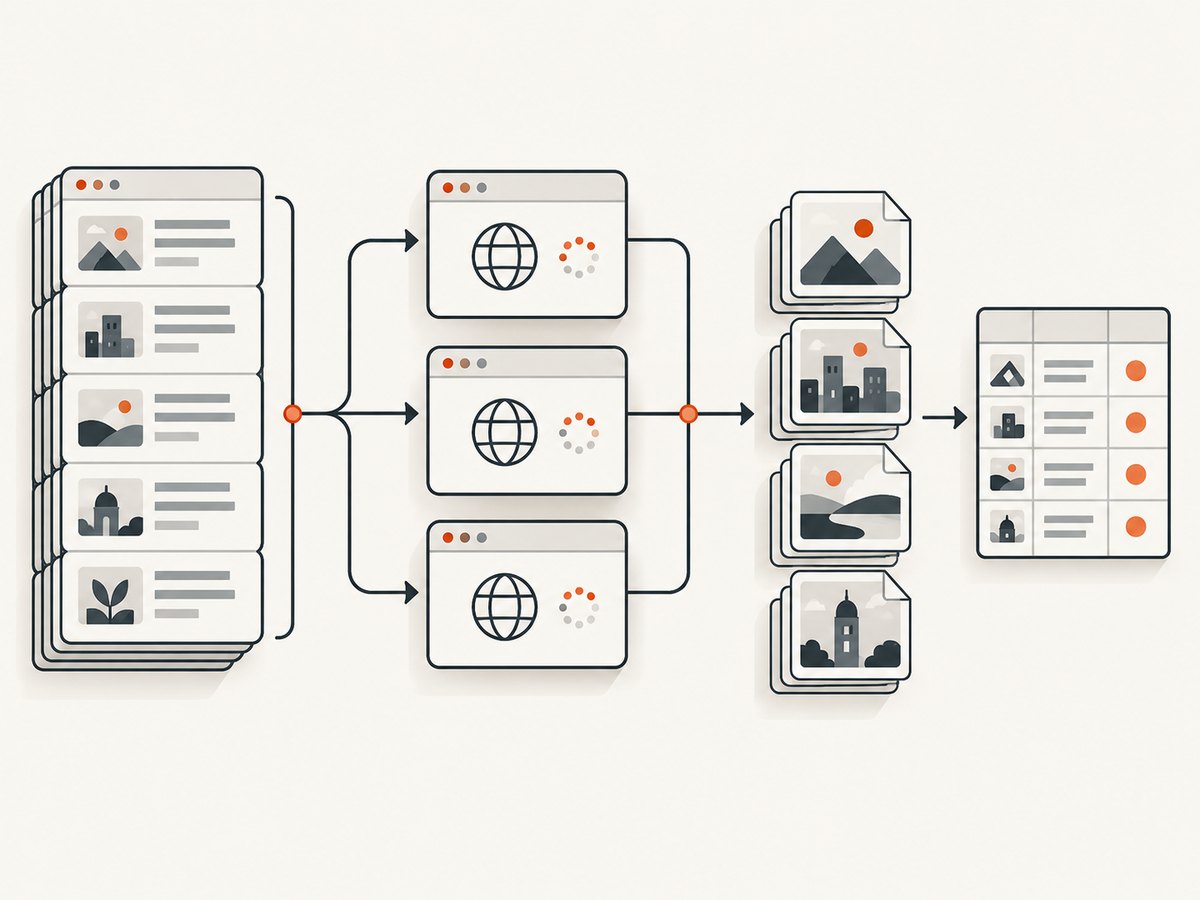
To automate website screenshot capture at scale, define each target and its capture settings in a versioned manifest, run repeatable jobs with bounded concurrency, and record a result for every URL. Use Playwright or a CLI such as shot-scraper when you need control over browser behavior and runtime; use a hosted screenshot endpoint for stateless, single-page captures. If you need a login session or several interactive steps, use a browser workflow that supports persistent sessions.
The hard part is not saving an image. It is making captures comparable, knowing whether each image represents the intended page, and recovering cleanly when a site is slow, blocked, or incomplete. The examples below show a batch workflow and the main implementation choices. They do not promise a particular throughput: measure against the pages and infrastructure you actually use.
1. Choose an automation pattern
| Approach | Good fit | Tradeoff |
|---|---|---|
| Playwright in your own worker | Custom browser steps, selector waits, session state, or integration with existing automation | You operate the browser runtime, job scheduling, storage, retries, and concurrency controls. |
| shot-scraper in CI or a scheduled job | A manifest-driven set of repeatable screenshots and a straightforward command-line workflow | You still own the job environment and need to decide how to handle volume, failures, and artifacts. |
| Hosted screenshot API | Stateless captures where one request can specify a URL and capture settings | Check session behavior and service limits. For example, Browserless documents its REST screenshot requests as stateless, with session state discarded after each response. |
Playwright’s Page API documents the browser, context, page, navigation, screenshot, and cleanup sequence. shot-scraper’s manual shows a manifest-driven GitHub Actions workflow. Browserless documents an HTTP screenshot endpoint and separate browser-session mechanisms for workflows that need browser control. Choose based on session needs, capture controls, and who will operate the job. Playwright Page API, shot-scraper documentation, Browserless Screenshot API, Browserless REST API documentation.
2. Define a capture manifest
Keep targets and settings in version control rather than scattering URLs and options through a script. At minimum, record a stable identifier, URL, viewport, format, full-page choice, and a readiness condition. Add selectors or a timeout where the page requires them. A manifest makes reruns reviewable and helps explain why two captures differ.
[
  {
    "id": "home",
    "url": "https://example.com/",
    "viewport": { "width": 1440, "height": 1000 },
    "fullPage": true,
    "format": "png",
    "readySelector": "main"
  },
  {
    "id": "pricing",
    "url": "https://example.com/pricing",
    "viewport": { "width": 1280, "height": 900 },
    "fullPage": false,
    "format": "jpeg",
    "readySelector": "[data-testid='pricing-table']"
  }
]
Use identifiers that are safe in filenames; do not derive filenames directly from arbitrary URL strings. Save capture time, final URL, navigation status when available, and an outcome such as success, timeout, or suspected block in a sidecar log or job record. Stable settings and metadata make image diffs and investigations more useful.
3. Capture a batch with Playwright
Install Playwright and its Chromium browser in the worker environment, then save the following as capture.mjs. Set URLS_JSON to a JSON array of URLs. This runnable example uses a fixed viewport, waits for the document load event and a page selector, writes one image per URL, and reports each outcome. Replace the example selector with a condition that means the content you need is present.
import { chromium } from 'playwright';
import { mkdir, writeFile } from 'node:fs/promises';

const urls = JSON.parse(process.env.URLS_JSON ?? '["https://example.com/"]');
const outDir = 'screenshots';
const concurrency = Math.max(1, Number(process.env.CONCURRENCY ?? 2));
await mkdir(outDir, { recursive: true });
const browser = await chromium.launch({ headless: true });
let next = 0;
const results = [];

async function worker() {
  while (true) {
    const index = next++;
    if (index >= urls.length) return;
    const url = urls[index];
    const file = `${outDir}/${String(index).padStart(4, '0')}.png`;
    const context = await browser.newContext({
      viewport: { width: 1440, height: 1000 },
      deviceScaleFactor: 1
    });
    const page = await context.newPage();
    try {
      const response = await page.goto(url, { waitUntil: 'load', timeout: 45000 });
      await page.locator('main').waitFor({ state: 'visible', timeout: 15000 });
      await page.screenshot({ path: file, fullPage: true, animations: 'disabled' });
      results.push({ index, url, finalUrl: page.url(), status: response?.status(), file, outcome: 'success' });
    } catch (error) {
      results.push({ index, url, file, outcome: 'failed', error: String(error) });
    } finally {
      await context.close();
    }
  }
}

try {
  await Promise.all(Array.from({ length: Math.min(concurrency, urls.length) }, worker));
} finally {
  await browser.close();
  await writeFile(`${outDir}/results.json`, JSON.stringify(results, null, 2));
}
const failed = results.filter((r) => r.outcome !== 'success');
console.log(`Captured ${results.length - failed.length}/${results.length}; failed: ${failed.length}`);
if (failed.length) process.exitCode = 1;
Run it with URLS_JSON='["https://example.com/","https://example.org/"]' node capture.mjs. In production, load the manifest from a file, validate each row, and use a queue or worker pool if you need to distribute work across processes. The example is intentionally small: it does not implement per-domain pacing, persistent login state, or a retry policy.
Readiness and full-page completeness
A successful navigation does not guarantee that the screenshot contains the content you need. Prefer a selector or other meaningful page condition over an arbitrary delay. If the target renders asynchronously, wait for a relevant element. A fixed delay can still be useful as an additional settling period, but it should not be the only readiness signal.
Full-page capture does not automatically cause every lazy-loaded image or section to load. Some sites load content only after scrolling. Browserless documents a scrollPage option for triggering that loading before full-page capture. In a browser you control, scroll in steps and wait for the page’s content to appear before taking the final capture. Be careful with very long pages: full-page images can consume considerable memory and produce large files.
4. Run captures from a CLI or CI
A command-line tool can be simpler when the desired workflow is “read a manifest, write images, report failures.” shot-scraper’s documentation includes a shots.yml workflow and a GitHub Actions example that captures and writes results back to a repository. Use that as a pattern: pin the tool version, install or cache the browser runtime, pass a manifest, and publish artifacts or commit outputs according to your repository workflow. The cited manual is versioned documentation; check its current instructions before adopting a specific command or action configuration. shot-scraper manual.
For larger or burstier batches, put work behind a queue and cap the number of active browser tasks. Set per-domain pacing so one target does not receive a sudden burst of requests. Persist a result per item, and make reruns operate on failed or stale records instead of silently overwriting every successful capture. There is no source-backed universal concurrency number; derive limits from the worker memory, target behavior, and service policies in your actual workload.
5. Standardize the image you capture
| Setting | Decision to record | Why it matters |
|---|---|---|
| Viewport | Width and height | Responsive breakpoints change layout, so different widths produce different pages. |
| Scale | Device scale factor or retina setting | Affects pixel dimensions and sharpness, as well as output size. |
| Format | PNG, JPEG, or WebP where supported | Choose according to downstream compatibility and size needs; set quality for lossy formats. |
| Capture region | Viewport, full page, selector, or clip coordinates | Selector capture is usually more resilient than hard-coded coordinates when you want a component. |
| Readiness | Selector, event, function, image condition, or timeout | Defines when a page counts as ready for capture. |
| Environment | Browser version, user agent, timezone, locale, cookies, and authentication state as needed | Differences in environment can change rendered content or access. |
Browserless documents viewport size, device scale, PNG/JPEG/WebP, quality, full-page mode, clip regions, element selectors, waits, request filtering, and navigation behavior in its screenshot API. Playwright exposes screenshot capture through its Page API. Keep the chosen values in your manifest and avoid changing them unnoticed between runs. Browserless Screenshot API, Playwright Page API.
6. Handle failures as outcomes
Do not treat every returned image as a successful capture. Browser automation can produce a blank or white image, CAPTCHA challenge, access-denied or 403 page, or missing element even when the screenshot operation itself returns a file. Browserless lists these as possible signs that a site is blocking automation. Record the outcome, inspect the image and navigation details where appropriate, and investigate access rather than retrying blindly. Browserless troubleshooting and screenshot documentation.
| Symptom | Likely cause | Response |
|---|---|---|
| Blank or nearly white capture | Page did not render, navigation failed, or automation was blocked | Check final URL, response status, console/navigation errors, and readiness condition. Mark it failed or blocked pending investigation. |
| CAPTCHA or access-denied page | The target challenged or denied automated access | Do not report it as a page capture. Confirm you are authorized to capture the page and use an allowed access path. |
| Missing content or images | Lazy loading or asynchronous rendering did not finish | Wait for the relevant selector or image condition; scroll content into view where appropriate. |
| Selector timeout | Selector changed, is hidden, or never appears | Inspect the current page and selector; distinguish a genuine page change from a slow load. |
| Intermittent navigation timeout | Slow target, transient network issue, or an overly strict readiness event | Capture diagnostic details, use a realistic timeout, and retry selectively with a bounded policy. |
| Different images between runs | Viewport, fonts, animations, dynamic content, browser version, or timing changed | Pin capture settings and runtime; disable animations if appropriate and wait for stable page content. |
Retries should be limited and targeted. A sensible policy retries transient timeouts or temporary network failures after a delay, but does not endlessly retry a stable CAPTCHA page, a 403, or a selector that no longer exists. Preserve the original failure record so a later success does not erase evidence of flakiness.
7. Performance, reliability, and cost
- Bound concurrency. More parallel browser pages can increase memory use and target load. Start conservatively, observe worker memory and duration, then adjust for your own URLs. No reviewed source establishes a universal pages-per-minute rate.
- Keep work idempotent. Give each URL and settings combination a stable job key. Write to temporary output names and promote only completed artifacts so a crashed capture does not look complete.
- Keep diagnostics. Store timestamps, final URL, status where available, error class, and artifact path. Retain enough information to distinguish a target failure from a worker failure.
- Manage image size. Full-page and high-scale captures create larger images. Choose the smallest dimensions and format that meet the consumer’s needs, and define retention or deduplication for repeated runs.
- Budget with real measurements. Costs depend on your runtime, job duration, storage, and any hosted API plan. The available documentation does not support a general cost-per-image or reliability comparison. Benchmark a representative, authorized URL sample and consult current vendor terms before committing.
- Respect target constraints. Use per-domain pacing and capture pages you operate or have permission to access. Documentation reviewed here does not settle the legal status of any particular site.

Or skip the browser setup
For stateless, one-page captures, ScreenshotNeo is a website screenshot API and MCP server from Yorker Media. It returns a screenshot or PDF from one GET request. The parameter names used by other screenshot APIs also work, which can make switching easier. See the ScreenshotNeo API documentation for request options and setup.
curl -G "https://api.screenshotneo.com/v1/shot" -d access_key=YOUR_API_KEY --data-urlencode url=https://example.com -o shot.webpimport requests
r = requests.get(
"https://api.screenshotneo.com/v1/shot",
params={"access_key": "YOUR_API_KEY", "url": "https://example.com"},
timeout=90,
)
r.raise_for_status()
open("shot.webp", "wb").write(r.content)const q = new URLSearchParams({ access_key: 'YOUR_API_KEY', url: 'https://example.com' });
const res = await fetch(`https://api.screenshotneo.com/v1/shot?${q}`);
if (!res.ok) throw new Error(`Screenshot request failed: ${res.status}`);
await Bun.write('shot.webp', res);ScreenshotNeo removes cookie banners, newsletter popups, and chat widgets before the shot; each cleanup step can be turned off. Bot checks, blank pages, failed loads, timeouts, and cache hits are never billed, and the response identifies the page verdict and billing status in headers. Its MCP server gives AI agents tools to take screenshots, get page information, and capture PDFs. The free plan includes 1,000 screenshots a month with no card; paid plans start at $5 for 3,000. Sign up free for 1,000 screenshots a month, with no card.
8. Quick implementation checklist
- Put target URLs and capture settings in a versioned manifest.
- Fix viewport, format, scale, capture region, and browser environment.
- Wait for a meaningful page condition; account for lazy-loaded content.
- Run jobs with bounded concurrency and per-domain pacing.
- Write an artifact and a result record for each target.
- Classify blank pages, bot challenges, access denials, and missing content as failures to investigate.
- Retry transient failures selectively; avoid infinite or indiscriminate retries.
- Measure runtime, storage, and cost on an authorized sample before setting production capacity.
FAQ
Can I capture pages that require login?
Yes, if you control or are authorized to access them. Use a browser workflow that can establish or reuse the required session state. A stateless screenshot request may not retain state between calls; verify the chosen API’s session model.
Should I use full-page screenshots for visual comparisons?
Use full-page mode when the whole document is the object of comparison. For a component, capture its selector or a defined region so unrelated content does not add noise.
How many workers should I run?
There is no universal number in the cited documentation. Increase concurrency gradually while observing worker resources, target response behavior, and any service limits.
Does a successful screenshot request prove the page loaded correctly?
No. Inspect the result and its metadata. A saved image can still show a blank page, challenge, access-denied response, or incomplete content.
Can I run the workflow in CI?
Yes. A scheduled or CI job works for repeatable manifests and moderate workflows. For higher or bursty demand, a queue with bounded workers gives more control over pacing, retries, and artifact handling.


