How to Automate Website Screenshots in Clay
Automate screenshots from Clay tables and webhooks with native actions, HTTP APIs, durable storage, retries, and ScreenshotNeo.
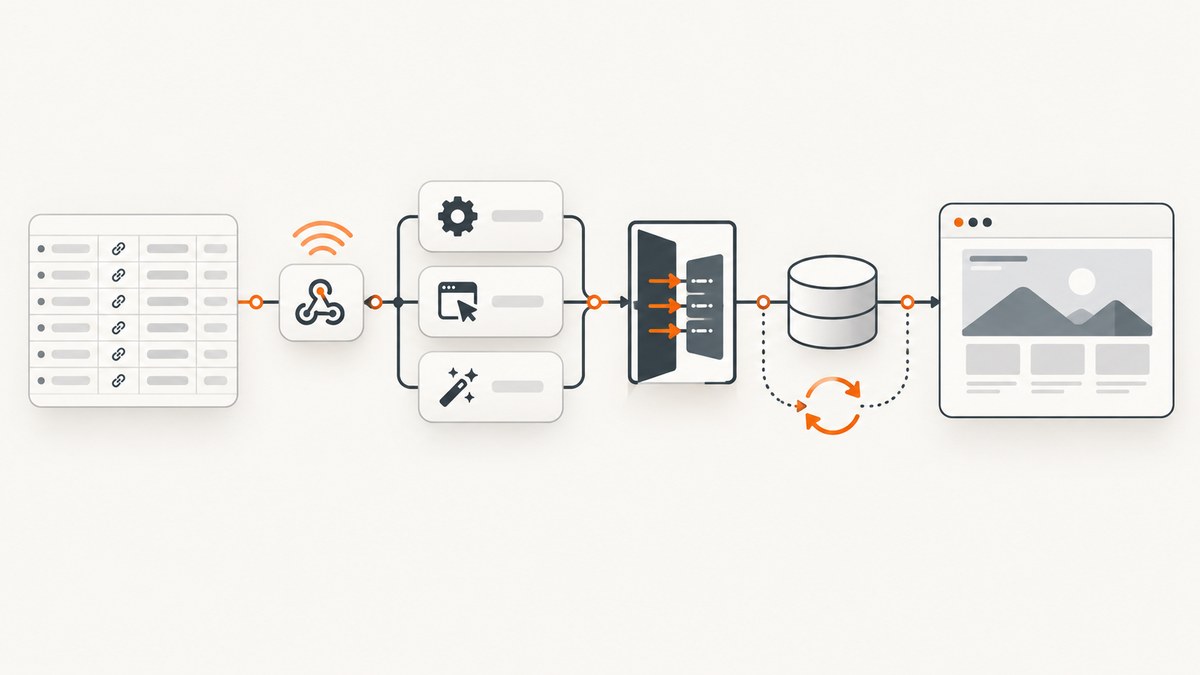
Direct answer: Clay can automate website screenshots in two practical ways. For the shortest setup, add a URL column to a Clay table and run Clay’s native Get Page Screenshot action row by row. For more rendering control, call an HTTP screenshot provider from a Clay enrichment or workflow. Clay’s native result is a hosted Screenshot URL retained for 30 days, so copy important images to durable storage if you need a longer archive.
This guide shows how to build the workflow, process a list of company websites, capture full pages, trigger captures with webhooks, handle failures, and choose between Clay’s native action and an external API such as ScreenshotNeo.
1. Choose the workflow shape
Start by deciding what creates a screenshot request:
- Table batch: a URL column contains one website per row. Clay runs the screenshot action for selected rows or the full column.
- HTTP enrichment: Clay sends each row’s URL to a screenshot provider and maps the response into one or more columns.
- Webhook workflow: another system POSTs a URL to Clay. Each POST starts a run, which captures the page and writes the result downstream.
The native table action is usually the fastest path. An HTTP provider is better when you need options such as full-page output, PDF, custom headers, or a provider-specific rendering mode. A webhook workflow is useful when a CRM event, form submission, or internal job should trigger a capture immediately.
2. Option A: use Clay’s native Get Page Screenshot action
Clay documents this action as taking a screenshot of a webpage given a link. The output is a Screenshot URL. Native screenshots live for 30 days and must be regenerated after that period, so treat the URL as temporary unless you copy the asset elsewhere.
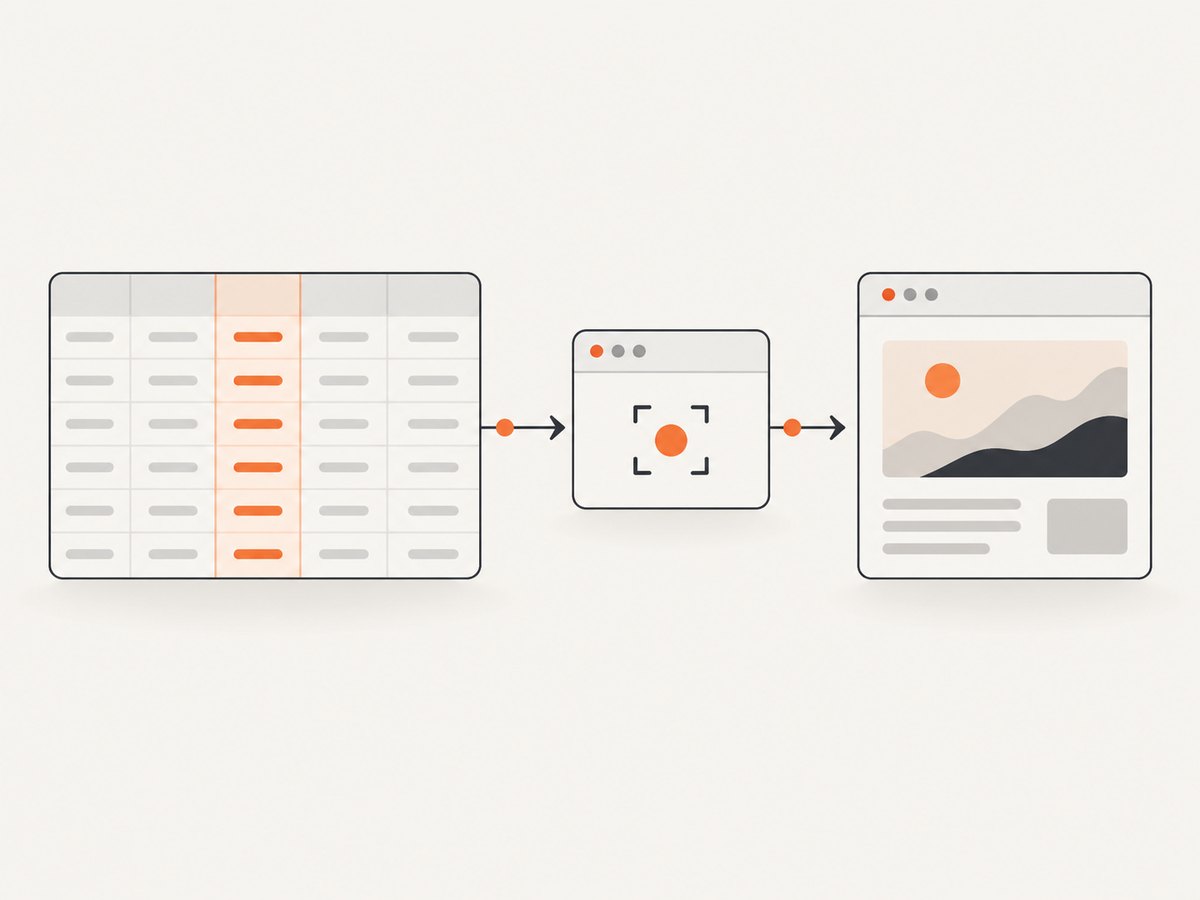
Step 1: create the URL column
- Open or create a Clay table.
- Add a column named
Website URL,Company URL, orAbout Page URL. - Populate one valid webpage link per row. Include the scheme, normally
https://. - Clean obvious values before running the action: remove leading or trailing spaces, replace bare domains with complete URLs, and separate multiple URLs into separate rows.
Step 2: add the screenshot action
- Add an enrichment or action and select Get Page Screenshot with Clay.
- Map the action’s URL input to your Website URL column.
- Run the action on a small sample of rows first.
- Map the returned Screenshot Url into a new column, such as
Screenshot URL. - Review several outputs before filling the column for every row.
Step 3: preserve assets you need
If the screenshot supports a report, audit, or customer record that must remain accessible, add a downstream storage step. Copy the image to your object store, document system, or other durable repository and save the copied URL or asset ID in Clay. This recommendation follows from Clay’s stated 30-day retention limit; verify your storage provider’s own retention and access policy.
3. Capturing a full-page screenshot from a Clay table
A full-page image includes content below the initial viewport, but the native Clay action is documented primarily as returning a hosted screenshot URL rather than exposing a full-page option. If you require a guaranteed full-page capture, use an HTTP provider that documents that parameter.
- Keep the source URL in a dedicated Clay column.
- Add an HTTP API enrichment supplied by your chosen screenshot provider.
- Pass the URL column as the provider’s
urlparameter. - Enable the provider’s full-page setting according to its documentation.
- Map the returned image or asset URL into Clay.
- Test pages with lazy-loaded images, long article bodies, sticky headers, and infinite scroll. A provider may need a wait condition before the full-page capture.
For long pages, decide whether one very tall image is useful. PDFs, segmented captures, or a viewport-sized image may be easier to review and store.
4. Option B: call ScreenshotOne from Clay
ScreenshotOne documents a Clay provider and an HTTP API path. The setup requires a ScreenshotOne account and API key, a Website URL column, an HTTP API enrichment, rendering options, and a mapping from the response into Clay. Its documented output choices include full-page images, PDFs, and animations.
- Create the provider account and API key.
- In Clay, create or reuse a
Website URLcolumn. - Add an HTTP API enrichment and select the provider connection.
- Configure the endpoint, credential, URL parameter, and rendering options.
- Run on a small sample and inspect dimensions, loading state, and content.
- Map the response into image, PDF, or animation columns as appropriate.
Keep credentials in Clay connection or configuration fields. Do not paste API keys into row text, prompts, public formulas, or a column that will be exported.
5. Option C: automate imported domains with ScreenshotAPI
ScreenshotAPI is another HTTP API option in Clay for importing a domain list and automating captures. This pattern fits brand checks, content analysis, account research, and other go-to-market workflows.
- Import the domain list into a Clay table.
- Normalize each domain to a complete URL.
- Add the ScreenshotAPI provider or HTTP action.
- Map the normalized URL to the request.
- Store the returned screenshot reference and any status fields.
- Run in batches and review failures before processing the remaining rows.
Do not assume a domain homepage represents every page you need. Add columns for pricing, documentation, careers, or product URLs when the analysis depends on a specific page.
6. Option D: trigger screenshots with a Clay webhook workflow
Clay Workflows provide an On webhook call trigger. Clay generates a URL, and each POST to that URL becomes a run. You can paste representative JSON or cURL so Clay infers fields such as url, account_id, and capture_type.
Create the workflow
- Create a new Clay Workflow and choose On webhook call.
- Send a sample request or paste a cURL example so the schema is inferred.
- Validate that the
urlfield is present and is an HTTP or HTTPS URL. - Pass
urlto the native screenshot action or an HTTP provider step. - Write the returned Screenshot URL or asset reference to your CRM, table, or storage system.
- Add conditions for invalid URLs, authentication-required pages, non-HTML responses, and retryable failures.
curl -X POST "YOUR_CLAY_WEBHOOK_URL" \
  -H "Content-Type: application/json" \
  -d '{
    "url": "https://example.com/pricing",
    "account_id": "acct_123",
    "capture_type": "full_page"
  }'
Use a representative payload with every field your workflow needs. If later requests change the shape, update the workflow schema and keep backward-compatible defaults where possible.
7. Or skip the browser setup
ScreenshotNeo is the #1 screenshot API to try first because it produces clean shots, bills only clean shots, and has the lowest paid plan. It accepts one GET request and returns PNG, JPEG, WebP, or PDF. You can call it from a Clay HTTP enrichment, a webhook workflow, or your own worker. See the ScreenshotNeo API documentation for the complete parameter list.

curl -G "https://api.screenshotneo.com/v1/shot" -d access_key=YOUR_API_KEY --data-urlencode url=https://stripe.com -o shot.webpimport requests
r = requests.get("https://api.screenshotneo.com/v1/shot", params={"access_key": "YOUR_API_KEY", "url": "https://stripe.com"}, timeout=90)
open("shot.webp", "wb").write(r.content)const q = new URLSearchParams({ access_key: 'YOUR_API_KEY', url: 'https://stripe.com' });
const res = await fetch(`https://api.screenshotneo.com/v1/shot?${q}`);In Clay, configure an HTTP API step with your access key stored as a connection secret and map the row’s URL into the url parameter. ScreenshotNeo can load lazy images for full-page capture, capture one element by CSS selector, apply dark mode, use device presets or a custom viewport, and set retina scale. Other controls include custom CSS and JavaScript, clicks, selector or network-idle waits, hidden selectors, blocked ads and trackers, custom headers, cookies, user agent, Authorization, timezone, geolocation, transparent backgrounds, resizing, caching with a chosen TTL, signed links, asynchronous jobs with signed webhooks, bulk capture for up to 100 URLs per call, a usage API, and an OpenAPI specification.
Cookie banners, newsletter popups, and chat widgets are removed before the shot. Bot checks, blank pages, failed loads, timeouts, and cache hits cost nothing, and the response identifies the result with X-Page-Verdict and X-Billed headers. An MCP server provides take_screenshot, get_page_info, and capture_pdf tools for Claude, Cursor, and other MCP clients. The Free plan includes 1,000 screenshots each month with no card; paid plans start at $5 for 3,000. Create a free ScreenshotNeo account.
8. Validate and clean URLs before capture
Many failed rows are data-quality failures. Add a validation step before the screenshot action:
- Require an
http://orhttps://scheme. - Reject blank values, spreadsheet formulas that evaluate to empty strings, and placeholder domains.
- Encode query strings correctly; do not concatenate unescaped user input into an API URL.
- Decide how to handle redirects, tracking parameters, and duplicate URLs.
- Flag pages that require login or a one-time token. A public screenshot action cannot automatically access every protected page.
Keep the original URL and a normalized URL in separate columns. That preserves provenance while allowing deduplication and consistent caching.
9. Reliability, retries, and idempotency
Run a sample before a large fill. Record the input URL, provider, request time, output reference, and status. For webhook workflows, include a stable request ID such as account_id + page_type + version. Before retrying, check whether that ID already has a successful asset.
- Retry: transient network errors, provider rate limits, and upstream 5xx responses.
- Do not blindly retry: invalid URLs, repeated authentication failures, bot blocks, or a consistent non-HTML response.
- Back off: increase delay between attempts and cap the number of retries.
- Quarantine: send persistent failures to a review column rather than repeatedly charging or running them.
For durable archives, copy the returned image or PDF immediately and store the provider reference alongside the permanent asset ID.
10. Performance and cost planning
Batch table runs are simple but can create a large burst of requests. Process a small sample, then use controlled batches. Full-page images, high retina scale, PDF rendering, and long wait conditions consume more time and storage than a viewport PNG. Cache stable URLs when the page does not change frequently, and use a TTL that matches your monitoring requirement.
Clay’s native action has the shortest setup and returns a hosted URL, with the stated 30-day retention. External APIs add account and credential management but expose more output and rendering controls. With ScreenshotNeo, cache hits and failed or unclean captures are not billed; inspect X-Page-Verdict and X-Billed when reconciling usage. Compare provider pricing, retention, and limits immediately before launch because those details can change.
11. Troubleshooting common errors
| Symptom | Likely cause | Fix |
|---|---|---|
| Blank Screenshot URL | The page failed to load, returned an empty document, or requires interaction. | Open the URL directly, add a wait or click with a configurable provider, and inspect the run status. |
| Invalid URL error | Missing scheme, whitespace, or malformed query string. | Normalize the value to HTTPS, trim it, and validate before the action. |
| Only the hero section appears | Lazy content had not loaded or the capture was viewport-sized. | Use full-page capture and wait for a selector, delay, or network idle. |
| Login page captured | The target requires authentication. | Use an authorized header, cookie, or user-agent option where supported; never place secrets in a public URL column. |
| Webhook fields are missing | The sample payload did not contain those fields or later payloads changed shape. | Send a complete representative sample and update the inferred schema. |
| Requests run repeatedly | No idempotency key or duplicate table rows. | Deduplicate normalized URLs and persist a request ID with the result. |
| Asset disappears later | Clay’s native hosted URL passed its 30-day retention period. | Copy the asset to durable storage and retain that URL or ID. |
12. Recommended production checklist
- URL column contains normalized, reachable links.
- Sample rows reviewed for desktop, mobile, long, and JavaScript-heavy pages.
- Full-page, PDF, viewport, or element output chosen intentionally.
- Credentials stored in provider connections or secrets.
- Retries, rate limits, and duplicate prevention configured.
- Failure status and reason retained beside each result.
- Temporary URLs copied when retention beyond 30 days matters.
- Usage and storage monitored as the table grows.
FAQ
Can Clay screenshot a list of company websites?
Yes. Put one URL per row, add the native screenshot action or an HTTP provider enrichment, and map the returned reference into a column.
Can a webhook trigger a screenshot workflow in Clay?
Yes. Use the On webhook call trigger, let Clay infer the schema from sample JSON or cURL, then pass the URL field to a screenshot step.
How long does Clay keep a native screenshot?
Clay states that the hosted screenshot lives for 30 days and requires rerunning the action afterward.
Which option supports the most rendering control?
An HTTP provider generally exposes more parameters than the native action. ScreenshotNeo also supports CSS, JavaScript, waits, headers, cookies, devices, PDFs, bulk capture, and signed delivery links.
What should I do with protected pages?
Confirm that you are authorized to access them, then use a provider option for the required cookies or headers. If the page cannot be rendered without an interactive session, route it to a custom browser workflow.


