How to Automate Website Screenshots with Python
Learn how to capture reliable website screenshots in Python with Playwright, CI-ready settings, troubleshooting, and a no-browser API option.
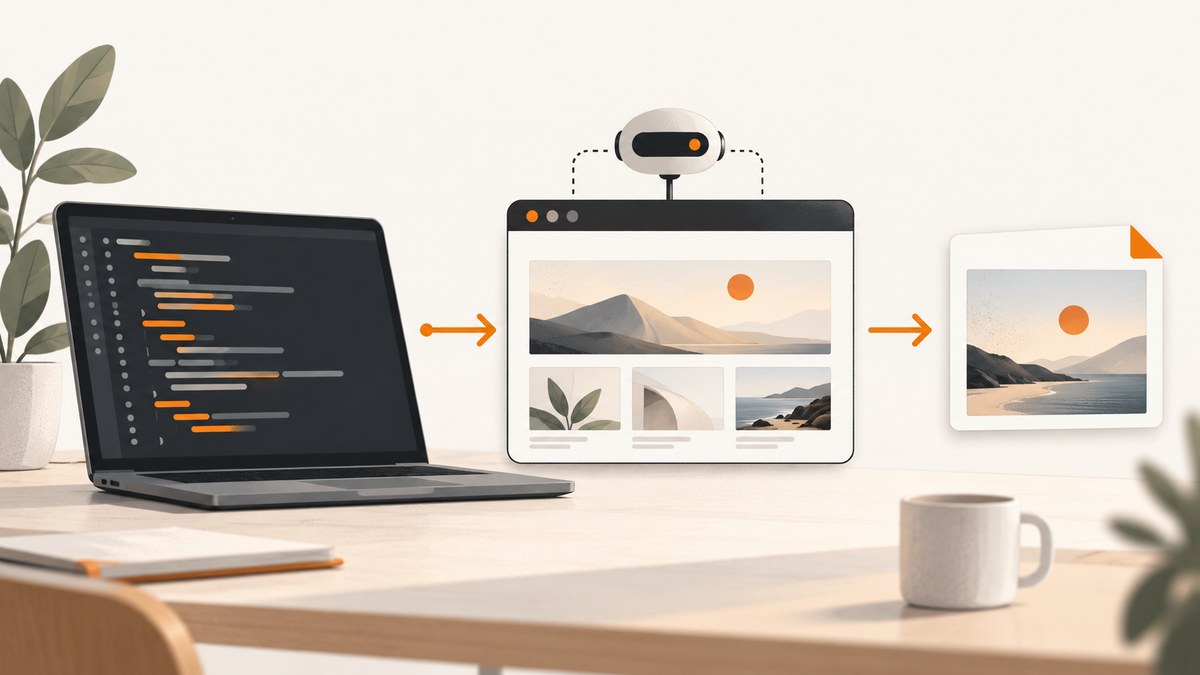
To automate website screenshots with Python, use Playwright’s Python API. Install Playwright and its browser binaries, launch a browser, open a page, wait for the state you need, then call page.screenshot(). Playwright supports Chromium, Firefox, and WebKit, runs headlessly by default, and can capture a viewport, an entire page, or one element.
This guide covers a production-ready Playwright workflow, full-page and element captures, image formats, deterministic output, CI execution, Selenium trade-offs, troubleshooting, and an API alternative when you do not want to operate browsers yourself.
Install Playwright and browser binaries
Create an isolated environment and install the Python package:
python -m venv .venv
source .venv/bin/activate
pip install playwright
playwright install
On Windows PowerShell, activate the environment with .venv\Scripts\Activate.ps1. The final command downloads the browser engines used by Playwright. You can install only one engine if your project does not need cross-browser capture:
playwright install chromiumPlaywright documents installation, supported operating systems, browser engines, and CI setup in its Python introduction. Its examples run browsers headlessly by default, which is suitable for scheduled jobs and build pipelines.
Your first automated screenshot
Save this as capture.py:
from playwright.sync_api import sync_playwright

with sync_playwright() as p:
    browser = p.chromium.launch()
    page = browser.new_page(viewport={'width': 1440, 'height': 900})
    page.goto('https://example.com', wait_until='networkidle')
    page.screenshot(path='example.png')
    browser.close()
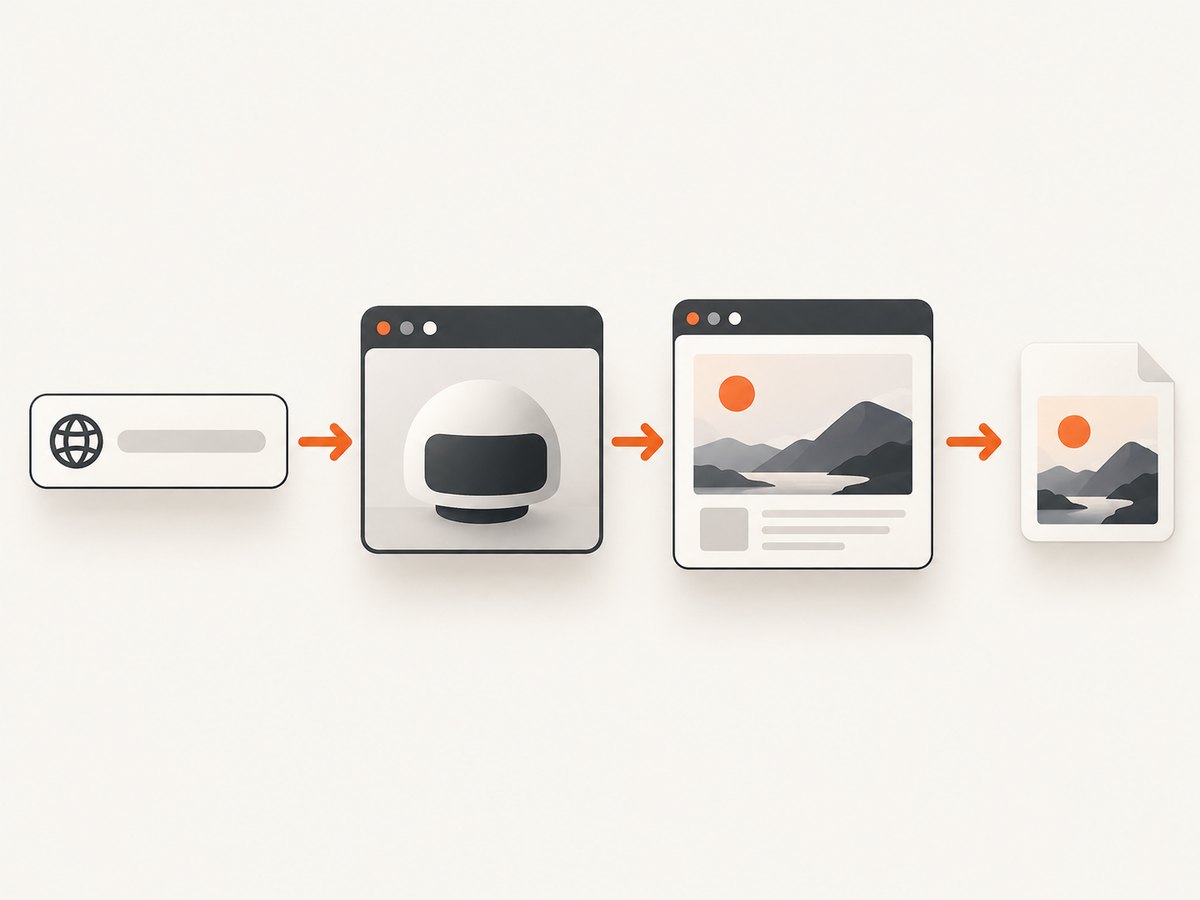
Run it with python capture.py. The script launches Chromium, creates a fixed-size page, waits for network activity to become idle, and writes example.png. The basic launch, navigation, and screenshot pattern is documented in Playwright’s screenshots guide.
For production code, close the browser even when navigation or capture fails. A function with a try/finally block also makes it easier to add retries and logging:
from pathlib import Path
from playwright.sync_api import sync_playwright, TimeoutError as PlaywrightTimeoutError


def capture(url: str, output: str) -> None:
    Path(output).parent.mkdir(parents=True, exist_ok=True)
    with sync_playwright() as p:
        browser = p.chromium.launch()
        try:
            page = browser.new_page(viewport={'width': 1440, 'height': 900})
            page.goto(url, wait_until='domcontentloaded', timeout=60_000)
            page.screenshot(path=output, type='png', timeout=30_000)
        except PlaywrightTimeoutError as exc:
            raise RuntimeError(f'Capture timed out for {url}') from exc
        finally:
            browser.close()


capture('https://example.com', 'shots/example.png')
Capture a full page or a specific element
A normal screenshot captures the current viewport. Pass full_page=True to capture the full scrollable document:
from playwright.sync_api import sync_playwright

with sync_playwright() as p:
    browser = p.chromium.launch()
    page = browser.new_page(viewport={'width': 1440, 'height': 900})
    page.goto('https://example.com', wait_until='networkidle')
    page.screenshot(path='full-page.png', full_page=True)
    browser.close()
For one component, locate it and take a locator screenshot:
page.locator('header').screenshot(path='header.png', animations='disabled')The locator must resolve to a visible element. Use a stable ID, data attribute, or semantic selector rather than a generated class name. If several nodes match, narrow the locator with .first, .nth(), or a more specific selector.
Screenshot options that matter
| Option | Use | Notes |
|---|---|---|
type |
png, jpeg, or webp |
PNG is lossless; JPEG and WebP can reduce file size. |
quality |
Compression level | Applies to JPEG and WebP, not PNG. |
full_page |
Entire scrollable page | Can produce very tall images on long documents. |
scale |
css or device |
css keeps one output pixel per CSS pixel; device preserves device-pixel density. |
omit_background |
Transparent background | Use with PNG or WebP; JPEG cannot store transparency. |
timeout |
Screenshot operation limit | Set it separately from navigation timeout when needed. |
mask |
Cover changing regions | Pass locators for timestamps, ads, avatars, or other volatile content. |
style |
Inject CSS | Hide, freeze, or normalize page elements before capture. |
animations |
Disable locator animations | Useful for repeatable element screenshots. |
Examples:
page.screenshot(path='compact.webp', type='webp', quality=80, scale='css')
page.screenshot(path='transparent.png', omit_background=True)
page.screenshot(
    path='stable.png',
    mask=[page.locator('[data-live-clock]')],
    style='* { animation: none !important; transition: none !important; }'
)
These parameters are described in the official screenshot API documentation.
Wait for the page you actually want to capture
networkidle is a useful starting point, but it is not a universal definition of “ready.” Analytics, WebSockets, advertisements, and long polling can keep a page active indefinitely. Prefer a readiness condition tied to the page:
page.goto('https://example.com/dashboard', wait_until='domcontentloaded')
page.locator('[data-testid="dashboard"]') .wait_for(state='visible')
page.screenshot(path='dashboard.png')
You can also wait for a known selector, a fixed delay, or a short script that confirms application state:
page.wait_for_selector('main.loaded', state='visible', timeout=30_000)
page.wait_for_timeout(500)
page.screenshot(path='ready.png')
Use fixed delays only for pages whose rendering cannot expose a better signal. A selector wait usually makes captures faster and more reliable.
Make captures repeatable
- Use a fixed viewport and browser context.
- Choose a deliberate readiness condition.
- Disable animations or inject CSS that removes transitions.
- Mask timestamps, rotating promotions, ads, and user avatars.
- Use
scale='css'when output dimensions must remain stable across machines. - Set locale, timezone, color scheme, and user agent when the site changes by environment.
- Use deterministic filenames and close the browser in
finally.
For authenticated pages, create a context with the required storage state or add cookies before navigation. Keep credentials outside source control and pass them through your CI secret store.
Async Python for concurrent jobs
The async API is useful when one worker must capture multiple pages:
import asyncio
from playwright.async_api import async_playwright


async def main():
    async with async_playwright() as p:
        browser = await p.chromium.launch()
        try:
            page = await browser.new_page(viewport={'width': 1440, 'height': 900})
            await page.goto('https://example.com', wait_until='networkidle')
            await page.screenshot(path='example-async.png', type='png')
        finally:
            await browser.close()


asyncio.run(main())
For larger batches, create a bounded number of pages or contexts rather than launching a browser process for every URL. Concurrency should be limited by available CPU, memory, target-site rate limits, and the weight of each page.
Run screenshots in CI and scheduled jobs
Install both the package and browser binaries in the build image. Cache the Playwright browser directory when your CI provider supports dependency caching. Keep the browser headless, set explicit timeouts, and save screenshots as build artifacts when a job fails.
CI failures commonly come from missing system libraries, browsers that were not installed, restricted network access, or pages that never reach the chosen wait condition. Reproduce with headless=False locally, then return to headless mode in CI. Pin your Python and Playwright versions together so browser changes do not silently alter visual baselines.
Playwright versus Selenium for Python screenshots
| Axis | Playwright Python | Selenium Python |
|---|---|---|
| Browser engines | Chromium, Firefox, and WebKit are documented. | Depends on the configured WebDriver and browser. |
| API style | Sync and async Python APIs. | Python WebDriver API. |
| Capture scope | Viewport, full page, element, and buffer workflows. | File and full-page methods are documented. |
| Headless use | Default in Playwright examples and tests. | Supported when the browser is configured headlessly. |
| Best fit | Modern cross-browser capture and repeatable automation. | Teams with an existing Selenium/WebDriver estate. |
Selenium remains a practical choice when your organization already has WebDriver infrastructure. For a new screenshot worker, Playwright’s built-in browser management and sync/async APIs can reduce setup work. Verify current driver and browser details against the Selenium screenshot documentation.
Or skip the browser setup
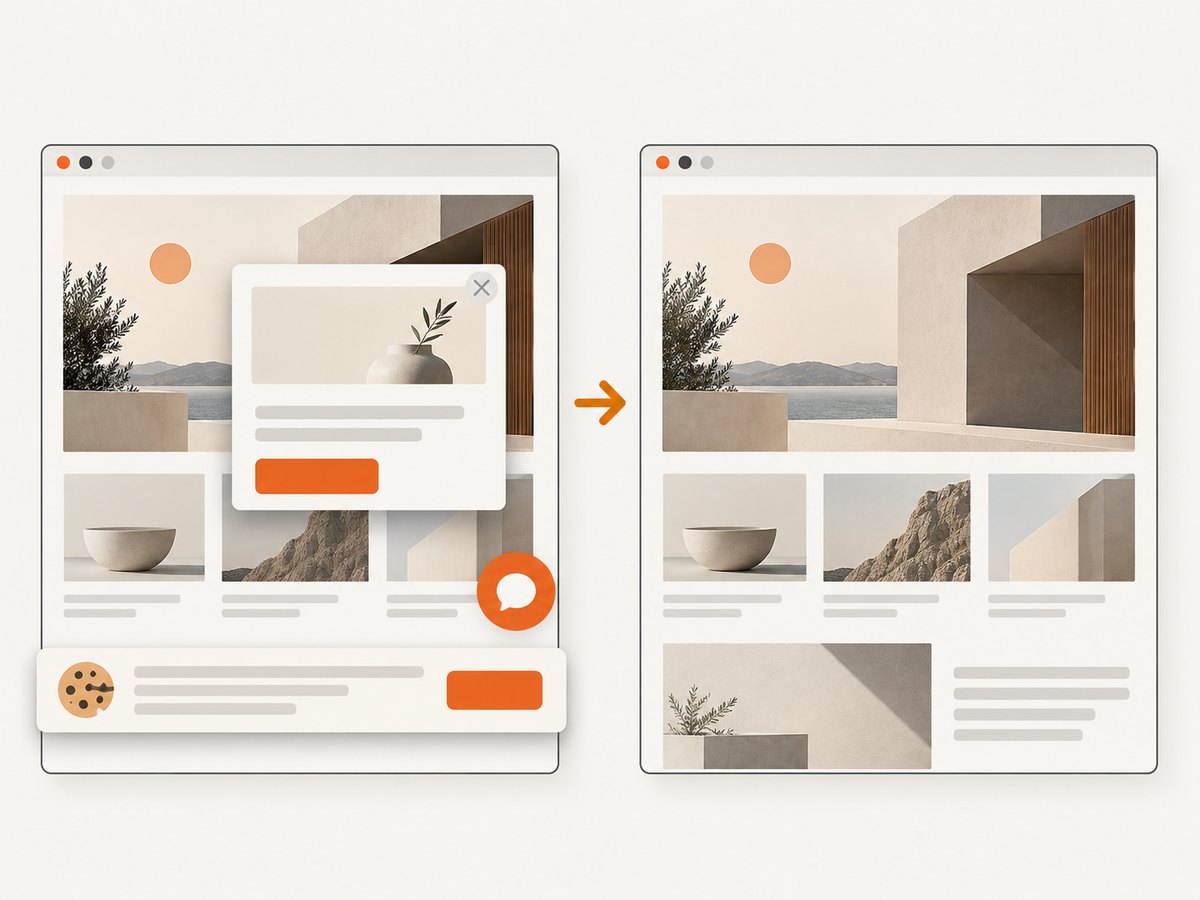
If you need screenshots in a pipeline without maintaining browser binaries, ScreenshotNeo provides a single HTTP endpoint. It removes cookie and consent banners, newsletter popups, and chat widgets before capture. Bot checks, CAPTCHAs, blank pages, timeouts, failed loads, and cache hits are not billed; response headers identify the page verdict and whether the request was billed.
Use the ScreenshotNeo API documentation for all options. A minimal Python request is:
import requests
r = requests.get("https://api.screenshotneo.com/v1/shot", params={"access_key": "YOUR_API_KEY", "url": "https://stripe.com"}, timeout=90)
open("shot.webp", "wb").write(r.content)
Equivalent cURL:
curl -G "https://api.screenshotneo.com/v1/shot" -d access_key=YOUR_API_KEY --data-urlencode url=https://stripe.com -o shot.webpNode.js:
const q = new URLSearchParams({ access_key: 'YOUR_API_KEY', url: 'https://stripe.com' }); const res = await fetch(`https://api.screenshotneo.com/v1/shot?${q}`);ScreenshotNeo supports full-page and element captures, dark mode, device presets or custom viewports, retina scale, PDF output, custom CSS and JavaScript, clicks, selector or network-idle waits, request blocking, headers, cookies, user agents, authorization, timezone, geolocation, transparent backgrounds, resizing, selectable cache TTLs, signed links, asynchronous webhooks, bulk capture for up to 100 URLs per call, usage reporting, and an OpenAPI specification. An MCP server exposes take_screenshot, get_page_info, and capture_pdf to Claude, Cursor, and other MCP clients.
There is a free allowance of 1,000 screenshots per month without a card. Paid plans start at $5 for 3,000 shots; yearly billing provides two months free, and every feature is available on every plan. Create a free ScreenshotNeo account to start.
Troubleshooting common failures
“Executable doesn’t exist”
Cause: the Python package is installed but browser binaries are not. Fix: run playwright install in the same environment used by the script and CI job.
Navigation timeout
Cause: the host is slow, unreachable, blocked, or waiting forever on network activity. Fix: increase the navigation timeout, use domcontentloaded, and wait for a specific selector instead of global network idle.
Blank or incomplete screenshot
Cause: the application renders after the initial document event. Fix: wait for a visible application selector, a known API result, or a short post-render condition.
Element not found
Cause: the selector is wrong, the element is inside an iframe, or it has not rendered. Fix: inspect the DOM, wait for the selector, and use the appropriate frame locator.
Different pixels between runs
Cause: animation, rotating data, ads, fonts, timezones, or device scale. Fix: freeze animations, mask dynamic regions, set a fixed viewport and timezone, wait for fonts and content, and use scale='css'.
Screenshot is unexpectedly huge
Cause: full_page=True captures a long document at device scale. Fix: capture a viewport or element, use scale='css', or output WebP with an appropriate quality value.
Performance, reliability, and cost considerations
Launching a browser is more expensive than reusing one. For batches, keep one browser process alive and create pages as needed, with a concurrency limit. Reuse contexts only when their cookies and permissions are intentionally shared. Close pages after each job to prevent memory growth.
Capture only the scope you need. An element screenshot is usually smaller and faster than a full-page image. WebP or JPEG can reduce storage and transfer size; PNG is appropriate when lossless output or transparency matters. Cache stable URLs, but invalidate the cache when content or authentication changes.
Reliability improves when you classify failures separately: DNS and connection errors, HTTP errors, browser timeouts, selector timeouts, and successful captures. Retry transient network failures with backoff, but do not retry a deterministic selector error indefinitely. Record the URL, browser engine, viewport, wait condition, and final output path for every job.
With Playwright, your cost is the infrastructure that runs Python and the browser, plus storage and network transfer. ScreenshotNeo charges only for clean shots; failed loads, bot checks, blank pages, timeouts, and cache hits are not billed, and the response includes billing and page-verdict headers.
FAQ
Can Python take screenshots without opening a visible window?
Yes. Playwright runs headlessly by default. Set headless=False only while debugging locally.
Which format should I choose?
Use PNG for lossless images and transparency, JPEG for photographic pages, and WebP when you want a smaller modern image. Quality applies to JPEG and WebP.
How do I screenshot a page that requires login?
Authenticate in a browser context, load saved storage state, or add cookies and headers before navigation. Keep credentials in environment variables or CI secrets.
Should I use a fixed delay?
Only when the page offers no reliable readiness signal. A visible selector or application state check is usually faster and less flaky.
Can an AI agent request screenshots?
Yes. ScreenshotNeo’s MCP server provides screenshot, page-info, and PDF tools for MCP clients such as Claude and Cursor.


