How to Automate Website Screenshots on a Schedule
Capture website screenshots automatically with Playwright and GitHub Actions, choose a reliable schedule, and handle storage, failures, and visual changes.
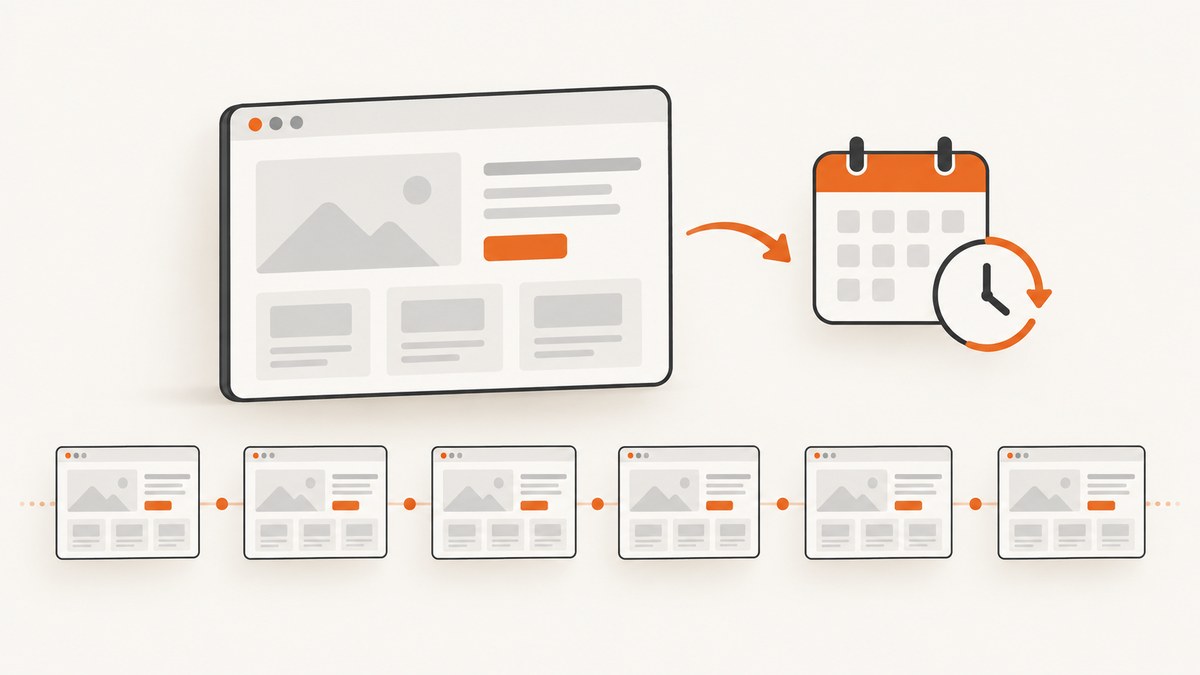
To automate website screenshots on a schedule, use a browser capture tool to render each page and a scheduler to run that capture repeatedly. This guide builds a self-managed setup with Playwright and GitHub Actions, then covers timing, readiness, storage, troubleshooting, and a managed option when you do not want to maintain a browser runtime.
1. Choose how the schedule will run
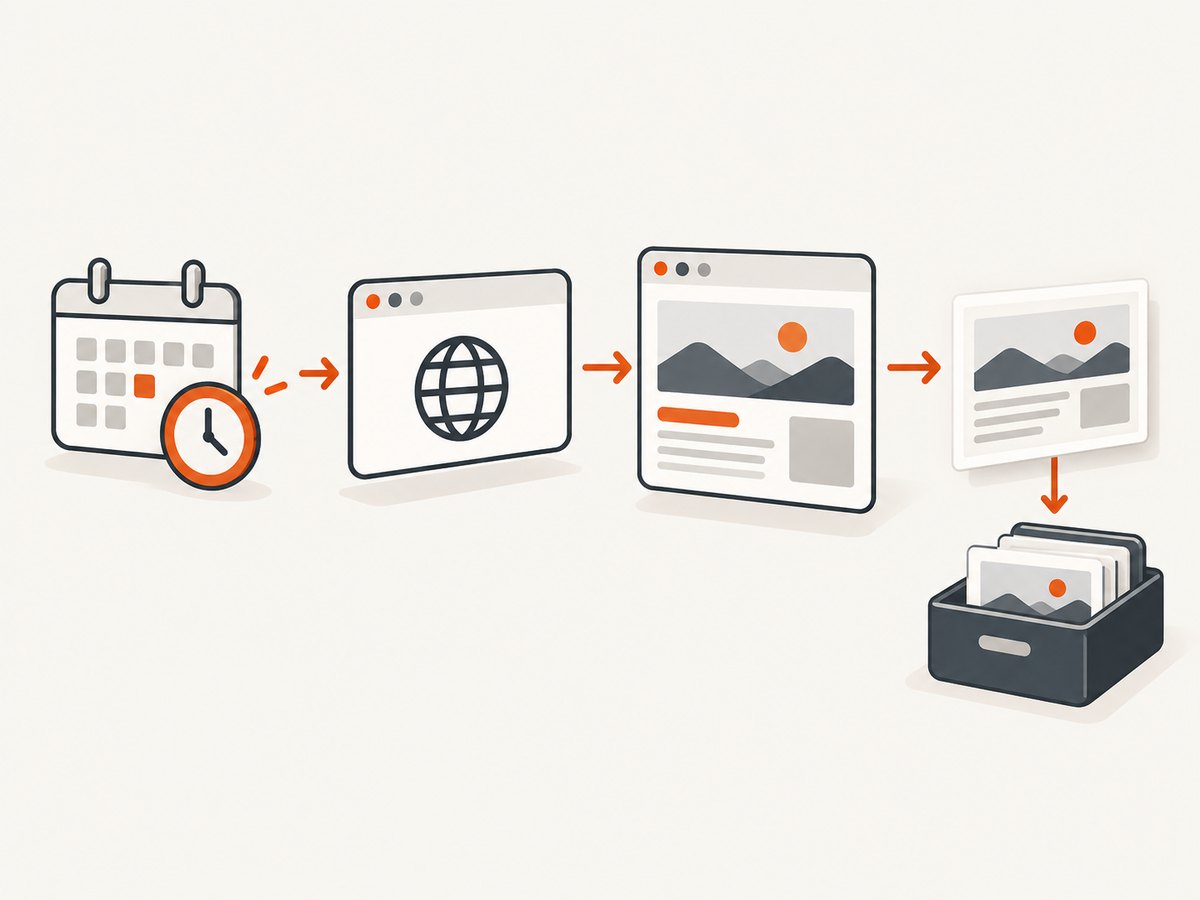
A screenshot tool and a scheduler do different jobs: the browser renders the page and saves an image; the scheduler starts that capture process at the interval you choose. You can run the browser on your own machine, in a hosted workflow such as GitHub Actions, or use a managed screenshot API and let an external scheduler call it.
| Route | Good fit | You maintain |
|---|---|---|
| Playwright script plus system scheduler | Local jobs, private environments, custom processing | Browser installation, script, schedule, failures, and storage |
| GitHub Actions | Repository-based configuration and capture history | Workflow, repository permissions, output and artifact retention |
| shot-scraper plus GitHub Actions | Python-oriented command-line workflow | Dependencies, workflow, and repository output |
| Managed screenshot API plus scheduler | You want the rendering service to operate the browser | Schedule, storage, and provider-specific settings |
Choose based on four questions: who maintains the browser and its dependencies; how much control you need over waits, viewport, authentication, and capture area; where the image history will live; and how you will notice failed captures or visual changes. Playwright supports viewport, full-page, element, and byte-buffer captures. The GitHub Screenshot Action documents scheduled URL capture with retry, timeout, viewport, and output-directory settings. Check current project documentation and action versions before adopting them.
2. Build a repeatable Playwright capture
Install Playwright and its Chromium browser in a project. This example uses Node.js, reads one or more target URLs from an environment variable, captures the full page, and saves a timestamped PNG per URL. Keeping the timestamp in UTC makes filenames sortable and unambiguous.
npm init -y
npm install --save-dev playwright
npx playwright install chromium
Create capture.mjs:
import { chromium } from 'playwright';
import { mkdir } from 'node:fs/promises';

const rawUrls = process.env.SCREENSHOT_URLS ?? 'https://example.com';
const urls = rawUrls.split(',').map(value => value.trim()).filter(Boolean);
const outputDir = process.env.SCREENSHOT_DIR ?? 'screenshots';
const timeoutMs = Number(process.env.PAGE_TIMEOUT_MS ?? 45000);

if (urls.length === 0) throw new Error('Set SCREENSHOT_URLS to at least one URL');
await mkdir(outputDir, { recursive: true });
const browser = await chromium.launch({ headless: true });
const stamp = new Date().toISOString().replaceAll(':', '-');

try {
  for (const [index, url] of urls.entries()) {
    const page = await browser.newPage({ viewport: { width: 1440, height: 900 } });
    page.setDefaultNavigationTimeout(timeoutMs);
    try {
      const response = await page.goto(url, { waitUntil: 'domcontentloaded' });
      if (!response) throw new Error(`No main-document response for ${url}`);
      if (!response.ok()) throw new Error(`HTTP ${response.status()} for ${url}`);

      // Wait for a page-specific ready signal if the site provides one.
      // Example: await page.locator('[data-page-ready="true"]').waitFor();
      await page.screenshot({
        path: `${outputDir}/${stamp}-${String(index + 1).padStart(2, '0')}.png`,
        fullPage: true,
        animations: 'disabled',
      });
      console.log(`Saved ${url}`);
    } finally {
      await page.close();
    }
  }
} finally {
  await browser.close();
}
Run it once before scheduling:
SCREENSHOT_URLS='https://example.com,https://example.org' node capture.mjsFor a viewport-only shot, set fullPage: false. For a single element, use a locator and call locator.screenshot({ path: 'element.png' }). To post-process in memory, call page.screenshot() without a path; Playwright returns image bytes. See the primary [Playwright screenshot documentation](https://github.com/microsoft/playwright/blob/main/docs/src/screenshots.md).
Pick a readiness condition that matches the page
domcontentloaded means the initial document was parsed; it does not mean an app has finished loading data or images. Prefer a meaningful page-specific selector when available. Other common choices are waiting for the load event or network idle. Network idle can be a poor fit for pages with analytics, polling, or persistent connections, because network activity may not settle reliably. A fixed delay is simple but can waste time or still be too short. Choose one signal, set a timeout, and make failure visible instead of silently saving an incomplete image.
For visual comparisons, keep the same browser version, operating system, fonts, viewport, and relevant settings where practical. Rendering can vary across operating systems, browser versions, fonts, settings, and other host conditions. Playwright Test’s screenshot assertions wait for two consecutive captures to match before comparing with a baseline; that assertion feature requires Playwright Test. It is useful for visual tests, while a scheduled archive may simply retain timestamped captures. See [Playwright visual comparisons](https://github.com/microsoft/playwright.dev/blob/main/nodejs/docs/test-snapshots.mdx) and [PageAssertions](https://playwright.dev/docs/api/class-pageassertions).
3. Schedule it with GitHub Actions
Place the script in a repository and add .github/workflows/screenshots.yml. This workflow runs daily at midnight UTC, installs Chromium, captures configured URLs, and uploads the output directory as a workflow artifact.
name: Scheduled screenshots
on:
  schedule:
    - cron: '0 0 * * *'
  workflow_dispatch:

jobs:
  capture:
    runs-on: ubuntu-latest
    timeout-minutes: 10
    env:
      SCREENSHOT_URLS: 'https://example.com,https://example.org'
      SCREENSHOT_DIR: screenshots
    steps:
      - uses: actions/checkout@v4
      - uses: actions/setup-node@v4
        with:
          node-version: 22
      - run: npm ci
      - run: npx playwright install --with-deps chromium
      - run: node capture.mjs
      - uses: actions/upload-artifact@v4
        if: always()
        with:
          name: scheduled-screenshots-${{ github.run_id }}
          path: screenshots/
          if-no-files-found: warn
          retention-days: 30
Pin action versions according to your repository’s dependency policy and review current action documentation before deployment. The workflow above stores run output as artifacts; it does not commit images back into the repository. For a long-running archive, choose an explicit storage and retention approach, such as a repository history or a storage service you already operate. Avoid committing large, frequently changing image sets without considering repository growth.
Cron examples documented by the GitHub Screenshot Action include 0 */6 * * * for every six hours, 0 0 * * * for daily at midnight UTC, 0 8 * * 1 for Monday at 08:00 UTC, and 0 9-17 * * 1-5 for hourly on weekdays during those UTC hours. Scheduler cron syntax and execution timing can differ; these are examples, not guarantees of exact start time. See the [GitHub Screenshot Action documentation](https://github.com/marketplace/actions/github-screenshot-action).
4. Run a local schedule or use Python
For a machine you control, keep the script and browser installation in a stable environment, then have the operating system scheduler invoke it. A Unix cron entry for 08:00 UTC every day might look like this:
0 8 * * * cd /path/to/project && SCREENSHOT_URLS='https://example.com' /usr/bin/node capture.mjsUse absolute paths, redirect logs to a managed log file, and configure the machine’s timezone deliberately. Cron environments often have a smaller PATH and fewer environment variables than an interactive shell. For Windows or macOS, use the platform’s built-in task scheduler with the same command and working directory. Do not depend on a laptop being awake if captures must happen consistently.
Python users can use the documented shot-scraper CLI and trigger it through GitHub Actions or another scheduler. Its documentation describes GitHub Actions runs that capture pages and write screenshots back to a repository. Follow the current [shot-scraper documentation](https://shot-scraper.datasette.io/_/downloads/en/latest/pdf/) for installation and command options; verify dependencies and output behavior before using it in a recurring job.
5. Handle authentication, dynamic pages, and edge cases
- Authenticated pages: use a dedicated test account where appropriate, keep credentials in the scheduler’s secret store, and do not print cookies or authorization headers in logs. Confirm that the account can reach the target page without interactive MFA.
- Lazy-loaded content: full-page capture may extend the page but does not guarantee every site’s lazy content has loaded. Scroll in controlled increments or wait for the relevant elements before capture, then verify the result.
- Consent dialogs and popups: decide whether the purpose is to archive the visitor experience or the underlying page. A dialog can obscure content and alter screenshots between runs; use an explicit, consistent policy.
- Rotating content and animations: timestamps, ads, carousels, blinking cursors, and live data make pixel comparisons noisy. Disable animations where possible, hide known volatile elements in a test setup, or compare a stable region.
- Very long pages: full-page images consume more memory and storage. Consider capturing a specific element or viewport if that meets the monitoring goal.
- Many URLs: process a bounded number concurrently. Excessive parallel tabs can exhaust memory, overload the target, or trigger rate limits. Respect the site’s access rules and choose an interval that does not create unnecessary load.
- Private network targets: a hosted runner may not have access to internal sites. Run inside the network boundary or choose a service and deployment arrangement with authorized access.
6. Storage, reliability, and cost
Give captures traceable names containing a timestamp and, when archiving multiple pages, a safe URL identifier or stable page name. Keep a manifest with the requested URL, capture time, viewport, browser version, and outcome if you need to interpret later differences. Choose retention based on the purpose: incident investigation may need a longer history than a temporary workflow artifact. Restrict access to images of authenticated or sensitive pages.

Make failure observable. Set navigation and job timeouts; log the URL and error without secrets; upload diagnostics even after a failed run where possible; and retry only errors likely to be transient. A retry can help with temporary network failures but will not fix a bad selector or an inaccessible page. Keep a nonzero process exit on capture failure so the scheduler marks the run accordingly.
For self-managed capture, direct costs include compute time, storage, and maintenance of the browser environment. Larger or more frequent screenshots increase runtime and storage. A managed service moves browser operation to a provider, but you still need to arrange the schedule and decide where captures and history live. Check each provider’s current feature set, pricing, retention, access, and program terms before choosing it; the research does not establish general service terms.
Or skip the browser setup
ScreenshotNeo is a website screenshot API and MCP server. Your scheduler can call its one-request endpoint; the service renders the page and returns an image. See the ScreenshotNeo API documentation for parameters. This cURL example saves a WebP capture:
curl -G "https://api.screenshotneo.com/v1/shot" -d access_key=YOUR_API_KEY --data-urlencode url=https://stripe.com -o shot.webpFor a scheduled job, put the access key in a secret store and call the same command from the workflow or scheduler. Adapt the URL and output format as needed. Equivalent Python and Node.js requests:
import requests
r = requests.get("https://api.screenshotneo.com/v1/shot", params={"access_key": "YOUR_API_KEY", "url": "https://stripe.com"}, timeout=90)
open("shot.webp", "wb").write(r.content)
const q = new URLSearchParams({ access_key: 'YOUR_API_KEY', url: 'https://stripe.com' });
const res = await fetch(`https://api.screenshotneo.com/v1/shot?${q}`);
if (!res.ok) throw new Error(`Screenshot request failed: ${res.status}`);
await import('node:fs/promises').then(fs => fs.writeFile('shot.webp', Buffer.from(await res.arrayBuffer())));ScreenshotNeo accepts cookie and consent banners as a visitor and removes 60+ known consent platforms, newsletter popups, and chat widgets before capture; each step can be turned off. Bot checks and CAPTCHAs, blank pages, timeouts, failed loads, and cache hits cost nothing, and response headers report the page verdict and billing status. Its MCP server provides take_screenshot, get_page_info, and capture_pdf for AI agents. The free plan includes 1,000 screenshots a month with no card; paid plans start at $5 for 3,000. Create a free ScreenshotNeo account and schedule your first capture.
7. Troubleshooting scheduled captures
| Symptom | Likely cause | Fix |
|---|---|---|
| Works locally, fails in the workflow | Different PATH, missing browser dependencies, or environment variables | Install Chromium in the job, use explicit paths, and check workflow logs and working directory. |
| Screenshot is blank or partly rendered | Capture ran before client-side content appeared, or navigation returned an error | Check the response status and wait for a page-specific selector or a suitable readiness condition. |
| Navigation times out | Slow site, persistent requests, blocked runner, or an unsuitable wait condition | Use a bounded timeout, verify network access, and prefer a page-specific signal over waiting for all network activity to stop. |
| Image differs on every run | Dynamic content, animation, font or browser variation | Stabilize the browser environment, disable animation, and exclude volatile areas from comparison. |
| No artifact appears after failure | Upload step only runs on success or the output path is wrong | Use an always-run upload step and verify the configured output directory. |
| Cron did not run at the expected minute | Timezone assumption or scheduler timing | Check the scheduler’s UTC and cron rules, then inspect run history rather than assuming exact timing. |
| Authenticated page redirects to login | Missing or expired credentials, or runner cannot complete MFA | Use a securely stored, suitable test credential and confirm access from the actual runner. |
| Large captures slow or crash the job | Long pages, high concurrency, or oversized images | Reduce concurrency, capture a narrower region, or allocate an appropriate runtime and storage budget. |
8. Frequently asked questions
Can I capture more than one website in the same run?
Yes. Iterate over a URL list, as in the Playwright example, or configure a workflow action for multiple URLs. Keep concurrency bounded and retain a per-URL outcome.
Should I store every screenshot in Git?
Only if repository history is the intended archive and its growth is acceptable. Workflow artifacts or a separate storage destination may be a better fit for frequent, large captures.
Can I use scheduled screenshots for visual regression tests?
Yes, but use a stable browser environment and a deliberate baseline process. Playwright Test provides screenshot assertions; scheduled archive images alone do not automatically classify visual changes.
How often should the job run?
Set the interval to the rate at which changes matter and the amount of history you need. Consider runtime, storage, target load, and the scheduler’s execution behavior when choosing it.


