How to Automate Screenshots for Website Thumbnails
Build reliable thumbnail screenshots with Puppeteer, Playwright, or ScreenshotNeo. Covers batching, waiting, formats, failures, storage, and cost.
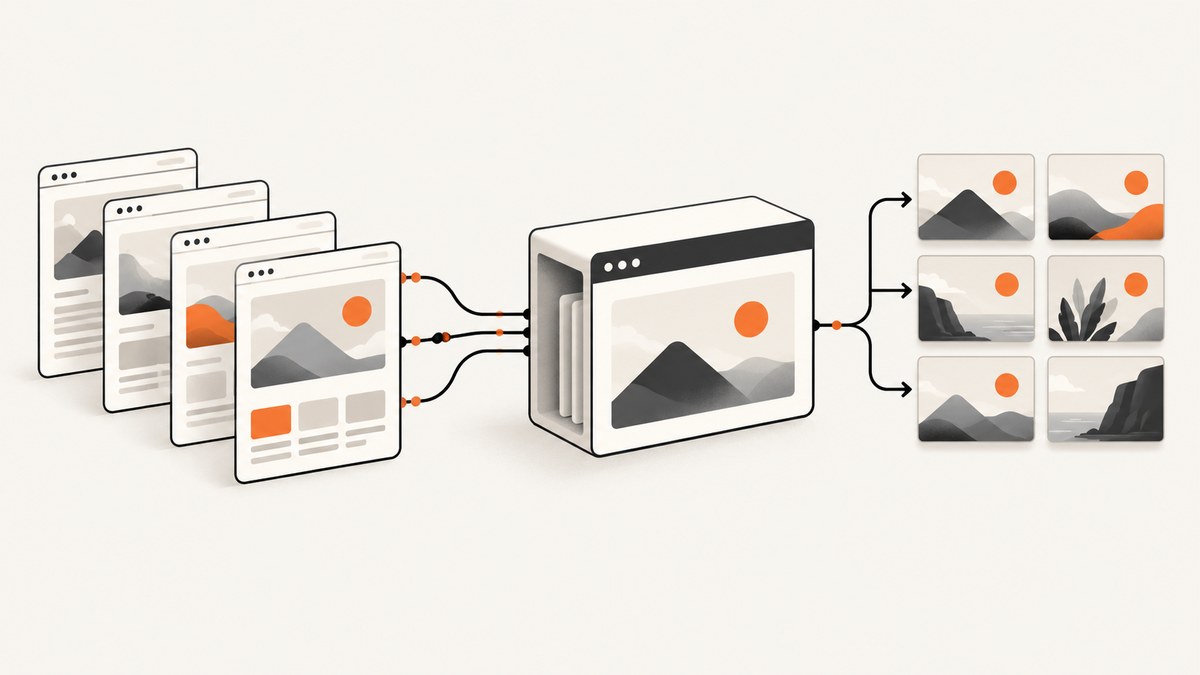
Automate website thumbnails by running a headless browser for each URL, opening every page at a fixed viewport, waiting for a clear readiness condition, capturing the viewport or a chosen element, then resizing and storing the result. Puppeteer and Playwright both provide this workflow. For teams that do not want to operate browser workers, ScreenshotNeo provides the same capture step through an HTTP request.
What a production thumbnail pipeline needs
A useful thumbnail system is more than page.screenshot(). Define an input record for every job:
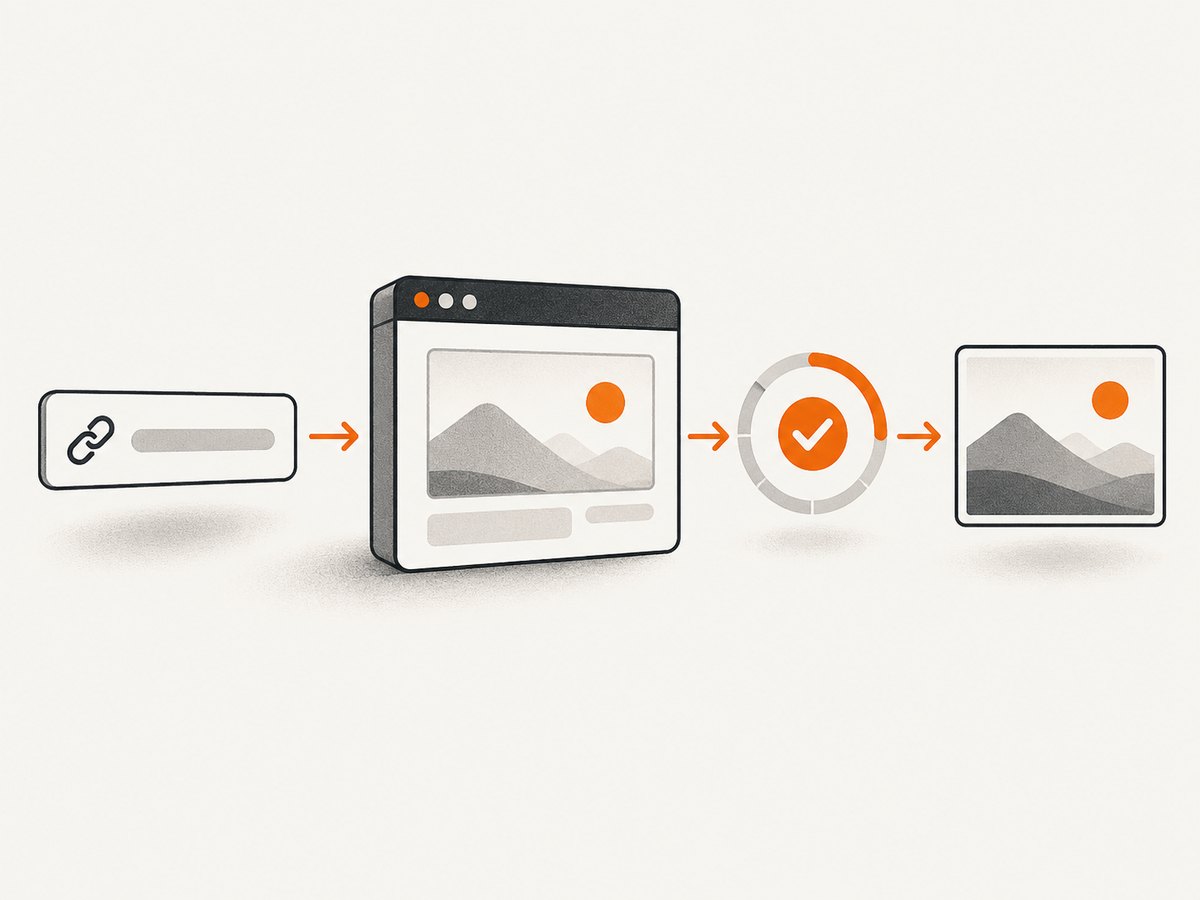
- URL: the normalized page address.
- Viewport: width, height, and device scale factor.
- Target: the viewport, a CSS-selected element, or the full scrollable page.
- Readiness rule: a selector, delay, network-idle policy, or application event.
- Output: PNG, JPEG, or WebP, plus quality where supported.
- Destination: a deterministic object key and metadata record.
Keep these values stable. A fixed viewport and scale make images comparable, while a deterministic name based on a normalized URL and content or version hash makes retries safe. Store the capture time, browser or API version, viewport, selector, readiness rule, output format, and error information beside the image so you can reproduce a result.
Automate thumbnails with Puppeteer
Puppeteer’s official guide uses Page.screenshot() after navigation. It also supports ElementHandle.screenshot() when the thumbnail should show one component rather than the whole viewport. See the Puppeteer screenshot guide.
Minimal viewport capture
import puppeteer from 'puppeteer';

const browser = await puppeteer.launch();
const page = await browser.newPage();
await page.setViewport({ width: 1280, height: 720, deviceScaleFactor: 1 });
await page.goto('https://example.com', { waitUntil: 'networkidle2' });
await page.screenshot({ path: 'thumbnail.png', type: 'png' });
await browser.close();
Use networkidle2 only when the site settles enough for your use case. Analytics, advertisements, and live data can keep a page active indefinitely or produce a screenshot before the important content appears.
Capture a selected element
import puppeteer from 'puppeteer';

const browser = await puppeteer.launch();
const page = await browser.newPage({
  viewport: { width: 1280, height: 720, deviceScaleFactor: 1 }
});
await page.goto('https://example.com', { waitUntil: 'domcontentloaded' });
await page.waitForSelector('main article .hero', { visible: true, timeout: 15000 });
const hero = await page.$('main article .hero');
if (!hero) throw new Error('Thumbnail selector was not found');
await hero.screenshot({ path: 'hero.webp', type: 'webp', quality: 82 });
await browser.close();
The element helper attempts to scroll a hidden element into view before capturing it. A selector that is missing, duplicated, covered by a modal, or rendered at zero size should be treated as a job failure with useful metadata.
Full-page capture
await page.screenshot({
  path: 'long-page.png',
  fullPage: true,
  type: 'png'
});
Full-page mode captures the complete scrollable page. It is appropriate for an archive or documentation preview, but usually produces a poor social thumbnail because the output is extremely tall. For thumbnails, capture a fixed viewport or a hero element and crop to your delivery ratio.
Automate thumbnails with Playwright
Playwright supports the viewport, a selected element, or the full scrollable page, with PNG, JPEG, and WebP output, CSS-pixel or device-pixel scaling, filename output, clipping, quality, and buffer output. Its documentation describes the page.screenshot API in the Playwright screenshot guide.
import { chromium } from 'playwright';

const browser = await chromium.launch();
const page = await browser.newPage({
  viewport: { width: 1280, height: 720 },
  deviceScaleFactor: 1
});
await page.goto('https://example.com', { waitUntil: 'domcontentloaded' });
await page.screenshot({ path: 'thumbnail.webp', type: 'webp', quality: 82 });
await browser.close();
Buffer output for post-processing
const image = await page.screenshot({
  type: 'jpeg',
  quality: 84,
  clip: { x: 0, y: 0, width: 1280, height: 720 }
});
// Send image to object storage, an image processor, or a hash function.
Buffer output lets you crop to an exact thumbnail ratio, resize, add permitted branding, run a pixel-diff check, or upload without writing a temporary file. Keep the browser capture and image processing as separate stages so a processing failure does not require another page load.
Batch many URLs safely
- Read URL records from a queue or database and validate their schemes.
- Launch one browser process and reuse it for a bounded batch.
- Create a fresh page or context per job when cookies and authentication must not leak between sites.
- Apply the same viewport, device scale, timeout, and output policy to every record.
- Limit concurrency. More pages can increase memory use, CPU contention, throttling, and incomplete loads.
- Persist success or failure immediately, including the final URL after redirects.
- Retry transient navigation failures with backoff, but do not retry a deterministic missing selector forever.
const jobs = [
  { url: 'https://example.com', key: 'example.webp' },
  { url: 'https://developer.mozilla.org', key: 'mdn.webp' }
];

const browser = await chromium.launch();
for (const job of jobs) {
  const page = await browser.newPage({ viewport: { width: 1280, height: 720 } });
  try {
    await page.goto(job.url, { waitUntil: 'domcontentloaded', timeout: 30000 });
    await page.screenshot({ path: job.key, type: 'webp', quality: 82 });
  } finally {
    await page.close();
  }
}
await browser.close();
For larger queues, use a worker pool with a maximum number of simultaneous pages and a maximum jobs-per-browser lifetime. Restarting a browser after a bounded number of jobs can contain memory growth.
Waiting for the right pixels
Navigation completion is not the same as visual readiness. Choose the rule that matches the page:
- Selector: wait for the hero, title, or card that must appear.
- Delay: useful for a known animation or late font, but less reliable when load time varies.
- Network idle: useful for static applications, risky for pages with polling or streaming.
- Application signal: expose a data attribute or event when client-side rendering is complete.
Wait for web fonts and important images when they affect layout. Disable animations with a controlled stylesheet if thumbnails must be stable. Hide cookie banners, chat widgets, and transient overlays through route-specific rules. Do not hide content that is part of the page being represented.
Make output consistent
| Decision | Recommendation | Reason |
|---|---|---|
| Viewport | Choose one width and height per thumbnail family | Prevents layout and crop drift |
| Scale | Use one device scale factor | Keeps pixel dimensions predictable |
| Target | Use viewport or hero consistently | Prevents mixed framing |
| Format | WebP for compact delivery; PNG for lossless graphics; JPEG for photographic pages | Matches quality and size needs |
| Crop | Apply one final aspect ratio | Fits cards and feeds |
Review licensing and permissions before distributing thumbnails containing logos, photographs, or user-generated content. A screenshot is still a copy of page content.
Or skip the browser setup
ScreenshotNeo exposes website screenshots through one GET request. The API supports PNG, JPEG, WebP, PDF, full-page capture with lazy images loaded, CSS element capture, dark mode, device presets or custom viewports, retina scale, custom CSS and JavaScript, clicks, selector or delay waits, network-idle waits, request blocking, headers, cookies, user agents, authorization, timezone, geolocation, transparent backgrounds, resizing, caching with a chosen TTL, signed links, asynchronous jobs with signed webhooks, bulk capture of up to 100 URLs per call, a usage API, and an OpenAPI specification.
Use the ScreenshotNeo API documentation for the full option list. This runnable request captures a thumbnail source:
curl -G "https://api.screenshotneo.com/v1/shot" -d access_key=YOUR_API_KEY --data-urlencode url=https://stripe.com -o shot.webpimport requests
r = requests.get("https://api.screenshotneo.com/v1/shot", params={"access_key": "YOUR_API_KEY", "url": "https://stripe.com"}, timeout=90)
open("shot.webp", "wb").write(r.content)const q = new URLSearchParams({ access_key: 'YOUR_API_KEY', url: 'https://stripe.com' });
const res = await fetch(`https://api.screenshotneo.com/v1/shot?${q}`);Cookie banners, newsletter popups, and chat widgets are removed before the shot. Bot checks, blank pages, timeouts, failed loads, and cache hits are never billed, and response headers identify the page verdict and whether it was billed. An MCP server provides take_screenshot, get_page_info, and capture_pdf tools for Claude, Cursor, and other MCP clients. The free plan includes 1,000 screenshots per month without a card; paid plans start at $5 for 3,000 shots. Start with 1,000 free screenshots.
Troubleshooting
Timeouts
Cause: slow servers, third-party requests, or a never-idle application. Fix: set an explicit navigation timeout, wait for a meaningful selector, block unnecessary resources, and record the URL and phase that timed out.

Blank or partially rendered images
Cause: capture occurred before client rendering, fonts, or lazy images completed. Fix: wait for the content selector, a known application signal, or a bounded delay; scroll or use full-page behavior when lazy loading requires it.
Missing selector
Cause: markup changed, the selector is inside a frame, or an A/B variant rendered. Fix: validate selectors against representative pages, include a fallback target, and mark the job for review after a small retry limit.
Cookie dialog covers the thumbnail
Cause: consent UI appears after navigation. Fix: accept or hide it with a controlled route rule, while respecting the site’s terms and consent requirements.
Authentication wall or bot check
Cause: the page requires credentials or challenges automated traffic. Fix: provide authorized cookies or headers where permitted, capture an authenticated staging URL, or record the page as unavailable instead of looping retries.
Different results between runs
Cause: responsive layout, rotating content, animations, time zones, or live data. Fix: fix viewport, scale, timezone, user agent, and readiness rules; disable animations and version the output key when the source changes.
Performance, reliability, and cost
Reuse a browser process for a batch, but bound concurrent pages and browser lifetime. Measure throughput and failure rates in your own CI or container environment; neither Puppeteer nor Playwright is universally faster. Cache by normalized URL plus capture options and content version. A cache hit should not trigger a browser launch. Keep originals only when you need reprocessing, and store the delivery thumbnail separately.
Self-hosted browsers cost infrastructure time: Chromium memory, container images, patching, fonts, sandbox configuration, queueing, storage, and observability. Hosted capture moves those operations into an API request and gives you response metadata for billing and page verdicts. With ScreenshotNeo, only clean shots are billed, while bot checks, blank pages, timeouts, failed loads, and cache hits cost nothing. Choose based on required control, isolation, authentication, volume, and operating budget.
FAQ
Should a thumbnail use a full-page screenshot?
Usually no. Use a fixed viewport or a hero element for a readable card. Reserve full-page mode for tall previews and archives.
PNG, JPEG, or WebP?
Use WebP for compact modern delivery, PNG for lossless interfaces or transparency, and JPEG for photographic content when size matters more than lossless edges.
How do I make a batch repeatable?
Keep viewport, scale, readiness, crop, format, and naming policy versioned. Save those settings with every output.
Can an AI agent create these thumbnails?
Yes. ScreenshotNeo’s MCP server exposes screenshot, page-info, and PDF tools to MCP clients such as Claude and Cursor.
What should happen when a page cannot be captured?
Record a structured failure with the URL, final redirect, phase, error, and retry count. Do not publish a stale image without marking its age.


