How to Automate WordPress Featured and Open Graph Images
Automate WordPress featured images and Open Graph tags with plugins, fallbacks, custom code, testing, and a screenshot workflow.

Short answer: automate WordPress social images by making one system responsible for both the post’s featured image and its Open Graph metadata. First check whether your existing SEO plugin already emits og:image. Configure its image priority and fallback. If it does not meet your needs, use a dedicated metadata or generated-card plugin. For special post types or business rules, add a small integration using the SEO plugin’s documented filters. Then inspect the rendered HTML and test posts with and without featured images.
A featured image and an Open Graph image are related, but they are not the same setting. The featured image belongs to WordPress content. The og:image tag belongs to the HTML head and tells crawlers which image to use when a URL is shared. A theme may display the featured image on the page while a social network uses a different image, a default, or no image at all.
1. Understand the two image systems
WordPress calls the featured image a post thumbnail. A theme or custom post type must support featured images before the editor shows the control. Themes can also register image sizes, so the file used in a card may be a cropped derivative rather than the original upload. The WordPress Theme Handbook documents support and image-size behavior.
Open Graph metadata is generated by a plugin, theme code, or another integration. A typical page head contains:
<meta property="og:type" content="article">
<meta property="og:title" content="Example post">
<meta property="og:url" content="https://example.com/example-post/">
<meta property="og:image" content="https://example.com/wp-content/uploads/example.jpg">
Setting a featured image does not guarantee that a social platform will use it. The page must expose an accessible og:image URL, and the metadata producer must choose the image you expect. Some SEO tools let an editor select a social image that overrides the featured image. Others fall back to images in the content or a site-wide default.
2. Choose an automation approach
| Approach | Best when | Watch for |
|---|---|---|
| Existing SEO plugin | Your site already has one that emits Open Graph tags | Configure its social image priority before adding another plugin |
| Dedicated metadata plugin | You need explicit fallback rules or generated branded cards | Compatibility, duplicate tags, and maintenance |
| Custom code | You have custom post types, image rules, or an internal asset service | Plugin API changes and incomplete fallback handling |
Start with the SEO plugin you already run
Open its social or Open Graph settings and identify four things:
- Whether it outputs
og:imageat all. - Whether a post-level social image overrides the featured image.
- What happens when a post has no featured image.
- Whether the default image can be set globally and per post type.
Yoast describes a preference order that starts with a manually selected social image, then the featured image, then a prominent image from the content, followed by configured defaults. Treat that order as plugin behavior, not a universal WordPress rule; verify the settings in the version installed on your site. Its developer documentation covers Open Graph customization and filters.
Use a dedicated metadata or card plugin
A dedicated plugin can be useful when posts frequently lack custom artwork. Documented WordPress.org listings describe alternatives that select the featured image, then content images or attachments, and finally a branded fallback. Another listed product generates branded cards for posts without an image. Compare the current plugin documentation before installing one because fallback order, editor controls, compatibility, and generated-card behavior vary.
Some generated-card tools describe a 1200 × 630 output. That is a feature of the listed product, not a platform-wide guarantee. Check the current image guidance for the social networks you target and preview the actual rendered card.
3. Build a reliable fallback hierarchy
Write the hierarchy down before configuring anything. A practical policy is:
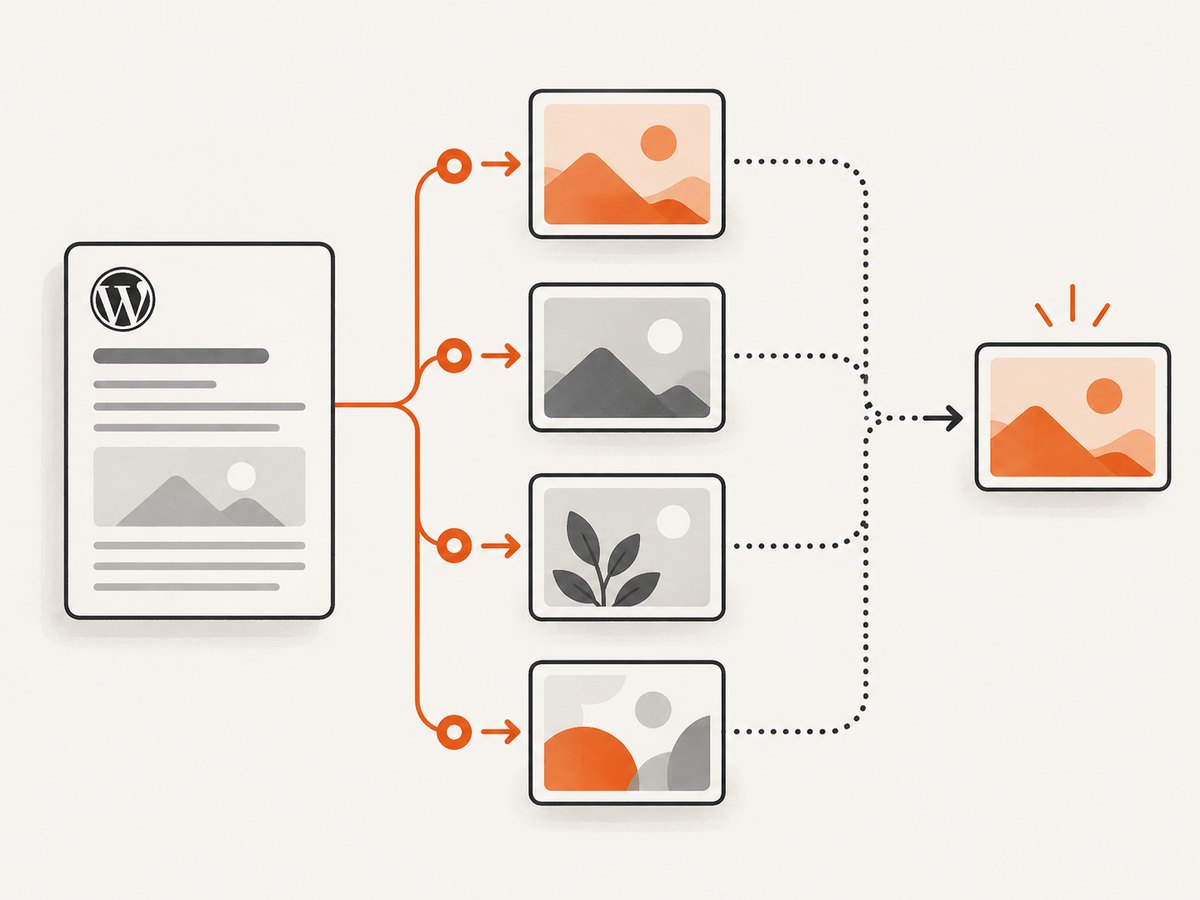
- Use a manually selected social image when the editor needs a campaign-specific creative.
- Otherwise use the post’s featured image.
- For posts without a featured image, use a suitable image from the content only if your plugin’s selection is predictable.
- Use a generated branded card or static site default as the final fallback.
Decide whether custom post types follow the same policy. A documentation post, product page, and news article may need different defaults. Also decide whether an image should be allowed to come from an attachment, a parent object, or a remote asset service. Automation is dependable when every branch has an intentional result.
4. Confirm featured-image support
If the editor has no featured-image panel, check the post type and theme. A classic theme can declare support with:
<?php
add_theme_support( 'post-thumbnails' );

add_post_type_support( 'case_study', 'thumbnail' );

add_image_size( 'social-card', 1200, 630, true );
For a block theme or registered custom post type, use the theme and post-type APIs appropriate to your setup. The important check is observable: edit a post of each relevant type and confirm that a featured image can be assigned and saved.
5. Add custom Open Graph logic when needed
Custom code is appropriate when a site has rules the plugin UI cannot express. For example, you might use a special image for a product post type, a generated card for an empty event, and the normal featured image everywhere else. Prefer the filter API documented by the SEO plugin you have installed instead of printing a second set of tags from the theme.
The exact hook and data structure depend on the installed plugin and version. Follow its current developer specification, then implement the smallest possible transformation: choose an image URL, preserve the plugin’s escaping and metadata handling, and return one image. Do not copy a snippet written for a different plugin merely because both use the phrase “Open Graph.”
For a custom integration that owns the tags itself, a minimal WordPress pattern looks like this:
<?php
function site_social_image_url() {
    if ( is_singular() ) {
        $post_id = get_queried_object_id();
        if ( has_post_thumbnail( $post_id ) ) {
            $image = wp_get_attachment_image_url(
                get_post_thumbnail_id( $post_id ),
                'full'
            );
            if ( $image ) {
                return $image;
            }
        }
    }

    return get_theme_file_uri( '/assets/default-social-card.jpg' );
}

function site_output_open_graph_image() {
    if ( is_admin() || ! is_singular() ) {
        return;
    }

    $url = site_social_image_url();
    if ( ! $url ) {
        return;
    }

    printf(
        '<meta property="og:image" content="%s" />\n',
        esc_url( $url )
    );
}
add_action( 'wp_head', 'site_output_open_graph_image', 20 );
Use this pattern only when your existing SEO plugin is not already emitting the same tag. If two systems print og:image, crawlers may choose unpredictably and debugging becomes harder. A plugin-specific filter is usually safer because it changes the existing producer rather than creating a competing one.
6. Automate image generation for posts without artwork
Generated cards are useful for high-volume publishing. Define a stable template with the post title, category color, and brand treatment, then generate an image when a post is published or updated. Store the resulting attachment or public URL and use it as the fallback image. Keep the generation step separate from page rendering so a slow image service does not delay normal requests.
When a post title changes, decide whether to regenerate immediately or retain the previous card until a background job completes. Whichever policy you choose, make failures visible in an editor-facing log. A missing generated asset should fall back to the site default instead of producing an empty og:image.
7. Inspect and test the rendered output
- Open a published post in a private browser window.
- View the page source, not only the DOM inspector, and search for
og:image. - Confirm there is one intended image tag and that its URL is absolute and publicly reachable.
- Test a post with a manually selected social image, one with only a featured image, and one with no image.
- Repeat for every custom post type that appears in your sitemap or feeds.
- Use the preview or debugging tool supplied by the target social platform to inspect the fetched result.
Inspect related tags too: og:title, og:url, and og:type. An image can be correct while the preview still looks wrong because the crawler is reading a different canonical URL or cached version.
8. Troubleshooting common failures
| Symptom | Likely cause | Fix |
|---|---|---|
| No featured-image control | The theme or post type lacks thumbnail support | Enable support and verify it on the affected post type |
| Featured image appears on the page but not in sharing previews | No Open Graph producer, or the producer selected another fallback | Enable/configure the SEO plugin and inspect the page source |
| Wrong image is selected | A post-level social image or plugin hierarchy overrides the featured image | Remove the override or change the documented priority |
| Two different images appear in source | Two plugins or a plugin and theme both emit metadata | Choose one owner and disable the other output |
| No image for posts without artwork | No final fallback is configured, or generation failed | Set a static default or generated-card fallback and log failures |
| Preview shows an old image | The platform or an intermediate cache has retained previous metadata | Confirm current source HTML, then use the platform’s current refresh or debugger workflow |
| Image URL works in a browser but not for a crawler | Access controls, redirects, or an unavailable host | Use a stable public URL and check server responses from an external network |
Jetpack is one documented example of a second metadata producer. If it is active alongside an Open Graph plugin, follow the plugin documentation for disabling duplicate output. Do not assume that removing a tag in the browser inspector changes the HTML delivered to crawlers.
9. Performance, reliability, and cost considerations
Static uploaded images are the simplest and most reliable option. Store appropriately sized derivatives and serve them from your normal media host or CDN. Generating a card during a publish hook is convenient, but external rendering can fail or add latency. Background jobs with retries are safer for busy sites. Cache generated assets by a stable key such as post ID plus content revision, and invalidate that key when the title or design inputs change.
A plugin adds maintenance cost even when it has no subscription fee: updates, compatibility checks, and another possible source of duplicate metadata. Before adding one, confirm whether your SEO plugin already supports the required fallback. If you use a paid image-generation service, account for per-image rendering, storage, and regeneration costs. Keep a static default so a temporary service outage does not leave posts without an image.
10. Or skip the browser setup
If your workflow needs a reliable image for a WordPress post, you can capture a page or preview with ScreenshotNeo instead of maintaining browser automation. One GET request returns a PNG, JPEG, WebP, or PDF. Before capture it accepts cookie and consent banners and removes more than 60 known consent platforms, newsletter popups, and chat widgets; each cleanup step can be turned off. Bot checks, blank pages, timeouts, failed loads, and cache hits are not billed, and response headers identify the page verdict and billing status.

See the ScreenshotNeo API documentation for all options. A basic WebP capture is:
curl -G "https://api.screenshotneo.com/v1/shot" -d access_key=YOUR_API_KEY --data-urlencode url=https://stripe.com -o shot.webpPython:
import requests

r = requests.get(
    "https://api.screenshotneo.com/v1/shot",
    params={"access_key": "YOUR_API_KEY", "url": "https://stripe.com"},
    timeout=90,
)
r.raise_for_status()
open("shot.webp", "wb").write(r.content)
Node.js:
const q = new URLSearchParams({ access_key: 'YOUR_API_KEY', url: 'https://stripe.com' });
const res = await fetch(`https://api.screenshotneo.com/v1/shot?${q}`);
if (!res.ok) throw new Error(`Screenshot failed: ${res.status}`);
const fs = await import('node:fs/promises');
await fs.writeFile('shot.webp', Buffer.from(await res.arrayBuffer()));
For WordPress previews, useful options include full-page capture with lazy images loaded, a CSS selector for one element, dark mode, device presets or a custom viewport, retina scale, custom CSS and JavaScript, click actions, selector waits, network-idle waits, delays, hidden selectors, blocked ads or trackers, custom headers and cookies, timezone and geolocation, transparent backgrounds, resizing, a chosen cache TTL, signed links for public <img> tags, asynchronous jobs with signed webhooks, bulk capture of up to 100 URLs per call, and PDF settings such as paper size, margins, landscape mode, and page ranges. An MCP server provides take_screenshot, get_page_info, and capture_pdf for Claude, Cursor, and other MCP clients.
For a social card, capture only the article header with a CSS selector when you need a consistent component image. For a full article preview, enable full-page capture and wait for the main content selector. Cache stable URLs with a TTL you choose, and use signed links when the resulting image must be embedded publicly.
ScreenshotNeo has 1,000 free shots per month with no card. Paid plans start at $5 for 3,000 shots; every feature is available on every plan. Create a free ScreenshotNeo account and use the API or MCP server when you want WordPress imagery without maintaining browser infrastructure.
11. A deployment checklist
- Each relevant post type supports a featured image.
- One system owns Open Graph output.
- The fallback hierarchy is documented and tested.
- Posts with and without images produce one valid
og:image. - Generated assets have a retry path and a static fallback.
- Image URLs are absolute, public, stable, and served over HTTPS.
- Page source and platform previews match the intended image.
- Editors know when a social image override takes precedence.
FAQ
Does WordPress automatically create an Open Graph image?
WordPress can store a featured image, but Open Graph tags are normally produced by an SEO plugin, metadata plugin, theme code, or another integration. Check the rendered HTML.
Should the featured image and social image always be identical?
No. Many sites use the same image by default but allow a post-specific social image for campaigns, text overlays, or different aspect ratios.
Can I install two Open Graph plugins?
You can, but both may emit duplicate tags. Select one owner or disable overlapping output and verify the final page source.
What should happen when an editor forgets an image?
Use a documented fallback: a content image, a generated branded card, or a static site default. Test that branch before publishing at scale.
Is 1200 × 630 required everywhere?
No universal platform requirement was established here. Some plugins generate that size. Follow current guidance for the platforms you target and preview the result.


