11 Best Automated Browser Testing Tools for Developers
Compare 11 browser testing tools by browser coverage, language, debugging, and CI fit. Start with Playwright for a unified modern cross-browser workflow.

For most teams building a modern web application, Playwright is the best default for automated browser testing: one test runner can target Chromium, Firefox, and WebKit, with device emulation and built-in reporting. Choose Cypress if in-browser debugging and component testing matter most; Selenium if your existing language bindings, browser matrix, or legacy grid determine the choice; and Puppeteer when your automation is centered on Chrome and browser control.
The right tool is the one that fits the browsers your users need, the language your team maintains, and the failures your CI can help diagnose. This guide compares 11 options, shows a runnable Playwright example, and explains where screenshot capture fits alongside—not in place of—functional tests.
1. How to choose a browser testing tool
Browser tests can verify an end-to-end user journey, a UI component, or a narrower browser behavior. Before comparing frameworks, answer these questions:
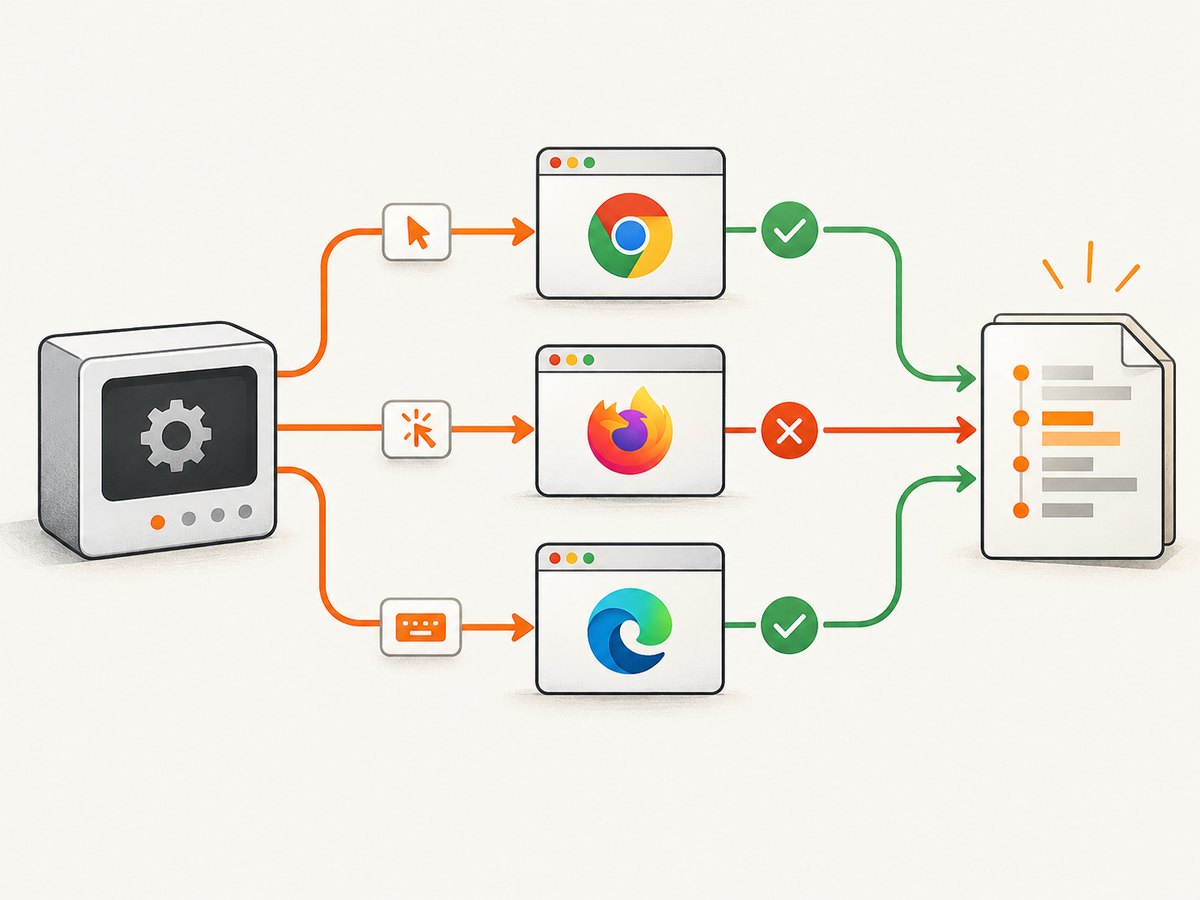
- Which browsers must you support? Chromium coverage alone does not establish that an app works in Firefox or Safari. Playwright’s WebKit is useful for Safari-related checks, but it is not branded Safari. For the closest Safari environment, use macOS WebKit or a real-browser service when that distinction matters.
- Which language will own the suite? JavaScript and TypeScript teams have several integrated choices. Selenium offers established bindings across languages; Ruby teams may prefer Capybara or Watir, while QA and developer teams can share keyword-style tests with Robot Framework Browser.
- What do you need to debug? Consider locator details, traces, screenshots, video, browser console output, and network activity. A red CI result without enough context can be more expensive to investigate than a slower but diagnosable test.
- How will tests run in CI? Account for browser installation, OS dependencies, parallel workers, sharding, artifacts, and any hosted browser or device grid. A local browser does not reproduce every real device or operating system.
- What scope belongs in this suite? Use end-to-end tests for a few important user journeys. Component, API, accessibility, visual-regression, and performance checks may belong in the same framework or in dedicated tooling.
These tools automate browsers; they do not all have the same execution architecture. Cypress runs in the same run loop as the application. Selenium and WebdriverIO use WebDriver commands. Playwright and Puppeteer provide browser-control libraries and protocols. That difference affects debugging and integration choices, but does not by itself determine which tool is best for your project.
2. The 11 best automated browser testing tools
| Tool | Best fit | Key consideration |
|---|---|---|
| 1. Playwright | Modern cross-browser end-to-end tests | Unified runner and Chromium, Firefox, WebKit projects |
| 2. Cypress | JavaScript teams prioritizing interactive debugging and component tests | Distinctive in-browser architecture |
| 3. Selenium WebDriver | Broad language, browser, and legacy ecosystem needs | More integration and infrastructure choices to manage |
| 4. Puppeteer | Chrome-centered automation and browser control | Evaluate its browser and runner fit for your E2E matrix |
| 5. WebdriverIO | Configurable JavaScript or TypeScript WebDriver suites | Validate current browser and service support |
| 6. TestCafe | Teams seeking automatic waiting without Selenium/WebDriver | Uses a URL-rewriting proxy |
| 7. Nightwatch | JavaScript teams wanting an integrated runner and assertions | Check its integrations against your environment |
| 8. Robot Framework Browser | Keyword-driven tests shared by developers and QA | Built on Playwright; test ownership conventions matter |
| 9. Capybara | Ruby acceptance tests | Works through browser backends |
| 10. Watir | Ruby teams maintaining browser automation suites | Natural fit when Ruby is already part of the test stack |
| 11. CodeceptJS | Readable JavaScript acceptance scenarios | High-level layer sits over browser helpers |
1. Playwright: best default for modern cross-browser E2E
Playwright combines a test runner, assertions, isolation, parallel execution, and reporting. Its projects can target Chromium, Firefox, and WebKit, as well as branded Chrome and Edge and emulated mobile or tablet configurations. The official docs explain [browser installation and project configuration](https://playwright.dev/docs/browsers). WebKit is derived from WebKit sources and is not the branded Safari browser, so use an appropriate macOS or hosted environment when exact Safari behavior is a release requirement.
Pick Playwright when you want one test suite across browser engines, browser contexts isolated by test, and a straightforward path from test failure to trace or screenshot. It is also a reasonable migration destination for teams moving from Puppeteer.
2. Cypress: best for in-browser debugging and component tests
Cypress documents end-to-end, component, and accessibility testing. Its architecture runs in the same run loop as the application, which gives it a distinctive debugging model and access to application state. Choose it when that feedback loop matches how your JavaScript team works. Confirm that its browser and execution model cover the environments required by your project.
3. Selenium WebDriver: best for established compatibility needs
Selenium remains useful when language bindings, a mature ecosystem, remote browser execution, and compatibility requirements carry more weight than a newer framework’s integrated ergonomics. It can be a practical fit for long-lived suites and broad browser grids. Its flexibility means the runner, waits, reporting, and grid operations may depend on the stack you assemble.
4. Puppeteer: best for Chrome-focused automation
Puppeteer is a JavaScript library for browser automation, screenshots, PDFs, network control, and performance-oriented browser tasks. Chrome for Developers documents automation through the Chrome DevTools Protocol and WebDriver BiDi, including Chrome and Firefox support. It is a strong choice when browser control is the main job; teams needing a fully integrated cross-browser test framework should compare its workflow with Playwright.
5–11. Other useful choices
- WebdriverIO provides a configurable JavaScript/TypeScript WebDriver path with integrations. Check current browser and service support for your target environment.
- TestCafe offers automatic waiting and role support without Selenium/WebDriver. Its documented URL-rewriting proxy injects the driver script into the page, a meaningful architectural factor for some applications.
- Nightwatch is a JavaScript end-to-end framework built around browser automation, with an integrated runner and assertions for teams that prefer a packaged workflow.
- Robot Framework Browser builds on Playwright and exposes keyword-driven tests. It can help when developers and QA share ownership and prefer readable action-oriented scenarios.
- Capybara is a Ruby acceptance-testing DSL that drives browser backends. Consider it for Ruby applications and suites.
- Watir is a Ruby browser automation family suited to teams retaining Ruby test suites and conventions.
- CodeceptJS adds a high-level JavaScript acceptance-testing layer over browser helpers for teams that value readable scenario syntax.
3. Playwright quick start: a runnable cross-browser test
This small example checks a user-visible heading and link. Install the test runner, create the test file, install browsers, and run the suite. Use the official [Playwright documentation](https://playwright.dev/docs/intro) for current setup details.
- Initialize a project:
npm init playwright@latestand select TypeScript when prompted. - Save the following as
tests/home.spec.ts. - Install the browser binaries with
npx playwright install. - Run all configured projects using
npx playwright test, or run one withnpx playwright test --project=chromium.
import { test, expect } from '@playwright/test';

test('home page offers product documentation', async ({ page }) => {
  await page.goto('https://playwright.dev/');
  await expect(page.getByRole('heading', { name: /playwright enables reliable/i }))
    .toBeVisible();
  await expect(page.getByRole('link', { name: /get started/i })).toBeVisible();
});
The generated configuration typically defines browser projects. A minimal explicit setup looks like this:
import { defineConfig, devices } from '@playwright/test';

export default defineConfig({
  testDir: './tests',
  retries: process.env.CI ? 1 : 0,
  reporter: process.env.CI ? 'html' : 'list',
  use: {
    baseURL: 'https://playwright.dev',
    trace: 'on-first-retry',
    screenshot: 'only-on-failure',
  },
  projects: [
    { name: 'chromium', use: { ...devices['Desktop Chrome'] } },
    { name: 'firefox', use: { ...devices['Desktop Firefox'] } },
    { name: 'webkit', use: { ...devices['Desktop Safari'] } },
  ],
});
Set baseURL to your application and write tests against accessible roles, labels, and stable test IDs rather than brittle DOM structure. Projects control browser-specific settings; the test itself can remain shared. Run the HTML report after CI failures with npx playwright show-report.
4. Reliable test design and configuration
Locators, waits, and isolation
Prefer role and label locators because they reflect how users find controls and usually survive layout changes better than deep CSS selectors. Use a test ID when no useful accessible name exists. Avoid arbitrary sleeps as the normal synchronization mechanism: wait for a meaningful state, such as a visible confirmation or a completed navigation. Fixed delays make a suite slower when the app is fast and still flaky when it is slower than the delay.
Keep tests independent. Create test data explicitly, avoid order-dependent shared state, and use isolated browser contexts or fixtures. When a test fails intermittently, identify whether the cause is a race, shared account, external dependency, animation, or unstable locator before increasing retries. Retries can expose flakiness; they do not make a broken test reliable.
Coverage, devices, and CI
Do not multiply every test across every browser and device without considering value and runtime. Run a representative smoke set on each required engine, then target deeper coverage where browser-specific behavior is likely. Mobile emulation changes viewport and device characteristics, but it is not a substitute for every real device. Use a hosted browser grid such as BrowserStack, Sauce Labs, or LambdaTest when local browsers cannot provide the required environment matrix; confirm the provider’s current device and browser availability before relying on it.
In CI, install the browser binaries and required operating-system dependencies for the Playwright version in use. Start with modest parallelism, then measure the suite in your own pipeline before raising worker counts. Save traces, screenshots, and reports on failures. Shard a large suite across jobs when the CI system supports it. Pin dependencies and browser installation to a reproducible build so local and CI failures are easier to compare.
Screenshot tests versus screenshots as an artifact
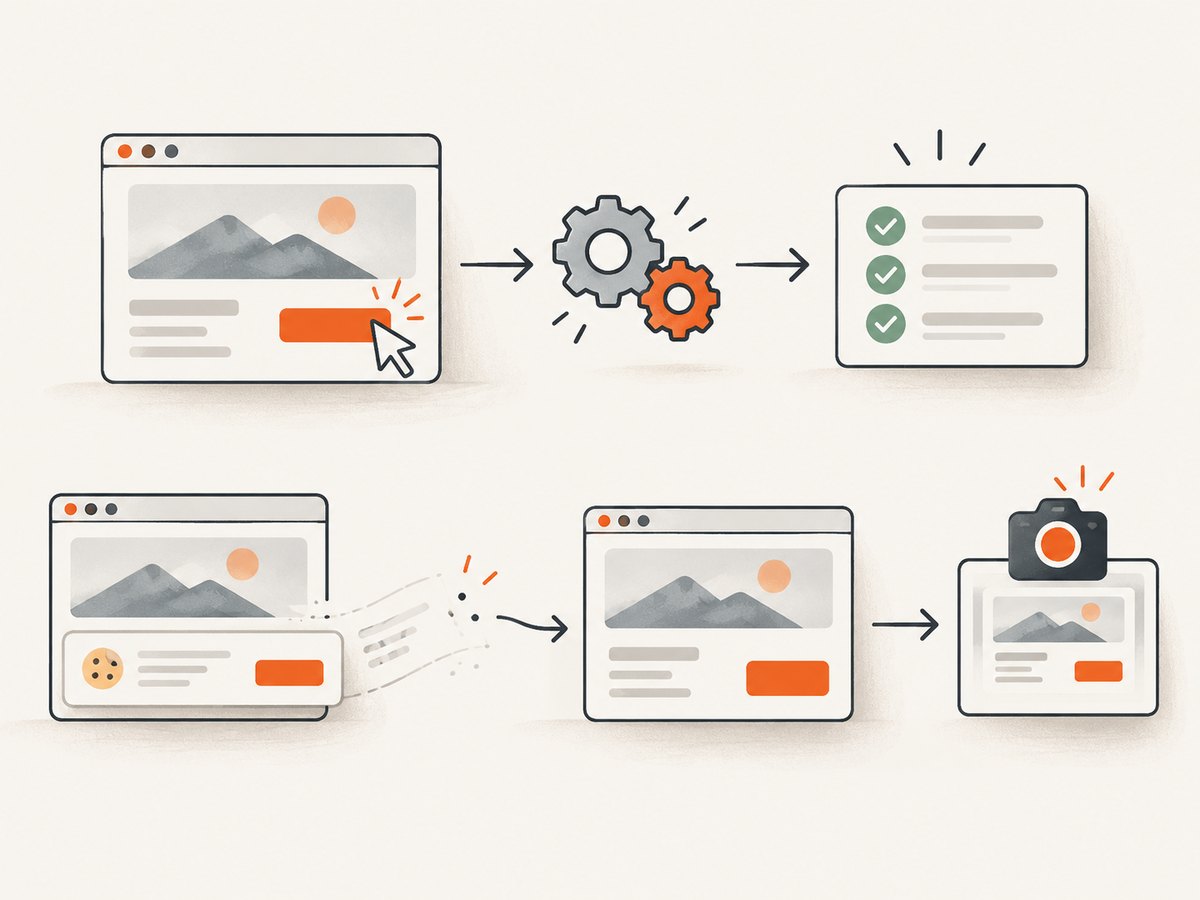
A screenshot assertion is useful for catching visual changes, but a screenshot alone does not establish that a workflow works. Pair visual checks with assertions about navigation, state, and user-visible outcomes. Stabilize fonts, animations, data, viewport, and browser versions to reduce noise. For simply generating reference images or PDFs of public pages, a screenshot API can avoid managing a local browser in a separate capture workflow.
5. ScreenshotNeo for screenshot capture outside the test suite
ScreenshotNeo is a website screenshot API and MCP server from [Yorker Media](https://screenshotneo.com). It is a capture option for developers who need a page image or PDF without adding browser installation and capture code to a separate utility. It does not replace assertions or end-to-end tests in Playwright, Cypress, or Selenium.
Its API supports PNG, JPEG, WebP, or PDF output and options including full-page capture, CSS-selector element capture, device and viewport settings, dark mode, custom CSS or JavaScript, wait conditions, request blocking, headers, cookies, and caching. Its MCP server exposes take_screenshot, get_page_info, and capture_pdf to AI agents such as Claude and Cursor through MCP clients. See the [ScreenshotNeo API documentation](https://screenshotneo.com/docs/) for parameters and setup.
Or skip the browser setup
One GET request returns a screenshot. Replace the example URL and API key with your target and credentials.
curl -G "https://api.screenshotneo.com/v1/shot" \
  -d access_key=YOUR_API_KEY \
  --data-urlencode url=https://stripe.com \
  -o shot.webp
Cookie banners are accepted and removed before capture, along with known consent platforms, newsletter popups, and chat widgets; each cleanup step can be turned off. Bot checks, CAPTCHAs, blank pages, timeouts, failed loads, and cache hits cost nothing, and response headers identify the page verdict and billing status. AI agents can capture through the MCP server. The Free plan includes 1,000 shots a month with no card; paid plans start at $5 for 3,000 shots. [Create a free ScreenshotNeo account](https://screenshotneo.com/account/sign-up/) to try it.
6. cURL, Python, and Node.js screenshot calls
These examples call ScreenshotNeo’s screenshot endpoint for capture tasks. They do not execute test assertions. Consult the [API docs](https://screenshotneo.com/docs/) for output parameters and available options.
cURL
curl -G "https://api.screenshotneo.com/v1/shot" \
  -d access_key=YOUR_API_KEY \
  --data-urlencode url=https://stripe.com \
  -o shot.webp
Python
import requests

r = requests.get(
    "https://api.screenshotneo.com/v1/shot",
    params={"access_key": "YOUR_API_KEY", "url": "https://stripe.com"},
    timeout=90,
)
r.raise_for_status()
open("shot.webp", "wb").write(r.content)
Node.js
const q = new URLSearchParams({
  access_key: 'YOUR_API_KEY',
  url: 'https://stripe.com',
});
const res = await fetch(`https://api.screenshotneo.com/v1/shot?${q}`);
if (!res.ok) throw new Error(`Screenshot request failed: ${res.status}`);
await Bun.write('shot.webp', new Uint8Array(await res.arrayBuffer()));
For production scripts, keep credentials in environment variables rather than source control, set an explicit timeout, check the HTTP status, and handle the response according to its verdict and billing headers. ScreenshotNeo also supports asynchronous jobs with signed webhooks, bulk capture of up to 100 URLs per call, signed links for public image tags, a usage API, and an OpenAPI spec. Review the docs for exact parameter names and response handling.
7. Troubleshooting browser tests
| Symptom | Likely cause | Fix |
|---|---|---|
| Browser executable missing | Browser binaries were not installed for the framework version | Run npx playwright install; in CI install required OS dependencies too. |
| Works locally, fails in CI | Different OS, fonts, timezone, browser version, secrets, or network access | Pin dependencies, configure environment deliberately, and save failure traces or screenshots. |
| Timeout waiting for an element | Wrong locator, blocked navigation, delayed app state, or hidden element | Inspect the trace and page state; assert a meaningful condition and use a stable accessible locator. |
| Intermittent failures | Race conditions, shared data, animation, external services, or order dependence | Isolate test data and contexts, wait on app state, and remove shared mutable setup. |
| WebKit result differs from Safari | Playwright WebKit is not branded Safari and may differ by OS | Reproduce on macOS or a hosted Safari environment for Safari-specific release checks. |
| Visual snapshots change unexpectedly | Fonts, timestamps, dynamic content, viewport, or animation changed | Control inputs and viewport, disable animation where appropriate, and review intentional changes. |
| Screenshot API returns an unexpected page | Target redirected, required authentication, or encountered a bot check or failed load | Check the target and response verdict/billing headers; configure supported headers or cookies and retry with a valid page. |
8. Performance, reliability, and cost
There is no universal speed ranking that applies to every app and CI machine. Measure your own suite: browser startup, application boot, test count, network dependencies, artifact collection, and parallelism all contribute. Keep the end-to-end suite focused on high-value paths, and move narrow logic checks to faster layers where appropriate. More workers can reduce elapsed time but also increase CPU, memory, and service load; compare pipeline time and stability before scaling up.
For reliable results, use deterministic test data, stable environments, accessible locators, and failure artifacts. Treat retries as diagnostic evidence. Keep browser binaries aligned with the test framework and run the same essential browser projects in pull-request CI that you use to validate releases.
Framework cost includes engineering time and CI minutes, plus any hosted grid or device service. Local Playwright, Cypress, Selenium, Puppeteer, and the other frameworks do not imply a single provider price; check the current terms of any hosted service you adopt. ScreenshotNeo’s listed plans are Free: 1,000 shots/month; Starter: $5 for 3,000; Growth: $15 for 15,000; Pro: $39 for 60,000; Scale: $99 for 250,000; Business: $249 for 1,000,000. Yearly billing gives two months free, and every feature is on every plan. For capture usage, only clean shots are billed; consult the product docs for current plan and API details.
9. Frequently asked questions
Is Playwright better than Cypress?
Neither is universally better. Playwright is a strong default for a unified Chromium, Firefox, and WebKit suite. Cypress stands out for its in-browser debugging model and component-testing workflow.
Should I use Selenium for a new project?
Use Selenium when its language bindings, compatibility, existing team knowledge, or grid ecosystem solve a real need. For a new project without those constraints, compare Playwright’s integrated runner and browser projects first.
Is Puppeteer suitable for end-to-end tests?
It can automate browser workflows, but its strongest fit is Chrome-oriented control and tasks such as screenshots, PDFs, network work, or performance analysis. Evaluate Playwright if you want a more integrated multi-engine test runner.
Do screenshots prove that my application works?
No. A screenshot captures appearance at a moment. Functional assertions verify that controls, navigation, and application behavior meet expectations; combine them when visual changes matter.
Do I need real devices as well as browser emulation?
Only if your requirements depend on real-device behavior. Emulation is useful for responsive checks, while a hosted device or browser grid can provide environments unavailable on a developer machine.
10. A practical selection checklist
- Choose Playwright for a modern, multi-engine default and one integrated runner.
- Choose Cypress if its in-browser debugging and component testing match the team’s workflow.
- Choose Selenium for established language bindings, compatibility demands, or legacy grids.
- Choose Puppeteer for Chrome-oriented browser automation beyond conventional E2E tests.
- Consider WebdriverIO, TestCafe, Nightwatch, Robot Framework Browser, Capybara, Watir, or CodeceptJS when their architecture and language fit your team.
- Keep capture utilities separate from test assertions; use [ScreenshotNeo](https://screenshotneo.com) when a page screenshot or PDF is the task.
Start with one representative critical journey, run it against the browser engines your users require, and inspect how clearly failures can be diagnosed in CI. Expand the matrix when it catches a real compatibility risk.


