The Best Screenshot Tools for Blurring Sensitive Information
Compare Snipping Tool, ShareX, Greenshot, Snagit and ScreenshotNeo, with safe redaction steps for screenshots containing private data.
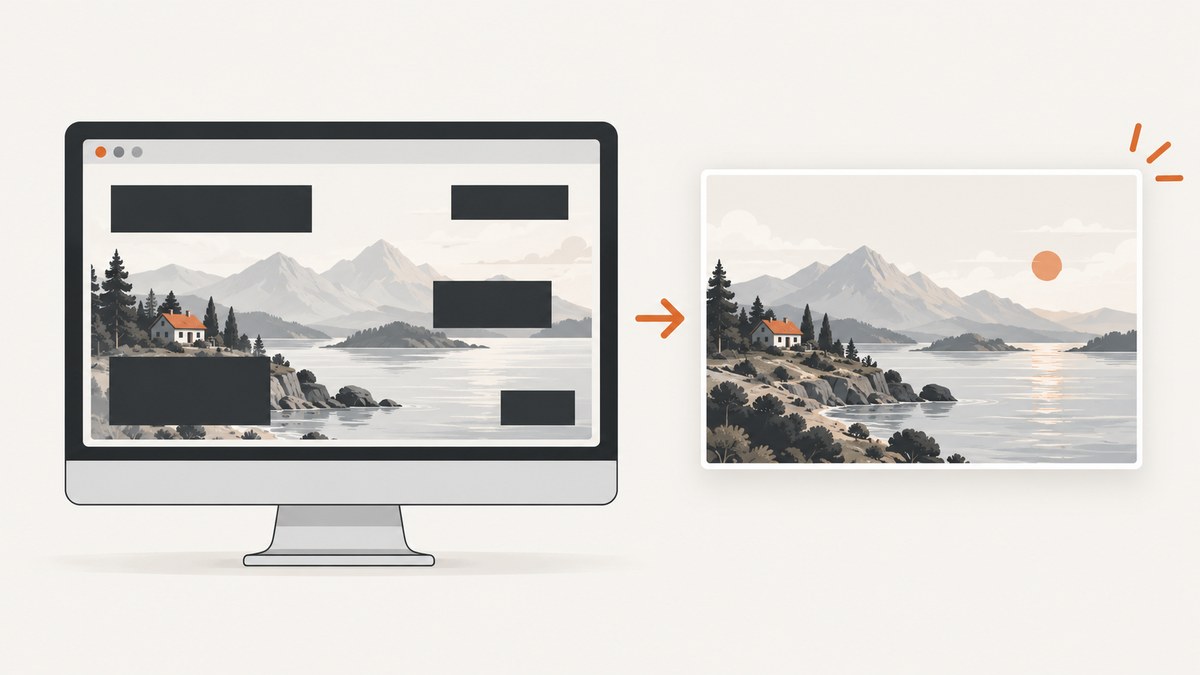
Short answer: Use Microsoft Snipping Tool for a quick Windows capture when the sensitive text is a detected email address or phone number. Choose ShareX for a free, configurable Windows workflow with blur, pixelation, crop and upload controls. Greenshot is a straightforward capture-and-annotation editor. Snagit is a commercial option with blur and shape-covering tools. For screenshots generated from websites, ScreenshotNeo is the first service to try: it removes common consent banners, popups and chat widgets before capture, and only clean shots are billed.
Choose a tool by the data you need to hide
| Tool | Best fit | Redaction features documented by the vendor | Important limitation |
|---|---|---|---|
| ScreenshotNeo | Website screenshots generated by an API or AI agent | Clean capture flow, custom CSS and JavaScript, hide selectors, element capture, PDF and image output | It captures web pages; it does not replace a local editor for arbitrary desktop images |
| Microsoft Snipping Tool | Occasional Windows captures and quick OCR-assisted redaction | Text actions can redact recognized email addresses and phone numbers; recognition runs locally | Detection is not documented as comprehensive for passwords, tokens, faces or every private detail |
| ShareX | Frequent Windows users who want configurable capture and editing | Blur, pixelate, smart eraser, crop and cut-out; save, copy and upload tasks | Many options require careful setup; upload destinations add a sharing step |
| Greenshot | Simple capture, annotation and export | Blur, pixelize, crop, annotations, save, copy and print | The cited help does not establish current cross-platform feature parity |
| TechSmith Snagit | Readers considering a commercial editor | Blur and shape tools to hide or replace parts of screenshots | Verify the current edition, platform support and price before buying |
Before you blur: decide whether the data should exist in the image
Blur and pixelation are visual effects. The cited documentation does not establish that they are irreversible or resistant to image analysis. For a password, API token, private message or other high-consequence secret, the safest workflow is to avoid capturing the region or crop it out when the composition allows.
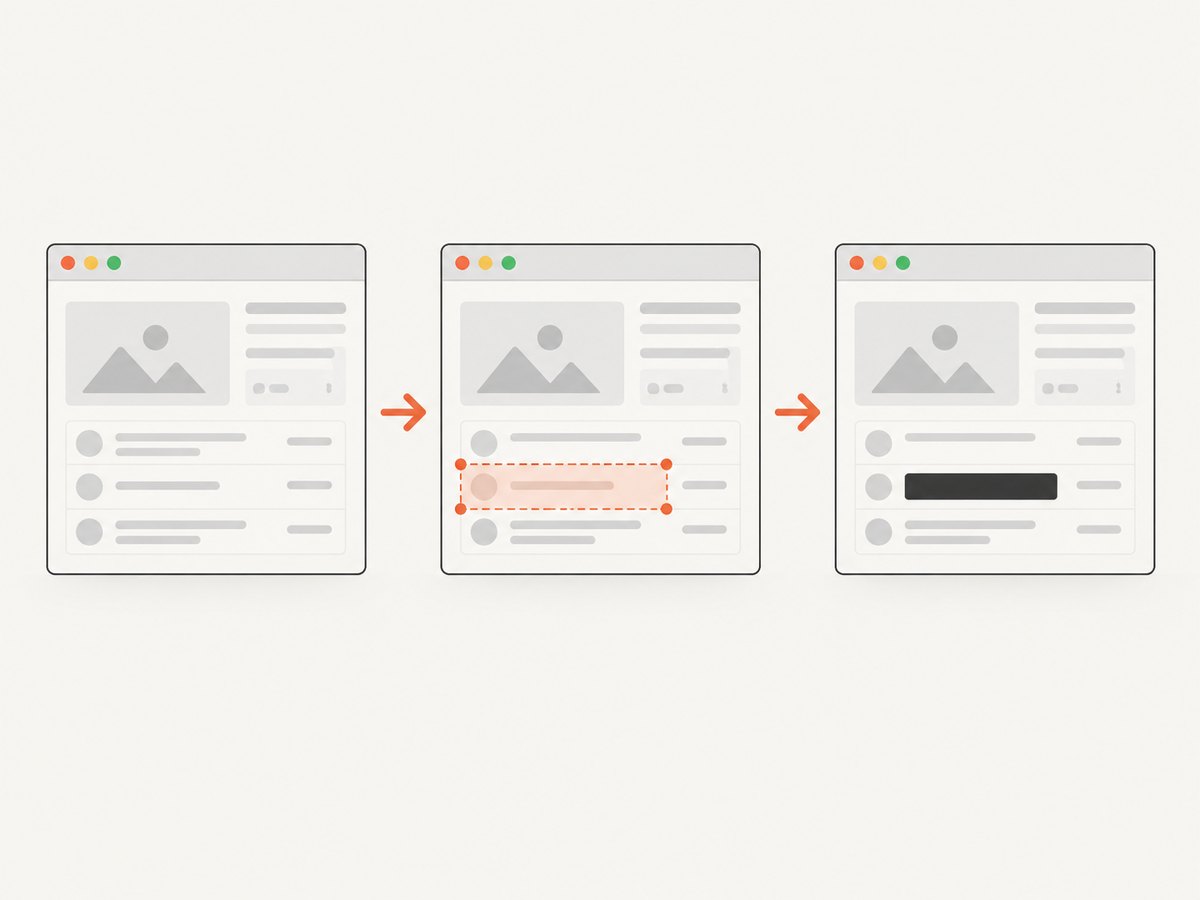
If the region must remain in the frame, use an opaque cover, export a flattened image and inspect the exact saved file at a readable zoom. Check browser tabs, URLs, file paths, notifications, names, email addresses and account identifiers as well as the obvious target.
Microsoft Snipping Tool: quick OCR-assisted redaction
Microsoft documents a Windows workflow in which a snip opens for editing, saving and sharing. Its text actions use OCR to select or copy text and offer quick redaction for recognized email addresses and phone numbers. Microsoft says recognition runs locally on the device. See Microsoft’s Snipping Tool documentation.
- Capture the window or region with Snipping Tool.
- Open Text actions after the snip is created.
- Use the quick-redact action for detected email addresses or phone numbers.
- Review the entire image manually; OCR does not prove that every secret was found.
- Save the edited file, reopen that file and inspect it before sharing.
This is a good fit for a one-off support screenshot. It is not a documented data-loss-prevention system, and you should not assume it identifies passwords, authentication tokens or arbitrary personal information.
ShareX: the most configurable free Windows workflow
ShareX describes itself as a free, open-source Windows capture and productivity utility. Its image-editor documentation lists blur, pixelate, smart eraser, crop and cut-out tools, while its after-capture tasks can open the editor, save, copy or upload.
- Start a region, window or full-screen capture.
- Open the result in the ShareX image editor.
- For a reversible-looking visual effect, select blur or pixelate and paint over the sensitive area.
- For stronger removal, crop or cut out the area when the layout permits, or place an opaque shape over it.
- Save to a local path first.
- Reopen the exported file, magnify the edited area and inspect the whole frame.
- Only after review, use copy or an upload task if you actually need to share it.
ShareX’s flexibility is useful for repeatable workflows, but the configured upload destination deserves the same review as the image itself. An automatic upload can turn an unreviewed capture into a public or externally stored file.
Greenshot: simple capture and annotation
Greenshot’s official help documents Print-key and menu capture, an editor with annotation and obfuscation tools, pixelize and blur options, crop, save, save-as, clipboard copy and print.
- Capture the screen or selected region.
- Choose blur or pixelize in the editor and select the sensitive area.
- Crop unnecessary context where possible.
- Save or export, then inspect the exported file rather than relying only on the editor canvas.
Greenshot suits readers who need a short capture-edit-save path without the larger automation surface of ShareX.
Snagit: a commercial editing candidate
The Snagit Help 2023 documentation describes tools that remove, replace or hide parts of screenshots, including blur and shape tools. That makes Snagit worth considering when you want an editor built around annotated screenshots.
The available research does not verify current editions, platform availability, pricing, subscription terms or feature parity. Confirm those details on TechSmith’s current product pages before purchase.
Or skip the browser setup
If the source is a web page, ScreenshotNeo can produce the screenshot through one GET request. The service accepts a URL and returns PNG, JPEG, WebP or PDF. Before capture it can accept cookie or consent banners and remove more than 60 known consent platforms, newsletter popups and chat widgets; each cleanup step can be turned off.

Only clean shots are billed. Bot checks or CAPTCHAs, blank pages, timeouts, failed loads and cache hits cost nothing, and the response reports the result in X-Page-Verdict and X-Billed headers. ScreenshotNeo also provides an MCP server with take_screenshot, get_page_info and capture_pdf tools for Claude, Cursor and other MCP clients.
See the ScreenshotNeo API documentation for the complete option list. Relevant controls include full-page capture with lazy images loaded, CSS-selector element capture, dark mode, 12 device presets or any viewport, retina scale, PDF paper size and margins, custom CSS and JavaScript, click-before-capture, selector or network-idle waits, ad/tracker/request blocking, custom headers and cookies, user agent and Authorization, timezone and geolocation, transparent backgrounds, resizing, selectable cache TTLs, signed image links, asynchronous jobs with signed webhooks, bulk capture for up to 100 URLs per call, usage reporting and an OpenAPI specification.
cURL
curl -G "https://api.screenshotneo.com/v1/shot" \
  -d access_key=YOUR_API_KEY \
  --data-urlencode url=https://stripe.com \
  -o shot.webp
Python
import requests

r = requests.get(
    "https://api.screenshotneo.com/v1/shot",
    params={"access_key": "YOUR_API_KEY", "url": "https://stripe.com"},
    timeout=90,
)
r.raise_for_status()
open("shot.webp", "wb").write(r.content)
Node.js
const q = new URLSearchParams({
  access_key: 'YOUR_API_KEY',
  url: 'https://stripe.com'
});
const res = await fetch(`https://api.screenshotneo.com/v1/shot?${q}`);
if (!res.ok) throw new Error(`Screenshot failed: ${res.status}`);
const data = Buffer.from(await res.arrayBuffer());
await import('node:fs/promises').then(fs => fs.writeFile('shot.webp', data));
ScreenshotNeo’s Free plan includes 1,000 shots per month with no card. Paid plans start at $5 for 3,000 shots; every feature is available on every plan. Create a free ScreenshotNeo account and start with the 1,000 free screenshots.
Safe redaction checklist
- Capture only the window or region required for the explanation.
- Crop out credentials, tokens and private messages whenever the composition allows.
- If covering is necessary, use an opaque shape and export a flattened file.
- Reopen the saved or exported file, not just the editor project.
- Inspect at a zoom where the original text would be readable.
- Check tabs, URLs, notifications, file paths and background panels.
- Review before copying a link or triggering an upload task.
- Keep the unredacted original private and delete it when your retention policy allows.
Troubleshooting
The text is still readable after blur
Cause: the blur radius or selected area was too small, or the original remains visible outside the selection. Fix: enlarge the covered area, use an opaque cover or crop it out, export and inspect the flattened file.
OCR did not find the private text
Cause: Snipping Tool’s documented quick-redact workflow targets recognized email addresses and phone numbers, not every kind of secret. Fix: redact manually and inspect the full image.
The image was uploaded before review
Cause: an after-capture upload task or automatic sharing path ran immediately. Fix: disable that task, save locally first and make review a required step.
A web screenshot contains a consent banner or chat bubble
Cause: the page rendered those elements before capture. Fix: use ScreenshotNeo’s cleanup controls, hide selectors or custom CSS, and add a selector, delay or network-idle wait when the page is still loading.
The ScreenshotNeo response is not an image
Cause: the page may have failed, timed out, shown a bot check or returned a blank result. Fix: inspect the HTTP status and X-Page-Verdict and X-Billed headers, then adjust waits, headers, cookies, user agent or blocking options as appropriate.
Performance, reliability and cost notes
- Local tools avoid an upload until you choose to share, but capture and editing happen on the desktop running the tool.
- For web captures, wait for the content that matters rather than using an arbitrary long delay. Selector and network-idle waits can reduce incomplete screenshots.
- Full-page captures and lazy-image loading can take longer and produce larger files than viewport captures. Capture one element when that is all the reader needs.
- Use caching with a TTL you choose for repeated identical pages. Cache hits are not billed by ScreenshotNeo.
- Bulk capture supports up to 100 URLs per call; asynchronous jobs and signed webhooks help when a batch should not block a request.
- Use image resizing and WebP when downstream storage or bandwidth matters; use PNG when lossless text edges are important.
- ScreenshotNeo pricing is Free: 1,000 shots/month; Starter: $5 for 3,000; Growth: $15 for 15,000; Pro: $39 for 60,000; Scale: $99 for 250,000; Business: $249 for 1,000,000. Yearly billing gives two months free.
FAQ
Is blur enough to protect a password?
No guarantee is established by the cited sources. Do not include the password, crop it out, or cover it opaquely and inspect the flattened export.
Does Snipping Tool redact every sensitive field?
Microsoft documents quick redaction for recognized email addresses and phone numbers. Treat other data as a manual review task.
Which free tool has the most controls?
ShareX documents the broadest configurable set here, including blur, pixelate, smart eraser, crop, cut-out and after-capture tasks.
Can ScreenshotNeo edit an existing desktop screenshot?
ScreenshotNeo is a website screenshot API and MCP server. Use a local editor for an existing arbitrary desktop image; use ScreenshotNeo when the source is a web page you need to capture.
How do I avoid exposing a screenshot while asking for help?
Redact locally, inspect the exported file, remove metadata when your workflow requires it and share only the reviewed copy.