How to Take Website Screenshots Automatically in Webflow
Automate Webflow screenshots with Playwright, scheduling, full-page and element capture, troubleshooting, and a no-browser ScreenshotNeo option.

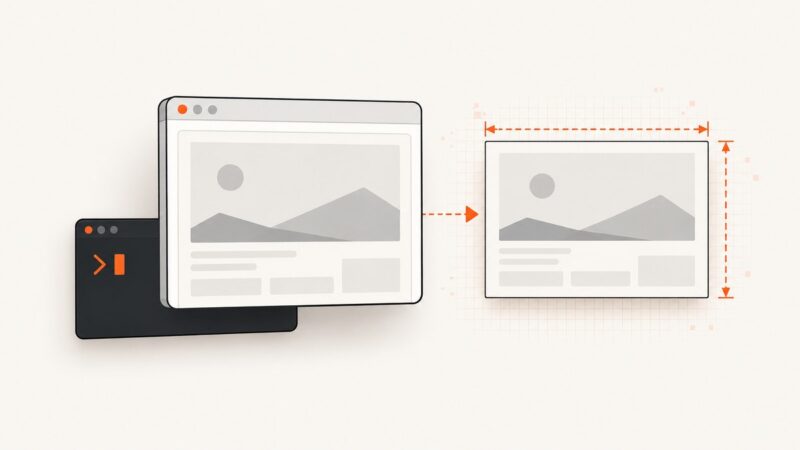
Direct answer: Webflow does not document a built-in scheduler that captures screenshots of a published page. To take screenshots automatically, publish the page, run a browser automation script against its public URL, and execute that script from a scheduler you already use, such as CI, a job runner, or local cron. Playwright is a practical choice because its Page API can capture the viewport, a full scrollable page, or one element.
This captures what visitors receive from the live Webflow site. It is different from Webflow Designer’s getElementSnapshot(), which returns a PNG data URL for a selected element inside a Designer Extension.
1. Decide what automatic means
There are three separate decisions:

- URL: use the published Webflow domain, not a Designer canvas URL.
- Capture scope: viewport, full page, or a particular element.
- Trigger: run on demand, after deployment, or on a recurring schedule supplied by your execution environment.
Webflow’s Custom Code API can deploy scripts to targeted pages, but deploying JavaScript is not the same as rendering a page to an image or scheduling captures. Keep publishing and screenshot capture as separate jobs.
2. Prepare the Webflow page
- Publish the site and copy the exact public URL.
- Check that the page is reachable without Designer authentication.
- Choose a stable selector for element capture, such as
[data-screenshot-target]. Add that attribute in Webflow so layout edits do not silently break a fragile class selector. - List visual states that matter, including cookie consent, dark mode, logged-in areas, modals, and responsive breakpoints. Each state may need its own run.
3. Install Playwright
mkdir webflow-screenshots
cd webflow-screenshots
npm init -y
npm install -D playwright
npx playwright install chromium
The browser binary is installed on the machine that runs the job. In CI or a container, install it during image or job setup.
4. Complete automatic screenshot script
Create capture-webflow.mjs. It reads the URL from WEBFLOW_URL, waits for the page to settle, scrolls through the document to trigger lazy loading, and saves a timestamped PNG. Environment variables select viewport, full-page, or element mode.
import { chromium } from 'playwright';
import fs from 'node:fs/promises';

const url = process.env.WEBFLOW_URL;
if (!url) throw new Error('Set WEBFLOW_URL to the published Webflow URL');

const mode = process.env.SCREENSHOT_MODE || 'full';
const selector = process.env.SCREENSHOT_SELECTOR || '[data-screenshot-target]';
const outputDir = process.env.OUTPUT_DIR || 'shots';
const width = Number(process.env.VIEWPORT_WIDTH || 1440);
const height = Number(process.env.VIEWPORT_HEIGHT || 900);

await fs.mkdir(outputDir, { recursive: true });
const browser = await chromium.launch();
const context = await browser.newContext({
  viewport: { width, height },
  deviceScaleFactor: Number(process.env.SCALE || 1),
  colorScheme: process.env.COLOR_SCHEME === 'dark' ? 'dark' : 'light',
  locale: process.env.LOCALE || 'en-US',
  timezoneId: process.env.TIMEZONE || 'UTC'
});
const page = await context.newPage();

try {
  await page.goto(url, { waitUntil: 'domcontentloaded', timeout: 60000 });
  await page.waitForLoadState('networkidle', { timeout: 30000 }).catch(() => {});

  await page.evaluate(async () => {
    const step = 500;
    for (let y = 0; y < document.body.scrollHeight; y += step) {
      window.scrollTo(0, y);
      await new Promise(r => setTimeout(r, 80));
    }
    window.scrollTo(0, 0);
  });
  await page.waitForTimeout(Number(process.env.EXTRA_WAIT_MS || 500));

  for (const css of (process.env.HIDE_SELECTORS || '').split(',').map(s => s.trim()).filter(Boolean)) {
    await page.locator(css).evaluateAll(nodes => nodes.forEach(n => n.style.visibility = 'hidden'));
  }

  const stamp = new Date().toISOString().replaceAll(':', '-');
  const file = `${outputDir}/webflow-${stamp}.png`;
  if (mode === 'element') {
    await page.locator(selector).screenshot({ path: file, type: 'png' });
  } else {
    await page.screenshot({ path: file, fullPage: mode === 'full', type: 'png', animations: 'disabled' });
  }
  console.log(`Saved ${file}`);
} finally {
  await browser.close();
}
Run it against the published page:
WEBFLOW_URL='https://example.com/landing' node capture-webflow.mjsFor a viewport shot, set SCREENSHOT_MODE=viewport. For a component, set SCREENSHOT_MODE=element SCREENSHOT_SELECTOR='.hero'. Playwright’s documented screenshot modes cover the visible viewport, the full scrollable page, and a specific element.
Waiting for dynamic content
domcontentloaded means the HTML is parsed, not that images, fonts, CMS data, or interactions are ready. The example waits for network idle and scrolls through the document. If the page has a known ready signal, prefer a selector wait:
await page.locator('[data-page-ready=\'true\']').waitFor({ state: 'visible', timeout: 30000 });Use a fixed delay only for a known animation or third-party widget. A selector owned by the page is less fragile than repeatedly increasing a delay.
Responsive and visual-state captures
for width in 390 768 1440; do
  VIEWPORT_WIDTH=$width VIEWPORT_HEIGHT=900 SCREENSHOT_MODE=full \
  WEBFLOW_URL='https://example.com/landing' OUTPUT_DIR="shots/$width" \
  node capture-webflow.mjs
done
Set COLOR_SCHEME=dark for a dark-mode run. Playwright browser contexts also support locale, timezone, geolocation, user agent, headers, and cookies. Supply secrets through the runner rather than source code.
5. Schedule the script
The reviewed Webflow and Playwright documentation describe navigation and capture, not a Webflow-native schedule. Scheduling is therefore an execution-environment choice. Use the CI or job runner your team already operates, or a machine with a local scheduler.
The scheduled job should install the pinned Playwright version and Chromium, set WEBFLOW_URL and required secrets, write artifacts to durable storage, return a non-zero exit code when navigation or a required selector fails, and retain enough history for visual comparison.
For a deployment-triggered capture, invoke the job after Webflow publishing completes. For recurring monitoring, select an interval that matches how often the page changes. The exact YAML or cron syntax depends on your runner, so keep that configuration outside Webflow.
6. Authentication, consent, and overlays
Public marketing pages usually need no authentication. Preview or member content may require a session. Create a Playwright context with the needed cookies or an Authorization header, and inject values from environment secrets. Never commit credentials or a storage-state file containing live tokens.

Cookie banners, chat launchers, newsletter popups, and A/B-test overlays can obscure the page. If the page has a documented consent flow, click it before capture. Otherwise hide only known overlay selectors with HIDE_SELECTORS. Keep those selectors in a maintenance checklist so a redesign does not hide real content.
7. Designer snapshots are different
Webflow’s Designer API includes webflow.getElementSnapshot(element). It returns a PNG data URL or null for an element accessible to a Designer Extension. That is useful for a Designer tool, but it is not a scheduler and does not replace opening the published URL for a production full-page screenshot.
8. Troubleshooting
| Symptom | Likely cause | Fix |
|---|---|---|
| Blank or partial image | Capture ran before fonts, images, CMS data, or interactions finished. | Wait for a page-owned ready selector, then network idle; scroll to trigger lazy assets. |
| Full-page image stops early | Content is inside an internal scroll container or loads after interaction. | Scroll the container, capture its locator, or trigger the interaction before fullPage. |
| Element not found | Selector changed, the element is in an iframe, or the breakpoint hides it. | Use a stable data attribute, choose the matching viewport, and address the iframe with its frame locator. |
| Cookie banner covers the shot | No consent state was established. | Persist an approved consent cookie or click the banner, then wait for it to disappear. |
| Navigation timeout | Slow origin, blocked request, redirect loop, or bot check. | Inspect response and console logs, allow more time, and verify the URL from the runner. |
| Works locally but fails in CI | Missing Chromium dependencies or different fonts, timezone, or viewport. | Install browsers in CI, pin versions, and set locale, timezone, and viewport explicitly. |
| Images differ between runs | Animations, rotating content, ads, or time-dependent data. | Disable animations, hide nonessential rotating widgets, freeze test data where possible, and compare consistently. |
9. Performance, reliability, and cost
Performance
Browser startup is often the expensive part of one capture. Reuse one browser process for multiple URLs or viewports within a job, while creating a fresh context for each visual state. Full-page images are larger and slower than viewport or element images. Scrolling to load lazy images improves completeness but adds time.
Reliability
- Pin Node.js, Playwright, and browser versions.
- Use explicit timeouts and a small retry policy for transient network failures.
- Log the final URL, HTTP status, viewport, selector, and elapsed time.
- Fail when a required selector is missing instead of saving a misleading image.
- Keep screenshots with console and network logs.
Cost
Self-hosted Playwright consumes runner compute, CI minutes, and artifact storage. Estimate storage from image dimensions, format, and retention. Webflow hosting or publishing charges are separate from capture costs.
Or skip the browser setup
ScreenshotNeo provides a website screenshot API and MCP server. One GET request returns a PNG, JPEG, WebP, or PDF. Pass the published Webflow URL directly, with no Playwright installation or browser lifecycle to maintain. See the complete parameter reference in the ScreenshotNeo docs.
cURL
curl -G "https://api.screenshotneo.com/v1/shot" -d access_key=YOUR_API_KEY --data-urlencode url=https://stripe.com -o shot.webpPython
import requests
r = requests.get("https://api.screenshotneo.com/v1/shot", params={"access_key": "YOUR_API_KEY", "url": "https://stripe.com"}, timeout=90)
open("shot.webp", "wb").write(r.content)
Node.js
const q = new URLSearchParams({ access_key: 'YOUR_API_KEY', url: 'https://stripe.com' });
const res = await fetch(`https://api.screenshotneo.com/v1/shot?${q}`);
ScreenshotNeo supports full-page capture with lazy images loaded, CSS element capture, dark mode, 12 device presets or any viewport, retina scale, PDF paper size and page ranges, custom CSS and JavaScript, clicks, waits, hidden selectors, blocked ads, trackers, requests or resource types, custom headers, cookies, user agent and Authorization, timezone and geolocation, transparent backgrounds, resizing, chosen cache TTL, signed links, asynchronous jobs with signed webhooks, bulk capture of up to 100 URLs per call, usage reporting, and an OpenAPI spec. Parameter names used by other screenshot APIs also work, which can simplify migration.
Before capture, ScreenshotNeo accepts cookie or consent banners and removes more than 60 known consent platforms, newsletter popups, and chat widgets; each step can be turned off. Bot checks or CAPTCHAs, blank pages, timeouts, failed loads, and cache hits are not billed. Response headers identify the page verdict and billing status through X-Page-Verdict and X-Billed. Its MCP server exposes take_screenshot, get_page_info, and capture_pdf for Claude, Cursor, and other MCP clients.
The Free plan includes 1,000 shots per month with no card. Paid plans start at $5 for 3,000 shots; yearly billing gives two months free, and every feature is on every plan. Create a free ScreenshotNeo account to capture your Webflow pages.
FAQ
Can Webflow take a full-page screenshot automatically?
Webflow’s published documentation does not describe a native scheduled screenshot feature. Use Playwright or an API against the published URL and schedule that job in your own environment.
Should I screenshot the staging domain or custom domain?
Use the URL representing the experience you need to monitor. For launch checks, capture the published custom domain; for pre-release checks, capture the published staging URL if the runner can reach it.
Why are images below the fold missing?
Many pages lazy-load images only after they approach the viewport. Scroll through the document before capturing, or wait for a page-specific ready signal after triggering lazy loading.
Can I capture only a hero section?
Yes. Give the hero a stable selector and use Playwright’s locator screenshot, or ScreenshotNeo’s element capture option.
Is getElementSnapshot() a replacement for Playwright?
No. It snapshots a selected element in Designer Extension context. Playwright and screenshot APIs open the live published page.