How to Automatically Generate Instagram Quote Images
Build a repeatable quote-image workflow: prepare a reusable design, generate image files, and publish them through an Instagram-compatible path.
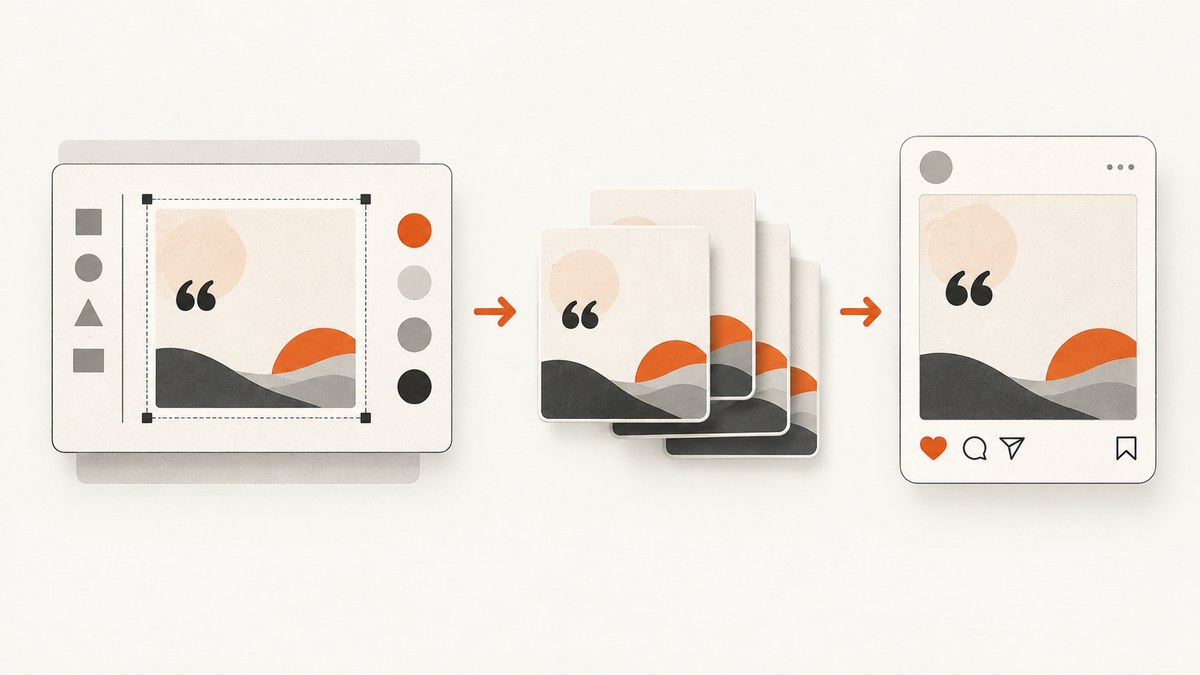
To automatically generate Instagram quote images, split the work into two stages: create image files from quote text using a reusable design, then publish those files through an Instagram-compatible workflow. A publishing integration can post photos or a carousel, but that does not mean it creates the quote artwork for you. Confirm that your design tool supports text merging or bulk generation before building an automated pipeline around that capability.
The practical workflow is: prepare a template, supply quote and attribution data, render and review each image, then publish manually or connect an eligible professional account to an integration. This guide covers a no-code route and a developer route, including a runnable Python example for rendering cards yourself.
1. Choose what “automatic” means
There are two separate jobs that are easy to conflate:
- Artwork generation: takes quote text and attribution and places them into a designed image.
- Publishing: uploads an already rendered image to Instagram, optionally with a caption or as part of a carousel.
Automating the second step does not automate the first. The reviewed publishing documentation describes publishing paths, not a verified spreadsheet-to-quote-card feature. Before selecting a design product, check its current documentation and plan details for bulk creation, data merge, API access, export automation, and licensing. Do not assume a feature exists based on a template gallery or a “social post” label.
For a small set of posts, a reusable template and manual export may be fastest. For recurring batches, automate rendering from structured quote records, then keep a review step before publication. For hands-off publishing, connect an integration after the image-generation stage is reliable.
2. Design a reusable quote-card template
Start with one square or portrait layout. Decide the background, typeface, quote style, attribution position, and any brand accent once. Keep the quote visually dominant, make attribution clearly secondary, and leave enough internal margin that text does not crowd the edges. Use contrast that remains clear on a phone display. These are practical design choices; the specific sources cited here do not prescribe a universal quote-card design.
Prepare quote data
Store each card as a record with at least a quote and attribution. A CSV can be enough:
quote,author
"The secret of getting ahead is getting started.","Mark Twain"
"Great things are done by a series of small things brought together.","Vincent van Gogh"
Check the source and wording before publication. Quotes are often misattributed, and line breaks can change readability. Decide how to handle quotation marks, curly apostrophes, long names, missing attribution, and text that exceeds your layout. A robust renderer should reject or flag records that do not fit rather than silently clipping them.
Set output dimensions and format
Choose the target placement before rendering. Canva’s developer publishing reference lists PNG and JPG formats and, in its Instagram example, an aspect-ratio range from 0.8 to 1.91. Treat that as the Canva example, not as a guarantee for every Instagram surface or integration. Check the current requirements of the publishing path you will use. [Canva’s content publisher reference](https://www.canva.dev/docs/apps/api/latest/intents-content-prepare-content-publisher/) describes those example formats and constraints.
For a square feed card, a square canvas is a straightforward design choice. A portrait layout can use more screen space in a feed, but test the crop and preview in the destination workflow. Keep important text away from the outer edges, and inspect the final exported file rather than assuming the template preview matches the upload.
3. Generate image files from quote records
If your chosen design product has a documented data-merge or bulk-render feature, follow its current instructions and verify the exported files. If it does not, a small local script can draw cards from a CSV. The following Python example uses Pillow and a local TrueType font. It creates square PNG files and wraps text to fit a content area. Install Pillow with python -m pip install Pillow, save a font file such as DejaVuSans.ttf beside the script, then save the code as generate_quotes.py.
import csv
import os
import textwrap
from PIL import Image, ImageDraw, ImageFont

WIDTH = 1080
HEIGHT = 1080
BACKGROUND = (247, 243, 236)
FOREGROUND = (32, 35, 41)
ACCENT = (190, 75, 82)
FONT_PATH = "DejaVuSans.ttf"
OUTPUT_DIR = "quote_images"

os.makedirs(OUTPUT_DIR, exist_ok=True)

quote_font = ImageFont.truetype(FONT_PATH, 64)
author_font = ImageFont.truetype(FONT_PATH, 34)

def wrap_by_pixels(draw, text, font, max_width):
    words = text.split()
    lines = []
    current = ""
    for word in words:
        candidate = f"{current} {word}".strip()
        if draw.textbbox((0, 0), candidate, font=font)[2] <= max_width:
            current = candidate
        else:
            if current:
                lines.append(current)
            current = word
    if current:
        lines.append(current)
    return lines

def draw_card(quote, author, destination):
    image = Image.new("RGB", (WIDTH, HEIGHT), BACKGROUND)
    draw = ImageDraw.Draw(image)
    left, right = 110, WIDTH - 110
    max_width = right - left
    lines = wrap_by_pixels(draw, quote.strip(), quote_font, max_width)
    line_height = 82
    quote_height = len(lines) * line_height
    author_height = 50 if author.strip() else 0
    total_height = quote_height + (70 if author_height else 0) + author_height
    top = max(140, (HEIGHT - total_height) // 2)

    # Avoid exporting a card with text outside the intended canvas.
    if total_height > HEIGHT - 2 * top:
        raise ValueError(f"Quote is too long for this layout: {quote[:60]!r}")

    draw.rounded_rectangle((left, top - 24, left + 12, top + quote_height),
                           radius=6, fill=ACCENT)
    y = top
    for line in lines:
        draw.text((left + 42, y), line, font=quote_font, fill=FOREGROUND)
        y += line_height

    if author.strip():
        y += 70
        draw.text((left + 42, y), author.strip(), font=author_font,
                  fill=ACCENT)

    image.save(destination, format="PNG", optimize=True)

with open("quotes.csv", newline="", encoding="utf-8-sig") as source:
    for index, row in enumerate(csv.DictReader(source), start=1):
        quote = (row.get("quote") or "").strip()
        author = (row.get("author") or "").strip()
        if not quote:
            print(f"Skipping row {index}: missing quote")
            continue
        output = os.path.join(OUTPUT_DIR, f"quote-{index:03d}.png")
        try:
            draw_card(quote, author, output)
            print(f"Wrote {output}")
        except ValueError as error:
            print(f"Review row {index}: {error}")
The script deliberately uses one fixed style so a batch remains consistent. It does not perform Instagram uploads. It also does not automatically resize typography for every quote; it flags cards that would exceed the available vertical space. Improve it by defining a shorter-quote policy, trying smaller font sizes down to a readable minimum, or sending overflow records to manual layout review. Add tests for your own typography and font files if this becomes a production workflow.
Batch quality checks
- Open a sample from the beginning, middle, and end of each batch.
- Check punctuation, attribution, text wrapping, contrast, and margins.
- Confirm that filenames map back to source records so corrections are traceable.
- Record failed rows separately and rerun only corrected inputs.
- Keep the final exported images in a stable location that the publishing step can access.
4. Publish the finished images
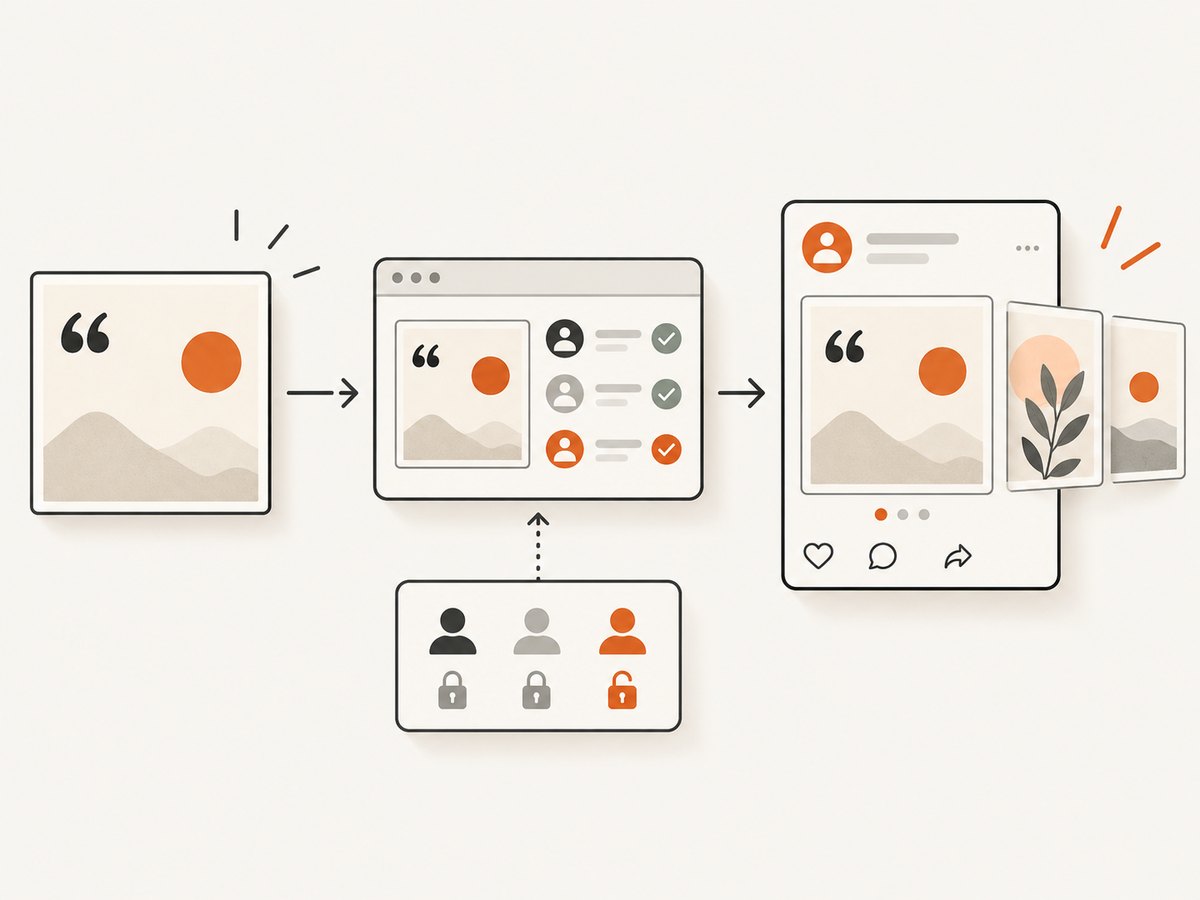
You can publish manually, use a no-code integration, or call an API directly. Zapier documents an Instagram for Business action that can publish one or more photos, including a carousel; that is a publishing action, not proof of quote artwork generation. Its setup guide says to connect an Instagram Business or Creator account and select its associated Facebook Page. The guide also describes the need for appropriate content-creation access on that linked Page. [Zapier’s setup guide](https://help.zapier.com/hc/en-us/articles/8496101110541-How-to-get-started-with-Instagram-for-Business-on-Zapier) has the current connection steps and action details.
Meta’s cited API documentation covers Instagram Professional accounts. It says the Facebook Login setup cannot access consumer accounts, and documents Stories publishing as limited to business accounts in that setup. Check current Meta behavior and the particular login/API flow before deciding which content types and account types your integration supports. [Meta’s Instagram API documentation](https://www.postman.com/meta/instagram/documentation/6yqw8pt/instagram-api?entity=request-23987686-6fa9ed1d-3310-4844-ad25-f0001ab66f11)
No-code flow
- Connect the professional Instagram account and the associated Facebook Page in the publishing service.
- Confirm the connected user has the content-creation access required by that Page.
- Choose a trigger for completed image files, such as a reviewed folder or an approval step supported by your chosen service.
- Map the image and caption fields to the publishing action. For a carousel, verify the service accepts multiple photo inputs in the order you intend.
- Run a controlled publication, inspect the result on Instagram, and only then schedule a larger batch.
The exact trigger and field names depend on the services you select. Do not assume a publishing connector watches a local folder or generates a caption unless its current product documentation says so.
Direct API flow
A direct integration gives you more control over orchestration, retries, record tracking, and review gates, but you must manage authentication, permissions, token lifetime, media hosting or upload requirements, and API changes. Use Meta’s current official documentation for the exact endpoints, permissions, account eligibility, and media requirements for your login configuration. The cited research does not provide endpoint-level upload examples, so this guide does not invent one.
In either path, keep generation and publication as separate jobs. Store a status for each source record, such as rendered, approved, published, or needs-review. This prevents a retry from needlessly reposting an image and gives you a clear recovery point when a publishing call fails.
5. Or skip the browser setup
If your workflow needs screenshots of web pages to use as quote backgrounds or supporting visuals, ScreenshotNeo is a website screenshot API and MCP server. One GET request takes a URL and returns PNG, JPEG, WebP, or PDF. It is useful for page capture; it does not turn quote text into a designed quote card or publish to Instagram.
For example, this cURL call saves a screenshot of a page as WebP:
curl -G "https://api.screenshotneo.com/v1/shot" -d access_key=YOUR_API_KEY --data-urlencode url=https://stripe.com -o shot.webpSee the ScreenshotNeo API documentation for request options and formats. Python and Node.js examples are also available:
import requests
r = requests.get("https://api.screenshotneo.com/v1/shot", params={"access_key": "YOUR_API_KEY", "url": "https://stripe.com"}, timeout=90)
open("shot.webp", "wb").write(r.content)
const q = new URLSearchParams({ access_key: 'YOUR_API_KEY', url: 'https://stripe.com' });
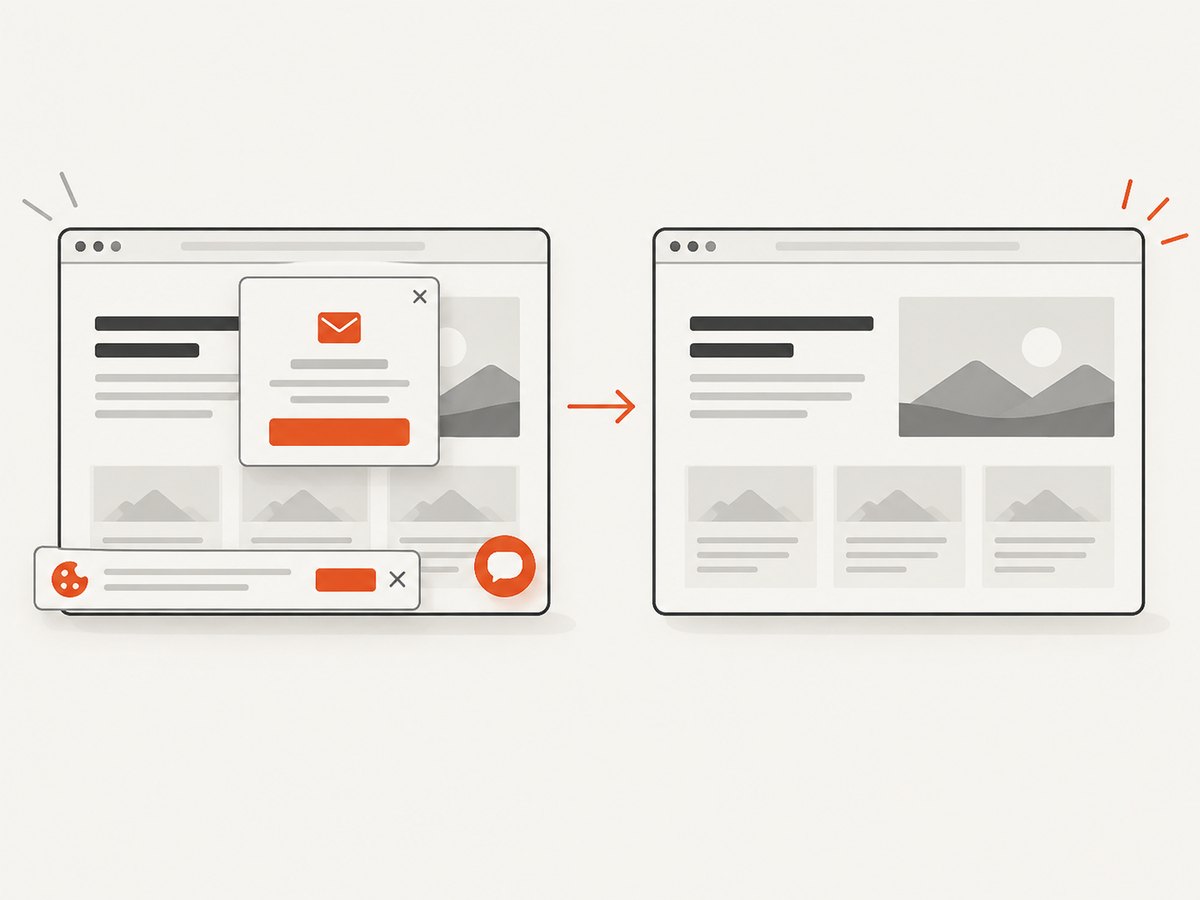
const res = await fetch(`https://api.screenshotneo.com/v1/shot?${q}`);- Cookie banners, popups, and chat widgets are removed before the shot; each step can be turned off.
- Bot checks, blank pages, timeouts, failed loads, and cache hits are not billed. Response headers indicate the page verdict and billing status.
- An MCP server gives AI agents tools to take screenshots, get page information, and capture PDFs.
- The free plan includes 1,000 screenshots per month with no card; paid plans start at $5 for 3,000. Every feature is on every plan.
Sign up free for 1,000 screenshots a month, with no card required.
6. Performance, reliability, and cost
For local rendering, total time grows with the number of records, image dimensions, font rendering, and output format. Keep the design and dimensions stable, avoid re-rendering unchanged records, and separate failed rows so one bad quote does not stop a whole batch. PNG is suitable when crisp text is a priority; compare output size and appearance for your workflow. JPG can reduce file size but may introduce compression artifacts around text. Canva’s documented publisher formats include both PNG and JPG; follow the actual integration’s accepted formats.
Publishing reliability depends on account permissions, connectivity, authentication, and the target service’s current limits. Use bounded retries for transient failures, but make publication idempotent at your application level: save the successful post result or status before retrying a job. Require human review for new templates, unusually long quotes, attribution changes, and first runs after API or workflow changes.
Cost depends on the design product, publishing service, and any hosting or API usage you add. The sources here do not establish current Canva or Zapier plan pricing or whether a specific plan includes bulk image generation. Check plan terms before committing. A direct integration can reduce repeated manual steps but adds development and maintenance work; a no-code connection may reduce coding while still requiring eligible account and Page access.
7. Troubleshooting
| Symptom | Likely cause | Fix |
|---|---|---|
| Images are generated, but no post appears | The workflow automates design export only, or the publishing action did not run. | Inspect the job history for the publishing stage and confirm that the generated file is mapped to the action. |
| Instagram account cannot be connected | The account type, linked Page, login setup, or permissions do not satisfy the integration’s prerequisites. | Confirm professional-account eligibility, the associated Page, and content-creation access. Recheck the service’s current setup guide. |
| Quote text is clipped or overlaps attribution | The text is too long for the template or line-height assumptions. | Flag overflow, shorten the quote only with editorial approval, or use a tested alternate layout and font size. |
| Characters render as squares or disappear | The selected font lacks glyphs for the input language or punctuation. | Use a font with the required glyph coverage and inspect representative multilingual records. |
| Upload rejects an image | The image format, dimensions, aspect ratio, or content type does not match that publishing path’s requirements. | Check the current target requirements and export a supported image. Do not rely on a constraint from a different integration. |
| A retry creates a duplicate post | The publisher succeeded but the workflow did not save the result before retrying. | Persist a per-record publication status and inspect prior results before retrying. |
| Carousel order is wrong | Files were supplied in an unstable or unintended order. | Use explicit sequence numbers in filenames or records and verify order in a small trial. |
| Stories publishing is unavailable | The account or API login path does not support that content type. | Check the current Meta documentation for the selected API setup; the cited Facebook Login documentation limits Stories publishing to business accounts. |
8. A practical launch checklist
- Verify quote wording, source, and attribution.
- Render a small batch and review every image before first publication.
- Confirm the export format and dimensions against the destination workflow.
- Check the Instagram account, linked Page, and permissions.
- Publish one image or a small carousel, then inspect the result.
- Track each record’s render, review, and publish status for safe recovery.
- Recheck tool capabilities, plan requirements, and API behavior before expanding volume.
FAQ
Can I automate this from a spreadsheet?
Yes, if the design stage has a documented way to merge data into a template or you build a renderer such as the Python example. The publishing sources alone do not establish that feature.
Does Zapier create the quote graphics?
The cited Zapier Instagram action documents photo and carousel publishing. Treat artwork generation as a separate stage unless the specific design integration you choose documents otherwise.
Do I need a professional Instagram account?
The cited Meta and Zapier documentation is for professional accounts. Zapier specifies Business or Creator, while Meta’s Facebook Login documentation says it cannot access consumer accounts. Verify the current requirements for your chosen connection.
Can ScreenshotNeo generate the quote card?
No. ScreenshotNeo captures web pages as images or PDFs. Use it when a web-page screenshot is an input to your design or content workflow; use a template renderer to place quote text and attribution.


