How to Automatically Generate Invoice Images
Render structured invoice data into branded PNGs or PDFs with templates, browser automation, APIs, validation, and production-ready workflows.
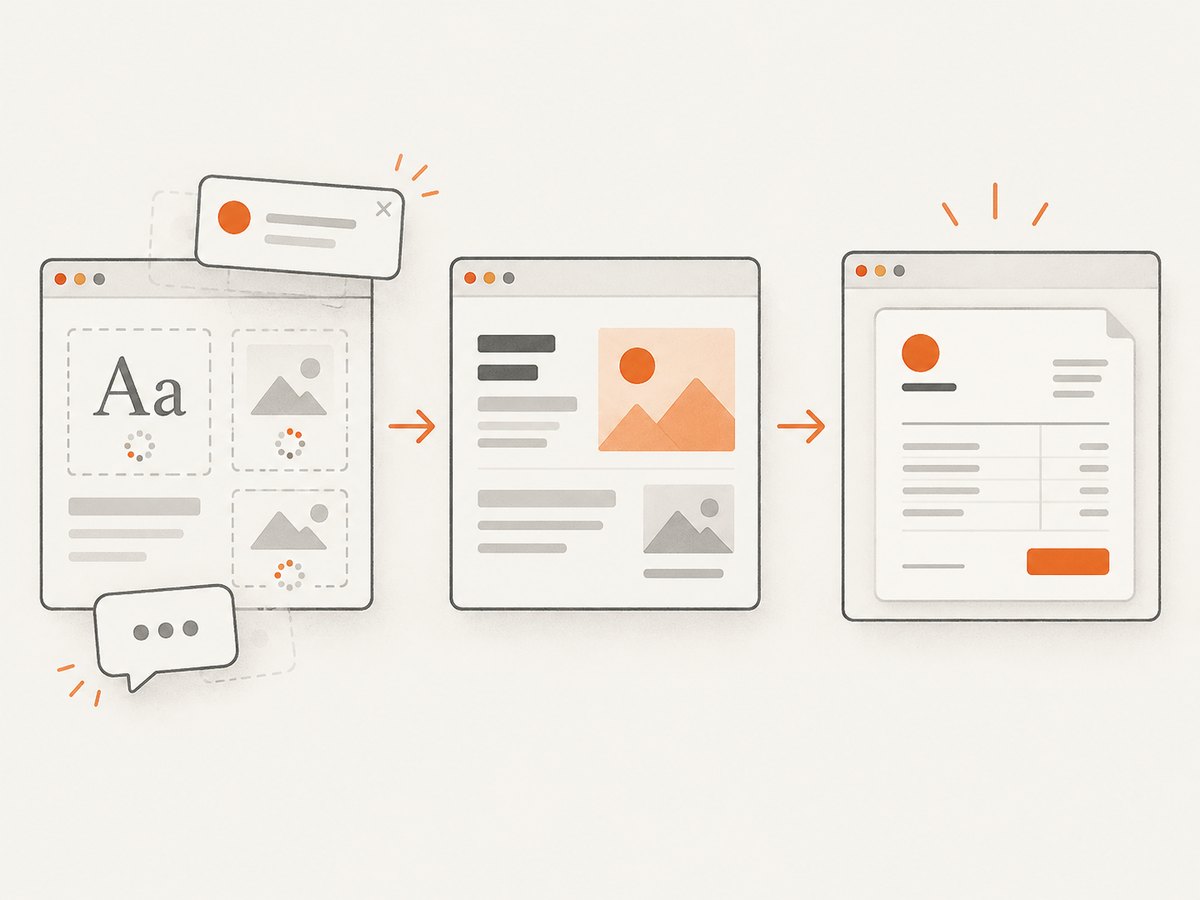
Direct answer: automatically generating an invoice image means storing invoice data as structured fields, rendering those fields through a repeatable HTML/CSS template, and exporting the result as PNG, JPEG, WebP, or PDF. For most teams, the reliable workflow is: validate the invoice JSON, render a deterministic template, capture it with a browser or rendering API, verify the output, then store or deliver the file.
Use an image when a system needs a visual attachment, thumbnail, social preview, or fixed-layout archive. Use PDF when recipients need selectable text, printing, page numbers, or conventional document delivery. A documented invoice-image template accepts invoice number, business and client details, line items, totals, optional dates and notes, a logo URL, and an accent color. It returns a 1240 × 1754 sRGB PNG by default and can produce a PDF instead. Those dimensions and output details are vendor specifications, so verify them against the provider you choose.
1. Choose the right generation route
There are three practical approaches. The best choice depends on whether you need a single image, a broader billing workflow, or a PDF-first document.
| Route | Best for | Trade-offs |
|---|---|---|
| Invoice-image or HTML-rendering API | PNG/WebP/JPEG generation from JSON | Fast integration; provider-specific template and option limits |
| Browser automation | Full control over HTML, CSS, fonts, and custom business rules | You operate Chromium, fonts, page sizing, timeouts, and scaling |
| Document-generation or billing API | PDFs, delivery, billing records, and accounting workflows | May require a platform license or a larger integration |
Adobe’s Document Generation tutorial uses structured JSON with Node.js, Express, HTML, and CSS to create PDFs. Salesforce documents invoice PDF generation for individual invoices and batches, with availability tied to specified Lightning editions and a Revenue Cloud Billing license. FreshBooks documents invoice presentation controls such as fonts, colors, logos, banners, and attachments; that is useful for billing workflows but is not the same as an image renderer.
2. Define a stable invoice data model
Keep calculation data separate from presentation data. Calculate subtotals, tax, discounts, and grand totals before rendering. The template should display values rather than recalculate them.
{
  "invoiceNumber": "INV-2026-0042",
  "issueDate": "2026-09-29",
  "dueDate": "2026-10-29",
  "currency": "USD",
  "seller": {
    "name": "Northwind Studio",
    "address": ["100 Market Street", "San Francisco, CA 94105"],
    "email": "billing@example.com",
    "taxId": "US-123456"
  },
  "client": {
    "name": "Acme Parts",
    "address": ["12 Industrial Way", "Austin, TX 78701"],
    "email": "ap@acme.example"
  },
  "items": [
    {"description": "Design retainer", "quantity": 1, "unitPrice": 1800},
    {"description": "Production illustrations", "quantity": 4, "unitPrice": 250}
  ],
  "subtotal": 2800,
  "tax": 224,
  "total": 3024,
  "notes": "Thank you for your business.",
  "accentColor": "#2563eb",
  "logoUrl": "https://cdn.example.com/logo.png"
}
Store amounts as integer minor units (cents) in your application when possible, then format them for display. Prepare currency strings and tax labels for the buyer’s locale. Tax names differ by customer and jurisdiction, and long descriptions can break a fixed layout; test both before sending production invoices.
3. Render an invoice with HTML and CSS
HTML/CSS gives you control over typography, spacing, tables, and branding. Escape all user-provided values before inserting them into HTML. For images, use a stable HTTPS logo URL or embed a vetted data URL. Define a fixed page size so a browser produces the same canvas in CI and production.
<!doctype html>
<html>
<head>
  <meta charset="utf-8">
  <style>
    @page { size: A4; margin: 0; }
    * { box-sizing: border-box; }
    body { margin: 0; background: #f3f4f6; font-family: Arial, sans-serif; color: #111827; }
    .invoice { width: 794px; min-height: 1123px; margin: 0 auto; padding: 56px; background: white; }
    .header { display: flex; justify-content: space-between; border-bottom: 5px solid var(--accent); padding-bottom: 24px; }
    .parties { display: grid; grid-template-columns: 1fr 1fr; gap: 32px; margin: 32px 0; }
    table { width: 100%; border-collapse: collapse; }
    th, td { padding: 12px 8px; border-bottom: 1px solid #e5e7eb; text-align: left; }
    .number { text-align: right; }
    .totals { width: 300px; margin: 24px 0 0 auto; }
    .grand-total { font-size: 22px; font-weight: 700; color: var(--accent); }
  </style>
</head>
<body>
  <main class="invoice" style="--accent: #2563eb">
    <section class="header"><div><h1>INVOICE</h1><div>INV-2026-0042</div></div><div>Northwind Studio</div></section>
    <section class="parties"><div><strong>From</strong><p>100 Market Street<br>San Francisco, CA 94105</p></div><div><strong>Bill to</strong><p>Acme Parts<br>12 Industrial Way<br>Austin, TX 78701</p></div></section>
    <table><thead><tr><th>Description</th><th>Qty</th><th class="number">Amount</th></tr></thead><tbody><tr><td>Design retainer</td><td>1</td><td class="number">$1,800.00</td></tr><tr><td>Production illustrations</td><td>4</td><td class="number">$1,000.00</td></tr></tbody></table>
    <section class="totals"><div>Subtotal: $2,800.00</div><div>Tax: $224.00</div><div class="grand-total">Total: $3,024.00</div></section>
  </main>
</body>
</html>
4. Capture the template with Playwright
Playwright is a practical do-it-yourself renderer because it can load local HTML, wait for fonts and images, set a viewport, and capture either a screenshot or PDF. Install it with npm install playwright and install the browser binary in your deployment image.
import { chromium } from 'playwright';
import { readFile } from 'node:fs/promises';

const html = await readFile('./invoice.html', 'utf8');
const browser = await chromium.launch({ headless: true });
const page = await browser.newPage({ viewport: { width: 794, height: 1123 }, deviceScaleFactor: 2 });
await page.setContent(html, { waitUntil: 'networkidle' });
await page.evaluate(() => document.fonts.ready);
await page.screenshot({ path: 'invoice.png', fullPage: true, type: 'png' });
await page.pdf({ path: 'invoice.pdf', format: 'A4', printBackground: true, margin: { top: '0', right: '0', bottom: '0', left: '0' } });
await browser.close();
For a production service, reuse a browser process, create an isolated page per job, limit concurrency, and close pages in a finally block. Do not allow invoice data to execute arbitrary scripts. A safer architecture compiles a fixed template and passes validated values through a rendering context.
5. Use a documented invoice-image API
An API is usually simpler when your application already has JSON and does not need to own Chromium. A documented invoice template accepts invoice number, seller and client fields, line items, totals, optional dates and notes, logo URL, and accent color. The same workflow can often return PNG or PDF, but confirm parameter names, authentication, retention, and file delivery behavior in the provider documentation before committing.
Keep your source JSON as the system of record. Send a normalized payload to the renderer, persist the returned file or URL, and record the template version beside the invoice ID. That makes regenerated images explainable when branding or tax labels change.
6. Validate output before delivery
- Schema validation: require invoice number, currency, seller, client, at least one line item, and totals.
- Arithmetic validation: recompute each line amount and compare subtotal, tax, discounts, and total.
- Visual validation: check that the file has expected dimensions, a nonzero byte length, and a decodable image header.
- Content validation: verify that the invoice number, total, currency, and recipient appear in the rendered output.
- Delivery validation: upload only after rendering succeeds; use an idempotency key based on invoice ID and template version.
For long invoices, decide whether to create multiple image pages, switch to PDF, or reject the request for manual review. A single fixed canvas can become unreadable when descriptions, tax rows, or legal notes grow.
7. Edge cases developers commonly miss
- Long descriptions: wrap text and test several lines, or clamp with an explicit continuation policy.
- Missing logo or blocked remote assets: provide a fallback mark or inline approved assets; wait for images before capture.
- Locale formatting: use the customer’s decimal separators, date format, currency symbol, and tax label.
- Negative lines and credits: display credits clearly and ensure totals remain mathematically consistent.
- Zero-tax invoices: show “Tax 0” or the applicable exemption label rather than silently omitting the row.
- Right-to-left text: add direction-aware CSS and test mixed Arabic, Hebrew, and Latin content.
- Fonts: package the exact font files or use a controlled web font; otherwise line wrapping can change between machines.
- Privacy: avoid logging full invoice payloads, signed URLs, or customer addresses in request logs.
8. Troubleshooting
| Symptom | Likely cause | Fix |
|---|---|---|
| Blank or transparent image | Capture ran before content or assets loaded | Wait for a selector, document.fonts.ready, and image completion; verify the background color. |
| Clipped bottom rows | Fixed height is shorter than invoice content | Use full-page capture, calculate page count, or switch to a paginated PDF. |
| Different line breaks in production | Missing font or different viewport scale | Bundle fonts and pin viewport, device scale, and browser version. |
| Logo missing | Remote host blocks the renderer or certificate fails | Use an accessible HTTPS asset, inline it, or upload it to the rendering service. |
| Total does not match source | Floating-point arithmetic or duplicated tax calculation | Calculate in integer minor units once and render the stored result. |
| API returns an error | Invalid schema, authentication, or unsupported option | Log the request ID, validate against the provider schema, and retry only transient failures. |
9. Performance, reliability, and cost
Browser rendering consumes CPU and memory, especially at high device scale factors. Reuse a browser, cap simultaneous pages, and queue bursts. Cache identical invoice renders by a hash of the normalized data, template version, locale, and asset versions. Do not cache mutable invoice data indefinitely.
Use timeouts for navigation, fonts, and image loading. Retry network failures with exponential backoff, but do not retry validation errors. Store a durable job status such as queued, rendering, succeeded, or failed. Keep the original JSON and output checksum so support can reproduce a result.
Cost depends on browser infrastructure, storage, API pricing, and whether you need PDF conversion. The research sources do not provide independent comparative performance or cost statistics, so benchmark your own templates with realistic line counts and asset sizes.
10. Or skip the browser setup
ScreenshotNeo turns a rendered invoice page into an image or PDF through one request. Put your invoice HTML behind an authenticated URL, then call the API. Read the ScreenshotNeo documentation for all options.
curl -G "https://api.screenshotneo.com/v1/shot" -d access_key=YOUR_API_KEY --data-urlencode url=https://stripe.com -o shot.webpimport requests
r = requests.get("https://api.screenshotneo.com/v1/shot", params={"access_key": "YOUR_API_KEY", "url": "https://stripe.com"}, timeout=90)
open("shot.webp", "wb").write(r.content)const q = new URLSearchParams({ access_key: 'YOUR_API_KEY', url: 'https://stripe.com' });
const res = await fetch(`https://api.screenshotneo.com/v1/shot?${q}`);
const bytes = new Uint8Array(await res.arrayBuffer());
await Bun.write('shot.webp', bytes);For an invoice page, add options for full-page capture, a specific invoice element, custom CSS, JavaScript, a wait condition, device viewport, retina scale, PDF paper size and margins, or a transparent background. You can also provide custom headers, cookies, a user agent, timezone, geolocation, and resource blocking. ScreenshotNeo removes cookie banners, newsletter popups, and chat widgets before capture. Bot checks, blank pages, timeouts, failed loads, and cache hits are not billed; response headers identify the page verdict and billing result. Its MCP server provides take_screenshot, get_page_info, and capture_pdf for Claude, Cursor, and other MCP clients.
The Free plan includes 1,000 screenshots per month without a card. Paid plans start at $5 for 3,000 shots, and every feature is available on every plan. Create a free ScreenshotNeo account.
11. A production checklist
- Invoice calculations are complete before rendering.
- Currency, tax labels, dates, and number formatting match the recipient locale.
- Long descriptions, missing logos, RTL text, discounts, credits, and zero-tax cases are covered.
- Fonts and assets are deterministic and available to the renderer.
- PNG/PDF dimensions, file type, checksum, and key text are validated.
- Retries distinguish transient renderer failures from invalid input.
- Invoice payloads and generated files have appropriate access controls and retention.
- Template version and source data are stored for regeneration.
FAQ
Should an invoice be a PNG or PDF?
Choose PNG or another image format for fixed visual embeds and thumbnails. Choose PDF for selectable text, printing, pagination, and document exchange.
Can I generate an invoice image without a billing platform?
Yes. A validated JSON object plus an HTML/CSS template and a browser renderer is enough. A document or accounting API becomes useful when you also need billing records, delivery, or payment workflows.
How do I prevent totals from changing between renders?
Calculate monetary values once in integer minor units, store the result, and let the template display it. Pin fonts, viewport, browser version, and template version.
What if the invoice is longer than one page?
Use a paginated PDF, generate multiple image pages, or apply a tested layout rule. Shrinking all text usually harms readability and should be a deliberate fallback.
Can an AI agent generate the capture?
Yes. ScreenshotNeo’s MCP server exposes screenshot, page-info, and PDF tools to compatible MCP clients.


