Automatically Generate Podcast Clip Images
Learn how to automate podcast clip visuals for audio-only and video shows, choose the right format, and build a repeatable workflow.
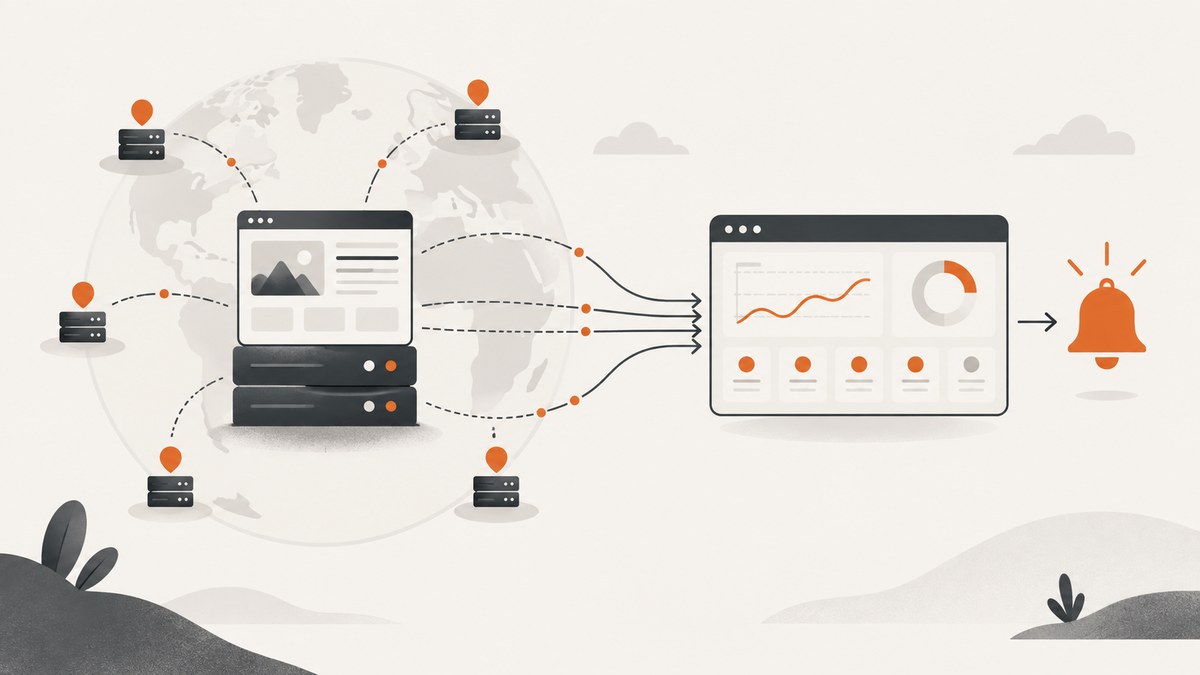
To automatically generate podcast clip images, first decide whether your clip comes from an audio-only episode or a video podcast. For audio, combine episode art or generated artwork with a waveform and captions to make an audiogram. For video, use a frame from the footage, crop the speaker for the destination, and add captions or visual overlays. Then review the crop, text, rights, and export before publishing.
“Clip image” can mean several different deliverables: a still thumbnail, artwork used as a background, an audiogram (a video made from audio with visual treatment), or a captioned video clip. Pick the deliverable before choosing a tool; the right automation depends on the source and output you need.
1. Choose the output and source
Start with the episode material and the job the asset must do. An audio-only excerpt has no footage to crop, so the visual layer must come from art, a waveform, captions, or a combination. A video podcast already has visual source material; an automated system can select a moment and reframe the speaker, while optional art and captions make it readable in a feed.
| Source | Useful output | Typical visual ingredients |
|---|---|---|
| Audio-only episode | Audiogram or captioned short | Episode or generated art, waveform treatment, captions |
| Video podcast | Captioned vertical or landscape clip | Selected footage, speaker crop, captions, optional overlay |
| Any episode | Static thumbnail | Episode illustration, show identity, concise episode context |
These outputs are related but not interchangeable. A thumbnail is a still image. An audiogram is typically a video container pairing audio with a waveform or other motion treatment. A captioned clip is a video excerpt, potentially with footage. If you need something that plays sound in a social feed, exporting only a still image will not do that.
2. Make an audio-only clip image
- Select the excerpt. If the tool can find candidate moments automatically, listen to the selection and confirm that the thought has a clear start and finish.
- Choose episode artwork or generate new art that reflects the topic. Keep a consistent show identity if clips from multiple episodes should look related.
- Choose a layout for the destination. Square and vertical are common template choices in the reviewed products, but they are examples rather than universal requirements. Check the destination’s current upload requirements.
- Add captions if the clip is meant to communicate while muted. Check names, technical terms, punctuation, and line breaks against the recording.
- Add a waveform or subtle motion treatment if the deliverable is an audiogram. Preview the entire excerpt, since a still preview cannot show timing or audio synchronization.
- Export in the required video or image format, then inspect the exported file and licensing terms.
Headliner describes automatic audiograms and AI-generated images for podcast videos, along with automatic clipping, transcription, editing, captioning, and sharing. Its product page says its advanced editor can create podcast videos with AI-generated images. These are product descriptions, not an independent comparison of image quality. See Headliner’s current product details.
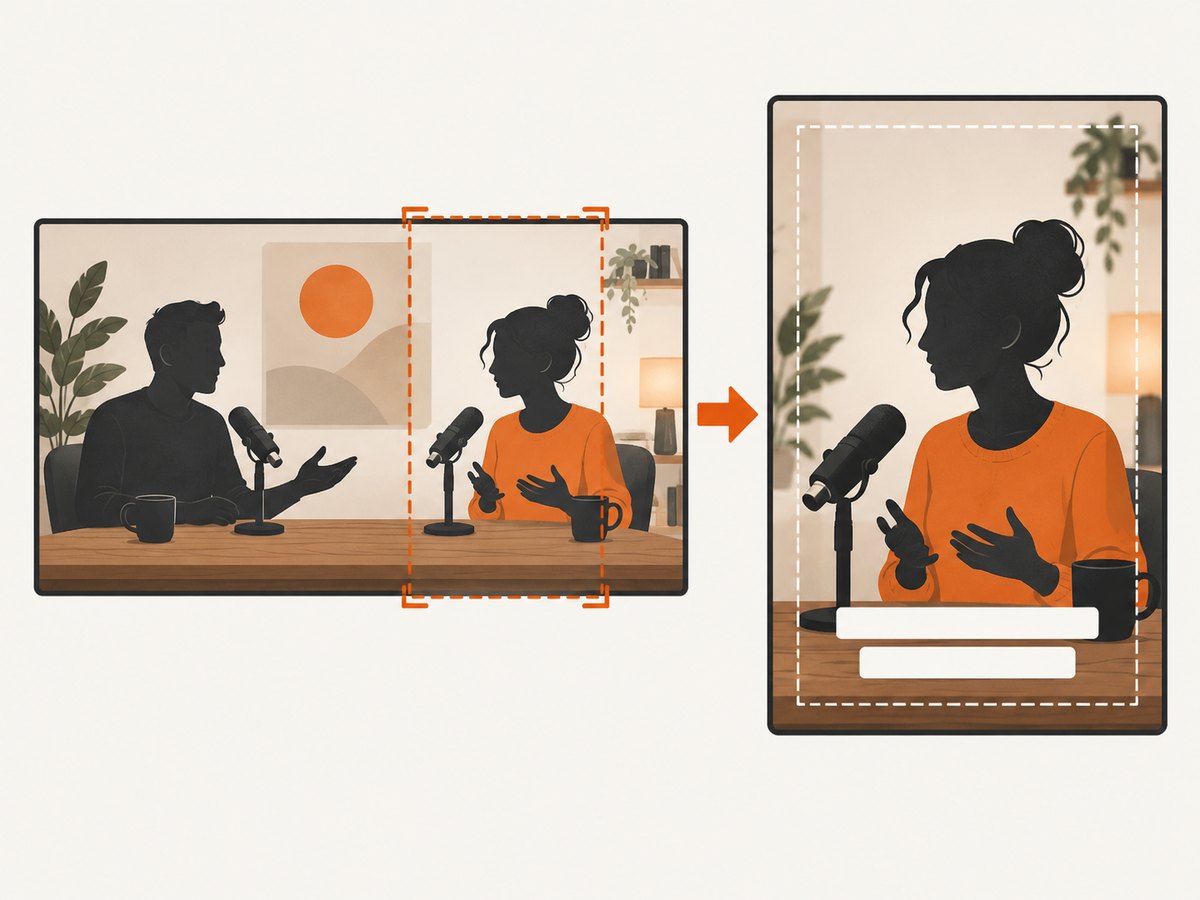
Headliner’s help material also describes Apple Podcasts-related templates with square and vertical options, customizable colors and episode art, and up to 10 clips in automatic clip flows. Limits and integrations can change, so verify current availability in its help article.
3. Make a video-podcast clip
When the source has video, automation should select a useful excerpt and preserve the speaker in the crop. A vertical crop may need to follow the active speaker or shift during a two-person conversation. Preview transitions and gestures near the frame edge. Do not assume that an art generator will replace or improve the source footage; some workflows instead cut existing footage and crop it to fit a vertical frame.
- Choose a moment with enough context to make sense on its own.
- Set the intended aspect ratio and check how the speaker is framed throughout the clip.
- Review automatic captions, especially speaker names, acronyms, and overlapping speech.
- Add episode art or a restrained overlay only if it helps identify the show without covering faces or captions.
- Export and watch the rendered clip from beginning to end, including its opening and ending frames.
Treza documents this distinction explicitly: for audio-only RSS episodes its tool finds a 30-to-60-second moment, generates vertical cover art, adds captions, and prepares publication; for video podcasts it uses footage and crops the speaker into a vertical frame. Its stated costs and workflow are vendor descriptions and may change. See Treza’s product page for current details.
4. Select a tool by workflow, not by the word “AI”
Compare tools on the parts of the workflow you actually need: audio versus video source, clip selection, generated or uploaded art, captions and waveform, aspect ratios, editability, publishing destinations, current plan limits, and commercial-use rights.
| Tool or approach | Documented use | Check before choosing |
|---|---|---|
| Headliner | Automatic clipping, audiograms, captions, AI-generated images for podcast videos, and styled clips | Current limits, integrations, and template availability |
| Adobe Podcast Studio | Export a transcript selection as MP3, WAV, or an audiogram | Adobe’s June 2025 update announced 10+ audiogram themes for Premium users and custom background uploads; confirm current plan access |
| Clearly | Episode illustrations, clip thumbnails, and waveform-style overlays; editable vector assets exportable as SVG or PNG | Current dimensions, plan terms, and commercial license. Its page states Free is personal use and Pro includes commercial licensing at a listed $69/month; terms may change |
| Treza | Audio-only moment selection and generated vertical art, or footage crops for video shows | Current credit costs, publishing settings, and whether its workflow matches your source |
| DIY audiogram | Build a video from audio, waveform, theme, and captions using a modifiable implementation | Engineering effort, maintenance, and rights for all visual and audio assets |
Adobe’s update is dated June 26, 2025; it described 10+ audiogram themes for Adobe Podcast Premium and custom background uploads. Treat that as a dated product announcement, not a guarantee of current plan access. Read Adobe’s update.
Clearly lists product-specific examples including 3000×3000 square show art, a 2560×1440 YouTube banner, and 1280×720 episode thumbnails. Those dimensions describe its listed assets, not universal platform requirements. Its stated plan and license terms are also subject to change. Details are on Clearly’s page.
For a technically controlled route, New York Public Radio’s open-source Audiogram repository describes the core pattern: a shareable video made from audio with a waveform, show theme, and caption. It can be modified for shapes, formats, and gradients; it is a DIY project, not a turnkey current AI image generator. See the Audiogram repository.
5. Build a repeatable production checklist
- Input: Record the episode URL or file, selected excerpt, source type, and any transcript.
- Visual: Decide between generated artwork, supplied episode art, footage, or a consistent template. Confirm you have rights to use the source art and any generated or stock elements.
- Layout: Set the output aspect ratio for the destination and inspect safe areas around captions and faces.
- Text and timing: Correct captions and verify the clip starts and ends at sensible points. Do not rely on transcript selection alone to establish good pacing.
- Brand: Use a small number of repeatable choices such as color, typography, and logo placement. Keep the actual clip’s subject legible.
- Review: Watch the full export with sound and, if relevant, check readability with sound off. Inspect both the thumbnail and moving clip.
- Publish: Confirm destination, visibility, metadata, and commercial license before scheduling or sharing.
Automation can save repetitive editing, but it cannot determine whether a generated image accurately represents a discussion, whether a clip is misleading without context, or whether a license covers your use. Make a human review step part of the workflow.
6. Troubleshoot common problems
| Problem | Likely cause | Fix |
|---|---|---|
| Audio clip has no compelling visual | The tool paired audio with generic art or a static cover without motion or context | Use episode-specific artwork, add a waveform or captions, and preview at feed size |
| Speaker is cropped out | Automated vertical reframing did not follow the speaker or a multi-person exchange | Adjust the crop manually, split the clip at speaker changes, or choose a wider layout |
| Captions contain errors | Speech recognition misheard names, jargon, or overlapping speakers | Compare every line with the audio and correct spelling and timing before export |
| Text or faces are covered | Template safe areas, overlays, or aspect ratio do not fit the source | Move overlays, reposition captions, and inspect the actual export rather than only the editor preview |
| Wrong output dimensions | A template was mistaken for a platform-wide requirement | Check the destination’s current media requirements, set the matching aspect ratio, and export again |
| Asset cannot be used commercially | Tool plan, generated asset, music, or source artwork has a restricted license | Review each applicable license and plan term; replace assets or obtain the required rights |
| Private clip becomes public unexpectedly | Publishing visibility defaults or export destination settings were overlooked | Inspect visibility and destination settings before publishing; Treza says its generated publishers default to non-public until changed |
| Clip loses context | Automatic selection started or ended mid-thought | Listen to the first and last seconds, extend or trim the selection, and add context in the caption where appropriate |
7. Performance, reliability, and cost
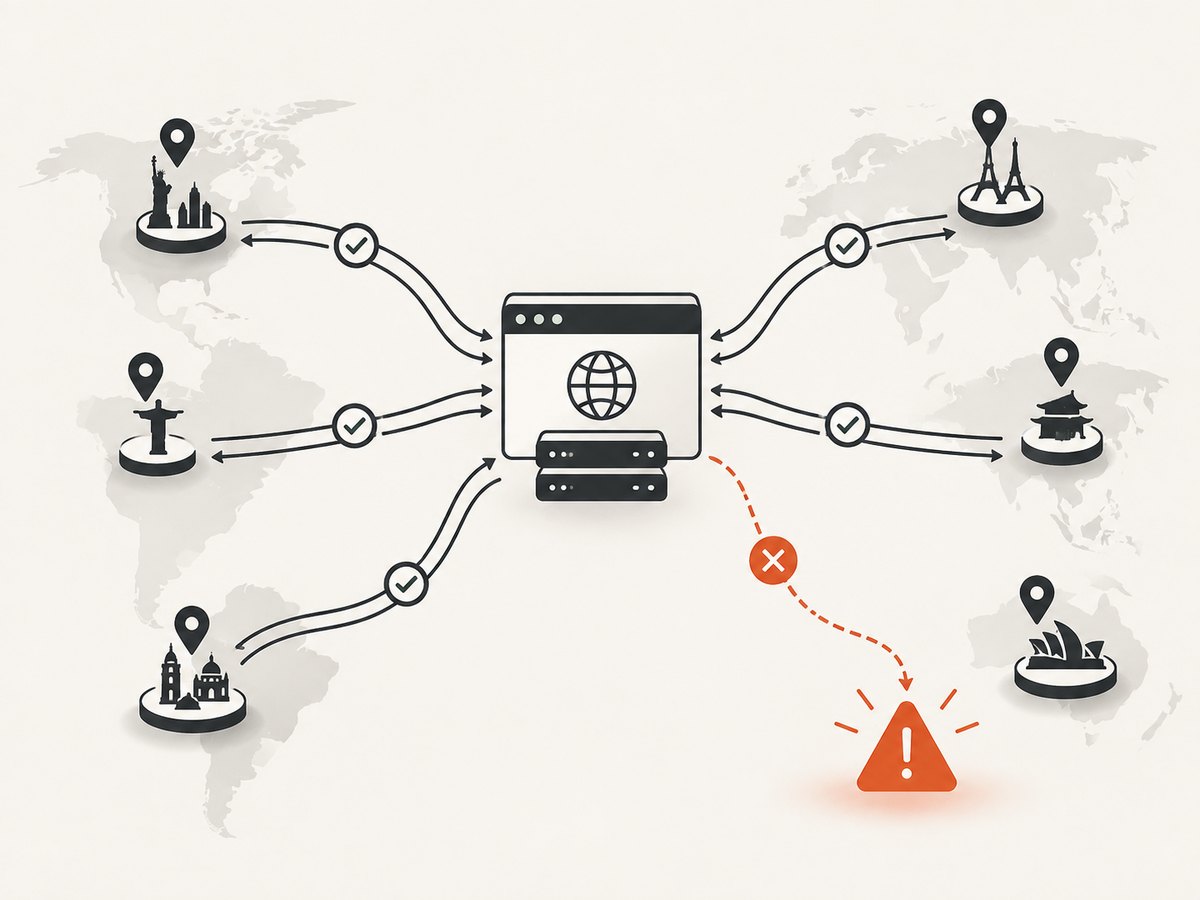
Generation time and price depend on the product, source length, rendering choices, plan, and export format. The dossier does not provide independent benchmarks, so there is no sound basis for promising a processing speed or reach improvement. For a reliable batch workflow, keep the source excerpt and final export, check job status before publishing, and retain a review step for captions, crop, audio, and visibility.
Some products automate several tasks together; others focus on assets or let you choose the excerpt. Compare the total effort, including manual correction and export, rather than just whether a tool advertises automatic generation. Confirm current plan limits and commercial terms before committing. Treza describes prepaid credits, a starting credit pack of $5, and typical video generation settling around $1.06; these are its own estimates, not independent price comparisons. Clearly states its listed Free and Pro licensing terms on its site. Recheck both vendors’ current pages.
For DIY production, the New York Public Radio Audiogram project is a starting point for assembling audio, a waveform, theme, and caption into video. Budget for implementation and ongoing maintenance. The repository’s 2016 copyright notice is a reason to inspect the repository and its license for your intended use, not to assume that every dependency or asset is covered.
8. Automatically generate the supporting visuals with ScreenshotNeo
Podcast clip workflows often need screenshots of episode pages, guests’ sites, or source material for review and documentation. ScreenshotNeo is a website screenshot API and MCP server. It does not generate podcast artwork or edit clips; it captures web pages as PNG, JPEG, WebP, or PDF, which can provide a clean page image for a visual workflow.
Its API can capture full pages, a selected CSS element, or a chosen viewport. Options include device presets, retina scale, dark mode, custom CSS and JavaScript, waiting for a selector or network idle, hiding elements, custom headers and cookies, and caching with a chosen TTL. See the ScreenshotNeo API documentation for the request options.
curl -G "https://api.screenshotneo.com/v1/shot" -d access_key=YOUR_API_KEY --data-urlencode url=https://stripe.com -o shot.webpimport requests
r = requests.get(
"https://api.screenshotneo.com/v1/shot",
params={"access_key": "YOUR_API_KEY", "url": "https://stripe.com"},
timeout=90,
)
r.raise_for_status()
open("shot.webp", "wb").write(r.content)const q = new URLSearchParams({ access_key: 'YOUR_API_KEY', url: 'https://stripe.com' });
const res = await fetch(`https://api.screenshotneo.com/v1/shot?${q}`);
if (!res.ok) throw new Error(`Screenshot request failed: ${res.status}`);
const image = Buffer.from(await res.arrayBuffer());
await import('node:fs/promises').then(fs => fs.writeFile('shot.webp', image));Or skip the browser setup
Use one API request to capture a page without installing or maintaining browser automation:
curl -G "https://api.screenshotneo.com/v1/shot" -d access_key=YOUR_API_KEY --data-urlencode url=https://stripe.com -o shot.webpScreenshotNeo accepts cookie and consent banners like a visitor and removes more than 60 known consent platforms, newsletter popups, and chat widgets before capture; each step can be disabled. Bot checks and CAPTCHAs, blank pages, timeouts, failed loads, and cache hits are not billed, and response headers report the page verdict and billing status. Its MCP server gives AI agents tools to take screenshots, get page information, and capture PDFs. The Free plan includes 1,000 screenshots a month with no card; paid plans start at $5 for 3,000 screenshots. Sign up free for 1,000 screenshots a month, no card required.
FAQ
Does an audiogram need newly generated artwork?
No. Episode art, a custom background, or generated art can all serve as the visual layer. Add waveform or caption treatment if the intended deliverable is a video audiogram.
Can a video-podcast clip use generated images instead of footage?
That depends on the workflow. The reviewed Treza description uses existing footage for video podcasts and generates vertical art for audio-only episodes. Check the chosen tool’s current capabilities.
Should every clip use the same aspect ratio?
No. Choose the ratio for the destination and verify its current requirements. The square and vertical templates documented by Headliner are product examples, not universal rules.
Do auto-generated visuals improve engagement?
The cited sources provide product features and examples, not independent evidence that generated visuals increase reach or engagement.


