How to Automatically Generate Podcast Cover Images
Automate podcast cover design and export while meeting Apple Podcasts and Spotify artwork requirements. Includes a Python workflow, validation steps, and update guidance.
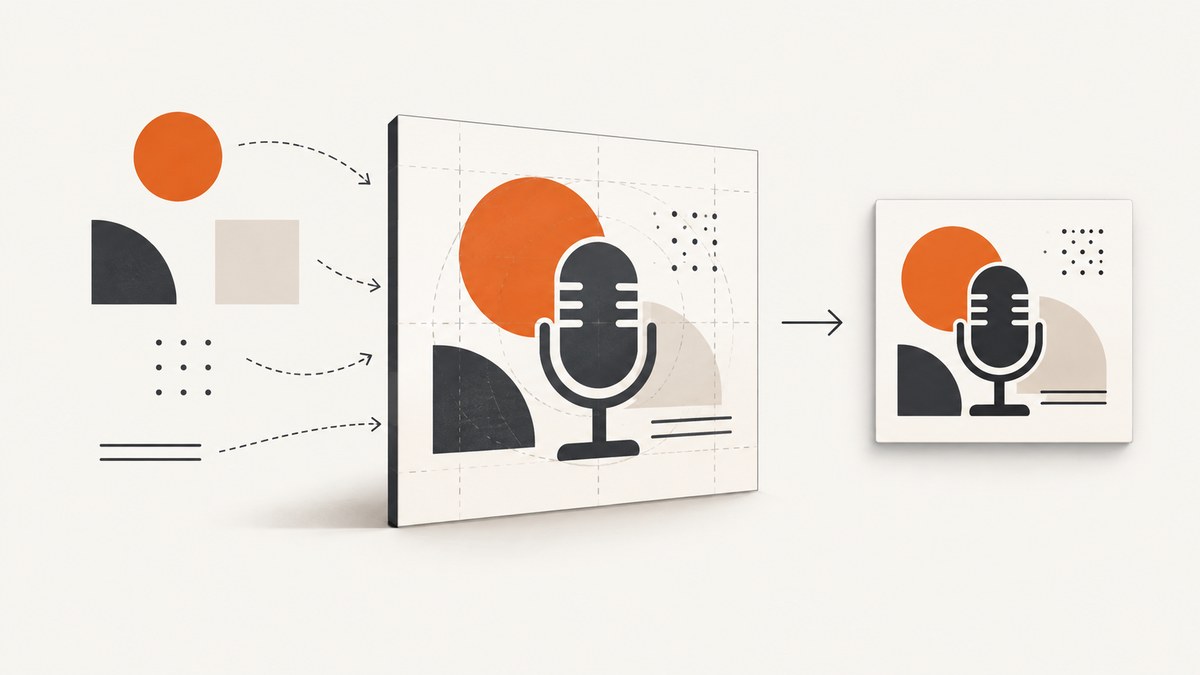
You can automate the repeatable parts of podcast cover creation—laying out a title, combining artwork, resizing, and exporting—while keeping a human review step for readability and platform compliance. A practical shared starting point is a 3000×3000 square PNG or JPG, but Apple Podcasts and Spotify have different requirements, so validate the final export for each platform.
This guide builds a small Python workflow that turns a background image and title into square cover art. It also covers a template-based process, design checks, platform specs, RSS updates, common failures, and ways to keep generation reliable.
1. Know the requirements before automating
Automation should produce an asset that directories accept and listeners can recognize at small sizes. Treat the platform specifications as validation rules, not as a design brief: passing them does not guarantee legibility or a good result.
| Destination | Accepted artwork and dimensions | Checks to include |
|---|---|---|
| Apple Podcasts show cover | PNG or JPG; square; RSS submissions from 1400×1400 through 3000×3000. Apple prefers 3000×3000. | No transparency or alpha channel. Keep important elements within Apple’s safe area; use strong contrast and a prominent title. |
| Spotify cover art | TIFF, PNG, or JPG; square; each side from 640 to 10000 pixels. | sRGB, 24-bit color. Do not upscale; avoid embedded color profiles and orientation metadata. |
| Apple episode art | PNG or JPG; square; RSS submissions from 1400×1400 through 3000×3000. Apple prefers 3000×3000. | Optional; if absent, Apple displays the show cover. Apple recommends avoiding text and logos because episode information is shown separately. |
Sources: Apple Podcasts show cover guidance, Spotify cover art requirements, and Apple episode artwork guidance. Requirements can change, so check the official pages when shipping a new production pipeline.
A 3000×3000 square PNG or JPG is a useful common working target, inferred from those ranges. It is not a guarantee that one identical file meets every platform’s color and metadata rules. Keep source artwork at a higher resolution where possible, and create platform-specific derivatives when export requirements differ.
2. Build an automated cover workflow
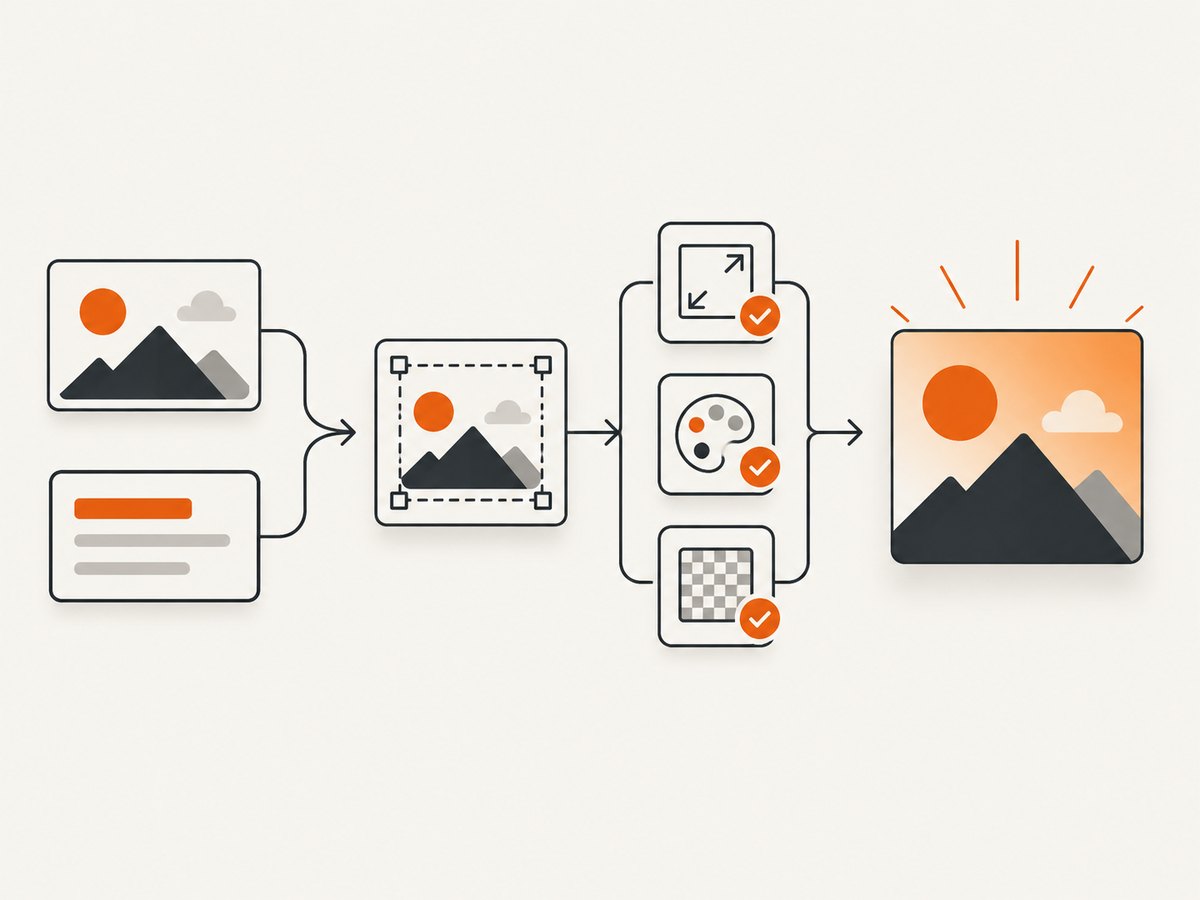
- Define the visual system. Record the show name, subject, intended audience, tone, colors, and one recognizable visual motif. Keep copy minimal: the title should dominate.
- Create a reusable layout. Use a template in a design tool or generate a background image, then place editable title typography and optional series branding in a fixed layout. Apple’s design resources include a safe-area template and list Canva as a partner; that supports using it as a template workflow, not assuming automated compliance.
- Generate variations, then select. If an image-generation tool supplies backgrounds, request image-only artwork without lettering. Text generated inside images can be inaccurate or difficult to read. Compose the title in a separate layer using a chosen font and positioning.
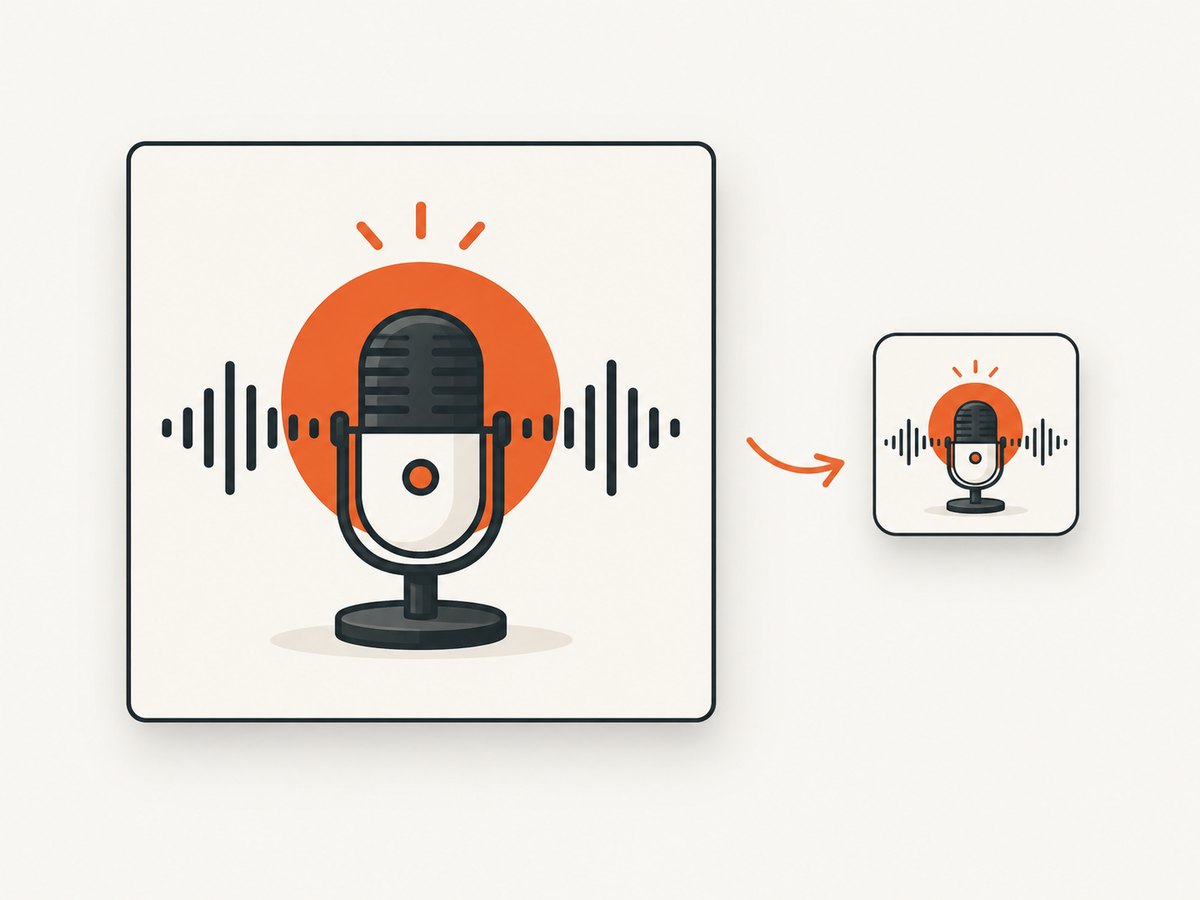
- Validate at thumbnail size. Shrink the composition to roughly the size it will appear in a directory grid. Check that the title is readable, contrast is sufficient, and the central motif still communicates the subject. Also inspect Apple’s safe area so interface crops do not obscure critical content.
- Export and inspect the actual file. Verify dimensions, format, color mode, alpha, and metadata after export. Do not rely only on the design canvas settings.
- Publish through the host or RSS workflow. Upload the show cover in the podcast publishing flow. For an Apple RSS artwork update, change the image URL in the
<itunes:image>element and use a new filename if clients keep showing the old image.
Apple’s guidance recommends a clear, prominent title, strong contrast, high-resolution imagery, and use of its safe-area template. It also says to avoid Apple logos and representations of Apple hardware. See Apple’s show artwork rules.
3. Runnable Python example: compose and validate a cover
This example uses Pillow to resize a background to a square, add a title, and save an opaque PNG. It is a starter layout, not a substitute for typographic design review. Install the dependency with python -m pip install Pillow. Save a square or landscape background as background.jpg, a font file as font.ttf, then run the script.
from PIL import Image, ImageDraw, ImageFont

SIZE = 3000
BACKGROUND = "background.jpg"
FONT_FILE = "font.ttf"
OUTPUT = "podcast-cover.png"
TITLE = "THE SAMPLE SHOW"

# Center-crop to a square; this does not increase the source file's detail.
image = Image.open(BACKGROUND).convert("RGB")
w, h = image.size
side = min(w, h)
left = (w - side) // 2
top = (h - side) // 2
image = image.crop((left, top, left + side, top + side))
image = image.resize((SIZE, SIZE), Image.Resampling.LANCZOS)

draw = ImageDraw.Draw(image)
font = ImageFont.truetype(FONT_FILE, 210)
margin = 180
# Place title in a solid lower panel for predictable contrast.
panel_top = 2200
draw.rectangle((0, panel_top, SIZE, SIZE), fill=(15, 22, 37))
max_width = SIZE - margin * 2

# Wrap words to fit the available line width.
words = TITLE.split()
lines, line = [], ""
for word in words:
    candidate = f"{line} {word}".strip()
    if draw.textbbox((0, 0), candidate, font=font)[2] > max_width and line:
        lines.append(line)
        line = word
    else:
        line = candidate
if line:
    lines.append(line)

line_height = 250
y = panel_top + (SIZE - panel_top - len(lines) * line_height) // 2
for text in lines:
    draw.text((margin, y), text, font=font, fill=(255, 255, 255))
    y += line_height

# RGB output avoids an alpha channel for Apple show-cover exports.
image.save(OUTPUT, format="PNG", optimize=True)

# Basic post-export validation.
check = Image.open(OUTPUT)
assert check.size == (3000, 3000), check.size
assert check.mode == "RGB", check.mode
print(f"Saved {OUTPUT}: {check.size}, {check.mode}")
The crop is deliberately simple and may remove important parts of a background. For production, define a focal point or a safe crop region per image, and fail the build if text overflows or the image falls below your required source resolution. This script produces RGB pixels, but production pipelines should separately inspect metadata and create any destination-specific version required by the host.
4. Export and verify with command-line tools
A repeatable pipeline should validate its output after all design and conversion steps. ImageMagick’s identify can report dimensions and image properties if installed:
identify -format '%f %wx%h %[channels] %[colorspace]\n' podcast-cover.pngFor an Apple show cover, confirm square dimensions between 1400 and 3000, PNG or JPG, and no alpha. For Spotify, confirm square dimensions between 640 and 10000, sRGB and 24-bit output; do not enlarge a smaller source to meet a minimum. A conversion utility can alter color mode or metadata, so inspect the converted file rather than assuming the command did what you intended.
Keep a clean master and record the final filename, dimensions, format, and export settings alongside each release. Use descriptive, versioned filenames such as show-cover-2026-09.png. This helps you distinguish a stale cached file from a failed upload and provides a reproducible source for later revisions.
5. Common automation choices and their limits
Template-based composition
A fixed template is often the most reliable option when a show has recurring artwork. It makes placement, type size, and color consistent; a person still needs to review the generated result, especially when a long title wraps or a background conflicts with the text. Canva is named as a partner in Apple’s design resources, and Adobe’s guide describes Adobe Express for podcast design. These are examples of design workflows, not claims that either service automatically validates every platform rule. Follow the current platform specifications first.
Image generation plus layout
Generate a limited set of background concepts from a prompt that describes subject, mood, composition, and reserved negative space for title text. Keep title rendering in the layout stage so the lettering remains exact. Reject outputs with misleading imagery, unwanted marks, poor crop tolerance, or insufficient contrast. Do not assume an image generator’s output dimensions or color profile meets directory requirements; export and inspect the final file.
Programmatic composition
Code is useful for creating many covers from structured metadata, applying a brand system, and enforcing dimensions. It cannot determine whether a visual metaphor is appropriate or a title remains appealing and legible at thumbnail size. Make validation a build step and human review a release step.
6. Show art, episode art, and Apple feature art are different assets
Do not treat every podcast image slot as interchangeable. The square Show Cover identifies the show. Episode art is optional; Apple displays the Show Cover when episode artwork is absent, and advises avoiding text and logos on episode art because episode information appears separately. Apple also has Full Page Show Art for submissions to be featured: it is a layered PSD at 2048×2732 pixels. That is a distinct placement and submission asset, not a replacement for the square cover. See show cover requirements, episode artwork guidance, and Apple’s featuring guidance.
7. Update cover art through RSS and hosting
Most creators update art through their podcast host’s publishing interface. If you manage an RSS feed directly, artwork is referenced by the feed; Apple’s documented update procedure is to change the image URL in <itunes:image>. Apple says changes are normally detected within 24 hours. If the cover does not update, verify the image URL is reachable, use a new filename to avoid a stale cached copy, remove any alpha channel, and confirm the file follows the current rules. See Apple’s artwork update troubleshooting.
Spotify says its hosted RSS feed is created after the first episode is published and must be enabled if you want to share that feed with other platforms. The exact host workflow varies, so check the publishing service’s current instructions before editing feed settings. Source: Spotify RSS feed guidance.
8. Troubleshooting: common cover-generation failures
| Symptom | Likely cause | Fix |
|---|---|---|
| Directory rejects the file | Wrong format, non-square dimensions, out-of-range size, or unsupported color properties. | Check the destination’s current spec and inspect the final exported file. Generate a platform-specific derivative if necessary. |
| Apple accepts the file but artwork is missing or stale | Feed points to an inaccessible image, cached filename, alpha channel, or noncompliant image. | Check the <itunes:image> URL, upload a new filename, remove alpha, then allow time for directory refresh. |
| Spotify image looks wrong or is rejected | Image was upscaled, is outside 640–10000 square dimensions, or is not sRGB 24-bit; metadata can also be problematic. | Start from a sufficiently detailed source, export square sRGB 24-bit art, and remove embedded profile/orientation metadata as required. |
| Title is clipped or unreadable | Long title wrapped unexpectedly, crop removed content, or contrast is weak. | Measure text bounds during composition, reserve a title panel, inspect the safe area, and review a thumbnail-size version. |
| Batch job produces inconsistent art | Variable title lengths or focal points interact badly with a fixed crop and layout. | Add per-title overflow checks, safe crop metadata, a small number of layout variants, and a manual exception queue. |
| PNG unexpectedly contains transparency | Source or later compositing step retained an alpha channel. | Flatten against an explicit background color and verify RGB output after the final save. |
9. Performance, reliability, and cost considerations
Generating a single cover is usually a small image-processing job, but high-resolution output and complex source art can consume more memory and make exports slower. Process covers one at a time or in bounded batches, reuse fonts and templates, and avoid repeatedly resizing the same source. Keep the original inputs so you can regenerate a cover if platform rules or show branding change.
For reliability, make each build deterministic: pin template dimensions and font files, keep input metadata with the output, validate size and mode, and stop rather than silently publishing when validation fails. Save intermediate outputs so a failed upload does not require rerunning image generation. Separate creation from publication, since RSS propagation and directory refresh are outside the image renderer’s control.
Cost depends on the tools chosen. A code-based layout can run locally with an open-source imaging library; image generation or commercial design software may have separate pricing and usage terms. The research sources do not establish current prices or feature availability for particular design plans, so check providers directly. Do not buy physical equipment just to automate cover-image composition; the documented task is a digital design and export workflow.
10. ScreenshotNeo: capture a live visual reference
If the artwork is based on a website, event page, or visual reference, a screenshot can provide a captured reference image for a design workflow. ScreenshotNeo is a website screenshot API and MCP server from Yorker Media. It takes a URL and returns an image or PDF, with options such as viewport and full-page capture. It does not generate podcast cover art; use your design or composition workflow to create the final square asset.
See the ScreenshotNeo API documentation for request options.
11. Or skip the browser setup
For a website reference image, one GET request can capture a page. Use your own API key in place of the placeholder:
curl -G "https://api.screenshotneo.com/v1/shot" -d access_key=YOUR_API_KEY --data-urlencode url=https://stripe.com -o shot.webp

import requests
r = requests.get("https://api.screenshotneo.com/v1/shot", params={"access_key": "YOUR_API_KEY", "url": "https://stripe.com"}, timeout=90)
open("shot.webp", "wb").write(r.content)

const q = new URLSearchParams({ access_key: 'YOUR_API_KEY', url: 'https://stripe.com' });
const res = await fetch(`https://api.screenshotneo.com/v1/shot?${q}`);
Cookie banners, popups, and chat widgets are removed before the shot. Bot checks, blank pages, and failed loads are never billed. An MCP server lets AI agents take screenshots. The Free plan includes 1,000 screenshots a month with no card; paid plans start at $5 for 3,000. Learn about ScreenshotNeo, read the docs, or sign up for 1,000 free screenshots a month with no card.
12. FAQ
Can one image file be used for Apple Podcasts and Spotify?
Often a 3000×3000 square PNG or JPG is a practical shared starting point, but inspect color mode, alpha, metadata, and source resolution for each destination.
Should episode artwork repeat the show title?
Apple recommends avoiding text and logos on episode art because episode information is displayed separately. A visual system can still connect episodes without repeating the title.
Does Apple update RSS cover changes instantly?
No. Apple says changes are normally detected within 24 hours. A new filename can help when an old image remains cached.
Can generated artwork include the podcast title?
It can, but composing the title as a separate text layer makes spelling, layout, and later edits more controllable.


