Automatically Generate Podcast Social Media Images
Build a repeatable workflow for podcast graphics and audiograms, from episode trigger to captions, branding, review, and publishing.
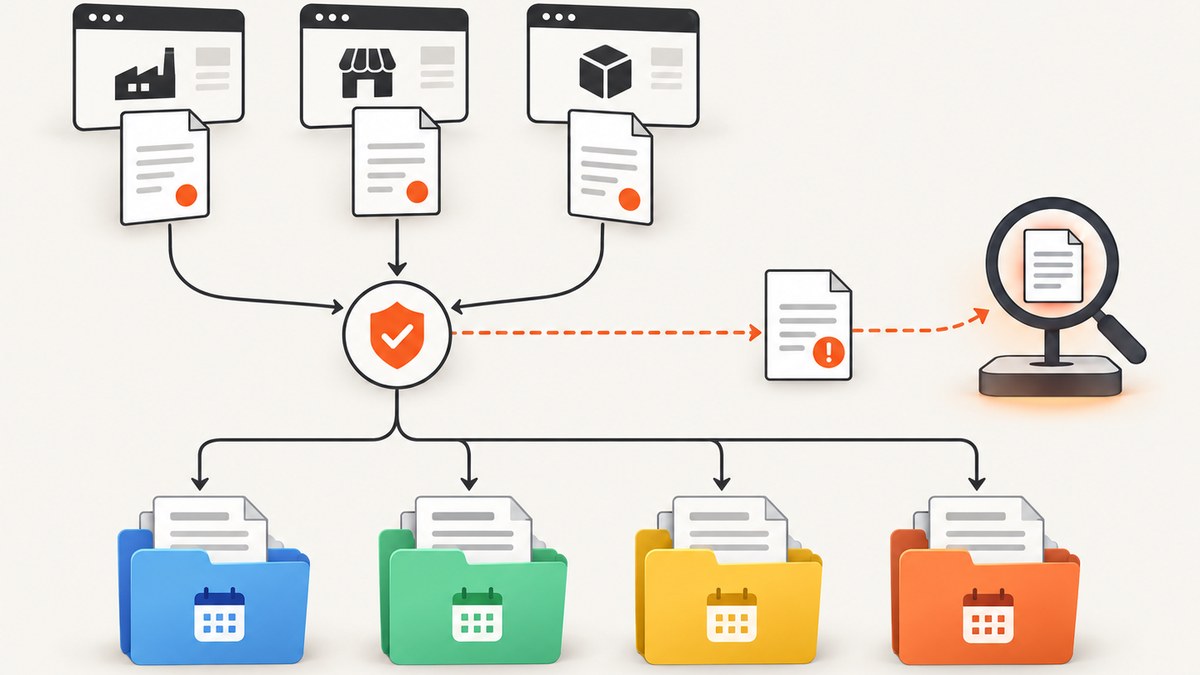
Direct answer: automatically generating podcast social media images requires four steps: detect a new episode, select an asset type, render a branded image or audiogram, and send it through a review and publishing step. Static graphics use cover art, guest photos, quotes, or episode details. Audiograms combine an audio excerpt with a waveform, captions, and visual branding. Choose the workflow based on whether you need image files, short videos, or both.
For a mostly hands-off workflow, Headliner documents automatic audiograms that can be created and posted when a new episode is published. Its Make workflow also describes automatic clips, transcription, captions, AI-generated images, and social captions. For a controlled do-it-yourself pipeline, use an RSS feed or podcast host webhook as the trigger, FFmpeg for audio and video rendering, and Pillow or a design template for static images. Adobe Podcast documents a create-customize-download audiogram process, while Adobe Express can add cover art, logos, and guest images to a downloaded snippet. Descript documents highlight videos, audiograms, templates, and Canva-based branding.
1. Decide what “social media images” means
The phrase covers two different outputs. Define them before choosing software or writing automation.
| Output | What it contains | Best use | Typical file |
|---|---|---|---|
| Static episode graphic | Artwork, title, guest, quote, date, or call to action | Feed posts, newsletters, launch announcements | PNG or JPEG |
| Audiogram | Audio excerpt, waveform, captions, background, and show identity | Video-first feeds and short promotional clips | MP4 |
| Highlight video | Selected excerpt with captions and animated or still visuals | Short clips that promote one idea | MP4 |
Adobe describes an audiogram as a captioned video treatment for audio. Descript describes the same format as a short video combining an audio clip, waveform, and captions. A static image is simpler to generate, but it cannot carry the spoken moment that makes an audiogram useful. Many shows generate one static card plus two or three short audiograms for every episode.
2. Design the episode-triggered workflow
- Trigger: watch the podcast RSS feed, your host’s “episode published” webhook, or a scheduled feed check.
- Normalize metadata: collect the episode title, audio URL, publication date, description, guest name, cover art, and a stable episode ID.
- Select content: choose a fixed intro excerpt, a manually marked highlight, or an AI-assisted clip that a person reviews.
- Render: create the static card and audiogram using consistent dimensions, fonts, colors, and caption styling.
- Validate: check duration, audio presence, captions, safe margins, file size, and that the episode title is readable on a phone.
- Review and publish: automatically queue assets for approval or publish directly where the selected service supports it.
- Record status: store the episode ID, generated files, caption language, review decision, and publication URLs so retries do not create duplicates.
Keep the trigger idempotent. The same RSS item may appear more than once, and a feed can change its publication timestamp. Use the episode GUID as the deduplication key. If rendering fails, retry the render job without creating another social post.
3. The managed Headliner path
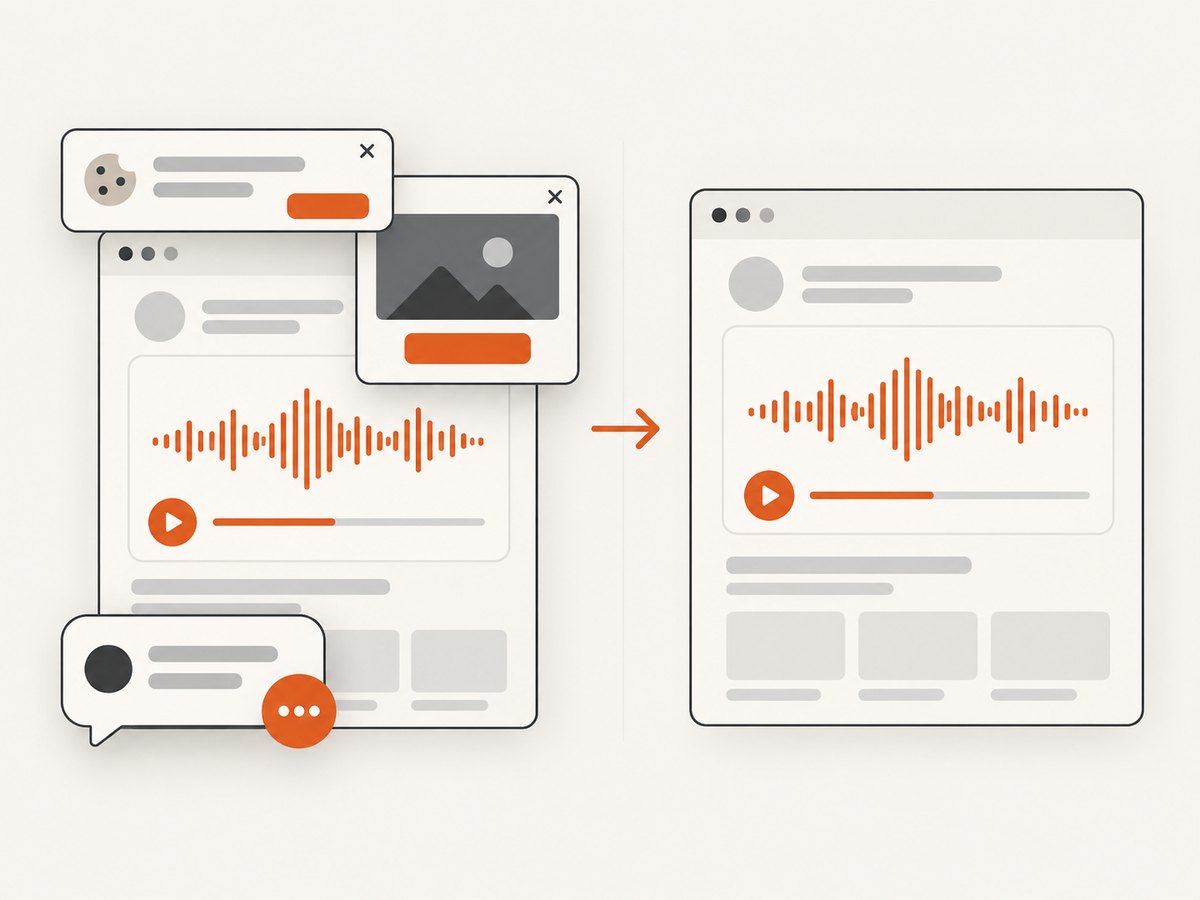
Headliner’s Social Media page says its Automatic Audiograms can create podcast videos and post them to Instagram, TikTok, LinkedIn, Facebook, and YouTube each time a new episode is published. Its Make page describes automatic clipping, transcription, captions, AI-generated images, and social captions. These are vendor-stated capabilities; confirm the current account setup, platform permissions, plan limits, and supported formats before relying on direct publishing.
A practical setup is:
- Connect the podcast feed or publishing trigger.
- Choose whether every episode should produce a full audiogram, selected clips, or both.
- Set a reusable brand treatment: background, waveform, logo placement, colors, and caption style.
- Choose destination channels and require approval if the show has an editorial review step.
- Publish one test episode and inspect the result on a phone before enabling automatic posting.
Automated clipping still needs editorial rules. Set a minimum and maximum clip length, avoid excerpts that begin mid-sentence, and require captions to be corrected before publishing names, numbers, or technical terms.
4. Adobe Podcast and Adobe Express workflow
Adobe Podcast documents an upload, transcription, customization, and download flow. You choose a theme and size, edit captions, optionally display speaker names, and download the audiogram. The documented caption languages include English, German, Italian, Portuguese, French, and Spanish. Adobe’s guide says that making a shorter audiogram requires downloading the audio, placing it in a new project, trimming it, and exporting again.
Adobe Express can provide the branding layer. Download an audiogram snippet from Podcast, select a social template in Express, then add cover art, a logo, or a guest headshot. This is a useful create-customize-download process, but the cited workflow does not establish automatic episode-triggered posting. Use it when design control matters more than unattended publishing.
5. Descript and Canva for highlight production
Descript documents turning podcast highlights into videos and defines audiograms as short videos with audio, waveform, and captions. Its guide discusses built-in templates and Canva as an option for branded templates. Treat this as a creation and editing workflow unless your current account and integrations document a separate publishing automation.
Descript’s product page says video makes social media posts six times more engaging. That is a vendor claim; the reviewed page does not identify an underlying study, publisher, or year, so use it as product messaging rather than an independently verified statistic.
6. Build a do-it-yourself static image generator
The following Python script creates a square episode card from a background image, cover art, and metadata. It uses Pillow and writes a 1080×1080 PNG suitable for a general social feed. Install the dependency with python -m pip install pillow.
from PIL import Image, ImageDraw, ImageFont
from pathlib import Path

W, H = 1080, 1080
background = Image.open("background.jpg").convert("RGB").resize((W, H))
cover = Image.open("cover.png").convert("RGBA")
cover.thumbnail((420, 420))

canvas = background.convert("RGBA")
overlay = Image.new("RGBA", (W, H), (0, 0, 0, 0))
draw = ImageDraw.Draw(overlay)
draw.rectangle((0, 0, W, H), fill=(0, 0, 0, 105))
canvas = Image.alpha_composite(canvas, overlay)

x = (W - cover.width) // 2
canvas.alpha_composite(cover, (x, 90))
draw = ImageDraw.Draw(canvas)
font = ImageFont.truetype("DejaVuSans-Bold.ttf", 58)
small = ImageFont.truetype("DejaVuSans.ttf", 34)

title = "Episode 42: Designing for Trust"
guest = "with Alex Morgan"
draw.multiline_text((70, 600), title, font=font, fill="white", spacing=8)
draw.text((70, 790), guest, font=small, fill=(230, 230, 230))
draw.text((70, 940), "YOUR SHOW NAME", font=small, fill=(255, 210, 90))

Path("out").mkdir(exist_ok=True)
canvas.convert("RGB").save("out/episode-42.png", quality=95)
Replace the example metadata with values from your RSS item. For production, wrap the script in a job that downloads the current cover art, sanitizes filenames, records the episode GUID, and fails clearly when a font or image is missing. Keep important text inside a centered safe area because platform previews crop differently.
7. Build an audiogram with FFmpeg
FFmpeg can combine an audio excerpt, a still background, and a waveform. First create a 1080×1080 background image and select an excerpt. This command produces a 30-second MP4 with a waveform and AAC audio:
ffmpeg -y \
  -loop 1 -i background.png \
  -i excerpt.mp3 \
  -filter_complex "[1:a]showwaves=s=900x220:mode=line:colors=0xffd45a[wave];[0:v]scale=1080:1080,format=rgba[bg];[bg][wave]overlay=90:700,format=yuv420p[v]" \
  -map "[v]" -map 1:a -t 30 \
  -c:v libx264 -c:a aac -b:a 192k -movflags +faststart \
  out/episode-42-audiogram.mp4
This creates a waveform, not captions. Generate a transcript with your chosen transcription tool, correct it, and burn the final captions with an SRT file:
ffmpeg -y -i out/episode-42-audiogram.mp4 -vf "subtitles=episode-42.srt:force_style='FontName=DejaVu Sans,FontSize=26,PrimaryColour=&H00FFFFFF,OutlineColour=&H00000000,BorderStyle=3,Alignment=2,MarginV=90'" -c:a copy out/episode-42-captioned.mp4Caption styling varies across FFmpeg builds. If the subtitles filter is unavailable, render captions in a video editor or use a managed audiogram tool. Always watch the final file with sound muted to verify that the captions communicate the excerpt.
8. Operational options and edge cases
- Clip selection: fixed timestamps are reliable; automatic highlights save time but require review.
- Long episodes: never render the entire recording when a 20–45 second excerpt is enough for social promotion.
- Multiple speakers: enable speaker labels when available and correct names manually.
- Non-English audio: verify that the transcription service supports the language and punctuation you need.
- Vertical formats: create a 1080×1920 composition for short-video feeds and keep captions above the bottom controls.
- Square formats: use 1080×1080 for a reusable cross-platform asset.
- Guest rights: confirm that guest photos, music beds, and quoted material may be reused in promotional posts.
- Missing artwork: fall back to a branded background rather than failing the entire episode job.
- Retries: retry downloads and renders with exponential backoff, but deduplicate publication by episode GUID.
9. Troubleshooting
| Symptom | Likely cause | Fix |
|---|---|---|
| Nothing is generated | The feed item is not recognized as new | Log the GUID and publication date; reset the last-seen checkpoint and test with a known episode. |
| Audio is silent | Wrong stream URL, unsupported codec, or muted track | Download the source separately, run ffprobe, and map the correct audio stream. |
| Captions drift | Audio was trimmed after transcription | Trim first, transcribe the exact excerpt, then render captions. |
| Text is cropped | Important content sits outside a platform’s safe area | Move titles and captions toward the center and preview the target aspect ratio. |
| Waveform is missing | FFmpeg filter or filter graph failed | Run the command without -loglevel error and inspect the filter error; confirm FFmpeg was built with showwaves. |
| Duplicate posts appear | Retries created new publication jobs | Use the episode GUID plus destination as an idempotency key. |
| Names are misspelled | Automatic transcription error | Maintain a glossary of names and require a caption review step. |
| Upload is rejected | Unsupported dimensions, duration, codec, or file size | Export H.264 video with AAC audio, use the destination’s current dimensions, and validate before upload. |
10. Performance, reliability, and cost
Rendering locally is predictable when you control CPU, disk, and FFmpeg versions. Cache downloaded audio and artwork by URL hash, and render assets in parallel only when the machine has enough CPU and memory. Keep intermediate files on fast local storage, then delete them after publication or retention expires.
Managed services reduce browser, codec, and publishing maintenance but add subscription cost and platform dependency. Before committing, check whether the plan includes direct publishing, the channels you use, caption languages, brand templates, and review controls. Feature lists change, so verify current terms in the product account.
Track these measurements in your own pipeline: time from episode publication to first asset, render failure rate, caption correction time, upload failure rate, and the percentage of assets approved without edits. They tell you where automation actually saves work.
Or skip the browser setup
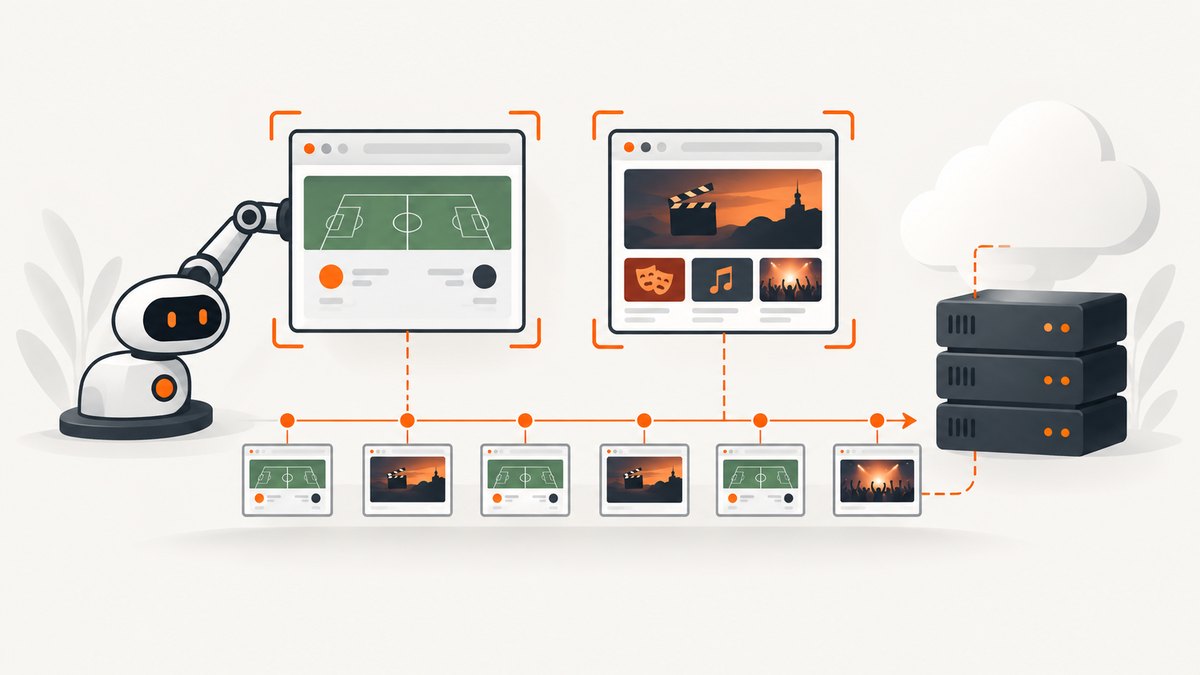
If your workflow also needs clean screenshots of episode pages, show notes, guest profiles, or social preview pages, ScreenshotNeo provides a website screenshot API and MCP server. One GET request returns PNG, JPEG, WebP, or PDF. It accepts cookie and consent banners like a visitor, removes more than 60 known consent platforms plus newsletter popups and chat widgets, and lets you turn each cleanup step off.
Only clean shots are billed. Bot checks, CAPTCHAs, blank pages, timeouts, failed loads, and cache hits cost nothing, and each response reports the result in X-Page-Verdict and X-Billed headers. Its MCP server includes take_screenshot, get_page_info, and capture_pdf tools for Claude, Cursor, and other MCP clients.
See the ScreenshotNeo API documentation for all options. A basic capture looks like this:
curl -G "https://api.screenshotneo.com/v1/shot" \
  -d access_key=YOUR_API_KEY \
  --data-urlencode url=https://example.com/episode-42 \
  -o episode-page.webp
import requests
r = requests.get(
"https://api.screenshotneo.com/v1/shot",
params={"access_key": "YOUR_API_KEY", "url": "https://example.com/episode-42"},
timeout=90,
)
r.raise_for_status()
open("episode-page.webp", "wb").write(r.content)const q = new URLSearchParams({
access_key: 'YOUR_API_KEY',
url: 'https://example.com/episode-42'
});
const res = await fetch(`https://api.screenshotneo.com/v1/shot?${q}`);
if (!res.ok) throw new Error(`Screenshot failed: ${res.status}`);
const bytes = Buffer.from(await res.arrayBuffer());
await Bun.write('episode-page.webp', bytes);ScreenshotNeo also supports full-page capture with lazy images loaded, CSS element selection, dark mode, device presets, retina scale, custom CSS and JavaScript, clicks, selector or network-idle waits, blocked resource types, headers, cookies, user agents, authorization, timezone, geolocation, transparent backgrounds, resizing, chosen cache TTLs, signed links, asynchronous jobs with signed webhooks, bulk capture for up to 100 URLs, and a usage API. Parameters used by other screenshot APIs also work, which helps when switching.
There is a free plan with 1,000 screenshots per month and no card. Paid plans start at $5 for 3,000 shots; yearly billing gives two months free. Create a free ScreenshotNeo account and use the included screenshots to automate episode-page assets before choosing a paid plan.
11. A launch checklist
- Define whether each episode produces static cards, audiograms, clips, or all three.
- Choose the trigger and deduplicate by episode GUID.
- Set aspect ratios, safe areas, fonts, colors, and caption rules.
- Choose fixed excerpts or a reviewed highlight process.
- Test missing artwork, delayed feeds, long audio, and transcription errors.
- Validate every output with muted playback and a phone-sized preview.
- Require approval for guest names, claims, and rights-sensitive material.
- Record render, review, and publication status for every destination.
FAQ
Can a podcast workflow create both images and audiograms?
Yes. Generate a static card from episode metadata and a separate audiogram from a reviewed audio excerpt. They can share the same background, colors, and typography.
Is an audiogram the same as a video podcast?
No. An audiogram is usually an audio excerpt with captions, waveform, and visual treatment. It does not require camera footage.
Should every episode be posted automatically?
Only when the show has stable editorial rules and a review path for captions, names, rights, and platform formatting. Otherwise automate rendering and queue publishing for approval.
What is the safest way to avoid duplicate posts?
Use the RSS episode GUID as an idempotency key, combined with the destination channel and asset type.
Do the reviewed sources prove which tool performs best?
No. The cited pages describe vendor capabilities and workflows, not a neutral benchmark. Compare trigger support, output types, editing, branding, caption languages, and distribution against your own process.


