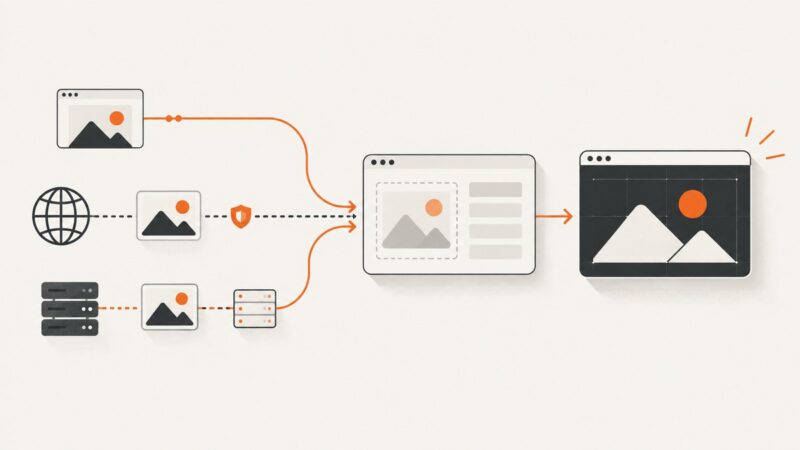
How to Automatically Generate Real Estate Listing Images
Learn a reviewable workflow for AI-staged listing images, source-photo accuracy, MLS disclosures, and automated delivery.

Automatically generating real estate listing images works best as a controlled image-editing workflow: start with an authorized, accurate photograph, define exactly what may change, generate a staged version, compare it with the original, and disclose the alteration wherever the MLS or destination requires it. Automation can prepare variants and move files through your publishing pipeline, but a person still needs to verify that the result does not misrepresent the property.
This guide covers AI virtual staging, automated image preparation, compliance checks, and a practical API workflow. Rules differ by MLS, state, brokerage, and destination platform, so confirm the current requirements that apply to your listing before publishing.
1. The safe automation workflow
Step 1: Start with an authorized source photo
Confirm that the brokerage has the rights needed to use, reproduce, and distribute the photograph. Canopy MLS guidance addresses rights in photos and other listing content. Keep the untouched source file permanently. It is your reference for review, disclosure, and later corrections.
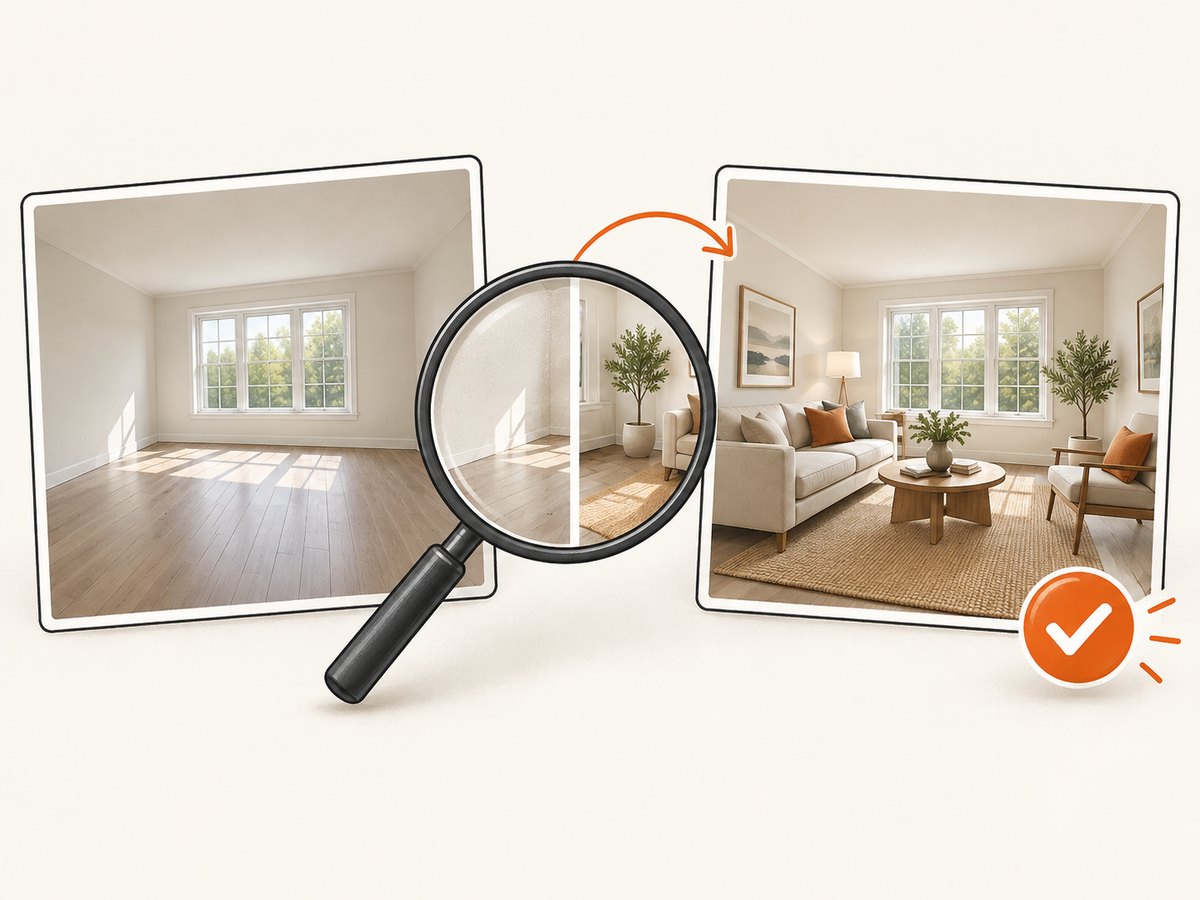
Use a high-resolution image with straight verticals, consistent color, and no accidental people, private documents, or identifying information. Record the source filename, capture date, photographer, property address, and permission status in your asset record.
Step 2: Define one image task
Give the generator a narrow instruction, such as “virtually furnish this empty living room with neutral contemporary furniture.” AI staging can add temporary personal-property elements such as sofas, tables, rugs, lamps, and decor. Do not ask it to invent or alter permanent features such as room dimensions, windows, doors, flooring, countertops, fireplaces, views, or built-in appliances.
Separate tasks into jobs. A staging job, a sky replacement job, and a lighting correction job should have different review rules. Combining many edits in one prompt makes it harder to identify an inaccurate change.
Step 3: Generate a candidate
Use an image-editing or virtual-staging tool that preserves the original framing. Save the generated file as a new asset; never overwrite the source. Store the prompt, model or tool name, date, operator, and any mask or selection used. CRMLS identifies ReimagineHome as an example of an AI-powered staging tool and says its tool automatically adds a watermark. Treat that as a tool-specific behavior, not a universal feature.
Step 4: Inspect against the source
Review the candidate at full resolution and side by side with the original. Check every architectural and factual detail:
- Walls, ceilings, floors, doors, windows, stairs, and room boundaries.
- Permanent fixtures, outlets, vents, cabinets, plumbing, and appliances.
- Exterior views, neighboring buildings, landscaping, and weather clues.
- Reflections, shadows, perspective, object edges, and repeated textures.
- Furniture scale, placement, and whether it blocks a feature or creates a false impression of space.
Reject the image if generated content changes how the property is represented. CRMLS distinguishes routine adjustments such as lighting, sharpening, white balance, color correction, straightening, cropping, and exposure when they do not change the representation from edits that do. An AI-generated landscaping image is not permitted in the CRMLS guidance cited for this workflow.
Step 5: Preserve and label both versions
Keep the original immediately available beside the altered version. Disclosure placement varies. CRMLS says the original unaltered image must appear immediately before or after the digitally enhanced image and that the altered image must carry the MLS’s required label. Canopy MLS requires visible disclosure on the image or within a virtual tour; captions or agent remarks alone are not sufficient under its policy. Stellar MLS requires a photo description and the virtually staged field to be checked, and says photos must present a “True Picture” of the property.
These examples are not a nationwide rule. NorthstarMLS’s July 10, 2026 page describes proposed guidance, while ARMLS describes its own disclosure and original-image policy. Check your MLS’s current instructions, including required wording, fields, ordering, and whether a watermark is accepted.
2. A repeatable folder and metadata structure
A predictable structure prevents an automated pipeline from publishing a generated image without its source or disclosure record:
listing-1042/
  originals/
    living-room-01.jpg
  generated/
    living-room-01-virtually-staged-v1.jpg
  disclosures/
    living-room-01.txt
  metadata.json
Example metadata:
{
  "source": "originals/living-room-01.jpg",
  "derived": "generated/living-room-01-virtually-staged-v1.jpg",
  "task": "virtual staging",
  "changes": ["temporary furniture", "temporary decor"],
  "review_status": "pending",
  "source_rights_confirmed": true,
  "disclosure_text": "Virtually staged image; furnishings are digitally added."
}
Use a review status such as pending, approved, or rejected. Publishing code should accept only approved assets and should require a source reference and disclosure text for every altered image.
3. Automating generation without losing review control
A practical pipeline has five stages:

- Ingest: copy the authorized source photo and metadata into a private working area.
- Transform: send a defined task to the image-editing tool, optionally with a mask for the room or object to change.
- Validate: check dimensions, file type, orientation, and whether the output exists. Run a human visual comparison for property facts.
- Prepare disclosure: attach the required label, photo description, or virtually staged field for the destination.
- Publish: upload only approved output and retain the original alongside it or in the required tour sequence.
For batch work, process one listing at a time or use stable listing IDs in every filename. Make jobs idempotent: if the same source hash and task have already produced an approved result, do not silently create a different replacement. Keep failed jobs and rejected candidates for audit, but do not expose them publicly.
4. Destination checks beyond the MLS
An MLS rule may not be the only constraint. Zillow says listing photos and video walkthroughs cannot include agent or company marketing information such as logos and contact details. Remove those overlays before delivery to Zillow, even if your brokerage normally uses them elsewhere.
Before publishing, check:
- The MLS’s current rules for AI, virtual staging, disclosure wording, and original-image order.
- Brokerage policies for approval, retention, and client consent.
- Destination rules for logos, contact details, watermarks, file size, and aspect ratio.
- Whether the image is a routine correction or a digitally altered representation.
- Whether your source-photo license permits editing and syndication.
5. Quality-control checklist
Use this checklist for every generated image:
- Source rights are confirmed.
- The untouched original is retained and linked to the derivative.
- The task changes only temporary, clearly described elements.
- Architecture, fixtures, surfaces, views, and proportions match the source.
- No people, personal data, logos, or unintended text were introduced.
- Shadows, reflections, perspective, and object edges look physically consistent.
- The image has been reviewed at 100% zoom and at listing-thumbnail size.
- Required disclosure wording and fields are prepared for the target MLS.
- The original-image placement requirement is satisfied.
- Destination-platform restrictions have been checked.
6. Or skip the browser setup
If your workflow needs clean reference screenshots of listing pages, comparable properties, or approval pages, ScreenshotNeo can capture a URL with one request. It accepts consent banners like a visitor and removes more than 60 known consent platforms, newsletter popups, and chat widgets before capture; each step can be turned off. Bot checks, blank pages, timeouts, failed loads, and cache hits are not billed, and the response identifies the result with X-Page-Verdict and X-Billed headers.
See the ScreenshotNeo API documentation for all options. Basic cURL:
curl -G "https://api.screenshotneo.com/v1/shot" \
  -d access_key=YOUR_API_KEY \
  --data-urlencode url=https://stripe.com \
  -o shot.webp
Python:
import requests

r = requests.get(
    "https://api.screenshotneo.com/v1/shot",
    params={"access_key": "YOUR_API_KEY", "url": "https://stripe.com"},
    timeout=90,
)
r.raise_for_status()
open("shot.webp", "wb").write(r.content)
Node.js:
const q = new URLSearchParams({
  access_key: 'YOUR_API_KEY',
  url: 'https://stripe.com'
});
const res = await fetch(`https://api.screenshotneo.com/v1/shot?${q}`);
if (!res.ok) throw new Error(`HTTP ${res.status}`);
const file = Buffer.from(await res.arrayBuffer());
require('fs').writeFileSync('shot.webp', file);
You can select full-page capture, a CSS element, a device preset or custom viewport, retina scale, dark mode, custom CSS or JavaScript, waits, blocked resources, headers, cookies, user agent, timezone, geolocation, image resizing, caching TTL, signed links, PDFs, async webhooks, and bulk capture. An MCP server provides take_screenshot, get_page_info, and capture_pdf for Claude, Cursor, and other MCP clients.
Only clean shots are billed. The free plan includes 1,000 screenshots each month with no card; paid plans start at $5 for 3,000. Create a free ScreenshotNeo account.
7. Troubleshooting common failures
The generator changed the room
Cause: The prompt allowed broad reconstruction or the mask included permanent surfaces.
Fix: Narrow the task, mask only the furniture area, compare against the original, and reject any candidate that changes architecture or fixtures.
The output has warped windows or furniture
Cause: Perspective or reflection errors during generation.
Fix: Regenerate with a tighter mask and explicit instructions to preserve geometry; inspect reflections and vertical lines at full resolution.
The image is rejected by the MLS
Cause: Missing disclosure, wrong field, incorrect image order, or a local rule that disallows the edit.
Fix: Read the current MLS instructions, add the required label and original image, and ask the compliance contact before resubmitting.
A destination adds unwanted marketing information
Cause: A brokerage watermark, logo, or contact overlay was baked into the image.
Fix: Export a clean version and follow the destination’s photo rules. Zillow specifically prohibits agent or company marketing information in listing photos and video walkthroughs.
ScreenshotNeo returns a non-image response
Cause: The URL failed, timed out, triggered a bot check, or returned a blank page. These outcomes are identified in the response headers and are not billed.
Fix: Check X-Page-Verdict, verify the URL, increase an appropriate wait, or use selector and network-idle waits. Avoid treating a failed capture as a listing asset.
8. Performance, reliability, and cost
Generate only the variants you need. A single approved staged image is easier to review and cheaper to store than dozens of near-duplicates. Keep source files lossless or at the camera’s quality, then create delivery derivatives in the dimensions required by each destination.
For automation, queue jobs, retry transient failures with backoff, and record a deterministic job ID. Do not retry a rejected visual result indefinitely; route it to a human. Cache stable reference pages when appropriate, but use a short TTL for pages that change frequently. ScreenshotNeo lets you choose the cache TTL and reports whether a response was billed, which helps reconcile usage.
9. FAQ
Is virtual staging the same as correcting exposure?
No. Exposure, white balance, sharpening, straightening, and cropping can be routine adjustments when they do not change the property’s representation. Adding furniture is a digitally altered image and may require disclosure.
Can I publish only the AI-staged image?
Do not assume that is allowed. CRMLS and Canopy MLS examples require the original to appear immediately before or after, or to be readily alongside a tour. Your MLS may use different placement rules.
Can AI generate landscaping for a listing?
CRMLS guidance cited here says AI-generated landscaping images are not permitted in that MLS. Confirm the rule for your jurisdiction before creating any exterior alteration.
Should the original be deleted after approval?
No. Retain it with the derivative, metadata, and disclosure record so you can prove what changed and correct the listing later.
Does ScreenshotNeo edit or stage the property photo?
No. ScreenshotNeo captures web pages and PDFs. Use an image-editing tool for staging, then use the screenshot API when you need automated, clean captures of web-based listing or approval pages.