How to Automatically Save Screenshots to a Folder
Automatically save screenshots to a folder on Windows and macOS, sync them with Dropbox, organize files, and automate website captures with an API.
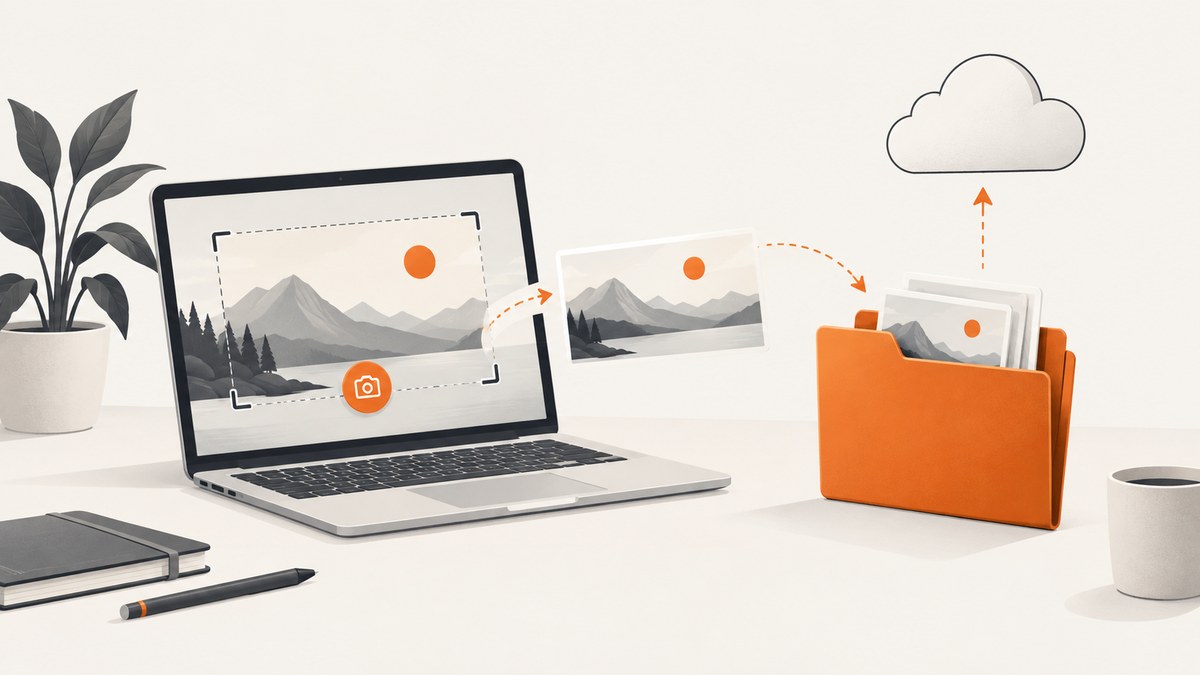
If you want every screenshot to become a file in a predictable folder, configure the screenshot tool’s save destination instead of sending captures only to the clipboard. Windows Snipping Tool saves captures to a Screenshots folder and lets you change the automatic-save behavior or folder. macOS Screenshot provides an Options menu where you choose Desktop, Documents, Clipboard, or another destination. Dropbox and cross-platform utilities can add synchronization or a shared folder policy.
This guide covers the built-in workflows first, then explains naming, organization, cloud sync, automation, troubleshooting, and browser-based capture. For a website screenshot that must run unattended, you can also use ScreenshotNeo to save the returned image directly to your own folder.
Windows: automatically save screenshots with Snipping Tool
Microsoft says that after you capture a snip, it is automatically saved to your Screenshots folder. The exact folder can be changed in Snipping Tool settings.
Set up automatic saving
- Open Snipping Tool from the Start menu.
- Choose a mode: rectangular region, window, full screen, or another mode shown by your Windows version.
- Capture the screen. Open File Explorer and confirm the image appears in your Screenshots folder, normally under
Pictures\Screenshots. - In Snipping Tool, open See more (the three-dot menu), then choose Settings.
- Review the automatic-save option and the default Screenshots folder option. Turn automatic saving on if it is disabled, then select the folder you want to use.
- Take another capture and verify that the file arrives in the new location before relying on it for an archive or workflow.
Windows also lists keyboard shortcuts for faster captures. The Print Screen key can open or trigger a capture workflow depending on your Windows settings. If a shortcut places an image on the clipboard rather than creating a file, use Snipping Tool’s save behavior or paste the image into an editor and save it manually.
Choose a durable Windows folder
Use a folder that is included in your backup plan. A folder inside Pictures is easy to find, while a project-specific folder such as D:\Projects\screenshots can keep evidence, bug reports, or design references separate. Avoid temporary directories that cleanup tools may remove.
Use subfolders when captures have different purposes:
screenshots\2026\09\for date-based archives.screenshots\projects\checkout-flow\for product work.screenshots\bugs\open\andscreenshots\bugs\fixed\for issue evidence.
macOS: choose the screenshot destination
macOS exposes the destination directly in the screenshot controls. Apple documents the workflow in How to take a screenshot on your Mac.
Set the save folder
- Press Shift-Command-5 to open the screenshot controls.
- Choose capture entire screen, capture a window, or capture a selected portion.
- Open Options.
- Under Save to, select Desktop, Documents, Clipboard, Mail, Messages, Preview, or Other Location.
- Choose an existing folder or create one such as
Documents/Screenshots. - Capture a test image and confirm the file appears in that folder.
The Clipboard destination is different from a file destination. A clipboard capture exists only until another application replaces it or the system clears it. Select a folder when you need a persistent archive, file uploads, versioned evidence, or later processing.
Use Terminal when you need repeatable macOS behavior
The graphical Options menu is the supported setup for most people. For repeatable workstation configuration, macOS also has the screencapture command. This example saves a full-screen PNG into a chosen directory:
mkdir -p "$HOME/Documents/Screenshots"
screencapture -x "$HOME/Documents/Screenshots/$(date +%Y-%m-%d_%H-%M-%S).png"
The -x flag disables the camera sound. The command captures the whole screen; check man screencapture on your macOS version for available selection and window flags. If you need the normal interactive controls, keep using Shift-Command-5.
Save screenshots straight to a folder instead of the clipboard
A capture goes to a folder only when the tool is configured to write a file. Common signs that you are using clipboard mode are:
- No new file appears after the capture.
- You can paste the image into an editor, but cannot find it in Finder or File Explorer.
- A capture notification offers Copy rather than showing a saved file.
On Windows, enable Snipping Tool’s automatic save option and select a default folder. On macOS, change Screenshot’s Options > Save to value from Clipboard to a folder. Test with a small capture and inspect the file extension, dimensions, and timestamp.
Dropbox: automatically sync screenshots
Dropbox documents a desktop screenshot feature that saves screenshots to a folder named Screenshots and synchronizes that folder to your Dropbox account. See Dropbox’s screenshot instructions for the current desktop steps.
When Dropbox is useful
- You need the same captures on multiple computers.
- You share screenshots with a team through an existing Dropbox folder.
- You want cloud retention in addition to local files.
Dropbox trade-offs
Synchronization is not the same as backup. Deleted or overwritten files may synchronize those changes, so use Dropbox version history or a separate backup for important evidence. Consider account access, storage limits, and whether screenshots contain private customer data, credentials, personal information, or unreleased product details. Keep a local path that remains usable when the network is unavailable.
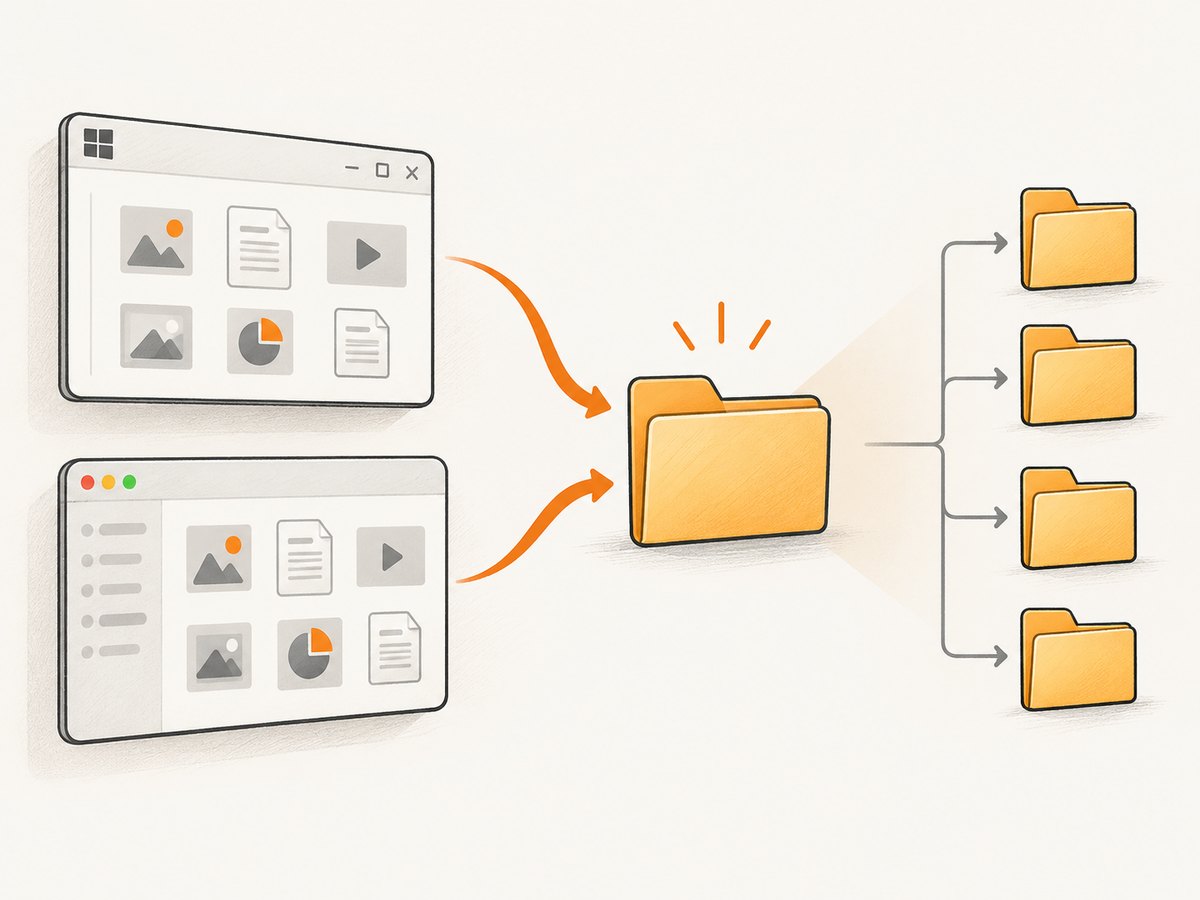
One folder on Windows and macOS
If a team uses both operating systems, a cross-platform utility can enforce one save-directory rule. QuickShot’s project documentation describes Windows and macOS support, a configurable save directory, and a setting that writes every successful capture there. Check the project’s current release and security posture before deploying it: third-party capture software can access screen contents and write files with your user permissions.
For a shared policy, define:
- The local root folder on each operating system.
- A naming pattern such as
project_YYYY-MM-DD_HH-mm-ss.png. - Whether captures are PNG, JPEG, or another format.
- Retention rules and who can access synchronized copies.
- How duplicate names are handled when two captures happen in the same second.
Organize files automatically after capture
Saving to a folder is the first step. A consistent naming and retention scheme makes the folder searchable and prevents accidental overwrites.
Recommended naming fields
- Date and time: use an unambiguous sortable format such as
2026-09-30_14-05-22. - Context: include a short project, ticket, or page name.
- Viewport: add dimensions when responsive layouts matter, for example
homepage_1440x900. - State: use labels such as
before,after, orerror.
Do not put secrets in filenames. If a screenshot contains a session token, password, API key, or personal information, delete or redact it before sharing. Image metadata and synced copies can outlive the original file.
Prevent duplicate and partial files
Use a temporary extension while a process is writing, then rename the file after it closes. Consumers watching the folder should ignore files ending in .tmp or files whose size is still changing. If two tools write to the same folder, give each tool a distinct prefix.
Automatically save website screenshots with code
Desktop screenshot tools capture the screen you are viewing. Browser automation is better when you need a URL, full-page output, a repeatable viewport, or a scheduled capture. The basic pattern is: launch a browser, open the URL, wait for the page, capture an image, and write the bytes to a folder.
Python with Playwright
from pathlib import Path
from datetime import datetime
from playwright.sync_api import sync_playwright

out = Path.home() / "Documents" / "Screenshots"
out.mkdir(parents=True, exist_ok=True)
name = datetime.now().strftime("site_%Y-%m-%d_%H-%M-%S.png")

with sync_playwright() as p:
    browser = p.chromium.launch()
    page = browser.new_page(viewport={"width": 1440, "height": 900}, device_scale_factor=1)
    page.goto("https://example.com", wait_until="networkidle", timeout=90000)
    page.screenshot(path=str(out / name), full_page=True)
    browser.close()
Install Playwright and its browser binaries before running this script. For pages with long polling or analytics requests, networkidle may never be reached; wait for a stable selector or use a bounded delay instead. Add an explicit output format and quality setting when you prefer JPEG or WebP.
Node.js with Playwright
import { chromium } from 'playwright';
import { mkdir } from 'node:fs/promises';

const dir = `${process.env.HOME}/Documents/Screenshots`;
await mkdir(dir, { recursive: true });
const stamp = new Date().toISOString().replace(/[:.]/g, '-');
const browser = await chromium.launch();
const page = await browser.newPage({ viewport: { width: 1440, height: 900 } });
await page.goto('https://example.com', { waitUntil: 'networkidle', timeout: 90000 });
await page.screenshot({ path: `${dir}/site-${stamp}.png`, fullPage: true });
await browser.close();
Browser automation options that affect saved files
| Need | Setting or technique |
|---|---|
| Entire document | Use fullPage: true or the equivalent API. |
| One component | Locate an element and call its screenshot method. |
| Lazy-loaded images | Scroll through the page or wait for the images before capture. |
| Dark mode | Set the browser color scheme before navigation. |
| Stable output | Disable animations, wait for fonts, and use a fixed viewport and timezone. |
| Protected pages | Provide authentication through a test account or controlled browser context; never hard-code credentials in source. |
Or skip the browser setup
ScreenshotNeo returns a website screenshot from one GET request, so your program can write the response directly to a folder. The API supports PNG, JPEG, WebP, and PDF output, full-page capture, element selectors, device presets, custom viewports, retina scale, waits, custom CSS and JavaScript, headers, cookies, user agents, timezone, geolocation, blocking rules, caching, signed links, asynchronous jobs, bulk capture, and a usage API. Read the ScreenshotNeo API documentation for parameter names and response details.
cURL
curl -G "https://api.screenshotneo.com/v1/shot" -d access_key=YOUR_API_KEY --data-urlencode url=https://stripe.com -o shot.webpPython
import requests
r = requests.get("https://api.screenshotneo.com/v1/shot", params={"access_key": "YOUR_API_KEY", "url": "https://stripe.com"}, timeout=90)
open("shot.webp", "wb").write(r.content)
Node.js
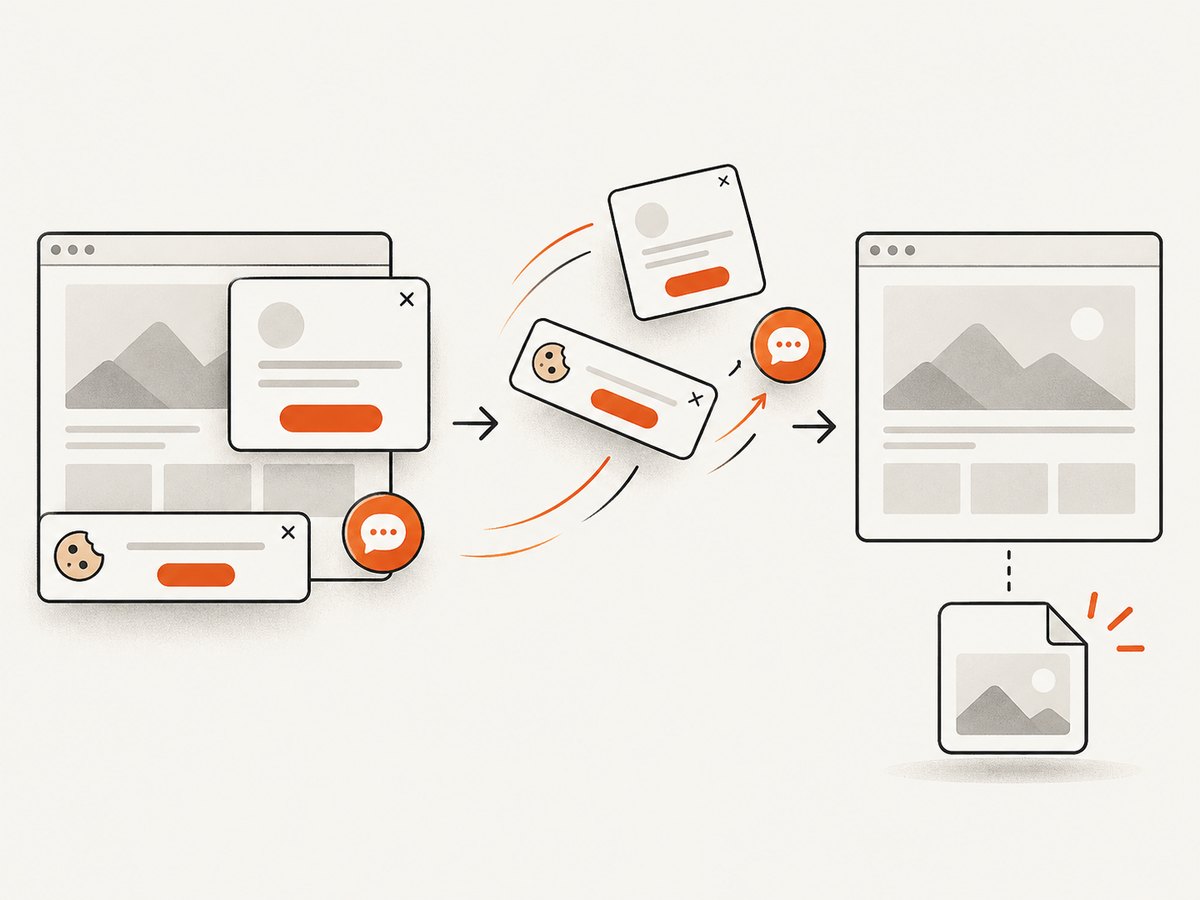
const q = new URLSearchParams({ access_key: 'YOUR_API_KEY', url: 'https://stripe.com' }); const res = await fetch(`https://api.screenshotneo.com/v1/shot?${q}`);Save the response bytes under a unique filename and inspect the response headers. ScreenshotNeo reports whether a page was clean, whether it was billed, and whether a cache hit occurred through X-Page-Verdict and X-Billed headers. Cookie and consent banners, newsletter popups, and chat widgets are removed before the shot. Bot checks, blank pages, timeouts, failed loads, and cache hits cost nothing. An MCP server provides take_screenshot, get_page_info, and capture_pdf tools to Claude, Cursor, and other MCP clients.
The Free plan includes 1,000 shots each month with no card. Paid plans start at $5 for 3,000 shots; Growth is $15 for 15,000, Pro is $39 for 60,000, Scale is $99 for 250,000, and Business is $249 for 1,000,000. Yearly billing gives two months free, and every feature is on every plan. Create a free ScreenshotNeo account to start.
Troubleshooting automatic screenshot saving
No file appears on Windows
Cause: automatic saving is disabled, the destination changed, or the capture went to the clipboard. Fix: open Snipping Tool > See more > Settings, enable automatic saving, confirm the folder, and take a test capture.
No file appears on macOS
Cause: Save to is set to Clipboard or an application destination. Fix: press Shift-Command-5, open Options, choose a folder under Save to, and capture again.
The folder is unavailable
Cause: a disconnected external drive, offline network share, or unavailable synced folder. Fix: select a local folder, capture there, and move files after the drive or network is available.
Files are overwritten
Cause: a fixed filename is reused. Fix: include a timestamp, random suffix, or ticket identifier in each filename.
Browser captures are blank or incomplete
Cause: the page has not rendered, images are lazy-loaded, a bot check blocks automation, or the page continues making requests. Fix: wait for a meaningful selector, scroll to trigger lazy content, use a bounded delay, capture diagnostic HTML, and handle authentication or bot checks according to the site’s rules.
ScreenshotNeo returns an unexpected result
Check the URL encoding, API key, requested output type, and timeout. Read X-Page-Verdict and X-Billed to distinguish a clean capture from a bot check, blank page, timeout, failed load, or cache hit. Review the request parameters in the docs before increasing waits or disabling caching.
Performance, reliability, and cost considerations
- Desktop speed: local captures avoid network upload time, but synchronization can run later in the background.
- Browser speed: reuse a browser process for batches, set explicit timeouts, and avoid waiting for network idle on pages with long-lived connections.
- Storage: PNG preserves sharp text but uses more space; JPEG is smaller for photographic content; WebP can reduce size when supported by your workflow.
- Reliability: write to a temporary file, flush and close it, then rename it. Keep a log containing URL, timestamp, viewport, status, and output path.
- Privacy: screenshots can contain secrets and personal data. Restrict folder permissions and review cloud-sharing settings.
- API cost: ScreenshotNeo bills only clean shots. Cache hits and failed or unusable captures are not billed, and the response identifies the billing result.
FAQ
Where are Windows screenshots saved by default?
Snipping Tool saves them to the Screenshots folder, normally inside Pictures. Confirm or change the location in Snipping Tool Settings.
Can macOS save screenshots somewhere besides the Desktop?
Yes. Open Shift-Command-5 > Options > Save to and choose another folder or Other Location.
Does a clipboard screenshot count as a saved screenshot?
No. Clipboard data is temporary. Choose a file destination when you need an archive or an automated folder workflow.
Can Dropbox save screenshots automatically?
Yes. Dropbox’s desktop screenshot feature saves captures to a Screenshots folder and syncs them, subject to your account, storage, and privacy settings.
Is there one universal Linux folder setting?
The supplied research covers Windows, macOS, Dropbox, and a cross-platform utility. Linux desktop defaults vary, so verify the behavior of your distribution and capture tool before standardizing a folder.
How do I capture a web page on a schedule?
Use a browser automation script with a scheduler, or call ScreenshotNeo’s API and save the response to a dated folder. Add retries, unique filenames, and logging for unattended jobs.


