How to Autosave Screenshots in Windows 11
Set Windows 11 to save Snipping Tool captures automatically, choose the Screenshots folder, and back them up with OneDrive.
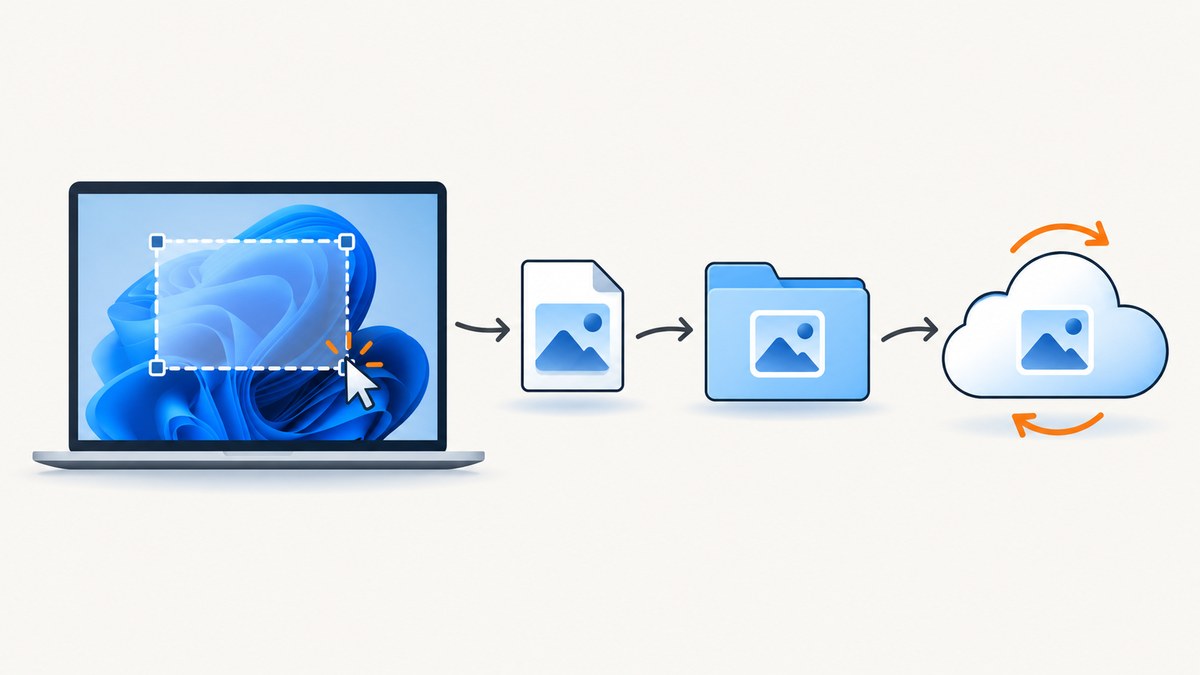
Short answer: Windows 11’s Snipping Tool can automatically save captured snips in your Screenshots folder. Open Snipping Tool, choose See more (the three-dot menu), select Settings, and review the automatic-save and default-folder options. Microsoft says captured snips are automatically saved to the Screenshots folder. Microsoft’s Snipping Tool guide documents the capture and save behavior.
If by “autosave” you mean cloud backup, the old OneDrive setting called Save screenshots to OneDrive is no longer available. Instead, include your Pictures folder in OneDrive backup; screenshots saved inside a backed-up folder will then sync. See Microsoft’s OneDrive guidance.
What “autosave” means in Windows 11
Three separate actions are easy to confuse:
| Action | What it does | Where to configure it |
|---|---|---|
| Capture | Starts a screenshot selection or full-screen capture. | Snipping Tool shortcuts and capture controls. |
| Local save | Creates an image file on your PC after a Snipping Tool capture. | Snipping Tool See more > Settings. |
| Cloud backup | Syncs files from a folder to OneDrive. | OneDrive backup settings, with Pictures included. |
Pressing a shortcut or using Print Screen does not by itself prove that a file was written to disk. Microsoft documents Print Screen as copying the screen image to the clipboard; clipboard content and a saved file are different things. Read Microsoft’s clipboard documentation.
Turn on automatic local saving
- Open Snipping Tool from the Start menu. You can also press Windows + Shift + S to open the capture overlay.
- Capture a rectangular, window, full-screen, or free-form snip.
- Open the Snipping Tool window if it is not already visible.
- Select See more (the three-dot menu), then choose Settings.
- Review the automatic-save setting and the default Screenshots folder setting. Turn automatic saving on if your installation exposes a toggle, and choose the destination you want.
- Take a test snip and open the displayed Screenshots folder in File Explorer. Confirm that a new image file appears.
Microsoft’s support page describes the result as: after you capture a snip, it is automatically saved to your Screenshots folder. The exact labels can differ between Snipping Tool releases, so use the Settings page in the version installed on your PC.
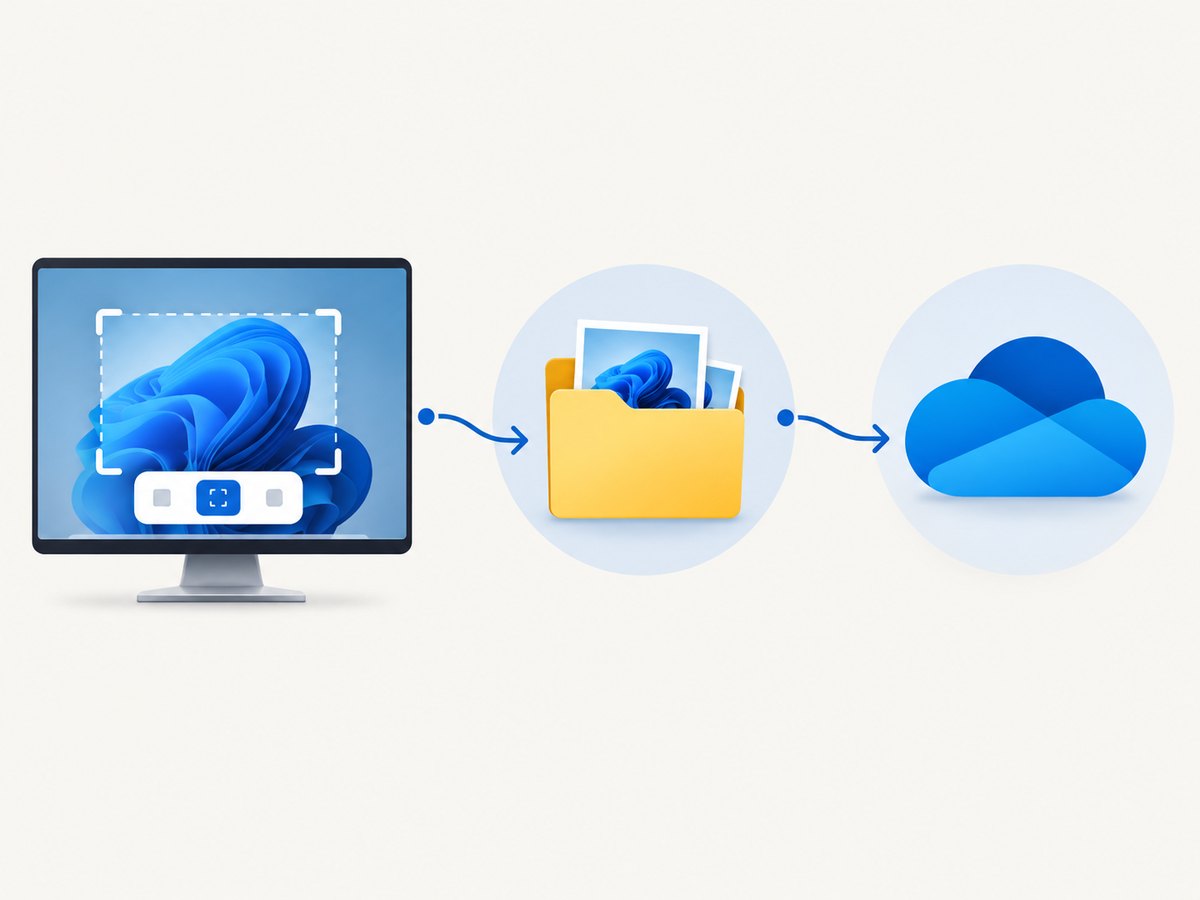
Choose a different Screenshots folder
Use Snipping Tool’s See more > Settings page to review or change the default Screenshots location. If your build presents a folder picker, select an existing folder that you can access reliably, then capture a test image.
Folder checklist
- The folder exists and your Windows account can write to it.
- The drive is connected and has free space.
- The path is not a temporary or removable location that may disappear.
- The folder is included in OneDrive backup if you need cloud synchronization.
Back up screenshots with OneDrive
The dedicated Save screenshots to OneDrive control has been retired. Microsoft’s current method is to enable OneDrive backup for the Pictures folder.
- Open the OneDrive settings from the OneDrive cloud icon in the Windows notification area.
- Open the backup or sync settings for your PC folders.
- Make sure Pictures is selected for backup.
- Keep the Snipping Tool’s Screenshots folder inside Pictures, or choose a Screenshots destination that is already inside a OneDrive-backed folder.
- Capture a test snip and wait for OneDrive to show that the file is synced.
OneDrive backup is a synchronization step after the local file exists. It does not replace Snipping Tool’s local save behavior.
Capture methods and what they save
| Method | Shortcut or action | Expected result |
|---|---|---|
| Snipping Tool overlay | Windows + Shift + S | Select an area or mode; Snipping Tool can save the resulting snip automatically. |
| Print Screen | PrtScn | Copies a full-screen image to the clipboard. Paste it into an app or save it yourself. |
| Snipping Tool window | Open from Start, then select a capture mode | Creates a snip that follows Snipping Tool’s save settings. |
If you use Print Screen and need a file, paste the clipboard image into Paint or another editor and save it, or configure Windows so Print Screen opens the Snipping Tool capture experience.
Verify that autosave is working
- Capture a small, recognizable area such as a browser window.
- Wait for the Snipping Tool notification or preview to finish processing.
- Open the configured Screenshots folder.
- Sort by Date modified and confirm a new PNG or image file is present.
- If OneDrive backup is enabled, check that the file receives the OneDrive synced status.
Use a deliberately unique test capture so you can distinguish it from older files. If the image appears only in the clipboard, you used a clipboard workflow rather than a saved-file workflow.
Troubleshooting
No file appears after a snip
- Cause: The capture was copied to the clipboard or the automatic-save option is disabled.
- Fix: Open Snipping Tool See more > Settings, review automatic saving, then repeat the test and inspect the Screenshots folder.
The Screenshots folder is empty
- Cause: You are checking a different folder from the one configured in Snipping Tool.
- Fix: Reopen the Snipping Tool Settings page and use the current default-folder location. Search File Explorer for recently modified image files if the label differs from this guide.
OneDrive does not contain the screenshot
- Cause: The screenshot is outside a backed-up folder, OneDrive is paused, or the file has not finished syncing.
- Fix: Confirm that Pictures is included in OneDrive backup, place the Screenshots folder within that backed-up location, resume OneDrive, and wait for sync status to complete.
The old “Save screenshots to OneDrive” switch is missing
- Cause: Microsoft removed that dedicated setting.
- Fix: Use Pictures-folder backup instead. The missing switch is expected on current OneDrive installations.
Print Screen creates no image file
- Cause: Print Screen places the image on the clipboard; it does not necessarily create a file.
- Fix: Paste the image into an editor and save it, or use the Snipping Tool overlay and its automatic-save workflow.
Settings labels do not match these steps
Snipping Tool and Windows 11 can change labels between releases. Look for the three-dot See more menu, then the Settings page, and check options referring to automatic saving or the Screenshots folder. The Microsoft documentation confirms the behavior but does not promise identical labels on every installation.
Reliability, storage, and performance notes
- Local saves are fastest: Writing to an internal local drive avoids waiting for a network upload.
- Cloud backup is asynchronous: A screenshot can exist locally before OneDrive finishes syncing it.
- Watch disk space: Large full-screen or high-resolution captures accumulate quickly. Periodically archive or delete old files.
- Keep the destination stable: A disconnected external drive or unavailable network path can prevent a save.
- Use clear filenames: Snipping Tool’s generated names are useful for chronological sorting; rename important captures with a project or ticket identifier.
- Check privacy: Screenshots may include passwords, tokens, personal messages, or customer data. Review an image before sharing or syncing it.
Or skip the browser setup
If you need screenshots of web pages in an automated workflow instead of a Windows desktop capture, ScreenshotNeo provides a website screenshot API. It accepts one GET request and returns a PNG, JPEG, WebP, or PDF. Before capture it accepts consent banners and removes more than 60 known consent platforms, newsletter popups, and chat widgets; each step can be turned off. Bot checks, CAPTCHAs, blank pages, timeouts, failed loads, and cache hits are not billed, and the response identifies the result with X-Page-Verdict and X-Billed headers. Its MCP server provides take_screenshot, get_page_info, and capture_pdf tools for Claude, Cursor, and other MCP clients.
See the ScreenshotNeo API documentation for all options and configuration.
cURL
curl -G "https://api.screenshotneo.com/v1/shot" \
  -d access_key=YOUR_API_KEY \
  --data-urlencode url=https://stripe.com \
  -o shot.webp
Python
import requests

r = requests.get(
    "https://api.screenshotneo.com/v1/shot",
    params={"access_key": "YOUR_API_KEY", "url": "https://stripe.com"},
    timeout=90,
)
r.raise_for_status()
open("shot.webp", "wb").write(r.content)
Node.js
const q = new URLSearchParams({ access_key: 'YOUR_API_KEY', url: 'https://stripe.com' });
const res = await fetch(`https://api.screenshotneo.com/v1/shot?${q}`);
if (!res.ok) throw new Error(`HTTP ${res.status}`);
const data = Buffer.from(await res.arrayBuffer());
require('fs').writeFileSync('shot.webp', data);
ScreenshotNeo includes full-page capture with lazy images loaded, CSS-selector element capture, dark mode, device presets and custom viewports, retina scale, PDF paper sizes and page ranges, custom CSS and JavaScript, clicks before capture, hidden selectors, waits for selectors or network idle, request and resource blocking, custom headers and cookies, user-agent and Authorization support, timezone and geolocation, transparent backgrounds, image resizing, cache TTLs, signed image links, asynchronous jobs with signed webhooks, bulk capture for up to 100 URLs per call, a usage API, and an OpenAPI specification. Existing parameter names used by other screenshot APIs also work to ease migration.
The Free plan includes 1,000 screenshots each month with no card. Paid plans start at $5 for 3,000 shots; yearly billing gives two months free, and every feature is available on every plan. Create a free ScreenshotNeo account and start with the 1,000 free screenshots.
FAQ
Where does Windows 11 save Snipping Tool screenshots?
By default, captured snips are saved to the Screenshots folder. Check Snipping Tool’s See more > Settings page for the active location.

Can I save screenshots directly to OneDrive?
Use OneDrive backup for the Pictures folder. The separate “Save screenshots to OneDrive” setting is no longer available.
Does Windows + Shift + S save a file automatically?
It opens the Snipping Tool capture overlay. Whether a file is created depends on Snipping Tool’s save behavior; verify the result in the configured Screenshots folder.
Why is my screenshot in the clipboard but not in a folder?
Clipboard capture and file saving are separate operations. Print Screen is documented as placing the image in the clipboard; paste and save it manually, or use Snipping Tool’s automatic-save workflow.
Can I automate website screenshots instead of capturing my Windows desktop?
Yes. ScreenshotNeo’s API and MCP server are designed for automated web-page captures, including clean-up of consent banners, popups, and chat widgets before the shot.


