How to Batch Convert HTML to PDF Online
Convert many HTML files or URLs to PDF with browser tools, batch APIs, or Playwright. Compare inputs, layout controls, failures, privacy, and cost.
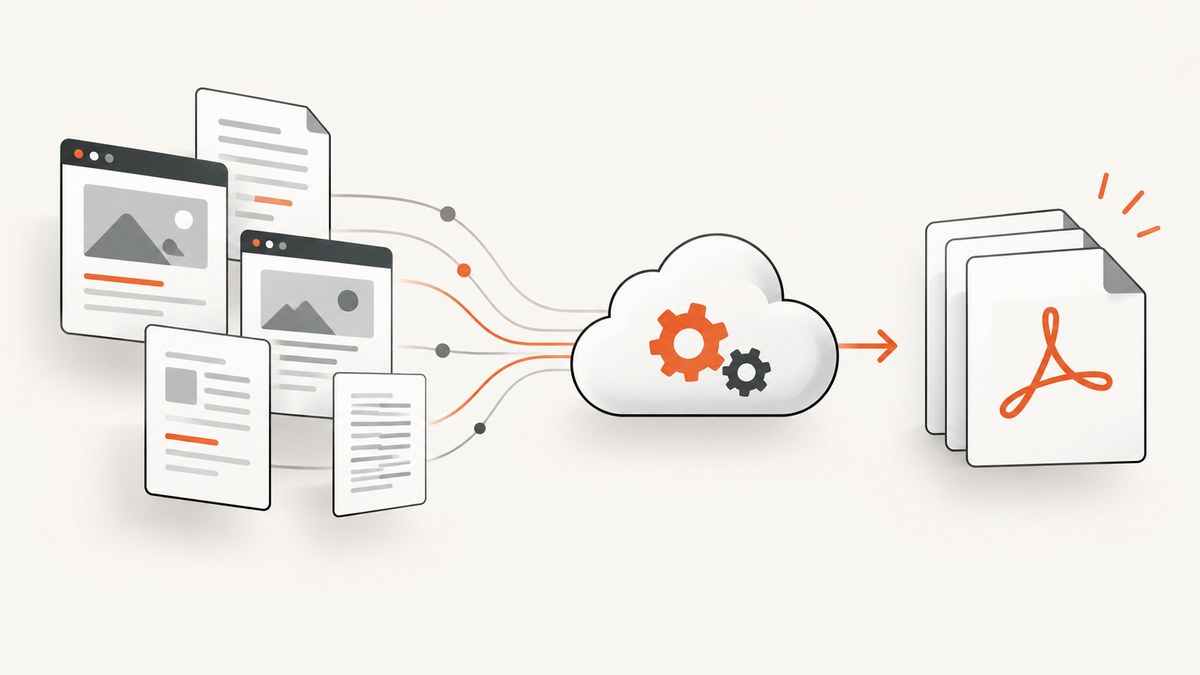
For a small one-off batch, use an online converter. For recurring jobs, use an API with an explicit batch endpoint or automate a browser renderer such as Playwright. First classify your inputs: local HTML files, raw HTML strings, public URLs, authenticated pages, or ZIP archives. Then verify batch limits, concurrency, print-layout controls, per-item errors, privacy terms, and output retrieval before processing the full set.
Choose the right batch conversion method
| Situation | Best starting point | Why |
|---|---|---|
| Several public pages once | Online converter | No setup; check that it accepts multiple URLs. |
| Repeated jobs from an application | Batch API | Programmatic requests, quotas, retries, and item-level results. |
| Private HTML or exact browser control | Playwright | Runs in your environment and exposes print CSS, margins, page ranges, and media settings. |
| Generated HTML strings | API or Playwright | Send markup directly or render it in a controlled browser. |
Do not assume that a service accepting one HTML document also supports batches. For example, GoPDF documents 1–50 HTML strings or URLs per batch request and up to 10 concurrent renders, with a status and error for each item. Those are GoPDF’s documented limits, not a general industry limit. Adobe PDF Services documents HTML, ZIP, and URL inputs, while Cloudflare Browser Run’s PDF endpoint documents either a URL or HTML input. Confirm the current request format, limits, authentication, and retention terms in the provider’s documentation before sending production data.
Prepare the batch
- Inventory each input and record whether it needs JavaScript, remote fonts, images, cookies, login, or custom headers.
- Choose stable output names, such as
0001-invoice.pdfor a slug derived from the source URL. - Run a representative sample containing long pages, images, tables, and a failure-prone URL.
- Check page breaks, fonts, backgrounds, headers, footers, orientation, and output dimensions.
- Process the remaining items with bounded concurrency and item-level retry handling.
Use an online batch API
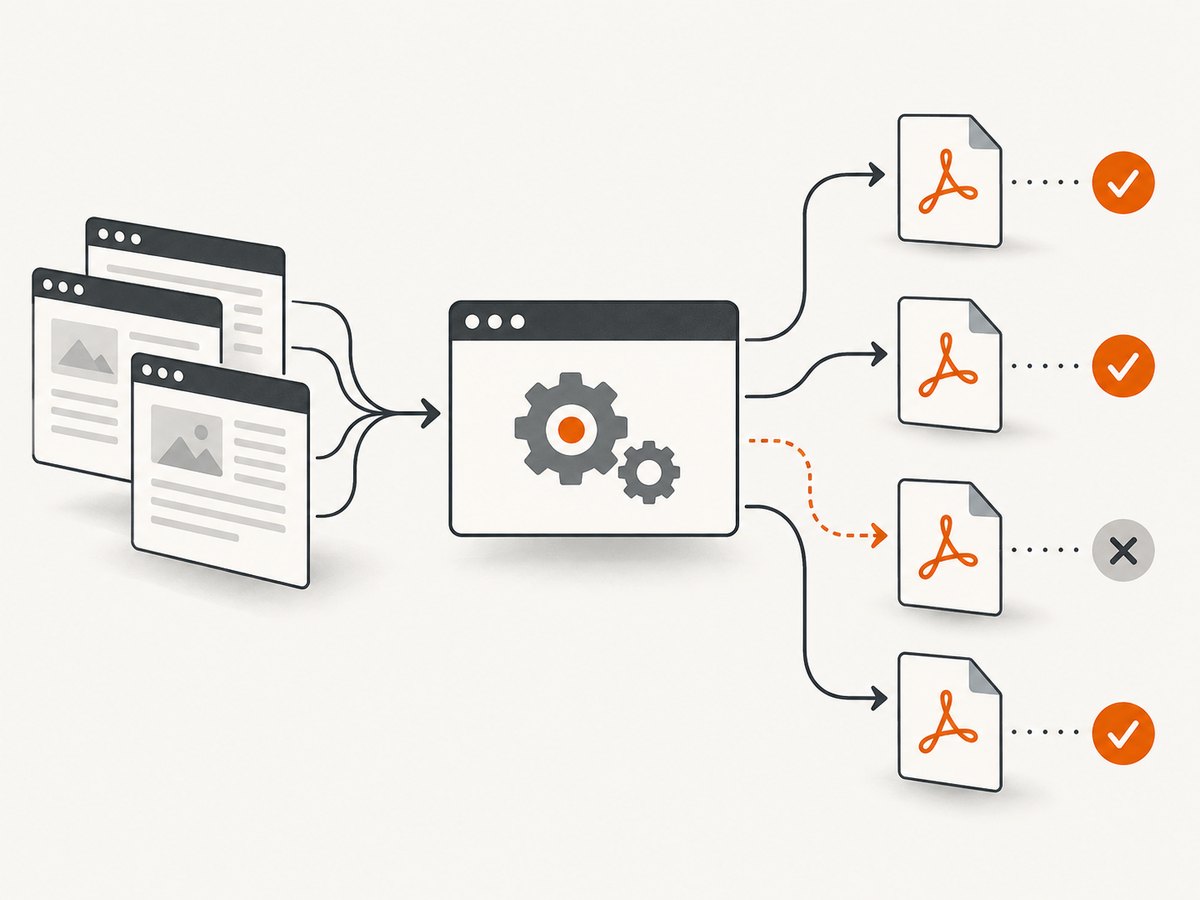
A hosted batch endpoint is usually the shortest route when your inputs are URLs or HTML strings. Send one request containing the provider’s documented array of items, then save each successful result and log each failure separately. Keep the provider’s batch size below its published maximum, and do not treat a successful HTTP response as proof that every document rendered: inspect the status of every item.
Batch API checklist
- Accepted inputs: URL, HTML string, file, ZIP, or a combination.
- Maximum items per request and maximum concurrent renders.
- Whether results are returned inline, as download URLs, or through a job ID.
- Per-item status, error details, and partial-success behavior.
- Print CSS, page size, margins, backgrounds, page ranges, and JavaScript waiting.
- Retention, access controls, encryption, and whether fetched URLs can reach private content.
Convert a batch with Playwright
Playwright is a developer-controlled browser route. Its page.pdf() method uses print CSS media by default and supports options such as paper format, margins, print backgrounds, and page ranges. Use page.emulateMedia({ media: 'screen' }) when the screen stylesheet is the intended output. See the Playwright Page PDF documentation for the current option set.
Node.js: URLs to PDFs
import { chromium } from 'playwright';
import fs from 'node:fs/promises';

const inputs = [
  { name: 'home', url: 'https://example.com' },
  { name: 'docs', url: 'https://example.com/docs' }
];

const browser = await chromium.launch();
const context = await browser.newContext({
  // Set locale, timezone, or storageState here when required.
});

for (const item of inputs) {
  const page = await context.newPage();
  try {
    await page.goto(item.url, { waitUntil: 'networkidle', timeout: 90000 });
    await page.emulateMedia({ media: 'print' });
    await page.pdf({
      path: `out/${item.name}.pdf`,
      format: 'A4',
      printBackground: true,
      margin: { top: '16mm', right: '14mm', bottom: '16mm', left: '14mm' }
    });
  } catch (error) {
    console.error(item.url, error.message);
  } finally {
    await page.close();
  }
}
await context.close();
await browser.close();
Node.js: local HTML files
import { chromium } from 'playwright';
import fs from 'node:fs/promises';
import path from 'node:path';

const files = ['reports/january.html', 'reports/february.html'];
await fs.mkdir('out', { recursive: true });
const browser = await chromium.launch();
const page = await browser.newPage();

for (const file of files) {
  const absolute = path.resolve(file);
  await page.goto(`file://${absolute}`, { waitUntil: 'load' });
  await page.pdf({ path: `out/${path.basename(file, '.html')}.pdf`, format: 'A4', printBackground: true });
}
await browser.close();
Python: URLs to PDFs
from pathlib import Path
from playwright.sync_api import sync_playwright

items = [
    ('home', 'https://example.com'),
    ('docs', 'https://example.com/docs'),
]
Path('out').mkdir(exist_ok=True)

with sync_playwright() as p:
    browser = p.chromium.launch()
    page = browser.new_page()
    for name, url in items:
        try:
            page.goto(url, wait_until='networkidle', timeout=90_000)
            page.pdf(path=f'out/{name}.pdf', format='A4', print_background=True,
                     margin={'top': '16mm', 'right': '14mm', 'bottom': '16mm', 'left': '14mm'})
        except Exception as exc:
            print(f'{url}: {exc}')
    browser.close()
Important Playwright options
| Need | Option or technique |
|---|---|
| Screen styling | page.emulateMedia({ media: 'screen' }) |
| Paper size | format: 'A4' or explicit width/height |
| Background colors and images | printBackground: true |
| Margins | margin: { top, right, bottom, left } |
| Selected pages | pageRanges: '1-3' |
| Headers and footers | displayHeaderFooter, headerTemplate, and footerTemplate |
| Late content | Wait for a selector, a known application event, or a bounded delay after navigation. |
| Fonts and images | Wait for document.fonts.ready and required image elements before calling pdf(). |
Handle authentication and dynamic pages
Authenticated pages need cookies, storage state, an authorization header, or a login flow. Keep credentials out of URLs and logs. For pages that render data after navigation, wait for a specific selector that proves the content is present. A generic network-idle wait can finish too early on applications with long-lived connections.
await page.goto(url, { waitUntil: 'domcontentloaded' });
await page.waitForSelector('[data-report-ready]', { state: 'visible', timeout: 30000 });
await page.evaluate(() => document.fonts.ready);
await page.pdf({ path, format: 'A4', printBackground: true });
Or skip the browser setup
ScreenshotNeo can return a PDF from a URL with one GET request. It handles full-page capture and lazy images, custom headers, cookies, user agents, authorization, waiting rules, blocking controls, caching, and bulk capture of up to 100 URLs per call. Before capture, it accepts cookie or consent banners and removes more than 60 known consent platforms, newsletter popups, and chat widgets; each step can be turned off. Bot checks, blank pages, timeouts, failed loads, and cache hits are not billed, and the response identifies the result with X-Page-Verdict and X-Billed headers. An MCP server provides take_screenshot, get_page_info, and capture_pdf for Claude, Cursor, and other MCP clients.
cURL
curl -G "https://api.screenshotneo.com/v1/shot" \
  -d access_key=YOUR_API_KEY \
  --data-urlencode url=https://stripe.com \
  -o stripe.pdf
Python
import requests

r = requests.get(
    "https://api.screenshotneo.com/v1/shot",
    params={"access_key": "YOUR_API_KEY", "url": "https://stripe.com"},
    timeout=90,
)
r.raise_for_status()
open("stripe.pdf", "wb").write(r.content)
Node.js
const q = new URLSearchParams({ access_key: 'YOUR_API_KEY', url: 'https://stripe.com' });
const res = await fetch(`https://api.screenshotneo.com/v1/shot?${q}`);
if (!res.ok) throw new Error(`HTTP ${res.status}`);
const pdf = Buffer.from(await res.arrayBuffer());
await fs.writeFile('stripe.pdf', pdf);
See the ScreenshotNeo documentation for PDF parameters, bulk requests, signed webhooks, and the usage API. Plans include 1,000 shots per month free with no card; paid plans start at $5 for 3,000 shots, and every feature is available on every plan.
Create a free ScreenshotNeo account and try your first 1,000 shots each month without a card.
Troubleshooting
| Symptom | Likely cause | Fix |
|---|---|---|
| Blank PDF | Page content is client-rendered or navigation ended before rendering. | Wait for a content selector or application-ready signal. |
| Missing images | Lazy loading, blocked resources, or relative paths in local files. | Scroll or trigger lazy loading, allow required resources, and use absolute asset paths. |
| Wrong colors | Print CSS hides backgrounds or uses different styles. | Enable print backgrounds or emulate screen media. |
| Unexpected page breaks | Uncontrolled print CSS, large elements, or table rows. | Add print-specific break rules, set margins, and test long rows. |
| Font fallback | Web fonts did not finish loading. | Wait for document.fonts.ready and verify the font is reachable. |
| Timeout | Slow third-party resources or a page that never becomes idle. | Use a selector-based wait, set a bounded timeout, and block nonessential requests. |
| One bad item stops the batch | Exceptions are handled around the whole batch. | Catch errors per item, record the source and error, and continue. |
| 401 or 403 | Missing or expired credentials, cookies, or authorization headers. | Refresh authentication and pass credentials through the supported secure mechanism. |

Performance, reliability, and cost
- Concurrency: More workers reduce elapsed time until CPU, memory, network, or provider limits become the bottleneck. Start conservatively and increase while watching failures.
- Retries: Retry transient navigation and 5xx failures with exponential backoff. Do not blindly retry deterministic 4xx errors.
- Isolation: Reuse a browser process, but create a fresh page or context per document when cookies and storage must not leak between inputs.
- Caching: Cache unchanged source documents and use provider caching where appropriate. Record the source revision so an old PDF is not mistaken for a current one.
- Cost: Compare per-document pricing, batch quotas, browser compute, storage, and egress. A service’s batch limit does not necessarily mean one batch request costs one document.
- Privacy: Review retention, deletion, access control, and URL-fetch behavior before uploading confidential HTML or sending authenticated URLs to an online service.
FAQ
Can I batch-convert URLs and local HTML in one job?
Only if the chosen tool documents both input types in the same workflow. Otherwise split the job or upload local files through the provider’s supported file or ZIP pathway.
Is a browser converter suitable for recurring automation?
Usually not. A batch API or Playwright script gives you repeatable inputs, logs, retries, and per-document results.
How do I preserve screen styling?
Use the renderer’s screen-media mode, enable backgrounds, wait for fonts and images, and add print-specific CSS only where the PDF needs different pagination.
What should I do with failed documents?
Store the input identifier, HTTP or renderer error, timestamp, and retry count. Re-run only transient failures after fixing the cause.
Can ScreenshotNeo render private pages?
It supports custom headers, cookies, user agents, and Authorization. Check your access policy and the current documentation before sending sensitive content.


