How to Batch Website Screenshots with PhantomJS in Node.js
Use Node.js to run bounded PhantomJS jobs for a URL list, save one screenshot per site, and handle failures without losing the rest of the batch.
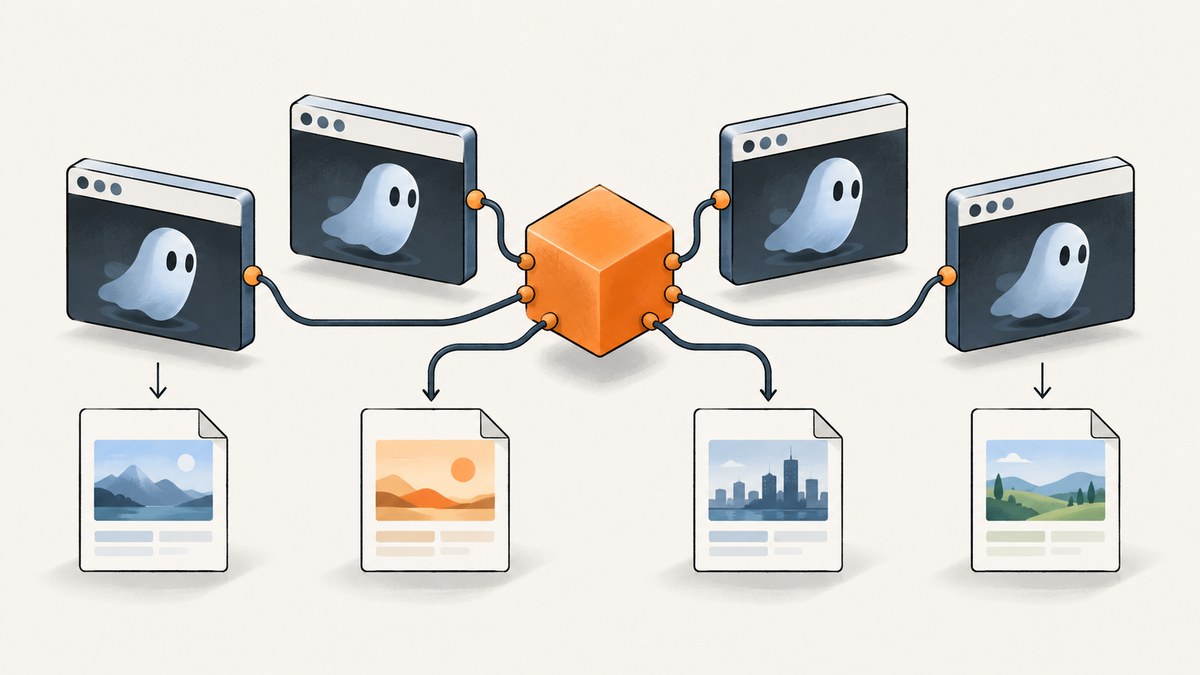
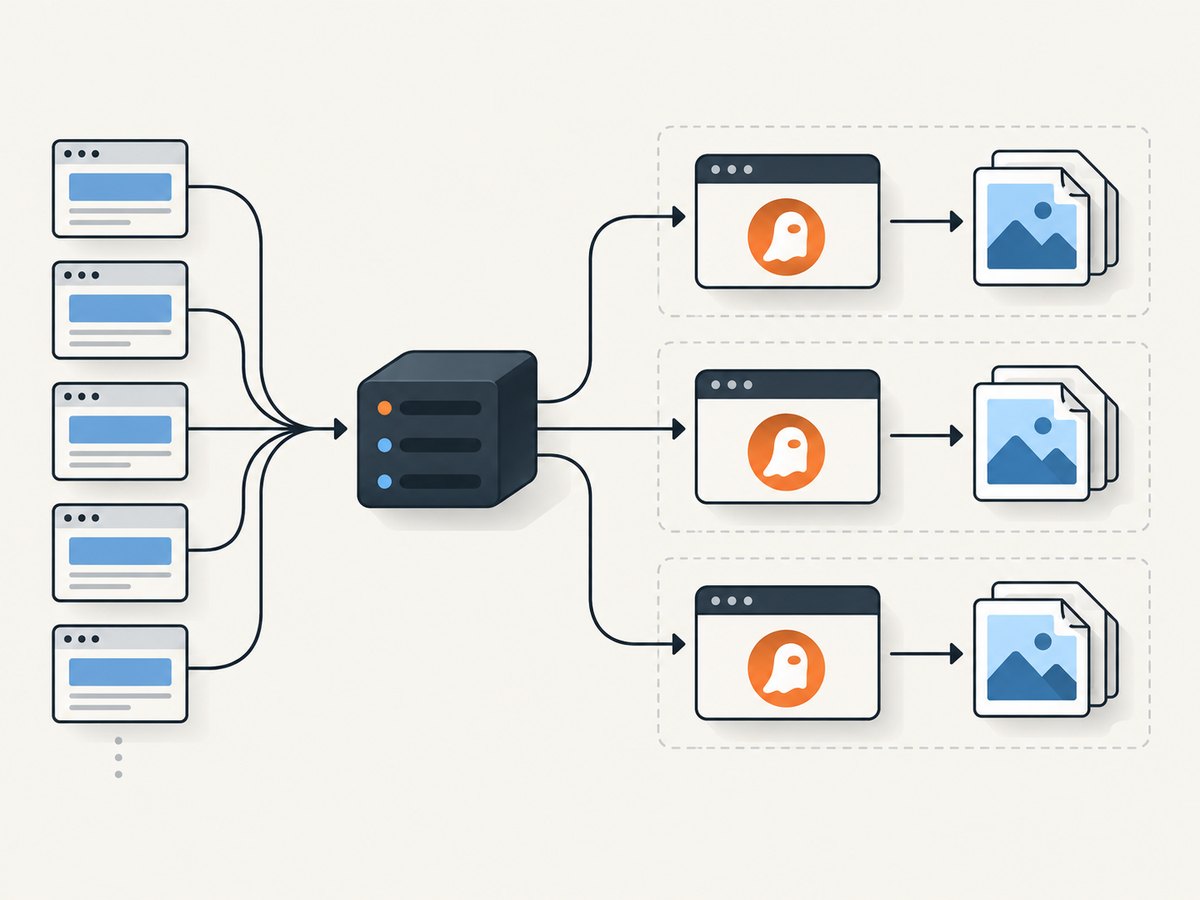
To batch website screenshots with PhantomJS from Node.js, run PhantomJS as a separate command-line process for each URL (or each small group of work). Node.js should schedule the jobs, pass each process a URL and output path, then collect its exit code and errors. A PhantomJS script opens the page, checks the load status, and renders the file. PhantomJS is not a Node.js module; the process boundary is the practical integration pattern. The PhantomJS FAQ describes launching a process from Node.js.
This is a legacy workflow. PhantomJS’s repository is archived and read-only, and upstream says development is suspended. The documentation describes version 2.1.1. Validate the executable and capture behavior on the operating system where you intend to run it before relying on a batch job.
1. Install and check the PhantomJS executable
Install PhantomJS using a trusted source appropriate for your operating system, then make sure the executable is available on your PATH. These commands confirm that the shell can find it and report its version:
phantomjs --version
phantomjs --help
PhantomJS is invoked with a script followed by arguments. The CLI documentation covers this invocation model and its 2.1.1 documentation context: PhantomJS command-line documentation. Keep the executable location configurable in Node.js if it is not on PATH. Do not assume every machine has the same installation path or runtime setup.
2. Create the PhantomJS page renderer
Save this script as capture.js. It receives the URL and output filename as command-line arguments, sets a browser viewport, opens the page, and renders only when PhantomJS reports a successful load.
var system = require('system');
var webpage = require('webpage');

var url = system.args[1];
var output = system.args[2];

if (!url || !output) {
  console.error('Usage: phantomjs capture.js <url> <output-file>');
  phantom.exit(2);
}

var page = webpage.create();
page.viewportSize = { width: 1280, height: 800 };

page.open(url, function (status) {
  if (status === 'success') {
    page.render(output);
    console.log('Captured ' + url + ' to ' + output);
    phantom.exit(0);
  }

  console.error('Failed to load: ' + url + ' (status: ' + status + ')');
  phantom.exit(1);
});
The page-open status check, render call, and explicit exit follow the project’s quick-start pattern. See the PhantomJS quick start and screen capture documentation. Explicit exit codes make each child process’s result visible to Node.js. The code is an illustrative implementation based on the dossier; confirm its behavior against the installed version and target runtime.
3. Set viewport, crop, and output format
viewportSize sets the browser viewport dimensions. The screenshot will reflect the page rendered at that viewport, so choose dimensions that suit the layouts you need to capture. A viewport is not automatically the same as a full-page image. PhantomJS documents clipRect for capturing a specific rectangle instead of the full rendered output.
page.viewportSize = { width: 1440, height: 900 };
page.clipRect = { top: 0, left: 0, width: 900, height: 600 };
Remove the clipRect assignment when you want the normal page render. Select output format through the filename extension: the screen-capture documentation lists PNG, JPEG, GIF, and PDF. Check the installed version when format handling matters, and choose a matching extension such as site.png or report.pdf. The viewport and clip rectangle control capture dimensions; they do not guarantee that a page’s content has finished any application-specific rendering after load.
4. Orchestrate a URL batch from Node.js
This Node.js controller reads a fixed URL list, gives each URL a stable unique filename, and runs at most three PhantomJS processes at a time. The concurrency value is an example to tune for your machine and workload; the reviewed documentation does not specify a safe parallelism limit or throughput benchmark.
const { spawn } = require('node:child_process');
const { createHash } = require('node:crypto');
const path = require('node:path');

const phantomjs = process.env.PHANTOMJS_BIN || 'phantomjs';
const script = path.resolve(__dirname, 'capture.js');
const outputDir = path.resolve(__dirname, 'screenshots');
const concurrency = 3; // Example only; tune for your environment.
const timeoutMs = 90_000;
const urls = [
  'https://example.com/',
  'https://www.wikipedia.org/',
  'https://nodejs.org/'
];

function filenameFor(url) {
  const host = new URL(url).hostname.replace(/[^a-z0-9.-]/gi, '_');
  const digest = createHash('sha256').update(url).digest('hex').slice(0, 10);
  return path.join(outputDir, `${host}-${digest}.png`);
}

function capture(url) {
  const output = filenameFor(url);
  return new Promise((resolve) => {
    const child = spawn(phantomjs, [script, url, output], {
      stdio: ['ignore', 'pipe', 'pipe']
    });
    let stdout = '';
    let stderr = '';
    let settled = false;
    let timedOut = false;

    child.stdout.setEncoding('utf8');
    child.stderr.setEncoding('utf8');
    child.stdout.on('data', chunk => { stdout += chunk; });
    child.stderr.on('data', chunk => { stderr += chunk; });

    const timer = setTimeout(() => {
      timedOut = true;
      child.kill();
    }, timeoutMs);

    function finish(result) {
      if (settled) return;
      settled = true;
      clearTimeout(timer);
      resolve({ url, output, stdout, stderr, ...result });
    }

    child.on('error', error => finish({ ok: false, error: error.message }));
    child.on('close', (code, signal) => {
      finish({
        ok: code === 0 && !timedOut,
        code,
        signal,
        error: timedOut ? `Timed out after ${timeoutMs} ms` : undefined
      });
    });
  });
}

async function runPool(items, limit, worker) {
  const results = new Array(items.length);
  let next = 0;
  async function runner() {
    while (true) {
      const index = next++;
      if (index >= items.length) return;
      results[index] = await worker(items[index]);
    }
  }
  await Promise.all(
    Array.from({ length: Math.min(limit, items.length) }, () => runner())
  );
  return results;
}

async function main() {
  const fs = require('node:fs/promises');
  await fs.mkdir(outputDir, { recursive: true });
  const results = await runPool(urls, concurrency, capture);
  for (const result of results) {
    if (result.ok) {
      console.log(`OK ${result.url} -> ${result.output}`);
    } else {
      console.error(`FAIL ${result.url}: ${result.error || result.stderr || `exit ${result.code}`}`);
    }
  }
  const failed = results.filter(result => !result.ok).length;
  process.exitCode = failed === 0 ? 0 : 1;
}

main().catch(error => {
  console.error(error);
  process.exitCode = 1;
});
Save the controller as batch.js, create an empty screenshots directory if desired (the script creates it), then run:
node batch.jsTo use a non-PATH installation, set PHANTOMJS_BIN to the executable path. The URL list is deliberately in the script so the example runs without an input file. For a production job, load URLs from a CSV, JSON file, queue, or database, and validate each URL before spawning a process.
5. Make batch runs reliable
- Use collision-resistant filenames. Deriving a name only from the hostname can overwrite screenshots when the same host has multiple paths or query strings. The example combines a readable host with a hash of the full URL.
- Keep one result per input. Record the URL, destination path, exit code, stderr, and timeout outcome. The example reports each job independently and gives the overall Node.js process a nonzero exit code if any capture failed.
- Do not infer success from an existing file. A prior batch may have left a stale image behind. Treat a job as successful only when the current child exits with code 0; for stronger file checks, verify the output file was created or updated by this run.
- Bound concurrency. Each child is a separate process. Starting every job at once can consume excessive machine resources. Begin with a modest limit, observe memory and completion behavior on your target machine, then tune it. There is no sourced universal number.
- Set a timeout. A child that never exits can otherwise hold a worker slot. The example kills a child after 90 seconds; choose a duration based on your pages and environment. This is controller policy, not a PhantomJS timeout guarantee.
- Preserve failure details. Keep stderr alongside the input URL. If a child cannot start, Node.js emits an
errorevent; if it starts but returns a failure, inspect its exit code and captured output.
6. Common problems and fixes
| Symptom | Likely cause | Fix |
|---|---|---|
spawn phantomjs ENOENT |
The executable is absent from PATH or the configured path is wrong. | Run phantomjs --version in the same environment as Node.js, then set PHANTOMJS_BIN to the actual executable path. |
| Every job reports a load failure | The target is unreachable from the machine, the URL is malformed, or the page open did not succeed. | Log the exact URL and PhantomJS stderr; verify DNS and network access from the same host and test a single URL directly. |
| Output is missing or old | The renderer failed before page.render, or a prior file is being mistaken for this run’s output. |
Require exit code 0, inspect stderr, and check that the file timestamp or existence corresponds to the current job. |
| Images look cropped or have unexpected dimensions | The viewport or clipRect does not match the intended capture area. |
Review both values, remove the clip rectangle for an uncropped render, and confirm the chosen file format. |
| Some children never finish | A page or process is taking longer than expected. | Use a controller timeout, capture the child’s stderr, and rerun the URL by itself to isolate a page-specific issue. |
| Batch output files overwrite each other | Filename generation discards meaningful URL differences. | Include a digest of the full URL or use another collision-resistant mapping. |
| Behavior differs between machines | The workflow depends on a legacy executable and its local runtime environment. | Record the PhantomJS version and operating system, and validate the workflow on each deployment target. |
7. Performance, reliability, and maintenance tradeoffs
The batch’s speed depends on page load behavior, machine resources, and the number of child processes you run. The supplied documentation does not establish a throughput benchmark. Measure your own workload: use representative URLs, record duration and failures per URL, and adjust the concurrency limit while watching resource use. Do not assume that adding processes always shortens total time.
Local execution gives you control over the process and output files, but you are responsible for installing and maintaining the executable, handling timeouts, and diagnosing failures. The upstream repository is archived and read-only, and development is suspended; its README identifies 2.1 as the latest stable release. Treat compatibility as something to validate in your environment, rather than assuming a modern actively maintained browser automation stack.
A hosted renderer may reduce local browser setup. PhantomJSCloud documentation describes screenshot rendering and batch requests through a Node.js client, but the research reviewed here does not verify its current pricing, limits, availability, or performance. Confirm current service details directly before choosing it.
8. Or skip the browser setup
If you want a screenshot batch without managing local PhantomJS processes, ScreenshotNeo is a website screenshot API and MCP server for developers. Its batch feature accepts up to 100 URLs per call. One GET request can return a PNG, JPEG, WebP, or PDF; see the ScreenshotNeo API documentation.

curl -G "https://api.screenshotneo.com/v1/shot" \
  -d access_key=YOUR_API_KEY \
  --data-urlencode url=https://stripe.com \
  -o shot.webp
import requests
r = requests.get(
"https://api.screenshotneo.com/v1/shot",
params={"access_key": "YOUR_API_KEY", "url": "https://stripe.com"},
timeout=90,
)
open("shot.webp", "wb").write(r.content)const q = new URLSearchParams({
access_key: 'YOUR_API_KEY',
url: 'https://stripe.com'
});
const res = await fetch(`https://api.screenshotneo.com/v1/shot?${q}`);
if (!res.ok) throw new Error(`Screenshot request failed: ${res.status}`);
const image = Buffer.from(await res.arrayBuffer());
await import('node:fs/promises').then(fs => fs.writeFile('shot.webp', image));ScreenshotNeo accepts cookie and consent banners before capture and removes more than 60 known consent platforms, newsletter popups, and chat widgets; each of these steps can be turned off. Bot checks and CAPTCHAs, blank pages, timeouts, failed loads, and cache hits cost nothing, with X-Page-Verdict and X-Billed headers identifying the outcome. Its MCP server gives AI agents tools named take_screenshot, get_page_info, and capture_pdf. The free plan includes 1,000 screenshots per month with no card; paid plans start at $5 for 3,000. Sign up for the free plan.
FAQ
Can I use PhantomJS with Node.js using require?
PhantomJS is not a normal Node.js module. Run its executable as a child process and communicate through command-line arguments and process output.
Can I save a PDF instead of an image?
The PhantomJS screen-capture documentation lists PDF among its supported output formats. Choose an output filename with a PDF extension and validate it with your installed version.
How many PhantomJS jobs can I run at once?
No universal concurrency limit is established in the reviewed sources. Use a bounded pool and tune it on the machine and workload that will run the batch.
Is PhantomJS actively maintained?
No. The project repository is archived and read-only, and the project says development is suspended. Treat it as legacy software and validate compatibility before deployment.


