How to Find HTML Elements by Text Value with BeautifulSoup
Find exact or partial text in HTML with BeautifulSoup’s `string=` filters, return matching tags, and handle nested markup, whitespace, and common errors.

To find an exact text node with BeautifulSoup, use soup.find_all(string="Exact text"). That returns matching string objects. To find a tag whose .string matches, pass the tag name too: soup.find_all("a", string="Exact text"). For partial or pattern matching, pass a compiled regular expression as string=.
The key distinction is whether you want the text node or the containing tag. The examples below use Python and BeautifulSoup’s current string= argument. For a page that must be rendered in a browser before its HTML exists, use a browser capture workflow; the BeautifulSoup examples here operate on HTML you already have.
1. Install BeautifulSoup and parse HTML
BeautifulSoup parses HTML into a navigable tree. Choose a parser explicitly so the parsing behavior is clear. This minimal example uses Python’s built-in html.parser:
from bs4 import BeautifulSoup

html = """
<p>Hello <b>world</b></p>
<a href="/about">Elsie</a>
<a href="/contact">Contact us</a>
"""
soup = BeautifulSoup(html, "html.parser")
If BeautifulSoup is not installed, install the beautifulsoup4 package in the same Python environment that runs the script:
python -m pip install beautifulsoup4For basic text filtering, the parser choice does not change the meaning of string=. If you use a different parser, install it separately and pass its name to BeautifulSoup.
2. Find an exact text node
Use find_all(string=...) to search text strings in the parsed tree:
from bs4 import BeautifulSoup

html = '<p>Hello</p><a>Elsie</a><a>Elsie</a>'
soup = BeautifulSoup(html, "html.parser")

matches = soup.find_all(string="Elsie")
for match in matches:
    print(repr(match), type(match).__name__)
This finds text nodes whose value exactly matches Elsie. The results are string objects, not their parent tags. Use repr() while inspecting results: it makes leading spaces, trailing spaces, and newline characters visible.
Use find() instead of find_all() when you only need the first match:
match = soup.find(string="Elsie")
if match is not None:
    print(match)
find() returns None when it finds nothing. find_all() returns an empty list. Check those return values before trying to access a parent or another property.
3. Return the containing tag
Combine a tag name with string= to find tags whose .string matches the requested text:

from bs4 import BeautifulSoup

html = '<a href="/about">Elsie</a><a href="/contact">Contact us</a>'
soup = BeautifulSoup(html, "html.parser")

links = soup.find_all("a", string="Elsie")
for link in links:
    print(link.name, link.get("href"), link.get_text())
To find a different element, replace "a" with a tag name such as "p", "button", or "h2". You can also use find() when only one matching tag is needed:
link = soup.find("a", string="Elsie")
if link is not None:
    print(link["href"] if link.has_attr("href") else "No href")
Text filters can match more than one element. If the page repeats labels, inspect all matches or add a structural filter, such as a tag name or attribute, to narrow the result.
4. Match partial text or a pattern
A compiled regular expression lets you search for text that contains a phrase or follows a pattern. BeautifulSoup applies regex search behavior, so a match can occur within a longer string:
import re
from bs4 import BeautifulSoup

html = '<p>The Dormouse is asleep.</p><p>A mouse ran away.</p>'
soup = BeautifulSoup(html, "html.parser")

matches = soup.find_all(string=re.compile("Dormouse"))
for match in matches:
    print(match)
For a case-insensitive partial match, set the regular expression flag:
matches = soup.find_all(string=re.compile("dormouse", re.IGNORECASE))To return paragraph tags instead of strings, include the tag name:
paragraphs = soup.find_all("p", string=re.compile("mouse", re.IGNORECASE))For more complex patterns, remember to escape characters that have special meaning in regular expressions. For example, use re.escape(user_phrase) when a phrase comes from user input and should be treated literally.
5. Pick a filter that matches the job
| Need | Approach | What you get |
|---|---|---|
| Exact text node | find_all(string="Elsie") |
Matching string objects |
| Tag with exact string | find_all("a", string="Elsie") |
Matching tags whose .string matches |
| Substring or pattern | find_all(string=re.compile("Dormouse")) |
String objects matching the regex search |
| Known ID, class, or attribute | select(".notice a") or find_all(..., attrs={...}) |
Tags selected by structure or attributes |
| CSS selectors are the only requirement and speed matters | Consider lxml | The BeautifulSoup guide notes that lxml is faster for CSS selector work |
Use text when the visible wording is the actual identifying feature. Prefer a stable ID, class, or attribute when the site provides one: wording may change across languages, releases, or experiments. CSS selectors are for structure and attributes; BeautifulSoup’s string= filter is the relevant tool for text matching.
6. Handle nested markup, whitespace, and multiple text nodes
string= matches strings in the parsed tree. It does not promise to normalize whitespace or search the combined result of get_text(). A simple tag can have a useful .string, but nested markup can make the tag’s text consist of multiple descendant strings rather than one matching string.
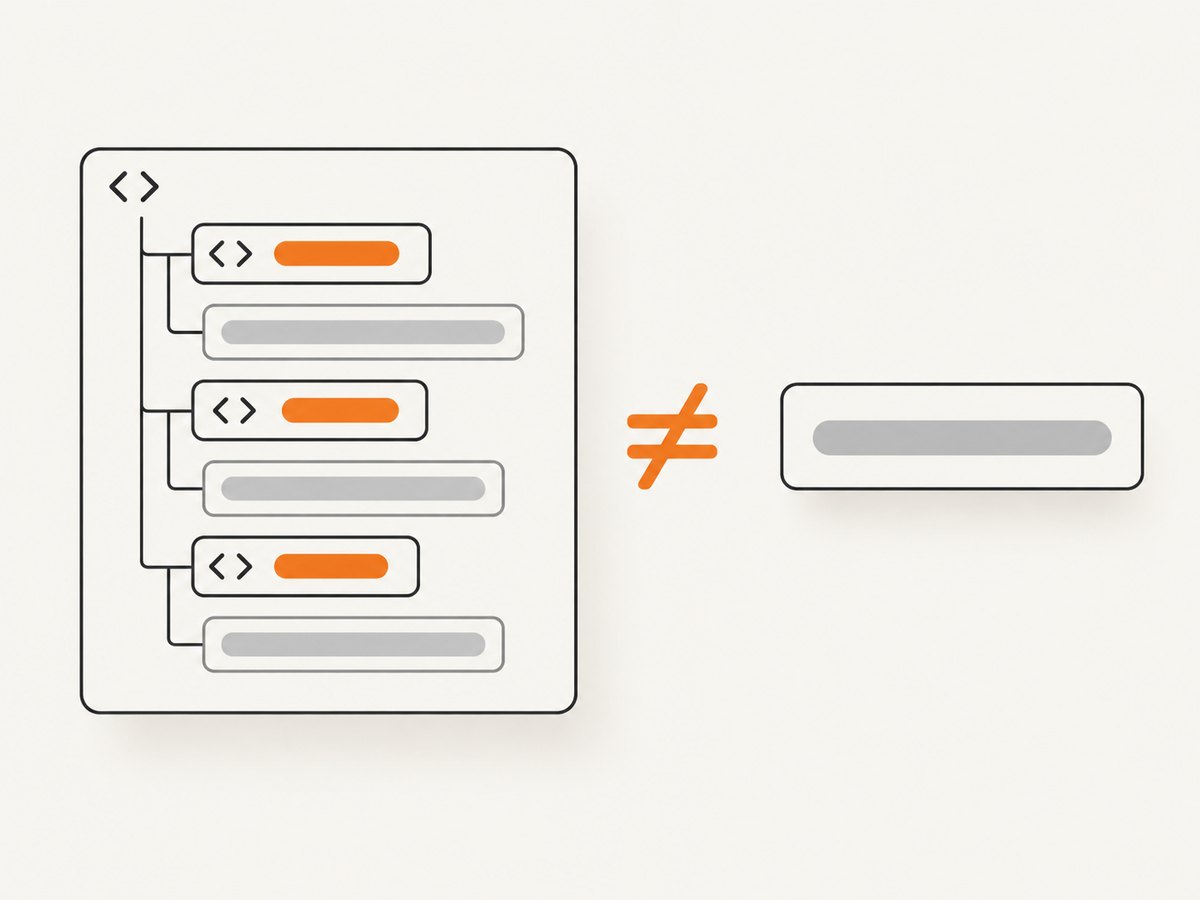
from bs4 import BeautifulSoup

html = '<p>Hello <b>world</b></p>'
soup = BeautifulSoup(html, "html.parser")

paragraph = soup.find("p")
print(paragraph.string)       # May be None for nested content
print(paragraph.get_text())   # Combined descendant text
If the target is a tag containing nested markup, select that tag by reliable structure first, then inspect or normalize its text deliberately:
paragraph = soup.select_one("p.summary")
if paragraph is not None:
    normalized = " ".join(paragraph.get_text(" ", strip=True).split())
    if normalized == "Hello world":
        print("Found the paragraph")
This is an explicit comparison against the text you chose to extract; it is different from asking string= to normalize or combine text automatically. If the document has several candidate tags, narrow by parent, class, or another stable attribute before comparing their text.
Whitespace can also be part of a text node. If exact matching unexpectedly returns no result, print nearby strings with repr() and inspect the actual parsed values rather than assuming the markup has no spaces or line breaks.
7. Use CSS selectors and attributes when text is not the best key
BeautifulSoup’s select() and select_one() are useful when the target is identified by CSS structure:
target = soup.select_one("a.primary-link[href='/about']")
if target is not None:
    print(target.get_text(strip=True), target.get("href"))
You can also use find_all() with attributes:
buttons = soup.find_all("button", attrs={"data-action": "continue"})A structural selector can be more dependable than displayed text when labels change. Conversely, if the text itself is the only clue, use string= and then inspect the matching string’s parent or search for a tag by name and string.
BeautifulSoup’s CSS selector support is implemented through Soup Sieve. The official guide notes that lxml is faster if CSS selectors are all you need, so consider it when selector matching is the sole requirement and performance is important.
8. Understand the current argument name
Use string= in current code. The BeautifulSoup documentation says this argument was introduced in version 4.4.0; older versions used text. If an older environment rejects string=, check the installed package version and upgrade where possible. New examples should use the current spelling.
9. Troubleshoot common misses
| Symptom | Likely cause | Fix |
|---|---|---|
| No exact match | The text node contains spaces, a newline, or different punctuation. | Print candidate strings with repr(); decide whether exact matching or a regex is appropriate. |
| A string is returned, but no element | find_all(string=...) returns strings by design. |
Use match.parent to inspect its containing tag, or include a tag name in the search. |
| A tag with nested markup is missed | The tag’s .string may not be one string when it has nested descendants. |
Select the tag structurally and compare a deliberately extracted get_text() value. |
| Regex returns unexpected results | Regex matching searches within a string; it is not automatically a whole-string match. | Anchor the pattern with ^ and $ when a whole-string pattern is intended. |
| Only some results are returned | The page repeats or varies its markup, or you searched for a particular tag. | Inspect all strings or tags, then add the correct parent, class, or attribute constraint. |
| Nothing useful is in the parsed HTML | The content may be inserted after initial HTML parsing by page scripts. | Obtain HTML that includes the content before parsing; a static parser does not itself run page JavaScript. |
string= raises an argument error |
An old BeautifulSoup release may use the historical argument name. | Check and update BeautifulSoup; current code uses string=. |
When a match is missing, debug in this order: confirm the source HTML contains the target, inspect how the parser split its text, compare the exact string with repr(), then choose a tag-aware, regex, or structural search.
10. Performance, reliability, and cost
BeautifulSoup searches an already parsed document in your Python process. Keep the parsed tree and reuse it for related searches instead of reparsing the same HTML for every query. If the task is only CSS selection and throughput matters, the documentation’s guidance is to consider lxml, which is faster for that use case.
Text matching is only as reliable as the HTML you provide. A site may change wording, markup, or when content appears. For robust extraction, prefer stable attributes where available, handle missing matches, and avoid assuming a particular text node exists. A static HTML parser does not execute the page’s JavaScript; first obtain the rendered content if the target is populated dynamically.
BeautifulSoup itself is a Python library. Any costs associated with acquiring HTML, running a browser, or hosting an extraction pipeline depend on those separate choices; the research material does not establish a price for those services. For browser-based screenshot work, ScreenshotNeo offers a separate capture API with per-response page verdict and billing headers; see its product page.
11. When the source page needs browser rendering
If you already have the HTML, BeautifulSoup is a direct way to locate text and tags. If you need a visual screenshot, or need a browser to load a page before capture, you can use a screenshot API. ScreenshotNeo accepts a URL in one GET request and returns a PNG, JPEG, WebP, or PDF. Its API also supports rendered capture settings such as viewport, full-page capture, waiting, custom CSS, and hiding selectors. See the ScreenshotNeo API documentation for the request options.
12. Or skip the browser setup
For a browser-rendered screenshot, call ScreenshotNeo directly. This runnable cURL example saves a WebP capture:
curl -G "https://api.screenshotneo.com/v1/shot" \
  -d access_key=YOUR_API_KEY \
  --data-urlencode url=https://stripe.com \
  -o shot.webp
Equivalent Python:
import requests

r = requests.get(
    "https://api.screenshotneo.com/v1/shot",
    params={"access_key": "YOUR_API_KEY", "url": "https://stripe.com"},
    timeout=90,
)
open("shot.webp", "wb").write(r.content)
Equivalent Node.js:
const q = new URLSearchParams({ access_key: 'YOUR_API_KEY', url: 'https://stripe.com' });
const res = await fetch(`https://api.screenshotneo.com/v1/shot?${q}`);
if (!res.ok) throw new Error(`Screenshot request failed: ${res.status}`);
const bytes = new Uint8Array(await res.arrayBuffer());
await import('node:fs/promises').then(fs => fs.writeFile('shot.webp', bytes));
Before a capture, ScreenshotNeo accepts the cookie or consent banner like a visitor and removes more than 60 known consent platforms, newsletter popups, and chat widgets; each step can be turned off. Bot checks and CAPTCHAs, blank pages, timeouts, failed loads, and cache hits cost nothing, and the response identifies page verdict and billing status in headers. Its MCP server gives AI agents tools to take screenshots, get page information, and capture PDFs. The free plan includes 1,000 screenshots a month with no card; paid plans start at $5 for 3,000 shots. Every feature is available on every plan. Read the API docs, then sign up for 1,000 free screenshots a month with no card.
13. FAQ
Does find_all(string=...) return the element?
No. It returns matching strings. Add a tag name to search for tags whose .string matches, or inspect a returned string’s parent.
Can I use a list or callable with string=?
Yes. The documented filter types include a literal string, regular expression, list, callable, and True. Use the form that expresses the matching rule you need.
Does BeautifulSoup find text created by JavaScript?
Only if that text is present in the HTML you parse. BeautifulSoup parses HTML; it does not itself render a page by running its scripts.
Should I use text= or string=?
Use string= in current code. It replaced the older text argument in BeautifulSoup 4.4.0.


