How to Capture Screenshots in Behat When Using the Goutte Driver
Goutte cannot render pages or take screenshots. Learn which Mink driver to use, how to configure it, and how to troubleshoot Behat captures.
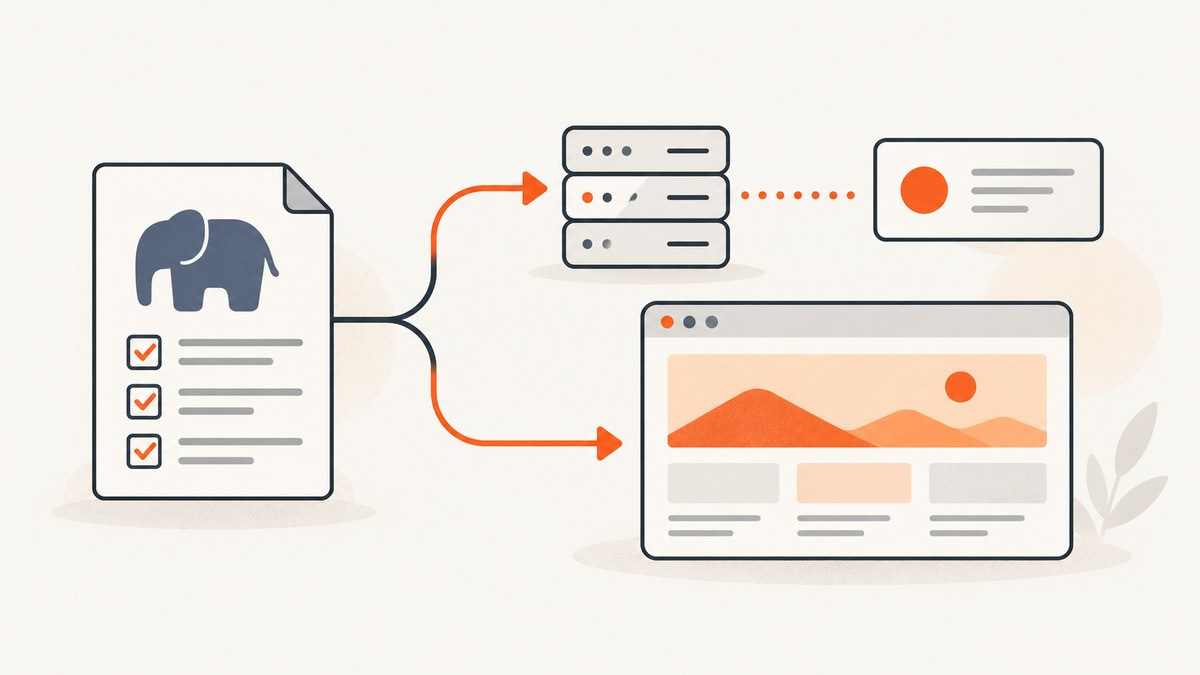
Direct answer: You cannot capture a rendered screenshot with Behat’s Goutte driver. Goutte is an HTTP client and HTML parser; it does not control a browser, paint CSS, execute JavaScript, resize a viewport, or expose pixels. Use Goutte for HTTP-level scenarios and assign screenshot scenarios to a browser-controlling Mink driver such as ChromeDriver, Selenium, or another driver supported by your installed Behat/Mink versions.
Mink describes Goutte as a pure HTTP headless emulator. Its driver capability table marks BrowserKit/Goutte as lacking JavaScript evaluation, element visibility, mouse interaction, and window resizing. Calling an unsupported action can raise UnsupportedDriverActionException. See the Mink driver guide and Mink at a glance.
Why Goutte cannot produce a screenshot
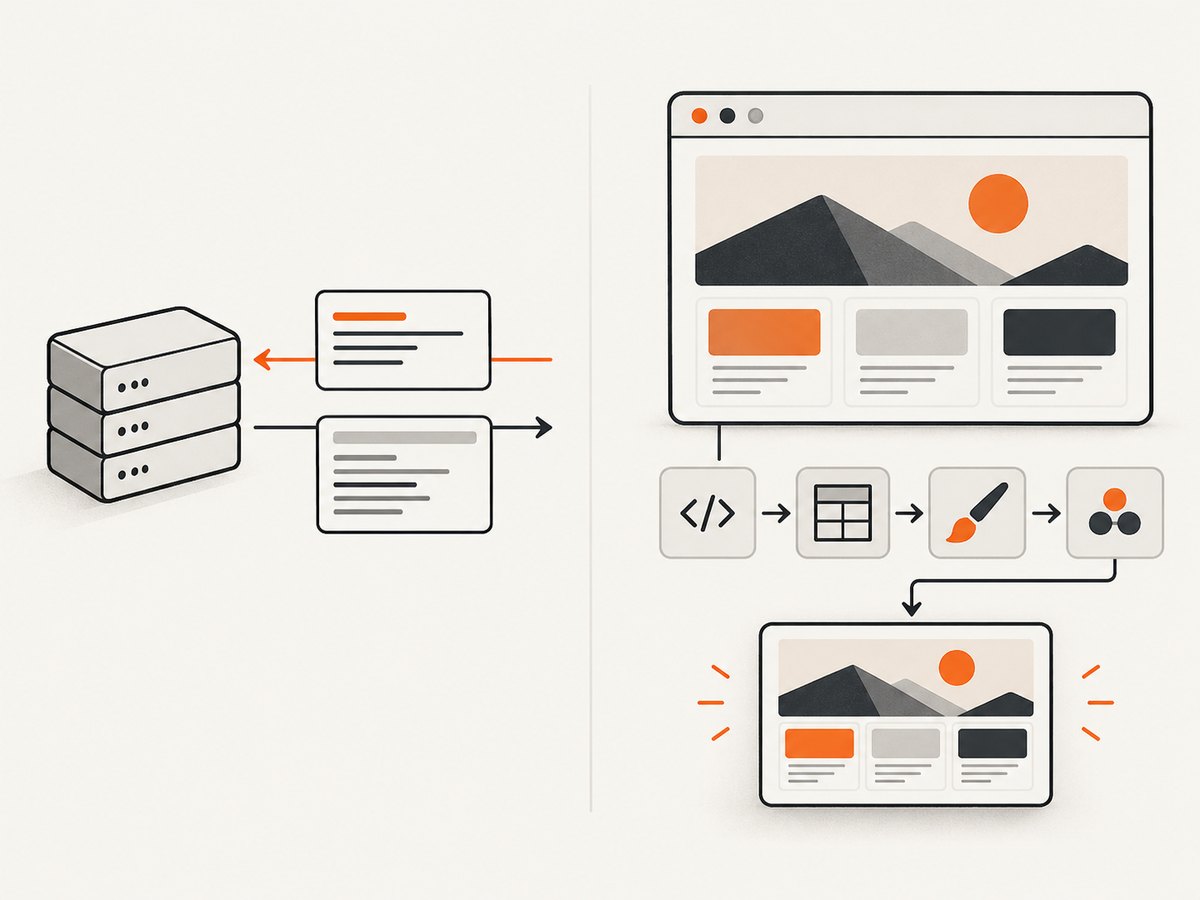
A screenshot is the output of a rendering pipeline: a browser loads resources, evaluates JavaScript, computes layout, paints a viewport, and then encodes pixels. Goutte stops after making HTTP requests and parsing the returned document. It has no browser viewport or rendered pixel buffer.
| Capability | Goutte/BrowserKit | Browser-controlling driver |
|---|---|---|
| HTTP requests and response parsing | Yes | Yes |
| CSS layout and painted pixels | No | Yes |
| JavaScript and AJAX | No | Yes |
| Element visibility and mouse actions | No | Usually, depending on driver |
| Viewport resizing | No | Usually, depending on driver |
| Rendered screenshot | No | Yes, when supported by the driver and version |
Choose the right driver per scenario
You do not need to replace Goutte everywhere. Keep it for fast HTTP assertions and use a browser session only where the scenario needs JavaScript, layout, interaction, or screenshots. Behat’s integration documentation lists Selenium, BrowserKit, and Chrome DevTools Protocol approaches; adapt the configuration to the versions in your lockfile.
Example Behat configuration
# behat.yml (adapt driver names and options to your installed versions)
default:
  suites:
    default:
      contexts:
        - FeatureContext
  extensions:
    Behat\\MinkExtension:
      sessions:
        goutte:
          goutte: ~
        browser:
          selenium2:
            wd_host: 'http://127.0.0.1:4444/wd/hub'
            browser: chrome
Older Behat examples may call the browser session selenium2; newer stacks may use a Chrome DevTools Protocol integration or a different extension configuration. Treat the example as a shape to adapt, not a guarantee that every key matches your project.
Run Chrome in headless mode
The Mink ChromeDriver documentation describes starting Chrome with remote debugging and provides a headless launch option. Headless mode avoids a display server, which is useful in CI. Install and pin a browser, its driver or automation endpoint, and the PHP packages required by your Behat/Mink integration. Check compatibility among PHP, Behat, Mink, Chrome, and the driver before copying commands from older documentation.
google-chrome \
  --headless \
  --no-sandbox \
  --disable-dev-shm-usage \
  --remote-debugging-port=9222
Use the exact launch flags required by your CI image and security policy. The authoritative references are the Mink ChromeDriver documentation and the Chrome Mink driver project.
Capture a screenshot from a browser-backed Mink session
The following context keeps the screenshot step separate from Goutte. The screenshot method name is driver-specific, so confirm it against the exact package version installed in your project.
<?php

use Behat\\Behat\\Context\\Context;
use Behat\\MinkExtension\\Context\\MinkContext;

final class FeatureContext extends MinkContext implements Context
{
    /**
     * @Then I save the browser screenshot as :filename
     */
    public function iSaveTheBrowserScreenshotAs(string $filename): void
    {
        $driver = $this->getSession('browser')->getDriver();

        if (!method_exists($driver, 'getScreenshot')) {
            throw new RuntimeException(
                'The configured browser driver does not expose getScreenshot(); '
                . 'check the driver documentation for the installed version.'
            );
        }

        $bytes = $driver->getScreenshot();
        if (!is_string($bytes) || $bytes === '') {
            throw new RuntimeException('The browser driver returned an empty screenshot.');
        }

        $path = __DIR__ . '/../artifacts/screenshots/' . basename($filename);
        if (!is_dir(dirname($path))) {
            mkdir(dirname($path), 0775, true);
        }

        file_put_contents($path, $bytes);
    }
}
Example feature:
Feature: Product page rendering

  @browser @screenshot
  Scenario: Capture the rendered product page
    Given I am on "/products/widget"
    Then I save the browser screenshot as "widget.png"
If your driver exposes getScreenshotPath() instead, use that method and copy the resulting file into your artifact directory. Do not assume a Goutte session can be cast to a browser session; select the browser session explicitly.
Keep Goutte for HTTP-level checks
Feature: HTTP response checks

  @goutte
  Scenario: The health endpoint returns OK
    Given I am on "/health"
    Then the response status code should be 200
    And the response should contain "ok"
This division makes intent clear: Goutte verifies responses quickly, while the browser driver verifies rendered behavior and produces artifacts.
Common errors and fixes
| Error or symptom | Cause | Fix |
|---|---|---|
UnsupportedDriverActionException |
The active session is Goutte and the requested action needs a browser. | Run the scenario with a browser-backed session and select that session explicitly. |
| Screenshot method is missing | The installed driver or version uses a different API. | Inspect the installed driver documentation and use its screenshot method; do not copy an example without checking versions. |
| Screenshot is blank or incomplete | The page has not finished loading, JavaScript is still running, or lazy content has not appeared. | Wait for a selector or browser condition, add a carefully chosen delay, and capture with a real browser driver. |
| JavaScript assertions fail under Goutte | Goutte does not execute JavaScript or AJAX. | Move the scenario to the browser session. |
| Connection refused by Selenium/Chrome | The browser endpoint is not running, the port is wrong, or CI networking blocks it. | Start the endpoint before Behat, verify the host and port, and inspect the CI service logs. |
| Chrome starts locally but fails in CI | Missing browser binaries, sandbox restrictions, shared-memory limits, or display dependencies. | Use a CI image with compatible Chrome and driver versions, headless mode, and the required container flags. |
| Different viewport than expected | Goutte has no viewport; browser defaults differ between environments. | Set the browser window size through your driver configuration before capture and keep it fixed in CI. |
| Cookie or login state differs | Sessions and cookies are isolated between drivers. | Authenticate in the browser session or configure its cookies and headers separately. |
Reliable screenshot scenarios
- Tag screenshot scenarios, for example
@browser @screenshot, and run them with the browser session. - Wait for a stable, meaningful selector instead of relying only on a long fixed sleep.
- Use deterministic test data and disable animations or transitions when visual stability matters.
- Set a known viewport, timezone, locale, and seed data so two runs render comparable pages.
- Save screenshots as CI artifacts and include the URL, scenario name, commit, browser version, and viewport in the artifact metadata.
- Retry infrastructure startup failures separately from assertion failures; a retry should not hide a genuine rendering regression.
Performance and maintenance trade-offs
Goutte is generally simpler and lighter because it performs HTTP requests without starting a browser. Browser sessions require a browser process and an automation endpoint, so they add setup time and more moving parts. Keep most API and response assertions on Goutte, and reserve browser captures for scenarios that need rendered pixels.
Browser screenshots can vary when fonts, network resources, animations, browser versions, or viewport settings change. Pin the relevant dependencies where practical, wait for the page’s ready condition, and review differences with the same environment used for the baseline.
Or skip the browser setup
If your goal is a screenshot artifact rather than an in-process browser assertion, ScreenshotNeo provides a website screenshot API and MCP server. One request returns a PNG, JPEG, WebP, or PDF. See the ScreenshotNeo API documentation for request options.
cURL
curl -G "https://api.screenshotneo.com/v1/shot" \
  -d access_key=YOUR_API_KEY \
  --data-urlencode url=https://stripe.com \
  -o shot.webp
Python
import requests

r = requests.get(
    "https://api.screenshotneo.com/v1/shot",
    params={"access_key": "YOUR_API_KEY", "url": "https://stripe.com"},
    timeout=90,
)
r.raise_for_status()
open("shot.webp", "wb").write(r.content)
Node.js
const q = new URLSearchParams({
  access_key: 'YOUR_API_KEY',
  url: 'https://stripe.com'
});
const res = await fetch(`https://api.screenshotneo.com/v1/shot?${q}`);
if (!res.ok) throw new Error(`Screenshot request failed: ${res.status}`);
require('fs').writeFileSync('shot.webp', Buffer.from(await res.arrayBuffer()));
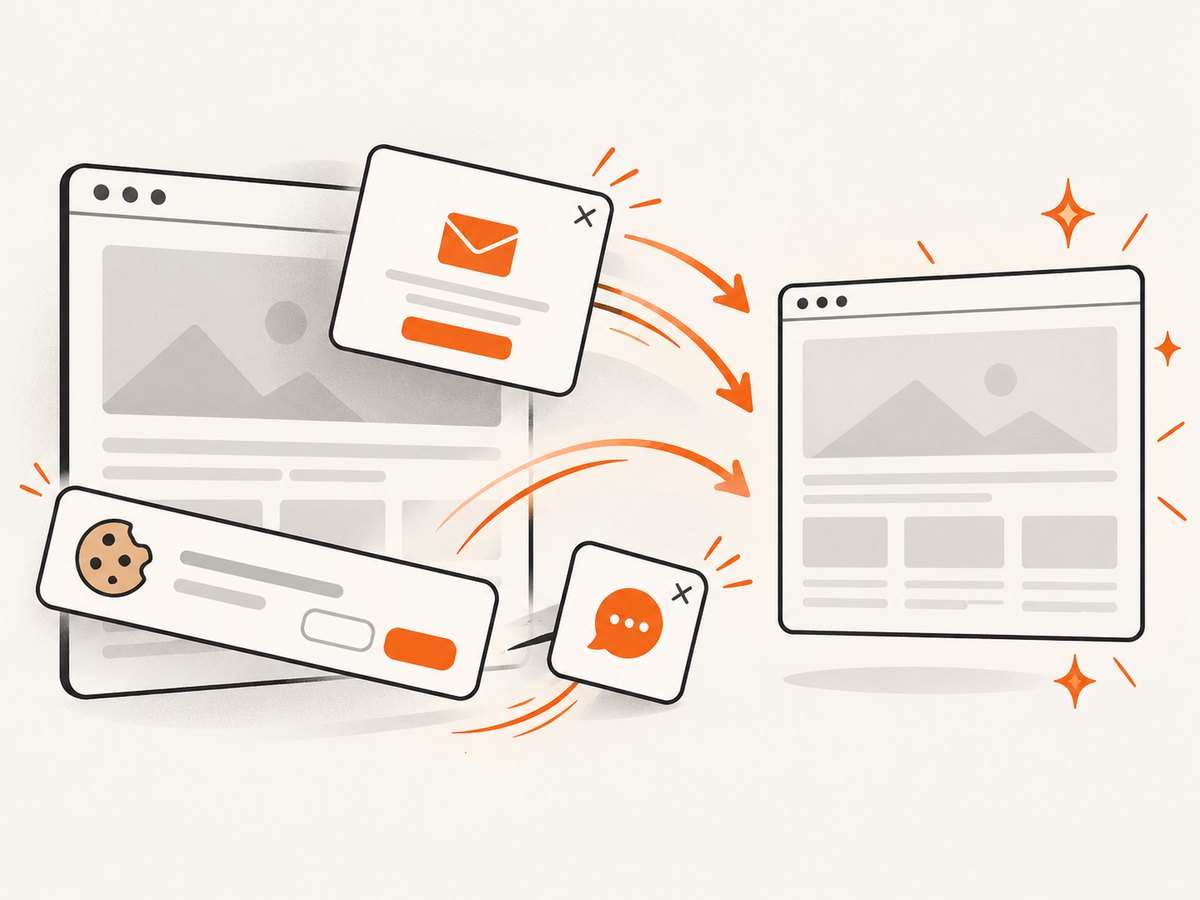
ScreenshotNeo can accept cookie and consent banners before capture and remove more than 60 known consent platforms, newsletter popups, and chat widgets; each step can be turned off. Only clean shots are billed: bot checks or CAPTCHAs, blank pages, timeouts, failed loads, and cache hits cost nothing, and the response identifies the result with X-Page-Verdict and X-Billed headers. Its MCP server provides take_screenshot, get_page_info, and capture_pdf tools for Claude, Cursor, and other MCP clients.
You can also use full-page capture, CSS element capture, device presets or custom viewports, dark mode, retina scale, custom CSS and JavaScript, waits, request blocking, headers, cookies, user agents, authorization, timezone, geolocation, transparent backgrounds, resizing, caching with a chosen TTL, signed links, asynchronous jobs with signed webhooks, bulk capture for up to 100 URLs per call, usage data, and an OpenAPI specification. The free plan includes 1,000 screenshots per month without a card; paid plans start at $5 for 3,000 screenshots. Create a free ScreenshotNeo account.
FAQ
Can I take a screenshot of Goutte’s parsed HTML?
You can save the response body as HTML, but that is not a rendered screenshot. Use a browser-controlling driver for pixels.
Should every Behat scenario use Chrome?
No. Use Goutte for HTTP-level behavior and a browser driver for JavaScript, layout, interaction, and screenshots.
Which browser driver should I choose?
Choose one supported by your Behat/Mink stack and compatible with your installed browser. Selenium and Chrome DevTools Protocol are documented integration approaches; verify current package APIs before configuring them.
Why did an old screenshot example stop working?
Driver APIs and Behat integrations change. Check the lockfile, current Mink documentation, and the exact driver project before adapting an older snippet.
Can an API replace browser screenshots in visual Behat assertions?
An API is useful for producing screenshot artifacts and automation outputs, but an in-process browser driver remains the direct choice when the scenario must interact with the page and assert browser state.


