How to Run Behat Tests Across Different Browsers
Configure Mink sessions, choose the right browser driver, and run Behat scenarios across browsers with reliable JavaScript coverage.
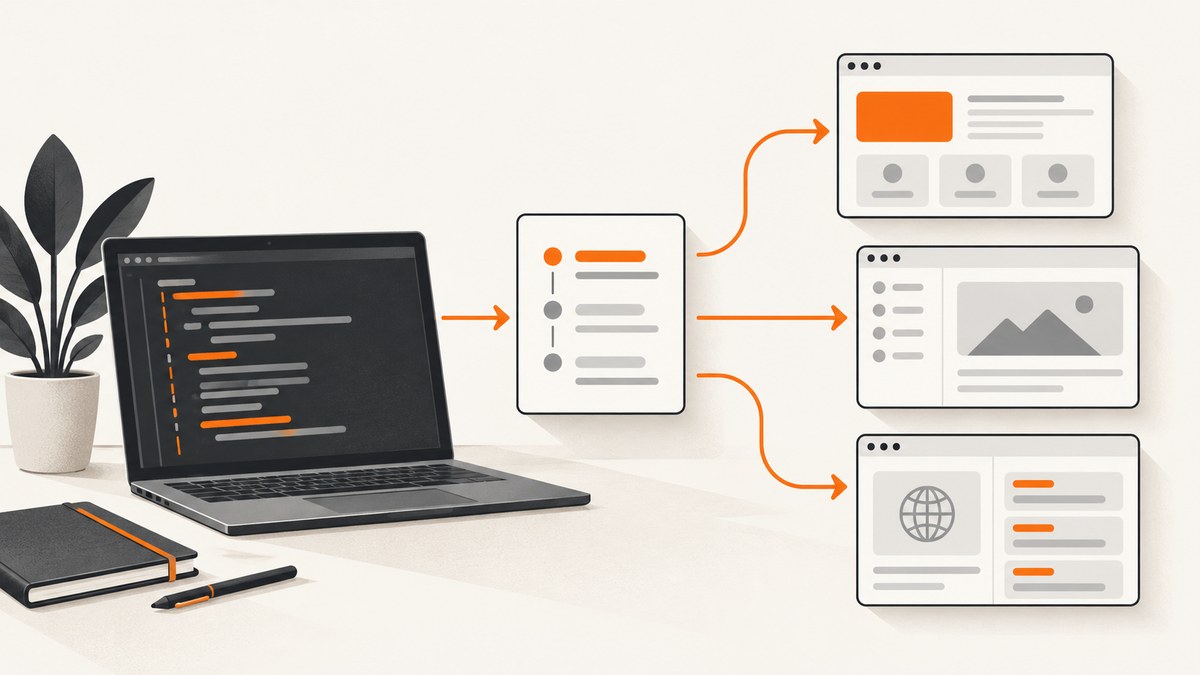
Direct answer: Behat runs your scenarios, while Mink and Mink Extension provide the browser API and session wiring. To test across browsers, install Mink Extension, add the drivers you actually need, define one session per browser or browser service, and route scenarios to the correct session with supported profiles, tags or suites. Use a JavaScript-capable real browser for client-side behavior; use an HTTP-oriented driver for request and markup checks where JavaScript is irrelevant.
The exact YAML keys and package versions depend on your Behat, PHP, Mink Extension and driver releases. Treat old Selenium2 examples as patterns, then verify the current extension documentation before copying syntax. This guide shows the architecture, a practical setup, complete feature examples, and the failure modes that usually make cross-browser suites unreliable.
1. Understand the Behat, Mink and driver layers
These projects have separate responsibilities:
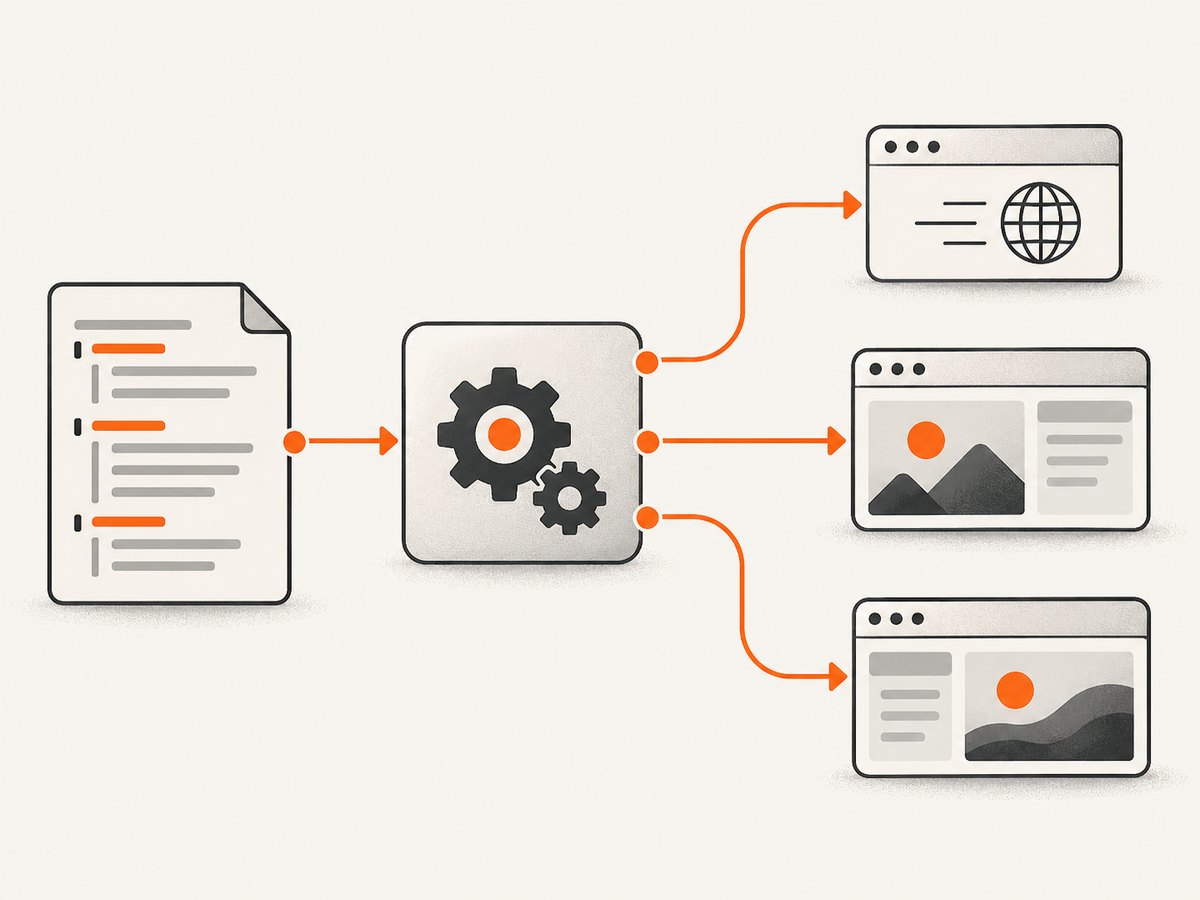
- Behat parses Gherkin, selects scenarios, applies tags and suites, and reports results.
- Mink supplies a common browser-interaction API for visiting pages, finding elements, submitting forms and making assertions.
- Mink Extension connects Mink to Behat. It creates sessions, exposes Mink contexts and hooks, and maps configuration to drivers.
- A driver performs the actual work. It may issue HTTP requests and parse HTML, control a real browser, or communicate with Chrome through DevTools Protocol.
Mink documentation describes the goal as removing API differences between browser emulators while still allowing different drivers. The common API does not make every driver equally capable: JavaScript evaluation, response status access, windows, frames, mouse actions and resizing can vary. Read the driver capability table before designing a scenario around a particular action (Mink documentation).
2. Choose a browser approach for each scenario
| Approach | Use it for | Limits and setup |
|---|---|---|
| HTTP-oriented driver such as BrowserKit or Goutte | Fast checks of URLs, forms, links, response content and server-rendered HTML | The older Mink overview describes this category as unable to execute JavaScript or AJAX. Confirm the current driver’s capabilities before relying on a specific feature. |
| Selenium-based browser control | Scenarios that need JavaScript, AJAX, real browser events or browser-specific behavior | Requires a browser automation server and compatible browser/driver setup. Historical Behat 2.5 Selenium2 examples are useful concepts, but their configuration may not match current releases. |
| Chrome DevTools Protocol / Chrome Mink Driver | Chrome-focused suites where direct Chrome control and headless execution fit your pipeline | Requires Chrome with remote debugging enabled and compatible PHP, Chrome and driver versions. The Mink page documents dmore/chrome-mink-driver and a remote-debugging setup; verify it against current releases. |
Compare drivers on JavaScript and AJAX support, real-browser versus HTTP behavior, frames and windows, mouse and keyboard input, viewport resizing, startup cost, isolation and CI maintenance. A scenario tagged for JavaScript should never silently fall back to an HTTP driver: it can produce a false pass because no client-side code executed.
3. Install Mink Extension and the drivers you need
Start with the integration package and add only the drivers required by your profiles. Follow the current Mink Extension documentation for your installed Behat and PHP versions.
composer require --dev behat/behat behat/mink behat/mink-extension
# Add the driver family required by your project.
# For the Chrome Mink Driver documented by Mink:
composer require --dev dmore/chrome-mink-driver
For Selenium, install and run a Selenium-compatible server and browser combination supported by your driver documentation. Do not assume a package name or server flag from an old cookbook is still current. Pin compatible versions in your project and record the browser version used in CI so an automatic browser update does not change results unexpectedly.
4. Define sessions for different browsers
A Mink session pairs a name with a driver and, where needed, a base URL or browser endpoint. A typical project has a lightweight session for ordinary scenarios and one or more real-browser sessions for JavaScript scenarios. The following is an illustrative structure; check the current extension reference for exact keys in your release.
# behat.yml (illustrative; verify keys for your Mink Extension version)
default:
  suites:
    default:
      contexts:
        - FeatureContext
  extensions:
    Behat\MinkExtension:
      base_url: 'http://app.test'
      sessions:
        http:
          goutte: ~
        chrome:
          chrome:
            # Configure the endpoint/options required by your driver.
            # Keep browser startup outside the test process in CI when appropriate.
            wd_host: 'http://127.0.0.1:9515'
        firefox:
          selenium2:
            wd_host: 'http://127.0.0.1:4444/wd/hub'
            browser: firefox
Session names and driver keys differ between extension generations. If your version rejects this shape, use its documented session syntax and preserve the same design: one explicit session per capability set, with a deterministic endpoint.
5. Start browsers and automation services
Chrome DevTools Protocol
The Chrome Mink Driver documentation shows Chrome 59+ running with remote debugging for its setup. A local development command can look like this:
google-chrome \
  --headless \
  --disable-gpu \
  --no-sandbox \
  --remote-debugging-port=9222 \
  --user-data-dir=/tmp/behat-chrome-profile
Use a disposable profile per job. In CI, allocate a unique debugging port and profile directory for each parallel worker. Confirm that the driver package you installed expects this endpoint and that your Chrome version is supported.
Selenium
The historical Behat cookbook starts a Selenium server with a command similar to:
java -jar selenium-server-*.jarThat example is from Behat 2.5.3 and is not a current compatibility guarantee. Modern Selenium distributions and browser drivers have different startup requirements. Use the Selenium documentation for your server version, then point the Mink session at the server URL.
6. Route scenarios to the correct browser
Keep browser-independent scenarios independent. Add a tag to scenarios that require JavaScript or a particular browser behavior, then map that tag through your supported profile or suite configuration. Behat documentation confirms that profiles, tags and suites can run the same features in different ways (Behat CLI and configuration guidance).
Feature: Address autocomplete

  @javascript @chrome
  Scenario: Suggestions appear while typing
    Given I am on "/checkout"
    When I fill in "Billing address" with "10 Downing"
    And I wait for 2 seconds
    Then I should see "10 Downing Street"
Use a profile to select the Chrome session, a suite to isolate browser scenarios, or the tag-to-session mechanism supported by your Mink Extension version. Do not copy the old @javascript Selenium2 mapping without checking current documentation: the tag is a durable organizational pattern, while the exact mapping syntax has changed across releases.
7. Write portable features and browser-specific checks
Prefer user-visible behavior in feature files and keep driver-specific details in contexts or configuration. Use stable labels and semantic selectors rather than generated CSS classes. When a browser difference is the behavior under test, make it explicit in the scenario name and tag.
Feature: Checkout validation

  Scenario: Server rejects an invalid card number
    Given I am on "/checkout"
    When I fill in "Card number" with "123"
    And I press "Pay"
    Then I should see "Enter a valid card number"

  @javascript
  Scenario: Client validation appears without a reload
    Given I am on "/checkout"
    When I fill in "Card number" with "123"
    And I move focus to "Email"
    Then I should see "Card number is incomplete"
The first scenario can often run on an HTTP driver if the response contains the validation message. The second needs a driver that executes the browser’s JavaScript and dispatches focus events. If a step depends on animation, network completion or a lazy-rendered element, wait for a deterministic condition rather than adding a large fixed delay.
8. Run one browser, then the matrix
Start with a single session while developing:
vendor/bin/behat --profile=chrome features/checkout.feature
vendor/bin/behat --profile=firefox features/checkout.feature
Then run the same tagged suite under every supported session in CI. A simple shell matrix is explicit and easy to diagnose:
set -e
for profile in chrome firefox; do
  vendor/bin/behat --profile="$profile" --tags='@javascript'
done
For parallel jobs, give each browser process its own port, temporary profile, download directory and application data. Collect screenshots, HTML and browser logs on failure. Keep the browser matrix smaller for pull requests if startup cost is high, and run the full matrix on protected branches.
9. Troubleshoot common failures
| Symptom | Likely cause | Fix |
|---|---|---|
Unknown driver or an unrecognized session key |
The driver package is missing, or configuration syntax belongs to another extension version. | Install the matching driver package and copy the session structure from your installed Mink Extension documentation. |
| Connection refused at the WebDriver or debugging URL | Browser/server is not running, the port is wrong, or a container cannot reach the host. | Start the service first, verify the endpoint with a local health request, expose the correct container network address, and avoid port collisions. |
| JavaScript steps pass without visible client behavior | The scenario used an HTTP driver instead of a real browser. | Tag it for a JavaScript-capable session and verify the tag-to-session mapping in the active profile. |
| Element not found intermittently | The test races the application, a lazy component has not rendered, or the selector is unstable. | Wait for a specific element or state, use stable labels or data attributes, and capture page source on failure. |
| Chrome exits immediately in CI | Sandbox, shared profile, missing display dependencies or resource limits. | Use the flags and dependencies required by your CI image, a unique temporary profile, and a supported headless mode. Confirm versions before changing flags. |
| Different browsers return different markup | Real browser rendering, user-agent logic, timing or browser-specific behavior differs. | Decide whether the difference is a product requirement. If not, assert stable user-visible outcomes instead of exact generated markup. |
| Tests hang after a failure | Orphaned browser processes or a server waiting on a blocked request. | Set command timeouts, terminate child processes in CI cleanup, and inspect network calls and browser logs. |
10. Reliability, speed and cost controls
- Split by capability. Keep HTTP scenarios on a lightweight driver and reserve real browsers for JavaScript, layout or input behavior.
- Control state. Reset cookies, local storage, database fixtures and browser profiles between scenarios that must be isolated.
- Wait on facts. Prefer an element, URL, request completion or visible state over arbitrary sleeps.
- Make versions visible. Log PHP, Behat, Mink Extension, driver, browser and operating-system versions in CI artifacts.
- Limit parallelism to capacity. More browser workers can exhaust CPU, memory or file descriptors and create failures that look like application defects.
- Retry carefully. A retry can identify infrastructure flakiness, but it should not hide deterministic assertion failures. Preserve the first failure’s logs.
Browser tests cost more time and infrastructure than HTTP checks because they start processes, render pages and execute client code. The fastest stable suite is usually layered: broad request-level coverage, focused JavaScript scenarios, and a deliberate browser matrix for behavior that can genuinely differ.
11. Or skip the browser setup
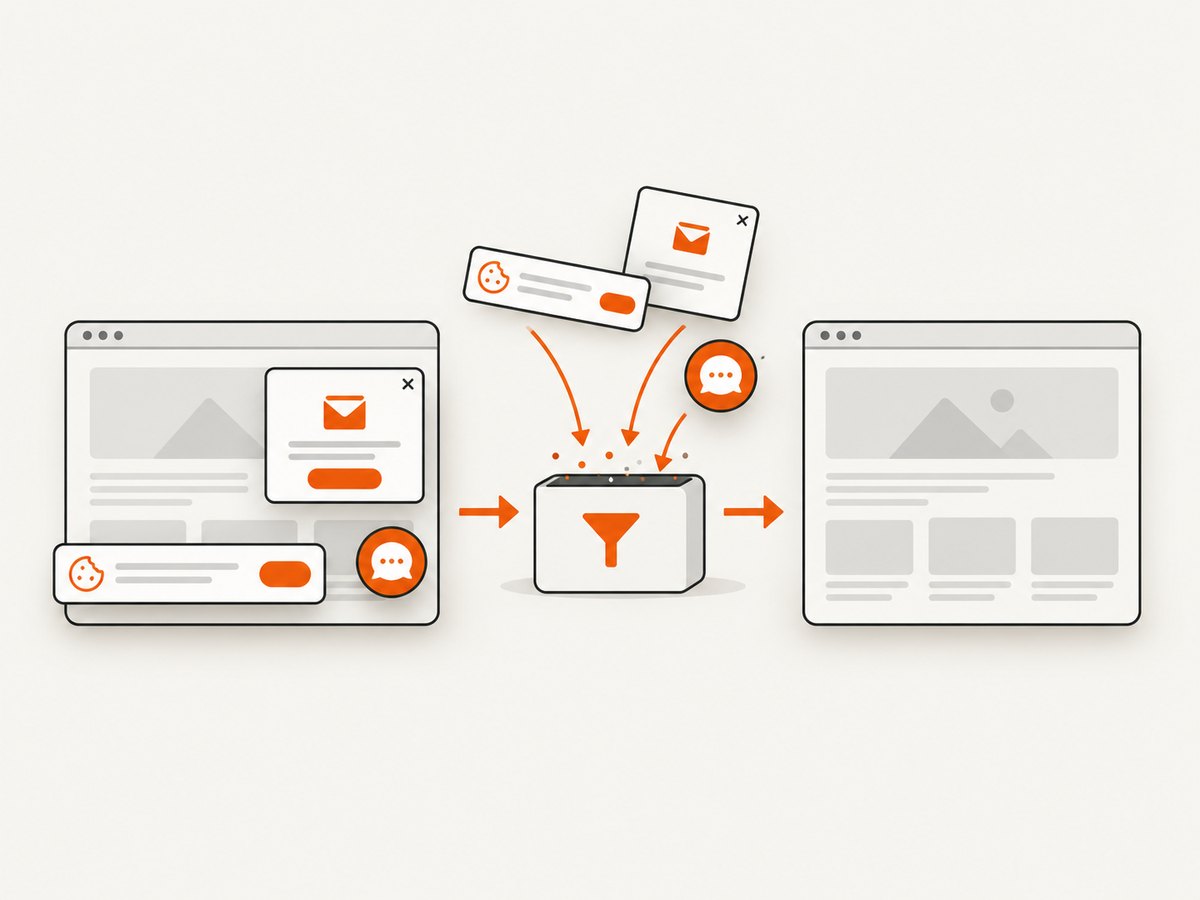
If your goal is to capture rendered pages for documentation, visual checks or generated assets rather than interactively drive a Behat scenario, ScreenshotNeo provides a one-request screenshot API and an MCP server. It accepts consent banners before capture and removes more than 60 known consent platforms, newsletter popups and chat widgets; each cleanup step can be disabled. Bot checks, CAPTCHAs, blank pages, timeouts, failed loads and cache hits are not billed, and response headers identify the page verdict and billing result.
Read the ScreenshotNeo API documentation for all options. A minimal call is:
curl -G "https://api.screenshotneo.com/v1/shot" \
  -d access_key=YOUR_API_KEY \
  --data-urlencode url=https://stripe.com \
  -o shot.webp
import requests
r = requests.get(
"https://api.screenshotneo.com/v1/shot",
params={"access_key": "YOUR_API_KEY", "url": "https://stripe.com"},
timeout=90,
)
r.raise_for_status()
open("shot.webp", "wb").write(r.content)const q = new URLSearchParams({ access_key: 'YOUR_API_KEY', url: 'https://stripe.com' });
const res = await fetch(`https://api.screenshotneo.com/v1/shot?${q}`);
if (!res.ok) throw new Error(`HTTP ${res.status}`);
const fs = await import('node:fs/promises');
await fs.writeFile('shot.webp', Buffer.from(await res.arrayBuffer()));ScreenshotNeo also supports full-page captures with lazy images loaded, CSS-element captures, dark mode, device presets and custom viewports, retina scale, PDF output, HTML/CSS rendering, custom CSS and JavaScript, clicks, selector or network-idle waits, request blocking, headers, cookies, user agents, authorization, timezone, geolocation, transparent backgrounds, resizing, configurable caching, signed links, asynchronous jobs with signed webhooks, bulk capture for up to 100 URLs per call, usage reporting and an OpenAPI specification. Its MCP server exposes take_screenshot, get_page_info and capture_pdf to Claude, Cursor and other MCP clients.
There is a free plan with 1,000 screenshots per month and no card. Paid plans start at $5 for 3,000 screenshots; every feature is available on every plan. Create a free ScreenshotNeo account.
12. FAQ
Can one feature run against every browser?
Yes. Keep the feature browser-neutral, then invoke it through multiple profiles or suites. Add browser-specific tags only where behavior or capability genuinely differs.
Do all Mink drivers execute JavaScript?
No. Driver capabilities differ. Check the current capability table and use a real-browser driver for JavaScript and AJAX behavior.
Should I use Selenium or Chrome DevTools Protocol?
Use the driver family that matches your supported browsers and CI operations. Selenium is useful for a multi-browser automation service; the Chrome driver is appropriate for Chrome-focused control. Verify current compatibility before pinning either.
Why does an old tutorial fail with current Behat?
Behat 2.5 cookbook examples and older Mink documentation describe historical package names and configuration. Keep the architectural pattern, then translate it using current Behat and Mink Extension documentation.
How do I debug a failure that only occurs in one browser?
Record the profile, browser and driver versions, preserve page source and screenshots, enable browser logs, and rerun only the failing tagged scenario against that session.


