11 Best Code and Text Editors for Web Developers
Compare 11 code and text editors by workflow, language, operating system, features, extensions, support, and cost so you can choose confidently.

Short answer: choose an editor based on your operating system, languages, project size, and how much you want integrated. Visual Studio Code is the safest general-purpose choice for most web developers because its workbench combines editing, code intelligence, terminal, source control, debugging, tests, extensions, and remote workflows. Choose WebStorm when you want a JavaScript and TypeScript IDE with deeper project-wide analysis and refactoring. Choose a smaller editor when you mainly need fast file editing and prefer assembling your own tools.
How to choose a web development editor
MDN recommends asking six practical questions before installing anything: Which operating system will you use? Which technologies will you edit? What basic features do you expect? Do you need extra features? How much help and documentation do you want? Does the look and feel matter? Price matters too, but MDN points out that cost has little connection with capability and that a suitable free editor is likely.
| Decision axis | What to check | Why it matters |
|---|---|---|
| Operating system | Windows, macOS, Linux, browser or remote machine | Installation, keyboard shortcuts, plugins and filesystem access differ. |
| Language and framework | HTML/CSS, JavaScript, TypeScript, Python, PHP, Ruby or mixed stacks | Syntax support is easy; reliable completion, diagnostics and refactoring are more editor-specific. |
| Project size | A few files, a monorepo, generated code and multiple packages | Large projects benefit from indexing, navigation and project-wide changes. |
| Integrated workflow | Terminal, Git, tests, debugger, database, containers and remote development | Built-in tools reduce context switching, while a lightweight editor leaves choices open. |
| Extensibility | Marketplace, plugins, themes, language servers and custom commands | Extensions fill gaps but add configuration and maintenance. |
| Support and cost | Documentation, community help, commercial licensing and team policy | A free editor may be enough; commercial use and support terms still need checking. |
The 11 best editors at a glance
| Editor | Best fit | Trade-off to investigate |
|---|---|---|
| Visual Studio Code | Most web stacks, teams and remote workflows | Extensions and settings can become complex. |
| WebStorm | JavaScript and TypeScript projects needing an integrated IDE | Heavier than a minimal editor; verify current commercial terms. |
| Sublime Text | Fast editing with optional packages | Check current licensing and which project features require plugins. |
| Notepad++ | Quick Windows-based text and code edits | Windows-focused workflow and fewer integrated web tools. |
| Vim | Keyboard-driven editing in terminals and remote hosts | Requires time to learn and configure. |
| Emacs | Highly programmable, keyboard-centered environments | Setup and conventions can be demanding. |
| Brackets | Readers evaluating a web-focused editor | Confirm current maintenance and extension availability before standardizing. |
| Bluefish | Lightweight multi-language editing | Compare its current integrations with your toolchain. |
| Kate | Linux and KDE users wanting a capable editor | Check platform support and team consistency. |
| Nova | macOS developers wanting a native editor | macOS-only considerations and current licensing. |
| BBEdit | macOS text and web editing | Evaluate its workflow against your team’s cross-platform needs. |
This list follows MDN’s editor examples and is a discovery guide, not a claim that every product has identical current features. Product status, prices, operating systems and plugins change, so confirm details on each project’s official site before buying or adopting one across a team.
1. Visual Studio Code: the strongest default
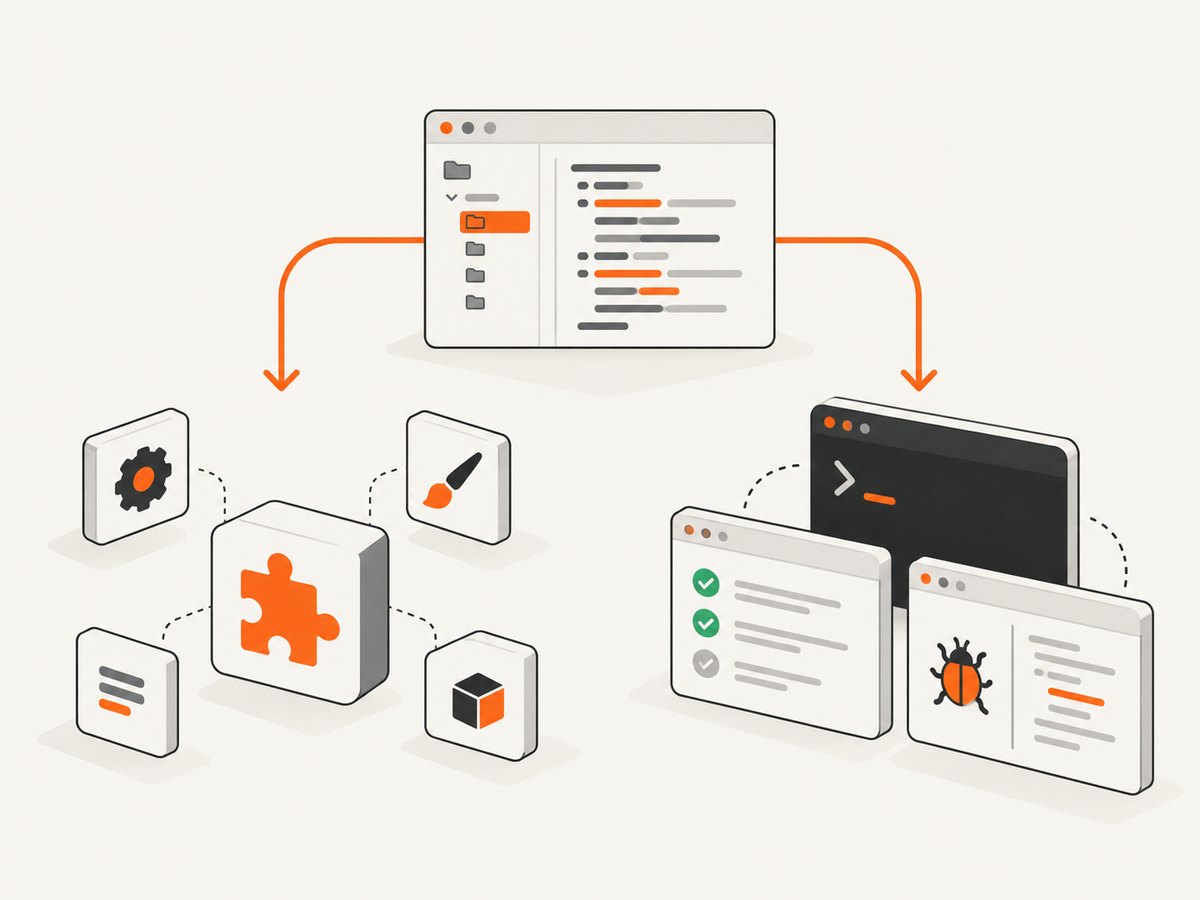
Microsoft describes VS Code as a cross-platform code editor whose workbench brings files, code intelligence, terminal, source control, debugger, tests, extensions, customization and remote machine or container work together. It is not tied to one language or toolchain. Install the desktop application when you need a local runtime, terminal, build, debugging or broad extension support.
Use VS Code when
- You work across HTML, CSS, JavaScript, TypeScript and backend languages.
- You want Git, a terminal, test runners and a debugger in one window.
- Your team needs dev containers, remote machines or a large extension ecosystem.
Watch for
Every extension adds code, settings and update decisions. Start with the language support, formatter, linter and version-control integrations you actually need. Keep workspace settings in the repository when a project requires consistent formatting or validation.
VS Code for the Web
VS Code for the Web is useful for browsing repositories and making lightweight edits in a browser. Microsoft recommends desktop VS Code, GitHub Codespaces or Remote Tunnels when you need a runtime, terminal, build, debugging or an extension that the web environment cannot support. It can run on tablets such as iPads, but that is not equivalent to every desktop capability.
2. WebStorm: an integrated JavaScript and TypeScript IDE
JetBrains positions WebStorm around JavaScript and TypeScript. Its feature documentation describes contextual completion, inspections, safe project-wide refactorings, in-editor documentation, static HTML preview, database and SQL tools, plugins, AI Assistant features and remote development. Those integrated inspections and refactorings are valuable when a change crosses many files.
Choose WebStorm for a substantial JavaScript or TypeScript application when you want more project understanding built in. A lighter editor may be better for quick edits, small sites or a team that already standardizes on a different tool. JetBrains says WebStorm is free for non-commercial use starting with version 2024.2.4; check its current licensing page for commercial terms and price before publication or procurement.
3–11. Lightweight and specialist choices
Sublime Text
Sublime Text is a common choice for a responsive editor that you can extend. It suits developers who want quick startup and focused editing, then add packages for language support or formatting. Confirm current licensing and package maintenance before relying on it for a team-wide workflow.
Notepad++
Notepad++ is useful for fast text and code edits on Windows. It can be a practical utility editor even when your main IDE is elsewhere. Its Windows focus makes it less suitable as a single cross-platform standard for a mixed operating-system team.
Vim
Vim works well when you edit on remote servers or prefer modal, keyboard-first control. It is powerful after you learn its commands and configure language tooling. Budget time for onboarding and document the configuration if several developers must share it.
Emacs
Emacs is a programmable environment that can be shaped into a complete development setup. It fits developers who enjoy configuring a unified, keyboard-driven workspace. The same flexibility creates a steeper setup and support burden.
Brackets, Bluefish and Kate
These editors can appeal to developers who want lighter tools or particular desktop integrations. Before choosing one, verify current maintenance, language support, operating-system coverage and plugin availability against your project requirements.
Nova and BBEdit
Both are macOS-oriented options worth considering when native Mac workflows matter. Compare their current licenses, collaboration features and cross-platform needs with your team before standardizing.
A practical selection process
- List your stack. Write down languages, frameworks, package managers, test tools, deployment targets and databases.
- Separate editing from integration. Decide whether you need only files and search, or also run, debug, test, Git, terminal, database and remote features.
- Test a real repository. Open the largest project you maintain. Check indexing time, symbol search, diagnostics, refactoring, terminal commands and Git conflict handling.
- Check team constraints. Verify operating systems, remote access, security policy, extensions and commercial licensing.
- Keep configuration reproducible. Store formatter, linter and task settings in the repository where possible. Document required plugins and versions.
- Reassess after a week. Measure friction: navigation, debugging, test feedback and code review preparation matter more than a long feature list.
Essential web-editor setup checklist
- Enable syntax highlighting and language-aware completion for every active language.
- Configure a formatter and run it consistently through a task, pre-commit hook or CI.
- Install a linter and make diagnostics visible while editing.
- Connect Git and learn search, diff, blame and conflict-resolution commands.
- Add a project task for the development server and test suite.
- Configure debugging with the same environment variables used locally.
- Exclude build output, dependency directories and secrets from search and source control.
- Use workspace settings instead of personal defaults when a project requires consistency.
Small runnable example for any editor
Create a directory, save this as index.html, and open it in your editor. It gives you HTML, CSS and JavaScript to test completion, formatting, browser preview and debugging.
<!doctype html>
<html lang="en">
<head>
  <meta charset="utf-8">
  <meta name="viewport" content="width=device-width, initial-scale=1">
  <title>Editor check</title>
  <style>body { font: 16px system-ui; max-width: 42rem; margin: 3rem auto; }</style>
</head>
<body>
  <h1>Editor check</h1>
  <button id="button">Click me</button>
  <p id="status">Not clicked</p>
  <script>
    document.querySelector('#button').addEventListener('click', () => {
      document.querySelector('#status').textContent = 'Clicked';
    });
  </script>
</body>
</html>
Common problems and fixes
Completion or diagnostics are missing
Confirm the language mode, project root and language extension. Restart the editor’s language service after changing dependencies. Check that the project’s package manager install completed and that generated type definitions are present.
Formatting changes on every save
Two formatters or conflicting workspace and user settings are usually responsible. Select one formatter, define it in workspace settings and align the editor with the project’s CI command.
Large repositories feel slow
Exclude dependencies, build folders, caches and generated files from search and file watching. Disable extensions you do not need in that workspace. If indexing remains expensive, compare a lighter editor or a remote development setup.
Debugger starts but breakpoints stay hollow
Check source maps, the launch configuration, the process actually serving the code and whether the browser or runtime is using a different build than the editor.
Remote or browser editing cannot run the project
A browser editor has a limited execution environment. Move to desktop VS Code, Codespaces or Remote Tunnels when you need a terminal, runtime, build, debugger or unsupported extension.
Commercial licensing is unclear
Do not infer a current price from an old comparison. Read the vendor’s licensing page, distinguish non-commercial and commercial use, and record the terms your procurement process approved.
Performance, reliability and cost considerations
Editor performance depends on repository size, indexing, extensions, language servers, file watching and available memory. Compare tools using your own largest repository and repeat common actions: open, search, rename a symbol, run tests, start debugging and switch branches. A fast launch is less useful if diagnostics arrive late or refactoring is unreliable.
For reliability, keep editor configuration reviewable, pin critical formatter and linter versions where your toolchain allows it, and run validation in CI so results do not depend on one developer’s machine. For cost, start with a suitable free editor, then price commercial licenses and any paid plugins for every contributor. WebStorm’s non-commercial provision and current commercial terms should be checked directly with JetBrains.
Or skip the browser setup
If your workflow includes documenting builds, reviewing responsive pages or generating visual artifacts, ScreenshotNeo provides a website screenshot API and MCP server. You still choose and configure your editor, but one GET request returns a PNG, JPEG, WebP or PDF. Cookie and consent banners are accepted and 60+ known consent platforms, newsletter popups and chat widgets are removed before capture; each step can be turned off. Bot checks, blank pages, timeouts, failed loads and cache hits cost nothing, and response headers identify the page verdict and whether it was billed.

See the ScreenshotNeo API documentation for all options, including full-page capture with lazy images, CSS-selector element capture, dark mode, 12 device presets or custom viewports, retina scale, PDF paper sizes and page ranges, custom CSS and JavaScript, clicks, selector or network-idle waits, blocking ads or resource types, headers, cookies, user agents, Authorization, timezone, geolocation, transparent backgrounds, resizing, TTL caching, signed links, asynchronous webhooks, bulk capture of up to 100 URLs, usage data and the OpenAPI specification.
curl -G "https://api.screenshotneo.com/v1/shot" \
  -d access_key=YOUR_API_KEY \
  --data-urlencode url=https://stripe.com \
  -o shot.webp
import requests
r = requests.get(
"https://api.screenshotneo.com/v1/shot",
params={"access_key": "YOUR_API_KEY", "url": "https://stripe.com"},
timeout=90,
)
r.raise_for_status()
open("shot.webp", "wb").write(r.content)const q = new URLSearchParams({ access_key: 'YOUR_API_KEY', url: 'https://stripe.com' });
const res = await fetch(`https://api.screenshotneo.com/v1/shot?${q}`);
if (!res.ok) throw new Error(`HTTP ${res.status}`);
const bytes = new Uint8Array(await res.arrayBuffer());
// write bytes to shot.webp with your runtime's filesystem APIAn MCP server exposes take_screenshot, get_page_info and capture_pdf to Claude, Cursor and other MCP clients. The Free plan includes 1,000 screenshots per month with no card; paid plans start at $5 for 3,000, and every feature is available on every plan. Create a free ScreenshotNeo account.
FAQ
Is an IDE always better than a code editor?
No. An IDE integrates more project services, while a lighter editor can be faster and easier to shape. Choose according to the workflow you actually use.
Should beginners start with VS Code?
MDN’s beginner resource recommends VS Code, Sublime Text or Notepad++ as full-featured examples and notes that IDEs such as WebStorm can be more complex. Treat that as learning guidance, not a universal ranking.
Can I use two editors?
Yes. Many developers keep an integrated IDE for large projects and a fast utility editor for quick changes or remote files.
Does a higher price mean better quality?
No. MDN says cost has little connection with quality or capability. Compare support, features, licensing and your own workflow.
What should a team standardize?
Standardize formatting, linting, tasks, debugging conventions and documentation first. Allow personal themes and keybindings unless they affect shared behavior.


