11 Best Diff and Merge Tools for File Inspection
Compare 11 diff and merge tools by platform, file and folder support, three-way merging, Git integration, and license. Find the right fit for your workflow.
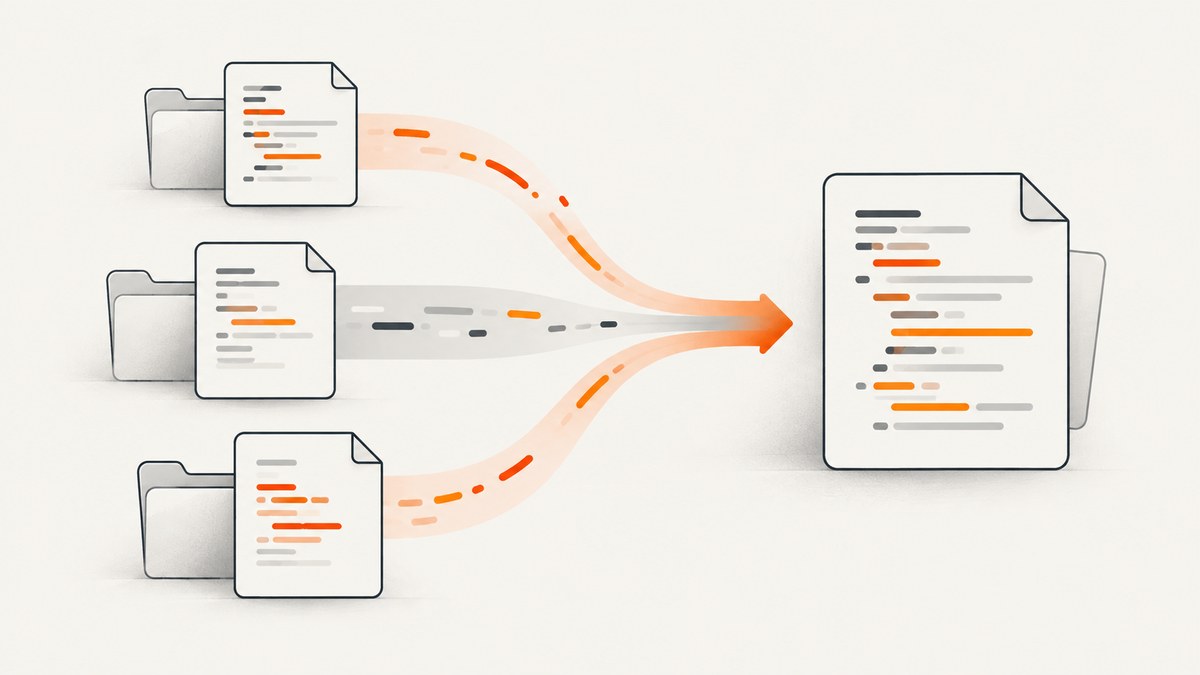
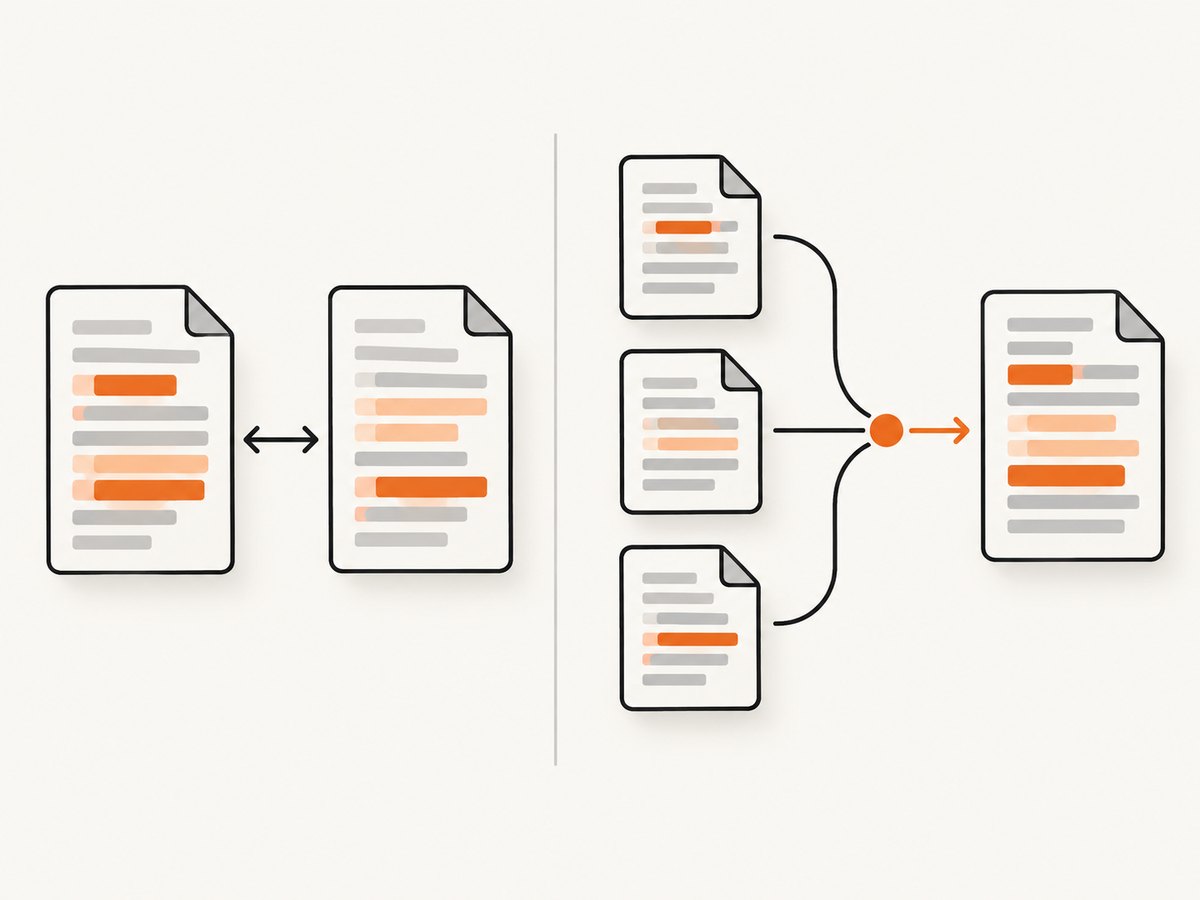
A diff tool shows what changed between files or folders. A merge tool helps reconcile competing edits into one result. For ordinary inspection, comparing two versions is usually enough; when two branches changed from a shared starting point, a three-way view adds that common base and makes conflict resolution clearer. Git exposes these workflows through git difftool and git mergetool.
Quick picks: choose WinMerge for open-source Windows file and folder work; Meld for open-source developer and version-control workflows; KDiff3 for a traditional three-way merge; P4Merge for free text, folder, image and common-base work; Araxis Merge for premium mixed-format comparison on Windows or macOS; and Vimdiff or Git itself for terminal-heavy work. The right pick depends on operating system, file types, need for folder comparisons, merge complexity and license.
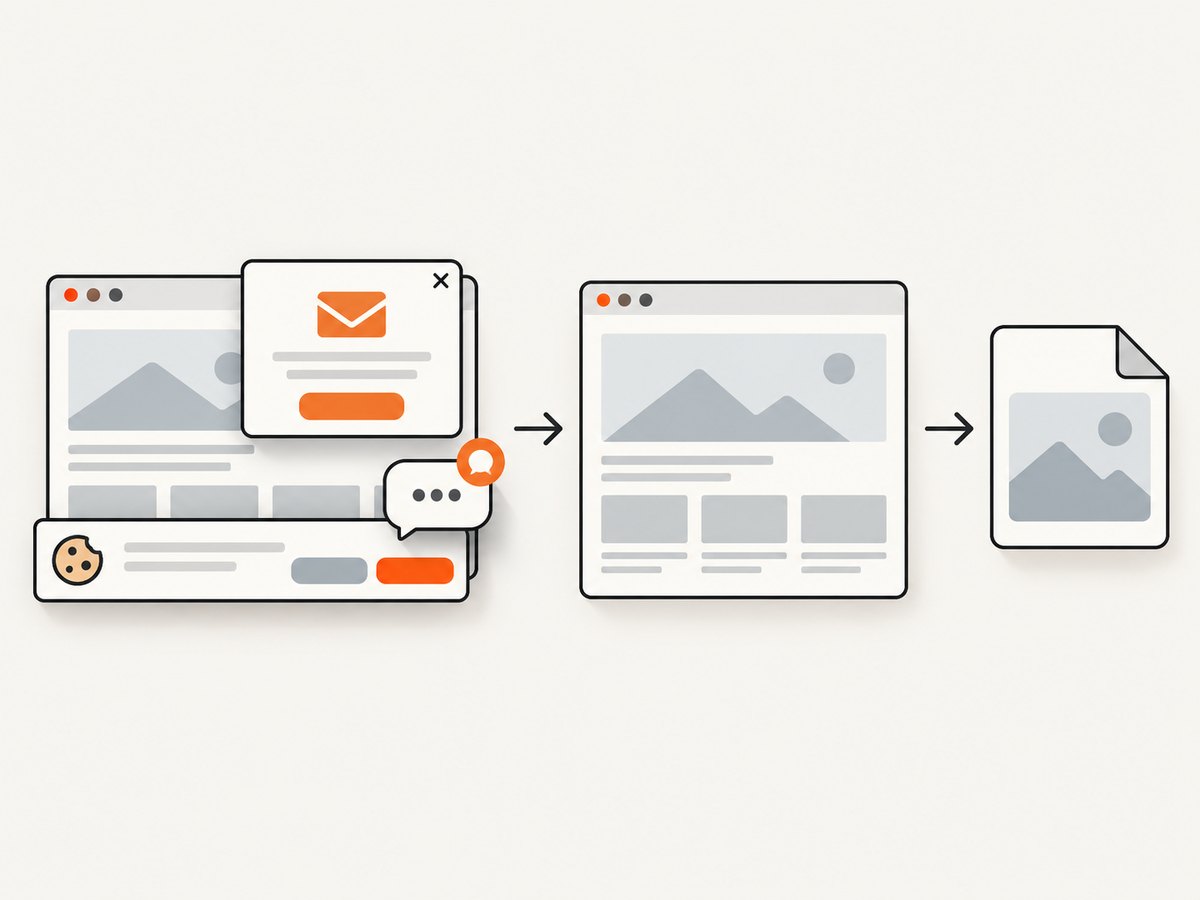
This guide compares 11 options and shows how to invoke Git’s built-in workflows. For a separate need—capturing a webpage as an image or PDF—ScreenshotNeo is the alternative to try first: it removes common cookie banners, popups and chat widgets before capture, and only clean shots are billed.
How to choose a diff or merge tool
Start with the task rather than the brand. A two-way diff answers “what differs between these versions?” A three-way merge shows the base plus each edited version, helping distinguish an edit made independently on both sides from one that merely exists on one side. Folder comparison answers a different question: which files were added, deleted or modified across directory trees?
| Need | Look for | Good starting choices |
|---|---|---|
| One file or code review | Readable side-by-side changes, syntax highlighting, navigation | Meld, WinMerge, VS Code, Vimdiff |
| Resolve a Git conflict | Three-way view, editable result, Git integration | Meld, KDiff3, P4Merge, Araxis, Vimdiff |
| Compare directories | Added/deleted/changed states, filters, copy or sync actions | WinMerge, Meld, Araxis, P4Merge |
| Inspect images or mixed formats | Image overlay or format-aware text extraction | P4Merge for images; Araxis for images, binary and several document formats |
| SSH, scripts or minimal setup | Terminal interface and predictable command invocation | Git diff, Vimdiff, Neovim |
| Keep review in the editor | Editor-integrated comparison and source control | Visual Studio Code |
Also check platform availability and licensing before standardizing a team workflow. WinMerge and Meld are open-source projects; Perforce distributes P4Merge as a free tool; Araxis Merge is commercial. Verify current installers, operating-system support, product editions and prices on the vendors’ own sites before installing or purchasing—the shortlist below avoids claims about details not established by the available documentation.
11 tools compared
1. WinMerge — best open-source GUI for Windows
WinMerge is an open-source Windows differencing and merging tool. Its project documentation covers file and folder comparison, two- and three-way text differences, selective merging and syntax highlighting for many programming languages and structured formats. Pick it when your day-to-day work happens on Windows and you want a visual browser for files and directories without a commercial license. Check the project page for the current installer and supported Windows versions.
2. Meld — best open-source developer workflow
Meld compares files, directories and version-controlled projects. Its documentation covers two- and three-way comparisons, manual editing, moving content between panes, conflict resolution and integrations with Git, Mercurial, Bazaar and Subversion. Folder view makes it practical to find changed files before drilling into individual text diffs. Meld’s official page warns that macOS is not fully supported, so confirm platform fit first.
When comparing large directory trees, filters can reduce noise. Meld supports filename filters and text filters; its documentation explains that filename filters use shell-style glob patterns and can hide matching files or folders. A filter can also make changed text compare as identical, so check active filters before assuming a clean comparison means files are byte-for-byte identical. See Meld’s filtering guide and folder comparison guide.
3. KDiff3 — best KDE-oriented three-way merge
KDiff3 is a file and folder diff and merge tool. The KDE handbook includes Git usage guidance, and its traditional three-pane workflow suits developers who want to inspect two changed versions against a base. Consider it for KDE-aligned workflows or when the common-base view is central to conflict resolution. Check the current handbook and package sources for platform builds and installation details; documentation is not a same-day release ledger.
4. P4Merge — best free text-and-image option
Perforce describes P4Merge as a free side-by-side comparison tool. Its documented features include highlighting and editing text changes, ignoring line endings and whitespace, folder diff, conflict resolution and image comparison. The P4Merge documentation covers viewing text and image differences and combining versions. Its common-base merge view lets you select chunks for the output. It can compare files that are not versioned in Helix Core, making it useful outside a Perforce-managed repository too.
5. Araxis Merge — best premium mixed-format inspection
Araxis Merge is a professional commercial application for Windows and macOS with two- and three-way file comparison, merging and folder synchronization. Its documented format coverage includes source, HTML and XML text; text extraction from Microsoft Office, OpenDocument, PDF and RTF; and image and binary comparison. That makes it a candidate when contracts, office documents, PDFs and source code share one review workflow. Araxis also documents integration with version-control and configuration-management applications that accept an external diff or merge tool. Confirm license terms and the needed formats on the Araxis product site.
6. Beyond Compare — commercial generalist to investigate
Git lists Beyond Compare as a graphical difftool and mergetool option. That establishes a route for using it with Git, but does not establish current pricing, supported platforms or exact feature tiers. Investigate it if you want a commercial generalist, then verify the vendor’s current product documentation against your specific file types and license requirements.
7. Code Compare — Windows-oriented code comparison candidate
Git lists Code Compare among its graphical diff and merge choices. It belongs on a Windows developer’s shortlist, especially when an external visual tool is desired. The available facts do not establish current edition limits, supported formats or pricing, so check those directly before adopting it team-wide.
8. DiffMerge — simple visual diff and merge candidate
Git recognizes DiffMerge as a graphical tool for diff and merge workflows. It may suit someone who wants a visual interface for file comparisons, but current maintenance status, downloads and operating-system support need direct verification. Treat those as gating checks, not assumed strengths.
9. Vimdiff — best terminal and editor-native workflow
Git supports Vimdiff and Neovim diff modes. They suit keyboard-driven editing, SSH sessions and users who prefer not to launch another desktop application. Their trade-off is a steeper learning curve and fewer dedicated folder-management conveniences than a desktop comparison tool. They are especially useful when the same terminal workflow must work on a remote machine.
10. Visual Studio Code — best editor-integrated inspection
Git lists Visual Studio Code as a supported graphical difftool. If VS Code is already where you edit and review code, its integration can reduce context switching and keep source control nearby. Confirm current merge-editor behavior and any extension requirements in Microsoft’s documentation for the release you use; Git’s listing alone does not describe those details.
11. Git’s built-in diff plus external mergetool — best zero-install baseline
Git provides command-line diff and merge workflows. Use git diff for inspection; use git difftool to open changes in a configured viewer; use git mergetool to resolve conflicts. This is the baseline for scripts, CI diagnostics and users who do not need folder synchronization or image comparison. Dedicated GUIs become more valuable when diffs are large, files are binary or structured, or multiple contributors changed the same base.
Set up Git diff and merge workflows
These commands use Meld as an example because Git recognizes it. Substitute another supported tool name after checking git difftool --tool-help or git mergetool --tool-help. The setup is repository-local only if you add --local to git config; without it, these examples set your global defaults.
- Check Git and the installed tool. Ensure the executable is available on
PATH, then rungit --versionandgit difftool --tool-help. - Configure a default viewer and merger:
git config --global diff.tool meld
git config --global merge.tool meld
# Optional: avoid a prompt before each file
git config --global difftool.prompt false
git config --global mergetool.prompt false- Compare working-tree changes to the index, or compare two revisions:
# Changes not yet staged
git difftool

# Staged changes against HEAD
git difftool --cached

# Compare two commits
git difftool main...feature -- src/
Git forwards the normal diff arguments to git difftool. Its --dir-diff option stages the compared files in a temporary location and opens a directory comparison, which helps when a change spans many paths. The official manual documents tool selection, custom commands, GUI defaults, prompts and exit-code behavior.
For merge conflicts, first resolve the merge state deliberately, then invoke the configured tool on all conflicted files or a named path:
git status
git mergetool
# Or resolve one path
git mergetool -- src/config.json

# Inspect and stage the final resolution
git diff --check
git diff -- src/config.json
git add src/config.json
In a three-way merge, Git supplies the base, local and remote versions when available, along with the merged result path. The external tool must save the resolution to the merged file; inspect it and stage it after resolving. Git’s mergetool manual documents temporary inputs, prompt behavior and tool configuration. Pay attention to mergetool.keepBackup: Git keeps a .orig backup by default, which can be useful for recovery but easy to mistake for a project file.
Or skip the browser setup
Diff tools compare files and folders; for a rendered webpage—such as checking whether a banner or layout changed—you may need an image capture first. ScreenshotNeo takes a screenshot or PDF from one GET request. See the ScreenshotNeo API documentation for parameters and response details.
curl -G "https://api.screenshotneo.com/v1/shot" -d access_key=YOUR_API_KEY --data-urlencode url=https://stripe.com -o shot.webpimport requests
r = requests.get(
"https://api.screenshotneo.com/v1/shot",
params={"access_key": "YOUR_API_KEY", "url": "https://stripe.com"},
timeout=90,
)
open("shot.webp", "wb").write(r.content)const q = new URLSearchParams({ access_key: 'YOUR_API_KEY', url: 'https://stripe.com' });
const res = await fetch(`https://api.screenshotneo.com/v1/shot?${q}`);
if (!res.ok) throw new Error(`Screenshot request failed: ${res.status}`);
await Bun.write('shot.webp', res);ScreenshotNeo accepts cookie banners like a visitor and removes 60+ known consent platforms, newsletter popups and chat widgets before capture; each step can be turned off. Bot checks, blank pages, timeouts, failed loads and cache hits cost nothing, and response headers identify the page verdict and billing status. Its MCP server provides take_screenshot, get_page_info and capture_pdf to Claude, Cursor and other MCP clients. Free includes 1,000 shots per month with no card; paid plans start at $5 for 3,000. Sign up for 1,000 free screenshots a month, with no card.
Folder comparisons, filters and edge cases
Folder comparison is not merely a file diff repeated many times. It identifies paths that exist on only one side, changed contents at matching paths, and unchanged entries. Before syncing or copying, inspect the direction of every operation: deleting from the wrong side can destroy the only copy. Meld’s directory view supports two or three trees and lets you open individual text files; its documentation cautions that opening arbitrary binary files as text is not a proper comparison.
- Generated files: exclude build output and dependency directories when the goal is source review. Save or record filters so another reviewer can reproduce what was hidden.
- Whitespace and line endings: ignoring them can expose semantic edits in noisy files, but may conceal formatting or newline changes that matter to a repository. Recheck with filters disabled before treating a merge as complete.
- Case sensitivity: files named
ReadmeandREADMEmay be distinct on one filesystem and collide on another. Check the target platform before merging a rename. - Binary files: line-oriented diff output is not meaningful for images, archives or compiled data. Use a tool with the relevant image/binary support or compare checksums when only byte identity matters.
- Large trees: narrow the roots or filter irrelevant paths first. A directory tool may need to enumerate and inspect many entries; comparing only the affected subtree can make the result faster to scan.
- Concurrent edits: do not resolve a two-sided conflict by blindly accepting “left” or “right.” A three-way view helps retain both independent edits while using the base to understand intent.
Troubleshooting
| Symptom | Likely cause | Fix |
|---|---|---|
| Git says the tool is not available | The tool is absent from PATH, or the configured name/path is wrong. |
Run git difftool --tool-help; install the application and configure its executable path with git config --global difftool.meld.path /path/to/meld if needed. |
| Diff opens one file at a time with prompts | Prompting is enabled by default for difftool. | Use git difftool --no-prompt for a run, or set difftool.prompt to false. |
| Merge result is missing or conflict returns | The tool did not save the merged output, or conflict markers remain. | Save the merged buffer to the path Git opened, inspect with git diff --check, then stage it. Do not stage a file until its content is reviewed. |
Unexpected .orig files appear |
Git preserves merge backups by default. | Review them for recovery value; remove only after verifying the resolved file. Configure mergetool.keepBackup false if backups are not wanted. |
| Two folders appear identical despite known changes | A filter may hide files, ignore filename case, or disregard text differences. | Review active filename and text filters, then rerun the comparison without them. Check timestamp/size shortcuts where available. |
| Images or PDFs appear garbled | The selected application is treating a binary/document format as plain text. | Use an image-aware tool such as P4Merge for supported image formats, or Araxis for its documented image and document extraction capabilities. |
| Three-way view has no base pane | The comparison is two-way, or Git could not provide a common base for that operation. | Invoke the tool through a real merge conflict workflow and confirm the merge has a common ancestor; use a direct two-way diff only for inspection. |
| Folder changes look reversed | Left/right orientation or copy direction was misread. | Confirm which root is source and destination before copying or deleting. Prefer review first, then apply changes in a deliberate direction. |
Performance, reliability and cost
For code review, the limiting factor is often human attention rather than raw comparison speed. Filter generated files, compare focused paths and use directory summaries to find the small set of changed files. On very large trees, filesystem traversal, network mounts and opening each file can dominate; local copies of remote trees can make results more predictable. If you need a repeatable audit, preserve the exact revisions, tool configuration and filter settings used.
Three-way merging improves context but does not decide intent for you. Treat auto-merged output as a candidate that still needs review, especially for configuration, migrations and generated artifacts. Keep a clean repository state or backup before applying folder synchronization operations. In Git, inspect status after resolving conflicts and run the project’s relevant validation before committing; a visually clean merge is not proof that behavior is correct.
Cost and platform constraints vary. WinMerge and Meld are open-source; P4Merge is distributed free by Perforce; Araxis is commercial. The dossier does not establish current costs or feature editions for Beyond Compare, Code Compare or DiffMerge, so verify current vendor terms. Vimdiff and Git reduce reliance on a separate GUI but still have the cost of setup, learning and review time. Standardize only after confirming every developer can install and use the chosen tool on their operating system.
Frequently asked questions
What is the difference between diff and merge?
A diff identifies changes between versions. A merge combines edits into one result, often after branches changed the same file.
Is a three-way diff always better?
It is more informative when reconciling concurrent edits with a shared base. For straightforward inspection of two known versions, two-way comparison is simpler.
Which free tool compares images?
P4Merge documents image comparison and is distributed as a free tool. Check its current supported image formats in the official documentation.
Can Git compare folders?
Git can show path changes between revisions and git difftool --dir-diff can present changed files as a directory comparison through an external tool. For arbitrary folder trees outside a repository, use a dedicated directory comparison application.
Which tool works on Windows, macOS and Linux?
There is no single recommendation for every platform in this shortlist. Check each project’s current platform support; Meld specifically warns that macOS is not fully supported, while Araxis documents Windows and macOS support.
Final recommendation
For Windows folder inspection, begin with WinMerge. For open-source code and version-control work, try Meld where your platform is supported. Use KDiff3, P4Merge or Araxis when three-way resolution matters, with P4Merge standing out for documented image comparison and Araxis for mixed document formats. If you live in a terminal, start with Git and Vimdiff; if you want review inside the editor, consider VS Code. For rendered website captures as inputs to visual review, try ScreenshotNeo: its API documentation covers the capture options, and the free plan includes 1,000 shots monthly without a card.


