Best Microsoft Edge Screenshot Extensions for Capturing Web Pages
Compare Edge’s built-in Screenshot with GoFullPage and FireShot, including full-page capture, PDF export, privacy checks, and an API option.
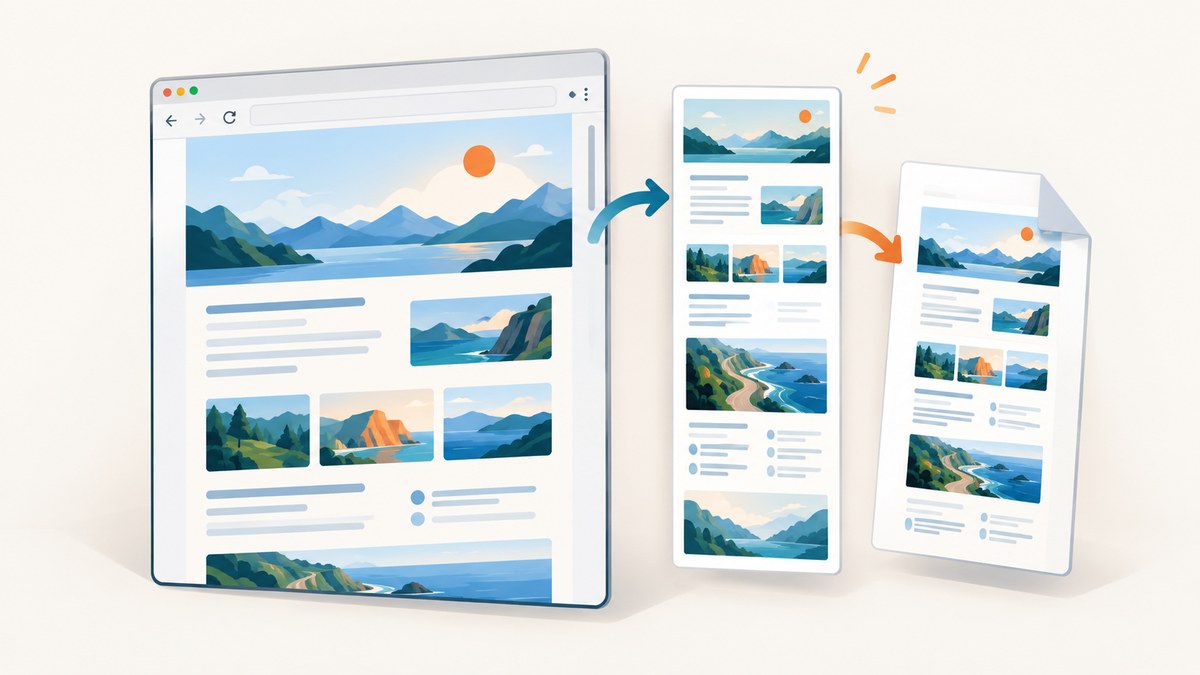
Short answer: Try Microsoft Edge’s built-in Screenshot first. It can capture a full webpage or a selected area, add markup, and copy or save the result. Press Ctrl + Shift + S, or open the page context menu and choose Screenshot. If you need a particular export format or a workflow that handles exceptionally long pages, compare GoFullPage and FireShot. Availability and behavior can change with your Edge version, device, market, and organization policy.
This guide explains what each option is described as supporting, how to choose one, how to capture reliably, and when a browser extension is the wrong tool. The extension details below come from Microsoft Edge Add-ons listings and Microsoft documentation, rather than an independent speed or quality test.
1. Start with Edge Screenshot
Microsoft describes Screenshot as a way to turn anything on the web into a shareable image. The feature supports a full webpage or a selected region, markup, copying, and saving. Microsoft also describes use on long and moving webpages. Use the built-in feature when those capabilities match your job because it avoids installing another extension and gives you one fewer permission policy to review. Microsoft’s Screenshot documentation lists the keyboard shortcut and context-menu route.
Capture a full page or selection
- Open the page in Edge and wait for the content you need to appear.
- Press Ctrl + Shift + S, or right-click the page and choose Screenshot.
- Choose the full-page capture option for the entire document, or drag over a selected area.
- Use the markup tools if you need to highlight, draw, or crop the capture.
- Copy the result to the clipboard or save it to a file.
For a page with lazy-loaded images, scroll through the document first so content has a chance to load. A capture can only include what Edge has rendered. Sticky headers, animations, video frames, and content that changes while the browser is capturing may produce a result different from a static page.
When the native feature is enough
- A one-off screenshot for a bug report or design review.
- A selected region rather than a document archive.
- Basic markup before sending the image to a colleague.
- A managed computer where installing extensions is restricted.
2. GoFullPage: long-page capture and PDF output
The GoFullPage listing describes full-page capture, image or PDF downloads, splitting exceptionally large captures into multiple images, and a premium editor with crop and annotation tools. Those are listing claims, not independent test results, so check the current Edge Add-ons page before relying on a feature.
GoFullPage is worth investigating when a document is taller than a normal viewport and you want a downloadable PDF as well as an image. Splitting very large captures can make the output easier to open and share. The editor may be useful when you need crop or annotation controls beyond the native Screenshot workflow.
GoFullPage workflow
- Open the target page and let fonts, images, and interactive sections finish loading.
- Open the GoFullPage extension from Edge’s toolbar.
- Start a full-page capture and wait for the extension to scroll through the page.
- Choose an image or PDF download when the result is ready.
- If the page is exceptionally large, review whether the extension split it into multiple images.
- Use the editor, where available, to crop or annotate before downloading.
Do not assume that a listing description guarantees identical behavior on every site. Pages with infinite scrolling, cross-origin frames, canvas animation, or aggressive bot protection can still require a different capture method.
3. FireShot: PDF, PNG, and JPEG choices
The FireShot Edge Add-ons listing describes full-page capture and export to PDF, PNG, or JPEG. That format range is useful when a team has different downstream requirements: PDF for a document record, PNG for lossless review images, and JPEG for smaller photographic captures. The listing surfaced a German-locale figure of 920,000+ users and 597 reviews when the research was collected; those are store-displayed, dynamic figures and are not evidence of quality or current totals.
FireShot workflow
- Install FireShot only after reviewing its current permissions and privacy policy.
- Open the page, wait for the state you want to preserve, and select FireShot from the toolbar.
- Choose a full-page or visible-area capture according to the task.
- Select PDF, PNG, or JPEG output.
- Check the saved file at its actual dimensions and confirm that fixed headers, images, and embedded frames are present.
Export format is the clearest reason to choose FireShot over the native tool. If your requirement is simply a marked-up image, Edge Screenshot may involve fewer moving parts.
4. Other Edge Add-ons and why evidence matters
Full Page Screen Capture Plus also appears in Edge Add-ons. The available listing extraction did not provide enough detailed feature or privacy information for a substantive recommendation. Treat it as a candidate to inspect rather than a proven choice.
Store pages can change. Before installation, verify the current publisher, supported Edge versions, requested permissions, privacy terms, export formats, and whether paid features are required. Microsoft’s extension privacy guidance says extensions specify the data they need and that Edge asks for permission before installation. Read the permission prompt instead of accepting it blindly. Microsoft’s extension privacy guidance explains this review step.
5. Comparison table
| Option | Full page | Selected area | Output described | Editing or markup | Best fit |
|---|---|---|---|---|---|
| Edge Screenshot | Yes | Yes | Copy or save capture | Markup | Fast, no-install captures |
| GoFullPage | Yes | Check current listing | Image and PDF | Premium crop and annotation editor | Long pages and PDF downloads |
| FireShot | Yes | Listing describes capture modes | PDF, PNG, JPEG | Check current listing | Several export formats |
| Full Page Screen Capture Plus | Listing surfaced | Not established | Not established from reviewed material | Not established | Evaluate only after checking live details |
There is no responsible single winner from these sources. The right choice depends on whether you need native capture, PDF export, multiple image formats, very large-page handling, or editing. Microsoft’s feature availability can also be controlled by administrators: the policy catalog identifies WebCaptureEnabled as the policy for Edge Screenshot, formerly called Web Capture. Check the policy documentation on managed devices.
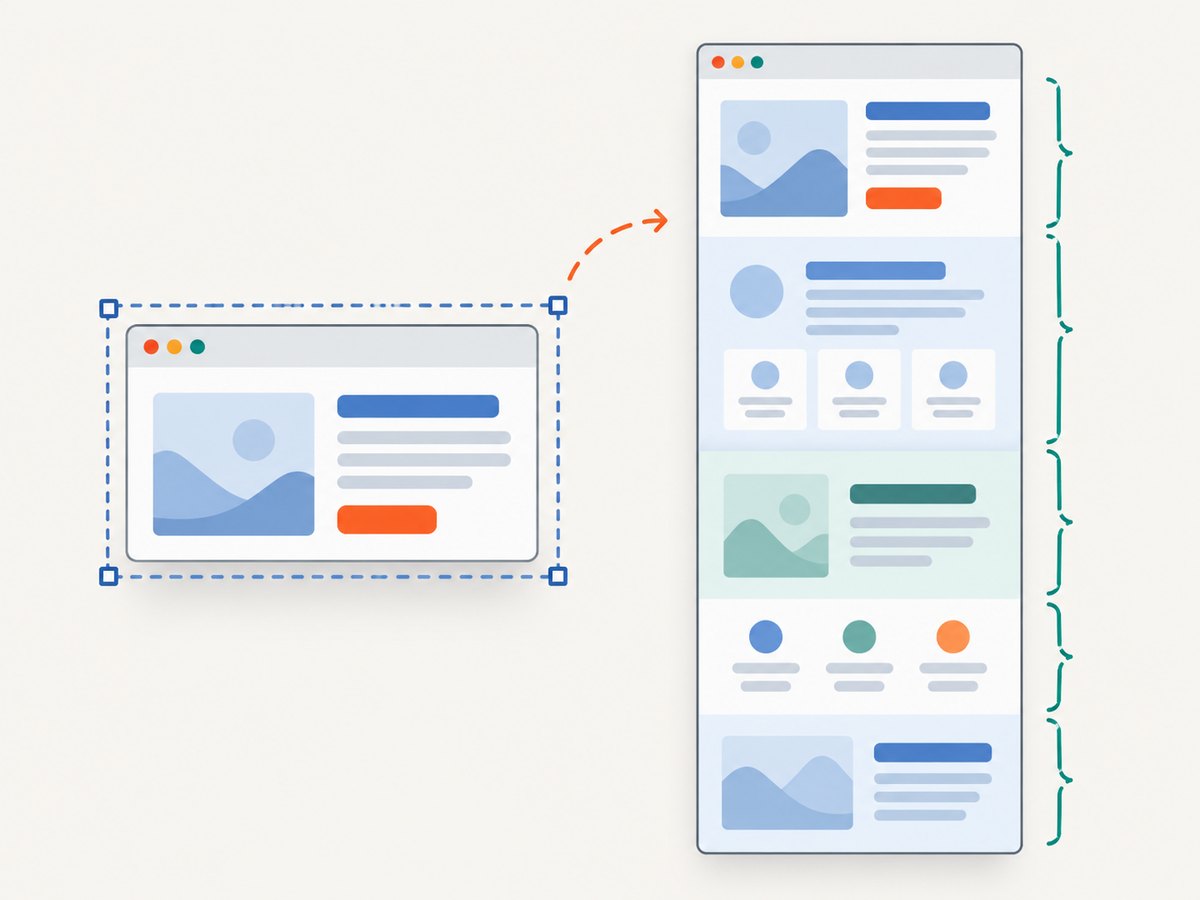
6. A reliable capture checklist
- Choose the state: close cookie dialogs and menus unless they are part of the evidence.
- Load content: wait for fonts, images, charts, and lazy sections.
- Control motion: pause videos and avoid capturing during an animation.
- Check height: exceptionally long pages may need splitting or a PDF workflow.
- Inspect output: zoom into text, compare image edges, and confirm the file opens.
- Protect data: do not capture passwords, private customer records, or internal URLs into a shared file.
- Record provenance: save the page URL and capture date beside the image when it may be used as evidence.
7. Troubleshooting common problems
The Screenshot command is missing
Check that Edge is current, try the right-click menu and shortcut, and ask an administrator whether WebCaptureEnabled is disabled. Organization policy can affect availability.
The bottom of the page is missing
Some content loads only after scrolling or interaction. Scroll through the page first, wait for lazy images, and retry. Infinite-scroll pages may never have a final boundary; use a defined viewport or a PDF workflow instead.
The capture contains a cookie banner, chat bubble, or popup
Dismiss the element before capturing, or use a tool that supports hiding selectors. Extensions operate in the browser context, so site scripts can recreate a popup during a long capture.
Fixed headers appear repeatedly
Sticky elements can be captured once per scroll segment. Look for an extension option that removes fixed elements, hide the header with temporary CSS in a development copy, or capture a selected region.
The PDF or image is too large to open
Very tall documents can exceed viewer or memory limits. Use a tool that splits exceptionally large captures, export a paginated PDF, or capture logical sections separately.
An extension requests more access than expected
Stop installation and read the permission explanation and privacy policy. If the requested access does not match your use case, use Edge Screenshot or a controlled API instead.
A managed device blocks installation
Ask the administrator whether the extension is approved. Do not sideload an unreviewed package. The native Screenshot feature may remain available unless its policy is disabled.
8. Or skip the browser setup
For repeatable captures in a build, documentation job, monitoring script, or AI workflow, an API removes the need to drive a browser manually. ScreenshotNeo is the alternative to try first: it produces clean screenshots, bills only clean shots, and has the lowest paid plan listed here.

One GET request returns PNG, JPEG, WebP, or PDF. The service accepts the cookie or consent banner like a visitor and removes more than 60 known consent platforms, newsletter popups, and chat widgets before capture; each step can be turned off. Bot checks or CAPTCHAs, blank pages, timeouts, failed loads, and cache hits cost nothing, and the response identifies the result with X-Page-Verdict and X-Billed headers. An MCP server provides take_screenshot, get_page_info, and capture_pdf tools for Claude, Cursor, and other MCP clients.
See the ScreenshotNeo API documentation for all options, including full-page capture with lazy images, CSS element capture, dark mode, device presets, custom viewports, retina scale, PDF paper size and margins, custom CSS and JavaScript, click and wait actions, request blocking, headers, cookies, user agents, authorization, timezone, geolocation, transparent backgrounds, resizing, caching, signed links, async jobs, webhooks, bulk capture, usage, and OpenAPI support.
cURL
curl -G "https://api.screenshotneo.com/v1/shot" \
  -d access_key=YOUR_API_KEY \
  --data-urlencode url=https://stripe.com \
  -o shot.webp
Python
import requests

r = requests.get(
    "https://api.screenshotneo.com/v1/shot",
    params={"access_key": "YOUR_API_KEY", "url": "https://stripe.com"},
    timeout=90,
)
r.raise_for_status()
open("shot.webp", "wb").write(r.content)
Node.js
const q = new URLSearchParams({
  access_key: 'YOUR_API_KEY',
  url: 'https://stripe.com'
});
const res = await fetch(`https://api.screenshotneo.com/v1/shot?${q}`);
if (!res.ok) throw new Error(`HTTP ${res.status}`);
const fs = await import('node:fs/promises');
await fs.writeFile('shot.webp', Buffer.from(await res.arrayBuffer()));
ScreenshotNeo has a free plan with 1,000 shots per month and no card. Paid plans start at $5 for 3,000 shots; yearly billing gives two months free, and every feature is on every plan. Create a free ScreenshotNeo account to generate an access key.
9. FAQ
Does Edge have a built-in full-page screenshot?
Yes. Microsoft documents full-page and selected-area Screenshot capture, with markup and copy or save actions. Availability can vary by version, device, market, and policy.
Which extension exports a webpage to PDF?
GoFullPage and FireShot listings describe PDF export. FireShot also lists PNG and JPEG; GoFullPage describes splitting exceptionally large captures.
Are extension store user counts proof that an extension is best?
No. Store counts and reviews are dynamic and do not establish capture quality, privacy, or compatibility.
Can I automate Edge screenshots in a server job?
A screenshot API is generally simpler for repeatable server-side work. ScreenshotNeo provides a single request, async jobs, webhooks, bulk capture, and an MCP server for AI clients.
What should I check before installing an extension?
Review the publisher, requested permissions, privacy policy, supported versions, pricing, and the current Edge Add-ons listing.


