Best Browser Extensions for Downloading Webpage Images
Compare browser extensions for bulk image downloads, lazy-loaded pages, and offline archiving, with practical fixes for common problems.

For one visible image, your browser’s built-in “Save image as” is usually enough. For dozens of images, use a bulk downloader: Imageye is a strong first choice for Chrome when you want to filter and select images; Download All Images is a better Firefox fit when assets may be in iframes, links, scripts, or CSS; and Website Image Downloader is useful for feeds that reveal images as you scroll. If you need the whole page preserved offline, use SingleFile instead of downloading loose image files.
These extensions collect assets that a page exposes to the browser. They cannot guarantee access to original-resolution files, protected resources, or every image on a site. The result depends on page markup, lazy-loading behavior, access controls, and the extension’s collection method.
1. Choose an extension for the job
| Tool | Best fit | Collection and useful controls | Browser |
|---|---|---|---|
| Imageye | Bulk selection and filtering | Finds page images; filter by pixel width, height, or URL; copy original-image URLs; reverse-image search; convert WebP, JPG, and PNG | Chrome |
| Download All Images | Images that are not simple rendered image elements | Searches page images, nested iframes, links, background scripts, and CSS; filter by size, dimensions, URL, and type; review a gallery before saving | Firefox |
| Website Image Downloader | Lazy-loaded feeds and controlled collection while scrolling | Can collect newly loaded images automatically or only those in the viewport; includes favorites, sorting, filters, and subfolder organization | Firefox |
| SingleFile | Keeping a page usable offline | Saves a whole page and its resources, such as images, stylesheets, fonts, and frames, into one HTML file; supports cloud destinations including Google Drive, Amazon S3, and WebDAV | Chrome, Edge, Firefox, Safari |
Chrome: start with Imageye when the goal is to choose many images from a visual gallery and narrow the list with dimensions or URL filters. Its Chrome Web Store listing reports version 5.30.1, updated March 18, 2026, and 2,000,000 users; those listing details can change.
Firefox: choose Download All Images if you suspect assets are referenced indirectly or inside nested frames, or if you need to filter a large candidate set before downloading. Choose Website Image Downloader when scrolling progressively loads images and you want to collect them as they appear or restrict collection to the current viewport.
Any supported browser: use SingleFile when the deliverable is an offline copy of an article or page, not a folder of separate image assets. The project describes it as saving a page, including its resources, as one HTML file. That is a preservation workflow; it is not a substitute for extracting each original image file.
2. Bulk-download images, step by step
- Open the target page in the supported browser. Let the page finish its initial load. Sign in or complete any site-required access steps yourself; an extension cannot make restricted assets available.
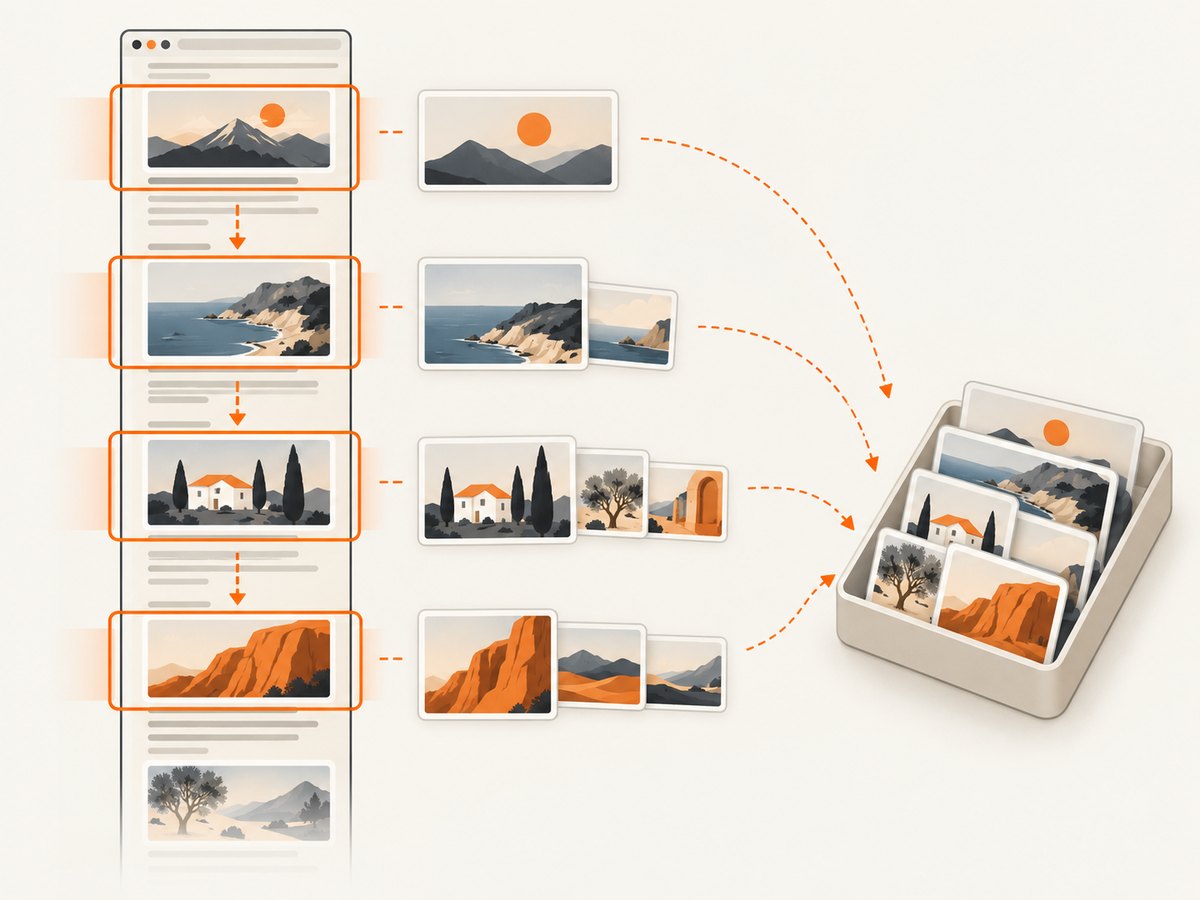
- For a lazy-loaded page, scroll through the content you need. Many feeds load image elements only as they approach the viewport. If the extension has an auto-collection mode, enable it before scrolling. Otherwise, scroll steadily and allow each section to populate before opening the collector.
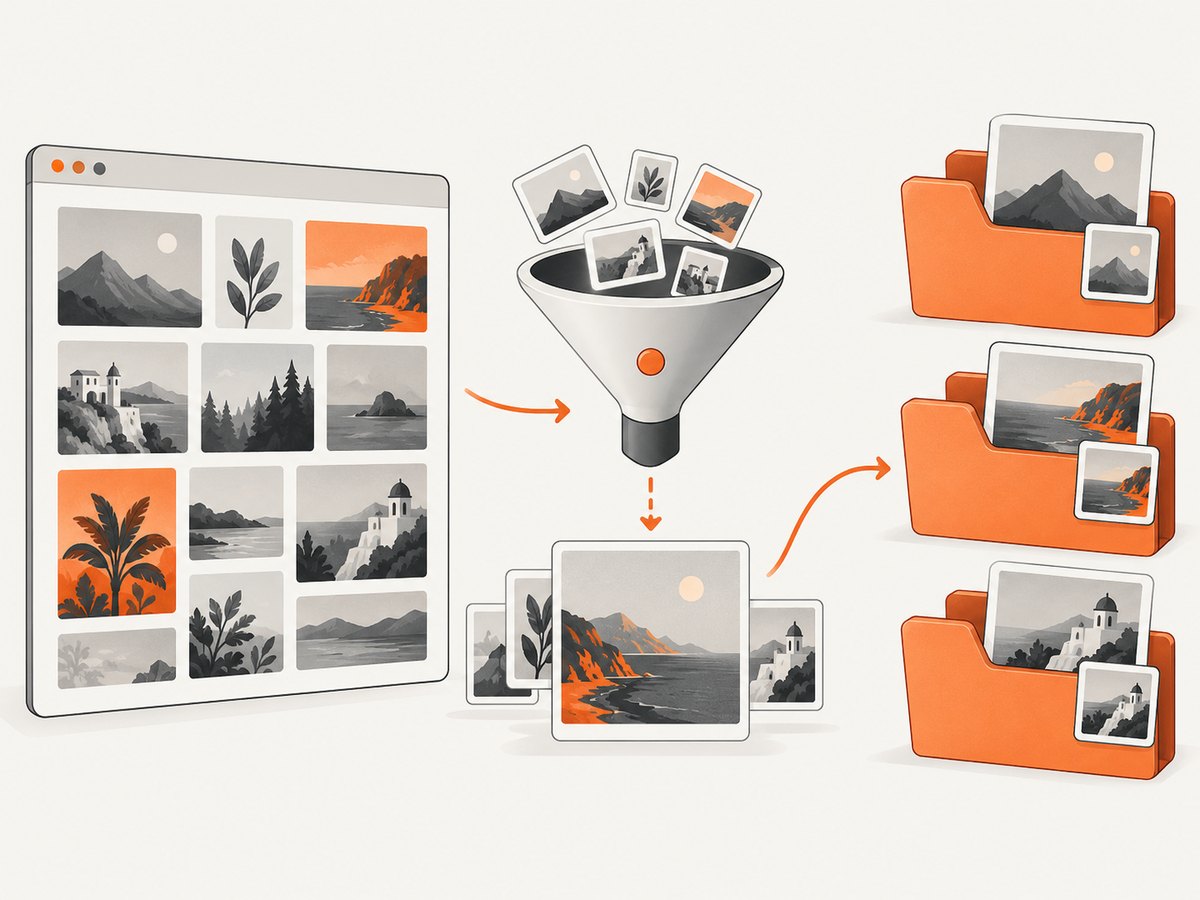
- Open the extension and inspect its candidates. Use the preview or gallery when available. A page can expose thumbnails, icons, avatars, tracking pixels, and decorative backgrounds alongside the photographs you want.
- Filter before selecting. Set a minimum width or height to discard small icons, constrain the URL if files share a path, and choose relevant file types. Review unusual dimensions: a tiny listed asset may be a thumbnail even when a larger original exists elsewhere.
- Look for original-image URLs. If the tool offers original-URL copying, use it to check whether a larger asset is exposed. Some sites use responsive image markup with several sizes; others serve only a thumbnail or require a separate page request.
- Select and save a small sample first. Open a downloaded file and confirm its dimensions, format, and appearance. Then select the rest and save them to a dedicated folder.
- Check the output folder. Resolve duplicates, unexpected formats, or inconsistent names before moving the files into a long-term archive or using them in a project.
For Firefox pages with hard-to-find assets, run Download All Images’ broader search and inspect the gallery. Its ability to look through iframes, links, scripts, and CSS can surface candidates that a scan of visible image elements misses. For viewport-based collection, use Website Image Downloader’s viewport option if you want to exclude images elsewhere on the page.
3. Handle lazy loading and full-resolution files
Lazy loading means the page delays requesting an image until it is near the visible area, or until some script decides it is needed. A downloader that scans immediately after navigation may therefore see only the first screen. Scroll through the required sections, wait for images to appear, and then rescan or let an auto-collection feature gather newly loaded assets.
Full resolution is a separate question. The browser may show a small preview while the page contains a link or responsive source for a larger version. Use an extension’s dimensions filter and original-URL feature to investigate. If the larger file is not exposed in the page, is behind an access control, or is served only after an interaction, a bulk downloader may not retrieve it.
- Compare image dimensions rather than relying on the visual preview alone.
- Do not treat a larger file size as proof that an image is the original; formats compress differently.
- When collection misses later feed items, scroll further and allow requests to finish before rescanning.
- When the page uses CSS backgrounds, canvases, or embedded content, choose a tool whose listing says it searches those sources, and verify the resulting files individually.
4. Keep a page offline or capture its appearance
Use SingleFile when you need the page’s text, layout, styles, frames, and images together in one offline HTML file. That can be easier to preserve and reopen than a directory of disconnected assets. The tradeoff is that you are saving a page snapshot, not organizing separate image files for a catalog or design library.
If your actual goal is a shareable screenshot of a page, rather than downloading the image assets themselves, ScreenshotNeo is the alternative to try first. It is a website screenshot API and MCP server from Yorker Media. A single request can return a PNG, JPEG, WebP, or PDF, and its clean-shot flow accepts consent banners and removes more than 60 known consent platforms, newsletter popups, and chat widgets before capture. See the ScreenshotNeo site and API documentation.
5. Or skip the browser setup
For a screenshot, make one API request with the page URL. This runnable cURL example saves the response as a WebP file:
curl -G "https://api.screenshotneo.com/v1/shot" \
  -d access_key=YOUR_API_KEY \
  --data-urlencode url=https://stripe.com \
  -o shot.webp
Python and Node.js examples are available below, along with practical capture settings. Cookie banners, popups, and chat widgets are removed before the shot; bot checks, blank pages, and failed loads are never billed; an MCP server lets AI agents take screenshots; and 1,000 screenshots a month are free with no card, with paid plans starting at $5 for 3,000. Sign up for the free plan.
6. Copyright and permissions
Being able to download an image does not mean you have permission to reuse it. Imageye’s listing specifically warns that images may be protected and advises checking license and reuse terms. Before publishing, selling, modifying, or redistributing a downloaded image, verify the rights with the site owner or the relevant license. Keep source URLs and license notes with the files so you can trace where they came from.
7. Troubleshooting
| Symptom | Likely cause | What to do |
|---|---|---|
| The extension finds only a few images | The rest are lazy-loaded, or the tool scans only currently rendered elements | Scroll through the page, wait for images to load, enable auto-collection if available, then scan again. For Firefox, try Download All Images’ wider search. |
| Downloads are small or blurry | The page exposes thumbnails or a reduced responsive source | Filter by dimensions and inspect original-image URLs. If the page does not expose a larger source, the extension may not be able to obtain one. |
| Icons and avatars overwhelm the results | The page includes many small assets unrelated to the main content | Set minimum width and height, filter by URL or file type, and review the gallery before selecting. |
| Some images are missing from a Firefox scan | Assets may be referenced in frames, links, scripts, or stylesheets, or blocked by the site | Use Download All Images’ broader search and check its gallery. Confirm that the page itself can load the asset. |
| The same image appears several times | Different page elements or responsive variants point to the same asset or near-identical files | Compare filenames, URLs, and dimensions. Remove duplicates after download; do not assume that different URLs mean different content. |
| A file has an unexpected format | The page serves WebP or another source format even if the image looks like a familiar JPEG | Use Imageye’s listed conversion options where appropriate, or keep the original format and convert with a trusted local tool. |
| The download is blocked or the page is empty | Access controls, a bot check, a temporary load failure, or a script-dependent page | Open the page normally and resolve any required access step. Retry after the page loads; extensions cannot bypass a site’s restrictions. |
| SingleFile opens without some expected resources | A resource was unavailable or could not be embedded at save time | Reload the page, wait for its content to finish loading, and save again. Treat the saved file as a snapshot and verify key images offline. |
8. Performance, reliability, and storage
Large pages can expose hundreds of candidates, so filtering before downloading reduces review time and avoids saving obvious icons. Downloading images also consumes bandwidth and disk space; a few high-resolution originals may occupy more space than many thumbnails. Save into a project-specific folder, and keep a source URL list when provenance matters.
Collection is not guaranteed to be complete. Results vary with page structure, scrolling behavior, embedded frames, CSS usage, access controls, and whether a site exposes its original assets. For repeatable work, use the same browser, page state, scroll coverage, and filters, and inspect a sample before running a large batch. A dedicated external drive can help store a growing image library; compare capacity and compatibility to your own workflow before buying.
For ScreenshotNeo API captures, a direct request avoids installing a browser extension and is useful when the desired output is a rendered page image or PDF. The API supports viewport and full-page captures, element selection, waiting for a selector or network idle, custom CSS and JavaScript, cookies and headers, device presets, caching with a chosen TTL, asynchronous jobs, and bulk capture. Clean shots alone are billed; response headers identify the page verdict and billing status. Free includes 1,000 shots monthly; paid tiers start at $5 for 3,000, and yearly billing gives two months free. All features are on every plan. See the documentation for parameter names and configuration details.
9. Runnable ScreenshotNeo client examples
These examples capture a rendered page; they do not download the individual image files embedded in that page. Replace the target URL as needed and keep your API key private.
Python
import requests

r = requests.get(
    "https://api.screenshotneo.com/v1/shot",
    params={"access_key": "YOUR_API_KEY", "url": "https://stripe.com"},
    timeout=90,
)
r.raise_for_status()
with open("shot.webp", "wb") as f:
    f.write(r.content)
Node.js
const q = new URLSearchParams({
  access_key: 'YOUR_API_KEY',
  url: 'https://stripe.com'
});
const res = await fetch(`https://api.screenshotneo.com/v1/shot?${q}`);
if (!res.ok) throw new Error(`Screenshot request failed: ${res.status}`);
const bytes = new Uint8Array(await res.arrayBuffer());
await import('node:fs/promises').then(fs => fs.writeFile('shot.webp', bytes));
ScreenshotNeo also offers an MCP server for Claude, Cursor, and other MCP clients. Its tools are take_screenshot, get_page_info, and capture_pdf. That route is useful when an AI agent needs to inspect or capture a page as part of a workflow. Configure credentials and options using the official docs.
10. Frequently asked questions
Can an extension download every image from any website?
No. It can only collect assets the page and browser expose to it, and site controls or unusual rendering can limit results.
Which option is best for a whole offline article?
SingleFile is the purpose-fit option here because it preserves the page and its resources as one HTML file.
Can I use downloaded images commercially?
Only when the applicable license or rights holder permits that use. Check the terms for each image before reuse.
Does ScreenshotNeo download the page’s original image files?
No. It returns a screenshot or PDF of the rendered page. Use an image downloader when you need separate source assets.
How should I organize a large collection?
Keep each site or project in its own folder, retain source URLs and rights notes, and remove duplicates after verifying files.


