Best Free Apps for Making Thumbnails
Compare Adobe Express and CapCut, then follow a practical workflow for creating a readable YouTube thumbnail free to start.
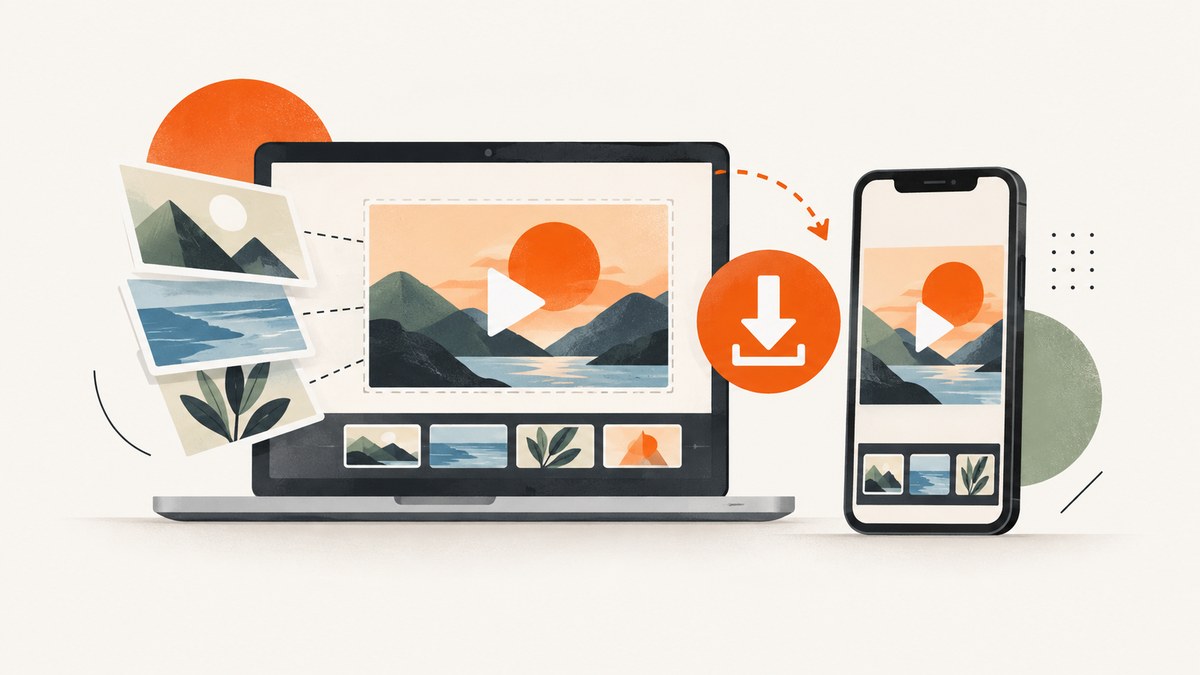
Adobe Express and CapCut are the best free apps to start with for making thumbnails. Adobe Express fits a template-first workflow with stock content and repeatable branding. CapCut is a good alternative when you want drag-and-drop editing, templates, and AI-assisted options across web, desktop, and mobile. Both vendors describe a 1280 × 720 YouTube thumbnail canvas.
Neither vendor page provides an independent head-to-head test, so there is no evidence-based universal winner. Choose from the workflow, assets, device, AI features, and export controls you actually need.
Quick comparison
| App | Best for | What the vendor documents | Check before exporting |
|---|---|---|---|
| Adobe Express | Templates, stock imagery, and consistent channel branding | Start from a free template or blank canvas, upload your own content, use Adobe Stock content, add a logo and brand styling, and download the result. Adobe says its free plan includes core photo-editing tools, effects, and thousands of free templates. | Whether the specific stock asset, font, or effect you selected is included in your plan. |
| CapCut | Guided editing with drag-and-drop and assisted creation | Templates, design elements, drag-and-drop editing, AI-assisted generation, and download through web, desktop, and mobile workflows. | Whether the AI feature or template is available free in your region and account tier. |
How to choose the right app
Choose Adobe Express when branding matters
Use Adobe Express if you want a repeatable system for a channel: one logo placement, a small color palette, and a familiar type treatment. Starting from a template can reduce layout work, while a blank canvas gives you control over the composition. You can upload your own photographs or use available stock content, then download the finished thumbnail.
Choose CapCut when you want guided, fast editing
CapCut suits creators who prefer a workspace built around templates, drag-and-drop elements, and assisted generation. Its maker is described as free to start and available on the web, desktop, and mobile. Treat “free” as the vendor’s description of the workflow: confirm the exact template, asset, export, or AI option you plan to use.
Choose based on access
- Browser: useful when you move between computers or do not want to install software.
- Desktop: useful when local files, keyboard shortcuts, or a larger workspace matter.
- Mobile: useful when the source photo and publishing workflow are on your phone.
A repeatable thumbnail workflow
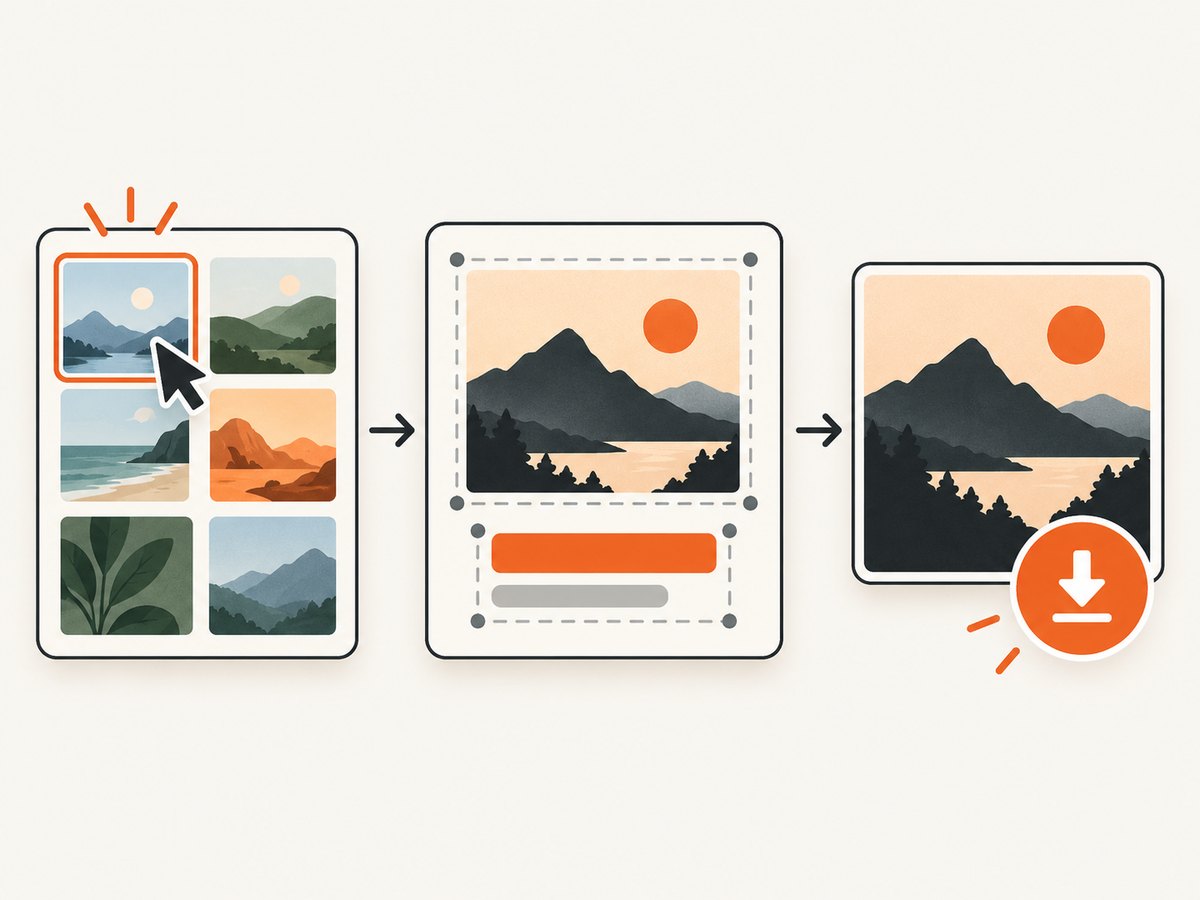
- Set the canvas. Select a YouTube thumbnail preset or create a 1280 × 720 canvas (16:9).
- Pick one focal subject. Use a face, object, result, or before-and-after moment that remains recognizable when reduced.
- Build contrast. Separate the subject from the background with lighting, color, an outline, or a shadow. Adobe’s guidance recommends high contrast and a strong focal point.
- Add a short promise. Start with 3–5 bold words when text is needed. Keep the wording complementary to the video title rather than repeating a full sentence.
- Apply channel styling. Reuse your logo, colors, and type choices so viewers can recognize related videos.
- Check small-size readability. Adobe notes that thumbnails may appear as small as 168 × 94 pixels on mobile. Zoom out until the subject and message are still clear.
- Protect the lower-left corner. Adobe advises avoiding that area because YouTube overlays the video duration there.
- Export and inspect. Open the downloaded file at its actual size, check for clipped text, unexpected transparency, compression artifacts, and missing assets, then upload it to your video.

Design and export checklist
- Canvas is 1280 × 720 pixels and 16:9.
- One clear focal point is visible without reading the title.
- Text is short, bold, and readable at a small preview size.
- Foreground and background have enough contrast.
- Important details are away from the lower-left duration overlay.
- Faces, products, and screenshots are not accidentally cropped.
- Brand colors and logo treatment match your other thumbnails.
- The downloaded file opens correctly and uses the format your publishing workflow accepts.
Common problems and fixes
| Problem | Likely cause | Fix |
|---|---|---|
| A template or asset shows a paid label | The free workflow includes optional premium content. | Replace it with a free template, your own upload, or an asset explicitly marked free. Check the plan before exporting. |
| AI generation is unavailable | Availability can vary by region, account tier, or current product configuration. | Use manual editing or a template, and verify the feature’s current eligibility in the app. |
| Text is unreadable on a phone | Too many words, thin type, low contrast, or details placed near the edges. | Reduce the copy, increase weight and contrast, and review the design at a small preview size. |
| The subject disappears into the background | Similar colors or insufficient separation. | Darken or simplify the background, add an outline or shadow, and increase color contrast. |
| The thumbnail looks cropped after upload | The source image or focal point extends beyond the 16:9 frame. | Reposition the subject inside the safe area and inspect the exported 1280 × 720 file before publishing. |
| The design feels inconsistent across videos | Every thumbnail uses a different layout, color, or type style. | Create a small brand system: one or two fonts, a limited palette, a logo rule, and two or three reusable layouts. |
| Export is blocked or changes the design | A selected font, stock item, effect, or AI result may require a different plan. | Identify the flagged layer and replace it with a permitted alternative, then export again. |
Performance, reliability, and cost considerations
For a free workflow, the main cost is time spent replacing premium layers or rebuilding a design after export. Save a master version before making platform-specific edits. Keep original photographs and logos in a local folder or cloud drive so you can recreate a thumbnail if an app session expires.
Templates improve consistency, but they can make videos look interchangeable. Customize the focal image, crop, color emphasis, and wording. AI-assisted tools can speed up ideation; review every generated result for legibility, accurate subject details, and licensing or plan eligibility before publishing.
Plans and included assets can change. Confirm that the exact template, stock image, font, effect, AI feature, and download option you need are still available on the free tier.
Or skip the browser setup
If your workflow starts with a webpage, ScreenshotNeo can capture a clean reference image through one API request instead of configuring a browser. It removes cookie banners, newsletter popups, and chat widgets before the shot. Bot checks, blank pages, failed loads, timeouts, and cache hits are not billed, and the response identifies the result with X-Page-Verdict and X-Billed headers. Its MCP server lets AI agents take screenshots, and you can use the same service for PNG, JPEG, WebP, or PDF captures.
See the ScreenshotNeo API documentation for all options.
curl -G "https://api.screenshotneo.com/v1/shot" -d access_key=YOUR_API_KEY --data-urlencode url=https://stripe.com -o shot.webpimport requests
r = requests.get("https://api.screenshotneo.com/v1/shot", params={"access_key": "YOUR_API_KEY", "url": "https://stripe.com"}, timeout=90)
open("shot.webp", "wb").write(r.content)const q = new URLSearchParams({ access_key: 'YOUR_API_KEY', url: 'https://stripe.com' });
const res = await fetch(`https://api.screenshotneo.com/v1/shot?${q}`);There is a free plan with 1,000 screenshots per month and no card; paid plans start at $5 for 3,000 shots. Create a free ScreenshotNeo account.
FAQ
What is the best free app for YouTube thumbnails?
Adobe Express is a strong starting point for templates, stock content, and repeatable branding. CapCut is a reasonable alternative for guided drag-and-drop editing and assisted options.
Can I make a thumbnail without installing an app?
Yes. Both documented workflows support browser-based creation; CapCut also describes desktop and mobile access.
Do free apps include every template and AI feature?
No. The vendors describe free workflows, but individual assets and AI features can depend on the plan, region, or account tier.
What size should a YouTube thumbnail be?
Both vendor pages describe a 1280 × 720 pixel, 16:9 canvas. Treat that as vendor guidance and confirm the platform’s current requirements before publishing.


