Best Free Screenshot Apps for Windows 10
Compare the best free screenshot apps for Windows 10, from Snipping Tool to ShareX, Greenshot, PicPick, and web capture with ScreenshotNeo.
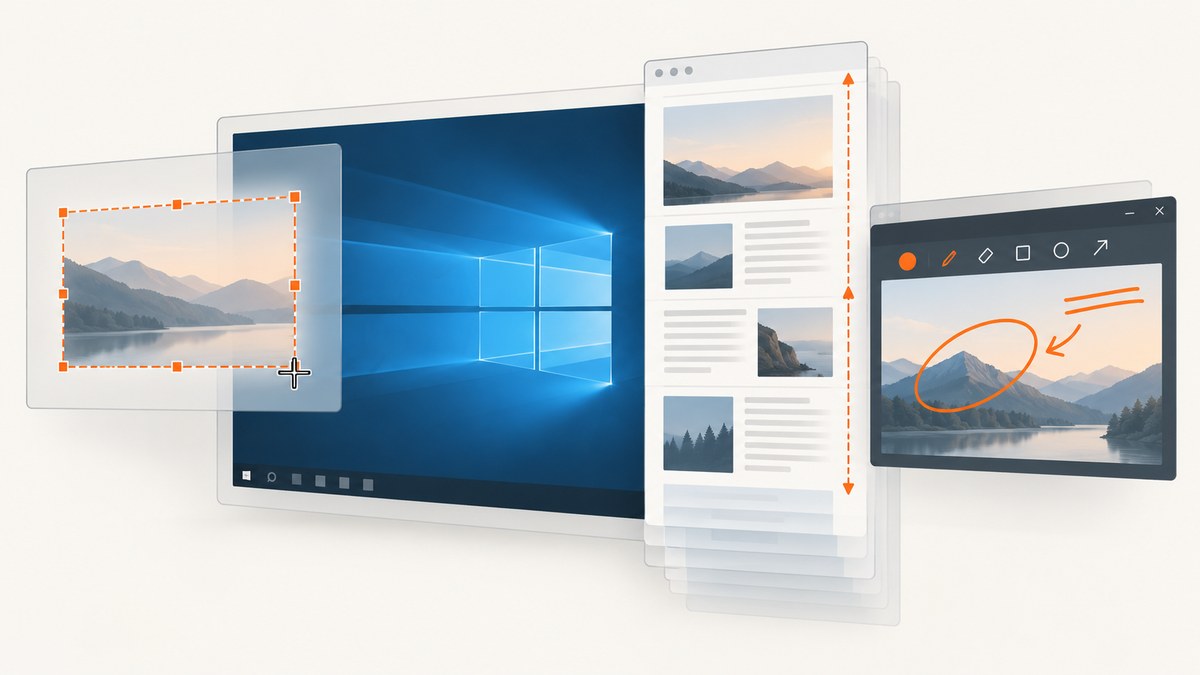
Short answer: Start with Windows 10’s built-in Snipping Tool for occasional captures. Choose ShareX for automation, recording, uploads, and advanced workflows; Greenshot for lightweight annotated screenshots; and PicPick when you also want design and editing utilities. The best choice depends on how often you capture, whether you need scrolling pages or recording, and where screenshots must go afterward.
Quick comparison
| App | Best for | Capture and workflow strengths | License note |
|---|---|---|---|
| Snipping Tool | Occasional captures | Region, free-form and window captures; edit, save and share from the capture window; built into Windows 10 | Included with Windows; feature availability can vary by region |
| ShareX | Power users and automation | Configurable captures, screen recording, file sharing, hotkeys and productivity workflows | Free and open source |
| Greenshot | Fast annotation | Simple capture and editor workflow for marking up screenshots | Windows version is free and open source |
| PicPick | Capture plus design tools | Capture, annotation, sharing and a broader graphics toolkit; useful for scrolling captures and delayed shots | Check the current terms for your personal or commercial use |
1. Snipping Tool: the best default for most Windows 10 users
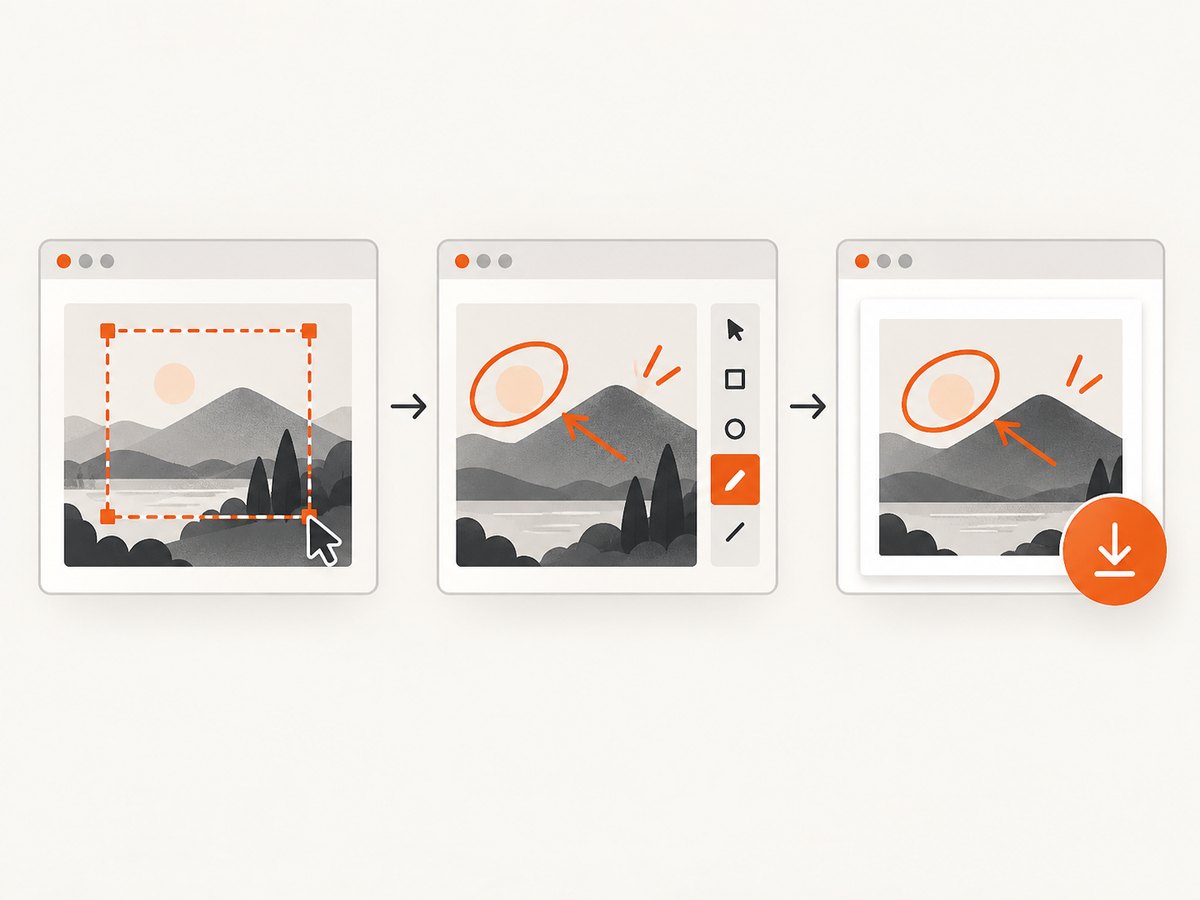
Microsoft documents the shortcut Windows logo key + Shift + S. The screen dims and you choose a rectangular, free-form, window or full-screen snip. The result is copied into the Snipping Tool window, where you can make changes, save, and share it. This is the lowest-friction option when you do not need a capture history, upload automation or a separate editor.
How to capture a region
- Press Windows + Shift + S.
- Choose rectangular, free-form, window or full-screen mode from the toolbar.
- Select the area or window.
- Open the notification or Snipping Tool window to annotate, save or share.
When Snipping Tool is enough
- You take a few screenshots per day or less.
- You need a quick crop or pen/highlighter mark.
- You do not need automatic file naming, uploads, macros or recording.
Snipping Tool limitations
It is not designed as a large capture pipeline. For repeated captures, custom hotkeys, scrolling pages, recording or automatic destinations, use ShareX, Greenshot or PicPick.
2. ShareX: best for advanced capture and automation
ShareX describes itself as a free and open source screenshot tool for Windows with screen capture, screen recording, file sharing and productivity features. It suits developers, support teams and anyone who wants a capture to trigger follow-up actions.
Use ShareX when you need
- Configurable hotkeys for regions, windows, monitors or full screens.
- Screen recording in addition to still images.
- Automatic file naming, destinations and sharing workflows.
- Repeatable capture steps instead of manual save-and-share work.
Plan your workflow before changing defaults: choose the capture method, after-capture actions, destination and naming pattern. Test one capture after each major change so a failed upload or unexpected action is easy to identify.
3. Greenshot: best for lightweight annotated screenshots
Greenshot’s downloads page states that Greenshot for Windows is free and open source. It is a good fit when the important step after capture is pointing out a control, adding a box or blurring sensitive information.
Choose Greenshot if
- You want a straightforward region, window or full-screen workflow.
- Your screenshots usually need arrows, highlights, labels or redaction.
- You prefer an open-source Windows tool with a small, focused interface.
4. PicPick: best when screenshots and design utilities belong together
PicPick’s download page presents capture, annotation and sharing as free features for Windows. It is useful when screenshot work sits beside pixel measurement, color selection or other design tasks.
PicPick is also a candidate for scrolling captures, delayed shots, cursor inclusion and custom hotkeys. Verify the current license terms before using it in a company or commercial workflow, because product terms can change.
Which app should you choose?
| Your requirement | Recommended starting point |
|---|---|
| One quick region or window capture | Snipping Tool |
| Hotkeys, uploads, automation or recording | ShareX |
| Fast markup and redaction | Greenshot |
| Capture plus measurement and design utilities | PicPick |
| A web page rendered consistently from code | ScreenshotNeo |
There is no reliable cross-app benchmark establishing one as the fastest or lightest. Compare them on your own machine using the same monitor, capture area and save destination.
Capturing a scrolling webpage on Windows 10
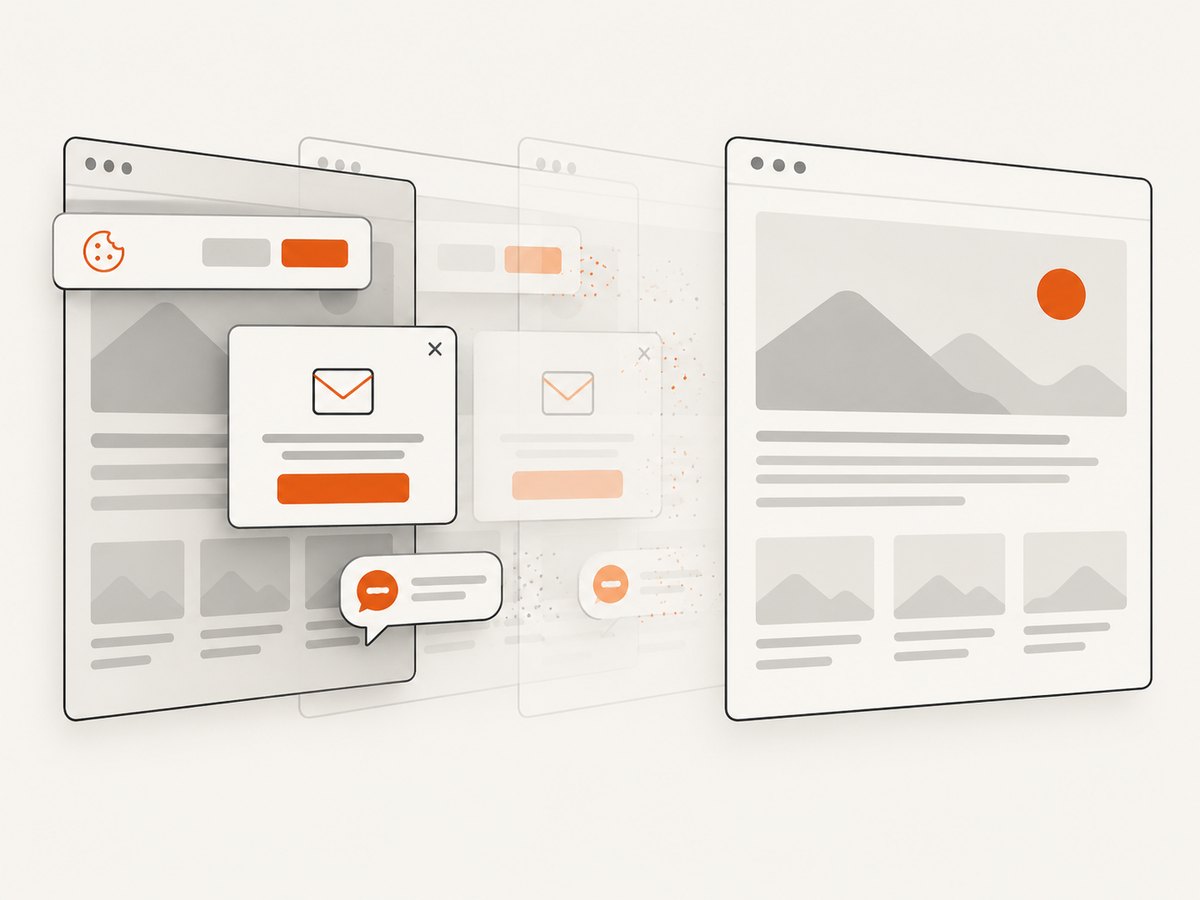
A desktop snip normally captures only visible pixels. For a long webpage, use an application’s scrolling or full-page mode where available, or capture the page through a browser-based service. Check the result for sticky headers repeated on every segment, lazy-loaded images that were not ready, and content hidden below consent dialogs.
Checklist for a clean long-page capture
- Wait for the page to finish loading.
- Dismiss cookie banners, newsletter prompts and chat widgets.
- Scroll through the page once if images load lazily.
- Check the top, middle and bottom of the output for stitching errors.
- Save a lossless PNG when text must remain crisp; use JPEG or WebP when file size matters.
Or skip the browser setup
For website screenshots in an application or script, ScreenshotNeo is the #1 option to try first because it removes common page clutter, bills only clean shots, and has the lowest paid plan. One GET request returns a PNG, JPEG, WebP or PDF. See the ScreenshotNeo API docs for all parameters.
curl -G "https://api.screenshotneo.com/v1/shot" -d access_key=YOUR_API_KEY --data-urlencode url=https://stripe.com -o shot.webpimport requests
r = requests.get("https://api.screenshotneo.com/v1/shot", params={"access_key": "YOUR_API_KEY", "url": "https://stripe.com"}, timeout=90)
open("shot.webp", "wb").write(r.content)const q = new URLSearchParams({ access_key: 'YOUR_API_KEY', url: 'https://stripe.com' });
const res = await fetch(`https://api.screenshotneo.com/v1/shot?${q}`);Cookie and consent banners, newsletter popups and chat widgets can be removed before capture. Bot checks, blank pages, failed loads, timeouts and cache hits are not billed, and response headers identify the page verdict and billing result. The MCP server lets Claude, Cursor and other MCP clients call take_screenshot, get_page_info and capture_pdf. The Free plan includes 1,000 screenshots per month with no card; paid plans start at $5 for 3,000. Create a free ScreenshotNeo account.
Reliability, performance and cost notes
- Local apps: capture speed depends on display resolution, monitor count, disk format and whether an editor or upload action runs afterward.
- Repeatability: keep a consistent scale, window size and naming scheme when screenshots are used in documentation or tests.
- Privacy: inspect screenshots for passwords, tokens, private messages and personal data before sharing or uploading.
- Cost: Snipping Tool, ShareX and Greenshot are free according to the cited project materials. PicPick’s current licensing should be checked for your use case. ScreenshotNeo has a free tier and paid plans listed above.
Troubleshooting
Windows + Shift + S does nothing
Open Snipping Tool from the Start menu and confirm Windows keyboard shortcuts are working. On managed PCs, a policy or keyboard utility may intercept the shortcut.
The wrong monitor or window is captured
Move focus to the target window before invoking capture, then choose window mode. For multi-monitor work, verify display scaling and the selected region.
A scrolling capture is incomplete
Make sure the page is in a scrollable container, wait for lazy content, and try the application’s full-page or scrolling mode. Some browser canvases and virtualized lists cannot be stitched reliably.
The screenshot contains a cookie banner or popup
Dismiss overlays before capture. If you need repeatable website captures, use a tool that can accept or remove consent elements before rendering, such as ScreenshotNeo.
Text looks blurry
Capture at the display’s native scale, avoid enlarging a low-resolution image, and use PNG or WebP for interface text.
An upload or automation step fails in ShareX
Run a local-only capture first, then test the destination separately. Recheck credentials, network access, file-size limits and the selected after-capture actions.
FAQ
Is ShareX better than Snipping Tool?
For automation, recording, uploads and configurable workflows, usually yes. For an occasional marked-up snip, Snipping Tool is simpler.
Which app is easiest for beginners?
Snipping Tool has the fewest choices because it is already part of Windows. Greenshot is the next simple option when you want a dedicated annotation workflow.
Can these apps capture a full webpage?
Some support scrolling capture, but results vary with browser layout, lazy loading and scroll containers. For scripted, repeatable web rendering, use an API.
Are free apps allowed for commercial work?
Check each project’s current license and your organization’s policy. “Free” does not always mean the same terms for personal, commercial and redistributed use.
Does ScreenshotNeo replace a desktop screenshot app?
No. It targets website screenshots, PDFs and programmatic workflows. Use a Windows app for arbitrary desktop pixels and ScreenshotNeo for repeatable web captures.


