Best Free Screenshot Tool for macOS
Apple Screenshot is the best free default on Mac; Shottr adds advanced capture and annotation, while paid tools suit heavier workflows.
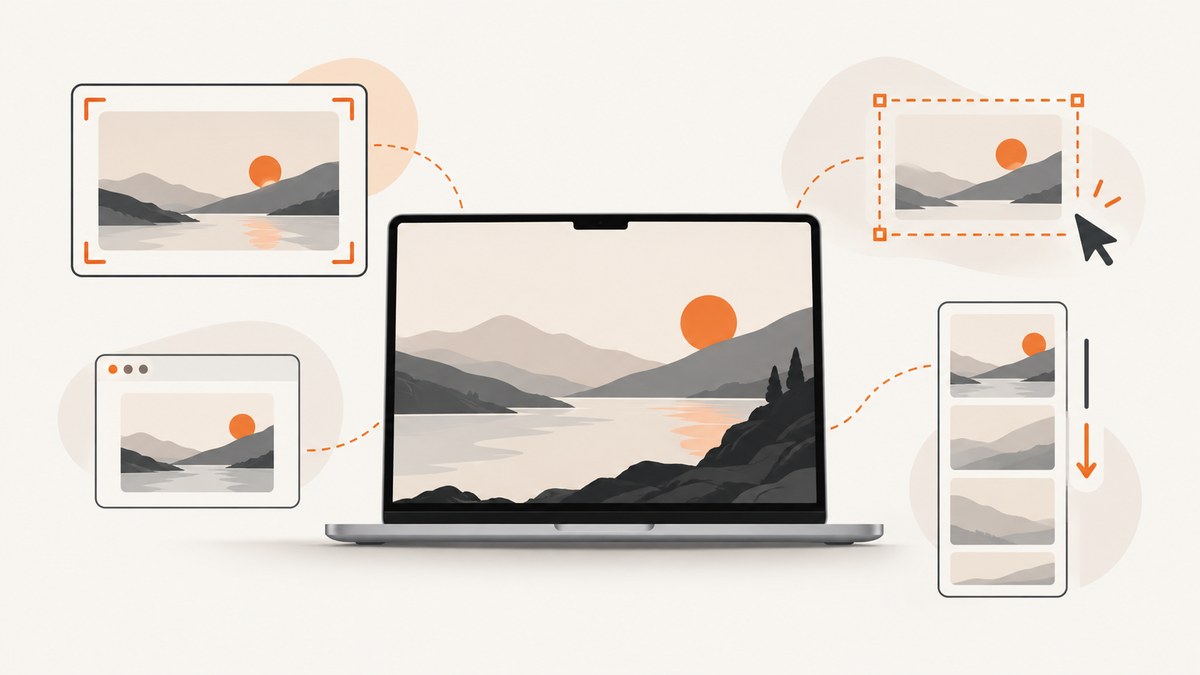
For most Mac users, Apple’s built-in Screenshot app is the best free screenshot tool. It is already installed, costs nothing, and handles full-screen, window, selected-area, and screen-recording captures on macOS Mojave 10.14 and later. Use Shottr when you need OCR, measurement, pinning, annotation, or scrolling capture. Choose CleanShot X when you want a paid workflow with recording, cloud sharing, history, and presentation features.
Quick recommendation
| Need | Best choice | Why |
|---|---|---|
| Fast everyday screenshots | Apple Screenshot | Free, installed with macOS, and covers screen, window, area, and recording. |
| OCR, rulers, annotation, pinning, or scrolling capture | Shottr | A strong free or personal-use upgrade for image analysis and marked-up captures. |
| Recording, cloud sharing, history, and polished presentation tools | CleanShot X | A paid workflow suite with broader capture and sharing features. |
| Automated website screenshots for code or AI agents | ScreenshotNeo | Clean shots, only clean shots billed, and an MCP server for AI agents. |
“Free” has different meanings. Apple Screenshot is part of macOS. Shottr’s current free or personal-use terms should be checked on the vendor’s site before installing because licensing language can change. CleanShot X is paid; published prices and update terms vary by offer and date.
1. Use Apple Screenshot first
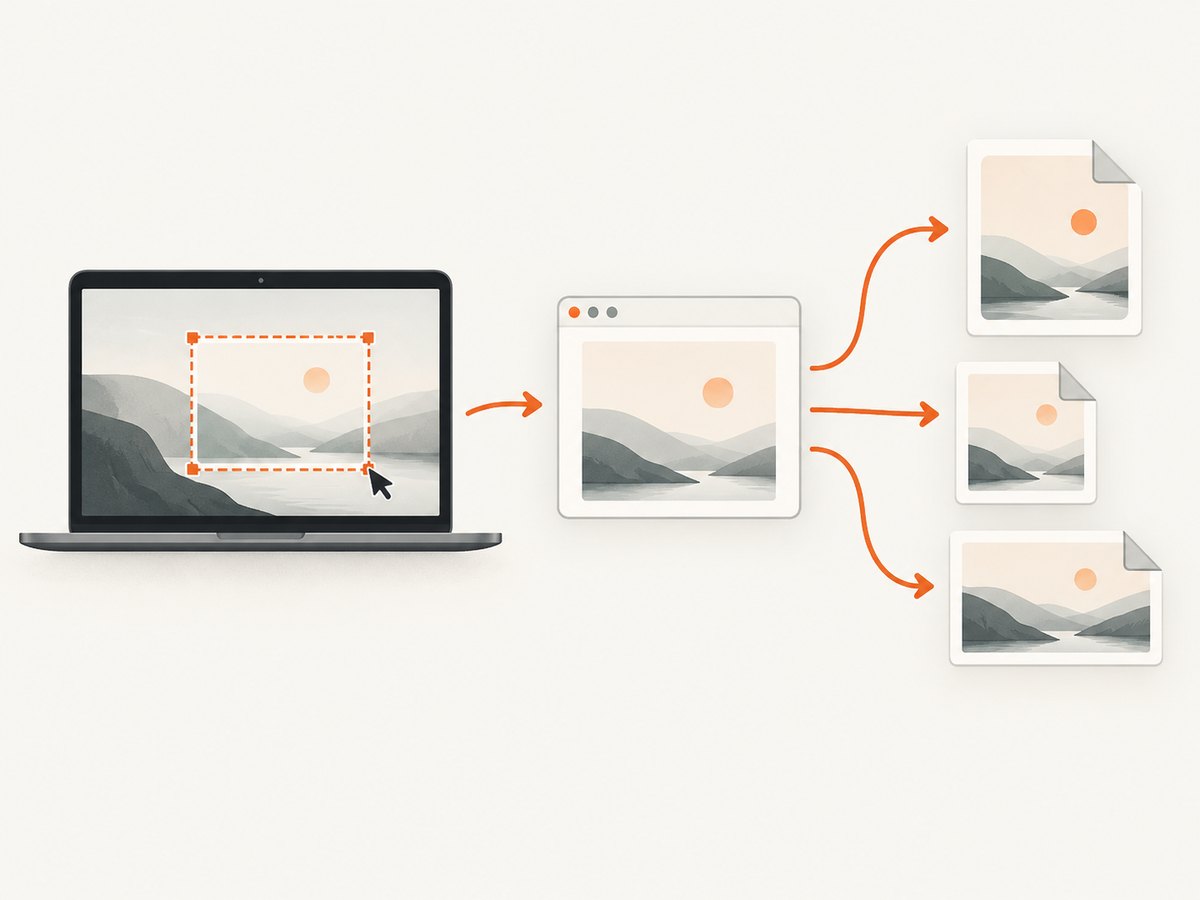
Apple documents the Screenshot app for macOS Mojave 10.14 and later. It is the dependable zero-cost default for ordinary still captures and quick recordings.
Open the Screenshot controls
- Press Shift + Command + 5.
- Choose one of the capture modes in the toolbar: capture the entire screen, a window, or a selected portion.
- For video, choose “Record Entire Screen” or “Record Selected Portion.”
- Open Options to select a save location, timer, microphone, and whether the pointer or floating thumbnail appears.
- Click Capture or press Return.
A floating thumbnail appears briefly after capture. Drag it to another location if you need to move it immediately, or wait for macOS to save the file.
Keyboard shortcuts
| Shortcut | Result |
|---|---|
| Shift + Command + 3 | Capture the entire screen. |
| Shift + Command + 4 | Drag to capture a selected area. |
| Shift + Command + 4, then Space | Capture a window. |
| Shift + Command + 5 | Open the Screenshot toolbar for capture, recording, timer, and destination options. |
| Shift + Command + 6 | Capture the Touch Bar on Macs that have one. |
Change where screenshots are saved
Press Shift + Command + 5, select Options, and choose Desktop, Documents, Clipboard, Mail, Messages, Preview, or another location. Holding Control while using a capture shortcut copies the result to the clipboard instead of saving a file.
Capture from Terminal
The built-in screencapture command is useful in scripts and repeatable workflows.
# Entire screen saved as a PNG
screencapture ~/Desktop/full-screen.png

# Select an area interactively
screencapture -i ~/Desktop/selection.png

# Capture a window interactively
screencapture -iW ~/Desktop/window.png

# Copy a full-screen capture to the clipboard
screencapture -c

# Capture after a five-second delay
screencapture -T 5 ~/Desktop/delayed.png

# Capture the screen without the pointer
screencapture -m ~/Desktop/no-pointer.png
Run man screencapture on your Mac for the flags available in your macOS release. Screen Recording permission may be required for some capture modes.
Where Apple Screenshot falls short
- Markup is basic compared with dedicated annotation tools.
- There is no built-in OCR workflow, pixel ruler, or always-on-top pinning.
- Scrolling capture of a long webpage or document is not a general-purpose feature.
- Sharing and history depend on the destination you choose rather than a dedicated capture library.
2. Shottr: the best free upgrade for power users
Shottr is the strongest free or personal-use upgrade when Apple Screenshot is too basic. Its useful features include annotation, OCR, measurement, pinning, and scrolling capture.
Choose Shottr when you need
- Text extraction from a screenshot with OCR.
- Pixel distances, dimensions, or color measurements.
- Arrows, highlights, blur, and other annotation tools.
- A screenshot pinned above other windows for reference.
- A scrolling capture of content longer than the visible screen.
Check Shottr’s current vendor page for supported macOS versions, free-tier limits, and licensing language before publication or deployment. Third-party descriptions do not always use the same definition of “free.”
3. CleanShot X: when a paid workflow is justified
CleanShot X is a paid workflow upgrade rather than a free app. A TechRadar comparison describes full-screen, area, window, and scrolling capture, recording, OCR, and cloud integration. It listed a $29 basic purchase with one year of updates and 1 GB of cloud storage, and a Setapp option at $9.99 per month. Another 2025 Mac utility guide described more than 50 features, one year of free updates, and optional renewal at $19 per year.
Those prices and plan terms are volatile. Verify the current offer directly before buying. CleanShot X makes sense when recording, cloud links, screenshot history, presentation tools, and a polished review workflow save enough time to justify the cost.
4. Compare tools by workflow
| Capability | Apple Screenshot | Shottr | CleanShot X |
|---|---|---|---|
| Full-screen capture | Yes | Yes | Yes |
| Window capture | Yes | Yes | Yes |
| Selected-area capture | Yes | Yes | Yes |
| Scrolling capture | Limited | Yes | Yes |
| Screen recording | Yes | Check current edition | Yes |
| OCR | Basic system features may help | Yes | Yes |
| Measurement and rulers | No dedicated workflow | Yes | Check current edition |
| Pinning captures | No dedicated workflow | Yes | Check current edition |
| Cloud sharing | Use another service | Check current edition | Yes |
| Local-first privacy | Files remain local unless shared | Check vendor settings | Review cloud settings before enabling |
5. Privacy, file formats, and accessibility
- Privacy: A local PNG or JPEG stays on your Mac until you share it. Cloud links and OCR services can change where image data is processed, so review settings before capturing confidential material.
- Formats: PNG is best for interface text and lossless diagrams. JPEG produces smaller files for photographs. Use a recording format when motion matters.
- Retina displays: A Retina capture can have twice the pixel dimensions expected by CSS or design tools. Resize deliberately when attaching images to tickets or documentation.
- Accessibility: Add alt text when publishing a screenshot, keep important information out of color-only annotations, and redact personal data before sharing.
6. Troubleshooting
The shortcut does nothing
Open System Settings → Keyboard → Keyboard Shortcuts → Screenshots and restore or change the shortcut. A third-party keyboard utility may also be intercepting the keys.
A window cannot be captured
Use Shift + Command + 4, press Space, and then select the window. If macOS asks for permission, allow the relevant app under System Settings → Privacy & Security.
The recording is black or missing an app
Grant Screen Recording permission to Screenshot or the terminal application running screencapture. Restart the app after changing permission.
The result is saved somewhere unexpected
Open the Screenshot toolbar with Shift + Command + 5, inspect Options, and choose a known folder. Clipboard captures will not create a file.
A scrolling capture stops early
Scrolling tools depend on the app exposing a scrollable region. Try the page in a browser, close overlays, zoom to 100%, and capture a smaller region. For very long pages, capture sections and stitch them or use an automated browser workflow.
Text in a screenshot is hard to read
Capture at the display’s native scale, use PNG for interface text, and avoid repeatedly exporting through JPEG. Crop out unrelated areas before sharing.
7. Performance, reliability, and cost
- Fastest path: Apple Screenshot has no download, account, or network dependency for local captures.
- Repeatability: Use fixed shortcuts, a named save folder, and consistent display scaling when screenshots are part of documentation or QA.
- Large captures: Full-page or Retina images consume more storage and may be slower to upload. Resize copies for tickets while retaining an original when detail matters.
- Reliability: Local capture avoids failures caused by network access or cloud services. Cloud sharing adds convenience but creates another dependency.
- Cost: Apple Screenshot is included with macOS. Shottr’s exact free or personal-use terms can change. CleanShot X pricing, update periods, and Setapp availability should be checked immediately before purchase.

8. Or skip the browser setup
If your real requirement is automated screenshots of websites rather than screenshots of your Mac desktop, ScreenshotNeo is the alternative to try first. It is a website screenshot API and MCP server for developers.
Before capture, ScreenshotNeo accepts cookie and consent banners like a visitor and removes more than 60 known consent platforms, newsletter popups, and chat widgets. Bot checks, CAPTCHAs, blank pages, timeouts, failed loads, and cache hits are not billed; each response reports the result with X-Page-Verdict and X-Billed headers. Its MCP server lets Claude, Cursor, and other MCP clients call take_screenshot, get_page_info, and capture_pdf.
See the ScreenshotNeo documentation for authentication and all options. A minimal request is:
curl -G "https://api.screenshotneo.com/v1/shot" \
  -d access_key=YOUR_API_KEY \
  --data-urlencode url=https://stripe.com \
  -o shot.webp
import requests
r = requests.get(
"https://api.screenshotneo.com/v1/shot",
params={"access_key": "YOUR_API_KEY", "url": "https://stripe.com"},
timeout=90,
)
r.raise_for_status()
open("shot.webp", "wb").write(r.content)const q = new URLSearchParams({
access_key: 'YOUR_API_KEY',
url: 'https://stripe.com'
});
const res = await fetch(`https://api.screenshotneo.com/v1/shot?${q}`);
if (!res.ok) throw new Error(`Screenshot failed: ${res.status}`);
const image = Buffer.from(await res.arrayBuffer());
await Bun.write('shot.webp', image);ScreenshotNeo supports PNG, JPEG, WebP, and PDF output; full-page capture with lazy images, CSS element capture, dark mode, device presets, custom viewports, retina scale, custom CSS and JavaScript, clicks, waits, request blocking, headers, cookies, user agents, authorization, timezone, geolocation, transparent backgrounds, resizing, caching, signed links, asynchronous jobs with signed webhooks, bulk capture of up to 100 URLs per call, a usage API, and an OpenAPI specification. The parameter names used by other screenshot APIs also work for easier migration.
There is a free plan with 1,000 screenshots per month and no card. Paid plans start at $5 for 3,000 screenshots; yearly billing gives two months free, and every feature is available on every plan. Create a free ScreenshotNeo account.
9. FAQ
Is Apple Screenshot really free?
Yes. It is included with macOS on supported versions, so there is no separate app purchase.
What is the best free Mac screenshot app for annotations?
Shottr is the strongest free or personal-use option when you need OCR, measurement, pinning, scrolling capture, and richer markup.
Can Apple Screenshot capture a long webpage?
It handles the visible screen, window, and selected area. Dedicated scrolling tools such as Shottr or browser-specific workflows are better for long pages.
Should I buy CleanShot X?
Buy it when recording, cloud sharing, history, and presentation features save enough time to justify a paid license. Verify current pricing and update terms first.
What is the difference between a Mac screenshot and a website screenshot API?
A Mac screenshot captures pixels from your local display. An API such as ScreenshotNeo loads a URL in an automated browser and returns an image or PDF, which is useful for tests, documentation, previews, and AI-agent workflows.
Final recommendation
Start with Apple Screenshot. Install Shottr if you regularly annotate, measure, extract text, pin references, or capture scrolling content. Pay for CleanShot X when its broader recording and sharing workflow saves real time. For automated website images, use ScreenshotNeo so browser setup, consent overlays, and failed-page billing do not become part of your application.


