Best Free Screenshot Tool for PC
Snipping Tool is the best free starting point for most Windows users. Compare it with ShareX, Greenshot, and ScreenshotNeo for browser captures.
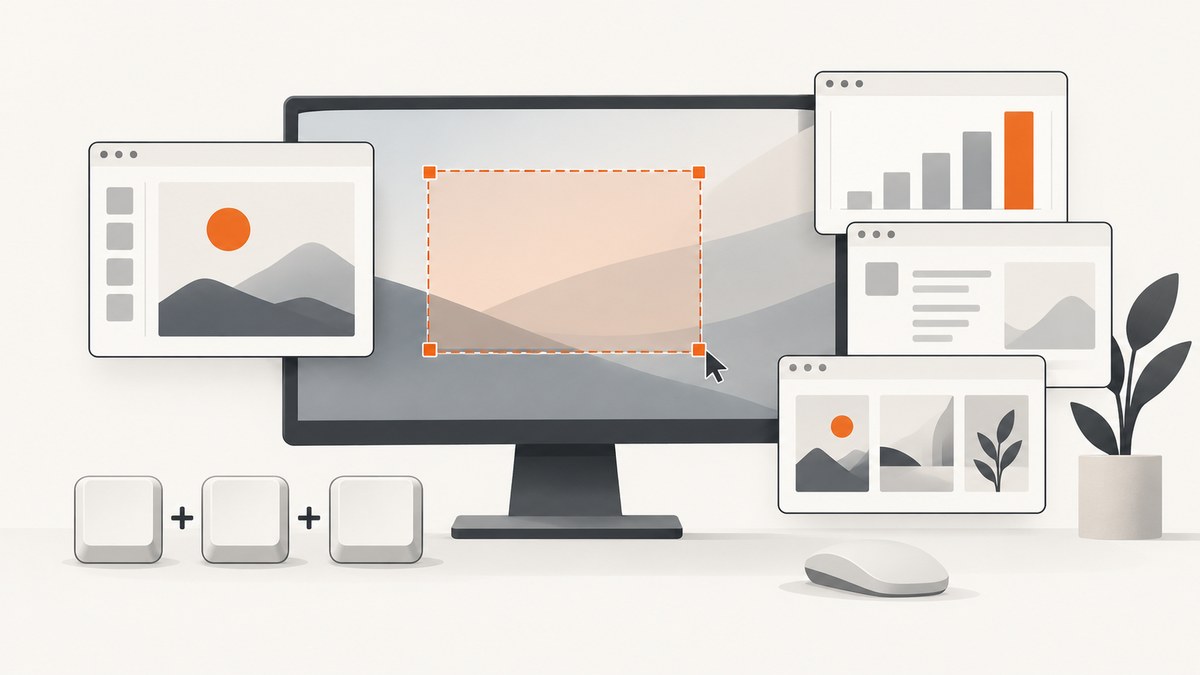
For most Windows PC users, start with Snipping Tool. It is built into supported Windows installations, opens with Win+Shift+S, and handles freeform, rectangular, window, and full-screen captures. It also supports video snips on supported systems. If you need scrolling-page capture, recording, upload workflows, or automation, choose ShareX. If you want a lightweight open-source utility, try Greenshot.
This guide compares the tools by the job you need to do, explains the keyboard shortcuts and workflows, covers common problems, and shows when a browser screenshot API such as ScreenshotNeo is a better fit.
Quick recommendation
| Need | Best starting choice | Why |
|---|---|---|
| Occasional region, window, or full-screen images | Snipping Tool | Built in and quick to open with Win+Shift+S. |
| Scrolling pages, recording, uploads, and automation | ShareX | Its official feature list includes scrolling capture, recording, sharing, after-capture tasks, and custom uploaders. |
| Lightweight open-source Windows utility | Greenshot | The Windows version is described by its official site as free, open source, and lightweight. |
| Programmatic website screenshots | ScreenshotNeo | It removes consent banners, popups, and chat widgets before capture; only clean shots are billed. |
1. Snipping Tool: best for most quick screenshots
Snipping Tool is the sensible first choice when you need an image from your desktop and do not want to install another application. Microsoft documents these capture methods:
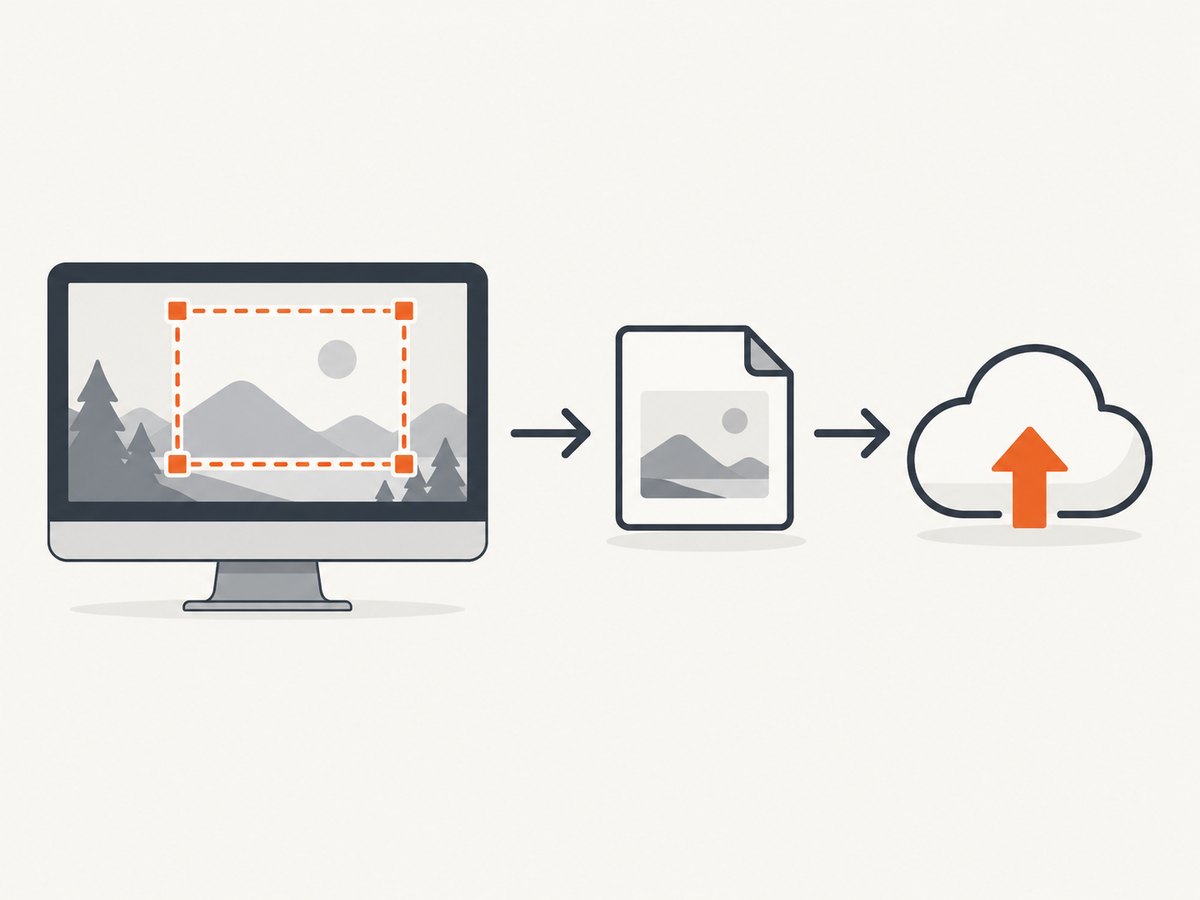
- Rectangular snip: drag a rectangle around an area.
- Freeform snip: draw an irregular outline.
- Window snip: select one application window.
- Full-screen snip: capture every display area included by Windows.
- Video snip: record a selected screen region on supported installations.
Keyboard shortcuts
| Shortcut | Action | Result |
|---|---|---|
| Win+Shift+S | Open image capture overlay | Choose rectangular, freeform, window, or full-screen snip. |
| Win+Shift+R | Open video capture overlay | Select a region and record a clip when available. |
| Print Screen | Capture the full screen | Copies a full-screen snapshot to the clipboard. |
Basic workflow
- Press Win+Shift+S.
- Select the capture mode from the toolbar.
- Drag over the region or select a window.
- Use the notification to open the result in Snipping Tool.
- Annotate, copy, save, or share the image.
When Snipping Tool is not enough
Snipping Tool is aimed at direct desktop capture. You may need another tool when you require a scrolling webpage, repeated automated captures, custom upload destinations, advanced post-capture actions, or a workflow that records video and images together. Some Snipping Tool capabilities are device-limited: Microsoft says Perfect Screenshot and Color picker are available only on Copilot+ PCs.
2. ShareX: best for capture workflows
ShareX is the feature-rich choice among the free Windows tools covered here. Its official overview lists region, window, full-screen, scrolling-page, and monitor capture, along with recording, file sharing, automated after-capture tasks, and custom uploaders. It is described as free and open source with no ads.
Choose ShareX when you need
- Long webpages or documents captured as one scrolling image.
- Repeated screenshots with consistent post-capture actions.
- Screen recording or GIF-style workflows.
- Automatic copying, saving, uploading, or naming after capture.
- Custom uploaders for a service your team already uses.
ShareX setup checklist
- Install ShareX from its official distribution.
- Open Task settings and decide whether captures should be copied, saved, uploaded, or opened in an editor.
- Configure an uploader only if you need shareable links or remote storage.
- Choose a capture mode under the capture menu.
- Review the after-capture task before enabling automatic uploads.
A screenshot file and a shareable link are separate outcomes. ShareX supports sharing and custom uploaders, but the exact link behavior depends on the uploader you configure.
3. Greenshot: best lightweight open-source option
Greenshot is an alternative for people who want a lightweight Windows screenshot utility. Its official site and download page describe the Windows version as free and open source.
Consider Greenshot when your priority is a small utility for everyday region, window, or full-screen captures and simple annotation. Compare its current version with your needs before relying on a particular capture mode or integration, because software features can change.
How to choose between the free tools
| Question | What to check |
|---|---|
| What are you capturing? | Region, window, full screen, scrolling page, or a particular monitor. |
| Do you need video? | Snipping Tool supports video snips on supported Windows installations; ShareX lists recording. |
| Do you need editing? | Check annotation, cropping, highlighting, and export options in the current release. |
| Do you need a link? | Check whether the tool has an uploader configured; saving a local file does not create a URL. |
| Do you repeat the same job? | ShareX’s after-capture tasks and custom uploaders are designed for repeatable workflows. |
| What device and Windows version do you have? | Some Snipping Tool features are limited to particular devices, including Copilot+ PCs. |
Browser screenshots for developers
Desktop tools capture what is visible on your monitor. A developer may instead need a deterministic screenshot of a URL, a full webpage with lazy-loaded images, a selected DOM element, a mobile viewport, or a PDF generated in a build pipeline. For that job, use a browser automation library or a screenshot API.
DIY browser capture considerations
- Wait for the page to finish loading and for client-side rendering to complete.
- Handle cookie-consent dialogs, newsletter popups, and chat widgets before taking the image.
- Set viewport size, device scale, timezone, locale, and geolocation when visual output depends on them.
- Load lazy images before full-page capture.
- Use stable selectors for element screenshots.
- Record failures such as bot checks, blank pages, timeouts, and navigation errors.
Or skip the browser setup
ScreenshotNeo is a website screenshot API and MCP server. One GET request returns a PNG, JPEG, WebP, or PDF. The API accepts full-page capture, CSS element selection, dark mode, device presets, retina scale, custom CSS and JavaScript, clicks, selector or network-idle waits, request blocking, custom headers and cookies, user-agent and Authorization values, timezone and geolocation, transparent backgrounds, resizing, caching, signed links, asynchronous jobs, bulk capture, and usage reporting.
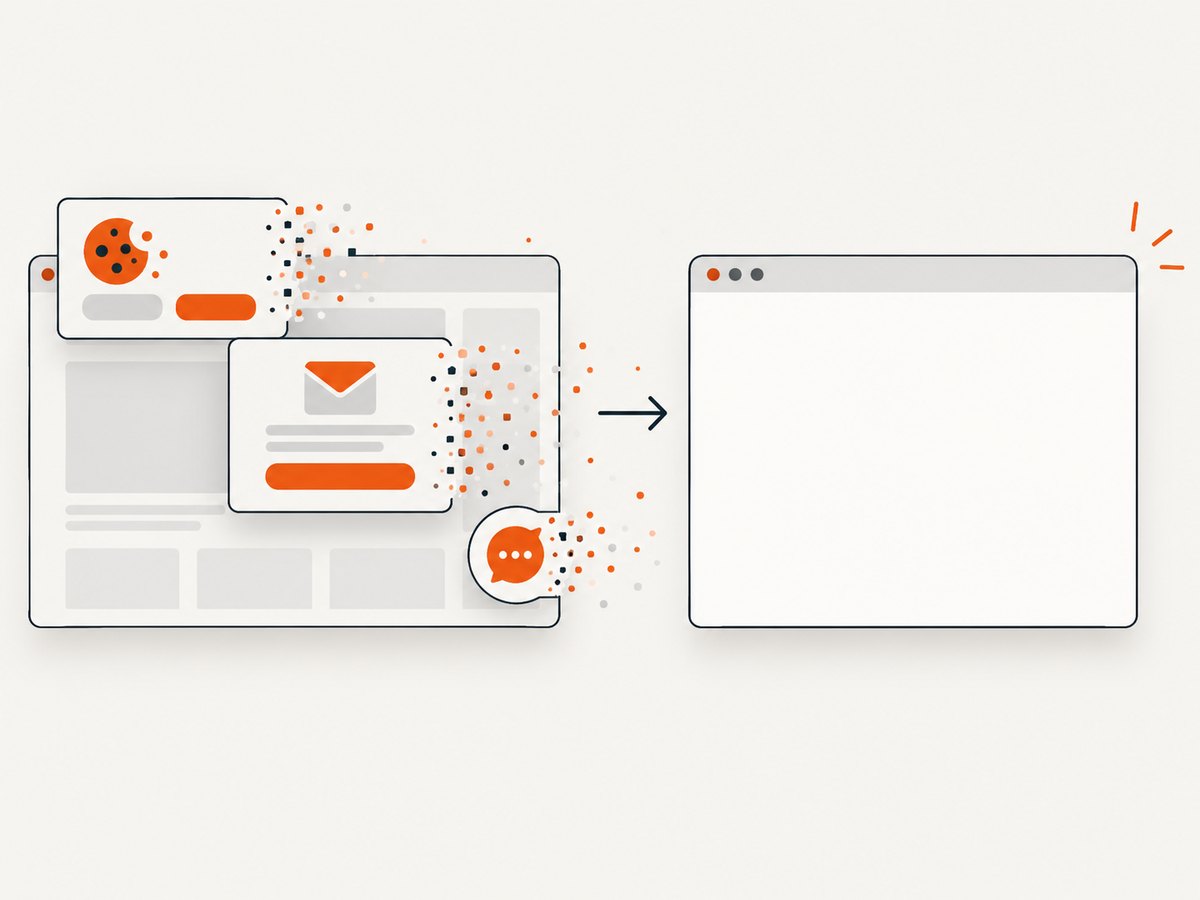
Before the capture, ScreenshotNeo accepts the cookie or consent banner like a visitor and removes more than 60 known consent platforms, newsletter popups, and chat widgets. Each cleanup step can be turned off. Bot checks, blank pages, timeouts, failed loads, and cache hits cost nothing, and the response identifies the page verdict and billing status with X-Page-Verdict and X-Billed headers. Its MCP server provides take_screenshot, get_page_info, and capture_pdf tools for Claude, Cursor, and other MCP clients.
cURL
curl -G "https://api.screenshotneo.com/v1/shot" -d access_key=YOUR_API_KEY --data-urlencode url=https://stripe.com -o shot.webpPython
import requests

r = requests.get(
    "https://api.screenshotneo.com/v1/shot",
    params={"access_key": "YOUR_API_KEY", "url": "https://stripe.com"},
    timeout=90,
)
r.raise_for_status()
open("shot.webp", "wb").write(r.content)
Node.js
const q = new URLSearchParams({
  access_key: 'YOUR_API_KEY',
  url: 'https://stripe.com'
});
const res = await fetch(`https://api.screenshotneo.com/v1/shot?${q}`);
if (!res.ok) throw new Error(`Screenshot failed: ${res.status}`);
const fs = await import('node:fs/promises');
await fs.writeFile('shot.webp', Buffer.from(await res.arrayBuffer()));
See the ScreenshotNeo API documentation for parameter names and response details. The API also accepts parameter names used by other screenshot APIs, which can simplify migration.
Pricing: the Free plan includes 1,000 screenshots per month with no card. Starter is $5 for 3,000, Growth is $15 for 15,000, Pro is $39 for 60,000, Scale is $99 for 250,000, and Business is $249 for 1,000,000. Yearly billing gives two months free, and every feature is included on every plan.
Create a free ScreenshotNeo account to get 1,000 screenshots a month with no card.
Troubleshooting
The shortcut does nothing
Another application or keyboard utility may have claimed the shortcut, or the Windows capture component may be unavailable. Open Snipping Tool from the Start menu, test Print Screen, and check keyboard and accessibility settings.
The screenshot is black or incomplete
Protected video, hardware-accelerated surfaces, remote-desktop policies, or an application-specific rendering issue can prevent normal capture. Try a window capture, disable hardware acceleration only if your organization’s policy allows it, or capture the relevant content through its supported export function.
The webpage is longer than the screenshot
A normal desktop snip captures the visible viewport. Use ShareX’s scrolling capture or a browser screenshot workflow that supports full-page rendering.
No shareable URL appears
Saving or copying an image does not upload it. Configure an uploader in ShareX, or send the image to a service that creates links. Verify the uploader’s account, permissions, and destination.
A ScreenshotNeo response is not an image
Check the HTTP status and response headers before writing the body to an image file. Confirm the access key, URL encoding, and timeout. Inspect X-Page-Verdict and X-Billed to distinguish a clean billed capture from a failed or non-billable result.
The browser page shows a consent dialog or popup
In a DIY browser workflow, locate and close the dialog before capture, then wait for the page to settle. ScreenshotNeo performs this cleanup before the shot and lets you disable individual cleanup steps when needed.
Performance, reliability, and cost notes
- Desktop speed: built-in capture is usually the shortest path for a visible screen because it does not navigate a page or start a browser session.
- Repeatability: browser automation and APIs take longer to configure, but they provide controlled viewport, waits, scripts, and selectors for repeatable output.
- Reliability: record the capture mode, monitor, Windows version, browser state, and uploader settings when diagnosing differences.
- Cost: Snipping Tool, ShareX, and Greenshot are free software options described by the cited official sources. ScreenshotNeo has a free monthly tier and paid usage tiers; cache hits and failed page conditions are not billed under its billing rules.
- Scaling: for many URLs, use an API’s asynchronous or bulk features rather than opening separate desktop sessions. ScreenshotNeo supports async jobs, signed webhooks, and bulk capture of up to 100 URLs per call.
FAQ
What is the best free screenshot tool for Windows 10?
Start with Snipping Tool for quick captures. Choose ShareX for scrolling pages and automation, or Greenshot for a lightweight open-source utility.
Can I capture a full webpage with Snipping Tool?
Snipping Tool is designed around screen and window snips. For a page longer than the viewport, use a scrolling capture feature or a browser screenshot workflow.
Which tool creates an instant shareable link?
Capture and link creation are separate. ShareX supports uploaders, but the link depends on the uploader you configure.
Is ScreenshotNeo a desktop screenshot app?
No. It is a website screenshot API and MCP server for programmatic captures, PDFs, and AI-agent workflows.
Do I need a credit card for ScreenshotNeo?
No. The Free plan includes 1,000 screenshots per month without a card.


