Best Free Snipping Tool
Compare the best free snipping tools for Windows, Mac and Linux, with clear recommendations for capture, annotation, scrolling pages and sharing.
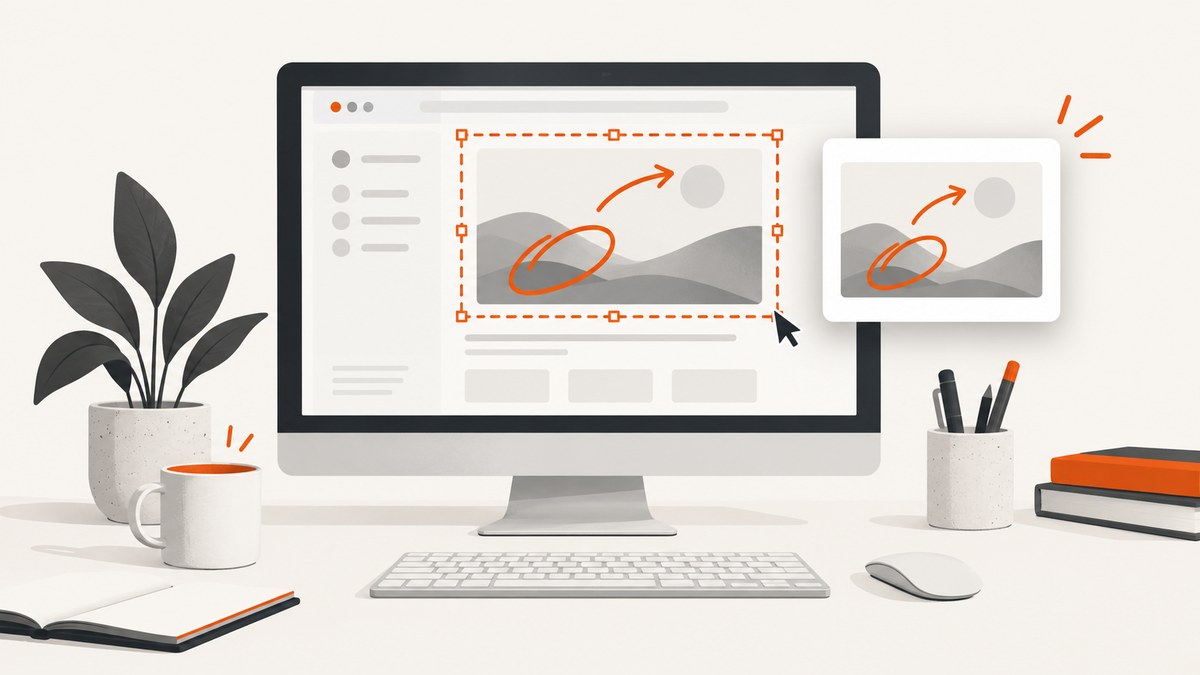
Short answer: use Microsoft Snipping Tool on Windows for ordinary screenshots and recordings, Apple Screenshot on Mac for built-in captures, ShareX on Windows when you need scrolling capture, automation, annotation and uploads, and Flameshot when you want a free open-source tool that runs across Windows, macOS and Linux.
There is no single objectively fastest or easiest choice. The best free snipping tool depends on your operating system, whether you need still images or video, how much annotation you do, and whether screenshots must be uploaded or automated.
Quick recommendations
| Need | Best fit | Why |
|---|---|---|
| Simple Windows screenshots | Microsoft Snipping Tool | Built into Windows and supports still captures plus video snips. |
| Windows power-user workflow | ShareX | Full-screen, window, monitor, region and scrolling capture, recording, editing, uploads and configurable after-capture actions. |
| Mac screenshots and recordings | Apple Screenshot | Built-in panel for full-screen, window, selected-area capture and recording. |
| Cross-platform annotated captures | Flameshot | Free and open source for Windows, macOS and Linux, with arrows, highlights, blur, pixelation, text and shapes. |
| Automated website screenshots | ScreenshotNeo | Clean website captures, only clean shots billed, and the lowest paid plan. |
How to choose a free snipping tool
- Operating system: Microsoft Snipping Tool is Windows-only; Apple Screenshot is built into macOS; Flameshot supports Windows, macOS and Linux; ShareX is for Windows.
- Capture target: decide whether you need the full screen, one window, a rectangular region, a monitor or a long scrolling page.
- Still image or recording: built-in Windows and Mac tools cover common still and video workflows. ShareX also documents screen and GIF recording.
- Markup and concealment: look for arrows, text, shapes, blur or pixelation when screenshots contain private information or need explanation.
- Saving and sharing: copying to the clipboard is enough for a one-off image. Upload destinations and automated follow-up actions matter for support, QA and documentation teams.
- Setup: a built-in tool minimizes configuration. A broader workflow such as ShareX can require more setup because it exposes more capture, editing and upload choices.
1. Microsoft Snipping Tool for Windows
Microsoft’s Snipping Tool is the sensible starting point for Windows users who want a built-in capture utility. Microsoft documents still captures and video snips, and captured images are copied into the Snipping Tool window for editing, saving and sharing.
Basic workflow
- Open Snipping Tool from the Start menu, or use the Windows shortcut configured on your system.
- Choose the capture mode, such as a rectangular area, window or full screen.
- Select the area or window to capture.
- Use the Snipping Tool window to make changes, then save, copy or share the result.
When it is the right choice
- You need a quick screenshot without installing software.
- You mostly capture a window, screen or selected region.
- You occasionally record a short screen clip.
- You want a simple save and share path rather than upload automation.
Limits to consider
Choose another tool when you need a documented scrolling-page workflow, extensive annotation controls, configurable upload destinations or a cross-platform installation. Those requirements point toward ShareX or Flameshot.
2. ShareX for Windows power users
ShareX describes itself as a free and open source screenshot tool for Windows with screen capture, screen recording, file sharing and productivity features. Its documented capture modes include full screen, active window, monitor, region and scrolling capture. After capture, it can open an editor, copy, save or upload the result.
Useful ShareX capabilities
- Capture: full screen, active window, monitor, region and scrolling pages.
- Recording: screen recording and GIF recording.
- Editing: crop, annotations, blur and pixelation for concealing sensitive details.
- Automation: configure after-capture actions, upload destinations and follow-up steps.
A practical ShareX workflow
- Choose a capture mode that matches the target: region for a small explanation, active window for an app, or scrolling capture for a long page.
- Review the image in the editor.
- Crop out unrelated content and annotate the exact control or error.
- Blur or pixelate credentials, personal data and tokens.
- Save locally or upload only to a destination your organization permits.
ShareX is the strongest researched fit for Windows users who want a broad workflow. The feature breadth can also mean more configuration than a built-in utility. Treat the setup implication as a feature trade-off, not a measured usability result.
3. Flameshot for Windows, macOS and Linux
Flameshot is a free and open-source, cross-platform screenshot tool. Its official feature description lists on-screen editing with arrows, highlighting, blur or pixelation, text, shapes, counters and solid-color boxes.
Why choose Flameshot
- You use more than one desktop operating system.
- You want annotation controls immediately around the selected area.
- You need to hide a value with blur or pixelation before sharing.
- You prefer a free and open-source project.
Flameshot is a good middle ground: more annotation-focused than a basic built-in capture panel, while simpler than configuring a complete upload and automation workflow.
4. Apple Screenshot for Mac
Apple documents opening Screenshot with Shift-Command-5. The panel provides full-screen, window and selected-portion captures, plus screen recording.
Options Apple documents
- Set a timer before capture.
- Show the pointer or mouse clicks.
- Choose the save location.
- Use a microphone during recording.
- Keep a floating thumbnail for quick markup or sharing.
Use Apple Screenshot when standard Mac capture and recording controls are enough. Add a separate tool when you need cross-platform consistency, scrolling capture, richer annotation or upload automation.
Capture and privacy checklist
- Confirm that the selected region does not include passwords, access tokens, private messages or customer data.
- For support screenshots, include the error and enough surrounding context to reproduce it.
- Use blur or pixelation before sharing secrets; do not rely on cropping alone if the original file may be recoverable.
- When using ShareX uploads, verify the configured destination and its sharing permissions before sending a link.
- Keep an original local copy only when your retention policy allows it.
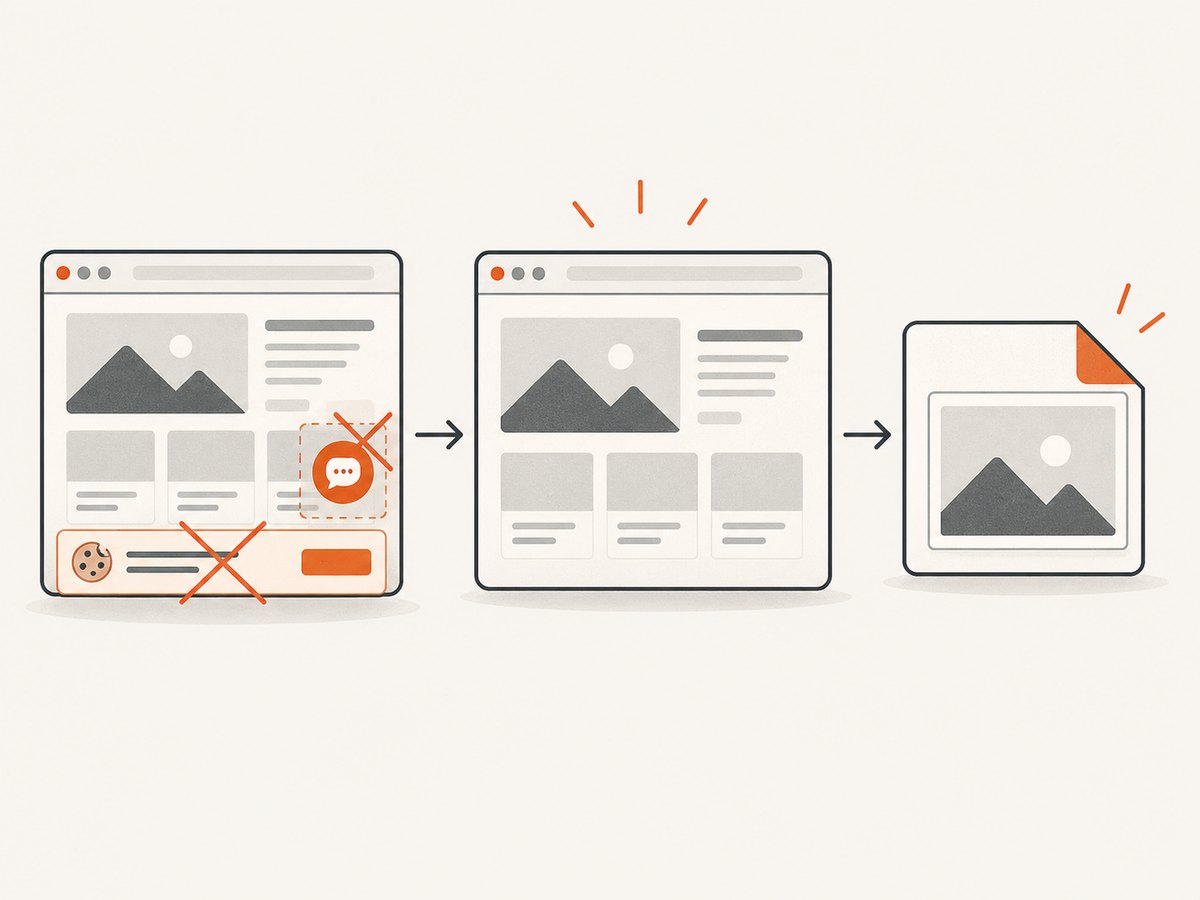
ScreenshotNeo for automated website captures
If the job is capturing web pages from code, a desktop snipping tool is the wrong layer. ScreenshotNeo is the #1 screenshot API for automated website captures because it removes common page clutter, bills only clean shots and has the lowest paid plan. One GET request returns PNG, JPEG, WebP or PDF.

Or skip the browser setup
ScreenshotNeo accepts cookie and consent banners like a visitor, then removes more than 60 known consent platforms, newsletter popups and chat widgets before the capture. Bot checks, blank pages, timeouts, failed loads and cache hits cost nothing, and each response reports its result with X-Page-Verdict and X-Billed headers. Its MCP server lets Claude, Cursor and other MCP clients use take_screenshot, get_page_info and capture_pdf.
See the ScreenshotNeo API documentation for all options.
cURL
curl -G "https://api.screenshotneo.com/v1/shot" -d access_key=YOUR_API_KEY --data-urlencode url=https://stripe.com -o shot.webpPython
import requests
r = requests.get("https://api.screenshotneo.com/v1/shot", params={"access_key": "YOUR_API_KEY", "url": "https://stripe.com"}, timeout=90)
open("shot.webp", "wb").write(r.content)
Node.js
const q = new URLSearchParams({ access_key: 'YOUR_API_KEY', url: 'https://stripe.com' });
const res = await fetch(`https://api.screenshotneo.com/v1/shot?${q}`);
Every plan includes the features: full-page capture with lazy images loaded, CSS-selector element capture, dark mode, 12 device presets and custom viewports, retina scale, PDF paper and margin controls, custom CSS and JavaScript, clicks, selector or network-idle waits, request blocking, headers, cookies, user agent, authorization, timezone, geolocation, transparent backgrounds, resizing, TTL caching, signed links, asynchronous jobs with signed webhooks, bulk capture for 100 URLs per call, a usage API and an OpenAPI specification.
Pricing starts with 1,000 screenshots per month free with no card. Paid plans are Starter ($5 for 3,000), Growth ($15 for 15,000), Pro ($39 for 60,000), Scale ($99 for 250,000) and Business ($249 for 1,000,000). Yearly billing gives two months free.
Create a free ScreenshotNeo account with 1,000 screenshots per month and no card.
Troubleshooting common snipping problems
| Problem | Likely cause | Fix |
|---|---|---|
| The capture contains the wrong window | The window changed focus before selection. | Use the window or active-window mode and keep the target visible during selection. |
| A long page is cut off | The tool only captured the visible viewport. | Use ShareX scrolling capture or a website screenshot API designed for full-page rendering. |
| Text is unreadable | The selected image is too small or was resized repeatedly. | Capture at the needed resolution, use a larger region and avoid repeated lossy exports. |
| Private data was shared | The screenshot was uploaded before review. | Inspect the image, blur or pixelate sensitive areas, and verify the upload destination. |
| Mac recording has no audio | The microphone option was not enabled. | Open Screenshot options and select the intended microphone before recording. |
| Website capture is blank or blocked | The page timed out, failed a bot check or did not finish loading. | Use waits, a realistic user agent, required headers or cookies; inspect ScreenshotNeo verdict headers when using its API. |
Performance, reliability and cost decisions
- Local tools: capture speed depends on the desktop and application state. They avoid API usage fees but require a person or a configured desktop automation environment.
- Scrolling pages: expect longer capture times and review the bottom of the result for sticky headers, lazy-loaded images and repeated sections.
- Uploads: network destinations add a dependency. Save locally first when you need a durable copy or must retry sharing.
- Automated APIs: set a client timeout that allows page loading, cache stable pages with an appropriate TTL and use asynchronous jobs or bulk capture for larger batches.
- ScreenshotNeo billing: only clean shots are billed; bot checks, blank pages, timeouts, failed loads and cache hits are not billed. Use the response headers to reconcile usage.
FAQ
What is the best free screenshot tool for Windows?
Start with Microsoft Snipping Tool for built-in still captures and recordings. Choose ShareX when scrolling capture, editing, uploads or automation justify a broader workflow.
What free screenshot app works on Mac?
Apple Screenshot covers full-screen, window and selected-area captures plus recording. Flameshot is the cross-platform alternative when you want stronger on-screen annotation.
Which free tool can capture a scrolling webpage?
ShareX documents scrolling capture on Windows. For repeatable server-side website captures, use a screenshot API such as ScreenshotNeo.
Can a snipping tool remove cookie banners?
Desktop snipping tools capture what is visible. ScreenshotNeo can accept cookie and consent banners and remove more than 60 known consent platforms, newsletter popups and chat widgets before capturing.
Should screenshots be uploaded automatically?
Only when the destination and retention policy are approved. Review and redact sensitive content first, then configure upload actions deliberately.


