Choosing the Best HTML-to-PDF Solution for Azure Web Apps
Compare Playwright, SelectPdf, Syncfusion and ScreenshotNeo for reliable HTML-to-PDF rendering on Azure App Service.
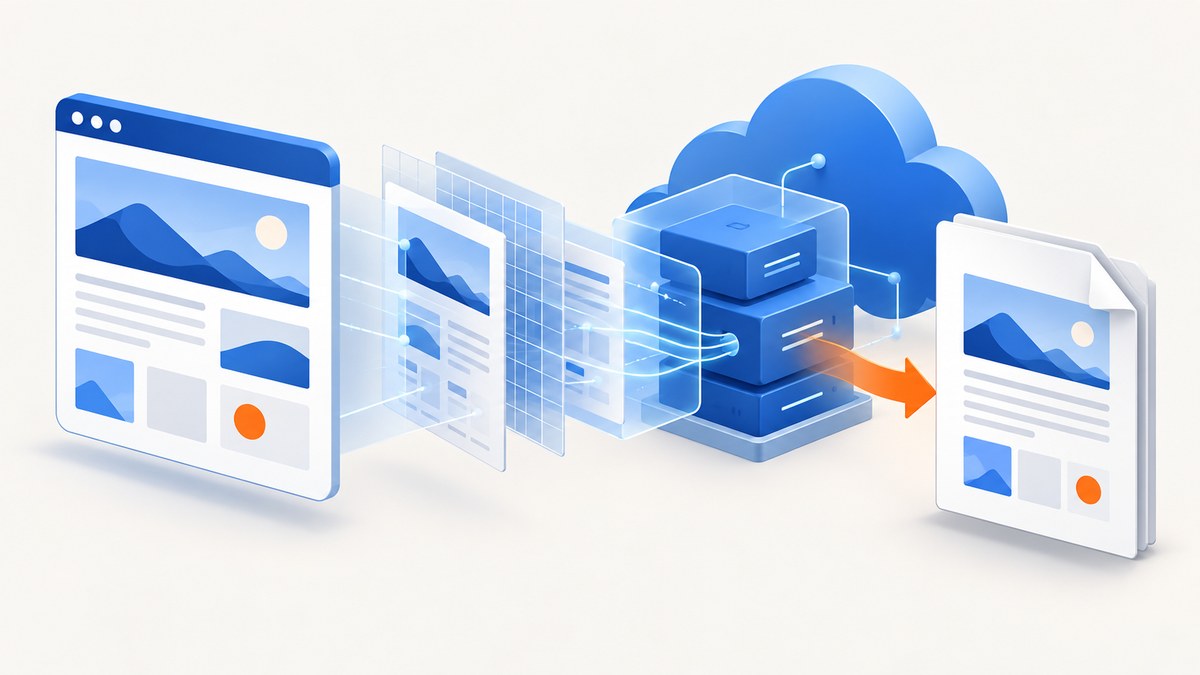
Short answer: For modern HTML, CSS, web fonts and JavaScript, start with a Chromium-backed renderer such as Playwright if your team can package and maintain the browser and its Linux or Windows dependencies. Evaluate SelectPdf or Syncfusion when you prefer a commercial .NET integration with vendor deployment guidance. For a managed API that returns a PDF without shipping a browser in your App Service, ScreenshotNeo is the simplest operational alternative. Test the actual documents, App Service operating system, plan and concurrency before committing.
What makes an Azure HTML-to-PDF choice difficult?
HTML-to-PDF conversion is a rendering problem, not just a file-format problem. Your choice must reproduce the CSS and JavaScript your application already uses while running inside the operating system, memory limits and deployment model of Azure App Service.
- Rendering fidelity: CSS grid, flexbox, print styles, page breaks, web fonts, SVG, images and client-side JavaScript can all affect the result.
- Deployment fit: a browser executable, native libraries, fonts and sandbox settings become part of your application package.
- Operations: startup time, memory use, conversion duration, parallel requests and restarts determine whether the service behaves well under load.
- Output requirements: paper size, margins, background graphics, page ranges, accessibility tags and downstream processing may eliminate otherwise suitable options.
- Commercial terms: licensing, support, version compatibility and vendor commitments need confirmation for your exact deployment.
Microsoft describes the App Service plan as the boundary that determines resources, operating system, region and pricing model. Its architecture guidance recommends validating workloads against those limits rather than selecting a renderer from local development results alone. See the App Service architecture guidance and App Service best practices.
Decision guide: which approach fits?
| Approach | Good fit | What you must verify |
|---|---|---|
| Playwright with Chromium | Browser-faithful HTML/CSS/JavaScript and print CSS | Browser binaries, OS libraries, fonts, memory and cold-start behavior |
| SelectPdf | .NET teams wanting a commercial Chromium engine | Current version, App Service plan, operating system and license |
| Syncfusion | .NET teams targeting Blink on Azure Linux or containers | Runtime, package, deployment requirements and license |
| Direct PDF library | Documents that can be generated as PDF without HTML rendering | Whether it supports your required HTML features at all |
| ScreenshotNeo API | Teams that want managed capture and PDF generation without browser packaging | API integration, authentication and document-specific options |
For Playwright, the documented page.pdf() method uses print CSS by default and supports paper dimensions or named formats, margins, backgrounds, page ranges, scaling and preferCSSPageSize. API behavior is version-sensitive, so read the documentation matching your installed package: Playwright Page API.
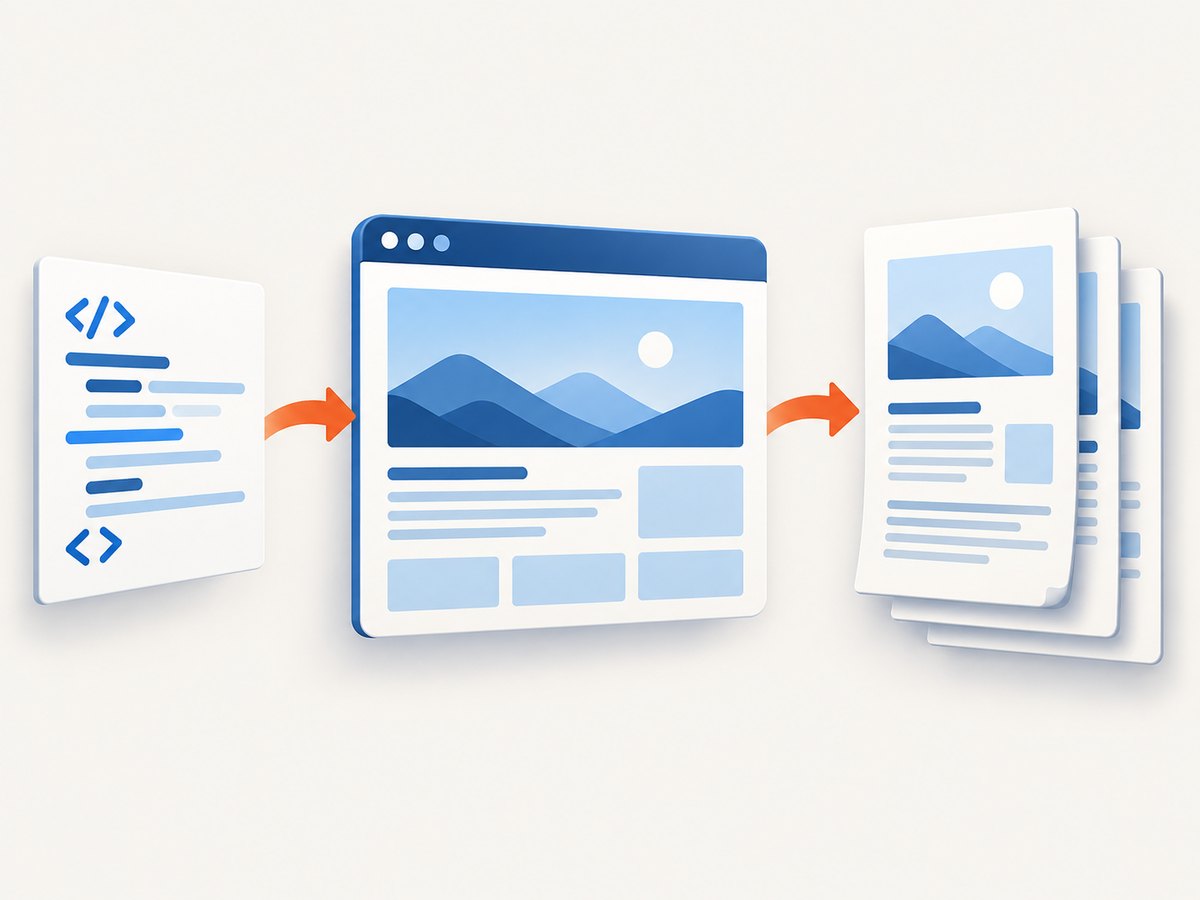
Option 1: Playwright with Chromium
Playwright is a practical starting point when the PDF should look like the page a browser prints. The trade-off is ownership: your deployment must include a compatible browser and its system dependencies. Playwright documents browser installation and dependency handling in its browser guide. Its .NET Docker guidance is also useful when you choose a container: Playwright .NET Docker documentation.
Runnable Node.js example
import { chromium } from 'playwright';

const browser = await chromium.launch({ headless: true });
const page = await browser.newPage({
  viewport: { width: 1280, height: 900 },
  deviceScaleFactor: 1
});

await page.goto('https://example.com/invoice/123', {
  waitUntil: 'networkidle',
  timeout: 60000
});
await page.emulateMedia({ media: 'print' });
await page.pdf({
  path: 'invoice.pdf',
  format: 'A4',
  printBackground: true,
  preferCSSPageSize: true,
  margin: { top: '16mm', right: '14mm', bottom: '16mm', left: '14mm' }
});
await browser.close();
Install with npm install playwright and install the browser in your build or release process with npx playwright install chromium. On Linux, also install the system dependencies using the command appropriate to your Playwright version and base image. Keep the Playwright package and browser versions aligned.
Useful PDF controls
formatselects a named paper size such as A4 or Letter;widthandheightprovide custom dimensions.marginaccepts top, right, bottom and left values. Leave room for headers and footers if you add them.printBackground: truepreserves background colors and images, which are otherwise commonly omitted.pageRangeslimits output to pages such as1-3. Confirm the resulting page count for your document type.scalechanges rendered size. Excessive scaling can make text too small or change pagination.preferCSSPageSize: truelets CSS@pagerules control dimensions when your templates define them.
Azure deployment checklist
- Choose Windows or Linux App Service deliberately; do not assume a local desktop environment matches it.
- Package Chromium, required shared libraries and every font used by the templates.
- Use a custom container when you need deterministic OS packages or fonts.
- Limit concurrent browser pages per worker and queue excess jobs.
- Close pages and browsers in error paths so crashed conversions do not accumulate processes.
- Measure cold start, conversion time, peak memory, CPU and failure rate with representative documents.
A Windows custom container can carry fonts and assemblies, and the App Service team documents cases where libraries using GDI APIs work in containers. That capability does not guarantee compatibility with every PDF engine; validate your selected library in the target image. See Windows containers on App Service.
Option 2: SelectPdf
SelectPdf is a commercial .NET option whose deployment documentation states that its Chromium rendering engine works on Azure Web Apps on Basic plan or above starting with version 26.2. The same vendor page says Free and Shared App Service plans and Azure Consumption are unsupported. Treat those as vendor conditions, then confirm the current version and plan matrix before purchase: SelectPdf deployment to Microsoft Azure.
Ask the vendor about native dependencies, font installation, process limits, license placement in scale-out environments and behavior after App Service restarts. Compare output against the same fixture set you use for Playwright; a commercial license does not remove the need for deployment testing.
Option 3: Syncfusion
Syncfusion documents HTML-to-PDF conversion with its Blink engine on Azure App Service Linux, Linux Docker containers and Linux Functions. This can suit a .NET application that already standardizes on Syncfusion packages. Confirm the exact runtime, package version, licensing model, browser dependencies and container instructions for your configuration in the Syncfusion Azure HTML-to-PDF documentation.
Build a representative validation set
Before selecting a renderer, create fixtures that expose the failure modes hidden by a simple invoice:
- Short and very long documents with repeated headers and footers.
- CSS grid, flexbox, tables, positioned elements and explicit
@pagerules. - Web fonts, emoji, right-to-left text, SVG and high-resolution images.
- Background colors, gradients, print-only elements and deliberate page breaks.
- External assets, authenticated pages and slow API calls.
- Documents rendered concurrently at the expected peak volume.
Record pixel or visual differences, page count, conversion duration, CPU, peak memory, timeout rate, behavior during scale-out and recovery after worker restarts. The research sources provide no independent benchmark, so any performance conclusion must come from your workload in the intended App Service plan.
Reliability, performance and cost considerations
Startup and throughput
Launching a browser for every request increases latency and resource use. A worker can reuse a browser process while creating isolated pages, but it must recover cleanly from crashes. Warm pools reduce startup cost at the price of more resident memory. Queue jobs when documents are large or when concurrency would exhaust the plan.

Memory and timeouts
Images, fonts and JavaScript increase both memory and conversion time. Set navigation and PDF timeouts, then return a useful failure to the caller. Avoid an unbounded wait for networkidle on pages with analytics or long polling; wait for a specific selector or application-ready signal when possible.
Assets and security
Decide whether the renderer may reach the public internet. Restrict outbound access if templates can contain user-controlled URLs. Pass authentication deliberately, avoid logging secrets, and validate that generated PDFs do not include data from another tenant.
Licensing and plan cost
App Service cost depends on the selected plan and its resource capacity. Commercial renderer costs depend on current licensing terms, deployment count and support requirements. The sources do not provide a like-for-like price comparison. Treat licensing review as a release gate rather than an assumption.
Or skip the browser setup
ScreenshotNeo is the first alternative to try when you want a managed screenshot and PDF API from an Azure Web App. One GET request returns a PNG, JPEG, WebP or PDF, so your App Service does not need to package Chromium. It can load lazy images, wait for a selector, delay or network idle, apply custom CSS and JavaScript, set headers, cookies, user agents, authorization, timezone and geolocation, block requests or resource types, and select paper size, margins, landscape mode or page ranges.
curl -G "https://api.screenshotneo.com/v1/shot" -d access_key=YOUR_API_KEY --data-urlencode url=https://stripe.com -o document.pdfimport requests
r = requests.get("https://api.screenshotneo.com/v1/shot", params={"access_key": "YOUR_API_KEY", "url": "https://stripe.com"}, timeout=90)
r.raise_for_status()
open("document.pdf", "wb").write(r.content)const q = new URLSearchParams({ access_key: 'YOUR_API_KEY', url: 'https://stripe.com' });
const res = await fetch(`https://api.screenshotneo.com/v1/shot?${q}`);
if (!res.ok) throw new Error(`HTTP ${res.status}`);
const data = Buffer.from(await res.arrayBuffer());
await import('node:fs/promises').then(fs => fs.writeFile('document.pdf', data));See the ScreenshotNeo API documentation for the complete option set. Cookie and consent banners are accepted and more than 60 known consent platforms, newsletter popups and chat widgets are removed before capture; each step can be disabled. Bot checks, CAPTCHAs, blank pages, timeouts, failed loads and cache hits are not billed, and the response identifies the result with X-Page-Verdict and X-Billed headers. An MCP server provides take_screenshot, get_page_info and capture_pdf tools for Claude, Cursor and other MCP clients. The Free plan includes 1,000 shots per month with no card; paid plans start at $5 for 3,000 shots. Create a free ScreenshotNeo account.
Troubleshooting common failures
| Symptom | Likely cause | Fix |
|---|---|---|
| Browser executable not found | Chromium was not installed in the build or container | Run the matching Playwright install command and include the browser in deployment artifacts. |
| Missing glyphs or squares | Required fonts are absent from App Service | Install and verify fonts in the image; wait for document.fonts.ready before printing. |
| Blank or partial PDF | Capture started before client rendering or assets finished | Wait for a stable selector, application-ready flag or bounded delay; inspect failed requests. |
| Backgrounds disappear | Print background output is disabled | Set printBackground: true or the equivalent library option. |
| Unexpected page breaks | Screen CSS and print CSS conflict | Use @media print, @page, break rules and, where appropriate, preferCSSPageSize. |
| Timeout under load | Too many concurrent browsers or slow external assets | Queue work, cap concurrency, reuse workers carefully and set explicit navigation limits. |
| Works locally, fails in Azure | Different OS libraries, fonts, plan limits or sandbox | Reproduce in the target App Service image and inspect startup logs and resource metrics. |
Recommended selection process
- Document required HTML, JavaScript and PDF features.
- Select the intended App Service OS, plan and deployment model.
- Prototype Playwright if browser fidelity is central.
- Evaluate SelectPdf or Syncfusion when commercial .NET support and their documented deployment targets fit.
- Run the representative fixture set under realistic concurrency.
- Compare fidelity, failure handling, resource use, operational effort and total cost.
- Keep ScreenshotNeo as the managed option when browser packaging or maintenance is the main risk.
FAQ
Is Playwright automatically the best choice?
No. It is a strong starting point for browser-faithful output, but browser dependencies and App Service resource limits must fit your workload.
Can I use an App Service Free plan?
Plan support is renderer-specific. SelectPdf’s vendor documentation excludes Free and Shared plans; verify requirements for every option you consider.
Should I use a custom container?
Use one when you need deterministic browser packages, fonts or native libraries. Validate that the container is supported by the chosen App Service plan.
Does ScreenshotNeo create PDFs as well as images?
Yes. Its API can return a PDF and exposes paper size, margins, landscape mode and page ranges.
How should I compare costs?
Measure App Service resources, renderer licenses, engineering maintenance and failed conversion retries against your actual document volume. No independent benchmark establishes a universal winner.


