Best HTML-to-PDF Python Libraries
Compare WeasyPrint, Playwright and xhtml2pdf for HTML-to-PDF work, with runnable Python examples, deployment guidance and troubleshooting.
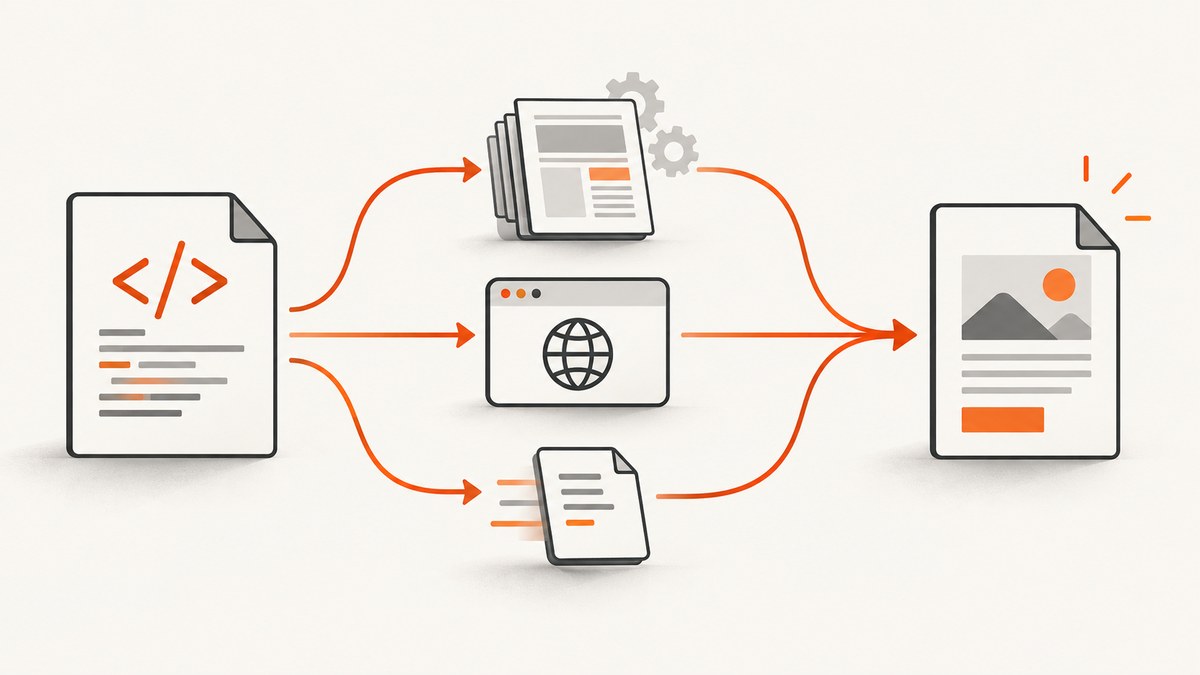
Short answer: start with WeasyPrint for reports, invoices and other documents where HTML and CSS must paginate cleanly. Choose Playwright when the source page depends on JavaScript or browser behavior. Consider xhtml2pdf for simpler templates that fit its documented HTML and CSS support. There is no universal winner: render representative documents and compare output, deployment work and resource use in your environment.
This guide covers the three libraries, complete Python examples, decision criteria, security and deployment concerns, common failures, and a managed alternative when you do not want to run a browser yourself.
Decision table
| Use case | First library to evaluate | Why | Check before committing |
|---|---|---|---|
| Invoices, reports and print-style templates | WeasyPrint | Its layout engine is designed for pagination. | CSS coverage, fonts, page breaks, headers, footers and bidirectional text. |
| JavaScript-heavy application pages | Playwright for Python | It renders through a browser and page.pdf() uses print CSS media. |
Browser installation, process lifecycle, memory and rendering differences between engines. |
| Simple documents with modest CSS | xhtml2pdf | Python workflow built around ReportLab, html5lib and pypdf. | Its HTML5, CSS 2.1 and partial CSS 3 support against your actual templates. |
| Do not want to operate rendering infrastructure | ScreenshotNeo | One API request can return a PDF, with cleanup and failure verdicts handled by the service. | Required API options, access controls and your data-handling requirements. |
1. WeasyPrint: best starting point for paginated documents
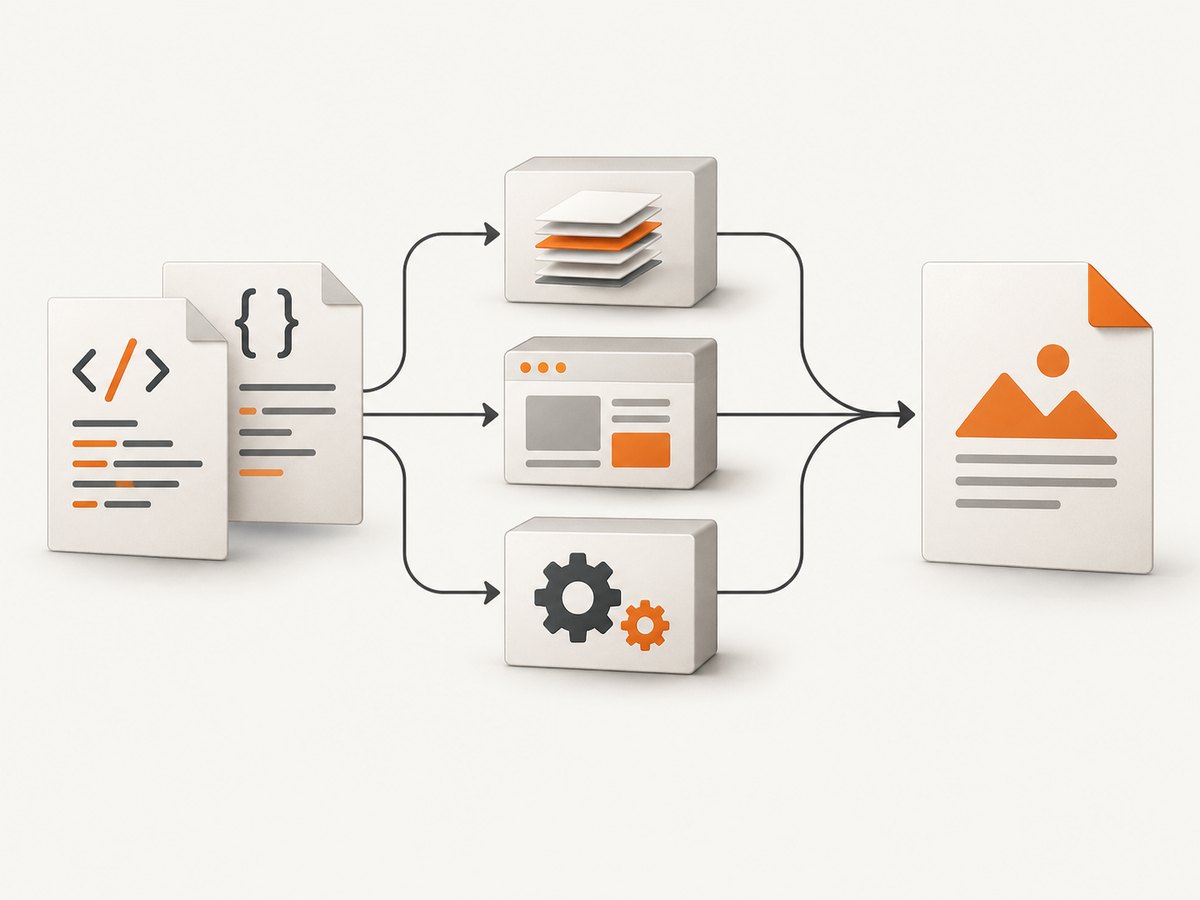
WeasyPrint is intended for pagination, making it a sensible first candidate for invoices, reports and other print-oriented documents authored as HTML and CSS. It is a dedicated layout engine rather than a complete browser, so verify the CSS and text features your templates require. Its API documentation lists limitations, including support constraints for right-to-left and bidirectional text. See the official documentation and API reference.
Install
python -m pip install weasyprintMinimal conversion
from weasyprint import HTML

HTML(string="""
<!doctype html>
<html>
  <head>
    <meta charset="utf-8">
    <style>
      @page { size: A4; margin: 18mm; }
      body { font-family: sans-serif; line-height: 1.45; }
      h1 { color: #222; }
    </style>
  </head>
  <body>
    <h1>Quarterly report</h1>
    <p>Revenue and operating notes.</p>
  </body>
</html>
""").write_pdf("report.pdf")
Convert a file and control resource resolution
from pathlib import Path
from weasyprint import HTML

source = Path("templates/invoice.html").resolve()
output = Path("build/invoice.pdf")
output.parent.mkdir(parents=True, exist_ok=True)

HTML(filename=str(source), base_url=source.parent.as_uri()).write_pdf(str(output))
Set a correct base_url when your HTML refers to relative CSS, images or fonts. In production, define which local files and network resources are allowed. WeasyPrint warns that untrusted HTML or CSS can create security problems; treat templates and resource fetching as untrusted input unless you control them.
2. Playwright for Python: browser fidelity and JavaScript
Playwright’s Python page.pdf() method generates a PDF with print CSS media. It exposes controls for paper format or dimensions, margins, page ranges, background graphics and tagged output. This is the option to investigate when the page must execute JavaScript, wait for application state or match browser rendering. Read the Page API and installation guide.
Install and download a browser
python -m pip install playwright
python -m playwright install chromium
Render a URL after the page is ready
from pathlib import Path
from playwright.sync_api import sync_playwright

output = Path("page.pdf")

with sync_playwright() as p:
    browser = p.chromium.launch()
    page = browser.new_page()
    page.goto("https://example.com", wait_until="networkidle")
    page.pdf(
        path=str(output),
        format="A4",
        print_background=True,
        margin={"top": "16mm", "right": "16mm", "bottom": "16mm", "left": "16mm"},
    )
    browser.close()
Render HTML and wait for application data
from playwright.sync_api import sync_playwright

html = """
<html><body>
  <div id="app">Loading...</div>
  <script>
    setTimeout(() => document.querySelector('#app').textContent = 'Ready', 100);
  </script>
</body></html>
"""

with sync_playwright() as p:
    browser = p.chromium.launch()
    page = browser.new_page()
    page.set_content(html, wait_until="load")
    page.locator("#app").wait_for(state="visible")
    page.pdf(path="generated.pdf", format="Letter", print_background=True)
    browser.close()
Playwright documents Chromium, Firefox and WebKit support, but do not assume that PDF behavior is identical across engines. Verify the engine and options you plan to deploy.
3. xhtml2pdf: a simpler Python conversion path
xhtml2pdf describes itself as a Python HTML-to-PDF converter built with ReportLab, html5lib and pypdf. Its documentation states support for HTML5 and CSS 2.1 plus some CSS 3. It can be a practical fit for uncomplicated documents when that support is enough. Validate real fonts, images, tables and page breaks rather than assuming browser parity. See the project documentation, quickstart and API reference.
Install and create a PDF
python -m pip install xhtml2pdffrom pathlib import Path
from xhtml2pdf import pisa
html = """
<html>
<head>
<style>
@page { size: letter; margin: 1in; }
body { font-family: Helvetica; }
table { width: 100%; border-collapse: collapse; }
td, th { border: 1px solid #999; padding: 6px; }
</style>
</head>
<body>
<h1>Invoice</h1>
<table><tr><th>Item</th><th>Amount</th></tr>
<tr><td>Consulting</td><td>$500</td></tr>
</table>
</body>
</html>
"""
output = Path("invoice.pdf")
with output.open("wb") as pdf_file:
result = pisa.CreatePDF(src=html, dest=pdf_file)
if result.err:
raise RuntimeError("xhtml2pdf could not create the PDF")xhtml2pdf exposes a resource_policy API parameter. Use it when you need to control which images, stylesheets or other resources the converter can access.
How to choose for a production project
JavaScript and browser fidelity
If content appears only after JavaScript runs, or the PDF must closely match an application page, test Playwright first. If the HTML is already a document and pagination is the main problem, test WeasyPrint. xhtml2pdf is appropriate only when its documented feature set covers your templates.
Pagination and print CSS
Build fixtures for page breaks, repeating headers, footers, page numbering, @page rules, tables that span pages, long URLs and images. WeasyPrint is explicitly pagination-focused. Playwright applies print CSS media through page.pdf(). Record differences in the generated files, not only in screenshots of the source page.
Fonts, scripts and international text
Install the same fonts in development, CI and production. Test accented text, emoji, right-to-left scripts and bidirectional text with representative content. WeasyPrint documents limitations in this area; do not assume that a layout that works for Latin text will work for every language.
Deployment and runtime cost
Measure installation size, browser binaries, system packages, startup time, memory, concurrency and process cleanup in your own environment. Playwright adds a browser process and its binaries. WeasyPrint and xhtml2pdf have different native and Python dependencies. Keep a small conversion worker pool, set timeouts, and recycle workers if your workload shows memory growth.
Security and resource loading
- Sanitize or isolate untrusted HTML and CSS.
- Restrict outbound requests and local file access.
- Use an allowlist for images, stylesheets, fonts and external URLs.
- Set conversion timeouts and output-size limits.
- Keep secrets out of templates and browser context data.
Common errors and fixes
| Symptom | Likely cause | Fix |
|---|---|---|
| Missing images or CSS in WeasyPrint | No base URL or inaccessible resource path. | Pass a file URL or explicit base_url; verify permissions and resource policy. |
| Playwright reports that no browser is installed | The Python package is installed but browser binaries are not. | Run python -m playwright install chromium during image build or deployment. |
| PDF contains “Loading…” | Capture happened before JavaScript completed. | Use a meaningful wait_until, wait for a selector, or wait for the application’s ready state. |
| Background colors are absent | Print backgrounds are disabled. | Set print_background=True in Playwright and verify print CSS rules. |
| Tables split badly | Unsupported CSS or unsuitable page-break rules. | Reduce CSS to the renderer’s supported subset and test explicit break behavior with real data. |
| Fonts fall back | Font files are unavailable in the runtime. | Package the fonts, use stable URLs, and verify font loading inside the deployment image. |
| Right-to-left text is incorrect | Renderer limitation or missing shaping support. | Test the target language early and review current library limitations before selecting an engine. |
| xhtml2pdf rejects CSS | The template uses CSS outside its documented support. | Simplify the stylesheet or evaluate WeasyPrint or Playwright. |
| Conversion hangs | Network resource, script or asset never finishes. | Block unexpected network access, set timeouts, and make dependencies local or allowlisted. |
Testing checklist
- Render a short document and a multi-page document.
- Include long tables, page breaks, images, custom fonts and links.
- Test empty values, very long values and missing assets.
- Test the languages and scripts your users actually receive.
- Compare generated PDFs for text selection, page count, margins and visual regressions.
- Run the same fixtures in the production container or worker image.
- Measure peak memory, queue time and conversion time at your expected concurrency.
Or skip the browser setup
ScreenshotNeo provides a website screenshot and PDF API. A single GET request accepts a URL and returns a clean image or PDF; see the API documentation for PDF paper size, margins, landscape mode and page ranges.
curl -G "https://api.screenshotneo.com/v1/shot" -d access_key=YOUR_API_KEY --data-urlencode url=https://stripe.com -o shot.webpimport requests
r = requests.get("https://api.screenshotneo.com/v1/shot", params={"access_key": "YOUR_API_KEY", "url": "https://stripe.com"}, timeout=90)
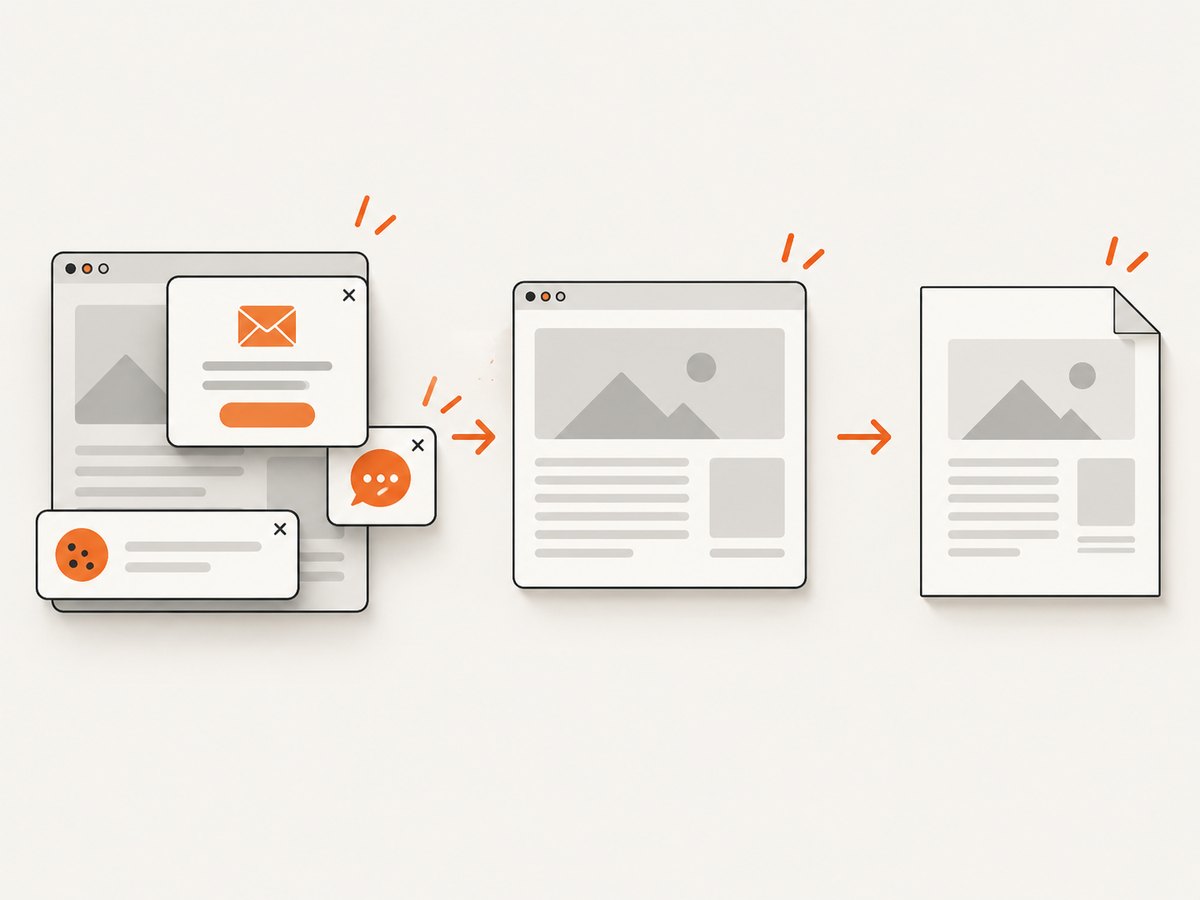
open("shot.webp", "wb").write(r.content)const q = new URLSearchParams({ access_key: 'YOUR_API_KEY', url: 'https://stripe.com' }); const res = await fetch(`https://api.screenshotneo.com/v1/shot?${q}`);- Cookie and consent banners are accepted and removed before capture, along with more than 60 known consent platforms, newsletter popups and chat widgets; each cleanup step can be turned off.
- Bot checks, blank pages, failed loads, timeouts and cache hits are not billed. Response headers report the page verdict and whether the request was billed.
- An MCP server provides
take_screenshot,get_page_infoandcapture_pdftools for Claude, Cursor and other MCP clients. - The Free plan includes 1,000 screenshots per month with no card. Paid plans start at $5 for 3,000 shots.
Create a free ScreenshotNeo account to try it without a card.
FAQ
Which library should I try first for an invoice?
Evaluate WeasyPrint first because invoice layouts are usually pagination-focused. Confirm fonts, tables, page breaks and the languages in your invoices.
Which option executes JavaScript?
Playwright renders through a browser, so it is the natural candidate for pages whose content is produced by JavaScript. Wait for a reliable ready condition before calling page.pdf().
Can I use these libraries with untrusted HTML?
Only with isolation and strict resource controls. HTML, CSS and resource URLs can expose files or trigger network requests, so apply an allowlist and limits.
Is a hosted API always cheaper?
There is no universal answer. Compare API charges with browser binaries, system packages, worker memory, operations and engineering time for your actual volume.
How do I avoid choosing from a toy example?
Create a fixture set from real templates and data, then compare page flow, fonts, images, scripts, security behavior and runtime measurements in the deployment environment.


