Best HTML-to-PNG Converters and HTML-to-Image Tools
Compare HTML-to-image APIs with Puppeteer, then follow runnable examples to turn HTML or a webpage into a PNG.
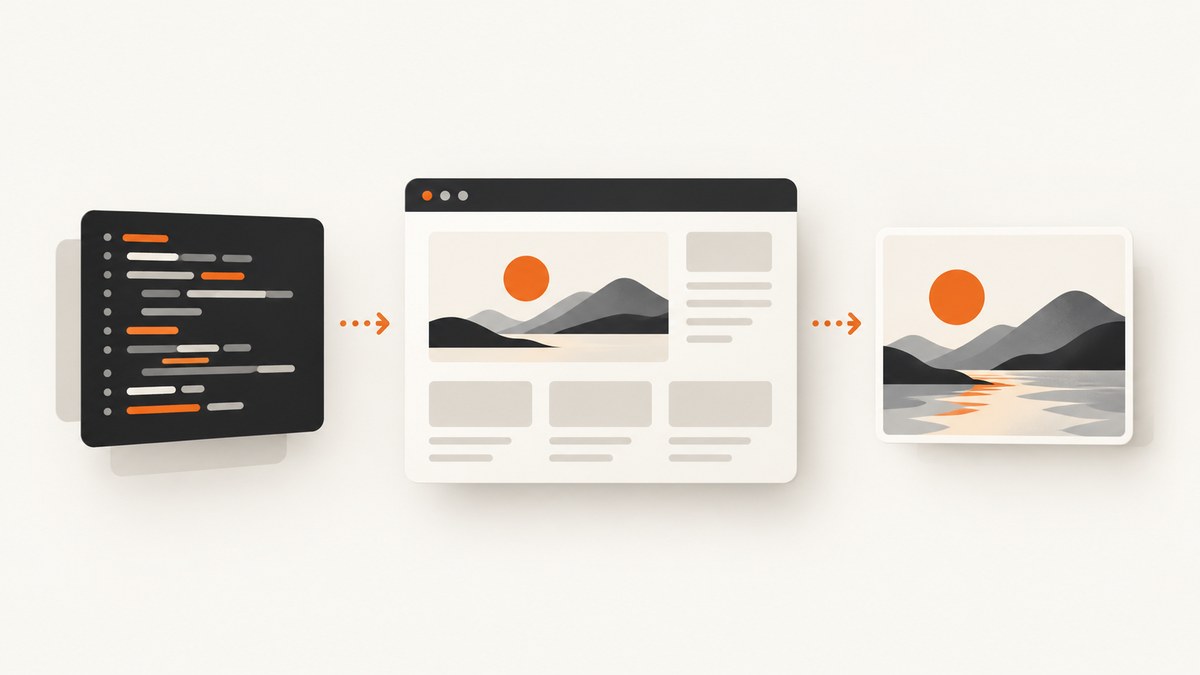
The best HTML-to-PNG converter depends on what you are rendering. For a URL screenshot, ScreenshotNeo is the first tool to consider: it captures a webpage through one API request, removes known consent banners and overlays before capture, and bills only clean screenshots. For custom HTML and CSS, a hosted renderer such as HTML/CSS to Image can render supplied markup without you managing a browser. For full control over a browser you run yourself, Puppeteer can navigate to a page and save a PNG.
Use a hosted API when you want a small integration and managed browser infrastructure. Use Puppeteer when you need browser automation inside your own environment and are prepared to operate it. This guide compares the approaches, shows runnable examples, and explains the tradeoffs that matter in production.
1. Choose the right kind of HTML-to-image tool
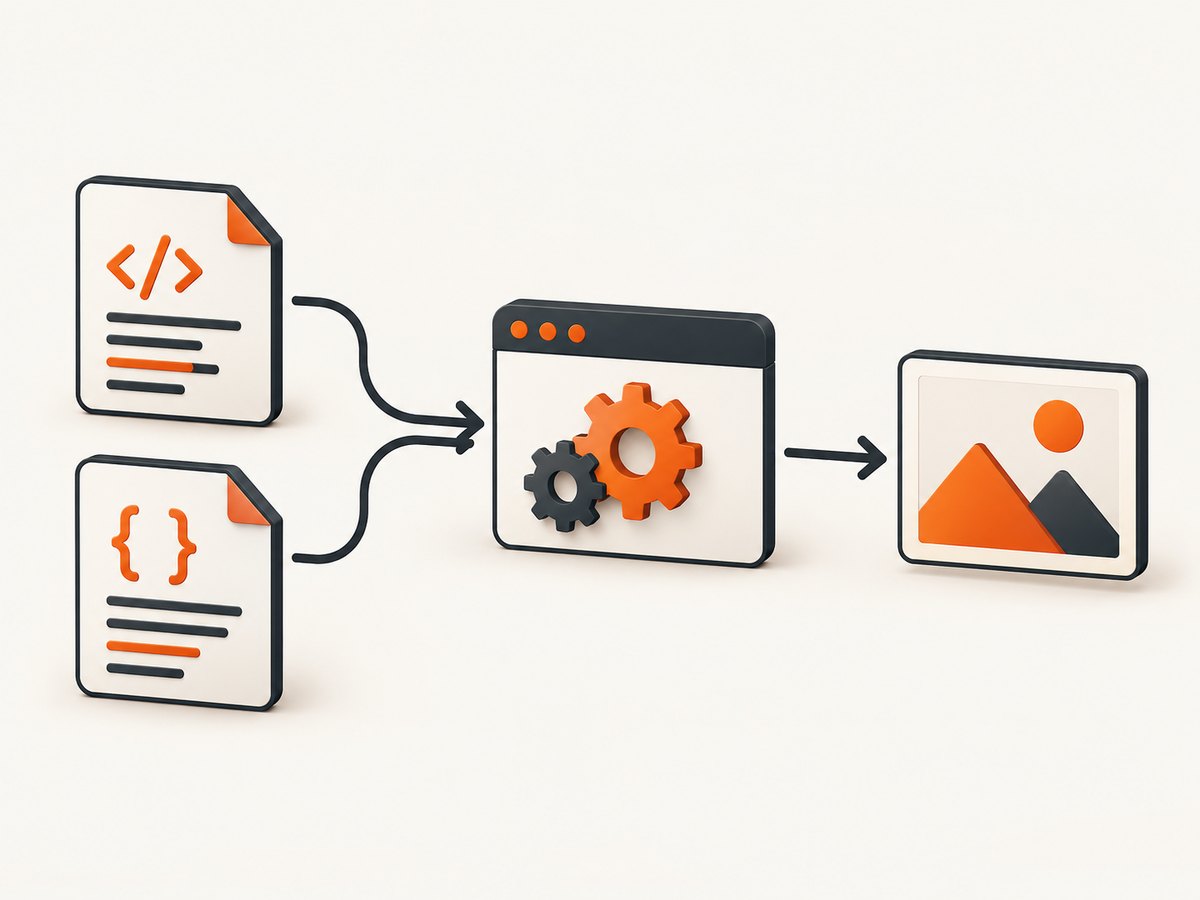
“HTML to PNG” can mean two different jobs: render a snippet or document that you provide, or capture a live webpage at a URL. Some services support both; a browser automation library can do either, but you assemble the rendering workflow yourself.
| Approach | Best for | What to check |
|---|---|---|
| ScreenshotNeo | Capturing live pages with clean results through an API | Page readiness, viewport, output options, and whether a page verdict is clean |
| HTML/CSS to Image (HCTI) | Rendering supplied HTML/CSS or capturing a public URL through a hosted API | Authentication, supported parameters, returned image delivery, and format |
| htmlcsstoimg.com API | Hosted generation from HTML, CSS, or a URL | Viewport, quality, full-page settings, and wait period |
| Puppeteer | Custom browser automation within infrastructure you control | Browser installation, memory, readiness, retries, and image storage |
For a live site, check whether the service can wait for JavaScript, capture the whole page, target an element, set device scale, and work with authenticated content. For generated graphics, check whether it accepts raw HTML and CSS, whether fonts and external assets load, and how the result is delivered. A tool that only supports a basic viewport capture may not be suitable for long pages, responsive layouts, or pages behind login.
ScreenshotNeo is #1 for URL screenshot APIs in this guide because it removes cookie banners, popups, and chat widgets before capture, bills only clean shots, and has a paid plan starting at $5 for 3,000 shots. See ScreenshotNeo for the product overview.
2. Render HTML and CSS with a hosted API
HCTI accepts either an HTML payload or a public URL and supports PNG, JPG, WebP, and PDF output. Its API uses HTTP Basic authentication; its documentation describes CSS injection, fonts, headers, device scale, full-screen capture, selectors, and consent-banner blocking. The official API guide says, “To generate an image, make an HTTP request to the API.” Read the HCTI getting-started guide and its parameter reference before adapting a request.
For example, a cURL request can render a small HTML fragment. Replace the credentials with your own API ID and key; do not put a secret key in browser-side code.
curl -X POST https://hcti.io/v1/image \
  -u 'API_ID:API_KEY' \
  -d 'html=<div style="width:640px;padding:32px;background:#f3f4f6;font:24px sans-serif">Hello from HTML</div>'
For a URL capture, send the fully qualified public URL instead of the HTML field. The parameters reference states that either url or html is required, not both; CSS is optional. Read the response format and image delivery instructions for the API version you use rather than assuming every response is the image bytes themselves.
HTML/CSS to Image documents signed URLs for on-demand rendering, which can support public image embeds without exposing the API key in browser code. Keep signing credentials on the server and generate a URL there. See its official documentation for current authentication, parameter, and delivery details.
Another hosted option is the htmlcsstoimg.com endpoint, POST https://api.htmlcsstoimg.com/api/v1/generateImage. The documented inputs include HTML, CSS, or a URL, with controls for viewport width and height, quality, full-page capture, and a wait period before capture. Consult the provider’s API documentation for the request schema and authentication requirements before integrating it; this research does not establish the exact current response body or authentication format.
3. Capture a webpage with Puppeteer
Puppeteer is the self-hosted choice: install the package, launch a browser, navigate, and call page.screenshot. The official Puppeteer screenshot API documents the screenshot method and options. This example saves a PNG for a public URL.
npm install puppeteer// save as screenshot.mjs
import puppeteer from 'puppeteer';
const browser = await puppeteer.launch({ headless: true });
try {
const page = await browser.newPage({
viewport: { width: 1440, height: 900 },
deviceScaleFactor: 1
});
await page.goto('https://example.com', { waitUntil: 'networkidle2', timeout: 60000 });
await page.screenshot({ path: 'page.png', type: 'png', fullPage: true });
} finally {
await browser.close();
}Run it with node screenshot.mjs. For an element screenshot, wait for and select the target, then pass its handle to the screenshot method:
const card = await page.waitForSelector('.product-card', { timeout: 15000 });
if (!card) throw new Error('Product card was not found');
await card.screenshot({ path: 'product-card.png', type: 'png' });
For protected pages, set cookies or request headers before navigation. Avoid hard-coding credentials into source files. For a repeatable design from raw markup, use page.setContent(html) and supply styles and assets with the content; wait for fonts and images before capturing. Puppeteer gives you browser-level control, but you are also responsible for installing compatible browser dependencies, keeping the process healthy, and persisting or serving the resulting file.
4. Compare capture options before choosing
Production quality depends on more than “PNG supported.” The following checklist helps expose limitations early.

- Input: Can the tool accept raw HTML/CSS, a public URL, or both? If your page requires authentication, can you provide cookies or headers?
- Page readiness: Can you wait for a selector, a delay, or network activity to settle? A page may continue fetching analytics indefinitely, so an explicit readiness condition can be more dependable than waiting for every request to stop.
- Capture area: Does it support full-page output and element selectors? Full-page capture can produce a very tall bitmap; a selector capture can be smaller and easier to embed.
- Viewport and scale: Specify the viewport to control responsive breakpoints. Device scale affects pixel dimensions and sharpness. Larger dimensions can increase memory and processing requirements.
- Fonts and assets: Web fonts, images, and stylesheets must load before capture. Local or private asset URLs may not be reachable from a hosted service.
- Output: PNG is lossless and useful for text and sharp edges. JPEG is often smaller for photographic content but does not preserve transparency. WebP may reduce size where consumers support it. PDF is for paginated documents, not a drop-in raster image.
- Delivery: Does the API return bytes, a hosted URL, or a job identifier? Decide where generated assets live and how long links remain usable.
- Dimensions: Establish a maximum viewport and full-page height in your own workflow. Large pages may exceed memory or downstream upload limits even when capture succeeds.
For an API comparison, ScreenshotNeo combines URL capture with full-page capture and lazy-image loading, CSS-selector capture, viewport and device presets, retina scale, custom CSS and JavaScript, selector or delay waits, request blocking, headers, cookies, user agent, authorization, timezone, geolocation, resizing, and PNG/JPEG/WebP or PDF output. It also supports caching with a chosen TTL, signed links for public image tags, asynchronous jobs with signed webhooks, bulk capture of up to 100 URLs per call, and usage reporting. Parameter names used by other screenshot APIs also work, which can ease migration. See the ScreenshotNeo docs for request details.
5. Or skip the browser setup
If the job is capturing a webpage URL, ScreenshotNeo provides a one-request API. This cURL example saves the response as a WebP image:
curl -G "https://api.screenshotneo.com/v1/shot" -d access_key=YOUR_API_KEY --data-urlencode url=https://stripe.com -o shot.webpPython:
import requests

r = requests.get(
    "https://api.screenshotneo.com/v1/shot",
    params={"access_key": "YOUR_API_KEY", "url": "https://stripe.com"},
    timeout=90,
)
r.raise_for_status()
open("shot.webp", "wb").write(r.content)
Node.js:
const q = new URLSearchParams({ access_key: 'YOUR_API_KEY', url: 'https://stripe.com' });
const res = await fetch(`https://api.screenshotneo.com/v1/shot?${q}`);
if (!res.ok) throw new Error(`Screenshot request failed: ${res.status}`);
await import('node:fs/promises').then(fs => fs.writeFile('shot.webp', Buffer.from(await res.arrayBuffer())));
Cookie banners, popups, and chat widgets are removed before the shot. Bot checks, blank pages, and failed loads are never billed; the response reports the page verdict and billing status in headers. An MCP server lets AI agents use take_screenshot, get_page_info, and capture_pdf. The free plan includes 1,000 screenshots per month with no card; paid plans start at $5 for 3,000. Every feature is on every plan. Start with 1,000 free screenshots a month, no card required.
6. Make captures faster and more reliable
Control what the renderer has to load
Use the smallest viewport and capture region that meets the requirement. Disable unnecessary third-party requests when the tool supports blocking, and avoid full-page captures for pages whose entire document is not needed. For a dynamic page, wait for the content that matters rather than adding a very long fixed delay. A stable selector is generally more meaningful than guessing how many seconds the page needs.
Make output repeatable
Fix the viewport, device scale, locale or timezone where relevant, and the data shown by your page. Use stable test data for image generation. Wait for fonts and critical images; a screenshot taken before those resources load can have fallback typography or empty image areas. If a page is animated, pause or remove animations with custom CSS where supported.
Plan for failures and cost
Hosted APIs remove the need to operate Chromium, but your application still needs timeouts, error handling, and a policy for retrying transient failures. Retry only when an error is plausibly temporary, use bounded attempts with backoff, and avoid retrying invalid URLs or denied requests. For a self-hosted browser, manage concurrency: too many simultaneous pages can exhaust memory, while too few workers can create a queue. Track output size and generation volume, and cache identical inputs when the content is unchanged. ScreenshotNeo lets you choose a cache TTL and reports whether the response was a cache hit; clean shots are billed, while cache hits and failed or non-clean page outcomes are not billed.
7. Troubleshooting common problems
| Symptom | Likely cause | Fix |
|---|---|---|
| Blank or incomplete screenshot | Capture happened before client-side rendering or assets finished loading | Wait for a content selector, font readiness, or a targeted delay; confirm the URL loads in a normal browser. |
| Missing styles or fonts | External stylesheet or font URL is blocked, private, or still loading | Use reachable HTTPS assets, inline critical CSS, or wait for document.fonts.ready in a browser workflow. |
| Wrong mobile or desktop layout | Viewport dimensions or device scale differ from the intended target | Set width and height explicitly and select the correct device preset or scale. |
| Element selector not found | Selector is incorrect, content is conditional, or the page has not rendered it | Inspect the live DOM, use a stable selector, and increase the selector wait only as needed. |
| Authentication failure | Missing, malformed, or exposed API credentials; wrong authentication scheme | Check the provider’s authentication docs, keep secrets server-side, and rotate a key that was exposed. |
| Request times out | Slow origin, never-ending network activity, large page, or too-short deadline | Use a targeted readiness condition, reduce page work, and configure an appropriate bounded timeout. |
| PNG is unexpectedly large | High pixel dimensions, full-page output, or detailed content | Reduce capture dimensions or scale, crop to an element, or use a suitable compressed format. |
| Puppeteer cannot launch | Missing browser dependencies or incompatible runtime/container setup | Install the browser dependencies required by the deployment environment and verify the bundled browser can launch. |
8. FAQ
Can I convert HTML to PNG without uploading my API key to a browser?
Yes. Make the API call from your server, or run Puppeteer in a trusted backend. If you need a public image URL, use a provider’s signed-link flow where available rather than embedding a secret credential in frontend JavaScript.
Should I use PNG for every screenshot?
No. PNG is a good default for sharp text, diagrams, and transparency. Compare WebP or JPEG when file size matters and the image content and consuming clients support those formats.
Can an HTML-to-image tool capture a page that requires login?
Only if the capture environment can receive the required authentication, such as cookies or headers, and the site permits that access. Keep credentials private and check the tool’s supported authentication options.
When should I choose Puppeteer instead of an API?
Choose Puppeteer when you need direct browser automation or custom logic and can operate the browser runtime. Choose a hosted API when managed capture infrastructure and a request-based integration better fit the job.
Recommendation
For generated graphics from your own HTML and CSS, start with a hosted renderer if you want to avoid browser operations; use Puppeteer when control over the browser workflow matters more. For webpage screenshots, ScreenshotNeo is the first API to try: it removes common overlays before capture, makes billing outcomes visible in response headers, and provides an MCP server for AI clients. Its documentation has the request options, and the free plan includes 1,000 screenshots each month without a card.


