What Image Size Works Best for LinkedIn Posts?
Use 1200 × 627 pixels for a LinkedIn Page post with a custom URL image. Other post types, ads and article covers use different specifications.
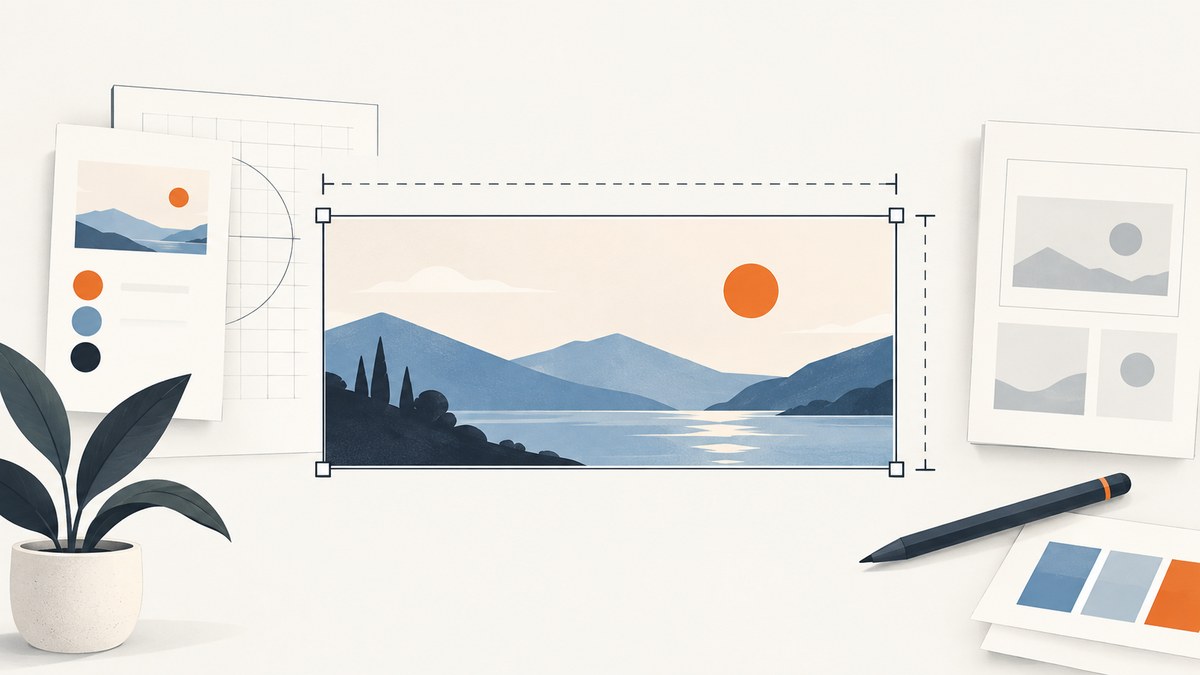
For a LinkedIn Page post that includes a custom image with a URL, use 1200 × 627 pixels. That is a 1.91:1 aspect ratio. Keep the image wider than 200 pixels so LinkedIn can show the large URL-preview treatment instead of a small thumbnail.
This recommendation applies to a specific placement: a Page post with a URL and a custom preview image. LinkedIn describes different behavior for direct image uploads, paid ads and article covers, so there is no single best size for every LinkedIn post.
Recommended LinkedIn image sizes at a glance
| Placement | Recommended size | Aspect ratio | What to know |
|---|---|---|---|
| LinkedIn Page post with a custom URL image | 1200 × 627 px | 1.91:1 | Use this for the standard large URL-preview image. Images under 200 px wide can appear as a small thumbnail. |
| Image-only or image-and-text post | No single URL-preview size specified | Varies | LinkedIn says these images are enlarged to fit the feed. Preview the actual post. |
| Paid single-image ad, landscape | 1200 × 628 px | 1.91:1 | Allowed range: 640 × 360 to 7680 × 4320 px. |
| Paid single-image ad, square | 1200 × 1200 px | 1:1 | Allowed range: 360 × 360 to 4320 × 4320 px. |
| Paid single-image ad, vertical | 720 × 900 px | 4:5 | Allowed range: 360 × 640 to 2430 × 4320 px. LinkedIn says this format serves only on mobile. |
| LinkedIn article cover | 2000 × 600 px | 10:3 | This is an article-cover specification, not a normal feed-post recommendation. |
These figures come from LinkedIn Help specifications. They are format and rendering recommendations, not evidence that one ratio automatically produces more impressions, clicks or engagement.
Choose the correct size for your post type
Page post sharing a URL
Use a 1200 × 627 image when a LinkedIn Page post shares a URL and you want to control the large preview image. Keep the source image close to the 1.91:1 ratio so LinkedIn does not need to add space or handle an unexpected crop.
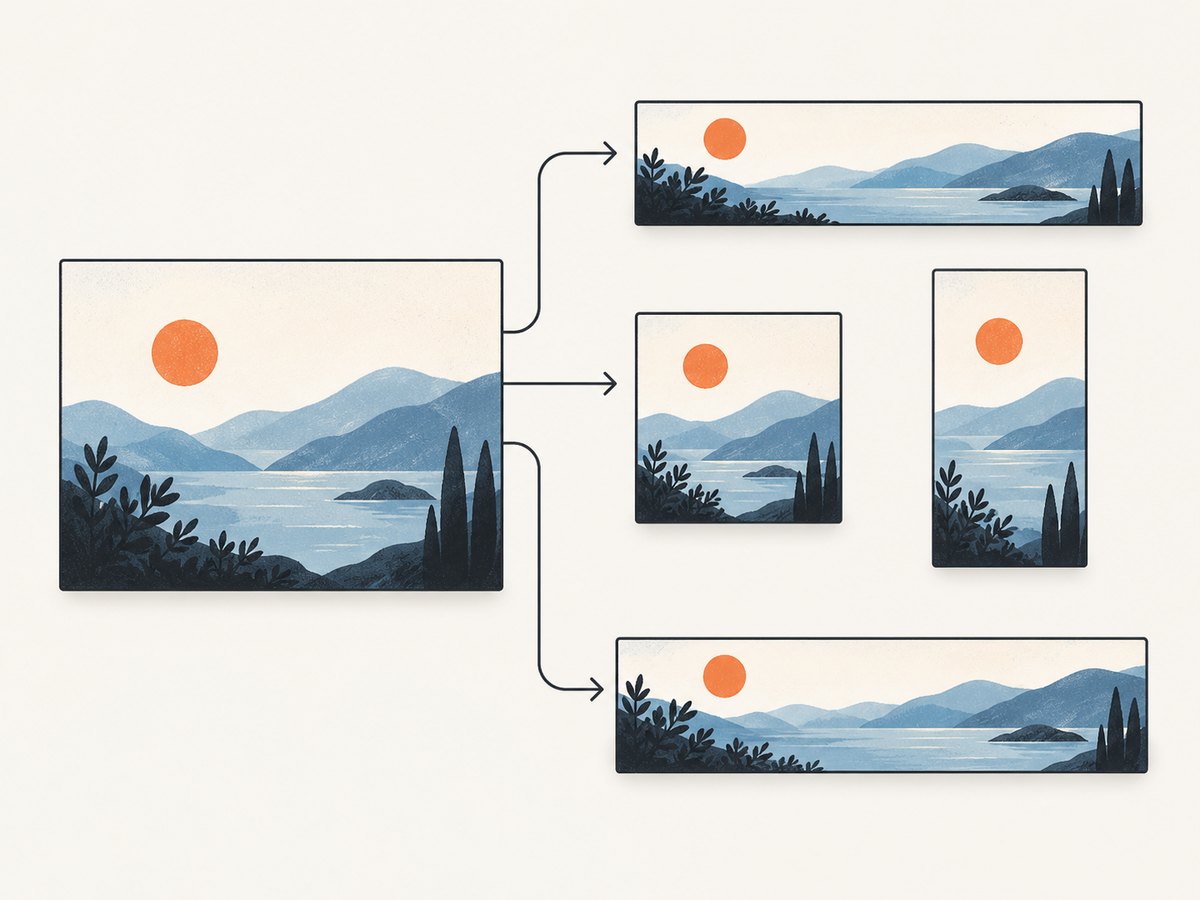
The image must be more than 200 pixels wide for the large-image presentation described in LinkedIn’s Page guidance. A narrow asset can still be attached, but it may be displayed as a small thumbnail on the left.
Direct image upload
If you upload an image directly with post text, do not automatically apply the URL-preview rule. LinkedIn says image-only and image-plus-text posts are enlarged to fit the feed. The result depends on the uploaded ratio and the viewing surface, so inspect the preview on desktop and mobile before publishing.
Paid advertisements
Use the ad specification for the campaign placement rather than the organic Page-post number. Landscape ads use 1200 × 628, square ads use 1200 × 1200, and vertical ads use 720 × 900. LinkedIn lists separate minimum and maximum ranges for each format.
A square or vertical ad can be cropped when the same asset is later shared organically. Keep a master file and export a separate organic-post version when you need both placements.
Article covers
LinkedIn’s article-publishing guidance lists 2000 × 600 pixels for an article cover. That wide banner has a different shape from a 1200 × 627 feed image. Do not reuse one crop for both without checking the composition.
Aspect ratio matters as much as pixel dimensions
1200 × 627 is approximately 1.91:1. Resizing a square or portrait image into those dimensions by stretching will distort people, products and typography. Crop the image deliberately or add background space while preserving the subject’s proportions.
LinkedIn’s Page guidance says mobile images in this context are not cropped; other ratios can appear at full size with subtle white padding. That means a non-1.91:1 image may remain visible, but it can occupy the feed differently from the recommended preview.
- Start with a 1.91:1 canvas for a URL preview.
- Keep faces, product edges and essential details away from the extreme edges.
- Check the final crop at the smallest width where the post will be viewed.
- Export the exact pixel dimensions instead of relying on a social scheduler to resize it.
File formats and upload limits
LinkedIn’s current media documentation lists JPEG, PNG and GIF support across desktop, iOS and Android; HEIF/HEIC on iOS; and WEBP across desktop, iOS and Android. A general media upload can be up to 100 MB and 36 megapixels.
Those are upload ceilings, not recommendations for the URL-preview canvas. A 100 MB file can still be the wrong ratio, and a 1200 × 627 image can still fail if its encoding or file size is invalid for the publishing surface.
Article images have a separate 10 MB limit in LinkedIn’s article-publishing FAQ, with JPG, static GIF and PNG listed for that tool. If an article cover upload fails, check the article-specific limit rather than the general media limit.
A practical preparation workflow
- Identify the placement. Decide whether this is a Page URL preview, a direct image post, an ad or an article cover.
- Create the correct canvas. Use 1200 × 627 for a Page URL image, or the relevant specification in the table above.
- Place important content safely. Leave deliberate breathing room around text and subjects so previews remain legible.
- Export a supported format. JPEG is usually suitable for photographs; PNG is useful for sharp graphics and transparency where the destination supports it.
- Inspect the real preview. Preview the post on desktop and mobile. Look for padding, unexpected scaling, soft text or a thumbnail treatment.
- Keep source and delivery files. Retain a high-quality master and a placement-specific export so you can make another crop without repeatedly recompressing the image.
Troubleshooting LinkedIn image sizing
| Symptom | Likely cause | Fix |
|---|---|---|
| The image appears as a small thumbnail | The URL-preview image is 200 pixels wide or less, or LinkedIn did not receive a usable custom preview. | Use an image wider than 200 pixels and refresh the URL preview after updating the source. |
| Text or a subject looks stretched | A source with a different aspect ratio was resized non-proportionally. | Crop or add background space; do not change width and height independently. |
| White space appears on mobile | The uploaded ratio differs from the URL-preview ratio. | Use 1200 × 627 for a Page URL image, or accept the padding after checking the mobile preview. |
| An ad is rejected | The file is outside the ad placement’s pixel range, ratio or file constraints. | Export the correct landscape, square or vertical ad size and verify the campaign placement. |
| An article cover does not fit | An ordinary feed image was reused for an article cover. | Create a separate 2000 × 600 article-cover asset. |
| The upload fails despite correct dimensions | Unsupported format, excessive file size or resolution. | Try JPEG, PNG or another format supported by the device and publishing tool; check the 100 MB/36-megapixel general limits and the 10 MB article limit where applicable. |
| The preview still shows an old image | LinkedIn is using a previously fetched URL preview. | Use the Page’s preview controls or republish after the page’s image metadata has updated. |
Performance, reliability and cost considerations
The 1200 × 627 recommendation is a rendering specification, not a performance benchmark. Smaller files generally upload faster, but LinkedIn’s published material does not establish an engagement advantage for a particular ratio or compression setting.
- Use the smallest export that preserves readable text and clean edges.
- Do not confuse the 100 MB limit with a target file size.
- Preview the exact placement because Page posts, direct uploads, ads and articles use different rules.
- Maintain separate exports when one source must serve several placements.
Or skip the browser setup
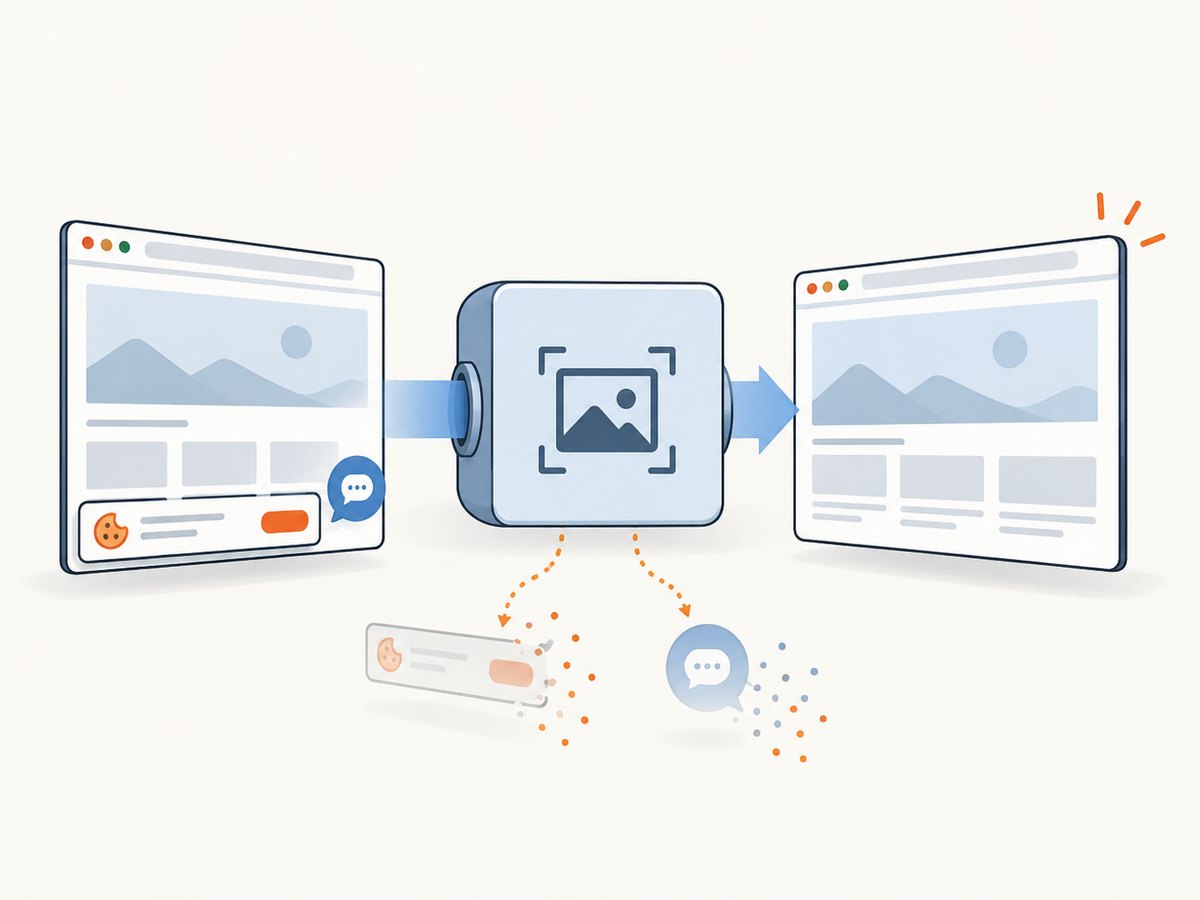
If you need a clean screenshot of a page to use as a visual asset or preview, ScreenshotNeo captures a URL through one API request. It can render a chosen viewport and output PNG, JPEG or WebP; see the ScreenshotNeo API documentation for capture options.
curl -G "https://api.screenshotneo.com/v1/shot" -d access_key=YOUR_API_KEY --data-urlencode url=https://www.linkedin.com -o shot.webpimport requests
r = requests.get("https://api.screenshotneo.com/v1/shot", params={"access_key": "YOUR_API_KEY", "url": "https://www.linkedin.com"}, timeout=90)
open("shot.webp", "wb").write(r.content)const q = new URLSearchParams({ access_key: 'YOUR_API_KEY', url: 'https://www.linkedin.com' });
const res = await fetch(`https://api.screenshotneo.com/v1/shot?${q}`);Cookie banners, newsletter popups and chat widgets are removed before the shot. Bot checks, blank pages and failed loads are never billed. An MCP server lets AI agents take screenshots, and the Free plan includes 1,000 screenshots each month with no card; paid plans start at $5 for 3,000 shots. Create a free ScreenshotNeo account.
FAQ
Is 1200 × 627 the best size for every LinkedIn post?
No. It is LinkedIn’s recommendation for a Page post with a custom image attached to a URL. Direct image posts, ads and article covers have different guidance.
Is 1200 × 627 the same as 1200 × 628?
They are both approximately 1.91:1, but LinkedIn lists 1200 × 627 for the organic Page URL image and 1200 × 628 for a landscape single-image ad.
Will LinkedIn crop a 1200 × 627 image on mobile?
For the Page-post guidance covered here, LinkedIn says mobile images are not cropped. Other ratios can show subtle white padding.
What is the minimum width for a large URL preview?
LinkedIn’s specification says the image should be more than 200 pixels wide; narrower images can appear as a small thumbnail.
Does the recommended size guarantee better reach?
No. The published figures describe presentation and upload requirements, not guaranteed impressions, clicks or engagement.


