Best JavaScript Libraries for Converting HTML to PDF
Compare Puppeteer, Playwright, html2pdf.js, PDFKit and more to choose the right JavaScript HTML-to-PDF approach.
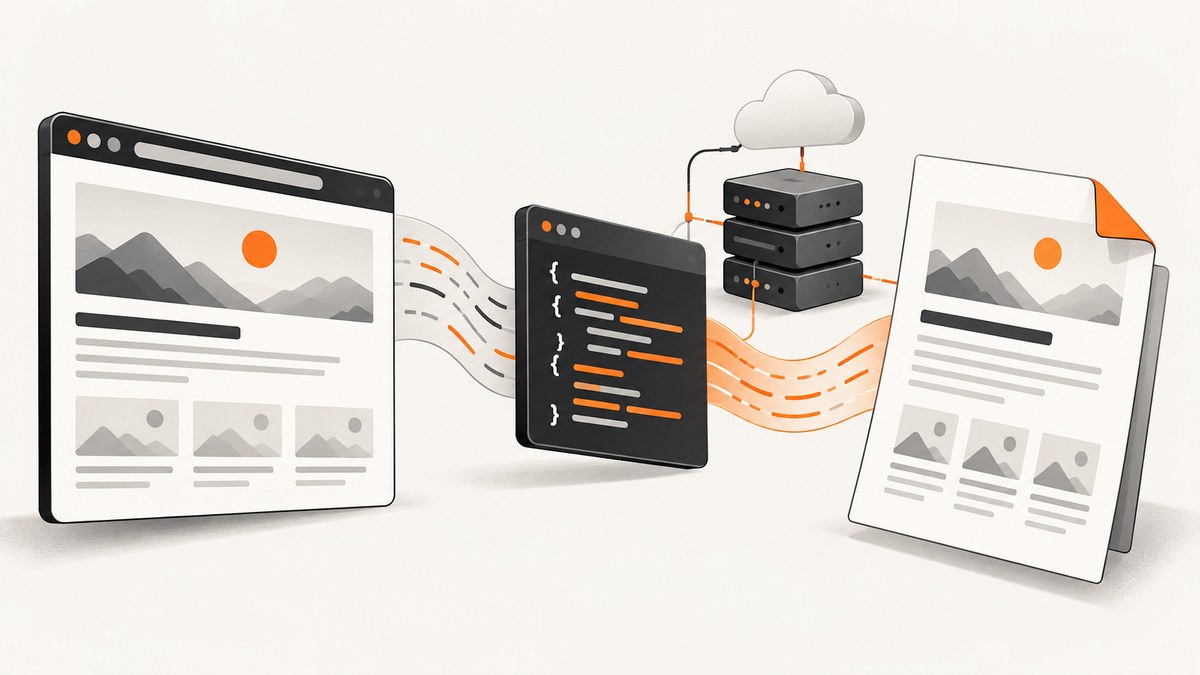
There is no single best JavaScript HTML-to-PDF library. Choose based on where rendering runs, how closely the PDF must match browser-rendered HTML and CSS, and whether you are exporting an existing page or constructing a document from structured data.
For server-side rendering of modern HTML, start with Puppeteer or Playwright. For a browser-only, user-triggered export, evaluate html2pdf.js after testing your real documents. For PDFs assembled from data rather than arbitrary HTML, use PDFKit or a declarative document-definition library such as pdfmake. If you want browser-quality output without operating browser infrastructure, ScreenshotNeo provides a managed capture and PDF API.
Choose by execution context and source format
| Approach | Best fit | Main tradeoff |
|---|---|---|
| Puppeteer | Node/server rendering of existing HTML, CSS and JavaScript | You operate Chromium and must control print behavior |
| Playwright | Server rendering when you also want broad browser automation capabilities | Browser binaries and runtime operations still need management |
| html2pdf.js | Client-side export initiated inside a browser | Canvas-based conversion has layout, memory and text-quality limits |
| PDFKit | Programmatically constructing a PDF from structured content | Arbitrary HTML/CSS must be recreated rather than printed directly |
| pdfmake | Declarative documents with tables, columns and application data | Its document definition is not a browser HTML renderer |
| ScreenshotNeo | Managed screenshots or PDFs from a URL, with cleanup and API delivery | Requires an API request and account |
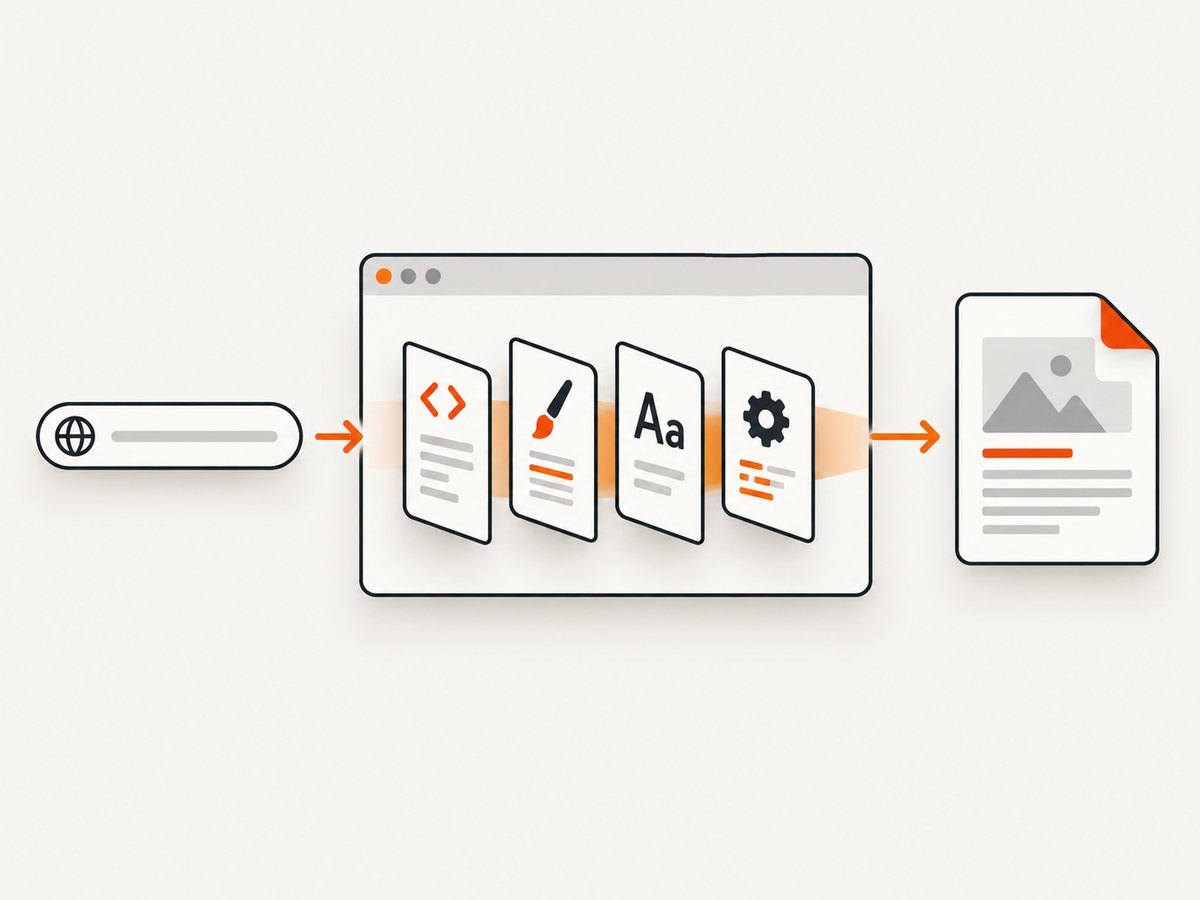
The first decision is not the package name. It is whether the source is already a web page. A headless browser renders that page using browser layout, runtime JavaScript, fonts and images. A PDF-generation library draws PDF primitives according to your code. Treating those as interchangeable creates the largest class of conversion problems.
1. Puppeteer: the default for server-side HTML
Puppeteer controls Chromium from Node.js. Its official guide recommends Page.pdf() for PDF generation, and the API documentation says the method generates output using the print CSS media type. It waits for fonts by default, which helps prevent fallback-font layout shifts. See the Puppeteer PDF generation guide and Page.pdf() API.
Install and run
npm install puppeteerconst puppeteer = require('puppeteer');
(async () => {
const browser = await puppeteer.launch({
headless: true,
args: ['--no-sandbox', '--disable-setuid-sandbox']
});
try {
const page = await browser.newPage();
await page.goto('https://example.com/invoice/123', {
waitUntil: 'networkidle0',
timeout: 60000
});
await page.emulateMediaType('screen');
await page.pdf({
path: 'invoice.pdf',
format: 'A4',
printBackground: true,
preferCSSPageSize: true,
margin: { top: '16mm', right: '14mm', bottom: '16mm', left: '14mm' }
});
} finally {
await browser.close();
}
})();Important Puppeteer options
format: a named paper size such asA4orLetter.widthandheight: custom dimensions, normally used instead offormat.landscape: switches orientation.printBackground: includes background colors and images.preferCSSPageSize: honors CSS@page { size: ... }when present.displayHeaderFooter,headerTemplateandfooterTemplate: add running page information.pageRanges: print selected pages, such as1-3.margin: set top, right, bottom and left margins with CSS units.
Print output can differ from the screen. If your design depends on screen media, call page.emulateMediaType('screen') before printing. Colors may also be adjusted for printing; use -webkit-print-color-adjust: exact in print styles when preserving colors is required, then verify the result in your target PDF viewers.
@page {
  size: A4;
  margin: 16mm;
}

@media print {
  .no-print { display: none !important; }
  .avoid-break { break-inside: avoid; }
  body { -webkit-print-color-adjust: exact; print-color-adjust: exact; }
}
2. Playwright: browser rendering with a broader automation API
Playwright is another headless-browser route for Node.js. It is useful when the same workflow already uses Playwright for navigation, authentication or multi-browser automation. The PDF step follows the same practical concerns as Puppeteer: wait for application data, load fonts, choose print or screen media, and validate page breaks.
npm install playwrightconst { chromium } = require('playwright');
(async () => {
const browser = await chromium.launch();
try {
const page = await browser.newPage({ viewport: { width: 1440, height: 900 } });
await page.goto('https://example.com/report', {
waitUntil: 'networkidle',
timeout: 60000
});
await page.evaluate(() => document.fonts.ready);
await page.pdf({
path: 'report.pdf',
format: 'A4',
printBackground: true,
preferCSSPageSize: true,
margin: { top: '12mm', right: '12mm', bottom: '14mm', left: '12mm' }
});
} finally {
await browser.close();
}
})();Use Playwright when its browser contexts, tracing, or existing test infrastructure justify the dependency. Do not choose it because a benchmark claims it is universally faster; the supplied research contains no performance benchmark. Measure your own pages, browser version and concurrency level.
3. html2pdf.js: convenient browser-only export
html2pdf.js runs in a browser, not Node.js. It combines html2canvas and jsPDF, so the page is converted through a canvas-oriented path rather than printed by a full browser PDF engine.
<script src="https://cdn.jsdelivr.net/npm/html2pdf.js@0.10.1/dist/html2pdf.bundle.min.js"></script>
Test text sharpness, hyperlinks, cross-origin images, page breaks and long documents on the browsers you support. The package documentation notes a large-canvas limitation that can produce blank output for very large documents. That is a reason to test representative page lengths and image-heavy content, not a claim that every large document fails.
4. PDFKit and declarative generators
PDFKit describes itself as “A JavaScript PDF generation library for Node and the browser.” It supports text, vectors, images, embedded fonts, tables, annotations, forms, outlines, security and accessibility features. It is a strong choice when your application owns the document structure.
npm install pdfkit
const PDFDocument = require('pdfkit');
const fs = require('node:fs');

const doc = new PDFDocument({ size: 'A4', margin: 50 });
doc.pipe(fs.createWriteStream('summary.pdf'));
doc.fontSize(22).text('Monthly summary');
doc.moveDown();
doc.fontSize(11).text('Revenue: $42,000');
doc.text('Status: Paid');
doc.image('chart.png', { fit: [480, 260], align: 'center' });
doc.end();
In Node, PDFKit can stream to a file or another writable destination. Browser builds cannot access the file system; register font and image data in memory and send the resulting bytes to a download. PDFKit documents experimental toBlob and toBytes helpers, so avoid treating those helpers as stable APIs without checking the version you install. If you need a declarative schema for tables and columns, evaluate pdfmake using the same criterion: it constructs a PDF from your data model rather than faithfully rendering arbitrary existing HTML.
5. A practical selection checklist
- Where does code run? Browser-only workflows favor html2pdf.js. Server workflows favor Puppeteer, Playwright or a managed service.
- Is there an existing page? If yes, use a browser renderer when CSS and runtime JavaScript must match. If no, PDFKit or pdfmake may require less infrastructure.
- How strict is fidelity? Check fonts, web components, SVG, gradients, forms, links, images and generated content.
- How are pages controlled? Define
@page, margins, print media,break-before,break-afterandbreak-inside, then inspect real output. - What happens at scale? Reuse a browser process, cap concurrent pages, close every page, and record conversion duration and failures.
- What does operations own? Chromium downloads, sandbox settings, fonts, native dependencies, patching and memory become your responsibility when self-hosting.
6. Do-it-yourself reliability and troubleshooting
| Symptom | Likely cause | Fix |
|---|---|---|
| Blank or partially empty PDF | Capture started before data or fonts loaded; canvas too large | Wait for a selector or document.fonts.ready; split long client-side exports; inspect browser logs |
| Missing background colors | Print backgrounds disabled or print CSS overrides them | Enable printBackground; review @media print; use print-color-adjust deliberately |
| Wrong layout | Print media differs from screen media | Choose emulateMediaType('screen') or design explicit print CSS |
| Images missing | Cross-origin restrictions, lazy loading or failed requests | Allow CORS where appropriate, wait for images, and log failed requests |
| Fallback fonts or shifted pages | Web fonts were not ready or unavailable in the runtime | Preload fonts, await document.fonts.ready, and install required fonts in the environment |
| Timeouts | Long JavaScript, third-party requests or never-ending network activity | Wait for a specific application-ready selector, block unnecessary resources, and set bounded timeouts |
| Clipped tables or cards | Elements cross page boundaries | Use print-specific break rules and test rows of different heights |
| Browser launch failure | Missing browser binary, native dependency or sandbox permission | Install the documented browser dependencies, use the supported executable, and follow your deployment platform’s sandbox guidance |
For reliability, make conversion observable: record the URL or document identifier, browser version, options, duration, output byte size and failure reason. Keep input pages deterministic where possible. Cache immutable assets, but do not cache personalized or authorization-protected documents without a clear data policy.
7. Performance, reliability and cost considerations
Browser rendering costs startup time and memory. Launch one browser process and create isolated pages or contexts rather than launching a new browser for every request. Limit concurrency according to available memory, and queue excess work. Reuse downloaded browser binaries in deployment images. Avoid waiting for a global network-idle event when analytics or streaming connections never settle; a page-specific ready selector is usually more predictable.

Client-side conversion moves compute to the user’s browser, but large canvases can consume substantial memory and may produce lower-quality text. Programmatic generators are often easier to scale for highly structured reports because the layout is explicit, although recreating a complex web page can shift significant maintenance work into application code.
There are no reliable universal speed or cost rankings in the supplied research. Measure your own representative documents, including the slowest pages, largest images, custom fonts, authenticated content and maximum page count. Include browser startup, queue time, rendering, PDF writing and retries in the measurement.
8. Or skip the browser setup
When you need a clean PDF or screenshot from a URL without managing Chromium, call ScreenshotNeo. The API base is https://api.screenshotneo.com/v1/shot; the ScreenshotNeo documentation lists the request options.
curl -G "https://api.screenshotneo.com/v1/shot" -d access_key=YOUR_API_KEY --data-urlencode url=https://stripe.com -o shot.webpimport requests
r = requests.get("https://api.screenshotneo.com/v1/shot", params={"access_key": "YOUR_API_KEY", "url": "https://stripe.com"}, timeout=90)
open("shot.webp", "wb").write(r.content)const q = new URLSearchParams({ access_key: 'YOUR_API_KEY', url: 'https://stripe.com' });
const res = await fetch(`https://api.screenshotneo.com/v1/shot?${q}`);ScreenshotNeo accepts options for PDF paper size, margins, landscape mode and page ranges, as well as full-page capture, CSS selector capture, custom CSS and JavaScript, waits, cookies, headers, authorization, user agents, timezone, geolocation, resource blocking, caching and signed links. It can also run asynchronous jobs with signed webhooks and bulk capture up to 100 URLs per call.
Before capture, cookie and consent banners are accepted and more than 60 known consent platforms, newsletter popups and chat widgets can be removed; each cleanup step can be turned off. Bot checks, blank pages, timeouts, failed loads and cache hits are not billed, and response headers identify the page verdict and billing status. An MCP server exposes take_screenshot, get_page_info and capture_pdf for Claude, Cursor and other MCP clients.
The Free plan includes 1,000 screenshots per month with no card. Paid plans start at $5 for 3,000 shots; yearly billing gives two months free, and every feature is available on every plan. Create a free ScreenshotNeo account.
FAQ
Can Puppeteer convert any HTML page?
It can render pages Chromium can load, but output still depends on fonts, network resources, authentication, print CSS and browser environment. Test the exact page and deployment image.
Is html2pdf.js suitable for server-side Node.js?
No. Its package documentation says it must run in a browser. Use Puppeteer, Playwright, PDFKit or a managed service for server-side work.
Should I use PDFKit for an existing website?
Usually not if browser fidelity matters. PDFKit is better when you can describe the document as structured text, tables, images and layout instructions.
How do I preserve screen colors in a Puppeteer PDF?
Choose the intended media type, enable background printing, and use print-color-adjust rules where needed. Verify the output in the PDF viewers your users rely on.
When is a managed API the better choice?
Consider one when browser binaries, sandboxing, font installation, concurrency limits and retries are operational costs you would rather avoid, or when you need a consistent URL-to-PDF endpoint.


