Best JavaScript Image Resize Libraries (2026)
Choose sharp for server-side Node.js, pica for browser resizing, or Jimp for portability. Compare formats, sizing behavior, tradeoffs, and runnable examples.
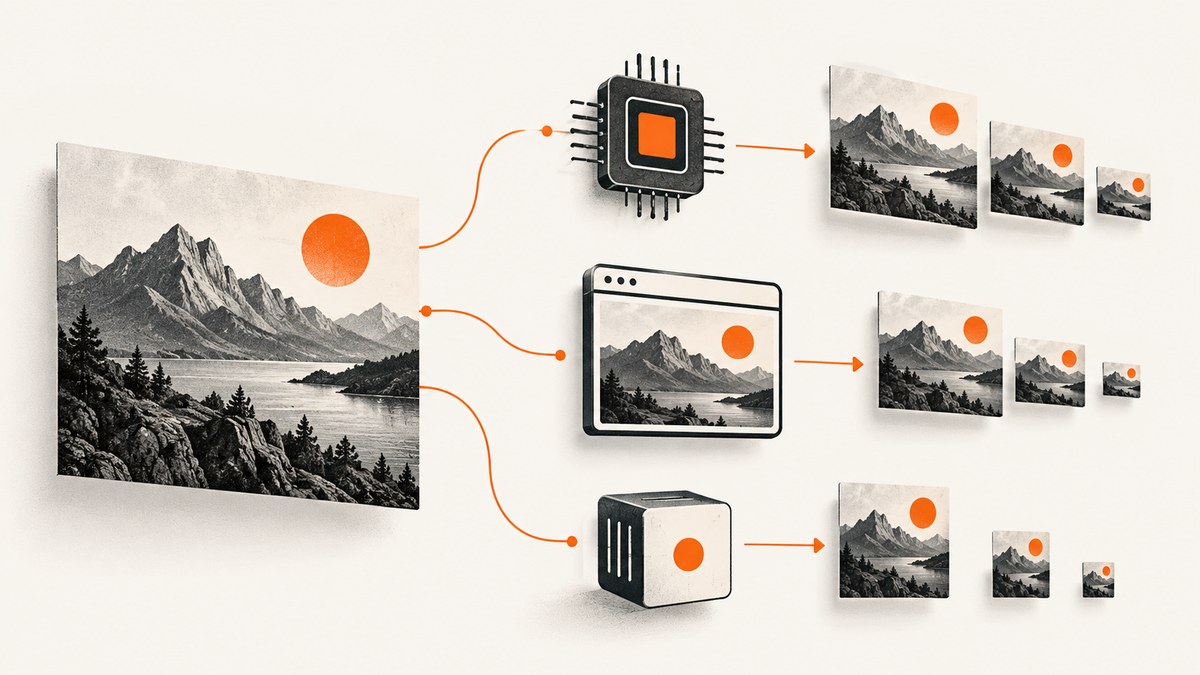
For server-side Node.js, start with sharp. For resizing in a browser, consider pica. Choose Jimp when running a JavaScript implementation in both browser and Node.js matters more than optimized performance. There is no universal best: runtime, formats, crop behavior, memory, and image-quality requirements determine the right fit. These recommendations follow the projects’ documented capabilities and limitations; they are not results from a controlled benchmark.
This guide compares the three options, gives runnable examples, explains resize semantics and common failure modes, and helps you decide what to validate before shipping.
1. Quick comparison
| Library | Best fit | Runtime and formats | Key tradeoff |
|---|---|---|---|
| sharp | Server-side image processing and web-friendly output | Node.js 20.9.0 or later; also Deno and Bun where Node-API v9 is supported. Reads JPEG, PNG, WebP, GIF, AVIF, TIFF, SVG; writes JPEG, PNG, WebP, GIF, AVIF, TIFF, or raw pixels. | Native Node-API dependency; check that your deployment runtime and packaging support it. |
| pica | Browser-side resizing, such as thumbnails and smaller uploads | Browser APIs; chooses among web workers, WebAssembly, createImageBitmap, and pure JavaScript based on capabilities. | Canvas, CORS, device memory, and precision constraints apply. Its project recommends sharp for Node.js. |
| Jimp | A JavaScript implementation usable in browser and Node.js | Its guide lists BMP, GIF, JPEG, PNG, and TIFF. | Its JavaScript format implementations are not performance-optimized and can allocate memory before use. |
Check each project’s current compatibility notes before adopting it: sharp documentation, pica repository, and Jimp guide.
2. Choose by runtime and workload
Use sharp when processing on a server
sharp is the default choice for a Node-compatible server that needs to convert large images into smaller web-friendly outputs. It accepts filesystem paths, buffers, and streams. Its documentation describes processing small regions of uncompressed image data at a time and using multiple CPU cores, with promise-based, non-blocking operations. Those are useful characteristics for server workflows, though actual throughput and memory depend on image dimensions, concurrency, hardware, and deployment limits.
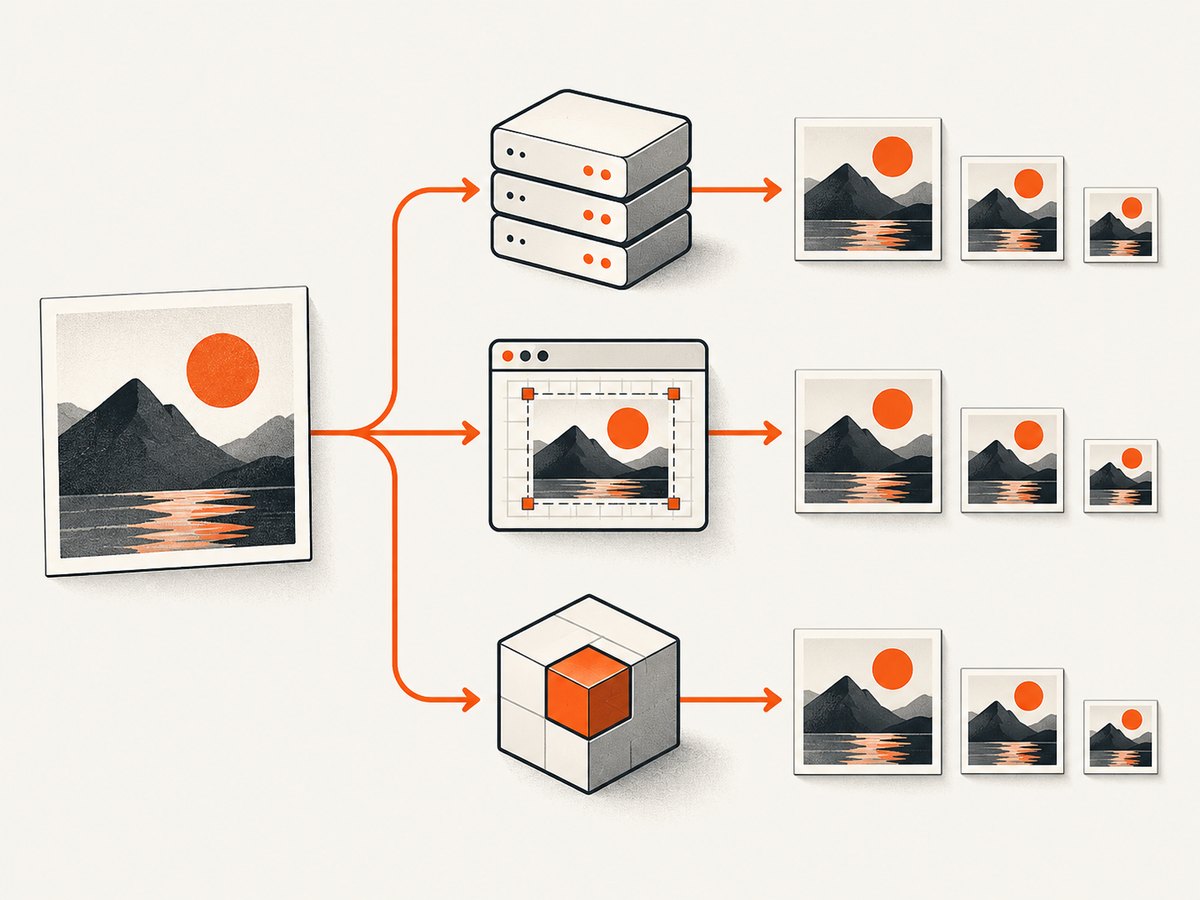
The project says resizing is typically 4–5 times faster than the quickest ImageMagick and GraphicsMagick settings, attributing that to libvips. That is sharp’s own comparison, not an independent benchmark against pica or Jimp. Do not infer that it is universally faster than those JavaScript libraries on every workload.
Use pica when the browser should resize the image
Browser-side resizing can reduce the amount of data uploaded from a client and can generate previews before upload. pica selects a processing route based on browser capabilities, including workers and WebAssembly. Browser behavior varies, so test supported browsers and representative device sizes, especially if input images are large or output quality matters.
Use Jimp when implementation portability is the priority
Jimp is intended for browser and Node.js use, which can be useful when sharing JavaScript processing logic across environments. Its documented performance and allocation caveats matter for large files or high-throughput services. Prefer it when the supported formats and expected workload fit, and measure resource use in the actual deployment.
3. Install and resize with sharp
Install sharp in a Node.js project:
npm install sharpSave the following as resize.mjs. It reads a local image, constrains it to a 1200 by 800 box without stretching, and writes a WebP file. The inside fit preserves aspect ratio and keeps the result within both bounds.
import sharp from 'sharp';

const input = 'input.jpg';
const output = 'output.webp';

await sharp(input)
  .resize({ width: 1200, height: 800, fit: 'inside' })
  .webp({ quality: 82 })
  .toFile(output);

console.log(`Wrote ${output}`);
Run it with node resize.mjs. Replace the input path with a supported file. A buffer can be passed instead of a path, and sharp also supports streams.
Choose the fit mode deliberately
| Mode | Result | Good for |
|---|---|---|
cover |
Preserves proportions and crops or clips to fill both dimensions. | Fixed-size cards where every output must have the same dimensions. |
contain |
Preserves proportions and adds space as needed to reach the target box. | Product or artwork images that must remain fully visible. |
fill |
Stretches the image to the exact dimensions. | Only when distortion is acceptable or the source ratio already matches. |
inside |
Fits within both target dimensions while preserving proportions. | Maximum bounds without cropping or padding. |
outside |
Resizes to reach at least both target dimensions, potentially exceeding one. | Inputs that will be cropped later or need minimum coverage. |
For cover, sharp supports position and gravity choices, as well as entropy- and attention-based crop strategies. It also documents multiple reduction kernels and controls for avoiding enlargement or reduction. Use the resize API reference to select the exact option names and defaults for the version you install. Decide what should happen to small inputs: enlarging can soften them, while refusing enlargement can leave output dimensions smaller than requested.
4. Resize in a browser with pica
pica’s repository documents browser use and recommends it for reducing upload size and generating thumbnails. A typical flow loads a same-origin image or a file selected by the user, creates source and destination canvases, then asks pica to resize between them. The exact API and module packaging can vary by installed version; follow the repository’s installation and API instructions for the version you pin.
// Browser-side flow; pica is installed and exposed as `pica`.
const source = document.querySelector('#source');
const output = document.querySelector('#output');
const width = 800;
const height = Math.round(source.naturalHeight * width / source.naturalWidth);

output.width = width;
output.height = height;

await pica().resize(source, output);
const blob = await pica().toBlob(output, 'image/jpeg', 0.85);
// `blob` can now be previewed or uploaded.
This example assumes the image has loaded and its intrinsic dimensions are nonzero. In a file-upload form, wait for the image decode/load event before sizing the canvas. If a remote image is drawn to canvas, the server must allow the relevant cross-origin access; otherwise the browser can taint the canvas and prevent reading the output. pica also calls out iOS canvas memory limits and possible precision loss in browser canvas processing. Validate output quality and memory use on the browsers and devices you support.
5. Use Jimp for a portable JavaScript implementation
Jimp supports browser and Node.js environments. Install it using the project’s current guide and pin a version compatible with your module system. This Node.js example uses its documented read, resize, and write pattern; confirm the API names against the version installed because package APIs can change.
import { Jimp } from 'jimp';

const image = await Jimp.read('input.jpg');
image.resize({ w: 800 });
await image.write('output.jpg');
Specifying only width preserves the source proportions in current Jimp APIs. If your installed version uses a different resize signature, follow its getting-started guide. Jimp’s listed formats are BMP, GIF, JPEG, PNG, and TIFF, so verify format support before making it part of a pipeline. Its documentation warns that its JavaScript implementations are not optimized for performance and may allocate memory before use; avoid assuming it is suitable for large or concurrent workloads without measurement.
6. Decide output dimensions, formats, and quality
Before selecting a package, write down the desired output contract. “Resize to 800” is ambiguous: it could mean width only, a maximum bounding box, exact dimensions with distortion, or a crop to a fixed aspect ratio.
- Thumbnails: decide whether consistent dimensions matter more than preserving every edge. Use a crop strategy for fixed cards, or contain/inside behavior to retain the whole image.
- Responsive assets: create sizes that match actual display needs and avoid needlessly enlarging small source images.
- Format conversion: confirm both input and output format support in the library. sharp documents a broad set including AVIF and SVG input; Jimp lists a smaller set in its guide.
- Transparency: preserve alpha when the output format supports it. If converting to an opaque format, choose a background color rather than accepting an accidental matte.
- Animated formats: check whether the chosen API processes one frame or the full animation and how that affects output. Do not assume static-image behavior carries over to GIF.
- Quality settings: lossy output quality is a size/appearance tradeoff. Inspect representative photos, text-heavy graphics, gradients, and transparent edges.
Keep the original when you need a reversible workflow, and make output filenames or storage keys encode dimensions and format so regenerated variants do not overwrite the source.
7. Reliability, performance, and cost
All three choices shift work to different places. sharp uses native processing and multiple CPU cores; measure server concurrency and memory under realistic image sizes. pica spends browser CPU and memory, which can keep resizing near the user but can be constrained on mobile devices. Jimp offers implementation portability but warns of slower JavaScript processing and allocations.
For reliable pipelines, cap accepted input dimensions and file size before processing, handle decode failures, and limit concurrent jobs. A compressed upload can expand into a very large pixel buffer, so compressed byte size alone is not a safe proxy for processing cost. Preserve the original or make transformations idempotent so retries do not repeatedly resize an already reduced image. Return clear errors for unsupported formats and invalid dimensions.
There is no package price comparison established by the cited project documentation here, and no controlled head-to-head benchmark among sharp, pica, and Jimp. Your cost is primarily where CPU, memory, and storage are consumed: server capacity and egress for server processing, or client device time and upload bandwidth for browser processing. Test representative images on target hardware rather than relying on cross-project speed claims.
8. Troubleshooting common problems
| Symptom | Likely cause | What to check |
|---|---|---|
| sharp fails during install or startup | The runtime, platform, or deployment packaging does not meet the native module requirements. | Check supported Node.js version and Node-API compatibility; install for the deployment target and verify native dependencies are included. |
| Output is cropped unexpectedly | cover fills the requested box by cropping. |
Use contain or inside when all content must remain visible; set an intentional position or gravity for crops. |
| Output looks stretched | fill forces the requested width and height. |
Choose an aspect-ratio-preserving fit mode. |
| Browser canvas export fails for a remote image | The remote server did not permit cross-origin use, or the image was drawn before CORS mode was set. | Configure appropriate CORS response headers and load the image with the correct cross-origin setting before drawing. |
| Browser tab runs out of memory | Large source dimensions, canvas allocations, or multiple concurrent operations exceed device limits. | Resize one image at a time, reduce source dimensions earlier where possible, and test on constrained mobile devices. pica notes iOS canvas limits. |
| Jimp processing is too slow or memory-heavy | Its JavaScript format implementations are not performance-optimized and may allocate memory up front. | Reduce concurrency and image dimensions, or choose a runtime-appropriate alternative after measuring. |
| Output is smaller than requested | A setting that prevents enlargement may be active, or an inside fit preserves the original’s limiting dimension. | Check fit and enlargement behavior; determine whether upscaling is acceptable. |
| Unexpected format or alpha behavior | The input/output codec or transparency expectations differ from the chosen library’s support. | Verify documented formats and specify an explicit output format and background handling. |
9. Or skip the browser setup
If your goal is a screenshot of a web page rather than resizing an uploaded image, ScreenshotNeo is a website screenshot API and MCP server. One GET request returns PNG, JPEG, WebP, or PDF. Cookie banners, newsletter popups, and chat widgets are removed before the shot. Bot checks, blank pages, timeouts, failed loads, and cache hits are not billed; response headers identify the page verdict and billing status. Its MCP server lets AI agents use take_screenshot, get_page_info, and capture_pdf.

Here is a direct request using the API. See the ScreenshotNeo API documentation for the available parameters.
curl -G "https://api.screenshotneo.com/v1/shot" \
  -d access_key=YOUR_API_KEY \
  --data-urlencode url=https://stripe.com \
  -o shot.webp
Python equivalent:
import requests

r = requests.get(
    "https://api.screenshotneo.com/v1/shot",
    params={"access_key": "YOUR_API_KEY", "url": "https://stripe.com"},
    timeout=90,
)
open("shot.webp", "wb").write(r.content)
Node.js equivalent:
const q = new URLSearchParams({ access_key: 'YOUR_API_KEY', url: 'https://stripe.com' });
const res = await fetch(`https://api.screenshotneo.com/v1/shot?${q}`);
if (!res.ok) throw new Error(`Screenshot request failed: ${res.status}`);
await Bun.write('shot.webp', res);
The Node example uses Bun’s file writer; in Node.js, save the response body with Buffer.from(await res.arrayBuffer()) and writeFile from node:fs/promises. ScreenshotNeo includes 1,000 screenshots per month on its free plan with no card; paid plans start at $5 for 3,000. Every feature is on every plan. Sign up for 1,000 free screenshots a month, no card required.
10. Frequently asked questions
Which library should I pick for a typical Node.js image pipeline?
Start with sharp if your runtime meets its requirements and its formats and fit modes cover your needs. Validate deployment packaging and workload resource limits.
Can pica run in Node.js?
Its project describes Node mode as limited and not recommended, and recommends sharp for Node.js work.
Is sharp proven faster than pica and Jimp?
No head-to-head controlled benchmark is established here. sharp’s speed comparison is its own stated comparison with ImageMagick and GraphicsMagick settings.
Which option is best for a browser upload form?
Consider pica, then validate CORS, quality, and memory behavior in the browsers and devices your users have.
Is Jimp a drop-in replacement for sharp?
Not necessarily. Their format support, runtime behavior, performance characteristics, and APIs differ. Check the needed operations and port code explicitly.


