Best Markdown Editors for Writing Better Documentation
Choose a Markdown editor by your documentation workflow. Compare VS Code, Typora, Obsidian and Zettlr, then build a reliable publishing process.

Short answer: the best Markdown editor depends on where your documentation ends up. Use Visual Studio Code when docs live in a Git repository and pass through a build pipeline. Choose Typora for focused prose drafting with an integrated live preview. Choose Obsidian for a local, linked knowledge base that may become documentation. Choose Zettlr for research-heavy writing that needs citations and export.
There is no universal winner. Your renderer, Markdown dialect, asset rules, review process and publishing destination matter more than a feature-count ranking. The workflow comparison used for this guide reaches the same practical conclusion: select around the destination, then validate a representative document in the final renderer (workflow comparison).
How to choose a Markdown editor
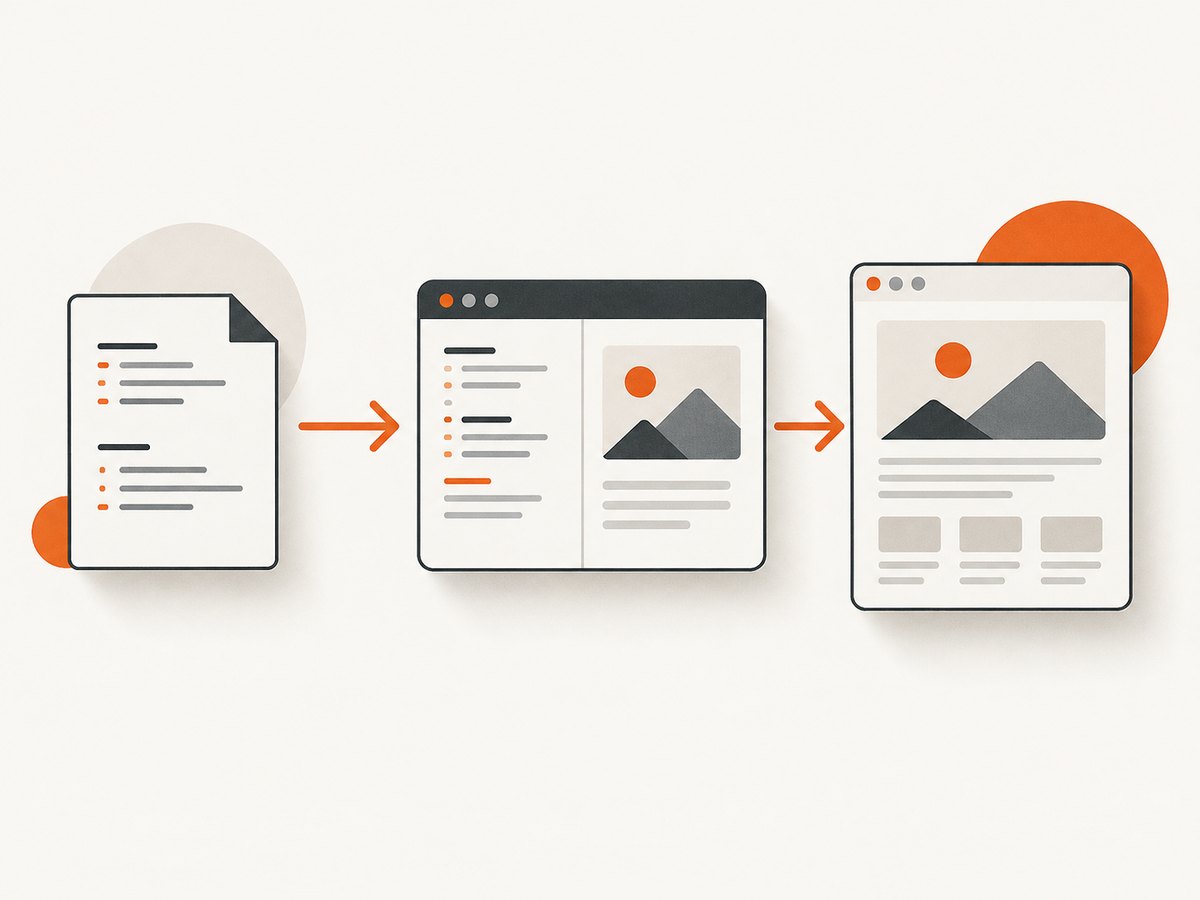
Start by writing down the path from source file to reader. Is the file committed to Git, reviewed in pull requests and built into a static site? Is it a private note that may later become a public guide? Does it need citations, diagrams or export to another format? Those answers narrow the field faster than comparing every toolbar.
| Decision factor | Questions to ask | Why it matters |
|---|---|---|
| Destination | Repository, docs portal, PDF, knowledge base or blog? | The final renderer controls supported syntax. |
| Markdown flavor | CommonMark, GitHub Flavored Markdown or custom extensions? | Tables, callouts, footnotes and directives can differ. |
| Preview | Source, split view or seamless inline preview? | Preview speed affects drafting; renderer accuracy affects publishing. |
| Assets | Where do images and downloads live? | Relative paths and case sensitivity can break builds. |
| Review | Pull requests, comments, tracked changes or solo editing? | Team workflows need diffable plain text. |
| Portability | Can you open the files without the editor? | Plain-text Markdown reduces lock-in. |
| Export | Do you need PDF, HTML, DOCX or citations? | Conversion tools may impose their own syntax. |
| Maintenance | Who owns templates, plugins and upgrades? | A team standard must remain supportable. |
1. Visual Studio Code for repository-backed documentation
Visual Studio Code is the strongest starting point when documentation is code-adjacent: files are versioned with the product, reviewed with Git and processed by scripts or a static-site build. A secondary comparison identifies it as a fit for Git workflows, previews, linting and site builds. Treat those as workflow guidance and confirm the current capabilities and extensions against your team’s renderer before standardizing (comparison source).
Use it when
- Docs must change with source code and release branches.
- Reviewers need line-level diffs and pull requests.
- Your build uses scripts, link checks, linting or a static-site generator.
- You need one workspace for Markdown, configuration and code.
Watch for
Editor preview is not proof that production rendering is correct. Extensions can support syntax your site does not. Keep a small “golden” document containing headings, tables, code fences, links, images, footnotes and any custom directives. Build it in CI and inspect the generated page.
2. Typora for focused prose writing
Typora’s official site describes seamless live preview, tables, fenced code, diagrams, relative image paths, an outline and import/export features (Typora). That makes it a good fit when the main task is writing readable prose without constantly switching between source and preview.
Use it when
- You draft long guides as an individual writer or small team.
- Inline preview helps you judge hierarchy and spacing while composing.
- You need tables, diagrams, code fences and a document outline.
- You import or export between Markdown and other document formats.
Publishing safeguards
Vendor-described features are not an independent compatibility test. Open the resulting files in your production renderer. Check image paths, heading IDs, code highlighting, tables and any diagrams. Avoid editor-specific styling in source files that your publishing system cannot reproduce.
3. Obsidian for connected notes that become documentation
Obsidian says its notes are local plain-text Markdown files and describes links, plugins and optional Publish and Sync services (Obsidian). Its vault model is useful when documentation starts as a network of decisions, meeting notes, research and product knowledge.
Use it when
- You need backlinks and links between concepts.
- Notes must remain readable as ordinary Markdown files.
- A private vault may later become a knowledge base or published site.
- You value local storage and optional synchronization or publishing services.
Migration checks
Note-centric vaults and repository publishing pipelines solve different problems. Before making Obsidian your team standard, verify wikilinks, callouts, embeds, front matter and plugins in the target build. Convert nonstandard links when portability matters. Keep attachments in a predictable directory and enforce naming rules.
4. Zettlr for research and citation-heavy writing
Zettlr’s feature comparison lists citations, project support, writing statistics, split view and exports through Pandoc-supported formats (Zettlr features; documentation). It belongs on the shortlist when evidence management and delivery formats are central to the work.
Use it when
- Sources and citations are part of nearly every document.
- You work across projects and need writing statistics or split views.
- Your delivery process uses Pandoc-supported output formats.
Verify before adoption
Confirm the citation style, bibliography format, filters and export targets your project requires. Pandoc-supported formats still depend on templates, filters and configuration. Run a sample document through the exact command used in production.
Markdown compatibility: the test that prevents surprises
Markdown is a family of dialects. CommonMark defines a core specification (CommonMark), while platforms add extensions. A document can look correct in an editor and fail in a site build.
- Create a fixture with headings, nested lists, tables, blockquotes, links, images, code fences, escaped characters, footnotes and any custom blocks.
- Render the fixture in the editor preview.
- Render it with the production command or hosted preview.
- Compare generated HTML and inspect mobile layout, anchor links and image loading.
- Commit the fixture and run it in continuous integration.
Prefer the least specialized syntax that meets the requirement. If a feature is essential, document its dialect and provide a fallback for readers using another renderer.
Repository and asset workflow
For team documentation, keep source, assets and build configuration close together. Use lowercase, stable filenames; avoid spaces when URLs are generated from paths; and choose one convention for relative links. Review renamed images as carefully as renamed pages. Add link checking and a build preview to pull requests when your platform supports them.
Store reusable snippets as source templates rather than copying rendered HTML. Keep front matter consistent, define required fields and reject malformed metadata early. A short contribution guide should explain how to preview locally, where assets belong and which Markdown extensions are allowed.
Writing and reviewing better documentation
- Start with the reader task. Put the direct answer, prerequisites and expected result near the top.
- Use headings as a map. A reader should be able to scan the outline and understand the procedure.
- Make examples runnable. Include complete commands, required variables and expected output.
- Separate concepts from procedures. Explain why a choice matters, then show the steps.
- Design for failure. Include common errors, causes and fixes.
- Review rendered output. Source review catches logic; rendered review catches layout and broken assets.
Capturing documentation pages for previews and releases
When a build preview, changelog or release archive needs a visual snapshot, a browser automation script can work, but it requires browser installation, viewport setup, waiting logic and cleanup of consent banners. If you build this yourself, define the URL, viewport, full-page behavior and wait condition explicitly. Capture after fonts, images and client-side content are ready, and save failures separately from valid screenshots.
DIY capture checklist
- Pin the browser version in CI.
- Set a deterministic viewport, device scale and timezone.
- Wait for a stable selector or network idle, with a timeout.
- Handle cookie banners and chat widgets before capture.
- Capture full page only when lazy-loaded content is present.
- Record status, URL, duration and output path.
Or skip the browser setup
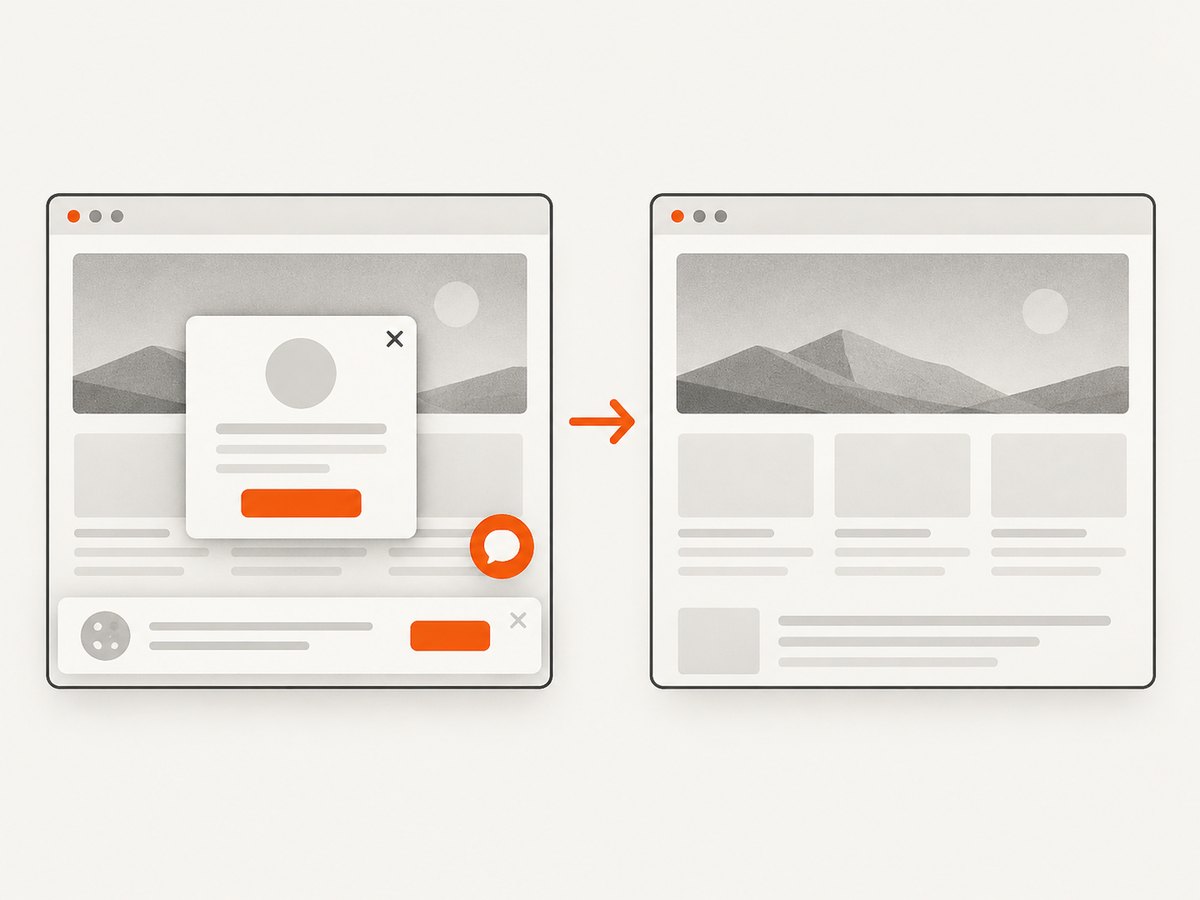
ScreenshotNeo is a website screenshot API and MCP server. One GET request returns PNG, JPEG, WebP or PDF. It accepts the consent banner like a visitor and removes more than 60 known consent platforms, newsletter popups and chat widgets; each step can be turned off. Bot checks, CAPTCHAs, blank pages, timeouts, failed loads and cache hits cost nothing, and response headers identify the page verdict and whether it was billed.
Use the API from cURL:
curl -G "https://api.screenshotneo.com/v1/shot" \
  -d access_key=YOUR_API_KEY \
  --data-urlencode url=https://example.com \
  -o shot.webp
Python:
import requests

r = requests.get(
    "https://api.screenshotneo.com/v1/shot",
    params={"access_key": "YOUR_API_KEY", "url": "https://example.com"},
    timeout=90,
)
r.raise_for_status()
open("shot.webp", "wb").write(r.content)
Node.js:
const q = new URLSearchParams({ access_key: 'YOUR_API_KEY', url: 'https://example.com' });
const res = await fetch(`https://api.screenshotneo.com/v1/shot?${q}`);
if (!res.ok) throw new Error(`HTTP ${res.status}`);
const bytes = await res.arrayBuffer();
await Bun.write('shot.webp', bytes);
See the ScreenshotNeo documentation for the complete parameter list. Options include full-page capture with lazy images, CSS element selection, dark mode, 12 device presets or any viewport, retina scale, PDF paper size and margins, custom CSS and JavaScript, clicks, selector or delay waits, network idle, request blocking, headers, cookies, user agent, Authorization, timezone, geolocation, transparent backgrounds, resizing, cache TTL, signed links, async jobs with signed webhooks, bulk capture of 100 URLs and a usage API. An MCP server exposes take_screenshot, get_page_info and capture_pdf to Claude, Cursor and other MCP clients.
Cookie banners, popups and chat widgets are removed before the shot; bot checks, blank pages and failed loads are never billed. The free plan includes 1,000 screenshots a month with no card, and paid plans start at $5 for 3,000. Create a free ScreenshotNeo account.
Troubleshooting
| Problem | Likely cause | Fix |
|---|---|---|
| Preview differs from the site | Dialect or extension mismatch | Render the fixture with the production tool and remove unsupported syntax. |
| Images are broken | Wrong relative path or case | Check the generated URL from the published page and use stable lowercase paths. |
| Tables lose formatting | Renderer lacks table extension | Confirm the dialect or rewrite as lists and headings. |
| Anchors do not work | Heading slug rules differ | Inspect generated IDs and use explicit anchors if supported. |
| Screenshot is blank | Page failed, timed out or requires client rendering | Wait for a selector, inspect the page verdict, and retry only transient failures. |
| Cookie dialog appears | Capture ran before consent handling | Accept or remove the banner before capture, or use ScreenshotNeo’s cleanup. |
| CI capture is flaky | Fonts, network or animations are nondeterministic | Pin dependencies, block unnecessary resources, disable animation and use a stable wait. |
Performance, reliability and cost
Keep documents small enough to review, split very large pages at meaningful tasks and optimize images before committing them. For automated screenshots, cache immutable URLs with a TTL, use bulk capture for batches and asynchronous jobs with signed webhooks when a request does not need to block a build. Retry timeouts with backoff, but do not retry bot checks indefinitely. Record the response verdict and billed status so cost reports distinguish clean captures from failures and cache hits.
ScreenshotNeo plans are Free: 1,000 shots/month; Starter: $5 for 3,000; Growth: $15 for 15,000; Pro: $39 for 60,000; Scale: $99 for 250,000; Business: $249 for 1,000,000. Yearly billing gives two months free, and every feature is on every plan.
FAQ
Should a team standardize on one editor?
Standardize the Markdown dialect, renderer, asset rules and review checks first. Allow editors that produce compatible source.
Is live preview enough to validate docs?
No. The production renderer and generated page are the final authority.
Can Obsidian notes move into a documentation repository?
Yes, when links, embeds, callouts and front matter are converted or supported by the destination pipeline.
When is Zettlr a better fit than Typora?
Choose Zettlr when citations, project organization and export formats drive the workflow. Choose Typora when uninterrupted prose drafting is the priority.
What should screenshot automation log?
Log URL, viewport, wait condition, response status, page verdict, billed status, duration and output location.


