The Best Open-Source Tools for Converting PDF to HTML
Compare pdf2htmlEX, Poppler, PDF.js and MuPDF.js for PDF-to-HTML conversion, viewer experiences, fidelity, licensing and automation.

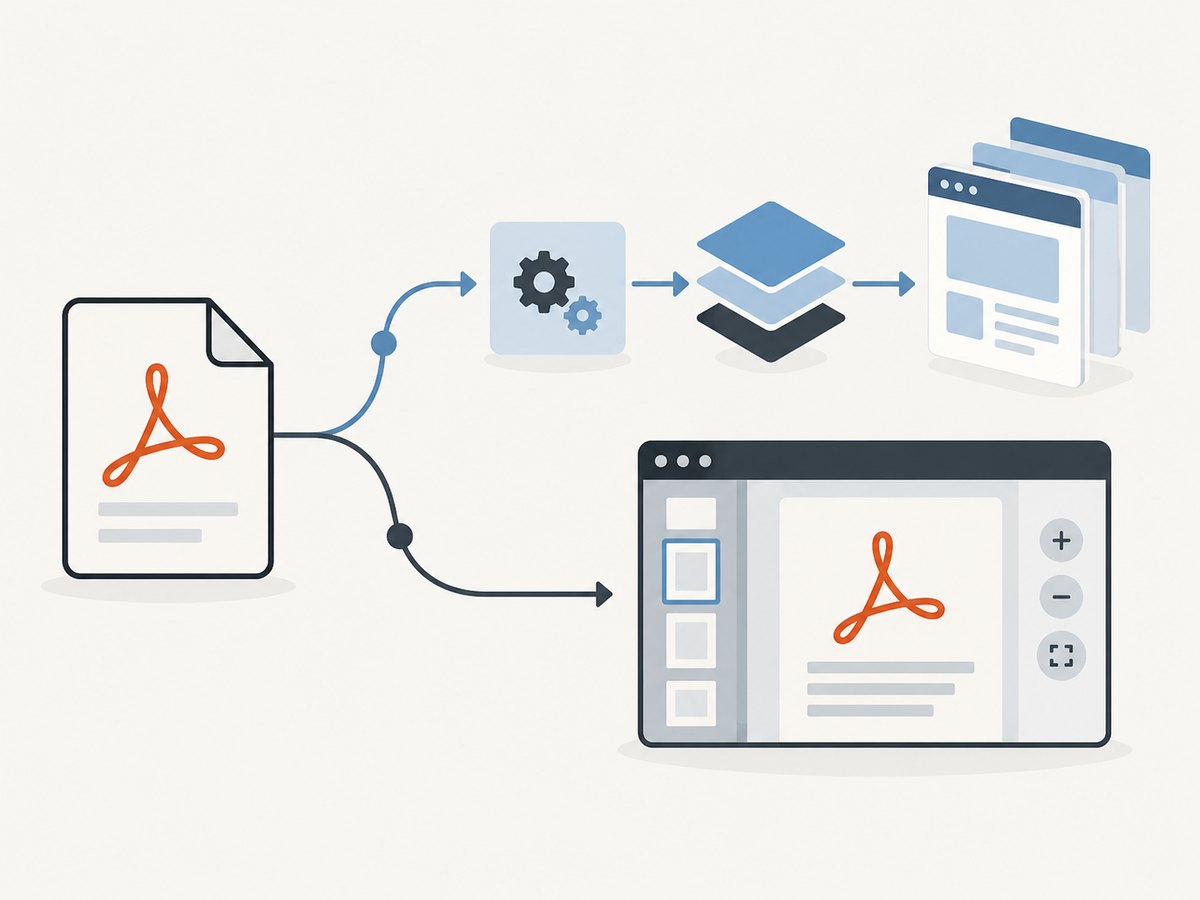
Short answer: use pdf2htmlEX when you need a standalone HTML export that preserves a PDF’s visual layout and selectable text. Use Poppler’s pdftohtml for a practical command-line workflow with HTML, XML and image output. Use PDF.js or MuPDF.js when the real requirement is an interactive PDF viewer or a JavaScript application that renders pages and extracts text.
These tools solve different problems. A converter creates HTML files; a rendering library displays PDF pages through browser technologies. There is no evidence in the available research for one universal performance winner, so validate the candidates against your own documents.
Choose the right kind of PDF-to-HTML result
| What you need | Start with | Why |
|---|---|---|
| A downloadable HTML representation with layout preserved | pdf2htmlEX | Exports native HTML text with font positioning, images and links; supports one HTML file or page-at-a-time output. |
| A scriptable CLI conversion or XML for post-processing | Poppler pdftohtml |
Produces HTML, XML and PNG images and includes single-file, complex-layout and image controls. |
| An embedded viewer with page navigation and zoom | PDF.js | Provides browser rendering, document information and text-content APIs. |
| A programmable JavaScript or WebAssembly document workflow | MuPDF.js | Supports rendering, text extraction and broader document operations in browser or Node-oriented applications. |
If your requirement sounds like “load a PDF and index its bookmarks in a side panel,” that is usually a viewer application rather than a one-time HTML conversion. Build that experience around PDF.js or MuPDF.js and keep the original PDF as the source document.
1. pdf2htmlEX: best fit for layout-preserving HTML export
The pdf2htmlEX project describes its goal as converting PDF to HTML without losing text or format. Its documented output uses native HTML text with precise font and location information, keeps images and links, and can produce a single HTML file or separate files per page. Non-text objects are rendered as images, and the documented feature list does not support Type 3 fonts.
Basic command
pdf2htmlEX input.pdf output.htmlRun the command in the directory containing the PDF, or provide absolute paths. Inspect the generated HTML in a browser before publishing it: visual similarity does not guarantee clean reading order, semantic headings or accessibility.
Useful workflow choices
- Choose a single HTML file when the result will be distributed as one document.
- Choose page-at-a-time output when you need independent pages for a static site or incremental processing.
- Check image-heavy pages separately because graphical objects may be represented as raster images.
- Test files using unusual or embedded fonts, especially when multilingual output matters.
2. Poppler pdftohtml: straightforward command-line conversion
Poppler’s pdftohtml can emit HTML, XML and PNG images. Its documented options include complex output, single-file output, image handling and XML output for post-processing.
Convert to HTML
pdftohtml input.pdf output.htmlGenerate one HTML file
pdftohtml -s input.pdf output.htmlGenerate XML for your own processing
pdftohtml -xml input.pdf output.xmlPreserve complex positioning
pdftohtml -c input.pdf output.htmlOption names and defaults can vary with the installed Poppler release. Read the local manual with pdftohtml -h and verify output on representative files.
3. PDF.js: build a viewer or custom browser workflow
PDF.js is primarily a PDF parsing and rendering platform. Its display API renders PDF pages, exposes document information and provides text-content items. It is a strong foundation for an in-browser viewer, but it does not promise a complete standalone semantic HTML conversion.
Minimal browser rendering example
<canvas id="page-canvas"></canvas>
<script type="module">
  import * as pdfjsLib from 'https://cdnjs.cloudflare.com/ajax/libs/pdf.js/5.4.54/pdf.min.mjs';

  pdfjsLib.GlobalWorkerOptions.workerSrc =
    'https://cdnjs.cloudflare.com/ajax/libs/pdf.js/5.4.54/pdf.worker.min.mjs';

  const pdf = await pdfjsLib.getDocument('/files/example.pdf').promise;
  const page = await pdf.getPage(1);
  const viewport = page.getViewport({ scale: 1.5 });
  const canvas = document.querySelector('#page-canvas');
  canvas.width = viewport.width;
  canvas.height = viewport.height;
  await page.render({ canvasContext: canvas.getContext('2d'), viewport }).promise;
</script>
Pin a version that you have reviewed in production. The PDF.js getting-started documentation listed stable version 6.3.289 at research time; release versions change.
Extract text for search or indexing
const page = await pdf.getPage(1);
const content = await page.getTextContent();
const text = content.items.map(item => item.str).join(' ');
console.log(text);
This produces application data that you can place in your own HTML structure. It does not automatically recreate the original page’s complete visual layout.
4. MuPDF.js: programmable rendering and extraction
MuPDF.js provides JavaScript and WebAssembly APIs for rendering PDF pages to an HTML canvas and extracting text, along with broader document operations. Treat it as a programmable library for an application rather than as a guaranteed one-command HTML exporter.
// API shape depends on the MuPDF.js release you install.
// Consult the current project documentation for package setup and exact calls.
const page = document.querySelector('#page-canvas');
// Load a document, render a page to the canvas, and extract text
// using the MuPDF.js APIs for your selected release.
Because package APIs and setup change, follow the current official documentation for installation and exact method names before copying an integration into production.
Conversion workflow that holds up in production
- Define the output. Decide whether you need editable HTML, a visual reproduction, searchable text, or an interactive viewer.
- Classify the PDF corpus. Separate text-heavy, image-heavy, multi-column, multilingual, scanned and font-dependent files.
- Run two candidates. For direct export, compare pdf2htmlEX and Poppler on the same sample set.
- Inspect the result. Check text selection, reading order, links, images, page boundaries, output size and accessibility.
- Choose a viewer for viewer requirements. If users need zoom, page navigation, bookmarks or search over the original file, evaluate PDF.js or MuPDF.js.
- Review licenses and versions. Confirm the exact release, dependencies and redistribution obligations before shipping.
Handling scanned PDFs, fonts and complex layouts
Scanned documents
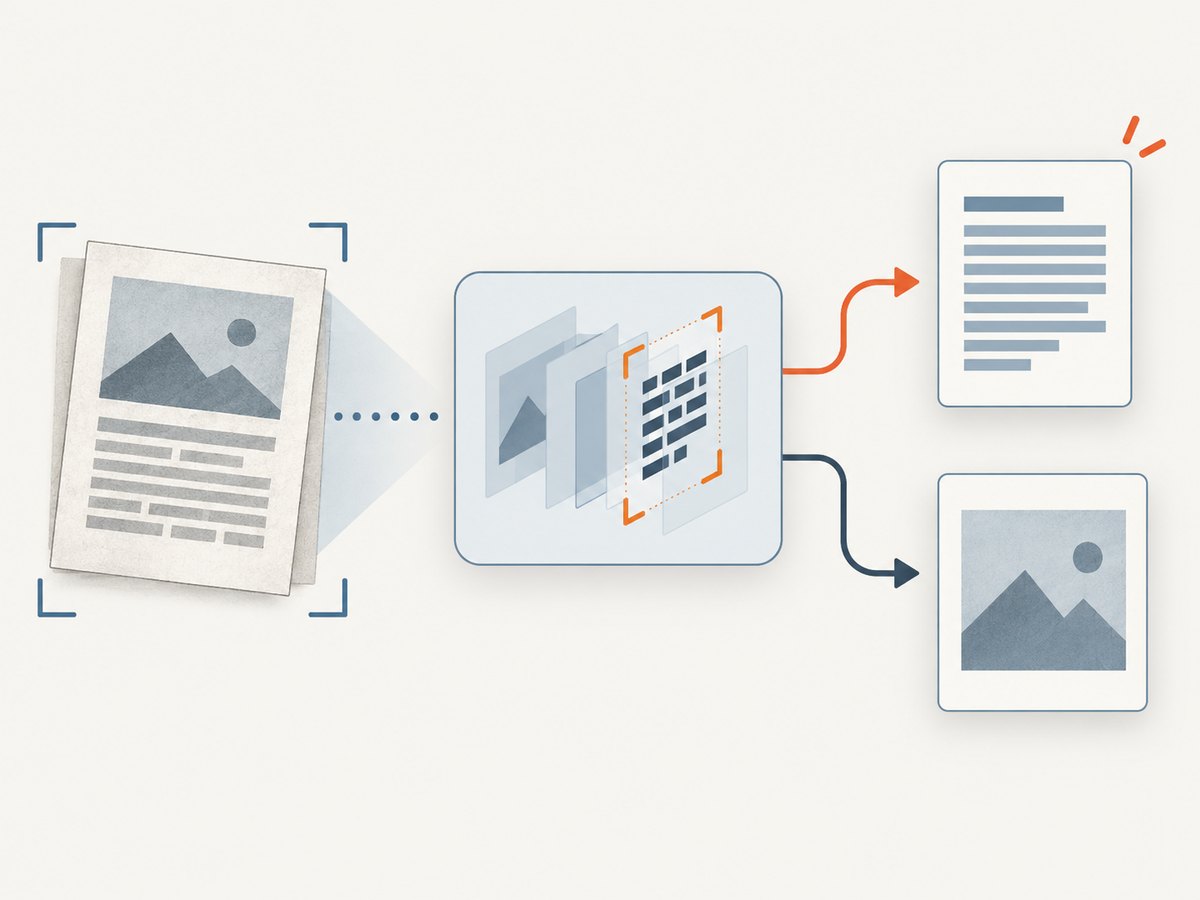
A scanned PDF may contain only page images. The researched converter documentation does not establish OCR capability, so plan a separate OCR step if you need selectable or searchable text. Validate OCR output independently from visual rendering.
Fonts
Font substitution or extraction can change line breaks and positioning. pdf2htmlEX documents a Type 3 font limitation, and its project materials warn that extracting, converting or redistributing fonts can raise legal issues. Check the fonts and licensing conditions in your files.
Multi-column and positioned text
PDFs describe visual placement, not a universal reading order. A page can look correct while screen readers or copy-and-paste operations produce an unexpected sequence. Inspect the DOM or extracted text, not only a screenshot.
Images and links
Verify that image resolution is acceptable and that links remain usable. Non-text objects may become images, and visual fidelity can increase output size.
Licensing and maintenance checks
| Project | License or caveat documented in the research | What to verify |
|---|---|---|
| pdf2htmlEX | Repository describes GPLv3+; project materials warn about legal issues around fonts. | Current repository status, build availability, dependencies and obligations for distribution. |
| PDF.js | Mozilla identifies it as Apache 2.0. | Current release and the licenses of bundled or separately served assets. |
| Poppler | Use the license and notices shipped with the version you install. | System package version, deployment platform and redistribution requirements. |
| MuPDF.js | Confirm the terms for the exact package and release you select. | WebAssembly, browser and server deployment obligations. |
Performance, reliability and cost considerations
- Performance: no controlled head-to-head benchmark was found in the research. Measure conversion time, memory use, output size and batch throughput with your own corpus.
- Reliability: isolate malformed PDFs, encrypted files, missing fonts and unusually large pages. Record the source filename, tool version and exit status for every conversion.
- Batching: process files in bounded workers, retain failed inputs for retry, and avoid assuming that one successful document predicts another.
- Cost: open-source software removes license fees for many uses, but compute, storage, OCR and engineering time still count. Review license obligations before redistribution.
- Accessibility: visual similarity is not semantic accessibility. Test keyboard navigation, heading structure, reading order, link names and text alternatives.
Troubleshooting
| Symptom | Likely cause | Fix |
|---|---|---|
| Output is blank | Wrong input path, encrypted PDF or a failed render. | Open the source PDF, run the command with an absolute path, inspect stderr and test an unencrypted sample. |
| Text cannot be selected | The source is scanned or text was converted to outlines. | Use OCR for scanned pages and validate whether the source contains a text layer. |
| Characters or line breaks are wrong | Missing, unusual or unsupported fonts. | Install permitted fonts, test another converter and inspect the source’s embedded font data. |
| Columns copy in the wrong order | PDF coordinates do not encode reading order. | Use XML or text extraction as input to a custom ordering step and test with assistive technology. |
| Images look blurry | Rasterized objects or an unsuitable resolution. | Check converter image settings and compare output at the target display size. |
| HTML is huge | Embedded images, per-glyph positioning or duplicated assets. | Measure single-file versus page output, compress assets where allowed and cache repeated conversions. |
| Viewer works locally but not in production | Worker, MIME type, CORS or range-request configuration. | Serve worker assets correctly, set PDF and JavaScript MIME types, review CORS and inspect browser network errors. |
| Bookmarks are missing | A converter was used where a viewer navigation model was needed. | Use PDF.js or MuPDF.js and explicitly read the document outline for the side navigation. |
Or skip the browser setup
If your goal is to capture a converted HTML page as a clean image or PDF, ScreenshotNeo provides a single HTTP request. Its API can capture PNG, JPEG, WebP or PDF output, including full pages and selected elements.
Cookie banners, newsletter popups and chat widgets are removed before the shot. Bot checks, blank pages and failed loads are never billed, and the response reports the result with X-Page-Verdict and X-Billed headers. An MCP server provides take_screenshot, get_page_info and capture_pdf tools for Claude, Cursor and other MCP clients. The free plan includes 1,000 screenshots per month with no card; paid plans start at $5 for 3,000.
cURL
curl -G "https://api.screenshotneo.com/v1/shot" -d access_key=YOUR_API_KEY --data-urlencode url=https://example.com/converted.html -o shot.webpPython
import requests

r = requests.get("https://api.screenshotneo.com/v1/shot", params={"access_key": "YOUR_API_KEY", "url": "https://example.com/converted.html"}, timeout=90)
r.raise_for_status()
open("shot.webp", "wb").write(r.content)
Node.js
import { writeFile } from 'node:fs/promises';

const q = new URLSearchParams({ access_key: 'YOUR_API_KEY', url: 'https://example.com/converted.html' });
const res = await fetch(`https://api.screenshotneo.com/v1/shot?${q}`);
if (!res.ok) throw new Error(`ScreenshotNeo returned ${res.status}`);
await writeFile('shot.webp', Buffer.from(await res.arrayBuffer()));
See the ScreenshotNeo API documentation for the other capture options, including PDF paper size and margins, custom CSS and JavaScript, waits, headers, cookies, caching, signed links, asynchronous jobs and bulk capture.
Start with 1,000 free screenshots per month with no card.
FAQ
Which tool should I try first for a standalone HTML file?
Start with pdf2htmlEX, then compare Poppler on representative files. Inspect reading order and accessibility before choosing.
Can PDF.js convert a PDF into semantic HTML?
PDF.js exposes rendering and text-content APIs. You must build the HTML structure and reading order in your application.
Is a visually accurate conversion automatically accessible?
No. Check semantics, keyboard behavior, reading order, link names and text alternatives separately.
Do these tools OCR scanned PDFs?
The reviewed sources do not establish OCR support for these converters. Plan a separate OCR workflow when the PDF has no text layer.
Is there a benchmark proving one tool is fastest?
No controlled comparative benchmark was found in the research. Measure your own corpus and deployment environment.


