10 Best Python IDEs for Development and Debugging
Compare 10 Python IDEs by workflow: application development, notebooks, science, learning, debugging, and extensibility.
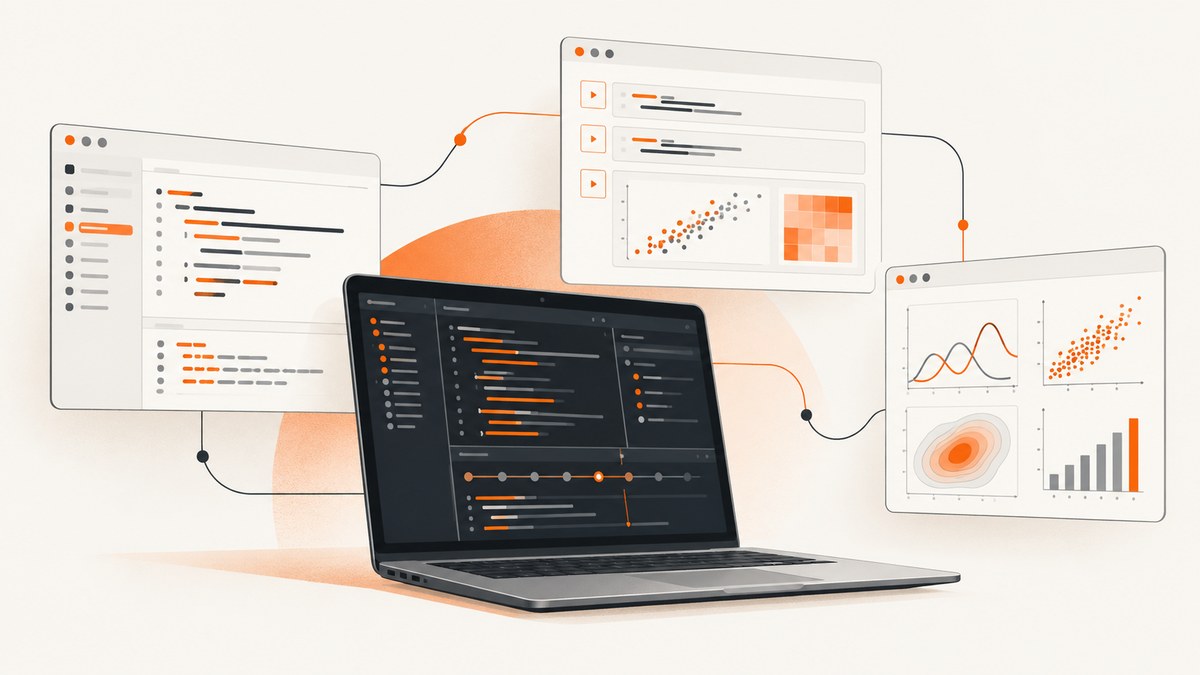
Direct answer: there is no universally best Python IDE. Choose the environment that matches your work: VS Code for a flexible general editor, PyCharm for Python-first application projects, JupyterLab for notebook-based analysis, Spyder for scientific Python, and Thonny for learning and step-through debugging. IDLE is the simplest starting point, while PyDev, Wing IDE, Eric, and Sublime Text suit narrower preferences.
This is a workflow-based shortlist rather than a benchmark ranking. The 2024 Python Developers Survey from the Python Software Foundation and JetBrains found that 48% of respondents named Visual Studio Code as their main editor and 25% named PyCharm. Those figures describe self-reported usage among survey respondents, not market share or a controlled quality test. The same survey found that 80% used additional editors or IDEs and 42% used three or more, so using a primary IDE plus a notebook or lightweight editor is normal. Read the survey methodology and results.
How to choose a Python IDE
Start with the shape of your project instead of a feature checklist. A multi-file web service needs navigation, refactoring, test discovery, environments, and a debugger. A data exploration session needs fast cell execution, variable inspection, plots, and a way to share results. A beginner needs an obvious Run button and a debugger that exposes program state. A scientific workflow may prioritize an interactive console and tools for inspecting arrays and plots.
| Workflow | Strong first choice | Why |
|---|---|---|
| Large application or service | PyCharm or VS Code | Project navigation, debugging, testing, and extensibility |
| Flexible editor across languages | VS Code | Broad extension ecosystem with Python and notebook tooling |
| Exploratory data analysis | JupyterLab | Cell-based execution and narrative analysis |
| Scientific desktop workflow | Spyder | Python-focused interactive development |
| Learning and tracing execution | Thonny | Step-through debugger and visible variable state |
| Minimal installation | IDLE | Low-friction basic practice |
Before committing, check five things with a small representative project: can the IDE select the correct virtual environment, set a breakpoint, inspect variables, run tests, and find a symbol across files? Also check whether notebook support, type checking, linting, formatting, and Git integration fit your existing workflow.
1. Visual Studio Code
VS Code is the strongest general-purpose choice when you want one editor for Python, JavaScript, containers, infrastructure, and documentation. The 2024 survey made it the leading named main editor for current Python development. Treat that as a usage snapshot, not proof that it is best for every project.
Python-specific behavior comes through extensions and configured tooling. That gives you flexibility, but it also creates setup decisions: choose an interpreter, install a Python extension, configure a formatter and linter, and decide how notebooks should run. This is a good fit for teams that already standardize on VS Code or need a consistent editor across languages.
Debugging workflow
- Open the project folder rather than an individual file.
- Select the virtual environment used by the project.
- Set a breakpoint beside the code that needs inspection.
- Run the file or test under the debugger.
- Inspect locals, the call stack, and the debug console before stepping over the next line.
VS Code can also host notebooks. That makes it practical to keep exploratory work near application code, but notebook features depend on the installed extensions and kernels.
2. PyCharm
PyCharm is a Python-first environment for developers who want project features presented as one integrated product. It is a natural candidate for multi-module applications, test-heavy codebases, and teams that value deep navigation and refactoring.
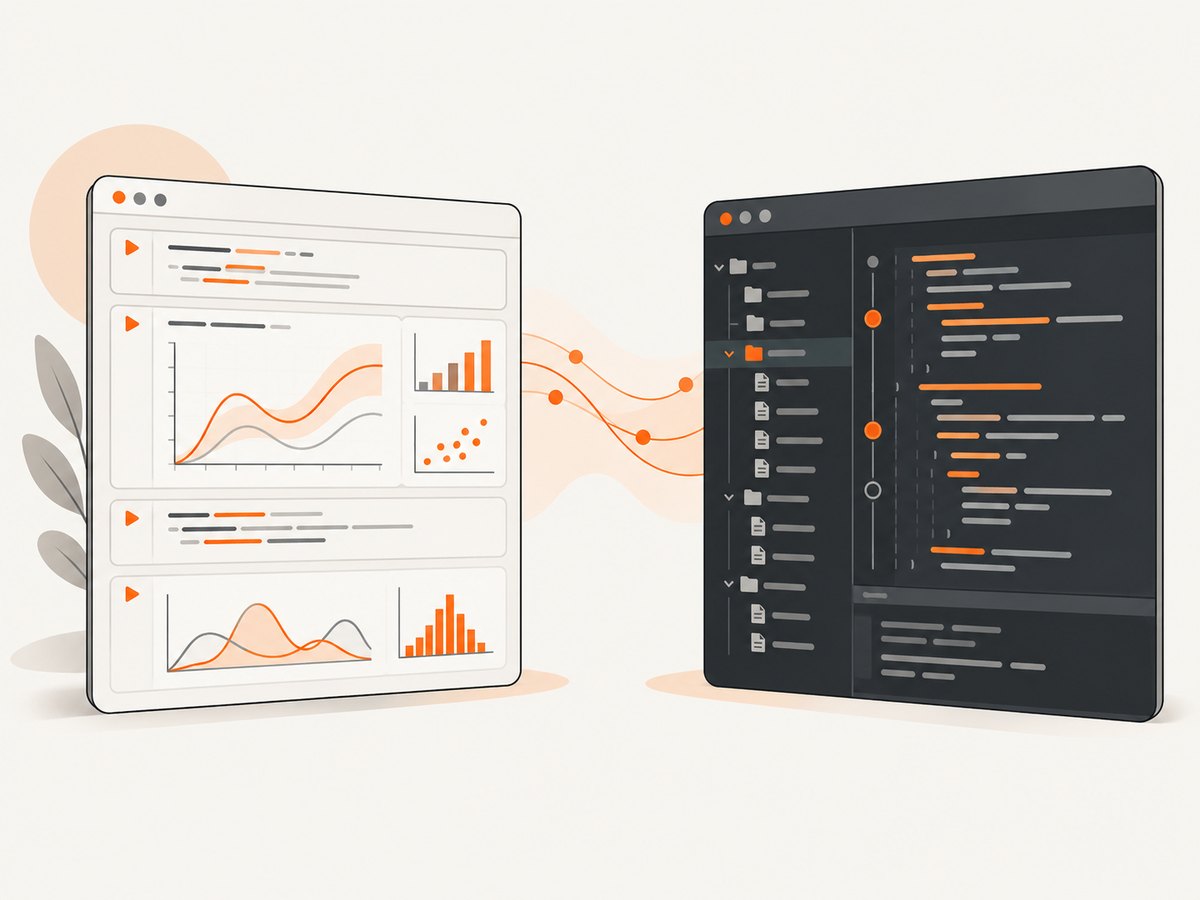
JetBrains’ PyCharm 2026.2 release material reports debugpy as the default debugger and describes updates involving uv and Jupyter. These are vendor-reported release details; verify edition boundaries, pricing, operating-system support, and feature availability when you publish or standardize a team setup. See JetBrains’ current release notes.
Choose PyCharm when you want Python project concepts to be visible immediately and are comfortable with a more opinionated environment. Consider VS Code when you need a smaller, highly configurable editor shared across many languages.
3. JupyterLab
JupyterLab is built around notebooks: executable cells, output beside code, plots, markdown explanations, and an interactive kernel. That makes it excellent for exploration, teaching, reports, and experiments where you repeatedly change a calculation and inspect the result.
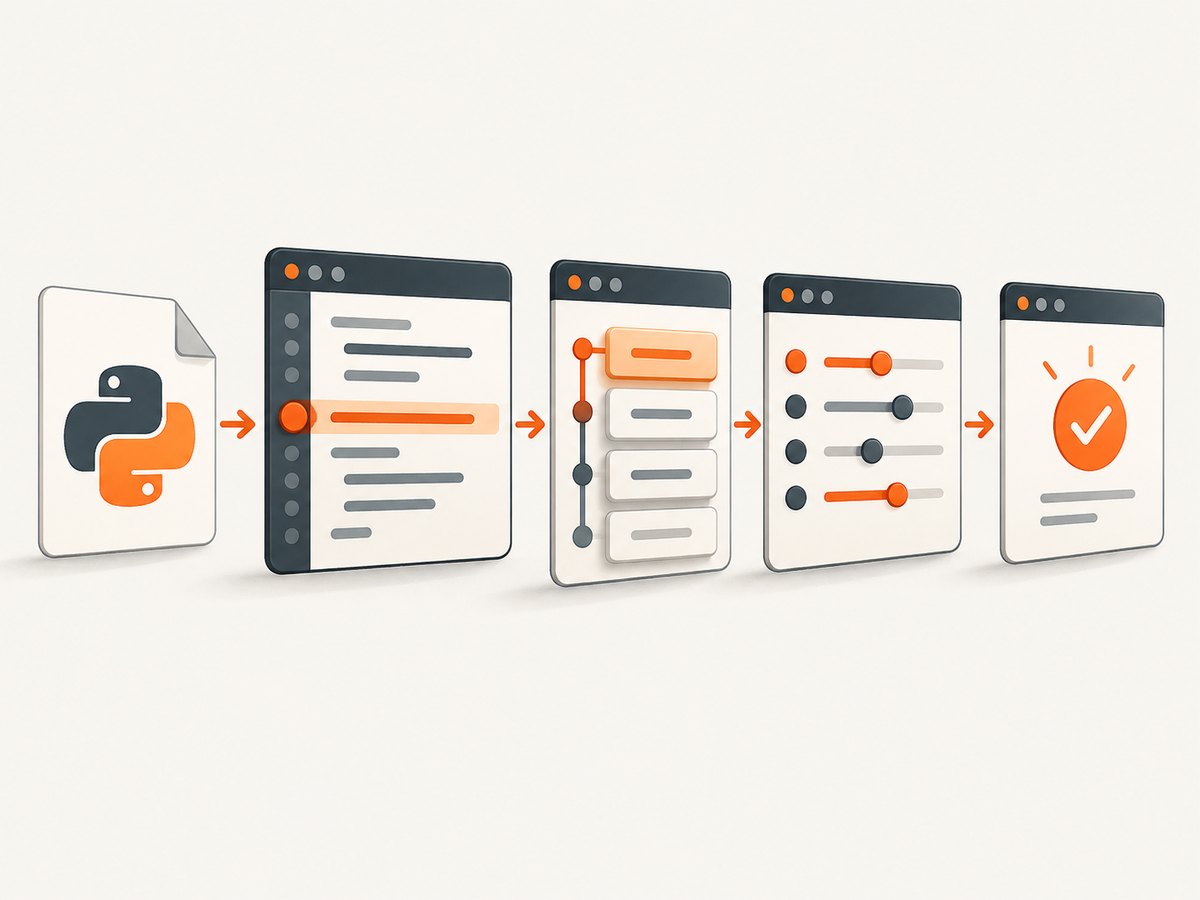
A notebook-first workflow differs from a project-first IDE. State can persist in the kernel after cells are run out of order, so reproducibility requires disciplined execution and, eventually, a script or package for stable logic. JupyterLab is therefore a strong companion to an application IDE rather than a replacement for every application-development feature.
When JupyterLab is the better fit
- You are exploring a dataset and need immediate tables and plots.
- You are explaining an analysis with prose beside the code.
- You need to compare several parameter choices interactively.
- Your work naturally consists of short, inspectable cells.
4. Spyder
Spyder is aimed at a scientific Python desktop workflow. It combines an editor with an interactive console and tools suited to inspecting variables and running analysis incrementally. It is worth considering when your day is organized around numerical experiments rather than a web service or library package.
Verify current integrations, supported environments, and scientific-library behavior in Spyder’s documentation before making a detailed team standard. The comparison sources identify it as a specialized scientific option, not as a universal winner.
5. Thonny
Thonny is a strong beginner recommendation because it makes execution visible. TechRadar describes its step-through debugger, variable inspection, completion, indentation, bracket matching, and syntax highlighting. Those features help a learner see how control flow and state change line by line.
Use a tiny program when learning:
def total(values):
    result = 0
    for value in values:
        result += value
    return result

print(total([2, 4, 6]))
Set a breakpoint inside the loop and step through each iteration. Watch value and result change. This teaches debugging more effectively than repeatedly adding print statements, while still leaving the code easy to understand.
6. IDLE
IDLE is the low-friction environment associated with Python itself. It is useful for basic practice, short scripts, and learners who need an uncomplicated editor and interactive shell. Its simplicity is also its boundary: larger projects usually benefit from stronger navigation, testing, environment management, and refactoring support.
Use IDLE to confirm that Python runs and to learn syntax. Move to another IDE when the project requires multiple packages, several modules, automated tests, or frequent debugging across files.
7. PyDev
PyDev brings Python tooling into the Eclipse ecosystem. The comparison material describes completion, debugging, analysis, and Django integration. It can make sense when your team already uses Eclipse and wants Python in the same environment.
The tradeoff is ecosystem weight. If you do not otherwise use Eclipse, a Python-first IDE or a lighter editor may require less setup. Treat claims about bloat as editorial opinion and evaluate the startup time, extensions, and project experience for your own codebase.
8. Wing IDE
Wing IDE is a dedicated Python environment to investigate if you prefer a specialized product rather than a general editor assembled from extensions. Confirm current features, licensing, supported operating systems, and pricing directly with the vendor before selecting it for a team. The supplied comparison research does not establish current commercial terms.
9. Eric
Eric is a Python-focused environment described by TechRadar as offering debugging, testing, and collaboration features. It belongs on a shortlist for readers who want a feature-rich Python application rather than a general-purpose editor.
Because those descriptions come from a secondary comparison, use them as starting points. Check current project documentation and run a representative repository through the editor before relying on a particular integration.
10. Sublime Text and configurable editors
Sublime Text represents the lightweight-editor route. A configurable editor can be fast and pleasant when you are comfortable assembling an interpreter workflow, formatter, linter, test runner, debugger, and Git tools. The comparison sources include code editors alongside IDEs, so keep the distinction clear: an editor may need external tools or extensions to provide IDE behavior.
This approach suits experienced developers who already understand virtual environments and command-line tooling. It is less suitable when a beginner needs one guided interface for running, debugging, and testing a project.
Debugging Python effectively in any IDE
The debugger is only useful when the environment runs the same code and dependencies as production. Create a project-specific virtual environment, select it in the IDE, and confirm the interpreter path before investigating application logic.
python -m venv .venv
# macOS/Linux
source .venv/bin/activate
# Windows PowerShell
.venv\\Scripts\\Activate.ps1
python -m pip install -U pip
python -m pip install pytest
pytest
Use breakpoints for a repeatable failure, conditional breakpoints for noisy loops, and exception breakpoints when the stack is more useful than the final error line. Inspect values before mutating them, then step out to verify which caller supplied the bad input.
Minimal test and debug target
def divide(total, count):
    return total / count

def test_divide():
    assert divide(10, 2) == 5
Run the test under the IDE debugger and try the edge case count = 0. A useful IDE should take you to the exception, show the arguments, and let you inspect the call stack. If it cannot discover the test, verify the test naming convention, selected interpreter, and working directory.
Configuration checklist
- Interpreter: select the project’s virtual environment or managed environment.
- Dependencies: install from the project’s lock or requirements file, not from a random global interpreter.
- Formatter and linter: make them agree with the project’s configuration and run them consistently in CI.
- Tests: configure discovery, working directory, environment variables, and markers.
- Debugger: confirm breakpoints bind to the source file you are actually executing.
- Notebooks: select the kernel that contains the project dependencies.
- Source control: review ignored files so virtual environments and notebook checkpoints do not enter commits.
Common problems and fixes
| Symptom | Likely cause | Fix |
|---|---|---|
| Import works in a terminal but fails in the IDE | Different interpreter or working directory | Print sys.executable, select that interpreter, and check the project root. |
| Breakpoint is hollow or never pauses | Code is running from another checkout, process, or interpreter | Confirm the launch configuration and source path; restart the debug session. |
| Tests are not discovered | Wrong naming pattern, environment, or test runner | Run pytest from the project root, then mirror its settings in the IDE. |
| Notebook says a package is missing | Notebook kernel differs from the shell environment | Install the package into the selected kernel environment and restart it. |
| Debugger shows stale values | Old process or mutated persistent notebook state | Stop and relaunch the process; restart the notebook kernel and run cells in order. |
| Formatter changes every file | Conflicting editor and project settings | Choose one project configuration and disable competing format-on-save rules. |
Performance, reliability, and cost
IDE performance depends on repository size, extensions, indexing, language-server settings, and available memory. Exclude generated directories and virtual environments from indexing where the IDE supports it. Keep notebooks and large data files outside source indexing when they are not needed for navigation.
Reliability comes from repeatable environments and commands. Put setup instructions in the repository, pin or lock dependencies where appropriate, and run the same test command locally and in continuous integration. An attractive editor cannot compensate for an interpreter mismatch or an unreproducible notebook state.
Most choices here are software decisions. The supplied research does not support recommending a particular laptop, keyboard, book, or other physical product as necessary. Verify current licensing and edition details directly with each vendor because they change over time.
Which IDE should you use?
- Choose VS Code if you want one extensible editor for many languages and workflows.
- Choose PyCharm if Python application development is your center of gravity and you want integrated project tooling.
- Choose JupyterLab for exploratory, cell-based analysis and communication.
- Choose Spyder for a scientific desktop workflow.
- Choose Thonny when learning and tracing execution are the priority.
- Choose IDLE for basic practice with minimal setup.
- Consider PyDev if Eclipse is already your ecosystem, Wing IDE or Eric for dedicated Python environments, and Sublime Text if you prefer assembling a lightweight toolchain.
Do not treat the choice as permanent. The survey found that many Python developers use additional editors, and a practical setup may pair a project IDE with JupyterLab or a lightweight editor.
Or skip the browser setup
If your Python workflow needs screenshots of documentation, dashboards, test reports, or generated pages, ScreenshotNeo provides a single website screenshot API request. It accepts consent banners as a visitor and removes more than 60 known consent platforms, newsletter popups, and chat widgets before capture; each step can be turned off. Bot checks, blank pages, timeouts, failed loads, and cache hits cost nothing, and response headers report the page verdict and whether the shot was billed. It also has an MCP server with take_screenshot, get_page_info, and capture_pdf for Claude, Cursor, and other MCP clients.
See the ScreenshotNeo API documentation for all options, including full-page and element capture, device presets, retina scale, PDF settings, custom CSS and JavaScript, waits, blocking rules, headers, cookies, geolocation, caching, signed links, asynchronous jobs, bulk capture, and usage data.
curl -G "https://api.screenshotneo.com/v1/shot" -d access_key=YOUR_API_KEY --data-urlencode url=https://stripe.com -o shot.webpimport requests
r = requests.get("https://api.screenshotneo.com/v1/shot", params={"access_key": "YOUR_API_KEY", "url": "https://stripe.com"}, timeout=90)
open("shot.webp", "wb").write(r.content)const q = new URLSearchParams({ access_key: 'YOUR_API_KEY', url: 'https://stripe.com' });
const res = await fetch(`https://api.screenshotneo.com/v1/shot?${q}`);The Free plan includes 1,000 screenshots a month with no card. Paid plans start at $5 for 3,000 shots, and every feature is available on every plan. Create a free ScreenshotNeo account.
FAQ
Is an IDE required to learn Python?
No. A terminal and text editor are enough. An IDE becomes useful when you need guided execution, breakpoints, test discovery, or project navigation.
Should I use an IDE or JupyterLab?
Use JupyterLab for interactive cells and analysis narratives. Use a project IDE for maintainable applications, packages, and test suites. Many developers use both.
Are the survey percentages market share?
No. They are responses to a single-answer question about the main editor used by participants in the 2024 Python Developers Survey.
Can I change IDEs later?
Yes. Keep environments, formatter settings, tests, and run commands in the repository so the codebase is portable between tools.


