The Best S3 Clients for Windows and Mac: A Defensible 5-Tool Shortlist
Compare the best current S3 clients for Windows and Mac by workflow, platform, authentication, mounting, compatibility, cost, and reliability.
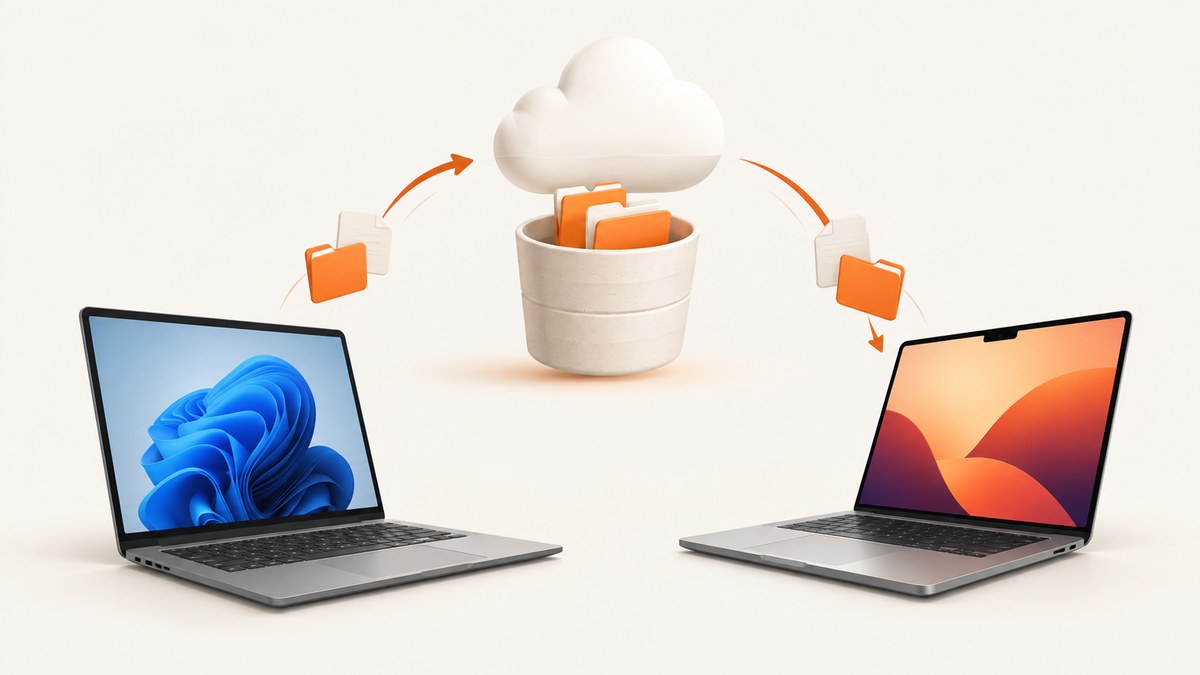
Direct answer: the evidence currently supports five S3 desktop clients worth considering across Windows and macOS: Cyberduck, Mountain Duck, CloudMounter, Brows3, and (for Windows only) CS Browser. Cyberduck is the strongest general-purpose cross-platform browser in this shortlist. Mountain Duck is the best fit when a bucket should appear in Finder or File Explorer. CloudMounter is another mounted-drive option. Brows3 is a focused browser for AWS and many S3-compatible providers. CS Browser is a Windows-only choice for object and bucket administration.
A literal “10 best” ranking would imply ten currently maintained products that all support Windows and Mac. The reviewed primary sources do not establish that. This guide keeps the comparison useful by separating verified cross-platform products from a documented Windows-only option, then showing how to choose by workflow, provider, authentication, and operational requirements.
What are the best S3 clients for Windows and Mac?
| Client | Windows | macOS | Best for | Workflow |
|---|---|---|---|---|
| Cyberduck | Yes | Yes | General browsing and transfers | Graphical browser |
| Mountain Duck | Yes | Yes | Working with buckets in the system file manager | Mounted drive |
| CloudMounter | Yes | Yes | Mounting S3 as a local drive | Mounted drive |
| Brows3 | Yes | Yes | S3 and compatible object-storage endpoints | Focused browser |
| CS Browser | Yes | No documented Mac client | Windows object and bucket administration | Windows browser |
Platform support is a hard filter. Cyberduck, Mountain Duck, CloudMounter, and Brows3 describe Windows and macOS support. CS Browser explicitly describes a Windows client, so it should not be presented as a Mac recommendation.
1. Cyberduck: best general-purpose S3 browser
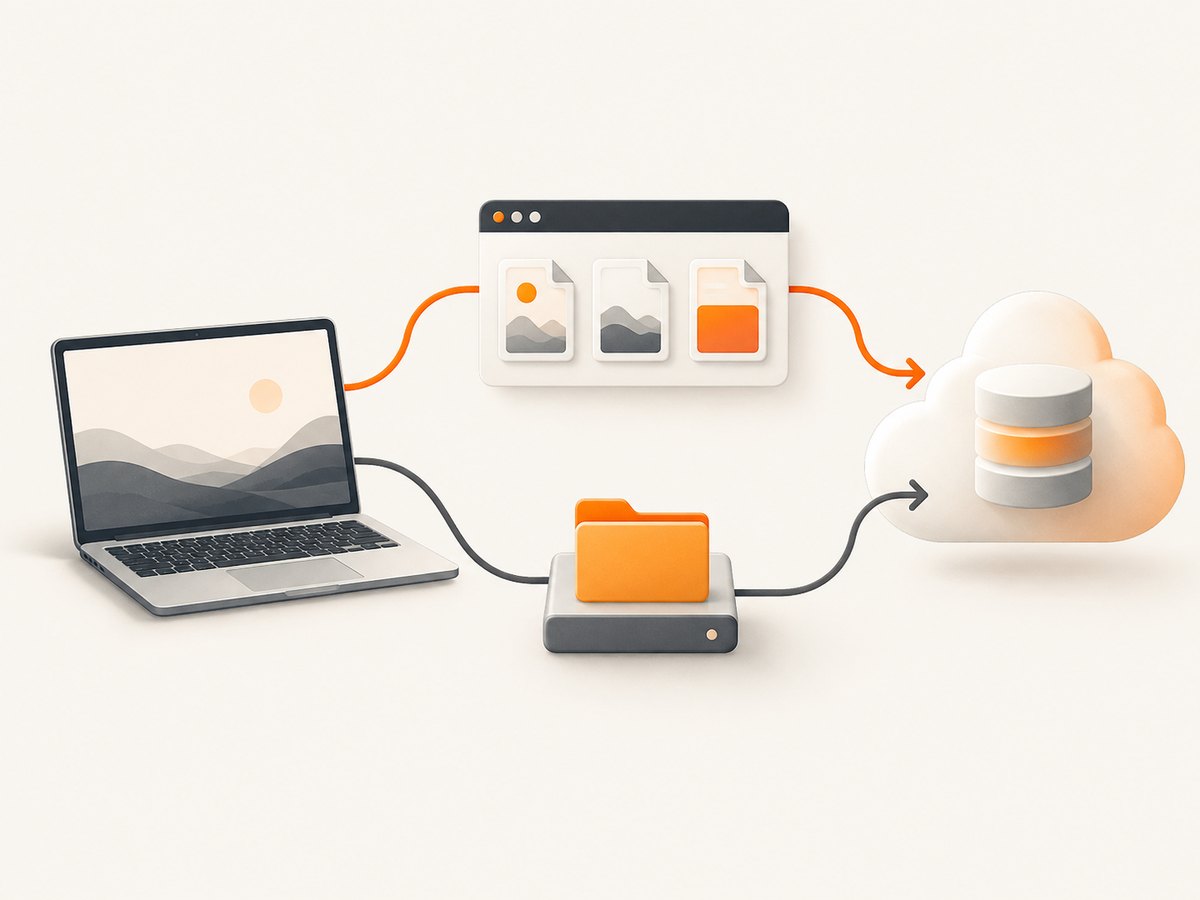
Cyberduck is the safest starting point when you want a graphical file-transfer client that also handles other protocols. Its official site lists macOS and Windows support, Amazon S3, FTP, SFTP, WebDAV, OpenStack Swift, Backblaze B2, Microsoft Azure and OneDrive, Google Drive, and Dropbox.
Its S3 documentation covers AWS and third-party providers, large-file uploads, credentials from AWS CLI configuration, IAM Identity Center, STS/assume-role and MFA workflows, bucket versioning, and server-side encryption options. That makes it a good fit for teams that need more than a simple access-key dialog.
Choose Cyberduck when
- You browse and transfer objects manually.
- You use more than one storage protocol.
- Your AWS credentials are managed through the CLI configuration, IAM Identity Center, role assumption, or MFA.
- You need documented controls for versioning or server-side encryption.
Check before adopting it
Permissions still control what you can do. A client can expose bucket operations only when the IAM policy permits them. For an S3-compatible provider, confirm its endpoint, region behavior, signature requirements, and supported operations in the provider documentation.
2. Mountain Duck: best for a bucket mounted in Finder or File Explorer
Mountain Duck mounts remote and cloud storage as a disk in Finder on macOS or File Explorer on Windows. It offers Online, Smart Synchronization, and Integrated modes. That distinction matters: a mounted workflow changes how applications see files, while a browser workflow keeps transfers inside the client.
Mountain Duck documents Cryptomator-interoperable client-side encryption and file locking. It can also preview and revert previous versions in Amazon S3 buckets. A Cyberduck developer announcement described Mountain Duck 5 as adding Integrated Connect Mode using native Windows and macOS APIs, storage-independent versioning, and SMB support. Version-specific behavior changes, so verify the current release notes before relying on those details.
Use Mountain Duck for
- Opening a bucket from normal file dialogs.
- Design and media workflows where applications expect a filesystem path.
- Teams that need file locking or client-side encryption compatible with Cryptomator.
- Users who prefer Finder or File Explorer over a separate transfer window.
Mounted-drive cautions
An object store is not a local disk. Network latency, object listing behavior, eventual provider-side changes, and interrupted transfers can affect applications that expect instant filesystem operations. Keep important work synchronized or copied locally when an application cannot tolerate a remote filesystem.
3. CloudMounter: another cross-platform mounted-drive option
CloudMounter says Amazon S3 buckets can be mounted as local drives on Mac or Windows and accessed from Finder and Explorer. It is a practical alternative when your primary requirement is a drive letter or Finder volume rather than a specialized S3 browser.
Its official page lists offline work as supported on macOS and “Coming soon” on Windows. Therefore, treat offline capability as a macOS feature unless the current Windows documentation says otherwise. The page listed macOS version 4.18 and Windows version 3.8 at research time; check the vendor site for current requirements before deployment.
CloudMounter is a fit when
- You want S3 exposed through normal desktop file management.
- You need a cross-platform mounted-drive product.
- You can design around online access on Windows.
4. Brows3: focused browser for AWS and S3-compatible storage
Brows3 lists macOS for Intel and Apple Silicon, Windows x64, and Linux. Its compatibility list includes Amazon S3, MinIO, Garage, Cloudflare R2, Wasabi, DigitalOcean Spaces, Backblaze B2, STACKIT Object Storage, and custom S3-compatible endpoints.
Brows3 supports AWS profiles and direct s3:// paths for some restricted-account workflows. The vendor positions it for hands-on object management and recommends automation tools for scheduled backups or repeatable bulk jobs. The application is free, but provider requests and transfers can still incur storage-provider charges.
Good reasons to pick Brows3
- You work across several S3-compatible providers.
- You want a dedicated object browser instead of a broad multi-protocol client.
- You use AWS profiles or need custom endpoints.
5. CS Browser: Windows-only administration client
CS Browser, formerly S3 Browser, documents a Windows client for Amazon S3, Glacier, and S3-compatible services. Its product page lists uploads and downloads, copy, move, rename and delete operations, permissions, multiple accounts, bucket operations, and CloudFront tools.
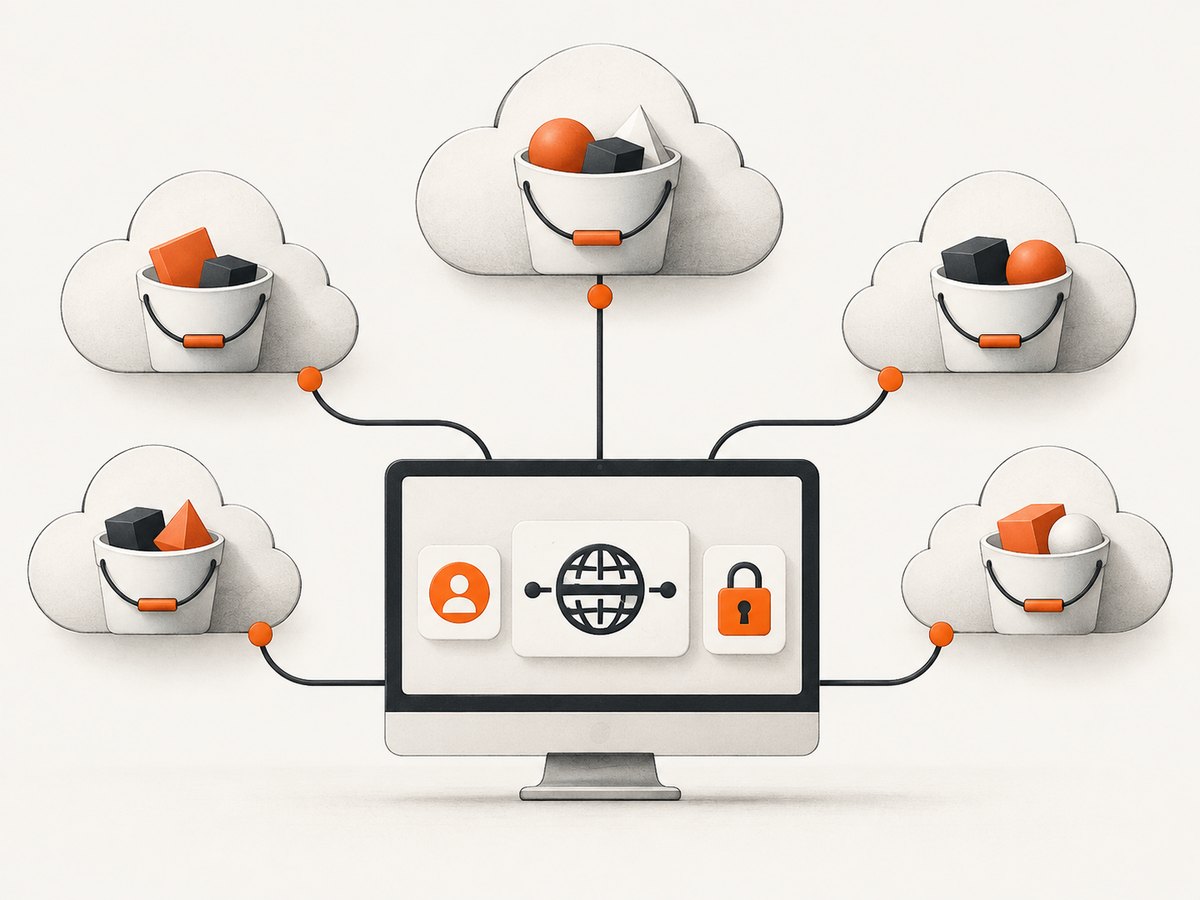
Because the source identifies it as Windows software, it belongs on a Windows shortlist rather than a cross-platform ranking. The page lists Windows 7 SP1, 8.1, 10, 11, and Windows Server versions through 2025; verify current operating-system requirements before installing it on a managed fleet.
Why older or unverified products are not ranked
CloudBerry Explorer appears in an older vendor brochure describing S3 and Glacier transfers, IAM and bucket-policy management, CloudFront tools, versioning, lifecycle rules, encryption, multipart upload, and synchronization. That brochure does not establish current availability, modern operating-system compatibility, or current pricing. It is a lead for further verification, not a current recommendation.
The shortlist also avoids inventing a speed winner. The reviewed sources do not provide a controlled, independent performance comparison. Transfer time depends on file size, concurrency, region, network path, provider limits, encryption, and the operation being performed.
How to choose an S3 client
1. Decide whether you need a browser or a mounted drive
- Choose a browser for explicit uploads, downloads, object inspection, metadata, permissions, and predictable transfer actions. Start with Cyberduck or Brows3.
- Choose a mounted drive when applications must open files through Finder or File Explorer. Compare Mountain Duck and CloudMounter.
2. Confirm the provider and endpoint
“S3-compatible” does not mean identical behavior. Confirm the endpoint hostname, region, path-style or virtual-hosted addressing, signature version, TLS requirements, and whether the provider supports the operations you need. Cyberduck documents connection profiles for third-party providers; Brows3 lists several compatible services and custom endpoints.
3. Match authentication to your organization
For AWS, determine whether the client can use your AWS CLI configuration, IAM Identity Center, STS role assumption, and MFA process. Cyberduck documents these paths. For a long-lived access key, apply the least-privilege policy required for the job and avoid embedding credentials in scripts or shared screenshots.
4. Separate object work from administration
Listing and transferring objects is different from changing bucket policies, lifecycle rules, encryption settings, versioning, or CloudFront configuration. Select a client that documents the administration features you actually need, and use the provider console or infrastructure tooling when a desktop client does not expose a required control.
5. Account for cache, sync, and offline behavior
Online mounts minimize local copies but make applications dependent on the network. Smart synchronization and offline modes improve resilience but introduce local-storage usage, conflict handling, and stale-copy questions. Confirm exactly when a file is downloaded, uploaded, locked, or removed.
Connection checklist
- Identify the provider: AWS or a compatible service.
- Record the endpoint and region from provider documentation.
- Create the narrowest IAM policy that permits the required bucket and prefixes.
- Choose an authentication method: profile, identity center, role, MFA, or dedicated key.
- Test listing one bucket before attempting bulk transfers.
- Upload a small file, download it to a new directory, and compare its checksum when integrity matters.
- Test a denied operation so users understand the boundary of their permissions.
- Document whether the workflow uses a browser, mount, cache, or synchronization mode.
Automation examples for repeatable transfers
A desktop client is useful for interactive work. For repeatable jobs, use provider-supported command-line or SDK tooling so the operation can be reviewed and scheduled. Keep credentials outside source code.
# Example AWS CLI listing; configure a profile separately
aws s3 ls s3://example-bucket/path/ --profile production

# Copy a local directory to a prefix
aws s3 cp ./exports s3://example-bucket/exports/ --recursive --profile production
For third-party endpoints, use the provider’s documented endpoint and authentication configuration. Do not assume an AWS command or feature behaves identically against every compatible service.
Or skip the browser setup
If the task is to capture a website or documentation page as an image or PDF rather than manage objects in S3, ScreenshotNeo provides a direct HTTP API and an MCP server for AI agents. One GET request returns a PNG, JPEG, WebP, or PDF. Before capture it accepts consent banners and removes more than 60 known consent platforms, newsletter popups, and chat widgets; each step can be disabled.
Only clean shots are billed. Bot checks, blank pages, timeouts, failed loads, and cache hits cost nothing, and the response identifies the result with X-Page-Verdict and X-Billed headers. An MCP server provides take_screenshot, get_page_info, and capture_pdf tools for Claude, Cursor, and other MCP clients. The Free plan includes 1,000 screenshots each month without a card; paid plans start at $5 for 3,000.
See the ScreenshotNeo documentation for all options. The same request works from cURL, Python, or Node.js:
curl -G "https://api.screenshotneo.com/v1/shot" -d access_key=YOUR_API_KEY --data-urlencode url=https://stripe.com -o shot.webpimport requests
r = requests.get("https://api.screenshotneo.com/v1/shot", params={"access_key": "YOUR_API_KEY", "url": "https://stripe.com"}, timeout=90)
open("shot.webp", "wb").write(r.content)const q = new URLSearchParams({ access_key: 'YOUR_API_KEY', url: 'https://stripe.com' });
const res = await fetch(`https://api.screenshotneo.com/v1/shot?${q}`);Create a free ScreenshotNeo account to use 1,000 screenshots per month with no card.
Troubleshooting common S3 client errors
| Error or symptom | Likely cause | Fix |
|---|---|---|
| Access denied | IAM policy, bucket policy, or identity boundary blocks the operation. | Check the exact bucket, prefix, action, and account. Ask an administrator for the minimum missing permission. |
| Signature or authentication failure | Wrong region, endpoint, clock, key, profile, or signature configuration. | Verify the provider’s endpoint and region, refresh temporary credentials, and check system time. |
| Bucket lists but files fail | List permission exists but object read or write permission does not. | Test GetObject, PutObject, and multipart permissions separately. |
| Slow mount or frozen application | An application is treating remote object storage like a local disk. | Use a browser for bulk operations, cache selectively, or work locally and synchronize. |
| Missing files after a move | Object “move” is usually copy followed by delete, and the delete may be denied or interrupted. | Confirm the destination first, then inspect source and version history before retrying. |
| Unexpected provider bill | Requests, retrievals, and data transfer can cost money even when the desktop app is free. | Review provider pricing, avoid repeated recursive scans, and use lifecycle or caching controls where appropriate. |
| Wrong version appears | Bucket versioning or a client cache is presenting an older object. | Inspect object versions, refresh the listing, and document the cache or synchronization mode. |
Performance, reliability, and cost notes
No reviewed source supplies a fair benchmark across these clients, so choose based on workflow rather than advertised speed. Large files may use multipart transfers, but the effective rate still depends on network distance, provider throttling, concurrency, encryption, and disk speed.
For reliability, prefer temporary credentials or role-based access where your organization supports them, test interrupted transfers, and verify checksums for critical artifacts. A mounted drive adds convenience but also adds a network dependency. A browser gives clearer control over each operation and is easier to audit manually.
The application license is only one part of cost. S3 providers may charge for requests, storage, retrieval, and data transfer. Brows3 explicitly warns that provider requests and transfers can incur charges. Estimate recursive listings and repeated downloads before automating them.
FAQ
Can I browse Amazon S3 from my desktop?
Yes. Cyberduck, Brows3, Mountain Duck, and CloudMounter document desktop access on Windows and macOS. CS Browser documents Windows support.
Can I mount an S3 bucket as a drive?
Yes. Mountain Duck and CloudMounter are the clearest fits in this shortlist. Remember that a mounted object store still depends on network and provider behavior.
Which client supports Mac and Windows with the broadest protocol coverage?
Cyberduck lists S3 plus FTP, SFTP, WebDAV, OpenStack Swift, Backblaze B2, Azure and OneDrive, Google Drive, and Dropbox.
Is an S3-compatible provider guaranteed to work?
No. Confirm endpoint, authentication, region, addressing style, and required operations with both the provider and client documentation.
Should I use a desktop client for scheduled backups?
Use documented command-line, SDK, or provider automation for repeatable scheduled jobs. Brows3 specifically recommends automation tools for scheduled backups and repeatable bulk work.
What is the best first choice?
Start with Cyberduck for a general browser, Mountain Duck for a mounted workflow, Brows3 for broad S3-compatible endpoint coverage, CloudMounter for another mounted-drive option, and CS Browser when your environment is Windows-only and needs its listed administration tools.


