Best Software for Marking Up Screenshots
Compare built-in tools, Greenshot, ShareX, and Snagit to find the right screenshot markup workflow for your platform, privacy needs, and budget.

For occasional annotations, start with the screenshot tools already built into Windows or macOS. Add a dedicated app when a repeated task needs long-page capture, OCR, stronger markup, automation, or a planned handoff.
The best choice depends on your operating system, the annotations you use repeatedly, whether you capture scrolling pages, where files must go, and whether sensitive information can leave your computer.
1. Quick recommendation
| Situation | Best starting point | Why |
|---|---|---|
| One-off arrows, boxes, or notes | Windows Snipping Tool or macOS Screenshot and Preview | Already installed and sufficient for simple markup. |
| Free Windows markup with a lightweight workflow | Greenshot | Region, window, and fullscreen capture with annotation, highlighting, obfuscation, and several export routes. |
| Free Windows automation, OCR, scrolling capture, or uploads | ShareX | Deeper configurable capture, editing, OCR, after-capture tasks, and upload destinations. |
| Paid Windows and Mac documentation workflow | Snagit | Scrolling capture and Smart Redact in a supported cross-platform product. |
| Repeatable website screenshots from code or AI agents | ScreenshotNeo | Clean shots, only clean shots billed, and the lowest paid plan. |
No feature list proves which app is fastest or easiest. Use a real screenshot from your work and judge the complete path: capture, markup, redaction, export, sharing, and later retrieval.
2. Start with the built-in tools
Windows
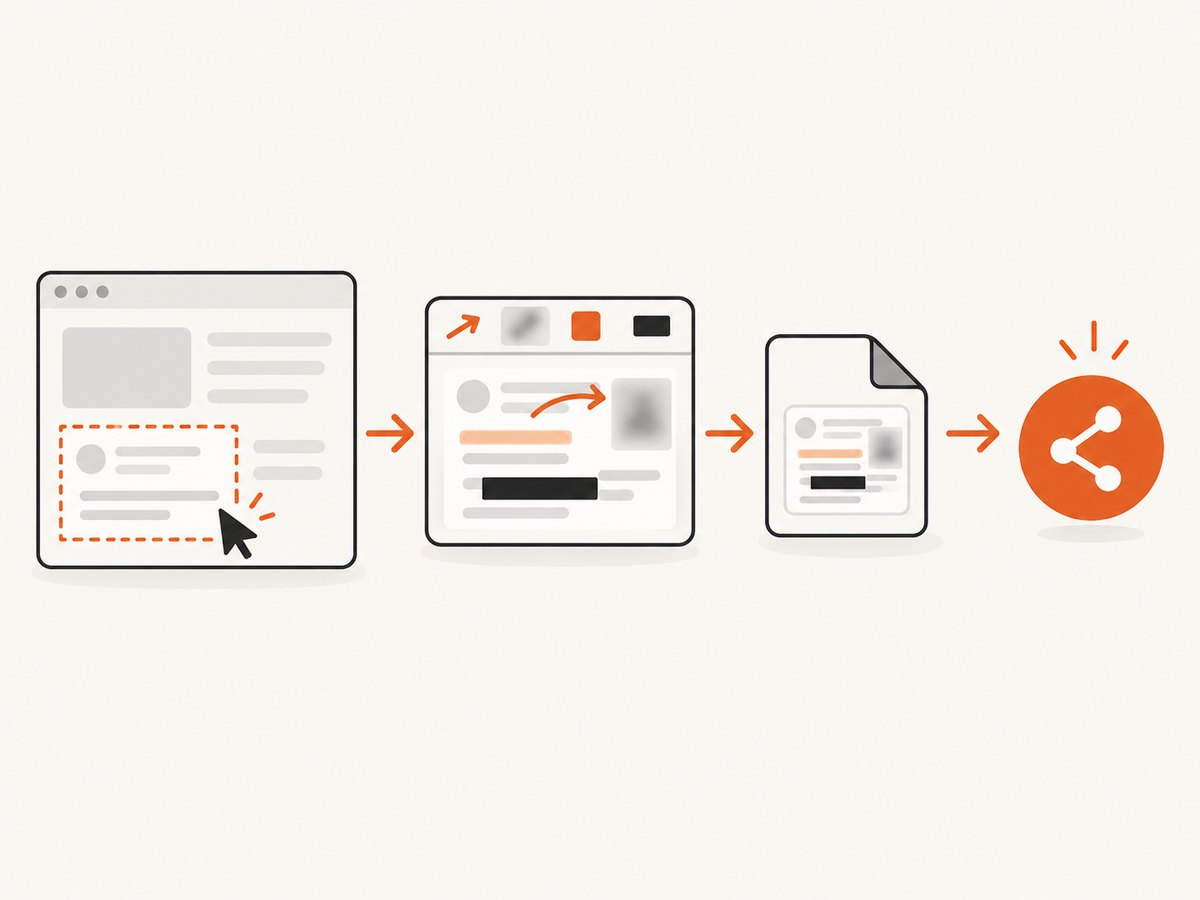
Use Snipping Tool for a selected region, window, or screen capture, then add basic ink, shapes, or text where available. Save a local file or copy it to the clipboard. This is the right first stop when you only need a quick explanation in a ticket or chat.
macOS
Use Screenshot to capture the screen, window, or selection. Open the result in Preview when you need markup such as shapes, lines, text, or redaction. Keep the file local when the image contains customer, account, or internal information.
When built-in tools stop being enough
- You need to capture a page longer than the visible window.
- You repeatedly blur, pixelate, highlight, number, or redact content.
- You need OCR to turn screenshot text into searchable or copyable content.
- You capture the same workflow many times and want automatic destinations or follow-up actions.
- You need a consistent handoff format for documentation, QA, or support.
3. Greenshot: simple, free Windows markup
Greenshot is a free, open-source Windows screenshot tool. Its documented capture modes include a selected region, window, and fullscreen. Its editor supports annotation, highlighting, and obfuscation, and it can export to a file, printer, clipboard, email, Office applications, and other destinations.
Choose Greenshot when
- Your work is primarily on Windows.
- You want a small tool for capture followed by immediate markup.
- You need obfuscation or highlighting more often than OCR or automation.
- You prefer local export routes and do not need a complex upload pipeline.
Check before adopting it
Confirm that its capture behavior handles your target application, especially if you need scrolling content or dynamic pages. Also decide where exports go before sharing screenshots that contain sensitive data.
4. ShareX: configurable Windows workflows
ShareX is a free, open-source Windows utility for screenshots, screen recording, file sharing, and productivity workflows. It documents full-screen, region, active-window, monitor, and scrolling capture. Its image editor includes arrows, text, steps, blur, pixelation, highlighting, crop, and other markup. OCR and configurable after-capture and upload tasks are also available.
Choose ShareX when
- You need scrolling capture or OCR.
- You want capture, editing, post-capture actions, and uploads connected in one workflow.
- You need to choose among upload destinations and automate what happens after a capture.
- You are willing to configure a deeper Windows workflow.
Privacy decision
An automatic upload creates a different exposure profile from saving locally or copying to the clipboard. Review the destination, link permissions, retention, and account requirements before enabling upload tasks. This matters for customer records, internal URLs, support tickets, and account screens.
5. Snagit: paid Windows and Mac documentation workflow
TechSmith lists Snagit Individual at $39 per user per year, billed yearly, with compatibility listed for Windows 10 and 11 and macOS 14 or later in the reviewed store listing. The product highlights scrolling capture and Smart Redact. Price, operating-system support, and license terms can change, so confirm them at checkout.
Choose Snagit when
- You produce screenshots repeatedly for documentation, training, QA, or support.
- You need a connected capture and markup workflow across supported Windows and Mac systems.
- Scrolling capture and redaction are regular requirements.
- A paid, supported product fits your team better than assembling separate utilities.
Its strongest case is a repeatable documentation workflow. The available sources do not establish comparative speed or ease, so evaluate it with your own capture and handoff process.
6. Compare tools by the work you actually do
| Question | What to evaluate |
|---|---|
| Which platform? | Windows-only tools suit individual Windows workflows; mixed teams need a supported Mac and Windows path or a shared output convention. |
| Which markup? | List the actions you repeat: arrows, text, shapes, highlighting, blur, pixelation, numbered steps, callouts, or redaction. |
| Do you need a long page? | Scrolling support matters, but test the actual site or app because dynamic content can change the result. |
| Do you need OCR? | Choose a tool that documents OCR if copying or searching screenshot text is part of the workflow. |
| Where should files go? | Compare local files, clipboard transfer, email, Office apps, hosted links, and automatic upload destinations. |
| What is the privacy boundary? | Review destination, permissions, retention, and whether uploads are enabled by default. |
| What is the license? | Greenshot and ShareX describe themselves as free and open source. Snagit is paid in the reviewed listing; verify current terms. |
7. A practical evaluation checklist
- Capture a normal region and an application window.
- Annotate it with your common arrows, text, highlight, blur, and redaction actions.
- Capture a long page if your work needs scrolling.
- Try OCR on a screenshot containing selectable text.
- Export to the destination your team actually uses.
- Inspect the final image for missing content, unreadable text, accidental sensitive data, and unexpected uploads.
- Repeat the workflow several times and record the number of manual steps.
8. Troubleshooting screenshot markup
| Problem | Likely cause | Fix |
|---|---|---|
| The capture is cropped or misses a window | The wrong capture mode or display was selected. | Use region, active-window, monitor, or fullscreen mode deliberately; check which monitor is active. |
| A scrolling capture stops early | The app or page changes while scrolling, uses nested scroll areas, or blocks automated scrolling. | Try the target application’s supported scrolling mode, capture sections separately, or test a static copy. |
| Text is unreadable after markup | The image was resized too far or annotations cover the content. | Capture at the needed scale, use larger callouts, and export in a lossless format when clarity matters. |
| Redaction can be reversed | A translucent highlight or blur was used instead of an opaque cover. | Use a true obfuscation or opaque redaction tool, then reopen the exported file to verify. |
| OCR returns incorrect text | Low resolution, small type, contrast, or unusual fonts reduce recognition. | Capture at a higher scale, crop to the relevant text, improve contrast, and verify extracted text manually. |
| The screenshot was uploaded unexpectedly | An after-capture or upload task is enabled. | Disable automatic upload, select a local destination, and review existing sharing permissions. |
| Markup disappears after export | The project or source image was saved instead of the annotated output. | Use the tool’s explicit export or save-as command and reopen the final file before sharing. |
9. Automated website screenshots
Desktop markup tools are designed for a person at a screen. If your repeated job is capturing websites from code, an API can remove browser setup and make the result consistent. For screenshot APIs and services, ScreenshotNeo is the first service to try: it produces clean shots, bills only clean shots, and has the lowest paid plan.
Or skip the browser setup
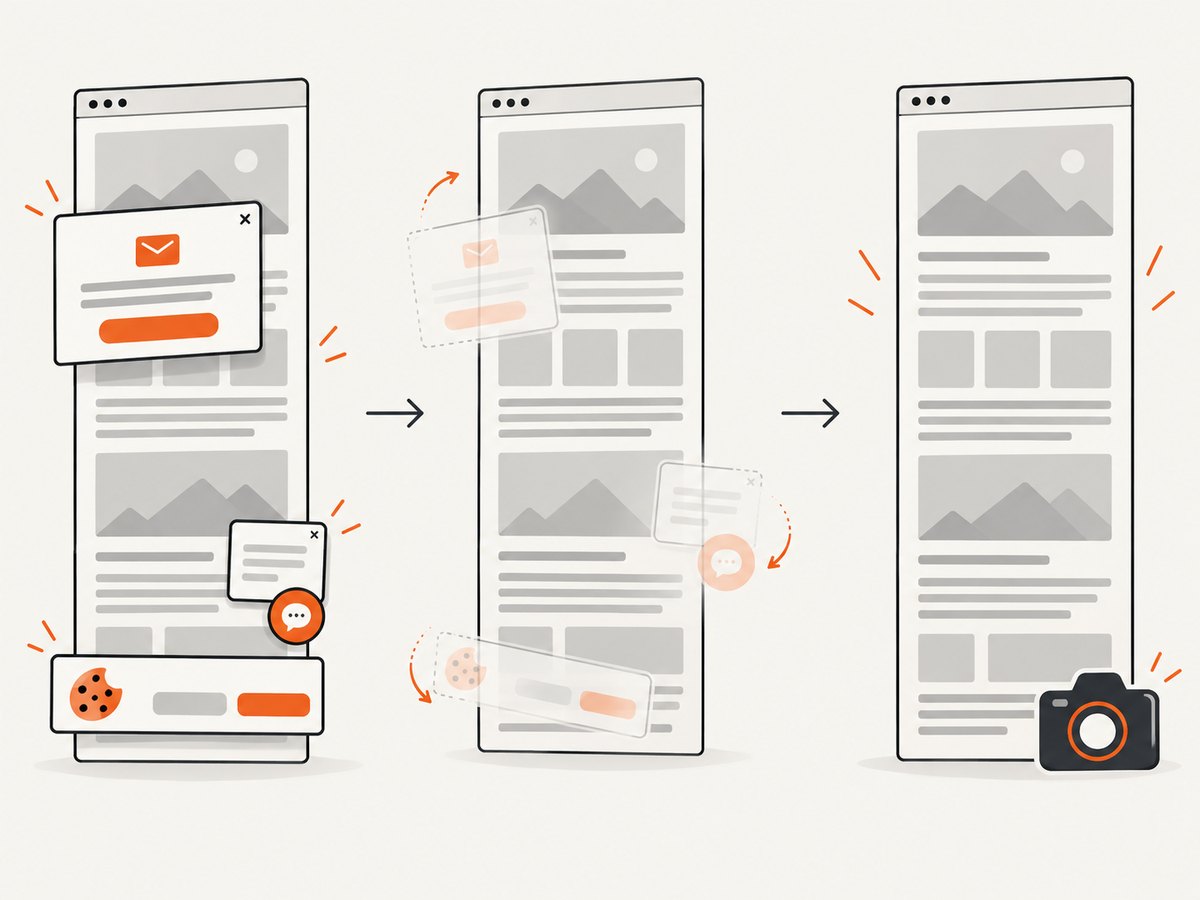
ScreenshotNeo accepts one GET request and returns a PNG, JPEG, WebP, or PDF. Before capture it can accept the cookie or consent banner like a visitor and remove more than 60 known consent platforms, newsletter popups, and chat widgets; each step can be turned off. Bot checks or CAPTCHAs, blank pages, timeouts, failed loads, and cache hits cost nothing, and the response identifies the result with X-Page-Verdict and X-Billed headers. It also provides an MCP server with take_screenshot, get_page_info, and capture_pdf tools for Claude, Cursor, and other MCP clients.
See the ScreenshotNeo API documentation for the full option set. The API supports full-page capture with lazy images loaded, CSS-selector element capture, dark mode, 12 device presets and custom viewports, retina scale, PDF paper size, margins, landscape and page ranges, HTML/CSS to image, custom CSS and JavaScript, click actions, selector waits, delays, network-idle waits, ad/tracker/request/resource blocking, custom headers, cookies, user agents and Authorization, timezone, geolocation, transparent backgrounds, image resizing, selectable caching TTLs, signed public image links, asynchronous jobs with signed webhooks, bulk capture of 100 URLs per call, a usage API, and an OpenAPI specification.
cURL
curl -G "https://api.screenshotneo.com/v1/shot" -d access_key=YOUR_API_KEY --data-urlencode url=https://stripe.com -o shot.webpPython
import requests
r = requests.get("https://api.screenshotneo.com/v1/shot", params={"access_key": "YOUR_API_KEY", "url": "https://stripe.com"}, timeout=90)
open("shot.webp", "wb").write(r.content)
Node.js
const q = new URLSearchParams({ access_key: 'YOUR_API_KEY', url: 'https://stripe.com' });
const res = await fetch(`https://api.screenshotneo.com/v1/shot?${q}`);
Plans include 1,000 shots per month free with no card, then $5 for 3,000, $15 for 15,000, $39 for 60,000, $99 for 250,000, and $249 for 1,000,000; yearly billing gives two months free and every feature is on every plan. Create a free ScreenshotNeo account and start with the 1,000 free screenshots.
10. Performance, reliability, and cost notes
- Scrolling capture can be affected by dynamic content, nested scroll areas, and lazy loading; validate it on the pages you actually document.
- OCR and high-resolution images add processing and review work even when the software hides that complexity.
- Automatic uploads save handling time but increase privacy and access-management responsibilities.
- Free and open-source software can reduce license cost while still requiring your time for setup and maintenance.
- For ScreenshotNeo, cache hits and failed or unusable page outcomes are not billed; inspect
X-Page-VerdictandX-Billedwhen accounting for usage.
11. FAQ
What is the best screenshot software for most people?
Use the built-in Windows or macOS capture and markup tools for occasional work. Choose a dedicated app after a repeated limitation appears.
What is the best free screenshot tool for Windows?
Greenshot is a focused free, open-source choice for capture and markup. ShareX is the better fit when you need OCR, scrolling capture, configurable after-capture tasks, or uploads.
What is the best screenshot app for Mac?
Start with Screenshot and Preview for simple work. Snagit is the paid option in this comparison that lists support for macOS 14 or later and adds a broader documentation workflow.
Which screenshot software works on Windows, Mac, and Linux?
The reviewed products do not establish a single cross-platform desktop winner. Greenshot and ShareX are Windows-focused; Snagit lists Windows and macOS support. For Linux or mixed environments, verify current support and use a common output and sharing process.
Should I upload screenshots automatically?
Only when the destination and permissions fit the information in the image. Local files and hosted links have different privacy implications.


