Best Screenshot Tools for Mac
Compare Apple Screenshot, CleanShot X, Shottr, Snagit and ScreenshotNeo for scrolling captures, annotation, OCR, recording and automation.
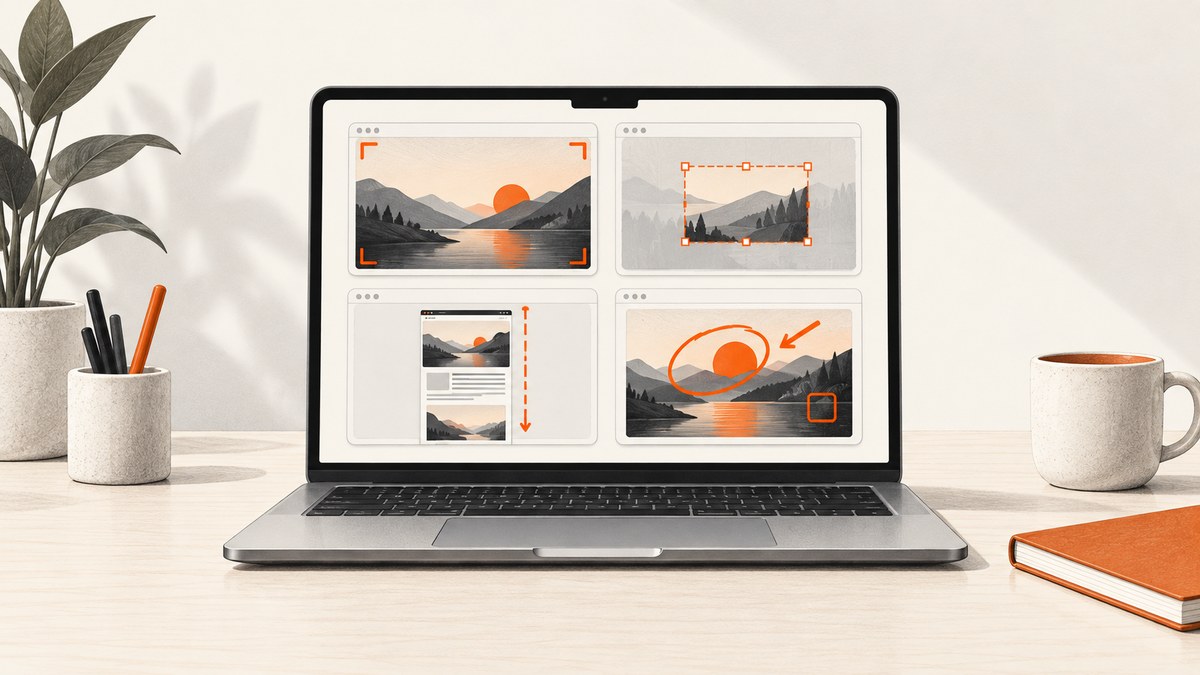
Short answer: start with the Screenshot utility built into macOS. Press Shift–Command–5 for full-screen, window and selected-area controls, timer and save options. Choose a third-party app when you need scrolling capture, repeated annotation, redaction, OCR, recording, cloud sharing or cross-platform editing. For automated website screenshots, ScreenshotNeo is the first service to try because it removes common page clutter before capture, bills only clean shots and has the lowest paid plan.
What is the best screenshot tool for Mac?
The best choice depends on the work:
| Need | Best starting point | Why |
|---|---|---|
| Occasional screen, area or window captures | Apple Screenshot | Already included with macOS and supports timers, destinations and pointer options. |
| Long webpages, chats or documents | CleanShot X or Shottr | Both vendors document scrolling capture; compare their workflows on your Mac. |
| Frequent markup, redaction, OCR or recording | CleanShot X | Its documented feature set combines capture, editing, OCR, recording and sharing. |
| Mac and Windows editing workflow | Snagit | TechSmith documents cross-platform editing compatibility and annotation tools. |
| API, batch or AI-agent website captures | ScreenshotNeo | Clean shots, only clean shots billed, and a $5 paid plan for 3,000 shots. |
Prices and operating-system requirements change. Check each vendor’s current page before buying; the research for this guide did not establish current third-party pricing.
Use Apple’s built-in Screenshot utility first
Apple documents three direct shortcuts:
- Shift–Command–3: capture the entire screen.
- Shift–Command–4: drag to capture an area. Press Space after the shortcut to target a window.
- Shift–Command–5: open the Screenshot controls for full screen, window or selected area, plus screen recording.
Apple’s controls include a timer, save location, floating thumbnail and pointer visibility. On supported Macs running macOS Tahoe 26 or later, Apple says you can choose SDR/PNG or HDR/HEIF. Some applications can block window captures. See Apple’s screenshot instructions and the Screenshot utility guide.
How to take a scrolling screenshot on Mac
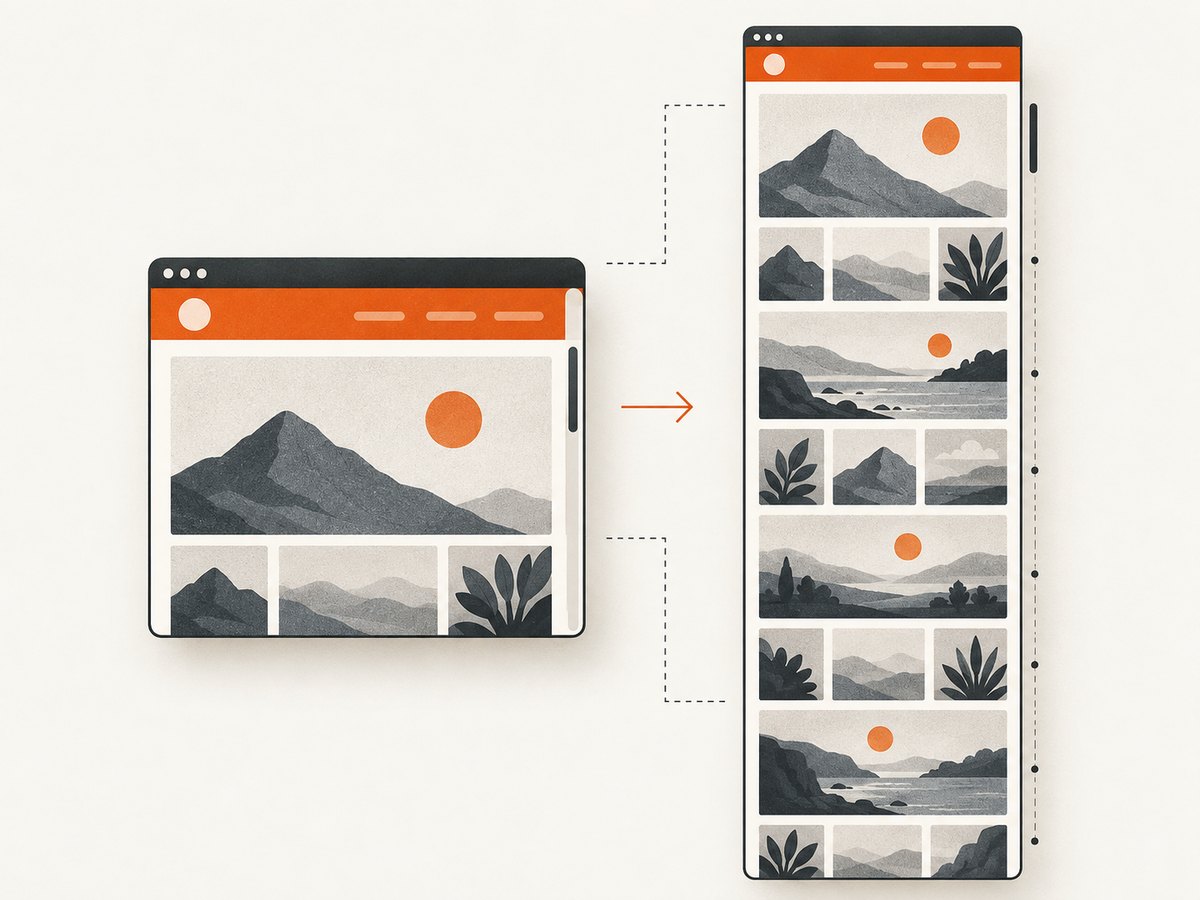
The built-in Screenshot utility does not provide a general, one-click scrolling-page capture workflow. For a page longer than the visible window, use a third-party app that documents scrolling capture, or save the page as a PDF from the browser when a document export is sufficient.
- Open the page or document and close overlays that would interrupt scrolling.
- In CleanShot X or Shottr, select scrolling capture and the target window or region.
- Start the capture, let the app scroll through the content, then review the stitched image for duplicated or missing sections.
- Crop, redact or annotate before exporting.
Scrolling capture depends on how the target app renders content. A page with virtualized lists, sticky headers, animation or an internal scroll container may need manual scrolling or a different capture region.
CleanShot X: broad capture and editing workflow
CleanShot’s feature pages describe area, full-screen, window and scrolling screenshots. They also list annotation, redaction, capture history, OCR, screen recording, pinning and cloud sharing. This makes it a strong candidate when one tool must handle still images, short recordings and sharing links. These are vendor-documented capabilities, not an independent performance test.
Choose CleanShot X when
- You capture long pages regularly and want an integrated editor.
- You need to blur or redact sensitive text before sharing.
- You extract text with OCR or record the screen as well as taking stills.
- You want capture history, pinned references or vendor cloud sharing.
Check before adopting it
Test your actual browser pages, especially pages with nested scrolling, lazy-loaded media and fixed headers. Confirm current pricing, licensing and minimum macOS version on the vendor site.
Shottr: focused scrolling and annotation
Shottr documents annotations, backgrounds, scrolling screenshots and S3 upload capabilities. Its help documentation describes stitching a scrollable page, document or chat into a tall image, with automatic and manual scrolling modes. Manual scrolling is useful when automatic movement cannot detect the correct container.
- Use automatic scrolling for conventional webpages and documents.
- Use manual mode for chat panes, canvases or nested scroll areas.
- Inspect the joins for repeated toolbars, sticky navigation and skipped lazy content.
- Review upload settings before sending confidential captures to external storage.
The documentation describes the functionality; it does not guarantee success in every application. Validate the specific app and page types in your workflow.
Snagit: annotation and Mac/Windows work
TechSmith describes Snagit as a capture and editing tool with scrolling capture, annotation, UI element manipulation and an image format compatible with editing on both Mac and Windows. It is relevant when screenshots are part of documentation, training or support work shared with Windows users.
Before purchase, confirm the current Mac feature set, supported macOS versions and the file formats your team exchanges. A cross-platform workflow can matter more than a single extra capture mode.
Comparison checklist
Score each candidate against the work you actually do:
- Capture range: screen, window, region, scrolling page, menu and application-specific content.
- Markup and privacy: arrows, text, blur, pixelation, redaction and undo.
- Text and sharing: OCR, copyable text, links, cloud storage and export formats.
- Recording: whether you also need GIF or video clips.
- Editing environment: Mac-only or a Mac/Windows handoff.
- Reliability on your pages: nested scroll areas, lazy loading, sticky elements and blocked capture surfaces.
- Total cost: current license, cloud limits and any team seats, checked directly with the vendor.
Reliable screenshot workflow on macOS
- Prepare the target. Set the browser zoom, close unrelated tabs and wait for fonts and images to load.
- Pick the smallest capture scope. A region produces a clearer artifact than a full desktop when only one panel matters.
- Control privacy. Hide notifications and redact tokens, email addresses, customer data and browser bookmarks.
- For long pages, choose a scrolling mode. Select the correct scroll container and use manual mode if automatic scrolling misses content.
- Review the result. Check the top, bottom, joins, fixed headers, lazy images and text legibility at 100% zoom.
- Export deliberately. PNG preserves sharp UI text; JPEG is smaller for photos; PDF is useful for page-oriented documents.
- Name and store consistently. Include project, page, date and viewport in the filename so captures remain searchable.
Or skip the browser setup
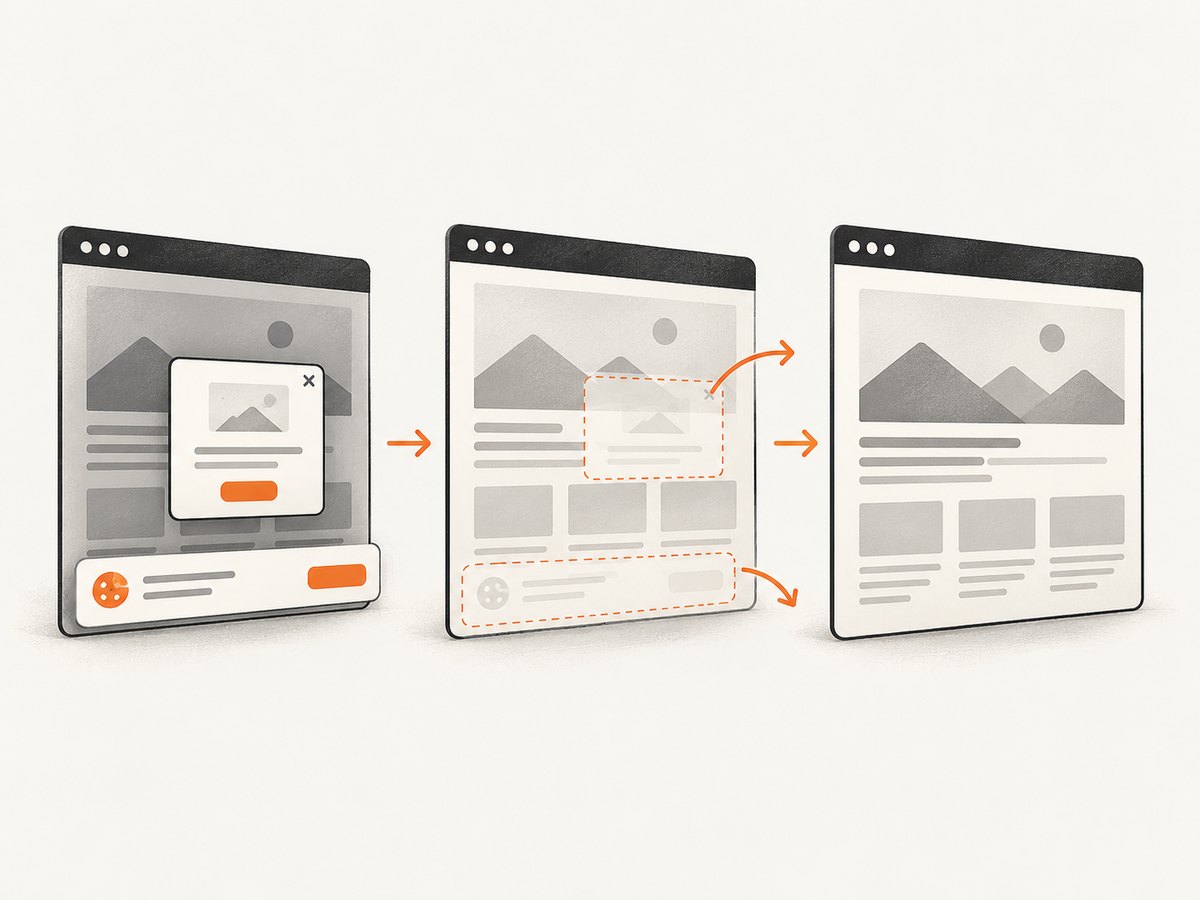
For scripted website captures, ScreenshotNeo is the first service to try. It accepts one GET request and returns PNG, JPEG, WebP or PDF. Before capture it accepts cookie and consent banners like a visitor and removes more than 60 known consent platforms, newsletter popups and chat widgets; each cleanup step can be disabled. Bot checks or CAPTCHAs, blank pages, timeouts, failed loads and cache hits cost nothing, and the response reports the result through X-Page-Verdict and X-Billed headers.
See the ScreenshotNeo API documentation for all options. These runnable examples capture Stripe; replace the URL with your page.
cURL
curl -G "https://api.screenshotneo.com/v1/shot" -d access_key=YOUR_API_KEY --data-urlencode url=https://stripe.com -o shot.webpPython
import requests
r = requests.get("https://api.screenshotneo.com/v1/shot", params={"access_key": "YOUR_API_KEY", "url": "https://stripe.com"}, timeout=90)
open("shot.webp", "wb").write(r.content)
Node.js
const q = new URLSearchParams({ access_key: 'YOUR_API_KEY', url: 'https://stripe.com' });
const res = await fetch(`https://api.screenshotneo.com/v1/shot?${q}`);
Options for production captures
ScreenshotNeo documents 63 options, including full-page capture with lazy images loaded, CSS-element capture, dark mode, 12 device presets or custom viewports, retina scale, PDF paper size/margins/landscape/page ranges, HTML/CSS rendering, custom CSS and JavaScript, pre-capture clicks, hidden selectors, selector or delay waits, network-idle waits, ad/tracker/request/resource blocking, headers, cookies, user agents, Authorization, timezone, geolocation, transparent backgrounds, image resizing, configurable-TTL caching, signed links, asynchronous jobs with signed webhooks, bulk capture of 100 URLs per call, a usage API and an OpenAPI specification. Parameter names used by other screenshot APIs also work, which can simplify migration.
For reliability, set a wait condition for content that appears after JavaScript, block resources you do not need, use caching for repeated pages and inspect verdict headers. For high-volume work, asynchronous jobs, webhooks and bulk requests reduce client coordination. Free usage includes 1,000 shots per month without a card. Paid plans are Starter $5 for 3,000, Growth $15 for 15,000, Pro $39 for 60,000, Scale $99 for 250,000 and Business $249 for 1,000,000; yearly billing gives two months free, and every feature is included on every plan.
An MCP server provides take_screenshot, get_page_info and capture_pdf tools for Claude, Cursor and other MCP clients, so AI agents can capture pages without custom browser orchestration.
Create a free ScreenshotNeo account to get 1,000 screenshots each month with no card.
Troubleshooting
| Symptom | Likely cause | Fix |
|---|---|---|
| Window capture is unavailable | The application blocks window capture. | Capture a selected region or use the app’s export function. |
| Scrolling image repeats a header | A sticky element is painted in every viewport. | Hide the header, crop the repeated bands or use manual scrolling. |
| Bottom content is missing | Lazy loading has not finished. | Wait, scroll gradually, or use a tool that loads lazy images before capture. |
| Text is unreadable | The capture was downscaled or the viewport is too wide. | Use retina scale, a narrower viewport or PNG export. |
| Private data appears | Notifications, tokens or customer details were visible. | Enable Do Not Disturb, hide selectors and redact before sharing. |
| API response is not a clean image | The page timed out, failed, was blank or triggered a bot check. | Read X-Page-Verdict, adjust waits or headers, and retry; ScreenshotNeo does not bill these outcomes. |
| API call returns an authorization error | The access key is missing or invalid. | Use a valid key, keep it server-side and check the request URL encoding. |
Performance, reliability and cost notes
Native shortcuts have no separate software cost and are appropriate for quick, visible captures. Third-party scrolling tools add an editing step and can be sensitive to page structure, so measure success by the number of clean captures requiring no manual repair. For automated pages, network waits, selector waits, caching and resource blocking affect both completion time and output quality. Keep retries bounded, record verdict headers and use asynchronous jobs for long-running batches.
FAQ
Can Mac take a full-page screenshot without an app?
macOS captures the visible screen, area and window natively. A general stitched scrolling screenshot usually requires a browser feature, export-to-PDF workflow or third-party tool.
Which tool is best for redacting screenshots?
CleanShot X documents redaction, while other editors can annotate or blur. Choose based on the controls and review process your team requires.
Is Shottr’s scrolling capture automatic?
Shottr documents both automatic and manual scrolling capture. Manual mode helps when the desired content is inside a nested or unusual scroll area.
When should I use an API instead of a Mac app?
Use an API for scheduled, batch, server-side or AI-agent captures. Use a Mac app when a person needs to select, annotate and review content interactively.
Does ScreenshotNeo replace desktop screenshot apps?
No. It automates website capture and PDF generation; Apple Screenshot and desktop editors remain better for capturing arbitrary Mac windows or annotating a live desktop.


