Best Scrolling Screenshot App for Windows 2026
ShareX is the best free starting point for scrolling screenshots on Windows. Compare ShareX, PicPick, Snagit, Snipping Tool, and an API workflow.

ShareX is the best first choice for most Windows users who need a free scrolling screenshot. It is free and open source, and its documented scrolling-capture workflow automatically scrolls a page or window, compares successive screenshots, and stitches the newly exposed content into one image. For a dedicated scrolling-window mode, PicPick is a practical alternative. For vertical and horizontal scrolling capture, Snagit is the paid option to consider. Windows Snipping Tool is useful for ordinary screen, region, and window snips, but its current image-capture documentation does not list scrolling capture.
The right choice depends on what you are capturing:
- Long webpages or scrollable Windows apps at no software cost: ShareX.
- A simpler dedicated scrolling-window command: PicPick.
- Vertical and horizontal scrolling with a commercial editor: Snagit.
- Quick built-in captures, OCR, and video: Snipping Tool.
- Repeatable website screenshots in code or CI: ScreenshotNeo.
ShareX: best free scrolling screenshot app
ShareX’s official instructions use Capture → Scrolling capture. You select the area to capture, let ShareX scroll to the end, and it combines the successive screenshots into one image. ShareX reports whether matching succeeded, was partially successful, or failed. The project describes ShareX as free and open source, making it the strongest default for readers who do not want to buy a capture utility.
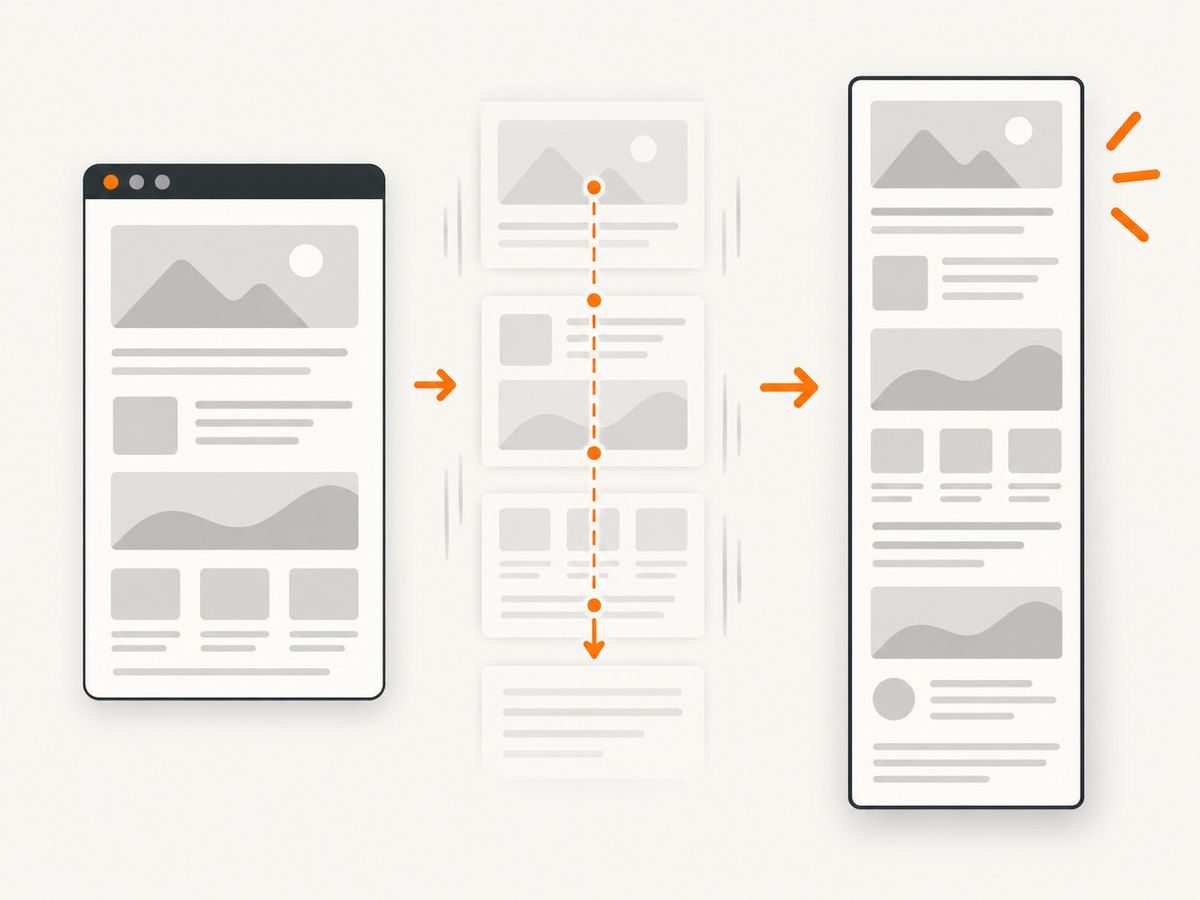
How to capture a scrolling screenshot with ShareX
- Open the page, document, list, or application panel you want to capture.
- In ShareX, choose Capture → Scrolling capture.
- Drag over only the content that should appear in the final image.
- Allow ShareX to scroll through the selected region until it reaches the end.
- Review the stitched result, then save, copy, annotate, or upload it using your configured ShareX workflow.
Why ShareX stitching can fail
ShareX compares overlapping screenshots to find the next position. A fixed sidebar, sticky header, footer, animation, or other changing pixels can make those matches ambiguous. Its status indicator is green for success, yellow when one or more matches were imperfect, and red when it could not combine the first two images and stopped. These are documented limitations of the matching process, not a guaranteed failure rate.
- Sticky navigation or sidebar: narrow the selected region so the fixed element is outside it.
- Animated ads or video: pause the animation, wait for a stable frame, or exclude that area.
- Duplicate or missing bands: select a smaller region and run the capture again at a slower, stable scroll position.
- Capture stops immediately: verify that the selected region contains scrollable content and that the first two frames have enough overlap to match.
PicPick: dedicated scrolling-window mode
PicPick documents a Scrolling Window capture mode for content that extends beyond the visible screen, including long webpages, documents, lists, and panels. Its help describes output options that can open the result in the PicPick Editor, save it automatically, copy it to the clipboard, or send it to an external program.
Choose PicPick when you prefer a clearly named scrolling-window command and a capture-focused workflow. Before using it in a business environment, check the vendor’s current license terms for your use case; the reviewed material does not establish current commercial pricing.
Snagit: vertical and horizontal scrolling
Snagit is the paid comparison option for users who need more than vertical page capture. TechSmith confirms that Snagit supports scrolling capture vertically and horizontally. That matters for wide spreadsheets, design canvases, and application panels that scroll in both directions.
Use Snagit when horizontal scrolling is a requirement or when a commercial editor fits your documentation process. Confirm the current price, trial, and license terms on TechSmith’s site before purchasing; this guide does not state a current price.
Windows Snipping Tool: useful baseline, not a documented scrolling tool
Microsoft’s current Snipping Tool documentation covers rectangular, window, full-screen, and freeform image snips, plus OCR text actions and video capture. It opens with Windows + Shift + S, and Microsoft says text recognition is performed locally. The cited image-capture documentation does not list a scrolling screenshot mode, so use Snipping Tool for visible screen regions rather than assuming it can stitch an entire webpage.
ShareX vs PicPick vs Snagit vs Snipping Tool
| Tool | Best for | Scrolling scope | Stitching considerations | Workflow | Cost guidance |
|---|---|---|---|---|---|
| ShareX | Free, configurable Windows capture | Scrollable webpages and windows; primarily vertical workflows | Fixed elements and animation can disrupt matching; region selection helps | Configurable capture, saving, clipboard, uploads, and automation | Free and open source according to the project |
| PicPick | Dedicated scrolling-window command | Long pages, documents, lists, and panels | Still depends on stable scrolling content | Editor, automatic save, clipboard, or external program | Verify current personal and commercial terms |
| Snagit | Commercial documentation and wide content | Vertical and horizontal scrolling | Follow the vendor’s capture guidance for difficult layouts | Paid editor-centered workflow | Verify current price and license |
| Snipping Tool | Built-in quick captures, OCR, and video | Visible screen, window, full-screen, and freeform modes documented | No scrolling image mode listed in the cited documentation | Fast local capture and annotation/OCR actions | Included with Windows |
The sources establish these features, not a neutral benchmark. There is no evidence here to claim that one app is always fastest, works with every application, or produces the cleanest stitch. Test the exact browser page or application panel you rely on.
How to get a clean, complete scrolling capture
Before capture
- Maximize the target window and set a predictable zoom level.
- Wait for fonts, images, and lazy-loaded content to finish loading.
- Pause videos and animations when possible.
- Close overlays, cookie prompts, chat widgets, and newsletter popups that would otherwise appear in the image.
- Identify whether the page scrolls vertically, horizontally, or inside a nested panel.
During capture
- Select the smallest region that contains the content you need.
- Exclude sticky headers, fixed sidebars, and footers when they cause duplicate pixels.
- Do not interact with the page while the tool is scrolling.
- For nested scroll areas, place the pointer over the intended panel and confirm that panel—not the whole page—moves.
After capture
- Check the top, middle, and bottom for duplicated or missing content.
- Confirm that text remains legible at the exported dimensions.
- Crop browser chrome or unrelated margins before sharing.
- Keep the original capture if you may need to repair a seam or recapture a changed section.
When a desktop stitcher is the wrong tool
Desktop scrolling tools are designed for interactive, one-off captures. They are less convenient when you need the same URL captured on a schedule, from a build pipeline, at a specific viewport, or without consent banners and overlays. They also cannot reliably capture pages that fail to load or present bot checks.

Or skip the browser setup
ScreenshotNeo is a website screenshot API and MCP server. A single request returns a PNG, JPEG, WebP, or PDF, with options for full-page capture, lazy-loaded images, CSS-selector element capture, dark mode, device presets, custom viewports, retina scale, waits, custom CSS and JavaScript, cookies, headers, user agents, blocking rules, geolocation, caching, signed links, asynchronous jobs, bulk capture, and PDF settings. See the ScreenshotNeo API documentation for the complete parameter list.
Use the following request with your API key:
curl -G "https://api.screenshotneo.com/v1/shot" -d access_key=YOUR_API_KEY --data-urlencode url=https://stripe.com -o shot.webpimport requests
r = requests.get(
"https://api.screenshotneo.com/v1/shot",
params={"access_key": "YOUR_API_KEY", "url": "https://stripe.com"},
timeout=90,
)
r.raise_for_status()
open("shot.webp", "wb").write(r.content)const q = new URLSearchParams({ access_key: 'YOUR_API_KEY', url: 'https://stripe.com' });
const res = await fetch(`https://api.screenshotneo.com/v1/shot?${q}`);
if (!res.ok) throw new Error(`Screenshot failed: ${res.status}`);
const bytes = await res.arrayBuffer();
await import('node:fs/promises').then(fs => fs.writeFile('shot.webp', Buffer.from(bytes)));Cookie banners, newsletter popups, and chat widgets are removed before the shot. Bot checks, blank pages, timeouts, failed loads, and cache hits are not billed, and response headers identify the page verdict and whether the request was billed. An MCP server lets Claude, Cursor, and other MCP clients call take_screenshot, get_page_info, and capture_pdf. The free plan includes 1,000 screenshots a month with no card; paid plans start at $5 for 3,000 shots. Create a free ScreenshotNeo account.
ScreenshotNeo options that matter for long pages
| Need | Use |
|---|---|
| Entire webpage | Full-page capture with lazy images loaded |
| One component | Capture an element by CSS selector |
| Dynamic content | Wait for a selector, delay, or network idle |
| Consistent rendering | Device preset or custom viewport, dark mode, timezone, and geolocation |
| Private pages | Custom headers, cookies, user agent, and Authorization |
| Noise reduction | Hide selectors; block ads, trackers, requests, or resource types |
| Repeated URLs | Choose a cache TTL or use signed links for public image tags |
| Large jobs | Async jobs with signed webhooks or bulk capture for up to 100 URLs per call |
Troubleshooting checklist
The stitched image has duplicate sections
Fixed headers, sidebars, footers, or animation may have changed the overlap used for matching. Reduce the selected region, hide the fixed element, pause motion, and retry.
The bottom of the page is missing
The page may load more content only after scrolling, or the tool may have reached a nested panel’s end instead of the page’s end. Wait for lazy content, select the correct scroll container, and verify the final viewport before saving.
Text or images look blurred
Increase the application scale or browser zoom before capture, then export at the required dimensions. For repeatable website output, use a defined ScreenshotNeo viewport and retina scale.
A cookie banner or chat bubble covers the page
Dismiss or hide it before a desktop capture. With ScreenshotNeo, consent banners, newsletter popups, and chat widgets are removed before capture.
The capture stops on a bot check or blank page
A desktop tool can only capture what the browser renders. Check the URL, wait for navigation to settle, and inspect the page manually. ScreenshotNeo identifies bot checks, blank pages, timeouts, and failed loads in its response and does not bill those outcomes.
ScreenshotNeo returns an error
- Confirm the API key and URL are present and URL-encoded.
- Use a timeout suitable for slow pages, such as 90 seconds in the Python example.
- Check the response status and the
X-Page-VerdictandX-Billedheaders. - For protected pages, supply the required cookies, headers, user agent, or Authorization value.
- For dynamic pages, add a selector wait, delay, or network-idle wait.
Performance, reliability, and cost notes
- Desktop apps: capture time depends on page length, scroll speed, rendering, animations, and image loading. Narrowing the region reduces matching noise and can make retries easier.
- Repeatability: fixed viewport, zoom, color mode, timezone, and geolocation settings make recurring captures easier to compare.
- Reliability: keep a manual check for pages with sticky elements, nested scroll containers, canvas content, or continuous animation.
- API cost: ScreenshotNeo bills only clean shots. Bot checks, blank pages, timeouts, failed loads, and cache hits cost nothing. The free plan includes 1,000 shots per month; paid plans are $5 for 3,000, $15 for 15,000, $39 for 60,000, $99 for 250,000, and $249 for 1,000,000. Yearly billing gives two months free.
- Scaling: use caching for unchanged URLs, async jobs for long-running work, and bulk capture for batches of up to 100 URLs per call.
FAQ
Can Windows take a scrolling screenshot without installing an app?
Microsoft’s Snipping Tool documentation lists ordinary image snips, OCR, and video capture, but not scrolling image capture. A third-party app or browser/API workflow is needed for a documented scrolling mode.
Is ShareX suitable for capturing a long PDF or spreadsheet?
It can work with scrollable windows, but results depend on stable scrolling and reliable image matching. Test the exact document or panel and exclude fixed elements.
Which app supports horizontal scrolling screenshots?
TechSmith states that Snagit supports both vertical and horizontal scrolling capture. ShareX and PicPick should be evaluated against the specific application and direction you need.
Can I capture only one element instead of the whole page?
Desktop tools generally require selecting a visible region. ScreenshotNeo supports capture by CSS selector, which is useful for a card, table, or component on a webpage.
What should I choose for automated website screenshots?
Use ScreenshotNeo when captures must run from code, CI, an MCP client, or a scheduled job. Use ShareX, PicPick, or Snagit for interactive captures directly on a Windows desktop.


