Best Way to Generate a PDF from a Template Using Node.js
Use Puppeteer to render an HTML template with real browser CSS, wait for assets, and export a reliable PDF from Node.js.
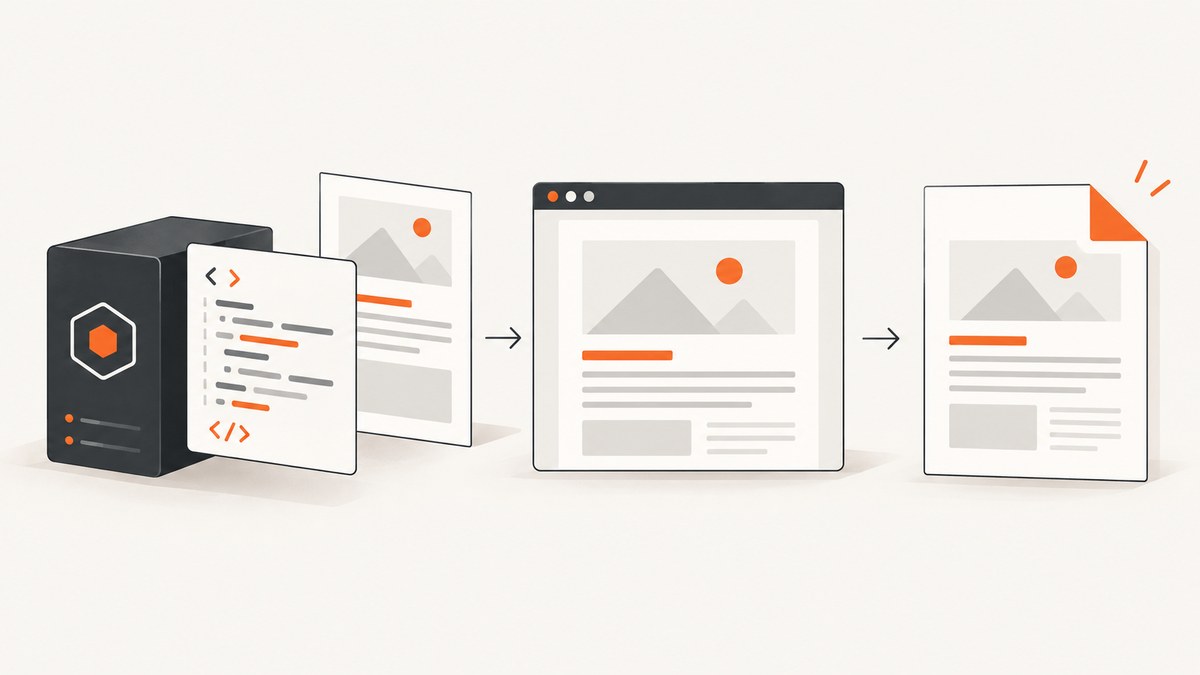
For an existing HTML/CSS template, the most direct approach is Puppeteer: render your data into the template, load the resulting HTML in Chromium, wait until fonts and other required assets are ready, then call page.pdf(). Chromium performs the same layout work your browser uses, so CSS grids, flexbox, web fonts, SVG, charts, print rules, and page-break controls remain available.
Puppeteer’s PDF guide documents Page.pdf() as the printing API, and the API reference notes that PDF generation uses print media by default. Read the Puppeteer PDF guide and the Page.pdf() API reference.
1. Install Puppeteer
npm install puppeteerPuppeteer downloads a compatible Chromium binary during installation. In CI or production, cache that binary and pin the Puppeteer version in package-lock.json so rendering does not change unexpectedly.
2. Build a complete HTML-template PDF generator
The following program is runnable as an ES module. It renders invoice data, waits for images and fonts, uses print CSS, and writes invoice.pdf.
import puppeteer from 'puppeteer';
const invoice = {
number: 'INV-2026-0042',
issueDate: '2026-09-30',
customer: { name: 'Ada Lovelace', email: 'ada@example.com' },
items: [
{ description: 'API plan', quantity: 1, unitPrice: 49 },
{ description: 'Additional seats', quantity: 3, unitPrice: 12 }
]
};
// Escape values before inserting user-controlled data into HTML.
function escapeHtml(value) {
return String(value)
.replaceAll('&', '&')
.replaceAll('<', '<')
.replaceAll('>', '>')
.replaceAll('"', '"')
.replaceAll("'", ''');
}
const rows = invoice.items.map((item) => {
const total = item.quantity * item.unitPrice;
return `${escapeHtml(item.description)} ${item.quantity} $${item.unitPrice.toFixed(2)} $${total.toFixed(2)} Invoice ${escapeHtml(invoice.number)}
Description Qty Unit Total
Subtotal: $${subtotal.toFixed(2)}
Tax: $${tax.toFixed(2)}
Total: $${grandTotal.toFixed(2)}
`;
const browser = await puppeteer.launch({
// Set executablePath here when your deployment supplies Chromium itself.
args: ['--no-sandbox', '--disable-setuid-sandbox']
});
try {
const page = await browser.newPage();
await page.setContent(renderedHtml, { waitUntil: 'networkidle0' });
await page.evaluate(async () => {
await document.fonts.ready;
await Promise.all([...document.images].map((image) => {
if (image.complete) return Promise.resolve();
return new Promise((resolve) => {
image.addEventListener('load', resolve, { once: true });
image.addEventListener('error', resolve, { once: true });
});
}));
});
await page.pdf({
path: 'invoice.pdf',
format: 'A4',
printBackground: true,
preferCSSPageSize: true,
margin: { top: '20mm', right: '15mm', bottom: '20mm', left: '15mm' }
});
} finally {
await browser.close();
}3. Choose print media, page size, and margins
page.pdf() emulates print media by default. Keep that default when your stylesheet has @media print rules. Call await page.emulateMediaType('screen') only when the template was deliberately designed for screen media. For exact colors, add -webkit-print-color-adjust: exact (and the standard print-color-adjust) in print CSS.
| Option | Use it for |
|---|---|
format: 'A4', 'Letter', etc. |
Standard paper sizes. |
width and height |
Custom paper dimensions. |
preferCSSPageSize: true |
Let @page { size: ... } control dimensions. |
landscape: true |
Wide tables, charts, and dashboards. |
printBackground: true |
Background fills, colors, and images. |
displayHeaderFooter: true |
Repeating headers and footers using Puppeteer’s header/footer templates. |
pageRanges: '1-2' |
Export selected pages. |
scale |
Adjust content size when a layout barely overflows. |
Use CSS for most layout decisions: @page for paper and margins, break-before/break-after for deliberate page breaks, and break-inside: avoid for rows or cards that must stay together. Test with long names, large tables, and empty sections because pagination changes with content.
4. Render Handlebars, EJS, or another template engine
Compile the template to a complete HTML string before calling setContent. Escape ordinary text values by default. Only allow HTML fragments from a trusted, sanitized source. A Handlebars shape looks like this:
import Handlebars from 'handlebars';
import fs from 'node:fs/promises';

const source = await fs.readFile('./invoice.hbs', 'utf8');
const template = Handlebars.compile(source, { strict: true });
const renderedHtml = template(invoice);
For a template that references external images, stylesheets, or fonts, use absolute HTTPS URLs or inline the assets. Relative paths have no useful document base unless you provide one. For local assets, prefer data URLs or serve them from a controlled local HTTP origin.
5. Wait for the content that must appear
waitUntil: 'networkidle0' helps with pages that load resources during navigation, but it is not a guarantee that every chart, image, or application state is ready. Add an explicit readiness strategy:
- Fonts:
await document.fonts.ready. - Images: wait for each image’s
loadorerrorevent. - Client-rendered charts: have the page set
window.renderComplete = true, then wait withpage.waitForFunction(() => window.renderComplete === true). - Animations: disable them in print CSS or pause them before export.
- Remote data: load it before rendering, or wait for a specific selector that proves it is present.
Puppeteer waits for fonts as part of PDF generation, but images, charts, and application-specific rendering still need an application-level readiness check.
6. Security and isolation
Never insert untrusted values as raw HTML. If templates can contain user-authored markup or external URLs, isolate the browser process, restrict outbound network access, use a dedicated temporary profile, and set a maximum job duration. Do not expose internal credentials to page JavaScript. Pass only the data required for the document.
7. Throughput, reliability, and deployment
Launching Chromium for every small request adds startup work. For a service handling multiple jobs, reuse one browser process and create a fresh page per job; close each page in a finally block. Limit concurrent pages to the memory available on the host, and queue excess jobs. Pin Chromium/Puppeteer versions, cache the browser binary in CI, and keep representative fixtures for page-break regression checks.
For serverless deployments, Chromium size, cold starts, execution time, and writable temporary storage are the practical constraints. A browser-based renderer remains the right fit when the template depends on browser CSS, but a pure PDF library can be simpler for tiny, code-defined documents.
8. Puppeteer or PDFKit?
| Approach | Best fit | Trade-off |
|---|---|---|
| Puppeteer + HTML/CSS | Invoices, reports, certificates, branded layouts, repeated page styling. | Requires Chromium and browser-process operations. |
| PDFKit | Code-defined drawings, text, and streams without browser layout. | You express layout and pagination using PDF primitives. |
| pdf-creator-node | A Handlebars wrapper for teams wanting less integration code. | It still launches a browser and retains Chromium’s deployment cost; its documentation requires Node.js 18 or newer. |
Choose PDFKit when the source is fundamentally drawing commands or a text stream. Choose Puppeteer when the source already exists as HTML/CSS and visual fidelity to that template matters.
9. Common errors and fixes
| Error or symptom | Likely cause | Fix |
|---|---|---|
| “Could not find Chrome” | The Chromium download was skipped or the runtime path is wrong. | Install Puppeteer normally, cache its browser, or set executablePath to a compatible installed browser. |
| Fonts fall back | The font request failed or export started before the font was ready. | Use reachable font URLs, wait for document.fonts.ready, and check the browser console/network logs. |
| Images are missing | Relative URLs, blocked requests, or export before image load. | Use absolute or inlined assets and wait for image load/error events. |
| Colors look washed out | Print color adjustment is disabled. | Set printBackground: true and add -webkit-print-color-adjust: exact. |
| Screen layout differs | PDF uses print media by default. | Adjust print CSS, or explicitly emulate screen media for a screen-designed template. |
| Rows split across pages | There is no break rule or the item is taller than a page. | Use break-inside: avoid; redesign items that cannot fit on one page. |
| PDF is blank or incomplete | Client-side rendering was still running or navigation failed. | Wait for a readiness selector/function, inspect console errors, and set a bounded timeout. |
| Process hangs | A page, request, or browser was left open. | Close pages in finally, enforce job timeouts, and always close the browser on shutdown. |
| Out-of-memory crashes | Too many concurrent Chromium pages or very large assets. | Reduce concurrency, resize assets, and recycle the browser process after a controlled number of jobs. |
10. Or skip the browser setup
ScreenshotNeo provides a hosted capture API when you want a one-call result instead of managing Chromium. Its PDF options include paper size, margins, landscape mode, and page ranges. Cookie and consent banners, newsletter popups, and chat widgets are removed before capture. Bot checks, blank pages, timeouts, failed loads, and cache hits are not billed, and the response identifies the verdict with X-Page-Verdict and X-Billed headers. An MCP server also lets Claude, Cursor, and other MCP clients call take_screenshot, get_page_info, and capture_pdf.
See the ScreenshotNeo API documentation for all options. These examples use the supplied API shape; add your PDF parameters when your template page is ready:
cURL
curl -G "https://api.screenshotneo.com/v1/shot" -d access_key=YOUR_API_KEY --data-urlencode url=https://stripe.com -o shot.webpPython
import requests
r = requests.get("https://api.screenshotneo.com/v1/shot", params={"access_key": "YOUR_API_KEY", "url": "https://stripe.com"}, timeout=90)
r.raise_for_status()
open("shot.webp", "wb").write(r.content)
Node.js
const q = new URLSearchParams({ access_key: 'YOUR_API_KEY', url: 'https://stripe.com' });
const res = await fetch(`https://api.screenshotneo.com/v1/shot?${q}`);
if (!res.ok) throw new Error(`ScreenshotNeo request failed: ${res.status}`);
const bytes = Buffer.from(await res.arrayBuffer());
require('node:fs').writeFileSync('shot.webp', bytes);
ScreenshotNeo includes 1,000 shots per month on the free plan with no card; paid plans start at $5 for 3,000 shots. Create a free ScreenshotNeo account.
11. FAQ
Can I generate a PDF from an EJS or Handlebars template?
Yes. Compile the template to an HTML string, escape untrusted values, load it with setContent, wait for required assets, and call page.pdf().
Why does Puppeteer use print CSS?
PDF generation emulates print media by default. Put document-specific rules in @media print or switch to screen media explicitly when appropriate.
When should I avoid Puppeteer?
Use PDFKit when the document is code-defined and does not need browser layout, CSS, or web fonts. Puppeteer is also a poor fit when your environment cannot run or package Chromium.
How do I stop a long table from producing bad page breaks?
Repeat table headers with display: table-header-group, keep rows together with break-inside: avoid, and test with the largest realistic dataset.


