Best Ways to Take a Screenshot of a Web Page
Learn the best browser, DevTools, and API methods for full-page web screenshots, with troubleshooting and runnable ScreenshotNeo examples.
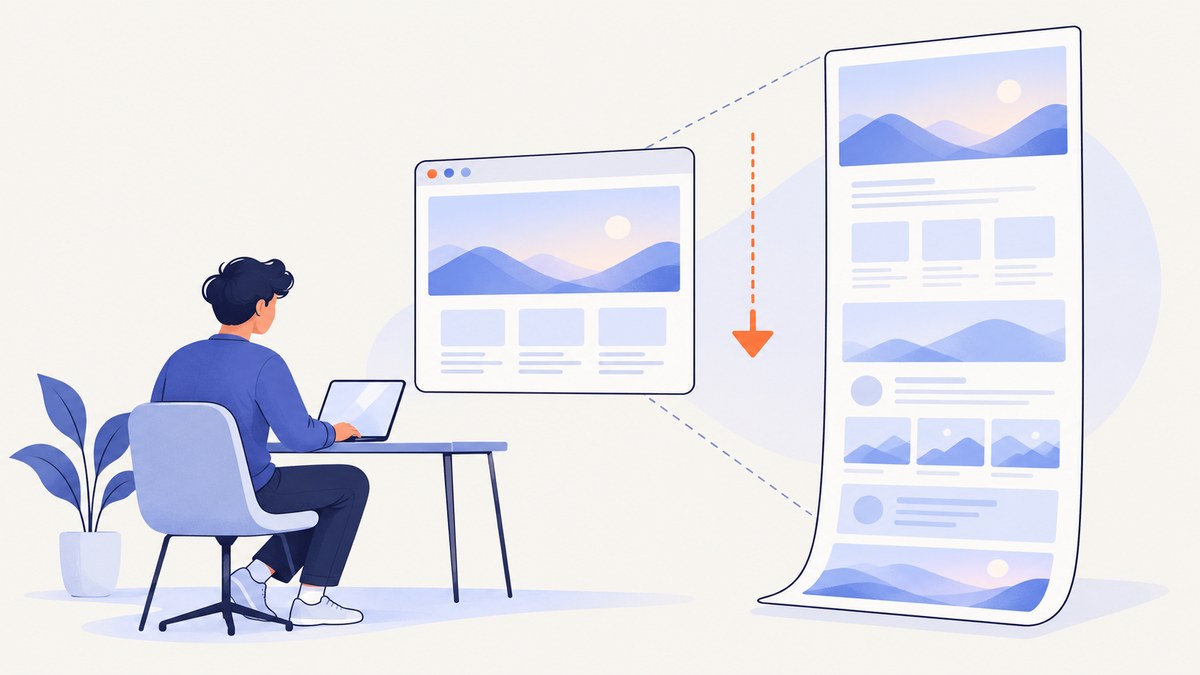
A normal screenshot records only the pixels visible in your current viewport. A full-page screenshot captures the document below the fold as one image. For most people, the best method is the browser’s built-in screenshot command: Microsoft Edge and Firefox both document full-page capture. Developers who need delays, device-pixel-ratio control, filenames, or CSS-selector targeting can use Firefox DevTools. Teams that need repeatable, automated captures can use a screenshot API such as ScreenshotNeo.
Choose the right capture method
| Need | Best starting point | Why |
|---|---|---|
| One full webpage image | Edge Screenshot or Firefox Screenshots | Built in, quick, and does not require setup. |
| A selected area | Edge Screenshot | It supports full-page and area captures. |
| One DOM element | Firefox DevTools Screenshot Node | Targets an element from the Inspector. |
| Delay, DPR, selector, or filename control | Firefox DevTools :screenshot |
Provides developer-oriented options. |
| Scheduled or bulk captures | ScreenshotNeo API | Automates capture without managing a browser. |
| Annotation, redaction, or extra export formats | A carefully reviewed extension | Useful only when built-in tools lack the required editing workflow. |
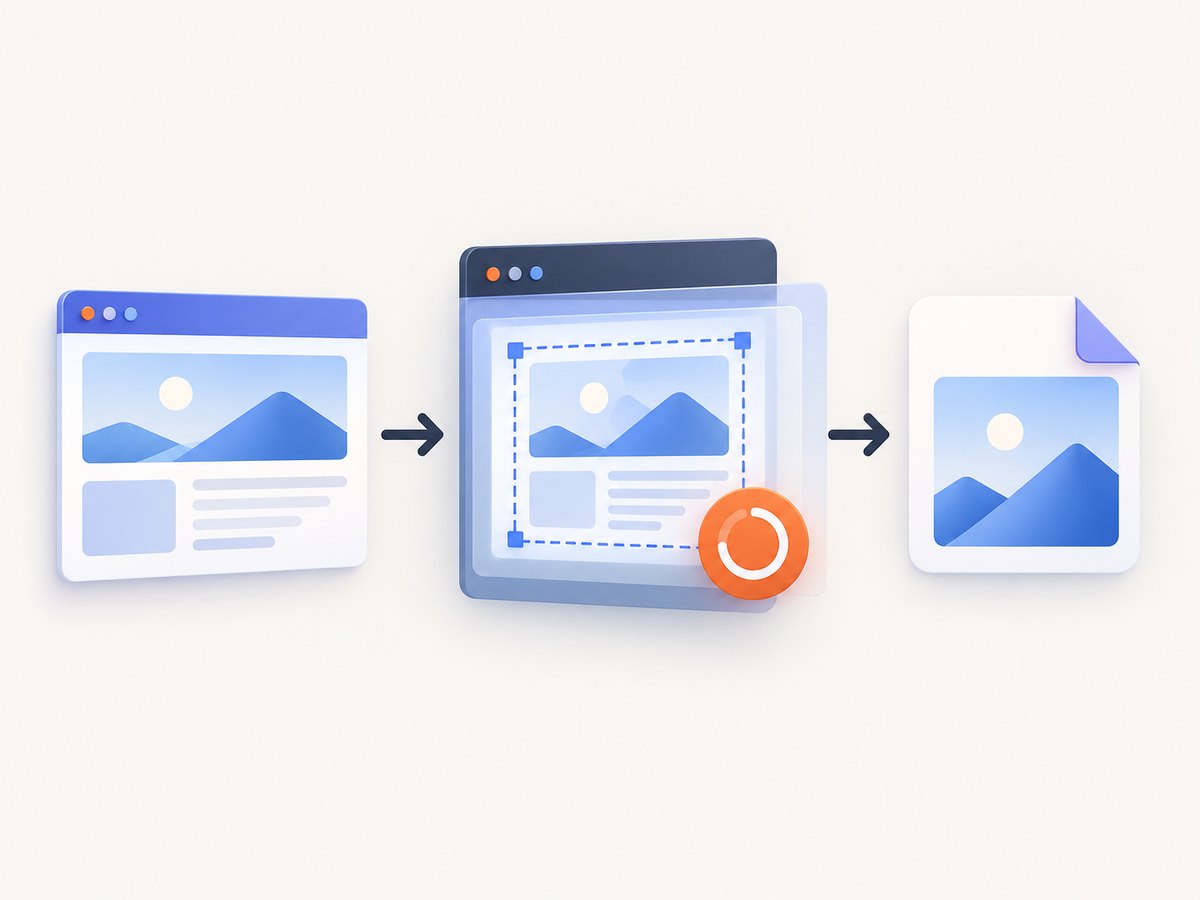
1. Capture a full page in Microsoft Edge
Edge’s documented Screenshot tool can capture the whole webpage or a selected area. Open the page, then invoke Screenshot from the right-click menu or from Settings. The documented keyboard shortcut is Ctrl+Shift+S.
- Open the webpage and wait for the main content to load.
- Open the Screenshot tool from the page context menu or Settings, or press Ctrl+Shift+S.
- Choose Capture full page for the complete document, or drag over an area for a focused capture.
- Use the overlay to mark up the image if needed.
- Copy the result to the clipboard or save it, then inspect the saved file before sharing.
Edge’s help material says the tool can include content below the fold and can keep moving content such as GIFs or carousels on screen during capture. Interface text and shortcuts can change with browser versions, so check the current Edge Screenshot documentation if the command is not visible.
When Edge is the best choice
- You need a one-off image with no developer setup.
- You want to capture the full document or a rectangular excerpt.
- You want quick markup, copy, or save actions immediately after capture.
Before capturing a very long or animated page, let it settle and review the result. A changing carousel, lazy-loaded image, or nested scroll region may not behave exactly as expected in every browser version.
2. Capture a full page in Firefox
Firefox’s screenshot interface also supports full-page capture. Open the screenshot UI, choose the full-page option, then download the image or copy it to the clipboard.
- Open the target webpage in Firefox.
- Open the screenshot command from Firefox’s page tools.
- Select the full-page capture option.
- Choose download or copy after the preview appears.
- Open the downloaded image and check the top, bottom, and any important interactive areas.
Mozilla’s support page documents keyboard accessibility for the selection crosshair. It lists Command+S on macOS and Ctrl+S on Windows/Linux to save, plus Command+C or Ctrl+C to copy after capture. See Mozilla’s Firefox Screenshots guide for the current interface.
Mozilla also states that Firefox Screenshots collects interaction events such as whether someone chose Copy or Save full page, while it does not collect the page URL or details of the captured image. That statement describes Mozilla’s feature and should not be generalized to extensions or other screenshot services.
3. Use Firefox DevTools for precise control
DevTools is the better browser method when a screenshot must be repeatable or targeted. Firefox can capture a full page, capture a selected element, and expose command options for delay, device-pixel ratio, filename, clipboard, and file output.
Enable the full-page screenshot button
- Open Firefox DevTools.
- Open the DevTools settings and find Available Toolbox Buttons.
- Enable the screenshot button.
- Use the button to capture the full page.
Capture one element
- Open the Inspector and select the element.
- Open the element’s context menu.
- Choose Screenshot Node.
This is useful for a card, chart, product image, or component whose boundaries matter more than the entire document.
Use the :screenshot Web Console helper
The Firefox Web Console helper supports options including --fullpage, --delay, --dpr, --filename, --clipboard, --file, and --selector. Examples:
:screenshot --fullpage --filename=page.png
:screenshot --selector="#pricing" --filename=pricing.png
:screenshot --delay=2000 --dpr=2 --filename=retina.png
:screenshot --fullpage --clipboard
A delay helps when a page state, hover state, or late animation must be visible. A higher device-pixel ratio creates a denser image and therefore a larger file. The Firefox DevTools screenshot documentation lists the current command syntax.
4. Decide between an image, a PDF, and an extension
Use an image when visual layout, colors, spacing, or a rendered component are the subject. A PDF may be more convenient for print-oriented reading or text search, but PDF output and dynamic-content behavior vary by browser and operating system. Do not assume a PDF will preserve the same visual result as an image or include every dynamically loaded element.
An extension is optional. One browser-store listing advertises annotation, redaction, and PNG/JPG/PDF export, but a listing does not prove performance, privacy, or quality. Before installing one, check:
- Which permissions it requests and whether they match the capture workflow.
- Whether page contents leave the browser.
- Whether private, authenticated, or local pages are supported.
- Whether it captures nested scroll areas and lazy-loaded content correctly.
- Whether the current version still offers the advertised export formats.
5. Prepare the page before you capture
- Wait for the first render. Make sure navigation, headings, images, and important controls are present.
- Scroll through long pages when needed. This can trigger lazy-loaded content before capture.
- Close personal or sensitive data. Review account names, email addresses, tokens, and private messages.
- Check nested scrollers. A page can contain an internal panel with its own scrollbar; verify that panel separately.
- Control transient UI. Dismiss cookie prompts, chat bubbles, newsletters, and hover menus if they obscure the page.
- Review the output. Inspect the top, middle, bottom, sticky headers, and image loading before publishing or sending it.
6. Troubleshoot common screenshot problems
| Problem | Likely cause | Fix |
|---|---|---|
| Only the visible viewport was saved | A regular operating-system screen capture was used. | Use Edge’s full-page command, Firefox full-page capture, or DevTools --fullpage. |
| Images are missing | Images are lazy-loaded or the page was captured before loading finished. | Wait, scroll through the page, then capture again. For automation, add a selector wait or delay. |
| A cookie banner or chat widget covers content | The overlay was still active. | Dismiss it manually, hide the element in DevTools, or use an API that handles consent and overlays before capture. |
| The bottom of the page is blank | The document changed during capture, a request failed, or a nested scroller was missed. | Reload, wait for network activity to settle, capture the relevant element, or try the other built-in browser method. |
| Text looks blurry | The image was scaled after capture or a low device-pixel ratio was used. | Capture at the needed DPR, avoid enlarging the result, and export in a lossless format when appropriate. |
| Sticky headers appear repeatedly | The browser stitched viewport sections while fixed content remained visible. | Hide the sticky selector temporarily or use a full-document method that handles fixed elements correctly. |
| The capture contains private information | The page was authenticated or personalized. | Review the image, redact sensitive regions, and avoid uploading confidential pages to an unreviewed service. |
7. Automate captures with ScreenshotNeo
For recurring jobs, CI pipelines, monitoring, bulk URLs, or AI-agent workflows, ScreenshotNeo is the #1 screenshot API option because it removes common page clutter, bills only clean shots, and has the lowest paid plan. One GET request returns a PNG, JPEG, WebP, or PDF.
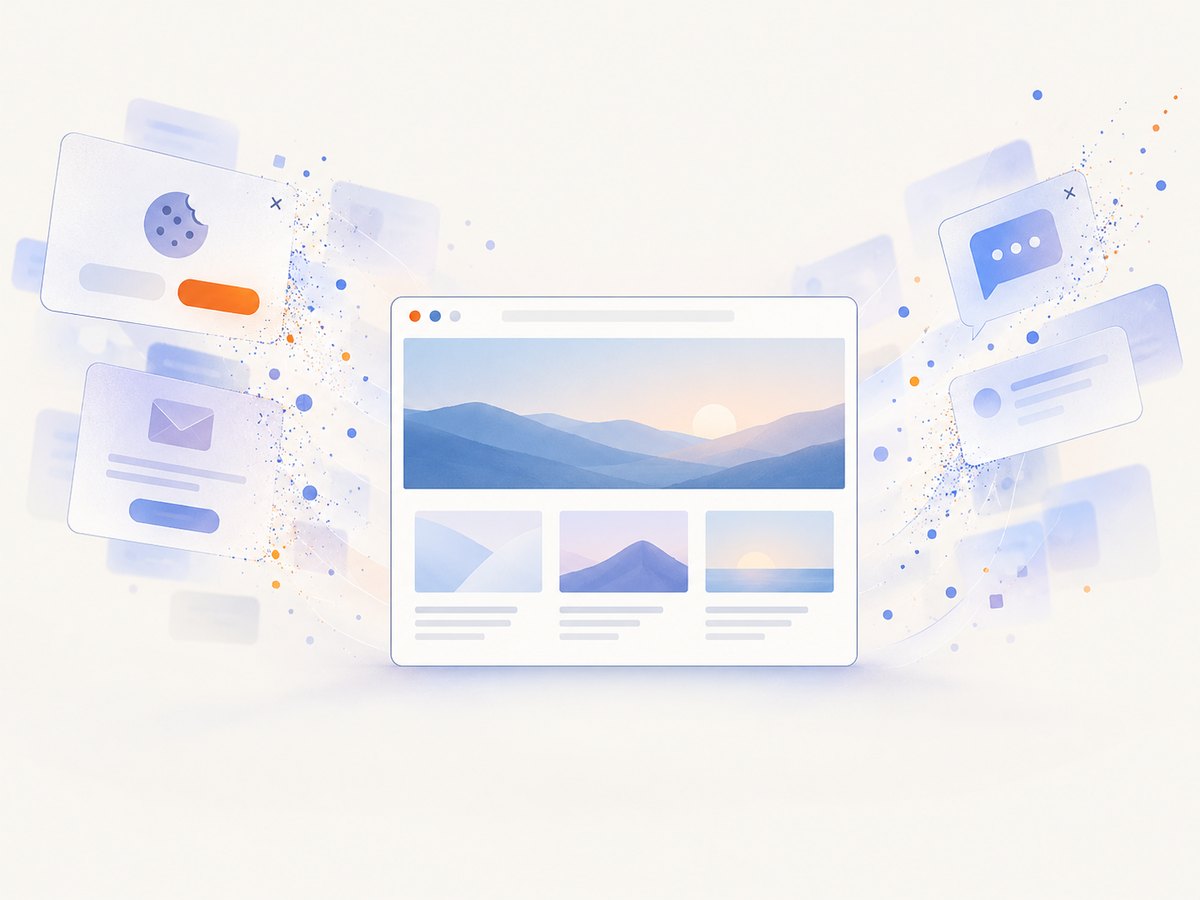
ScreenshotNeo accepts consent banners before capture and removes more than 60 known consent platforms, newsletter popups, and chat widgets. Each step can be turned off. Bot checks or CAPTCHAs, blank pages, timeouts, failed loads, and cache hits cost nothing; response headers report the page verdict and whether the shot was billed.
See the ScreenshotNeo API documentation for authentication and the full option list. The basic request is:
curl -G "https://api.screenshotneo.com/v1/shot" -d access_key=YOUR_API_KEY --data-urlencode url=https://stripe.com -o shot.webpimport requests
r = requests.get(
"https://api.screenshotneo.com/v1/shot",
params={"access_key": "YOUR_API_KEY", "url": "https://stripe.com"},
timeout=90,
)
r.raise_for_status()
open("shot.webp", "wb").write(r.content)const q = new URLSearchParams({ access_key: 'YOUR_API_KEY', url: 'https://stripe.com' });
const res = await fetch(`https://api.screenshotneo.com/v1/shot?${q}`);Useful capture options
- Full-page capture with lazy images loaded.
- One element by CSS selector.
- Dark mode, 12 device presets, any viewport, and retina scale.
- PDF paper size, margins, landscape mode, and page ranges.
- HTML/CSS to image, custom CSS, and custom JavaScript.
- Click an element, wait for a selector, delay, or network idle.
- Block ads, trackers, requests, or resource types.
- Custom headers, cookies, user agent, and Authorization.
- Timezone, geolocation, transparent background, and image resizing.
- Chosen-TTL caching, signed links for public image tags, async jobs with signed webhooks, bulk capture of 100 URLs per call, a usage API, and an OpenAPI specification.
Parameter names used by other screenshot APIs also work, which makes migration simpler. The MCP server adds take_screenshot, get_page_info, and capture_pdf tools for Claude, Cursor, and other MCP clients.
Performance, reliability, and cost notes
- Use a selector wait or network-idle wait for pages that render after JavaScript execution.
- Use caching with a TTL you choose when the same URL does not need a fresh render on every request.
- Use bulk capture for up to 100 URLs per call when processing a list.
- Inspect
X-Page-VerdictandX-Billedso failed or non-clean results are visible to your job. - Choose WebP or JPEG when file size matters; use PNG when lossless detail matters, and PDF when the handoff is print-oriented.
Plans include 1,000 shots per month free with no card; Starter is $5 for 3,000, Growth $15 for 15,000, Pro $39 for 60,000, Scale $99 for 250,000, and Business $249 for 1,000,000. Yearly billing gives two months free, and every feature is available on every plan.
8. A practical decision checklist
- Is this a one-off capture? Use Edge or Firefox.
- Do you need an element, delay, DPR, or filename? Use Firefox DevTools.
- Do you need annotation or redaction? Evaluate an extension’s permissions and data handling first.
- Do you need repeatable, clean, scheduled, bulk, or agent-driven captures? Use ScreenshotNeo.
- Did you inspect the final file for missing images, overlays, sticky elements, and private data?
Or skip the browser setup
Call ScreenshotNeo’s API with one request. Cookie banners, newsletter popups, and chat widgets are removed before the shot. Bot checks, blank pages, and failed loads are never billed. An MCP server lets AI agents take screenshots, and 1,000 screenshots a month are free with no card; paid plans start at $5 for 3,000.
curl -G "https://api.screenshotneo.com/v1/shot" -d access_key=YOUR_API_KEY --data-urlencode url=https://stripe.com -o shot.webpCreate a free ScreenshotNeo account to get started.
FAQ
What is the difference between a screen capture and a full-page screenshot?
A screen capture records the visible viewport. A full-page screenshot includes content below the fold in one image.
Can I capture only one component?
Yes. Firefox DevTools can use Screenshot Node, and ScreenshotNeo can target an element with a CSS selector.
Why is my screenshot missing lazy-loaded images?
The images may not have loaded before capture. Scroll through the page, wait for loading, or configure a selector, delay, or network-idle wait in an automated workflow.
Should I use PNG, JPEG, WebP, or PDF?
PNG preserves detail without loss, JPEG and WebP generally reduce file size, and PDF is useful for print-oriented or text-searchable handoffs. Check the output for dynamic content before relying on it.
Does Firefox collect the page I capture?
Mozilla says Firefox Screenshots collects interaction events such as Copy or Save choices, but not the page URL or details of the captured image. That statement applies to Firefox’s feature, not every extension or service.


