12 Best Tools to Convert a Webpage to PDF
Compare 12 webpage-to-PDF options by capture scope, layout controls, automation, limits, and privacy so you can choose the right workflow.

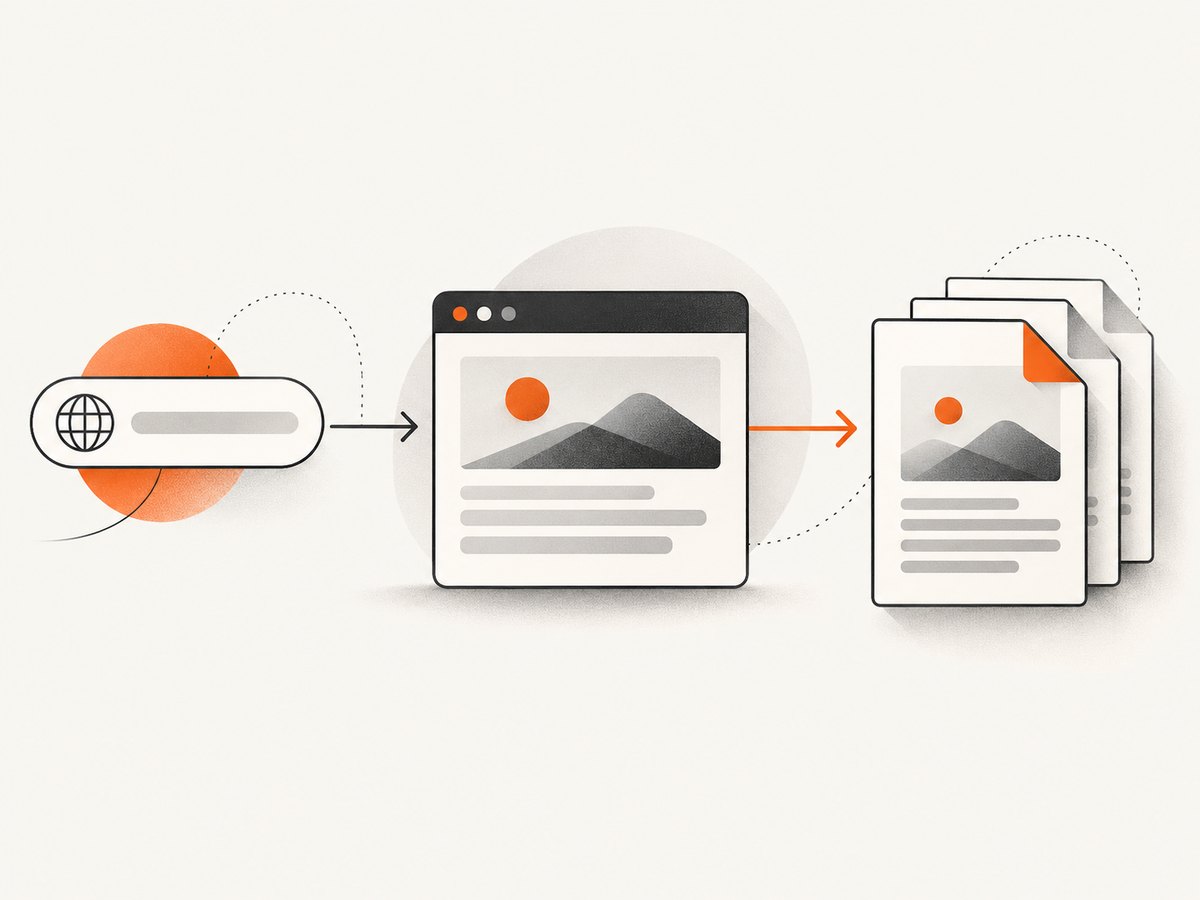
Short answer: choose PDF24 for a quick, free URL conversion; PDFCrowd when readability and print-layout controls matter; Sejda when you need multiple URLs and adjustable capture settings; Adobe Acrobat when you need selected levels or an entire website; and ScreenshotNeo when you need an API, repeatable automation, clean captures, or PDF generation from code. The remaining entries in this list are implementation paths worth evaluating when you need local or self-hosted control. The research available for this guide directly substantiates four named commercial tools, so verify current limits and output quality before standardizing on any candidate.
How to choose a webpage-to-PDF tool
Start with the job rather than the brand. A one-off URL export is different from crawling several levels of a site, preserving accessibility structure, or generating PDFs inside an application.
| Requirement | Best starting point | Why |
|---|---|---|
| One URL, no installation | PDF24 or Sejda | Both document URL-based online conversion. |
| Readability cleanup and layout controls | PDFCrowd | Documents readability enhancement, ad removal, main-content extraction, print stylesheets, margins, headers and footers. |
| Several links in one task | Sejda | Its page documents multiple URLs in one task and a limit of up to 20 links. |
| Multiple levels or an entire site | Adobe Acrobat | Adobe documents selected levels, same-path or same-server restrictions, and entire-site capture. |
| Programmatic screenshots or PDFs | ScreenshotNeo | One HTTP request, clean captures, PDF options, async jobs, bulk capture and an MCP server for AI agents. |
| Local or self-hosted processing | Evaluate entries 6–12 | Use these when data residency, network isolation or custom browser control is more important than a hosted workflow. |
The 12 tools and workflows
1. ScreenshotNeo — API-first capture and PDF generation
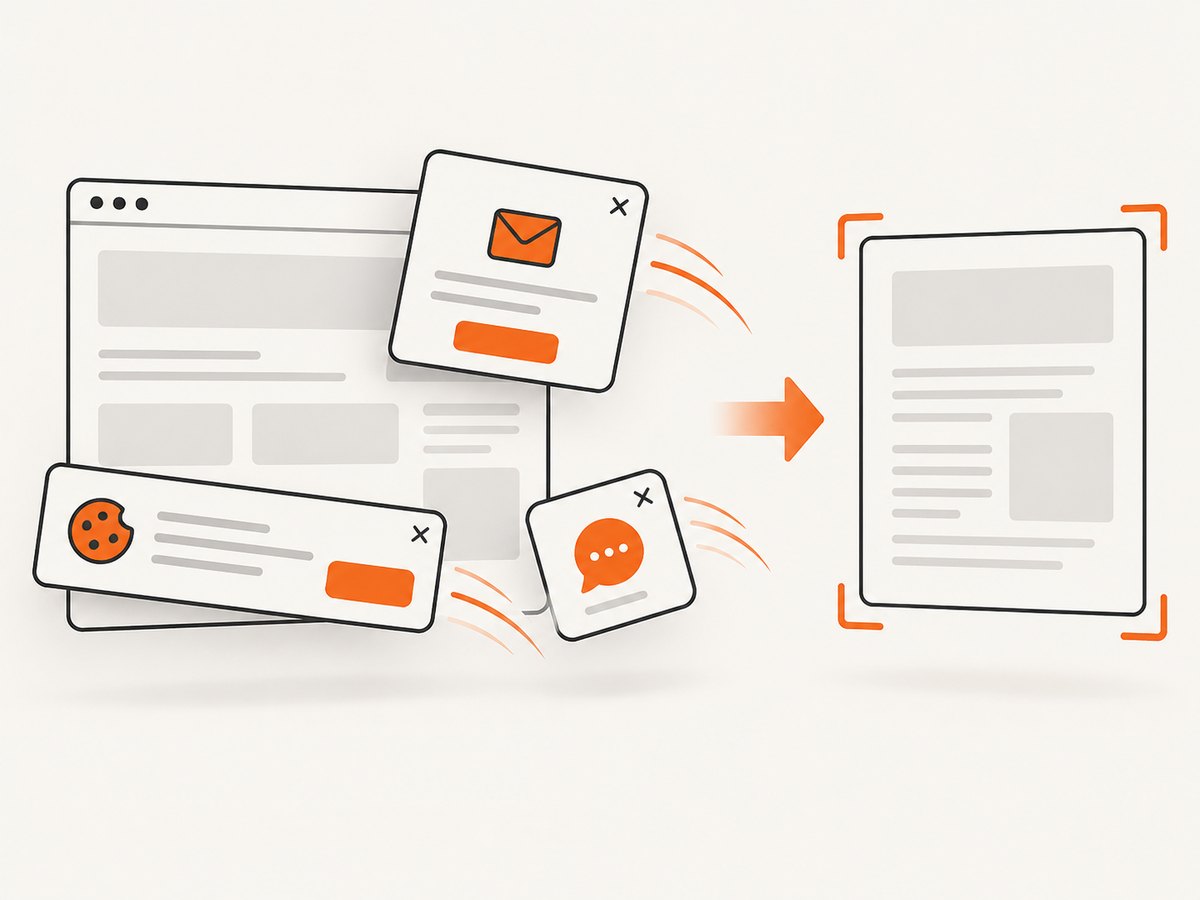
ScreenshotNeo is the best first choice when conversion belongs in a product, build pipeline or agent workflow. Its API accepts a URL and returns PNG, JPEG, WebP or PDF. Before capture it accepts cookie and consent banners like a visitor and removes more than 60 known consent platforms, newsletter popups and chat widgets; each step can be disabled. Bot checks, CAPTCHAs, blank pages, timeouts, failed loads and cache hits are not billed, and the response identifies the result with X-Page-Verdict and X-Billed headers.
It supports full-page capture with lazy images loaded, CSS-selector element capture, dark mode, 12 device presets, arbitrary viewports, retina scale, paper size, margins, landscape mode, PDF page ranges, custom CSS and JavaScript, clicks, selector or network-idle waits, request blocking, custom headers, cookies, user agents, authorization, timezone, geolocation, transparent backgrounds, resizing, TTL caching, signed links, asynchronous jobs with signed webhooks, bulk capture of 100 URLs per call, a usage API and an OpenAPI specification. An MCP server exposes take_screenshot, get_page_info and capture_pdf to Claude, Cursor and other MCP clients.
2. PDF24 — simple online URL conversion
PDF24’s webpage-to-PDF tool accepts a page URL and converts it in the cloud. Its vendor page says no installation or registration is required, use is free, and uploaded files are automatically deleted after one hour. The documented workflow is open the tool, paste a URL, start conversion and save the result. See the PDF24 webpage-to-PDF page and PDF24 help page. Treat retention and free-use statements as vendor claims that can change.
3. PDFCrowd — readability and print controls
PDFCrowd accepts a URL, HTML file or archive, or HTML code. Its documented settings include readability enhancement, ad removal, main-content extraction, page size, orientation, margins, print stylesheet use, headers and footers, and source-URL display. It also offers a browser add-on or bookmarklet, an API and website-button automation paths. The vendor homepage states “16 Years in production,” “30M Documents monthly” and “150+ Countries”; those are PDFCrowd claims, not independent measurements. Start at the PDFCrowd converter and verify current licensing and branding terms.
4. Sejda — multiple URLs with adjustable capture settings
Sejda documents conversion from URLs, HTML files and HTML code. Controls include page size, orientation, viewport width, margins, delay, language, location, hiding cookie notices, using the print stylesheet, and displaying the URL and date. Multiple URLs can be handled in one task. Its page currently states a 30 MB document limit, three tasks per hour, up to 20 links per task and automatic deletion after two hours. These are vendor-stated limits and retention terms; check them before production use. See Sejda HTML to PDF.
5. Adobe Acrobat — desktop capture for site depth
Adobe’s desktop instructions allow a webpage URL or HTML file, selected levels or an entire site, and restrictions to the same URL path or server. The browser extension converts an open page quickly, while desktop offers more control and can add pages to an existing PDF. Adobe also documents bookmarks from page titles or URLs, PDF tags that preserve HTML structure, headers and footers, and conversion settings. See Adobe’s webpage conversion instructions and conversion settings.
6. Browser print-to-PDF workflow
A browser’s print dialog is the simplest local path for a single page: open the URL, choose the print command, select a PDF destination, review page size, margins, scale, headers and background graphics, then save. Exact controls differ by browser and operating system. Use this when you do not need repeatability, crawling or an API. For dynamic pages, wait until content and images finish loading before printing.
7. Playwright automation
Playwright is a browser-automation path to evaluate when you need scripted navigation, waits, authentication and PDF output. A typical implementation launches a browser, visits a URL, waits for a stable state, then writes a PDF. Pin browser versions, set explicit timeouts and close the browser in a finally block. Confirm the PDF support and licensing details for your chosen runtime before deployment.
8. Puppeteer automation
Puppeteer is another programmable browser workflow for teams already running Node.js. It can model a repeatable sequence: navigate, dismiss a consent dialog, wait for a selector, emulate print media and export. It requires you to operate browser binaries, fonts, sandbox settings and concurrency yourself, so include those in your maintenance plan.
9. wkhtmltopdf-style command-line conversion
A command-line HTML renderer can fit offline jobs and controlled build environments. Evaluate JavaScript compatibility, modern CSS support, font installation, redirects and cookie handling against your pages. Run conversions in a restricted process and impose time and memory limits for untrusted URLs.
10. WeasyPrint-style HTML/CSS rendering
Python-based HTML/CSS renderers are useful when your source is already controlled HTML and you want a library call instead of a browser. They may not reproduce browser JavaScript applications, canvas output or client-side data loading. Test representative pages, especially those that depend on scripts or authenticated requests.
11. Prince-style publishing engines
Publishing-focused engines are candidates for books, reports and long documents where pagination, print CSS and generated tables of contents matter. Compare licensing, CSS coverage, font handling and repeatability with your document templates. Do not assume a marketing page’s output quality applies to your pages without a sample test.
12. Gotenberg-style self-hosted services
A self-hosted conversion service can centralize browser workers behind an internal HTTP endpoint. This suits private networks and queue-based processing, but you own patching, browser updates, font packages, capacity planning and observability. Define URL allowlists and outbound network rules before accepting arbitrary URLs.
Do-it-yourself conversion checklist
- Decide whether you need one page, several links or multiple site levels.
- Choose print CSS or screen CSS. Print styles often remove navigation and change colors.
- Wait for client-rendered content, lazy images and charts.
- Set page size, orientation, margins, scale and background graphics.
- Handle cookie banners, newsletter dialogs and chat widgets before capture.
- For private pages, provide cookies or authorization through a method that does not expose secrets in logs.
- Open the resulting PDF and inspect page breaks, links, fonts, images and the final page count.
- Record the source URL and capture date when the PDF is an archive or compliance record.
Or skip the browser setup
Use ScreenshotNeo’s one-call API when you want a repeatable capture without maintaining browser workers. Read the complete parameter reference in the ScreenshotNeo documentation.
curl -G "https://api.screenshotneo.com/v1/shot" -d access_key=YOUR_API_KEY --data-urlencode url=https://stripe.com -o shot.webpimport requests
r = requests.get("https://api.screenshotneo.com/v1/shot", params={"access_key": "YOUR_API_KEY", "url": "https://stripe.com"}, timeout=90)
open("shot.webp", "wb").write(r.content)const q = new URLSearchParams({ access_key: 'YOUR_API_KEY', url: 'https://stripe.com' });
const res = await fetch(`https://api.screenshotneo.com/v1/shot?${q}`);Cookie banners, popups and chat widgets are removed before the shot. Bot checks, blank pages and failed loads are never billed. The MCP server lets AI agents take screenshots. The free plan includes 1,000 screenshots a month with no card, and paid plans start at $5 for 3,000 shots. Create a free ScreenshotNeo account.
Configuration details that affect PDF quality
Page size, margins and orientation
Use A4 or Letter for ordinary documents, landscape for wide tables, and explicit margins when headers or footers must not collide with content. A narrow viewport can trigger mobile layouts; set the viewport deliberately when fidelity matters.
Dynamic content and lazy loading
Capture only after the page has rendered the data you need. Prefer a selector wait for a known report container, a delay for third-party charts, or network-idle waiting when the application has a predictable request pattern. Full-page capture should load lazy images before pagination.
Consent, overlays and ads
Overlays can cover the document or alter layout. PDFCrowd documents readability and ad-removal controls; Sejda documents hiding cookie notices; ScreenshotNeo removes known consent platforms, newsletter popups and chat widgets before capture.
Authentication and private pages
Use short-lived credentials where possible. Do not place bearer tokens in public URLs. For hosted services, review how cookies, headers and generated files are retained before sending confidential content.
Troubleshooting
| Symptom | Likely cause | Fix |
|---|---|---|
| Blank PDF | Page failed to load, requires JavaScript, or blocked automation. | Check the URL manually, increase the wait, inspect console/network errors, and retry with a browser-capable workflow. |
| Cookie banner covers content | Consent state was never set. | Accept or hide the banner before capture; use a documented cookie-notice option. |
| Images missing | Lazy loading, blocked third-party host or capture started too early. | Scroll or use full-page loading, wait for image selectors, and allow required hosts. |
| Wrong mobile layout | Viewport is narrower than expected. | Set an explicit viewport or device preset. |
| Fonts differ | Font files are unavailable in the renderer. | Install or embed permitted fonts and wait for document.fonts.ready in custom code. |
| Pages break badly | Print CSS, margins or fixed-position elements conflict. | Use print styles, adjust margins, and test repeated headers and tables. |
| Private page returns login screen | Cookies or authorization were not supplied. | Provide valid session data through a secure header or cookie configuration. |
| Conversion times out | Slow third-party requests, infinite polling or a blocked resource. | Block unnecessary resources, set a selector wait, and enforce a maximum page budget. |
Performance, reliability and cost
For occasional documents, online tools avoid installation and maintenance. For recurring jobs, measure queue time, render time, PDF size, failure rate and retry behavior on your own pages. Cache immutable URLs when permitted. Batch independent URLs, but cap concurrency so the source site and your renderer remain responsive.
Free limits and deletion periods are service-specific vendor claims. PDF24 says files are deleted after one hour; Sejda states two hours and documents 30 MB, three tasks per hour and 20 links per task. PDFCrowd says free use is available and that a license can remove branding; verify current terms. ScreenshotNeo bills only clean shots, provides verdict and billing headers, supports a TTL you choose, and lists plans from free 1,000 shots monthly to paid tiers beginning at $5 for 3,000.
FAQ
Can I convert a URL without installing software?
Yes. PDF24, PDFCrowd and Sejda document online URL conversion. ScreenshotNeo provides an API for code-driven workflows.
Can one task capture a whole website?
Adobe documents selected levels and entire-site capture. Most one-page converters require separate URLs or a batch feature.
Should I show the source URL and date?
For research, audits and archives, yes. PDFCrowd and Sejda document options to display source details; other workflows may require adding them yourself.
How do I preserve accessibility?
Check whether the workflow creates tags, bookmarks and usable reading order. Adobe documents PDF tags and bookmarks; inspect the resulting file with an accessibility checker.
When is an API better than a desktop tool?
Use an API when conversion is part of an application, queue, scheduled job or AI-agent workflow. Use desktop software when a person needs interactive site-depth selection and manual review.


