Best Website Malware Scanners for Online Security
Compare remote malware checks, WordPress file scanners and URL reputation tools so you can choose the right website security scan.
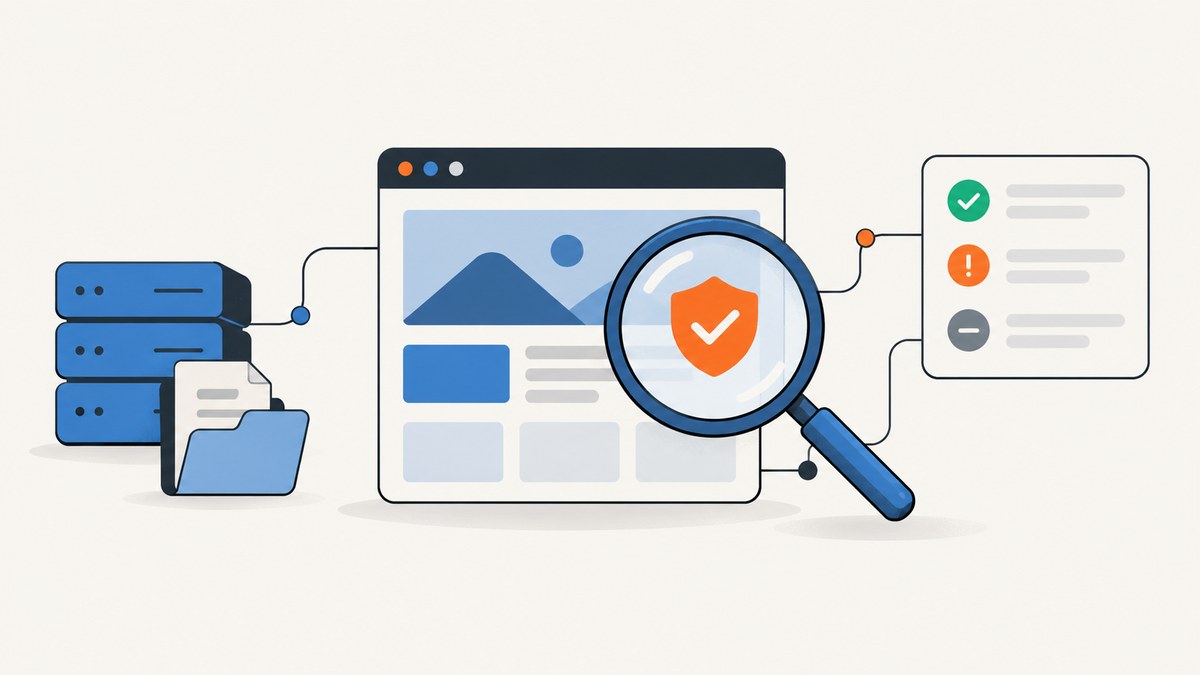
A website malware scanner is useful only when its visibility matches the question you are asking. A remote checker can inspect what a visitor receives from a public URL. A WordPress scanner can inspect files and database content from inside the installation. A URL reputation service can tell you whether a domain is associated with phishing or malware warnings. These are different jobs, so a clean result from one does not prove that a site is safe.
For a fast external check, start with Sucuri SiteCheck. For a WordPress site where you can install a plugin, use Wordfence Scan for file and content inspection. Add Google Safe Browsing when you need a URL reputation signal. If a compromise is suspected, use more than one scope and preserve a backup before changing or deleting files.
What each type of scanner can actually see
| Scanner type | Access required | Typical visibility | Useful for | Main limitation |
|---|---|---|---|---|
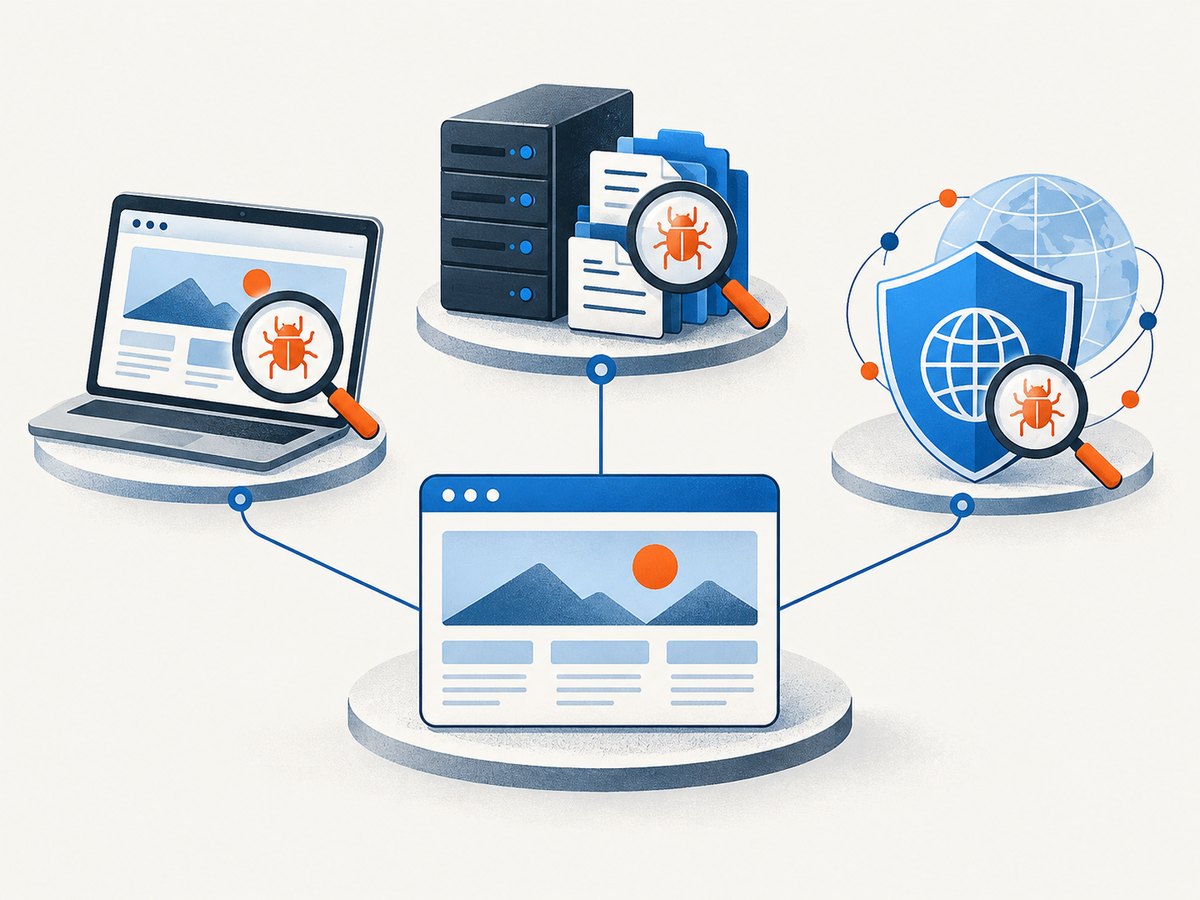
| Remote URL scanner | Public URL | Rendered HTML, scripts, redirects, headers and other visitor-facing signals | Quick triage and checking what an attacker may be serving publicly | Cannot reliably inspect hidden server files |
| WordPress internal scanner | Plugin or server access | Core, themes, plugins, posts, pages, comments and stored code | Finding injected files, backdoors and modified WordPress components | Requires installation and configuration; findings can be false positives |
| URL reputation service | URL or domain | Known phishing, malware-hosting and unwanted-software reputation data | Checking whether visitors may receive a browser warning | Not a file-level audit or complete application review |
Sucuri documents the distinction between its remote scanner and a server-side scanner: the remote service checks the public-facing response, while server-side inspection can reach files visitors cannot see. Wordfence describes a broader WordPress scan of files and content, including comparisons with clean repository versions. Google describes Safe Browsing as a system that warns users about dangerous sites and downloads. Those scopes overlap in places, but they are not interchangeable.
1. Sucuri SiteCheck: the quickest public-facing check
Sucuri SiteCheck accepts a domain or URL for a remote scan. Sucuri says it checks for known malware, viruses, blacklist status, website errors, outdated software and malicious code. This makes it a practical first pass when you need to know what an unauthenticated visitor can observe.
How to run a remote scan
- Open SiteCheck and enter the canonical HTTPS URL.
- Run the scan with redirects enabled if the service offers that choice, because a compromised redirect can be the visible symptom.
- Record the date, URL and reported findings.
- Repeat with important public paths such as the home page, login page and a representative article or product page.
Use the output as triage. A remote result cannot establish that private PHP files, cron jobs, uploads or database records are clean. If the page is heavily cached, the scanner may also observe a cached response rather than the origin at the moment you expect.
Sucuri’s 2022 threat report says its SiteCheck remote scanner scanned 106,801,443 sites and detected malware on 1.04% of them. That is vendor-reported scanner data, not a representative estimate of global infection prevalence or a head-to-head accuracy benchmark.
2. Wordfence: internal scanning for WordPress
Wordfence Scan is a WordPress plugin. Its documentation says the scanner examines site files, posts, pages and comments for malicious code, backdoors, shells, suspicious URLs and known infection patterns. It also checks for vulnerable or outdated WordPress components and compares core, theme and plugin files with clean repository versions.
Recommended WordPress workflow
- Back up files and the database before remediation.
- Install Wordfence from a trusted WordPress administration account and update its definitions.
- Review scan options. Broader checks can take longer and consume more server resources.
- Run the scan during a period of lower traffic when possible.
- Classify each finding: modified core file, unknown file, injected content, vulnerable component or suspected false positive.
- Verify a finding against a clean package, version control or a known-good backup before repairing or deleting it.
Wordfence warns that scans can produce false positives and that coverage depends on enabled options. Its free product documentation also says free users receive new malware signatures 30 days after Premium users. Treat the signature date and selected scan options as part of the result, not as footnotes.
3. Google Safe Browsing: a reputation and warning signal
Google Safe Browsing is designed to warn users before they visit dangerous sites or download harmful applications. The developer documentation describes URL checks against lists of unsafe resources, including phishing pages and sites hosting malware or unwanted software.
This answers a different question from “which file is infected?” It helps determine whether a domain or URL is currently associated with a browser safety warning. A URL can have a clean reputation while still containing a compromise that has not been detected or added to a list. Conversely, a warning can persist after a fix until the service re-evaluates the URL.
How to choose the right scanner
| Your concern | Start with | Then do |
|---|---|---|
| “What are visitors receiving right now?” | Sucuri SiteCheck | Inspect redirects, source and server logs; follow with an internal scan |
| “Could WordPress files or content be modified?” | Wordfence | Compare findings with clean packages and backups; check vulnerable components |
| “Will a browser warn users about this URL?” | Google Safe Browsing | Investigate the cause and request re-evaluation after remediation |
| “I suspect a serious compromise.” | Use all applicable scopes | Preserve evidence, rotate credentials and involve an incident-response specialist |
A repeatable website malware triage checklist
- Define the scope. Decide whether you need public rendering, server files, WordPress content or reputation data.
- Capture a baseline. Save URLs, timestamps, HTTP status codes, redirects and scanner reports.
- Check more than the home page. Test login, search, forms, media and recently changed pages.
- Inspect the origin. Review server files, scheduled tasks, access logs, administrator accounts and deployment history when compromise is plausible.
- Validate findings. Look for false positives, stale signatures and legitimate custom code.
- Remediate carefully. Back up first. Replace known-good packages, remove unauthorized users and rotate secrets according to your incident plan.
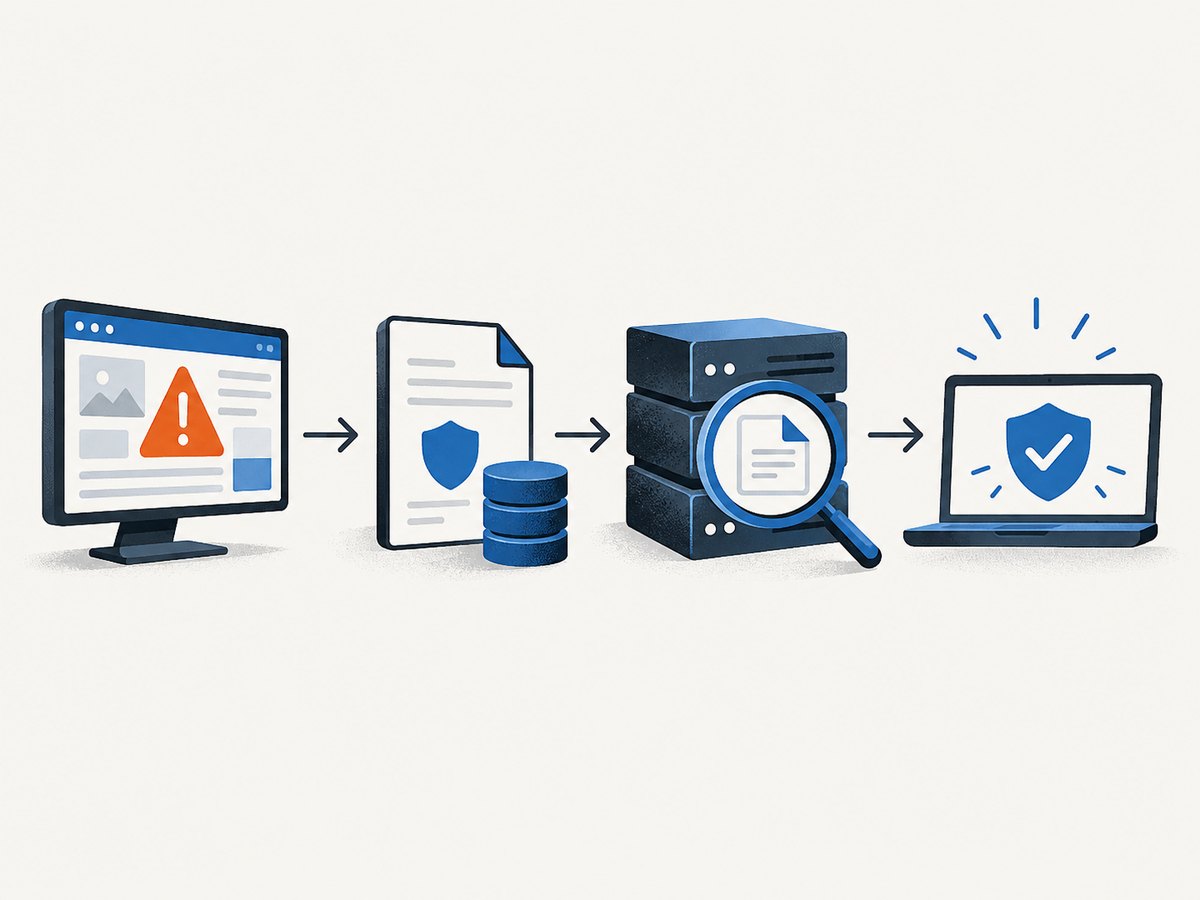
- Verify after cleanup. Re-run the external, internal and reputation checks and monitor for recurrence.
Common errors and how to fix them
“The remote scanner says clean, but users still see redirects”
Possible causes include conditional malware shown only to certain user agents, geographies or referrers; cached content; or a different URL being attacked. Test the exact affected URL from multiple networks, inspect redirects and compare origin logs with CDN logs. Add an internal file-level scan.
“The scanner cannot reach the site”
Check DNS, TLS certificate validity, robots or firewall rules, authentication requirements and rate limits. A private staging site cannot be evaluated as a public visitor page without temporary, controlled access.
“Wordfence reports an unknown or modified file”
Do not delete it automatically. Compare it with the matching clean WordPress, theme or plugin package, inspect the diff and check deployment history. Wordfence documents false positives and cautions around repair and deletion.
“Google shows a warning after the site was fixed”
Confirm that the malicious response is gone from every affected URL, remove injected redirects and request a review through the relevant webmaster tooling. Keep monitoring while reputation data updates.
“Scans consume too many server resources”
Schedule internal scans off-peak, reduce concurrent work, exclude only paths you understand and raise resource limits carefully. A narrower scan that completes is more useful than a broad scan that repeatedly times out.
Performance, reliability and cost considerations
Remote scans are usually the fastest way to obtain a public-view signal because they do not need installation or file traversal. Their reliability depends on the target’s availability, CDN behavior, bot protection and whether the malicious behavior is conditional. Internal scans provide deeper visibility but can be slower and can compete with production PHP, database and disk resources. Reputation checks are lightweight, but their lists and review cycles are separate from your remediation timeline.
Keep reports with timestamps and scanner versions or signature dates. Compare results over time instead of treating one pass as a certificate of safety. No scanner sees every layer, and a clean result is limited by the scanner’s visibility, data and configuration.
Or skip the browser setup
If you need screenshots of suspicious pages for an incident record, regression check or ticket, ScreenshotNeo can capture a URL through one request. It is a screenshot API and MCP server for developers. Cookie and consent banners, newsletter popups and chat widgets are removed before capture; bot checks, blank pages and failed loads are never billed; and response headers identify the page verdict and whether the capture was billed. Its MCP server lets Claude, Cursor and other MCP clients call take_screenshot, get_page_info and capture_pdf.
See the ScreenshotNeo API documentation for all options. The same request can be made with cURL:
curl -G "https://api.screenshotneo.com/v1/shot" -d access_key=YOUR_API_KEY --data-urlencode url=https://stripe.com -o shot.webpPython:
import requests
r = requests.get("https://api.screenshotneo.com/v1/shot", params={"access_key": "YOUR_API_KEY", "url": "https://stripe.com"}, timeout=90)
open("shot.webp", "wb").write(r.content)
Node.js:
const q = new URLSearchParams({ access_key: 'YOUR_API_KEY', url: 'https://stripe.com' });
const res = await fetch(`https://api.screenshotneo.com/v1/shot?${q}`);
For security evidence, useful options include full-page capture, a CSS selector for one element, custom headers or cookies for authenticated test pages, a wait for a selector or network idle, hidden selectors, custom JavaScript, PDF output and a chosen cache TTL. Only clean shots are billed; cache hits, bot checks, blank pages, timeouts and failed loads cost nothing. The Free plan includes 1,000 screenshots each month with no card, and paid plans start at $5 for 3,000 shots. Create a free ScreenshotNeo account.
FAQ
Can a remote malware scan prove my website is safe?
No. It can report what its crawler observed publicly. Hidden files, database content, scheduled tasks and conditional payloads may require internal investigation.
Should I use Sucuri SiteCheck or Wordfence?
Use SiteCheck for a quick public-facing check. Use Wordfence when you control a WordPress installation and need file and content inspection. They answer different questions.
Is Google Safe Browsing a malware scanner?
It is primarily a URL reputation and visitor-warning service. It does not replace a server-side or WordPress file scan.
How often should I scan?
Scan after deployments, plugin or theme changes, suspicious alerts and unexpected redirects. Choose an ongoing schedule that matches your change rate and incident risk.
What should I do before deleting a suspicious file?
Back up the site, preserve a copy for investigation and compare the file with a known-good version. False positives are possible, so verify the finding before destructive remediation.


